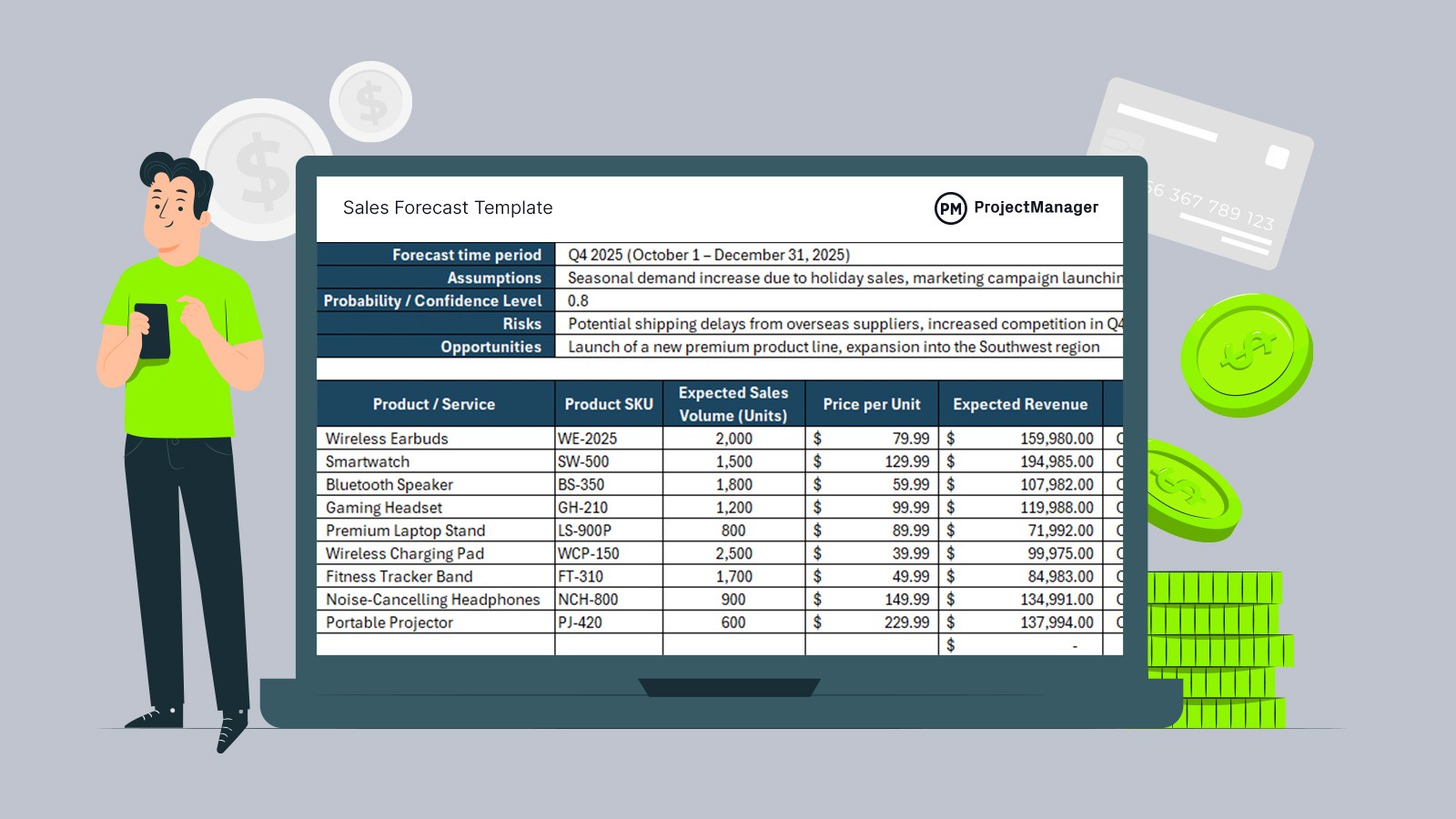
Picture this: you're building a financial model, trying to predict next quarter's revenue, and you're staring at rows of historical data, wondering what comes next. Whether you're searching for the best AI for financial modeling or simply need reliable forecasting techniques, Excel's built-in forecast functions remain powerful tools that most professionals underuse. This article will walk you through 7 practical ways to use forecasts in Excel, and you'll master them in just 30 minutes.
What if you could combine Excel's forecasting capabilities with intelligent automation that understands your data patterns? Numerous's spreadsheet AI tool transforms how you approach prediction tasks, letting you generate accurate forecasts without memorizing complex formulas or spending hours on manual calculations. Instead of wrestling with FORECAST.LINEAR, FORECAST.ETS, or trend analysis functions, you can ask questions in plain language and get instant results that help you build better financial models, sales projections, and demand planning spreadsheets.
Table of Contents
Why Finance Teams Struggle to Forecast Data in Excel
The Hidden Cost of Forecasting Without a Clear Method
7 Ways to Use Forecast in Excel in 30 Minutes
The 30-Minute Workflow to Build Forecasts Faster in Excel
Build Forecasts Faster With Numerous
Summary
Excel's built-in forecasting functions remain powerful tools that most professionals underuse, but the real barrier isn't technical capability. Finance teams struggle because forecasting depends on clean historical data, clearly defined methods, and separate assumptions. When any of these elements break down, the forecast becomes unreliable.
Forecasting without a clear method creates hidden costs beyond inaccurate numbers. The model demands constant maintenance, resists collaboration, and quietly erodes trust in the analysis itself. Research shows companies with robust forecasting methods see 15% higher profitability, not because their predictions are perfect, but because their decision-making process operates on consistent, defensible assumptions.
The fastest path to reliable forecasting isn't complexity; it's clean data, clear methods, and separated assumptions. Excel's FORECAST.ETS function builds forecasts with 95% confidence intervals, showing not just the predicted value but the range of likely outcomes by automatically analyzing historical data and detecting recurring patterns.
Most teams don't fail because their forecasting methods are too simple; they fail because their models lack structure. Assumptions hide in formulas, methods vary by section, and updates require detective work. The balance lies in structured simplicity: using the tools Excel provides, organizing models so logic stays visible, and separating what you know from what you're assuming.
The 30-minute workflow forces discipline that resists complexity creep. You can't add elaborate scenario modeling or custom algorithms, but those additions increase maintenance burden and reduce transparency. The workflow prioritizes clean inputs, explicit methods, separated assumptions, and visual validation.
Numerous's spreadsheet AI tool addresses the setup work that normally consumes half the forecasting workflow by standardizing formats, filling gaps, and structuring inputs through plain-language prompts inside your spreadsheet, turning raw exports into forecast-ready tables without manual cell filling or complex cleanup formulas.
Why Finance Teams Struggle to Forecast Data in Excel
Finance teams struggle to forecast data in Excel because the process depends on clean historical data, clearly defined methods, and separated assumptions. When any of these elements break down, the forecast becomes unreliable. Most teams don't fail because Excel lacks the tools; they fail because the system around those tools isn't structured to handle complexity, collaboration, or change.
Historical Data Rarely Arrives Clean
Forecasting starts with past performance. But that data is often incomplete, inconsistent, or scattered across multiple sheets. One quarter might track revenue by product line, while the next might track it by region. Missing values appear without explanation. Formats shift between tabs.
Before any forecast can begin, someone has to standardize everything. Fill gaps. Remove duplicates. Align time periods. This cleaning process isn't small; it's often the most time-consuming part of building a forecast. And when the data is messy, the forecast inherits that messiness.
Forecasting Methods Get Mixed Without Anyone Noticing
Many teams don't choose a forecasting method; they layer several together without realizing it. One part of the model uses trend projection. Another relies on simple averages. A third section includes manual adjustments based on gut feel.
This happens because different people built different parts of the model at different times. Or because someone copied formulas from an old file without understanding what they actually calculated. The result is a forecast that looks complete but lacks internal consistency. When someone asks, "How did we get this number?" the answer often requires tracing through multiple tabs and reconciling conflicting logic.
Assumptions Hide Inside Formulas
Every forecast depends on assumptions.
Growth rates.
Seasonality factors.
Market conditions.
But in many Excel models, these assumptions are buried inside formulas, hard-coded into cells, or spread across different tabs without labels. When assumptions aren't clearly separated, updating the forecast becomes risky. Change one number, and you might break three formulas you didn't know were connected. Test a new scenario, and you have to hunt through the entire model to find every relevant input. According to Shearwater Asia, 88% of spreadsheets contain errors, often because assumptions and calculations blend together, making mistakes invisible until they compound.
Small Errors Compound Across Linked Cells
Forecasting models rely on linked data. One cell references another, which references another, and that one pulls from a different sheet. This interconnection makes Excel powerful, but it also means a single mistake can ripple through the entire model.
A wrong cell reference. A missing data point. A formula that worked last month but breaks when you add a new row. These errors aren't always obvious. The model still produces numbers. The charts still update. But the results are wrong, and because forecasts are forward-looking, you might not realize it until weeks later when actuals don't match expectations.
Pattern Analysis and Foundational Integrity
Tools like Numerous's spreadsheet AI tool help teams catch these issues by analyzing data patterns and flagging inconsistencies before they cascade into larger problems. But most models aren't built with error-checking in mind; they're built to answer one urgent question, then stretched to handle ten more. But what happens when that stretched model becomes the foundation for every decision your team makes?
Related Reading
How To Use Google Sheets For Accounting
Best Google Sheets Budget Template
How To Create A Financial Model In Google Sheets
Best Excel Budget Template
How To Keep Track Of Business Expenses And Income In Excel
Building A Cash Flow Forecast Model In Excel
How To Do Financial Modeling In Excel
How To Apply Double Accounting Underline Format In Excel
The Hidden Cost of Forecasting Without a Clear Method

When you forecast without a defined method, you're not just risking inaccurate numbers. You're building a system that demands constant maintenance, resists collaboration, and quietly erodes trust in the analysis itself. The forecast might look complete, but the structure underneath determines whether it becomes a decision-making tool or a source of ongoing confusion.
When Every Update Becomes a Detective Exercise
Updating a forecast should be straightforward. New month arrives, plug in actuals, refresh projections. But without a clear method, each update becomes investigative work. You trace formulas backward to understand why a number changed. You compare this month's calculation to last month's to see if someone adjusted the logic. You check whether the growth rate you're using matches the one documented three tabs over, or if those have drifted apart.
According to Hive Advisory, 82% of businesses struggle with inaccurate forecasts, often because the underlying method shifts without anyone documenting the change. What starts as a quick monthly refresh stretches into hours of reconciliation. The forecast becomes a puzzle you repeatedly solve rather than a system you simply update.
The Collaboration Problem Nobody Mentions
Forecasting rarely happens in isolation.
Finance builds the revenue model.
Operations updates capacity assumptions.
Marketing adjusts campaign timing.
When the method isn't explicit, each person brings their own approach. One team member uses percentage growth. Another applies linear trends. A third layer in seasonal adjustments based on intuition rather than historical patterns.
Logical Fragmentation and Assumption Friction
The model absorbs all of this without complaint. Excel doesn't reject inconsistent logic; it just calculates whatever you give it. The result is a forecast that reflects multiple worldviews stitched together, each reasonable in isolation but contradictory when combined. When leadership asks why the forecast changed, the answer requires explaining not just the numbers but the competing assumptions embedded in different sections of the model.
Decisions Made on Shifting Ground
Forecasts inform:
Hiring plans
Inventory orders
Budget allocations
Pricing strategies
These decisions carry real costs. Hire too early based on optimistic projections, and you're paying salaries before revenue materializes. Order too much inventory, and cash gets locked in storage. Cut spending based on conservative forecasts, and you might miss growth opportunities.
Foundational Consistency and Decision Defensibility
Research shows companies with robust forecasting methods see 15% higher profitability, not because their predictions are perfect, but because their decision-making process operates on consistent, defensible assumptions. When the method is clear, teams can debate the inputs, test scenarios, and understand the implications. When the method is unclear, decisions get delayed or made on gut feel because the forecast itself can't be trusted.
The Reframe That Changes Everything
The problem isn't that Excel lacks forecasting power. The platform handles complex calculations, scenario modeling, and data analysis remarkably well. The problem is treating forecasting as a one-time output rather than a repeatable system. When assumptions live in formulas, methods vary by section, and logic changes without documentation, the forecast becomes fragile. Tools like Numerous's spreadsheet AI tool help teams establish consistent forecasting logic by analyzing patterns across data, flagging inconsistencies, and suggesting standardized approaches, transforming ad hoc calculations into reliable systems.
Methodological Transparency and Structural Friction
A clear method doesn't guarantee perfect predictions. Markets shift, unexpected events occur, and assumptions prove wrong. But a clear method makes the forecast auditable, updatable, and collaborative. It separates what you know from what you're assuming, makes the logic visible to others, and turns forecasting from a monthly struggle into a structured process. That's the hidden cost of forecasting without method: not just wrong numbers, but the accumulated friction of maintaining an opaque system that resists the very collaboration it's meant to support. But knowing the cost is one thing; building a forecast that actually works is another.
7 Ways to Use Forecast in Excel in 30 Minutes

The fastest path to reliable forecasting in Excel isn't complexity.
It's clean data
Clear methods
Separated assumptions
In 30 minutes, you can build a forecast that updates easily, tests scenarios quickly, and makes your logic visible to anyone who needs to understand it.
1. Start With Data That's Already Organized
Before any formula runs, your historical data needs a consistent structure.
Dates in one column
Values in another,
No gaps
No merged cells
No formatting tricks that look clean but break calculations
When your data follows a predictable pattern, Excel's forecasting functions work without manual intervention. This isn't about perfection. It's about removing the friction that turns a 10-minute task into an hour of troubleshooting. One missing date can throw off seasonality detection. One inconsistent format can make your trend line meaningless. The time you spend organizing data up front is returned every time you update the forecast.
2. Use FORECAST for Simple Linear Projections
Excel's FORECAST function calculates future values based on existing trends. You give it a target date, your historical values, and your historical dates. It returns a prediction. The formula is straightforward: =FORECAST(x, known_y's, known_x's). This works when your data follows a relatively steady pattern.
Revenue is growing at a consistent rate.
Costs increase predictably over time.
Customer counts are expanding without major seasonal swings.
The function doesn't handle complexity well, but for linear trends, it's fast and transparent. Anyone can audit the formula and understand what it's calculating.
3. Apply FORECAST.ETS When Time Patterns Matter
Monthly sales spike in December. Website traffic drops every summer. Support tickets cluster around product launches. When your data has seasonal patterns or cyclical behavior, FORECAST.ETS handles those automatically. According to Microsoft Support, this function builds forecasts with 95% confidence intervals, showing not just the predicted value but the range of likely outcomes.
The function analyzes your historical data, detects recurring patterns, and projects them into the future. You don't manually adjust for seasonality or calculate trend coefficients. Excel does that work in the background. What you get is a forecast that reflects how your business actually behaves over time, not just a straight line extended into the future.
4. Build a Forecast Sheet in Two Clicks
Excel's Forecast Sheet tool automates the entire process. Select your data, navigate to Data → Forecast Sheet, and Excel generates a complete forecast model. Charts appear showing historical values and future projections. Confidence intervals display as shaded ranges. The forecast extends as far into the future as you specify.
This tool combines data analysis, visualization, and forecasting logic into one automated workflow. You're not building formulas or formatting charts manually. Excel reads your data structure, applies appropriate forecasting methods, and outputs a working model. For teams that need quick answers without deep technical setup, this approach compresses hours of work into minutes.
5. Visualize Trends to Catch Problems Early
Numbers alone don't reveal whether a forecast makes sense. Plot historical data and projections together on a line chart. Add a trend line. Watch for sudden jumps, unrealistic slopes, or patterns that contradict what you know about your business. Visual checks catch errors that formulas hide. A forecast might be calculated correctly but still predict outcomes that don't match reality. Maybe growth accelerates too aggressively. Maybe seasonality disappears when it shouldn't. Charts make these problems obvious before the forecast reaches decision-makers.
6. Test Multiple Scenarios Without Rebuilding the Model
Forecasting isn't about predicting one future. It's about exploring possibilities.
What happens if growth slows by 10%?
What if a new product launch doubles customer acquisition?
What if costs increase faster than expected?
When assumptions live in clearly labeled cells, testing scenarios become simple. Change the growth rate input, and the entire forecast updates. Adjust seasonal factors, and projections shift accordingly. You're not rewriting formulas or copying tabs. You're changing inputs and watching outputs respond. That speed matters when leadership asks, "What if we cut spending by 15%?" and expects an answer in the meeting, not three days later.
7. Separate Inputs, Calculations, and Outputs
The most maintainable forecasts keep three elements distinct.
Inputs (growth rates, seasonal factors, baseline values) reside in a single, clearly marked section.
Calculations (formulas, references, logic) sit in another.
Outputs (final projections, charts, summary tables) appear separately.
This structure makes updates predictable. You know where to change assumptions without hunting through formulas. You can review calculation logic without inputs cluttering the view. You can present outputs without exposing the entire model's complexity. When someone else inherits the forecast, they don't need to reverse-engineer your thinking. The organization itself explains how the model works.
Systemic Standardization and Process Repeatability
Many teams treat forecasts as one-time exercises, building models that answer today's question but resist tomorrow's update. Tools like Numerous's spreadsheet AI tool help shift that pattern by analyzing forecast structures, flagging inconsistencies between assumptions and calculations, and suggesting ways to standardize logic across scenarios. The goal isn't just generating predictions. It's building systems that turn forecasting from a monthly project into a repeatable process.
Why Structure Beats Sophistication
Complex forecasting methods exist.
Regression models.
Monte Carlo simulations.
Machine learning algorithms.
But most teams don't fail because their methods are too simple. They fail because their models lack structure. Assumptions hide in formulas. Methods vary by section. Updates require detective work.
Structured Simplicity and Auditable Reliability
The seven approaches above work because they prioritize clarity over cleverness.
Clean data means formulas calculate correctly.
Built-in functions make methods explicit.
Separated inputs make scenarios testable.
Visualization catches errors before they compound.
This isn't about building the most sophisticated forecast. It's about building one that others can understand, update, and trust. Speed matters, but not at the expense of reliability. A forecast you can build in 30 minutes but can't explain in a meeting isn't useful. A forecast that takes three hours to update every month becomes a bottleneck. The balance lies in structured simplicity. Use the tools Excel provides. Organize your model so logic stays visible. Separate what you know from what you're assuming.
The 30-Minute Workflow to Build Forecasts Faster in Excel
Building a forecast in Excel in 30 minutes is realistic when you eliminate the friction between:
Data
Method
Output
The workflow isn't about speed for its own sake. It's about removing the scattered decision-making that turns straightforward tasks into multi-hour projects.
Start With Data That Doesn't Need Fixing
Your first five minutes determine whether the rest of the workflow runs smoothly or becomes a debugging exercise.
Pull historical data into one continuous table.
Dates in the first column
Values in the second
No gaps
No merged cells
No formatting that looks clean but breaks formulas
When data follows a predictable structure, Excel's functions read it without manual intervention. This isn't perfectionism. It's removing the small inconsistencies that cascade into errors later. One missing month throws off trend calculations. One inconsistent date format makes seasonality detection fail silently. The model still produces numbers, but they're wrong in ways you won't notice until you compare forecasts to actuals weeks later.
Choose One Method and Document It
Between minutes five and ten, decide how you're calculating the forecast. FORECAST.LINEAR for steady trends. FORECAST.ETS for seasonal patterns. A custom formula if your business has specific logic that built-in functions don't capture. The method matters less than consistency. When different parts of the model use different approaches without documentation, updates become a matter of guesswork.
Write the method directly in the spreadsheet.
Not in a separate document
Not in your head
Not in an email thread
Create a cell labeled "Method Used" and type the approach in plain language. This takes 30 seconds and saves hours when someone else inherits the model or when you revisit it three months later and can't remember why you chose exponential smoothing over linear regression.
Generate Projections Without Manual Adjustments
Apply your chosen method to the cleaned data. Let the formula calculate without layering in judgment calls or manual overrides. If the result looks wrong, the problem is usually in the data or the method, not in the forecast itself. Resist the urge to "fix" numbers by typing over calculated values. Hard-coded adjustments hide problems rather than solve them.
This discipline keeps the forecast auditable. Anyone can trace the logic from inputs to outputs. When projections shift, you can identify whether the change came from new data, updated assumptions, or a method adjustment. Manual overrides break that traceability. They turn the forecast into a black box where some numbers are calculated, and others just appear.
Validate Against What You Know About the Business
By minute 18, you should have projected values. Now check whether they make sense.
Does the forecast predict revenue growth that exceeds your sales pipeline capacity?
Does it show costs declining when you know a price increase is coming?
Does seasonality appear where it shouldn't, or disappear where it always exists?
These reality checks catch errors that formulas miss. A forecast can be calculated correctly but still predict outcomes that contradict operational reality. Plot the projections on a chart next to historical data. Visual inspection reveals patterns that spreadsheet cells hide. Sharp discontinuities. Unrealistic acceleration. Trends that flatten when they should curve.
Create Visual Context for Non-Technical Stakeholders
Most people who use forecasts don't build them.
Leadership
Operations teams
Budget owners
They need to understand the projection without having to audit formulas. A line chart showing historical actuals transitioning into forecasted values communicates more than a column of numbers. Add a trend line. Include confidence intervals if the forecasting method provides them. According to Christian Colombo, The Excel Guru, visual clarity in Excel models receives significant engagement because it transforms technical outputs into accessible insights. The chart isn't a decoration. It's the primary communication tool. When someone questions a projection, you point to the chart and explain the pattern the forecast extends, not the formula syntax.
Separate Scenario Inputs From Core Calculations
The difference between a one-time forecast and a reusable system is how you handle assumptions.
Growth rates
Seasonal factors
Market condition adjustments
These inputs should live in clearly labeled cells, completely separate from the formulas that reference them. When you test a new scenario, you change the input cell. The entire forecast updates automatically.
Agile Sensitivity and Scenario Scalability
This structure makes scenario planning fast.
What happens if revenue growth slows to 8% instead of 12%?
Change one cell and watch projections adjust across all future periods.
What if a new product line adds 15% to baseline demand?
Update the input, refresh the chart.
You're not rebuilding the model or copying tabs. You're changing assumptions and observing outcomes.
Structural Optimization and Logic Decoupling
Many teams treat forecasts as monthly exercises, rebuilding the logic each time rather than updating inputs. Tools like Numerous's spreadsheet AI tool help shift that pattern by analyzing forecast structures, identifying where assumptions are hard-coded into formulas, and suggesting ways to separate inputs from calculations. The goal isn't just generating this month's projection. It's building a system that turns forecasting from a recurring project into a quick update.
Build Review Checkpoints Into the Workflow
Before you call the forecast complete, run three quick checks.
First, trace one projection back to its source data.
Can you explain how the number was calculated without having to hunt through formulas?
Second, change one assumption and verify the forecast updates correctly.
Third, compare the forecast to last month's version.
If projections shifted significantly, can you explain why?
These checks take three minutes but prevent hours of corrections later. They catch broken cell references, circular logic, and assumptions that didn't update when you changed inputs. A forecast that passes these tests won't be perfect, but it will be defensible. When someone questions a number, you can explain the logic instead of promising to "look into it and get back to you."
Why This Workflow Resists Complexity Creep
The 30-minute constraint forces discipline.
You can't add elaborate scenario modeling.
You can't build custom algorithms.
You can't create dashboard visualizations with conditional formatting across twelve tabs.
Those additions might improve the forecast, but they also increase maintenance burden and reduce transparency.
Maintainable Architecture and Complexity Reduction
The workflow works because it prioritizes the elements that matter most:
Clean inputs
Explicit methods
Separated assumptions
Visual validation
When those foundations exist, the forecast becomes maintainable. Other people can update it. New team members can understand it. Leadership can trust it. Speed isn't about cutting corners. It's about removing the accumulated complexity that makes forecasting slower without improving it. But even the cleanest workflow hits limits when you're processing hundreds of scenarios or analyzing patterns across multiple data sources.
Related Reading
Build Forecasts Faster With Numerous
That's where Numerous fits. Instead of spending 20 minutes cleaning messy revenue data before you can even start forecasting, you prompt the AI inside your spreadsheet to standardize formats, fill gaps, and structure inputs. The setup work that normally eats half your workflow happens in seconds, without switching tools or writing complex formulas.
Clean Data Without Manual Formatting
Most forecasting delays occur before any calculations run. Historical data arrives with inconsistent date formats, missing values scattered across quarters, and product categories that changed naming conventions halfway through the year. You spend time fixing what should already be usable. Numerous reads your messy dataset, understands the pattern you need, and restructures everything in one prompt. You go from raw export to a forecast-ready table without manually filling cells or writing cleanup formulas.
Structure Assumptions So Scenarios Run Fast
When growth rates and seasonal factors hide inside formulas, testing new scenarios means hunting through tabs and hoping you found every relevant cell. Numerous helps pull those assumptions into a clean input section, separating what you're predicting from what you're assuming. Change one assumption, and the forecast updates across all periods. You're not rebuilding logic or copying worksheets. You're adjusting inputs and watching projections respond, the way scenario planning should work.
Turn Rough Data Into Reusable Models
The difference between a one-time forecast and a system you can use every month is whether someone else can update it without asking you how it works. Numerous doesn't just generate numbers. It helps you organize the model so inputs, calculations, and outputs stay separate. Next month, you plug in actuals and refresh. No detective work. No formula archaeology. The structure itself explains what's happening, and the forecast becomes something your team maintains instead of something you rebuild. Excel gives you the calculation power. Numerous gives you the speed to prepare everything faster, cleaner, and in a way that actually scales when your business changes or your team grows.
Related Reading
How To Track Business Expenses In Excel
How To Calculate Total Revenue In Excel
How To Make A Financial Report In Excel
How To Categorize Expenses In Excel
Cube Alternative
Best Excel Functions For Finance
How To Create An Expense Tracker In Excel