
You're staring at rows of raw data, knowing somewhere in those numbers lies the story your stakeholders need to hear. While the best AI for financial modeling tools can crunch predictions and scenarios, sometimes you need a clear, visual KPI dashboard that transforms metrics into decisions, and Excel remains the most accessible canvas for that transformation. This article delivers exactly what you need: 7 ways to create KPI dashboards in Excel in 30 minutes, turning your spreadsheet from a data graveyard into a command center that actually gets used.
Building these dashboards faster means you spend less time formatting cells and more time analyzing what matters. Numerous's spreadsheet AI tool accelerates dashboard creation by automating repetitive tasks like data cleaning, formula generation, and suggesting the right chart types for your KPIs, so you can focus on insights rather than mechanics. Whether you're tracking sales performance, monitoring project milestones, or measuring financial ratios, this tool helps you move from concept to completed dashboard without getting lost in Excel's endless menus.
Table of Content
The Hidden Cost of Building KPI Dashboards Without a Clear System
The 30-Minute Workflow to Build KPI Dashboards Faster in Excel
Summary
Manual KPI dashboard creation consumes an average of 23 hours per month on reporting tasks alone, according to Spider Strategies research. That's nearly three full workdays spent rebuilding spreadsheets instead of analyzing what the numbers reveal. The time cost compounds because teams aren't just updating figures; they're recleaning data, verifying formulas, reformatting charts, and cross-checking calculations before every stakeholder meeting.
Decision delay creates a hidden cost that most organizations never measure. When dashboard updates take four hours instead of 30 minutes, meetings get postponed while reports finalize, and strategic discussions wait on data verification. Teams end up making decisions based on last week's numbers because this week's dashboard isn't ready yet, turning real-time data into historical artifacts that miss the moment when action matters most.
Dashboard effectiveness research from ClearPoint Strategy shows that optimal dashboards contain between 5 and 15 charts maximum. Beyond that threshold, cognitive overload replaces clarity, and decision-makers can't distinguish signal from noise. The question shouldn't be "could this metric be useful," but rather "does this metric change what we do," because when everything becomes a priority, nothing actually drives behavior.
Context switching between data cleaning, formula writing, chart formatting, and verification drains efficiency even when individual tasks seem straightforward. Cognitive Load Theory explains why this feels exhausting. Your working memory handles multiple simultaneous processes without building toward mastery, and each reporting cycle resets the effort instead of compounding into efficiency.
Manual calculation methods create technical debt, degrading consistency across reporting periods. When KPI logic lives in your head instead of documented formulas, next month you'll forget the exact methodology, and the month after that, someone else will interpret calculations differently.
Spreadsheet AI tool addresses this by automating repetitive tasks like data cleaning and formula generation through a simple function in Excel or Google Sheets, compressing dashboard creation from hours to minutes while maintaining a consistent methodology across reporting cycles.
Why Businesses Struggle to Create KPI Dashboards in Excel

Most businesses struggle to create KPI dashboards in Excel consistently because too many reporting tasks are handled manually. The problem isn't Excel itself. It's the workflow overload that comes from trying to collect data, clean spreadsheets, rewrite formulas, update charts, rebuild summaries, and check calculations inside one continuous workflow.
Rebuilding the Dashboard Workflow Every Update
Every time a reporting cycle arrives, most teams start from zero.
They reimport reports
Manually rewrite formulas
Reorganize tables
Recreate charts repeatedly
There's no repeatable reporting system, only repeated setup work. That repetition quietly expands workload, turning what should be a quick update into hours of reconstruction. When you're building dashboards across five product lines, this pattern multiplies fast.
Context Switching Drains Efficiency
While building KPI dashboards, users continuously switch between:
Data cleaning
Formula writing
Chart formatting
Report checking
Summary building
Trend analysis
That's context switching. Your brain repeatedly reloads tasks, reducing efficiency and creating formula fatigue. The bottleneck becomes operational, not analytical. You spend more time managing the mechanics than understanding what the numbers actually mean.
Small Tasks Compound Into Hours
Fixing broken formulas
Updating chart ranges
Cleaning inconsistent data
Rechecking calculations
Formatting dashboard layouts
Feels minor individually. But repeated across multiple reports, they compound. One repeated correction across several workflow stages can amount to hours of extra reporting work. The expansion happens through repetition, not complexity. Teams often report that cleaning messy transaction data takes significant time, time that could be spent analyzing trends instead of fixing vendor name inconsistencies or weird date formats.
Manual Effort Makes Consistency Difficult
When KPI dashboard creation depends entirely on manual effort, reporting becomes energy-dependent. That creates delayed reporting, unfinished dashboards, inconsistent KPI tracking, and reporting fatigue. The workflow becomes difficult to maintain consistently, especially with weekly or monthly reporting demands.
Solutions like Numerous's spreadsheet AI tool help teams automate repetitive tasks such as data cleaning, formula generation, and chart suggestions using a simple =AI function directly in Excel or Google Sheets, compressing what used to take hours into minutes while maintaining consistency across reporting cycles.
The Hidden Expansion Effect
Most businesses think KPI dashboards should be quick to update. But the real expansion comes from rebuilding spreadsheet structures, switching between reporting tasks, manually correcting formulas, and repeating formatting work. That overlap silently multiplies reporting time. The problem isn't the creation of KPI dashboards; it's manually rebuilding repetitive reporting workflows for every dashboard update. When repetitive reporting tasks stay manual, execution expands.
But there's a cost to this approach that most teams don't see until it's too late.
Related Reading
The Hidden Cost of Building KPI Dashboards Without a Clear System

That hidden cost manifests in three ways:
Slower decision cycles
Reporting fatigue
Accuracy drift
When you manually rebuild KPI dashboards every reporting cycle, the time cost compounds. You're not just updating numbers. You're recleaning data, re-verifying formulas, reformatting charts, and cross-checking calculations before every meeting. That repetition doesn't just slow reporting. It delays the decisions those dashboards are supposed to inform.
The Decision Delay Nobody Tracks
Most teams measure dashboard creation time. Few measure decision delay. If your KPI dashboard takes four hours to update instead of 30 minutes, that's 3.5 hours of lost time. But the real cost appears downstream. Meetings get postponed while reports are finalized. Strategic discussions wait on data verification. Teams make decisions based on last week's numbers because this week's dashboard isn't ready yet.
According to Spider Strategies, teams spend an average of 23 hours per month on manual reporting tasks alone. That's nearly three full workdays spent rebuilding instead of analyzing.
The Cognitive Tax of Repetitive Reporting
Rebuilding dashboards manually creates a specific kind of fatigue. You're not learning anything new with each update. You're executing the same sequence:
Import
Clean
Calculate
Format
Verify
Cognitive Load Theory explains why this feels exhausting even when the work seems straightforward. Your working memory handles multiple simultaneous processes (data validation, formula logic, visual formatting, error checking) without building toward mastery. Each reporting cycle resets. The effort never compounds into efficiency. It just repeats.
When Control Becomes Constraint
The belief that manual dashboard creation offers more control makes sense early on. Small datasets, simple calculations, infrequent updates. You can verify every number, adjust every formula, and customize every chart.
But as data sources multiply and reporting frequency increases, that control becomes a constraint.
You're not gaining accuracy through manual verification.
You're introducing inconsistency through repeated rebuilding.
One month, you categorize vendor expenses one way; the next month, you categorize them another way. Next month, slightly different. The dashboard stays "controlled," but comparability degrades.
The Accuracy Paradox
Here's the paradox: manual KPI dashboards often feel more accurate because you touch every number. But accuracy and precision aren't the same thing. You might correctly calculate this month's revenue. But if your categorization logic differs from last month, trend analysis becomes unreliable. If your data-cleaning steps vary across reports, month-over-month comparisons lose meaning.
The numbers are accurate in isolation. The system lacks precision across time. That's when dashboards become decorative instead of diagnostic. But knowing the cost doesn't solve the underlying workflow problem.
Related Reading
7 Ways to Create KPI Dashboards in Excel in 30 Minutes
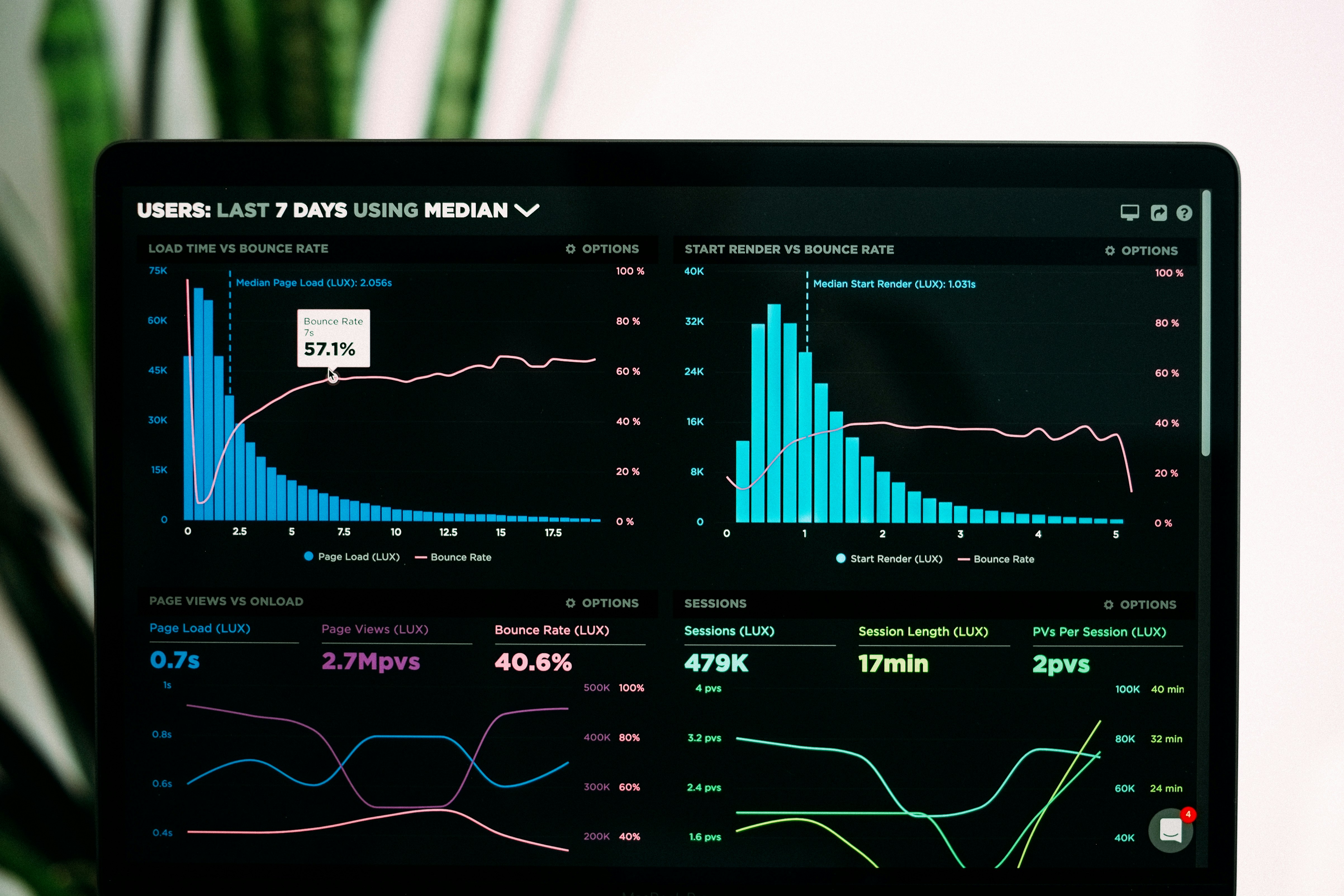
You create KPI dashboards in Excel in 30 minutes by:
Separating data cleaning
Structuring
Calculations
Visualization into distinct steps
Not by manually rebuilding the entire dashboard every reporting cycle. The speed comes from treating dashboard creation as a workflow problem rather than a design problem.
1. Bring AI Into Your Spreadsheet First
Most people think of Excel as a calculation tool. But the bottleneck in dashboard creation isn't math, it's data preparation. Cleaning inconsistent vendor names, categorizing transactions, and summarizing text fields consume more time than building the actual charts.
That's where AI changes the equation. Instead of manually standardizing "Acme Inc.", "ACME", and "Acme Corporation" across 500 rows, you ask AI to normalize them. Instead of reading through customer feedback to categorize sentiment, you let AI handle the tagging. Tools like Numerous bring ChatGPT functionality directly into Excel through a simple =AI function, turning your spreadsheet into an intelligent workspace where data cleaning happens in bulk, not one cell at a time.
Prompt-Driven Mass Data Transformation
The mechanism is straightforward.
You select the messy column
Write a plain-English prompt describing what you need
The AI processes hundreds of rows simultaneously
No API keys. No switching between applications. The data structure you need for your dashboard appears in minutes, not hours.
2. Separate Raw Data From Dashboard Views
Most dashboards fail because they mix raw data, calculations, and charts in the same worksheet.
When you update source data, formulas break.
When you add rows, the chart ranges misalign.
The dashboard becomes fragile.
Structural Separation and Data Layering
The fix is structural.
Keep raw data on one sheet.
Build summary calculations on another.
Place visualizations on a third.
This separation means you can refresh source data without touching your chart configurations or KPI formulas.
Think of it like separating ingredients from the finished meal. You wouldn't mix flour, eggs, and batter in the same bowl you're serving from. The same logic applies to dashboards.
3. Calculate KPI Metrics Before Designing Charts
According to ClearPoint Strategy, effective dashboards typically display between 5 and 15 charts, each representing a specific metric. But most people start by building charts before they've defined what those metrics actually measure. That's backward.
Calculate your KPIs first.
Monthly revenue.
Customer acquisition cost.
Conversion rate.
Gross margin.
Once those numbers exist as clear, tested formulas, visualization becomes trivial. You're not guessing what to chart. You're displaying decisions you've already made.
The difference is confidence. When your metrics are pre-calculated and validated, you know the dashboard shows what matters. When you design charts first, you're hoping the data fits the visual.
4. Use Automated Formulas Instead of Manual Calculations
Every time you manually calculate a metric, you create technical debt. Next month, you'll forget the exact logic you used. The month after, someone else will interpret the calculation differently. Consistency disappears.
SUMIF, COUNTIF, AVERAGE, and XLOOKUP aren't just convenience functions. They're documentation. When your KPI calculations live in formulas, the logic is visible and repeatable. Anyone can see how revenue was calculated. Anyone can verify the customer count.
Manual calculations feel faster in the moment. Automated formulas are faster over time. That's the trade most people miss.
5. Focus Only on High-Value KPIs
Dashboard bloat happens gradually. You add one more chart because it seems useful. Then another. Soon, you're tracking 30 metrics, and none of them drive decisions.
The question isn't "Could this be useful?" It's "Does this change what we do?" If a metric doesn't influence behavior, it's decoration. Remove it. Your dashboard should fit on one screen without scrolling. If it doesn't, you're reporting, not informing.
Selective tracking improves clarity. When everything is a priority, nothing is.
6. Create Reusable Dashboard Layouts
The most expensive dashboard is the one you rebuild every month. The most valuable is the one you update with fresh data and walk away.
Build your dashboard as a template.
Fixed chart positions.
Standardized KPI sections.
Consistent color schemes.
When new data arrives, you paste it into the raw data sheet, refresh, and the entire dashboard updates automatically.
Reusable structures aren't about laziness. They're about reliability. When your process is repeatable, your results become comparable. You can trust the month-over-month trends because the methodology didn't shift.
7. Separate Data Cleaning From Visualization
Context switching kills momentum. When you clean data while simultaneously adjusting chart colors, your brain toggles between two incompatible modes. Detail work versus design work. Precision versus aesthetics.
Task Batching and Cognitive Focus
Clean first.
Then calculate.
Then visualize.
Each task uses different cognitive resources. When you batch similar work together, you maintain focus and reduce errors. You're not reformatting cells while also debugging formulas.
Task separation isn't about a rigid process. It's about respecting how attention actually works. You can't optimize what you keep interrupting.
But knowing the steps doesn't solve the sequencing problem.
The 30-Minute Workflow to Build KPI Dashboards Faster in Excel

The 30-minute workflow isn't about rushing through Excel. It's about structuring tasks so each step builds on the previous one without backtracking.
You define goals first
Clean data second
Calculate metrics third
Then visualize the last
Each phase uses different cognitive resources, so you maintain focus and reduce errors.
The compression comes from eliminating overlap. When you clean data while building charts, you're constantly switching contexts. When you format layouts before finalizing calculations, you rebuild formulas multiple times. The workflow separates these tasks, so you complete each one fully before moving to the next.
Minute 0–5: Define the KPI Goal First
Before you touch Excel, decide what this dashboard needs to accomplish.
What decisions will it support?
What metrics matter most?
What questions should it answer?
Role-Specific Metrics and Decision-Driven Design
If you're tracking sales performance, you need revenue trends, conversion rates, and pipeline velocity.
If you're monitoring marketing ROI, you need cost per acquisition, channel performance, and campaign attribution.
If you're managing expenses, you need category breakdowns, variance analysis, and budget compliance.
Metric Limitation and Behavioral Impact
Undefined dashboards create reporting work that serves no purpose. You build metrics because they seem important, not because they drive decisions. The dashboard becomes a data dump rather than a decision-making tool.
Write down three to five KPIs before opening your spreadsheet. Not ten. Not twenty. Curtis Marshall recommends tracking 8-10 metrics maximum because anything beyond that dilutes focus. More metrics don't create better decisions. They create cognitive overload.
The goal isn't to track everything. It's to track what changes behavior.
Minutes 5–10: Structure and Clean the Data First
Now you organize the raw data.
Standardize column headers.
Remove duplicates.
Fix inconsistent entries.
Convert text to proper formats.
Eliminate blank rows.
This feels tedious because it is. But structured data before visualization prevents friction later. When category names are inconsistent ("Q1 2024", "2024 Q1", "First Quarter 2024"), your pivot tables break. When dates are stored as text, your trend charts fail. When vendor names vary ("Acme Inc.", "ACME", "Acme Corporation"), your summaries split the same supplier across multiple rows.
Automated Normalization and Repetition Elimination
Manual cleaning compounds with every reporting cycle. The same inconsistencies appear in next month's data. You fix them again. And again. The pattern repeats because the source data never improves.
Tools like Numerous handle this differently. You can prompt "Clean this KPI dataset" or "Standardize these category names" and let AI normalize the variations in seconds. The same task that takes 10 minutes manually compresses to one formula applied across thousands of rows. You're not eliminating the work. You're automating the repetition so it doesn't consume your time every cycle.
The cleaning phase isn't optional. It's foundational. Skip it, and every subsequent step takes longer.
Minutes 10–15: Build KPI Calculations Before Charts
Focus only on the math now.
Totals
Growth rates
Conversion percentages
Monthly summaries
Performance ratios
Formula Standardization and Logic Automation
Do not build charts yet.
Do not format dashboard layouts.
Do not manually recalculate the same metric across different time periods.
Automated calculations mean you write the formula once, then reference it everywhere.
Dynamic Referencing and Automatic Updates
Manual KPI rebuilding creates slower dashboards.
You recalculate growth rates each month instead of designing formulas that update automatically when new data arrives.
You copy-paste totals instead of using dynamic ranges.
You hardcode values rather than build references.
Adaptive Calculations and Maintenance-Free Architecture
The pattern I see teams fall into: they calculate January's metrics manually, then February's, then March's. By April, they realize the formulas should have been dynamic from the start. They rebuild everything. The dashboard that should have taken 30 minutes stretched to three hours because the foundation wasn't reusable.
Build calculations that adapt to new data without modification.
Use structured references.
Design formulas that expand when you add rows.
Create named ranges that update automatically.
The goal is a calculation layer that requires zero maintenance when next month's data arrives.
Minutes 15–20: Create the Dashboard Visuals
Now you convert metrics into visuals.
Charts
Tables
Summary cards
Trend lines
Performance comparisons
Visual Clarity and Optimal Chart Density
Dashboards exist for visibility, not complexity. The person viewing this shouldn't need to interpret raw spreadsheet data. They should see patterns immediately.
Revenue trending up or down.
Conversion rates are improving or declining.
Expenses exceeding the budget or staying within limits.
Research from ClearPoint Strategy suggests dashboards should contain between 5 and 15 charts to maintain clarity without overwhelming the viewer. Too few visuals and you miss important context. Too many, and the dashboard becomes noise.
Insight-Driven Formatting and Visual Hierarchy
Choose chart types that match the insight.
Line charts for trends over time.
Bar charts for category comparisons.
Sparklines for quick visual summaries.
Conditional formatting for status indicators.
Clean visuals improve reporting clarity. Cluttered dashboards obscure the signal. When every metric demands equal attention, nothing gets attention.
Minutes 20–25: Verify Critical KPI Metrics
Do not recheck the entire spreadsheet. That's wasted effort. Only verify the calculations that matter most.
Check your growth formulas. Confirm your totals. Validate your high-priority KPI outputs.
If revenue is your primary metric, verify that calculation.
If conversion rate drives decisions, confirm that formula.
If expense variance determines budget adjustments, validate that comparison.
Targeted Verification and Metric Prioritization
Selective verification prevents unnecessary rework. Comprehensive verification creates the illusion of thoroughness while consuming time that doesn't improve accuracy. You're rechecking formulas that already work because you haven't identified which ones actually matter.
The failure mode here: treating all metrics as equally important. They're not. Some KPIs inform critical decisions. Others provide context. Verify the critical ones. Trust the contextual ones unless something looks obviously wrong.
Minutes 25–30: Save the Dashboard System
Save the structure, not just the file.
Document which formulas worked.
Note which layout decisions improved clarity.
Record which data sources feed which calculations.
The goal isn't one fast dashboard. It's repeatable reporting speed. Next month's dashboard should take 15 minutes, not 30, because the system already exists. You're updating data, not rebuilding infrastructure.
System Documentation and Template Preservation
Teams that don't save their systems rebuild dashboards from memory each cycle. They remember the general approach but forget the specific formulas. They recreate layouts that worked last time but can't recall exactly why. The 30-minute workflow becomes 45 minutes, then 60, because institutional knowledge lives in someone's head instead of in a documented process.
Save the template.
Save the formula library.
Save the data structure.
Save the visual formatting.
When the next reporting cycle arrives, you're updating inputs, not reinventing methods.
The Transformation Pattern
Before this workflow: rebuilding formulas every cycle, cleaning data repeatedly, switching between tasks constantly, and updating dashboards slowly.
After this workflow: structured KPI processes, clean data pipelines, focused task execution, and faster reporting cycles.
The time reduction doesn't come from working faster. It comes from eliminating redundant work.
You're not calculating the same metric twice.
You're not cleaning the same data inconsistencies every month.
You're not rebuilding charts because your formulas broke.
Sequential Workflows and Structural Efficiency
The workflow reduces dashboard creation time by eliminating overlap. Each task completes fully before the next one starts.
Data gets cleaned once.
Calculations get built once.
Visuals get designed once.
Verification happens once.
What changes isn't your Excel skills. What changes is how you sequence the work. But knowing the workflow doesn't solve the automation problem.
Build KPI Dashboards Faster With Numerous
The workflow solves sequencing, but it doesn't remove the manual work. You still need to clean messy data, write formulas, and structure calculations. That's where spreadsheet AI changes the equation. Tools like Numerous let you prompt your way through data preparation and formula generation, rather than building everything by hand. You describe what you need, and the AI structures it. No API keys. No leaving Excel or Google Sheets.
Automated Data Transformation and Syntax Generation
Most teams clean KPI data manually because spreadsheets don't naturally understand context. You fix inconsistent date formats, normalize category names, and remove duplicates row by row. As data sources multiply, that cleaning step stretches from minutes to hours. Numerous compresses that phase by letting you prompt data transformations in bulk. Tell it to standardize vendor names or categorize transaction types, and it processes the entire dataset in one pass. What used to take 40 minutes now takes four.
The same logic applies to formula creation. Instead of writing nested IF statements or VLOOKUP chains to calculate conversion rates or budget variance, you describe the metric you need. The AI generates the formula, applies it across your data, and structures the output for dashboard use. You're not debugging syntax errors or tracing broken cell references. You're building the reporting layer faster because the repetitive construction work gets automated.
AI-Assisted Efficiency and Foundation Longevity
This doesn't replace your judgment. You still decide which KPIs matter, how to visualize trends, and what thresholds signal action. But you're no longer spending half your dashboard build time on grunt work. The AI handles data normalization and calculation scaffolding. You focus on interpreting results and designing clarity into your visuals. That shift in time allocation is what compresses dashboard creation from hours to under 30 minutes.
The result is a reporting system you can update without having to rebuild. Your data structure stays consistent. Your formulas don't break when new rows appear. Your dashboard layout remains intact across reporting cycles. You're not starting from scratch every month because the foundation was built to repeat cleanly. Open Numerous, organize your KPI workflow, and stop treating dashboard creation like a manual rebuild every time reporting is due.
Related Reading
How To Forecast Sales In Excel
Cube Alternative
How To Categorize Expenses In Excel
How To Create An Expense Tracker In Excel
Best Excel Functions For Finance
How To Make A Financial Report In Excel
How To Calculate Total Revenue In Excel