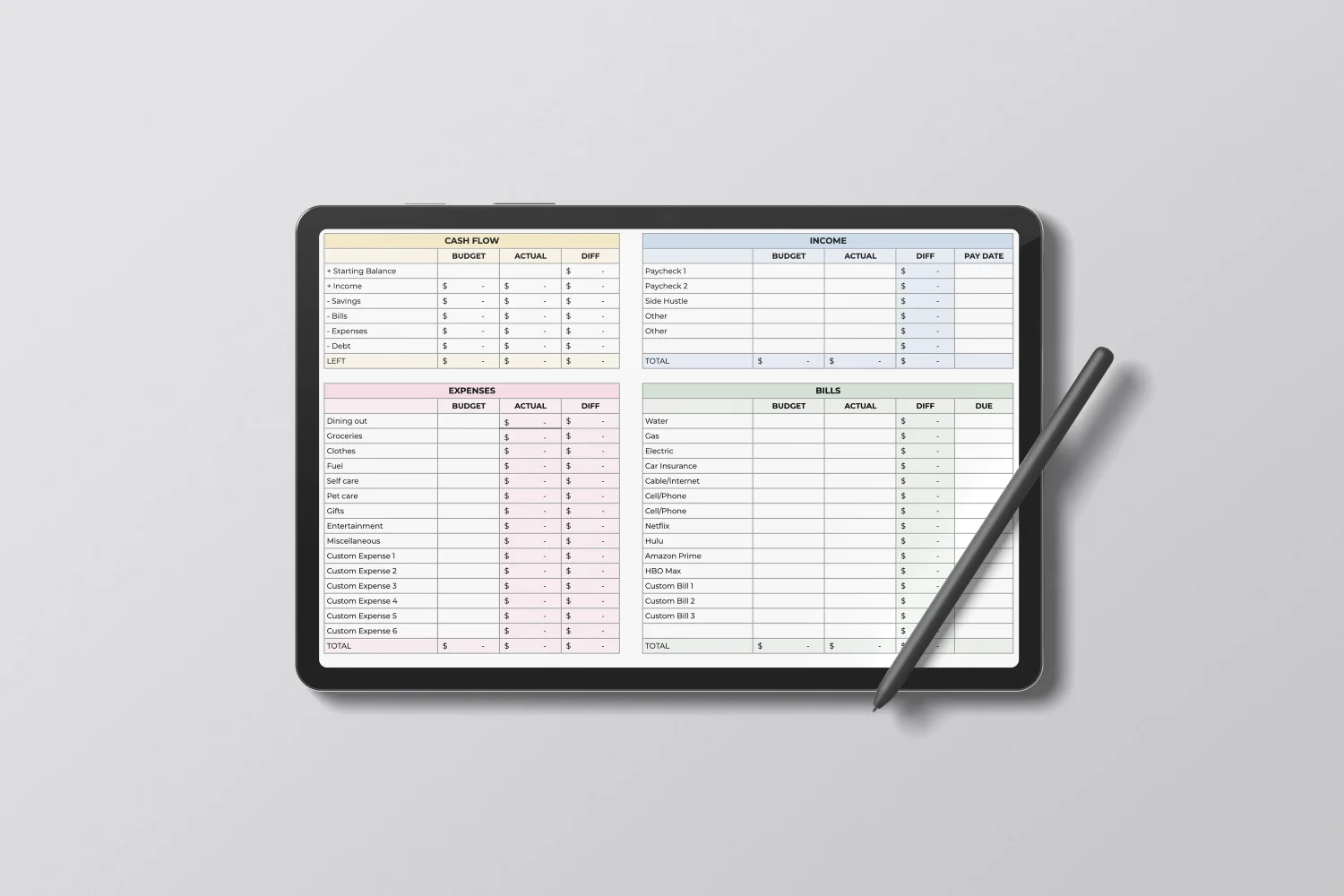
Managing your money shouldn't feel like solving a puzzle with missing pieces. Whether you're tracking monthly expenses, planning for a big purchase, or simply trying to understand where your paycheck disappears each month, a well-designed budget spreadsheet can transform financial chaos into clarity. While many people search for the best AI for financial modeling to handle complex projections, the truth is that mastering a simple Google Sheets budget template gives you the foundation you need to take control of your finances today. This guide walks you through creating a custom budget template that actually works for your life, from setting up income and expense categories to building formulas that automatically calculate your cash flow.
If you want to supercharge your Google Sheets budgeting without wrestling with complicated formulas, Numerous offers a practical way forward. This tool brings AI capabilities directly into your spreadsheet, letting you generate budget categories, analyze spending patterns, and even predict future expenses through simple prompts right in your cells.
Table of Contents
Summary
Budget templates fail when transactions land without structure, categories shift inconsistently, and formulas break every time you add new data. The real problem isn't Google Sheets' complexity; it's treating budgeting as a data dump rather than a system. According to CB Insights, 29% of startups run out of cash, and disorganized financial tracking accelerates that trajectory by hiding spending patterns until it's too late.
Manual transaction categorization drains hours each month that could be spent on actual financial decisions. Each expense requires judgment calls about which bucket it belongs in, and that cognitive load multiplies when you need historical insight. Searching through months of inconsistently labeled data to answer basic questions like "How much did we spend on software last quarter?" becomes archaeological work through your own records.
Budget dysfunction compounds because poor organization makes updates painful, which means you update less frequently. Stale data makes the budget less useful, so you trust it less, which reduces your motivation to keep it up to date. Within months, you've abandoned the system entirely and reverted to gut feel and bank balance checks.
Dynamic formulas that reference criteria rather than cell positions prevent templates from breaking when you add new transactions. Instead of SUM formulas that stop at specific rows, SUMIF and SUMIFS functions calculate totals based on conditions across entire columns. This means new transactions are included automatically without manually updating formulas.
Conditional formatting transforms spreadsheets from data repositories into alert systems that surface problems before they compound. Rules that change cell colors when spending exceeds thresholds remove the need for an interpretation step entirely. You don't have to remember targets or calculate variances mentally because the visual cues tell you whether you're on track, approaching a limit, or already over.
The thirty-minute constraint forces you to build for clarity instead of completeness by eliminating the temptation to customize every cell or add features you'll never use. You create a system that answers the essential question of where money goes without drowning in decoration that slows down entry and complicates analysis.
Numerous addresses this by letting you apply AI categorization directly inside Google Sheets through simple functions that handle repetitive sorting, standardize merchant names, or generate budget structures from spending patterns without leaving the collaborative spreadsheet environment your team already uses.
Why People Struggle to Create Budget Templates in Google Sheets

The struggle isn't about Google Sheets itself. People fail to build budget templates because they treat budgeting as a data dump rather than a system. Without clear categories, consistent structure, and separation between raw data and calculations, even the simplest budget becomes a maze of confusion that breaks down the moment real life touches it.
The Organizational Collapse
When expenses land in a spreadsheet without a home, chaos compounds quickly. One transaction gets labeled "groceries," another "food," and a third sits blank because you were rushing. Personal charges mix with business expenses. Income appears sporadically, sometimes as a lump sum, sometimes broken into pieces across different rows. According to CB Insights, 29% of startups run out of cash, and disorganized financial tracking accelerates that trajectory by hiding spending patterns until it's too late. The real damage happens when you need to make a decision. You stare at hundreds of unlabeled rows, trying to remember what "misc $47.82" meant three months ago. Pattern recognition becomes impossible. You can't answer basic questions like "How much do I actually spend on software each month?" because the data is fragmented, not categorized.
The Category Problem
Too many people create budget categories the way they organize junk drawers: by shoving things into whatever space feels convenient in the moment. "Miscellaneous" becomes a black hole containing everything from parking fees to annual subscriptions. Categories overlap because "office supplies" and "business expenses" seem distinct until you realize that staplers fall under both. Labels change over time as you forget what you called things last month. This inconsistency kills the entire purpose of categorization. A budget should reveal spending patterns, but when categories shift like sand, you're comparing apples to furniture. The spreadsheet fills with data that can't tell you anything useful because you've built a filing system with no files, just piles.
When Structure Fights You Instead of Helping
Many budget templates collapse because inputs, formulas, and outputs share the same cells. You type an expense total, accidentally delete a SUM formula, and suddenly your monthly spending shows zero. Or you copy a row to duplicate last month's structure and paste over a calculation you spent twenty minutes building. These aren't user errors. They're design failures. A working budget needs layers. Raw transactions go in one place. Calculations happen separately. Summary views pull from both but touch neither. When everything lives together, maintenance becomes archeological work, tracing which cells feed which formulas, terrified that one wrong click could destroy the whole structure.
The One-Time Template Trap
Quick budgets answer immediate questions:
Can I afford this?
Where did my money go last month?
So you build something fast, get your answer, and move on. Then next month arrives. The template that worked once now needs updating, but it wasn't built for that. Categories don't align. Formulas reference specific cells that no longer make sense. You're rebuilding instead of reusing.
Systemic Budgeting and Long-Term Scalability
This happens because people confuse a budget snapshot with a budget system. Snapshots serve moments. Systems serve months. The difference shows up in whether you're creating or maintaining, and most people accidentally choose creation every single time because their template never anticipated a future. When budgets stay messy, money slips through gaps you can't see. But what happens when those gaps start costing you more than just confusion?
Related Reading
The Hidden Cost of Budgeting Without a Clear System
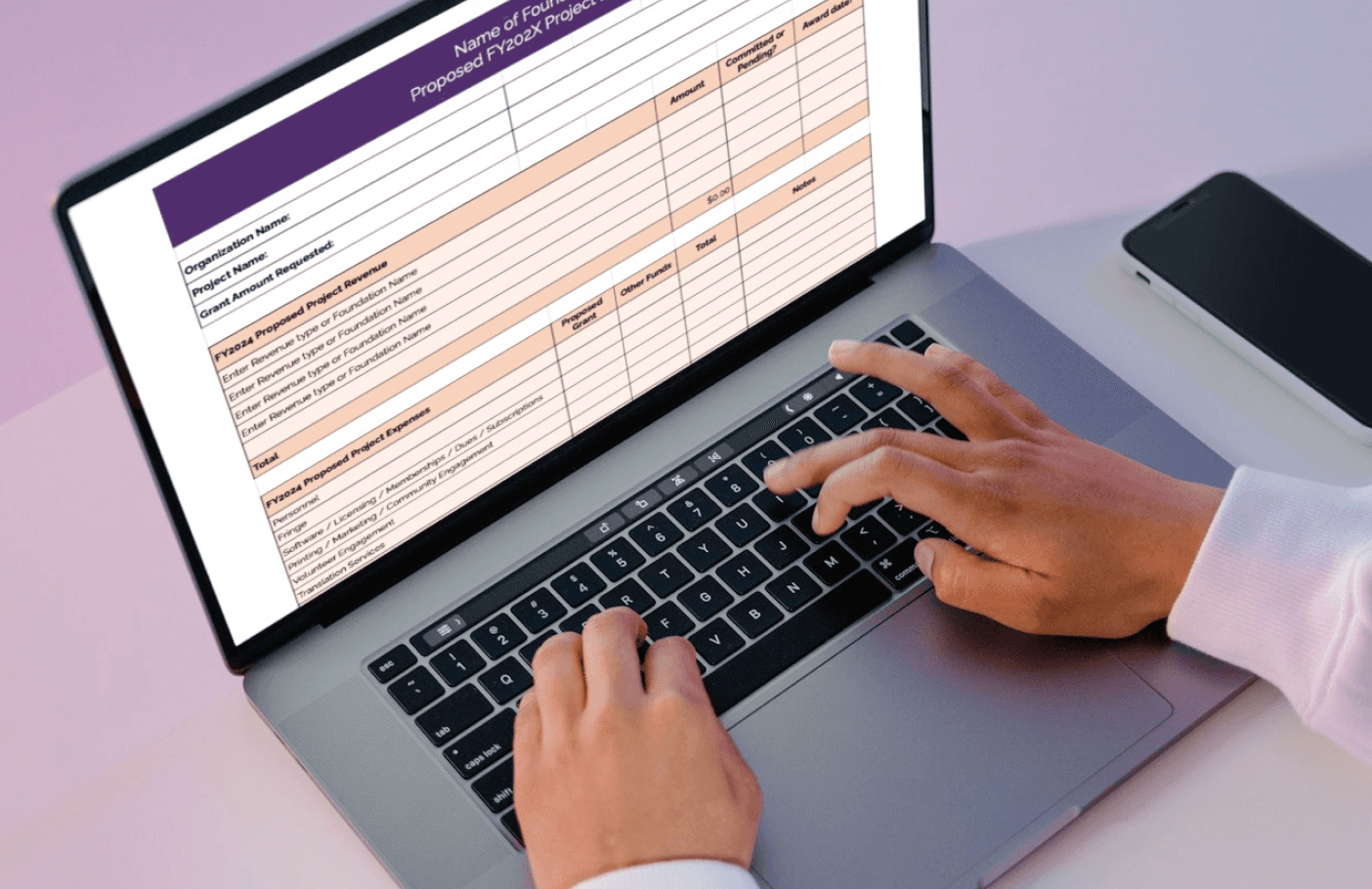
Missing expenses isn't the worst part of budget chaos. The real damage shows up in the decisions you make with incomplete information. When your budget can't answer basic questions about spending patterns, you're navigating financial choices blindfolded, and every wrong turn compounds.
The Invisible Tax of Manual Categorization
Categorizing transactions manually drains time you'll never recover. Each expense requires a judgment call: does this restaurant charge belong under
Meals
Client entertainment
Business development
Multiply that decision across dozens of weekly transactions, and you're spending hours each month doing work that teaches you nothing new. The cognitive load isn't just annoying. It's expensive. You're trading productive time for data entry that could be handled automatically if your system had built-in intelligence.
Categorization Drift and Historical Data Retrieval
The cost multiplies when you need historical insight. Searching through months of inconsistently labeled data to answer "How much did we actually spend on software last quarter?" becomes an archaeological dig through your own records. The information exists somewhere in those cells, but extracting it requires reconstructing your past categorization logic, which probably shifted three times since January.
When Bad Data Drives Real Money Decisions
Budget confusion forces you into reactive mode. You think you're under budget on office expenses until you realize half of them got labeled "miscellaneous." You approve a new subscription because last month looked fine, missing the fact that three similar charges hit different categories.
Federal investigators tracked over $100 billion in fraudulent unemployment payments during the pandemic, much of it enabled by disorganized financial systems that couldn't spot patterns across fragmented data. Scale doesn't matter. The same principle applies whether you're managing household finances or organizational budgets: when your system can't surface patterns, waste hides in plain sight.
Decision Paralysis and Opportunity Costs
The decisions you avoid cost as much as the ones you make wrong. Without clear visibility into spending trends, you postpone necessary cuts because you're not sure where the fat actually lives. You skip strategic investments because your budget can't confidently show you have room to invest. Paralysis becomes your default mode when the data can't be trusted.
The Maintenance Trap
Every month, broken budgets demand reconstruction work. You update formulas that broke when you added rows. You hunt for the cell reference that suddenly shows #REF! instead of your income total. You rebuild category summaries because last month's structure doesn't quite fit this month's reality. The template becomes a liability that requires constant repair rather than a tool that just works.
Platforms like Numerous let you apply AI directly inside spreadsheets to categorize expenses, generate budget structures, or clean financial data without leaving Google Sheets. Instead of manually sorting transactions or rebuilding formulas each month, you use simple =AI functions to handle repetitive categorization work while keeping everything in the familiar spreadsheet format you already share with collaborators.
The Compounding Effect
Budget dysfunction feeds on itself.
Poor organization makes updates painful, so you update less frequently.
Stale data makes the budget less useful, so you trust it less.
Lower trust means fewer decisions are made with the budget in mind, which reduces your motivation to maintain it.
Within months, you've abandoned the system entirely, reverting to gut feel and bank balance checks. You're back where you started, except now you've wasted time building something that failed. The pattern repeats because most people treat the symptom (messy data) instead of the cause (no system for organizing it). They clean up categories once, feel productive, then watch entropy reclaim everything within weeks. Without an automatic structure that enforces consistency, manual cleanup is just expensive procrastination. But what if the entire thirty-minute budget build could be systematized from the start?
How to Create a Google Sheets Budget Template in 30 Minutes

You can build a functional budget template in thirty minutes by focusing on structure over complexity. The key isn't adding features. It's creating a system that categorizes spending, automatically calculates totals, and updates without breaking every time you add new data. You can make a budget in Google Sheets in less than an hour when you prioritize clarity over customization. The constraint forces better decisions. You don't have time to build elaborate dashboards or test seventeen different chart types, so you focus on what actually matters: knowing where money goes and whether you're staying on track.
Start With Five Columns, Not Fifty
Your first instinct might be to create columns for every possible data point you could ever need.
Transaction ID
Merchant category code
Payment method
Tax deductibility status
Reconciliation flags
Stop. You're building a budget, not an accounting audit trail.
Structural Simplicity and Analytical Clarity
Five columns cover most personal and small-business budgets:
Date
Description
Category
Income
Expense
That's it. The date tells you when the money moved. Description reminds you what the transaction was. Category groups similar spending. Income and Expense separate the money coming in from the money going out. Everything else is decoration that slows you down. The simplicity creates speed during entry and clarity during analysis. When you review spending patterns three months later, you don't need to remember what twelve different columns mean or which ones you actually filled in consistently. The data structure stays obvious because it never tried to be clever.
Categories are Decisions You Make Once
The category column determines whether your budget reveals patterns or hides them. Inconsistent labels turn analysis into archaeology. "Coffee," "Starbucks," and "Caffeine" all describe the same spending, but your spreadsheet treats them as three separate categories. Multiply that confusion across dozens of expense types, and you've built a system that can't answer basic questions.
Standardized Categories and Reference Frameworks
Define your categories before you enter a single transaction. Write them in a separate reference list. Keep the list short.
Eight to twelve categories cover most budgets:
Housing
Food
Transportation
Utilities
Insurance
Subscriptions
Entertainment
Savings
Business budgets might use:
Payroll
Software
Marketing
Office
Professional Services
Equipment
Travel
Taxes
AI-Driven Categorization and Pattern Clarity
The constraint forces clarity. When every expense must fit into one of ten buckets, you can't hide spending in vague labels like "miscellaneous" or "other." You have to decide what each transaction actually represents, which means you start noticing patterns immediately. Tools like Numerous let you apply AI categorization directly inside Google Sheets through simple =AI functions. Instead of manually sorting each transaction into predefined buckets or building complex IF formulas, you can prompt ChatGPT to categorize expenses based on descriptions, generate budget categories from spending patterns, or clean inconsistent labels across hundreds of rows without leaving your spreadsheet. The categorization happens in the same collaborative environment your team already uses, no API keys or external platforms required.
Separate Data Entry from Calculations
The fastest way to break a budget template is by mixing raw data with formulas in the same cells. You paste in last month's transactions and accidentally overwrite the SUM formula that calculates your total spending. Or you copy a row to duplicate the structure, then delete the cell reference that feeds your balance calculation. These aren't mistakes. They're inevitable when inputs and outputs share space.
Separate Summary and Transaction Sections
Create two distinct zones.
The top section holds summary calculations:
Total income
Total expenses
Remaining balance
Spending by category
The bottom section contains raw transaction data:
Individual entries with dates
Descriptions
Categories
Amounts
The summary pulls from the data section using formulas, but the data section contains only values you type or paste.
Keep Formulas Safe and Updates Simple
This separation protects your template from maintenance disasters. You can add fifty new transactions without touching a single formula. You can sort, filter, or rearrange data entries, knowing the summary section will keep working. The structure enforces discipline, making updates fast rather than fragile.
Build Formulas That Survive New Data
Most budget formulas break because they reference specific cell ranges that become outdated when you add rows. Your SUM formula adds cells B2 through B47 because that's where your expenses live today. Next month, you add twenty transactions, but the formula still stops at B47, silently ignoring everything below it. Your totals look fine, but they're wrong, and you won't notice until the numbers stop making sense.
Conditional Logic and Maintenance-Free Scaling
Use dynamic ranges instead of fixed cell references. SUMIF and SUMIFS formulas let you calculate totals based on criteria rather than position. Instead of SUM(E2:E47), use SUMIF(C:C,"Food",E:E) to total all expenses where the category column contains "Food." The formula checks the entire column, so new transactions get included automatically without updating the formula. The same principle applies to income, balance calculations, and category breakdowns. Build formulas that look for conditions rather than locations. Your template becomes maintenance-free because the math adapts to whatever data you add.
Make the Summary Section Answer Questions Instantly
Your budget exists to inform decisions, which means the summary section should surface insights without requiring interpretation. Total income and total expenses matter, but they don't tell you much.
The useful questions are more specific:
How much did I spend on subscriptions?
Is my food budget trending up or down?
Am I saving the percentage I planned?
Decision-Driven Summaries and Strategic Layout
Design the summary to answer those questions at a glance. List each category with its total spending for the month. Calculate the percentage of total expenses each category represents. Show your savings rate as both a dollar amount and a percentage of income. Include month-over-month comparisons if you're tracking multiple periods.
The layout should prioritize the numbers that drive your decisions. If you're trying to reduce discretionary spending, put those categories at the top. If cash flow timing matters more than totals, show weekly breakdowns instead of monthly. The summary serves you, not some theoretical ideal of what budgets should contain.
Conditional Formatting Surfaces Problems Before They Compound
Numbers sitting in cells don't communicate urgency. You glance at your budget, see that expenses total $4,200, and move on because the number doesn't trigger any response. You don't realize you're $800 over budget until you manually compare it to your income or spending target, which means the budget failed to warn you when it mattered.
Visual Indicators and Automated Alerts
Conditional formatting turns your spreadsheet into an alert system. Set rules that change cell colors when spending exceeds thresholds. If your food budget is $600, make the cell turn yellow at $550 and red at $600. If your savings rate drops below 15%, highlight it. The visual cues provide immediate feedback that text and numbers alone can't.
The formatting works because it removes the need for an interpretation step. You don't have to remember what your targets are or calculate variances mentally. The colors tell you whether you're on track, approaching a limit, or already over. The budget becomes a dashboard instead of a data repository.
Test It With Real Data Before You Trust It
A template that looks clean with sample data often breaks when you feed it actual transactions. The formulas work until you encounter a refund that needs to appear as a negative expense. The category list seems complete until you hit a transaction that doesn't fit into any of the categories. The layout feels logical until you try using it on a phone screen, where half the columns disappear.
Load a month of real transactions before you commit to the structure. Import bank data, paste credit card statements, and add cash expenses you tracked elsewhere. Watch what breaks. Notice which categories you actually use versus which ones seemed important in theory. Identify formula errors that only surface with messy real-world data.
Usage Testing and Structural Validation
The test reveals whether your thirty-minute template actually saves time or just moves complexity to a different place. If updating the budget takes longer than the value it provides, the structure needs simplification. If you avoid opening it because the layout feels overwhelming, the design failed. Real usage exposes problems that hypothetical planning misses. But even a perfectly structured template still requires the discipline to maintain it consistently, which is where most budgets quietly fail.
Related Reading
The 30-Minute Workflow to Build a Budget Template Faster

Building a budget template in thirty minutes requires treating time as a forcing function. The constraint eliminates the temptation to customize every cell or build features you'll never use.
You follow a sequence:
Structure first
Categories second
Data third
Calculations fourth
Cleanup fifth
Usability last
Each step builds on the previous one, and skipping ahead breaks the system.
Minutes 0-5: Anchor the Structure Before You Add Anything
Open a blank Google Sheet and create six column headers:
Date
Description
Category
Income
Expense
Balance
That's your foundation. Don't add columns for payment method, tax codes, or reconciliation flags. Those feel useful until you realize they slow down every transaction entry, and you stop using them by week three.
Chronological Context and Structural Buffering
The header row defines what information matters. Date establishes chronology. Description provides context when you review spending later. The category enables pattern analysis. Income and Expense separate the direction of cash flow. Balance shows your running total. Everything else is noise that complicates maintenance without improving decisions. Leave rows 2 through 10 empty for your summary section. This space will eventually hold category totals and key metrics, but building them now would be a waste of time because you don't have the data yet. The gap creates visual separation between calculations and raw transactions, which prevents the formula-overwriting disasters that kill most templates.
Minutes 5-10: Define Categories That Force Honest Decisions
Write your category list in a separate area, perhaps starting in column H. Keep it to ten categories maximum.
For personal budgets:
Housing
Food
Transportation
Utilities
Insurance
Health
Entertainment
Subscriptions
Savings
Other
For business budgets:
Payroll
Software
Marketing
Office
Services
Equipment
Travel
Taxes
Operations
Reserve
Aspirational Fiction and Category Integrity
The "Other" or "Reserve" category should never exceed 10% of your spending. If it does, you're hiding patterns instead of categorizing them. That discomfort is the point. When a transaction doesn't fit your existing categories, you're forced to either create a legitimate new category or admit you're spending money on things that don't align with your stated priorities. Most people create budget categories that describe what they wish they spent money on, not what they actually spend it on. They add "Fitness" and "Professional Development" while omitting "Impulse Purchases" and "Convenience Fees." The budget becomes aspirational fiction instead of a financial reality. Your categories should make you slightly uncomfortable because they reflect truth, not intention.
Minutes 10-18: Load Real Transactions, Not Sample Data
Download your last thirty days of bank and credit card transactions. Most financial institutions let you export to CSV, which pastes directly into Google Sheets. Copy the transaction data and paste it starting at row 11, below your summary section. You'll have columns for dates, descriptions, and amounts, though the format will be messy. Delete columns you don't need from the bank export. Transaction IDs, posting dates that differ from transaction dates, and merchant category codes that don't match your system. Keep only what maps to your six-column structure. Copy the dates into your Date column, descriptions into Description, and amounts into either Income or Expense, depending on whether they're positive or negative.
Data Standardization and AI-Enabled Guardrails
The messiness reveals design flaws immediately.
You'll notice your bank lists the same merchant three different ways.
You'll see transactions that could reasonably fit two categories.
You'll find amounts formatted as text rather than numbers, which can break calculations you haven't built yet.
These aren't problems to solve later. Their feedback tells you where your template needs guardrails. Categorizing expenses manually across hundreds of transactions burns time that teaches you nothing. Tools like Numerous let you use ChatGPT directly in Google Sheets through simple =AI functions to categorize transactions by description, generate missing category assignments, or standardize merchant names across your data without leaving the spreadsheet. The categorization happens in the same collaborative environment you already use, no API keys or separate platforms required, turning hours of manual sorting into minutes of formula setup.
Minutes 18-23: Build Formulas That Calculate Automatically
Create your first summary calculation in cell B2. Label it "Total Income" in A2, then use =SUMIF(C:C,"Income",D:D) in B2. This formula checks the entire Category column for cells containing "Income" and sums the corresponding values from the Income column. When you add new income transactions next month, they'll be included automatically. Add "Total Expenses" in A3 with =SUMIF(C:C,"<>Income",E:E) in B3. This sums everything in the Expense column that isn't "Income." In A4, add "Net Position" with =B2-B3 in B4. Three formulas give you the core financial picture: money in, money out, what's left.
Criteria-Based Aggregation and Dynamic Recalculation
Below those totals, create category breakdowns. Starting at A6, list each of your ten categories vertically. In column B, next to each category, use SUMIF to calculate spending for that specific category. For "Food" in A6, use =SUMIF(C:C,"Food",E:E) in B6. Repeat for each category. You now see exactly how much went to each spending area without manually adding anything. The formulas work because they search for conditions rather than cell positions. You can add fifty transactions, sort them alphabetically, filter by date range, and the calculations keep working. The template adapts to whatever data you feed it because the math looks for patterns, not locations.
Minutes 23-27: Clean the Layout So Numbers Communicate
Format your currency columns. Select columns D, E, and F, then choose Format > Number > Currency. Amounts now display with dollar signs and two decimal places, making them instantly readable. Format your summary section in column B the same way. Numbers without formatting look like data. Formatted numbers look like money, which changes how you react to them.
Visual Heuristics and Cognitive Load Reduction
Add conditional formatting to your Net Position cell. Select B4, then Format > Conditional formatting. Set a rule:
If the value is less than zero, make the background red.
If greater than your savings target (say, $500), make it green.
Otherwise, leave it yellow.
You now get visual feedback on your financial position without having to calculate anything. Bold your header row and summary labels. Freeze the top ten rows so they stay visible when you scroll through transactions. These tiny layout choices reduce cognitive load every time you open the template. You spend less energy figuring out what you're looking at and more energy understanding what the numbers mean.
Minutes 27-30: Test Usability With One New Entry
Add a transaction that happened today. Pick something real: a coffee purchase, a grocery run, a bill payment. Enter the date, description, amount, and category. Watch your summary section update automatically. The total expenses should increase, your net position should decrease, and the category total should reflect the new spending.
If anything breaks, you'll know immediately.
The formula returns an error.
The category doesn't match your list.
The amount appears in the wrong column.
These failures are gifts because you're discovering them with a single test transaction rather than a month's worth of data. Fix the issue now while the cause is obvious.
Functional Verification and Essentialist Design
Try updating an existing transaction. Change a category, modify an amount, or delete a row. Verify that your summary calculations still work. The template should handle changes without requiring formula adjustments. If you have to manually update totals or fix broken references, your structure needs revision before you commit to using it. The thirty-minute constraint forces you to build for clarity instead of completeness. You create a system that answers the essential question (where is money going?) without drowning in features that feel productive but add no insight. The template works because it does less, not more.
Build Budget Templates Faster With Numerous
The problem isn't Google Sheets. The problem is the manual work required before your template becomes useful. Organizing transactions, standardizing categories, and cleaning inconsistent data consume the time you should spend analyzing spending patterns instead of preparing them. You can eliminate that friction by using Numerous inside your spreadsheet. Prompt it to categorize expenses based on descriptions, standardize merchant names across hundreds of rows, or generate budget categories from your actual spending patterns. The work happens through simple =AI functions without leaving Google Sheets, no API keys or separate platforms required.
Automated Workflows and Administrative Efficiency
Instead of manually sorting each transaction or rebuilding category structures every month, you handle repetitive setup tasks in minutes. Raw bank exports become clean, categorized budgets without the data entry that normally makes template creation feel like punishment. The spreadsheet remains collaborative and familiar while AI removes the grunt work that previously made budgeting unsustainable. Open Numerous, use it inside your spreadsheet, and turn slow budgeting processes into faster, cleaner workflows. Google Sheets tracks your budget. Numerous helps you build it without wasting time on tasks that teach you nothing about where your money actually goes.
Related Reading
How To Calculate Total Revenue In Excel
How To Make A Financial Report In Excel
How To Categorize Expenses In Excel
Cube Alternative
Best Excel Functions For Finance
How To Create An Expense Tracker In Excel