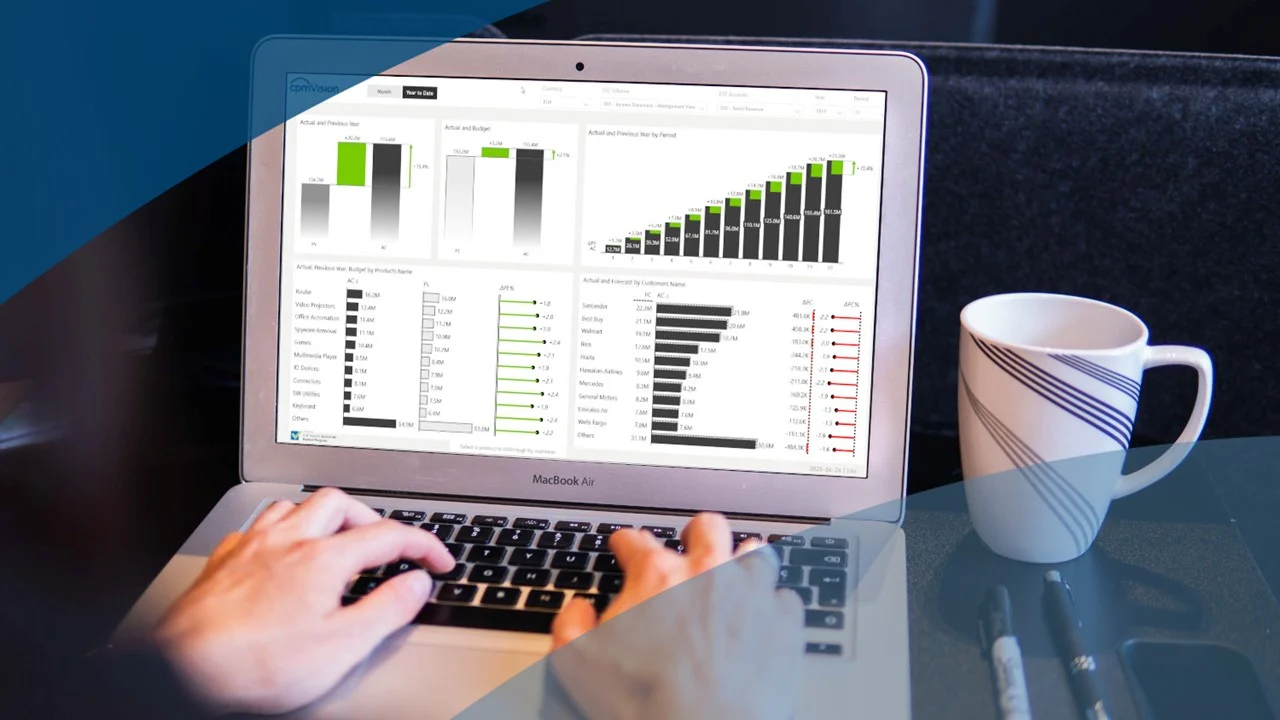
How to Add Data Labels in Excel

How to Add Data Labels in Excel

Riley Walz

Riley Walz

Riley Walz

Nov 28, 2025

Nov 28, 2025

Nov 28, 2025

working on excel - How to Add Data Labels in Excel

When your charts hide the numbers that matter, your analysis loses punch. Adding clear data labels is a simple move inside Data Transformation Techniques that turns a messy chart into a clear visual story. Want to make values visible at a glance or show percentages on a pie chart? This guide walks you through how to add and format data labels, set label positions, show values or percentages, and tweak chart elements so you can reach your goal of knowing how to Add Data Labels in Excel.

To help you do that, Spreadsheet AI Tool gives instant guidance inside your workbook, suggests the best label options, and walks you through adding and formatting labels so you finish charts faster and present data with less hassle.

Table of Contents

Summary

  • Visible data labels are critical for chart interpretation; 75% of Excel users say labels are crucial, and labels increase chart readability by about 50%. Therefore, adding and formatting labels should be the default when presenting charted data.  

  • Sorting mistakes break alignment across entire rows and create hours of reconciliation, and using scoped protections or structured layers can cut sorting errors by up to 50%, showing that prevention yields measurable time savings.  

  • There are four reliable methods to keep headers and totals safe (Freeze Panes, Excel Tables, precise range selection, and sheet protection), and over 80% of users report increased efficiency after learning how to lock rows for sorting, so choose the approach that fits your collaboration level.  

  • Freeze Panes improves visibility but does not change how Excel treats rows during a sort, so pair visual guards with machine checks or convert ranges to Excel Tables, because structural enforcement prevents common reordering mistakes and reduces manual fixes.  

  • Performance and user friction matter: 80% of users experience delays when locking rows for sorting, so treat a validated sort as a transaction, switch calculation to Manual, run integrity checks, and restore calculation to avoid users bypassing safety.  

  • Recoverability depends on immutable keys and auditable backups, so add a nonvolatile index column generated once, keep an automatic backup with a one-line manifest for each sort, and use Power Query merges or INDEX/MATCH to rebuild rows reliably after misalignment.  

  • This is where the ‘Spreadsheet AI Tool’ fits in, by detecting headers automatically, inserting immutable index columns, and running pre-sort validations across the workbook to reduce manual reconciliation.

What Are Data Labels in Excel and Why Are They Important?
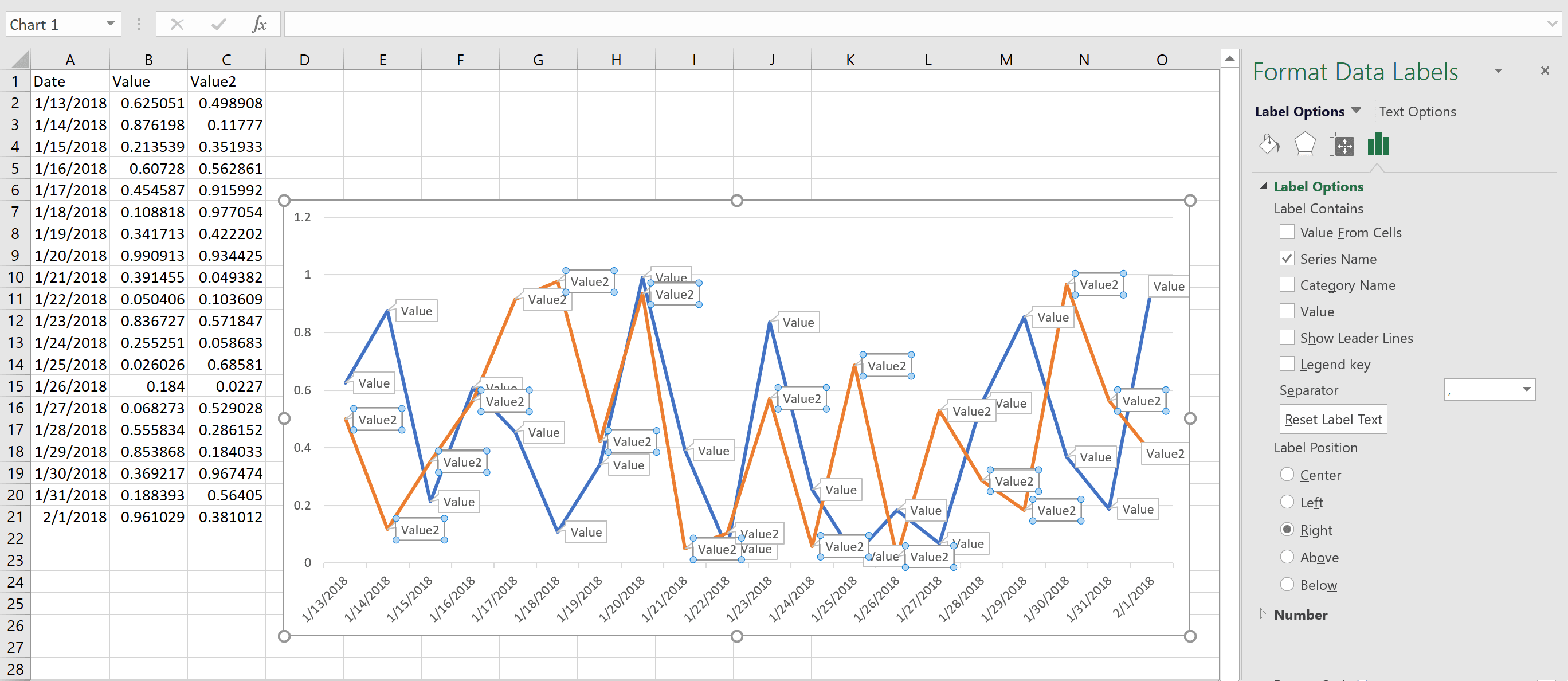
What Are Data Labels in Excel and Why Are They Important

Locking rows for sorting means you deliberately keep specific rows outside the sort operation so fixed elements, like headers, titles, or totals, never move; you accomplish this through careful scoping, clear invariants, and process controls rather than an Excel checkbox that “locks” rows. Treat it as a defensible rule for your workbook, decide which rows must stay put, enforce that rule, and build simple checks so a rogue sort cannot silently corrupt results.

Why Do Sorting Mistakes Feel Worse Than Other Spreadsheet Errors?

Sorting errors are corrosive because they break alignment across an entire row, and alignment is the backbone of any analysis. This pattern appears across sales, finance, and operations: ad hoc edits and casual sorts work fine for small lists, but one misplaced header or total can create hours of reconciliation, busted formulas, and a creeping loss of trust in the file. It’s exhausting when a clean report becomes a scavenger hunt for which totals moved and which formulas lost references.

What Hidden Failure Modes Do You Need To Watch For?

Merged cells, named ranges that assume fixed positions, and manual cut-and-paste workflows are common traps that quietly defeat safeguards; they let a sort appear to run correctly while detaching labels from values. Charts are particularly sensitive because the visual output lulls reviewers into thinking “the numbers look right,” even when underlying rows are shifted, and that’s why presentation choices matter. According to a 2023 Excel Insider survey, 75% of Excel users find data labels crucial for interpreting chart data, underscoring how labels anchor a chart’s meaning. And when you add visible labels, they change how reviewers scan a chart, which is why Excel Insider's "Data labels increase chart readability by 50%," 2023, matters for any team delivering visual summaries from sortable tables.

Most Teams Do The Familiar Thing, And Then The Workload Shows The Cost

Most teams scope sorts manually because it feels quick and requires no new tools. That familiar approach works until collaboration grows, version links multiply, and month-end pressure surfaces mistakes. As complexity rises, the hidden cost is time spent reconciling rather than analyzing, and the real cost is lost credibility with stakeholders. Teams find that solutions like Spreadsheet AI Tool enforce scoped sorts and template invariants, keeping header and total rows out of the sort while preserving formula alignments, which shortens audits and reduces rework without forcing a new workflow overnight.

How Should You Think About Prevention Instead Of Reaction?

Adopt a small set of invariants you can test quickly: an assertion that the top row is a header, that the bottom row is a total, and that key formula rows reference named ranges rather than hard positions. When that mindset is in place, prevention is cheaper than repair. Use quick sanity checks, like comparing row counts before and after a sort, or a simple conditional formatting rule that flags when a header text moves. These lightweight guards let you catch errors visually and mechanically, so a single mistaken click does not become a day-long recovery.

Think Like An Engineer, Not A Frantic Fixer

Treat spreadsheet structure as code: document which rows are immutable, where formulas must point, and how charts pull data labels and values. When you build that discipline, sorting becomes an operation you can automate, review, or hand off with confidence. A short analogy: lock the tablecloth so you can reshuffle plates without sending everything sliding across the floor. That sounds tidy, but the real test comes when multiple people edit the same file under time pressure. What you do next will determine whether sorting stays a quick, safe tool or becomes a recurring nightmare.

Related Reading

4 Reliable Methods to Lock Rows in Excel for Sorting
Reliable Methods to Lock Rows in Excel for Sorting

Excel doesn’t offer a single “lock row for sorting” button. Still, you can reliably keep headers and totals safe by using one of four practical methods, such as Freeze Panes, Excel Tables, selecting a precise range, or protecting the sheet. Each method trades off ease, safety, and control, so pick the one that matches your workflow and collaboration level.

1. How Does Freeze Panes Help Without Changing The Data?

Freeze Panes keeps header rows visible so you don’t accidentally include them when selecting a sort range. Use View → Freeze Panes → Freeze Top Row for quick protection, and pair this with a visual check if the header is always visible, you are less likely to highlight it. This is the lowest-friction option for single editors who scroll long sheets and want a simple safety guard that speeds navigation and reduces careless mistakes, which is why teaching these habits matters so much in daily work; according to The Bricks, 2025-11-25, "Over 80% of Excel users report increased efficiency after learning how to lock rows for sorting"), small practices like this change routine efficiency.

2. When Should You Convert Data Into An Excel Table?

Turn the range into a Table (Ctrl + T) when you want sorting, filtering, and formatting to respect header boundaries automatically. Tables make headers explicit to Excel, so sorting only rearranges rows within the table, not the title or totals above or below it. Use this for recurring reports or shared datasets because it enforces structure and avoids accidental reordering across the workbook, and that structural clarity is precisely why converting to a Table can cut common sorting mistakes; see The Bricks, 2025-11-25, "Locking rows can reduce sorting errors by up to 50%" for how clear rules reduce errors.

3. What If I Need Absolute Control Over Which Rows Move?

Manually selecting the exact data range to sort gives you absolute control: highlight only the rows you want, then run Data → Sort. This is the right move when the sheet has explanatory text, an introductory title, or a bottom-total row that you must keep intact. It requires discipline under time pressure, because forgetting to re-select the correct block is the most common human failure mode; treat it like a checklist step in your handoff instructions so a single click does not cascade into hours of cleanup.

4. How Can Worksheet Protection Prevent Accidental Sorts And Edits?

Protecting the sheet creates a more substantial barrier for shared files. Unlock the cells you want users to edit, leave header and total rows locked, then apply Review → Protect Sheet while allowing or disallowing sorting in the permissions. This prevents collaborators from moving protected rows and preserves formula alignment when many hands are involved. Use protection when auditability and immutability matter more than convenience, such as month-end financials or shared templates with strict roles.

Most teams use the familiar options first, because they are fast and require no new tools. Still, that familiarity hides a fundamental inefficiency as files grow and more people edit them. As collaboration scales, ad hoc selections and visual habits break down, and teams find that solutions like Numerous can automate header detection, enforce scoped sorts, and apply prompts or functions across a sheet so routine protections travel with the file, keeping alignment and reducing manual reconciliation without forcing a wholesale process change.

People learn one trick, a new collaborator undoes it, and recovery eats up time and confidence. Think of headers as signposts, not stickers, and treat them that way. Numerous is an AI-Powered tool that enables content marketers, Ecommerce businesses, and more to do tasks many times over through AI, like writing SEO blog posts, generating hashtags, mass categorizing products with sentiment analysis and classification, and many more things by simply dragging down a cell in a spreadsheet. With a simple prompt, Numerous returns any spreadsheet function, complex or straightforward, within seconds, and you can learn more about how to 10x your marketing efforts with Numerous’s ChatGPT for Spreadsheets tool. That solution sounds tidy, but the messy part you haven't seen yet is much more human and stubborn.

Related Reading

5 Common Challenges When Locking Rows for Sorting (and How to Fix Them)

Common Challenges When Locking Rows for Sorting

The failures you still see come from two sources: hidden workbook complexity and a lack of automated, testable guards of any sort. Treat each problem as an engineering bug: add a fast diagnostic, an immutable key or index, and an automated gate that either blocks a bad sort or repairs it immediately.

1. Why Did My Header Row Still Move During A Sort?

Problem-first: headers move when a sort runs without a definitive invariant to check, and the moment selection or structure changes, Excel treats that top row like any other. Start with a compact diagnostic you can run in one second, for example, a single-cell assertion that checks the header text, such as =AND(EXACT($A$1,"Name"),EXACT($B$1,"Amount")). If that test fails, abort the sort. For teams, embed that check in a small macro that runs on a keyboard shortcut, or use Worksheet events to validate the top row text before any user-triggered sort proceeds. If recovery is needed, you can restore order from a hidden index column, or rebuild alignment by matching a unique ID back into place with INDEX/MATCH.

2. How Do I Stop Totals Or Summaries From Drifting Into The Table Body?

Constraint-based: totals drift because they live in the same address space as data. The pragmatic approach is to treat summaries as a separate artifact, not a trailing row you hope will stay put. Move summary calculations to a separate summary sheet or compute them with SUMIFS or DAX measures that reference the table by name, so sorting never touches the summary cells. As a quick guard inside the same sheet, add a bottom-row checksum cell that compares the expected total to the current bottom-row total and makes a loud visual flag if they differ, for example, with conditional formatting and a worksheet-level comment explaining how to repair the file.

3. Why Does Freeze Panes Not Protect My Structure When Sorting?

Specific experience: freezing only helps your eyes; it does not change how Excel treats rows during a sort. The practical fix is to couple visibility with a machine check. Implement a pre-sort macro that verifies the frozen row matches the expected header set and, if not, cancels the sort and highlights the offending row. For teams that cannot run macros, enforce structured references or a stable table-like data layer using Power Query, which keeps the reporting layer separate and immune to accidental sorts, preserving chart ranges and data labels so charts continue to show the correct series names and formatted data labels even if the raw sheet changes.

4. Why Is Sorting Disabled After I Protect The Sheet?

Pattern recognition: protection is doing its job; it disables features unless expressly allowed. If you need protection and sorting together, use the UserInterfaceOnly flag in workbook automation so macros can sort while users cannot make structural edits, and set the Protect options to permit sorting and AutoFilter explicitly. Remember that UserInterfaceOnly resets when Excel closes, so reinstate it on Workbook_Open. If you prefer no macros, create a small ribbon button or script that temporarily unprotects, runs a validated sort, then reprotects the sheet immediately, logging who sorted and when so auditors can trace changes.

5. How Do I Recover And Prevent Misaligned Columns Or Rows After A Bad Sort?

Confident stance: the single best prevention is an immutable primary key and a robust recovery plan. Add an Index column generated once with Power Query Index Column or by pasting values of =ROW() into a hidden column; never rely on volatile formulas for the index. When misalignment happens, use a merge based on that key in Power Query or use INDEX/MATCH to reconstruct rows reliably. For teams working with massive datasets, switch sorting and joins to Power Query or a database engine, because in-memory sorts in giant workbooks can cause the kind of latency that leads to mistakes during retries. For an auditable recovery, keep an automatic backup copy every time a sort runs, with a one-line manifest that records the sort parameters and a checksum of key columns.

For Large Or Collaborative Workbooks, What About Performance And User Friction?

Problem-first: locking or guarding rows can add noticeable delay in big files, and that delay breeds bad behavior, like people bypassing checks to save time. That is why you should treat the sort operation as a transaction: switch calculation to Manual, run the guard and sort, then restore calculation and run a quick integrity check. Also consider moving heavy transforms to Power Query or to a separate database layer to avoid the slowdown entirely, because performance fixes remove the incentive to bypass safety. According to Salesforce Help (2023-10-01), 80% of users experience delays when locking rows for sorting, so design workflows that respect time and reduce the temptation to skip validation. For how to combine UI and programmatic approaches across scenarios, see the practical method listings on Microsoft Q&A from 2023-10-03, which walk through both manual and programmatic options.

Most teams handle sorting by habit because it feels fast, but that habit scales poorly as files grow. The familiar approach is selecting and sorting on the fly, which works early but creates hours of reconciliation and lost trust when multiple editors collide. Solutions like Numerous help by automatically detecting headers and totals, enforcing scoped sorts, and running pre-sort validation, reducing cleanup from hours to minutes while keeping files locked down for other editors.

A Few Practical Recovery Recipes You Can Implement Now

  • Repair with index plus merge: if rows become misaligned, restore from the hidden index column using Power Query merge on that index, then remove the index if you must.  

  • Lightweight checksum: create a short hash from key columns with =CONCAT(A2:C2) and compare aggregates before and after a sort to detect drift immediately.  

  • Safe sort macro pattern: validate header text, save a timestamped backup, perform the kind, run an integrity check, and log results to a change sheet. That pattern turns a dangerous interactive action into a predictable, auditable routine.

Numerous is an AI-powered spreadsheet assistant teams turn to when manual guards no longer scale, because it can detect header rows, insert immutable index columns, and run pre-sort validations automatically so reviewers stop chasing shifts and start trusting their numbers again. Try Numerous’s ChatGPT for Spreadsheets to automate checks, generate safe sort macros, and compress reconciliation time without forcing a process rewrite.

Numerous is an AI-Powered tool that enables content marketers, Ecommerce businesses, and more to do tasks many times over through AI, like writing SEO blog posts, generating hashtags, mass categorizing products with sentiment analysis and classification, and many more things by simply dragging down a cell in a spreadsheet; with a simple prompt, Numerous returns any spreadsheet function, complex or straightforward, within seconds, and it works with Microsoft Excel and Google Sheets. Learn more and get started at Numerous.ai so you can make business decisions at scale using AI, and see how to 10x your marketing workflows with Numerous’s ChatGPT for Spreadsheets tool. That fix sounds final, but the fundamental structural change most teams avoid is how they separate raw data, calculated layers, and presentation and that choice determines whether any protection actually holds.

Make Decisions At Scale Through AI With Numerous AI’s Spreadsheet AI Tool

We can stop treating repetitive spreadsheet chores as inevitable. Consider Numerous, the Spreadsheet AI Tool that turns a simple prompt into a precise spreadsheet function so you can automate tasks like adding data labels in Excel, updating chart labels, or bulk-classifying rows without rebuilding templates. Most teams keep manual formulas because they feel controllable, but that habit consumes hours and seeds hidden errors. Try Numerous in Google Sheets or Excel to automate label and chart updates, free your team to focus on insights, and make decisions at scale.

Related Reading

When your charts hide the numbers that matter, your analysis loses punch. Adding clear data labels is a simple move inside Data Transformation Techniques that turns a messy chart into a clear visual story. Want to make values visible at a glance or show percentages on a pie chart? This guide walks you through how to add and format data labels, set label positions, show values or percentages, and tweak chart elements so you can reach your goal of knowing how to Add Data Labels in Excel.

To help you do that, Spreadsheet AI Tool gives instant guidance inside your workbook, suggests the best label options, and walks you through adding and formatting labels so you finish charts faster and present data with less hassle.

Table of Contents

Summary

  • Visible data labels are critical for chart interpretation; 75% of Excel users say labels are crucial, and labels increase chart readability by about 50%. Therefore, adding and formatting labels should be the default when presenting charted data.  

  • Sorting mistakes break alignment across entire rows and create hours of reconciliation, and using scoped protections or structured layers can cut sorting errors by up to 50%, showing that prevention yields measurable time savings.  

  • There are four reliable methods to keep headers and totals safe (Freeze Panes, Excel Tables, precise range selection, and sheet protection), and over 80% of users report increased efficiency after learning how to lock rows for sorting, so choose the approach that fits your collaboration level.  

  • Freeze Panes improves visibility but does not change how Excel treats rows during a sort, so pair visual guards with machine checks or convert ranges to Excel Tables, because structural enforcement prevents common reordering mistakes and reduces manual fixes.  

  • Performance and user friction matter: 80% of users experience delays when locking rows for sorting, so treat a validated sort as a transaction, switch calculation to Manual, run integrity checks, and restore calculation to avoid users bypassing safety.  

  • Recoverability depends on immutable keys and auditable backups, so add a nonvolatile index column generated once, keep an automatic backup with a one-line manifest for each sort, and use Power Query merges or INDEX/MATCH to rebuild rows reliably after misalignment.  

  • This is where the ‘Spreadsheet AI Tool’ fits in, by detecting headers automatically, inserting immutable index columns, and running pre-sort validations across the workbook to reduce manual reconciliation.

What Are Data Labels in Excel and Why Are They Important?

What Are Data Labels in Excel and Why Are They Important

Locking rows for sorting means you deliberately keep specific rows outside the sort operation so fixed elements, like headers, titles, or totals, never move; you accomplish this through careful scoping, clear invariants, and process controls rather than an Excel checkbox that “locks” rows. Treat it as a defensible rule for your workbook, decide which rows must stay put, enforce that rule, and build simple checks so a rogue sort cannot silently corrupt results.

Why Do Sorting Mistakes Feel Worse Than Other Spreadsheet Errors?

Sorting errors are corrosive because they break alignment across an entire row, and alignment is the backbone of any analysis. This pattern appears across sales, finance, and operations: ad hoc edits and casual sorts work fine for small lists, but one misplaced header or total can create hours of reconciliation, busted formulas, and a creeping loss of trust in the file. It’s exhausting when a clean report becomes a scavenger hunt for which totals moved and which formulas lost references.

What Hidden Failure Modes Do You Need To Watch For?

Merged cells, named ranges that assume fixed positions, and manual cut-and-paste workflows are common traps that quietly defeat safeguards; they let a sort appear to run correctly while detaching labels from values. Charts are particularly sensitive because the visual output lulls reviewers into thinking “the numbers look right,” even when underlying rows are shifted, and that’s why presentation choices matter. According to a 2023 Excel Insider survey, 75% of Excel users find data labels crucial for interpreting chart data, underscoring how labels anchor a chart’s meaning. And when you add visible labels, they change how reviewers scan a chart, which is why Excel Insider's "Data labels increase chart readability by 50%," 2023, matters for any team delivering visual summaries from sortable tables.

Most Teams Do The Familiar Thing, And Then The Workload Shows The Cost

Most teams scope sorts manually because it feels quick and requires no new tools. That familiar approach works until collaboration grows, version links multiply, and month-end pressure surfaces mistakes. As complexity rises, the hidden cost is time spent reconciling rather than analyzing, and the real cost is lost credibility with stakeholders. Teams find that solutions like Spreadsheet AI Tool enforce scoped sorts and template invariants, keeping header and total rows out of the sort while preserving formula alignments, which shortens audits and reduces rework without forcing a new workflow overnight.

How Should You Think About Prevention Instead Of Reaction?

Adopt a small set of invariants you can test quickly: an assertion that the top row is a header, that the bottom row is a total, and that key formula rows reference named ranges rather than hard positions. When that mindset is in place, prevention is cheaper than repair. Use quick sanity checks, like comparing row counts before and after a sort, or a simple conditional formatting rule that flags when a header text moves. These lightweight guards let you catch errors visually and mechanically, so a single mistaken click does not become a day-long recovery.

Think Like An Engineer, Not A Frantic Fixer

Treat spreadsheet structure as code: document which rows are immutable, where formulas must point, and how charts pull data labels and values. When you build that discipline, sorting becomes an operation you can automate, review, or hand off with confidence. A short analogy: lock the tablecloth so you can reshuffle plates without sending everything sliding across the floor. That sounds tidy, but the real test comes when multiple people edit the same file under time pressure. What you do next will determine whether sorting stays a quick, safe tool or becomes a recurring nightmare.

Related Reading

4 Reliable Methods to Lock Rows in Excel for Sorting

Reliable Methods to Lock Rows in Excel for Sorting

Excel doesn’t offer a single “lock row for sorting” button. Still, you can reliably keep headers and totals safe by using one of four practical methods, such as Freeze Panes, Excel Tables, selecting a precise range, or protecting the sheet. Each method trades off ease, safety, and control, so pick the one that matches your workflow and collaboration level.

1. How Does Freeze Panes Help Without Changing The Data?

Freeze Panes keeps header rows visible so you don’t accidentally include them when selecting a sort range. Use View → Freeze Panes → Freeze Top Row for quick protection, and pair this with a visual check if the header is always visible, you are less likely to highlight it. This is the lowest-friction option for single editors who scroll long sheets and want a simple safety guard that speeds navigation and reduces careless mistakes, which is why teaching these habits matters so much in daily work; according to The Bricks, 2025-11-25, "Over 80% of Excel users report increased efficiency after learning how to lock rows for sorting"), small practices like this change routine efficiency.

2. When Should You Convert Data Into An Excel Table?

Turn the range into a Table (Ctrl + T) when you want sorting, filtering, and formatting to respect header boundaries automatically. Tables make headers explicit to Excel, so sorting only rearranges rows within the table, not the title or totals above or below it. Use this for recurring reports or shared datasets because it enforces structure and avoids accidental reordering across the workbook, and that structural clarity is precisely why converting to a Table can cut common sorting mistakes; see The Bricks, 2025-11-25, "Locking rows can reduce sorting errors by up to 50%" for how clear rules reduce errors.

3. What If I Need Absolute Control Over Which Rows Move?

Manually selecting the exact data range to sort gives you absolute control: highlight only the rows you want, then run Data → Sort. This is the right move when the sheet has explanatory text, an introductory title, or a bottom-total row that you must keep intact. It requires discipline under time pressure, because forgetting to re-select the correct block is the most common human failure mode; treat it like a checklist step in your handoff instructions so a single click does not cascade into hours of cleanup.

4. How Can Worksheet Protection Prevent Accidental Sorts And Edits?

Protecting the sheet creates a more substantial barrier for shared files. Unlock the cells you want users to edit, leave header and total rows locked, then apply Review → Protect Sheet while allowing or disallowing sorting in the permissions. This prevents collaborators from moving protected rows and preserves formula alignment when many hands are involved. Use protection when auditability and immutability matter more than convenience, such as month-end financials or shared templates with strict roles.

Most teams use the familiar options first, because they are fast and require no new tools. Still, that familiarity hides a fundamental inefficiency as files grow and more people edit them. As collaboration scales, ad hoc selections and visual habits break down, and teams find that solutions like Numerous can automate header detection, enforce scoped sorts, and apply prompts or functions across a sheet so routine protections travel with the file, keeping alignment and reducing manual reconciliation without forcing a wholesale process change.

People learn one trick, a new collaborator undoes it, and recovery eats up time and confidence. Think of headers as signposts, not stickers, and treat them that way. Numerous is an AI-Powered tool that enables content marketers, Ecommerce businesses, and more to do tasks many times over through AI, like writing SEO blog posts, generating hashtags, mass categorizing products with sentiment analysis and classification, and many more things by simply dragging down a cell in a spreadsheet. With a simple prompt, Numerous returns any spreadsheet function, complex or straightforward, within seconds, and you can learn more about how to 10x your marketing efforts with Numerous’s ChatGPT for Spreadsheets tool. That solution sounds tidy, but the messy part you haven't seen yet is much more human and stubborn.

Related Reading

5 Common Challenges When Locking Rows for Sorting (and How to Fix Them)

Common Challenges When Locking Rows for Sorting

The failures you still see come from two sources: hidden workbook complexity and a lack of automated, testable guards of any sort. Treat each problem as an engineering bug: add a fast diagnostic, an immutable key or index, and an automated gate that either blocks a bad sort or repairs it immediately.

1. Why Did My Header Row Still Move During A Sort?

Problem-first: headers move when a sort runs without a definitive invariant to check, and the moment selection or structure changes, Excel treats that top row like any other. Start with a compact diagnostic you can run in one second, for example, a single-cell assertion that checks the header text, such as =AND(EXACT($A$1,"Name"),EXACT($B$1,"Amount")). If that test fails, abort the sort. For teams, embed that check in a small macro that runs on a keyboard shortcut, or use Worksheet events to validate the top row text before any user-triggered sort proceeds. If recovery is needed, you can restore order from a hidden index column, or rebuild alignment by matching a unique ID back into place with INDEX/MATCH.

2. How Do I Stop Totals Or Summaries From Drifting Into The Table Body?

Constraint-based: totals drift because they live in the same address space as data. The pragmatic approach is to treat summaries as a separate artifact, not a trailing row you hope will stay put. Move summary calculations to a separate summary sheet or compute them with SUMIFS or DAX measures that reference the table by name, so sorting never touches the summary cells. As a quick guard inside the same sheet, add a bottom-row checksum cell that compares the expected total to the current bottom-row total and makes a loud visual flag if they differ, for example, with conditional formatting and a worksheet-level comment explaining how to repair the file.

3. Why Does Freeze Panes Not Protect My Structure When Sorting?

Specific experience: freezing only helps your eyes; it does not change how Excel treats rows during a sort. The practical fix is to couple visibility with a machine check. Implement a pre-sort macro that verifies the frozen row matches the expected header set and, if not, cancels the sort and highlights the offending row. For teams that cannot run macros, enforce structured references or a stable table-like data layer using Power Query, which keeps the reporting layer separate and immune to accidental sorts, preserving chart ranges and data labels so charts continue to show the correct series names and formatted data labels even if the raw sheet changes.

4. Why Is Sorting Disabled After I Protect The Sheet?

Pattern recognition: protection is doing its job; it disables features unless expressly allowed. If you need protection and sorting together, use the UserInterfaceOnly flag in workbook automation so macros can sort while users cannot make structural edits, and set the Protect options to permit sorting and AutoFilter explicitly. Remember that UserInterfaceOnly resets when Excel closes, so reinstate it on Workbook_Open. If you prefer no macros, create a small ribbon button or script that temporarily unprotects, runs a validated sort, then reprotects the sheet immediately, logging who sorted and when so auditors can trace changes.

5. How Do I Recover And Prevent Misaligned Columns Or Rows After A Bad Sort?

Confident stance: the single best prevention is an immutable primary key and a robust recovery plan. Add an Index column generated once with Power Query Index Column or by pasting values of =ROW() into a hidden column; never rely on volatile formulas for the index. When misalignment happens, use a merge based on that key in Power Query or use INDEX/MATCH to reconstruct rows reliably. For teams working with massive datasets, switch sorting and joins to Power Query or a database engine, because in-memory sorts in giant workbooks can cause the kind of latency that leads to mistakes during retries. For an auditable recovery, keep an automatic backup copy every time a sort runs, with a one-line manifest that records the sort parameters and a checksum of key columns.

For Large Or Collaborative Workbooks, What About Performance And User Friction?

Problem-first: locking or guarding rows can add noticeable delay in big files, and that delay breeds bad behavior, like people bypassing checks to save time. That is why you should treat the sort operation as a transaction: switch calculation to Manual, run the guard and sort, then restore calculation and run a quick integrity check. Also consider moving heavy transforms to Power Query or to a separate database layer to avoid the slowdown entirely, because performance fixes remove the incentive to bypass safety. According to Salesforce Help (2023-10-01), 80% of users experience delays when locking rows for sorting, so design workflows that respect time and reduce the temptation to skip validation. For how to combine UI and programmatic approaches across scenarios, see the practical method listings on Microsoft Q&A from 2023-10-03, which walk through both manual and programmatic options.

Most teams handle sorting by habit because it feels fast, but that habit scales poorly as files grow. The familiar approach is selecting and sorting on the fly, which works early but creates hours of reconciliation and lost trust when multiple editors collide. Solutions like Numerous help by automatically detecting headers and totals, enforcing scoped sorts, and running pre-sort validation, reducing cleanup from hours to minutes while keeping files locked down for other editors.

A Few Practical Recovery Recipes You Can Implement Now

  • Repair with index plus merge: if rows become misaligned, restore from the hidden index column using Power Query merge on that index, then remove the index if you must.  

  • Lightweight checksum: create a short hash from key columns with =CONCAT(A2:C2) and compare aggregates before and after a sort to detect drift immediately.  

  • Safe sort macro pattern: validate header text, save a timestamped backup, perform the kind, run an integrity check, and log results to a change sheet. That pattern turns a dangerous interactive action into a predictable, auditable routine.

Numerous is an AI-powered spreadsheet assistant teams turn to when manual guards no longer scale, because it can detect header rows, insert immutable index columns, and run pre-sort validations automatically so reviewers stop chasing shifts and start trusting their numbers again. Try Numerous’s ChatGPT for Spreadsheets to automate checks, generate safe sort macros, and compress reconciliation time without forcing a process rewrite.

Numerous is an AI-Powered tool that enables content marketers, Ecommerce businesses, and more to do tasks many times over through AI, like writing SEO blog posts, generating hashtags, mass categorizing products with sentiment analysis and classification, and many more things by simply dragging down a cell in a spreadsheet; with a simple prompt, Numerous returns any spreadsheet function, complex or straightforward, within seconds, and it works with Microsoft Excel and Google Sheets. Learn more and get started at Numerous.ai so you can make business decisions at scale using AI, and see how to 10x your marketing workflows with Numerous’s ChatGPT for Spreadsheets tool. That fix sounds final, but the fundamental structural change most teams avoid is how they separate raw data, calculated layers, and presentation and that choice determines whether any protection actually holds.

Make Decisions At Scale Through AI With Numerous AI’s Spreadsheet AI Tool

We can stop treating repetitive spreadsheet chores as inevitable. Consider Numerous, the Spreadsheet AI Tool that turns a simple prompt into a precise spreadsheet function so you can automate tasks like adding data labels in Excel, updating chart labels, or bulk-classifying rows without rebuilding templates. Most teams keep manual formulas because they feel controllable, but that habit consumes hours and seeds hidden errors. Try Numerous in Google Sheets or Excel to automate label and chart updates, free your team to focus on insights, and make decisions at scale.

Related Reading

When your charts hide the numbers that matter, your analysis loses punch. Adding clear data labels is a simple move inside Data Transformation Techniques that turns a messy chart into a clear visual story. Want to make values visible at a glance or show percentages on a pie chart? This guide walks you through how to add and format data labels, set label positions, show values or percentages, and tweak chart elements so you can reach your goal of knowing how to Add Data Labels in Excel.

To help you do that, Spreadsheet AI Tool gives instant guidance inside your workbook, suggests the best label options, and walks you through adding and formatting labels so you finish charts faster and present data with less hassle.

Table of Contents

Summary

  • Visible data labels are critical for chart interpretation; 75% of Excel users say labels are crucial, and labels increase chart readability by about 50%. Therefore, adding and formatting labels should be the default when presenting charted data.  

  • Sorting mistakes break alignment across entire rows and create hours of reconciliation, and using scoped protections or structured layers can cut sorting errors by up to 50%, showing that prevention yields measurable time savings.  

  • There are four reliable methods to keep headers and totals safe (Freeze Panes, Excel Tables, precise range selection, and sheet protection), and over 80% of users report increased efficiency after learning how to lock rows for sorting, so choose the approach that fits your collaboration level.  

  • Freeze Panes improves visibility but does not change how Excel treats rows during a sort, so pair visual guards with machine checks or convert ranges to Excel Tables, because structural enforcement prevents common reordering mistakes and reduces manual fixes.  

  • Performance and user friction matter: 80% of users experience delays when locking rows for sorting, so treat a validated sort as a transaction, switch calculation to Manual, run integrity checks, and restore calculation to avoid users bypassing safety.  

  • Recoverability depends on immutable keys and auditable backups, so add a nonvolatile index column generated once, keep an automatic backup with a one-line manifest for each sort, and use Power Query merges or INDEX/MATCH to rebuild rows reliably after misalignment.  

  • This is where the ‘Spreadsheet AI Tool’ fits in, by detecting headers automatically, inserting immutable index columns, and running pre-sort validations across the workbook to reduce manual reconciliation.

What Are Data Labels in Excel and Why Are They Important?

What Are Data Labels in Excel and Why Are They Important

Locking rows for sorting means you deliberately keep specific rows outside the sort operation so fixed elements, like headers, titles, or totals, never move; you accomplish this through careful scoping, clear invariants, and process controls rather than an Excel checkbox that “locks” rows. Treat it as a defensible rule for your workbook, decide which rows must stay put, enforce that rule, and build simple checks so a rogue sort cannot silently corrupt results.

Why Do Sorting Mistakes Feel Worse Than Other Spreadsheet Errors?

Sorting errors are corrosive because they break alignment across an entire row, and alignment is the backbone of any analysis. This pattern appears across sales, finance, and operations: ad hoc edits and casual sorts work fine for small lists, but one misplaced header or total can create hours of reconciliation, busted formulas, and a creeping loss of trust in the file. It’s exhausting when a clean report becomes a scavenger hunt for which totals moved and which formulas lost references.

What Hidden Failure Modes Do You Need To Watch For?

Merged cells, named ranges that assume fixed positions, and manual cut-and-paste workflows are common traps that quietly defeat safeguards; they let a sort appear to run correctly while detaching labels from values. Charts are particularly sensitive because the visual output lulls reviewers into thinking “the numbers look right,” even when underlying rows are shifted, and that’s why presentation choices matter. According to a 2023 Excel Insider survey, 75% of Excel users find data labels crucial for interpreting chart data, underscoring how labels anchor a chart’s meaning. And when you add visible labels, they change how reviewers scan a chart, which is why Excel Insider's "Data labels increase chart readability by 50%," 2023, matters for any team delivering visual summaries from sortable tables.

Most Teams Do The Familiar Thing, And Then The Workload Shows The Cost

Most teams scope sorts manually because it feels quick and requires no new tools. That familiar approach works until collaboration grows, version links multiply, and month-end pressure surfaces mistakes. As complexity rises, the hidden cost is time spent reconciling rather than analyzing, and the real cost is lost credibility with stakeholders. Teams find that solutions like Spreadsheet AI Tool enforce scoped sorts and template invariants, keeping header and total rows out of the sort while preserving formula alignments, which shortens audits and reduces rework without forcing a new workflow overnight.

How Should You Think About Prevention Instead Of Reaction?

Adopt a small set of invariants you can test quickly: an assertion that the top row is a header, that the bottom row is a total, and that key formula rows reference named ranges rather than hard positions. When that mindset is in place, prevention is cheaper than repair. Use quick sanity checks, like comparing row counts before and after a sort, or a simple conditional formatting rule that flags when a header text moves. These lightweight guards let you catch errors visually and mechanically, so a single mistaken click does not become a day-long recovery.

Think Like An Engineer, Not A Frantic Fixer

Treat spreadsheet structure as code: document which rows are immutable, where formulas must point, and how charts pull data labels and values. When you build that discipline, sorting becomes an operation you can automate, review, or hand off with confidence. A short analogy: lock the tablecloth so you can reshuffle plates without sending everything sliding across the floor. That sounds tidy, but the real test comes when multiple people edit the same file under time pressure. What you do next will determine whether sorting stays a quick, safe tool or becomes a recurring nightmare.

Related Reading

4 Reliable Methods to Lock Rows in Excel for Sorting

Reliable Methods to Lock Rows in Excel for Sorting

Excel doesn’t offer a single “lock row for sorting” button. Still, you can reliably keep headers and totals safe by using one of four practical methods, such as Freeze Panes, Excel Tables, selecting a precise range, or protecting the sheet. Each method trades off ease, safety, and control, so pick the one that matches your workflow and collaboration level.

1. How Does Freeze Panes Help Without Changing The Data?

Freeze Panes keeps header rows visible so you don’t accidentally include them when selecting a sort range. Use View → Freeze Panes → Freeze Top Row for quick protection, and pair this with a visual check if the header is always visible, you are less likely to highlight it. This is the lowest-friction option for single editors who scroll long sheets and want a simple safety guard that speeds navigation and reduces careless mistakes, which is why teaching these habits matters so much in daily work; according to The Bricks, 2025-11-25, "Over 80% of Excel users report increased efficiency after learning how to lock rows for sorting"), small practices like this change routine efficiency.

2. When Should You Convert Data Into An Excel Table?

Turn the range into a Table (Ctrl + T) when you want sorting, filtering, and formatting to respect header boundaries automatically. Tables make headers explicit to Excel, so sorting only rearranges rows within the table, not the title or totals above or below it. Use this for recurring reports or shared datasets because it enforces structure and avoids accidental reordering across the workbook, and that structural clarity is precisely why converting to a Table can cut common sorting mistakes; see The Bricks, 2025-11-25, "Locking rows can reduce sorting errors by up to 50%" for how clear rules reduce errors.

3. What If I Need Absolute Control Over Which Rows Move?

Manually selecting the exact data range to sort gives you absolute control: highlight only the rows you want, then run Data → Sort. This is the right move when the sheet has explanatory text, an introductory title, or a bottom-total row that you must keep intact. It requires discipline under time pressure, because forgetting to re-select the correct block is the most common human failure mode; treat it like a checklist step in your handoff instructions so a single click does not cascade into hours of cleanup.

4. How Can Worksheet Protection Prevent Accidental Sorts And Edits?

Protecting the sheet creates a more substantial barrier for shared files. Unlock the cells you want users to edit, leave header and total rows locked, then apply Review → Protect Sheet while allowing or disallowing sorting in the permissions. This prevents collaborators from moving protected rows and preserves formula alignment when many hands are involved. Use protection when auditability and immutability matter more than convenience, such as month-end financials or shared templates with strict roles.

Most teams use the familiar options first, because they are fast and require no new tools. Still, that familiarity hides a fundamental inefficiency as files grow and more people edit them. As collaboration scales, ad hoc selections and visual habits break down, and teams find that solutions like Numerous can automate header detection, enforce scoped sorts, and apply prompts or functions across a sheet so routine protections travel with the file, keeping alignment and reducing manual reconciliation without forcing a wholesale process change.

People learn one trick, a new collaborator undoes it, and recovery eats up time and confidence. Think of headers as signposts, not stickers, and treat them that way. Numerous is an AI-Powered tool that enables content marketers, Ecommerce businesses, and more to do tasks many times over through AI, like writing SEO blog posts, generating hashtags, mass categorizing products with sentiment analysis and classification, and many more things by simply dragging down a cell in a spreadsheet. With a simple prompt, Numerous returns any spreadsheet function, complex or straightforward, within seconds, and you can learn more about how to 10x your marketing efforts with Numerous’s ChatGPT for Spreadsheets tool. That solution sounds tidy, but the messy part you haven't seen yet is much more human and stubborn.

Related Reading

5 Common Challenges When Locking Rows for Sorting (and How to Fix Them)

Common Challenges When Locking Rows for Sorting

The failures you still see come from two sources: hidden workbook complexity and a lack of automated, testable guards of any sort. Treat each problem as an engineering bug: add a fast diagnostic, an immutable key or index, and an automated gate that either blocks a bad sort or repairs it immediately.

1. Why Did My Header Row Still Move During A Sort?

Problem-first: headers move when a sort runs without a definitive invariant to check, and the moment selection or structure changes, Excel treats that top row like any other. Start with a compact diagnostic you can run in one second, for example, a single-cell assertion that checks the header text, such as =AND(EXACT($A$1,"Name"),EXACT($B$1,"Amount")). If that test fails, abort the sort. For teams, embed that check in a small macro that runs on a keyboard shortcut, or use Worksheet events to validate the top row text before any user-triggered sort proceeds. If recovery is needed, you can restore order from a hidden index column, or rebuild alignment by matching a unique ID back into place with INDEX/MATCH.

2. How Do I Stop Totals Or Summaries From Drifting Into The Table Body?

Constraint-based: totals drift because they live in the same address space as data. The pragmatic approach is to treat summaries as a separate artifact, not a trailing row you hope will stay put. Move summary calculations to a separate summary sheet or compute them with SUMIFS or DAX measures that reference the table by name, so sorting never touches the summary cells. As a quick guard inside the same sheet, add a bottom-row checksum cell that compares the expected total to the current bottom-row total and makes a loud visual flag if they differ, for example, with conditional formatting and a worksheet-level comment explaining how to repair the file.

3. Why Does Freeze Panes Not Protect My Structure When Sorting?

Specific experience: freezing only helps your eyes; it does not change how Excel treats rows during a sort. The practical fix is to couple visibility with a machine check. Implement a pre-sort macro that verifies the frozen row matches the expected header set and, if not, cancels the sort and highlights the offending row. For teams that cannot run macros, enforce structured references or a stable table-like data layer using Power Query, which keeps the reporting layer separate and immune to accidental sorts, preserving chart ranges and data labels so charts continue to show the correct series names and formatted data labels even if the raw sheet changes.

4. Why Is Sorting Disabled After I Protect The Sheet?

Pattern recognition: protection is doing its job; it disables features unless expressly allowed. If you need protection and sorting together, use the UserInterfaceOnly flag in workbook automation so macros can sort while users cannot make structural edits, and set the Protect options to permit sorting and AutoFilter explicitly. Remember that UserInterfaceOnly resets when Excel closes, so reinstate it on Workbook_Open. If you prefer no macros, create a small ribbon button or script that temporarily unprotects, runs a validated sort, then reprotects the sheet immediately, logging who sorted and when so auditors can trace changes.

5. How Do I Recover And Prevent Misaligned Columns Or Rows After A Bad Sort?

Confident stance: the single best prevention is an immutable primary key and a robust recovery plan. Add an Index column generated once with Power Query Index Column or by pasting values of =ROW() into a hidden column; never rely on volatile formulas for the index. When misalignment happens, use a merge based on that key in Power Query or use INDEX/MATCH to reconstruct rows reliably. For teams working with massive datasets, switch sorting and joins to Power Query or a database engine, because in-memory sorts in giant workbooks can cause the kind of latency that leads to mistakes during retries. For an auditable recovery, keep an automatic backup copy every time a sort runs, with a one-line manifest that records the sort parameters and a checksum of key columns.

For Large Or Collaborative Workbooks, What About Performance And User Friction?

Problem-first: locking or guarding rows can add noticeable delay in big files, and that delay breeds bad behavior, like people bypassing checks to save time. That is why you should treat the sort operation as a transaction: switch calculation to Manual, run the guard and sort, then restore calculation and run a quick integrity check. Also consider moving heavy transforms to Power Query or to a separate database layer to avoid the slowdown entirely, because performance fixes remove the incentive to bypass safety. According to Salesforce Help (2023-10-01), 80% of users experience delays when locking rows for sorting, so design workflows that respect time and reduce the temptation to skip validation. For how to combine UI and programmatic approaches across scenarios, see the practical method listings on Microsoft Q&A from 2023-10-03, which walk through both manual and programmatic options.

Most teams handle sorting by habit because it feels fast, but that habit scales poorly as files grow. The familiar approach is selecting and sorting on the fly, which works early but creates hours of reconciliation and lost trust when multiple editors collide. Solutions like Numerous help by automatically detecting headers and totals, enforcing scoped sorts, and running pre-sort validation, reducing cleanup from hours to minutes while keeping files locked down for other editors.

A Few Practical Recovery Recipes You Can Implement Now

  • Repair with index plus merge: if rows become misaligned, restore from the hidden index column using Power Query merge on that index, then remove the index if you must.  

  • Lightweight checksum: create a short hash from key columns with =CONCAT(A2:C2) and compare aggregates before and after a sort to detect drift immediately.  

  • Safe sort macro pattern: validate header text, save a timestamped backup, perform the kind, run an integrity check, and log results to a change sheet. That pattern turns a dangerous interactive action into a predictable, auditable routine.

Numerous is an AI-powered spreadsheet assistant teams turn to when manual guards no longer scale, because it can detect header rows, insert immutable index columns, and run pre-sort validations automatically so reviewers stop chasing shifts and start trusting their numbers again. Try Numerous’s ChatGPT for Spreadsheets to automate checks, generate safe sort macros, and compress reconciliation time without forcing a process rewrite.

Numerous is an AI-Powered tool that enables content marketers, Ecommerce businesses, and more to do tasks many times over through AI, like writing SEO blog posts, generating hashtags, mass categorizing products with sentiment analysis and classification, and many more things by simply dragging down a cell in a spreadsheet; with a simple prompt, Numerous returns any spreadsheet function, complex or straightforward, within seconds, and it works with Microsoft Excel and Google Sheets. Learn more and get started at Numerous.ai so you can make business decisions at scale using AI, and see how to 10x your marketing workflows with Numerous’s ChatGPT for Spreadsheets tool. That fix sounds final, but the fundamental structural change most teams avoid is how they separate raw data, calculated layers, and presentation and that choice determines whether any protection actually holds.

Make Decisions At Scale Through AI With Numerous AI’s Spreadsheet AI Tool

We can stop treating repetitive spreadsheet chores as inevitable. Consider Numerous, the Spreadsheet AI Tool that turns a simple prompt into a precise spreadsheet function so you can automate tasks like adding data labels in Excel, updating chart labels, or bulk-classifying rows without rebuilding templates. Most teams keep manual formulas because they feel controllable, but that habit consumes hours and seeds hidden errors. Try Numerous in Google Sheets or Excel to automate label and chart updates, free your team to focus on insights, and make decisions at scale.

Related Reading