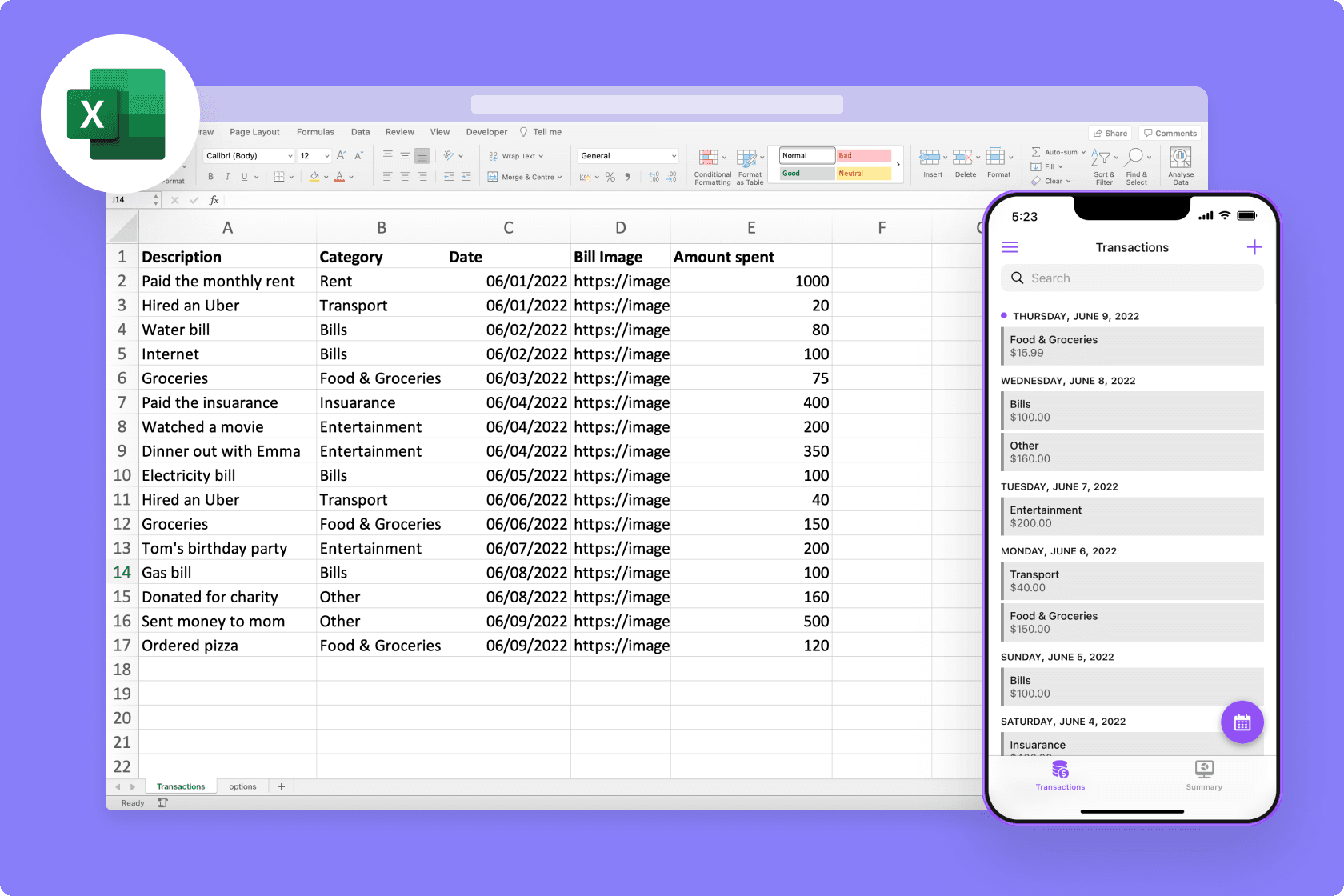
Are you watching your hard-earned money slip through your fingers each month, unsure where it all goes? While the best AI for financial modeling continues to transform how businesses analyze complex datasets and forecast trends, most of us just need a simple way to track daily spending without breaking the bank on expensive software. This article walks you through 7 straightforward steps to build a functional Excel expense tracker in just 30 minutes, giving you complete control over your personal finances with formulas, categories, and visual charts that make sense at a glance.
Building your tracker from scratch teaches you the fundamentals, but what if you could speed up the process even more? Numerous's spreadsheet AI tools help you achieve your expense-tracking goals faster by automating repetitive tasks such as categorizing transactions, generating summary reports, and creating budget formulas with simple conversational prompts. Instead of searching through formula tutorials or troubleshooting errors, you can focus on what matters: understanding your spending patterns and making smarter financial decisions.
Table of Contents
Why Small Business Owners Struggle to Create Expense Trackers in Excel
The Hidden Cost of Creating Expense Trackers Without a Clear System
Summary
Small business owners often fail to track expenses effectively because they treat spreadsheets as storage tools rather than decision-making systems. Without upfront planning, categories drift over time, formulas break as data grows, and the tracker demands constant maintenance instead of revealing spending patterns.
Inconsistent categories fragment your financial data and hide spending trends that should trigger immediate attention. When "Office supplies" becomes "Supplies" becomes "Office" across different months, your analysis breaks down completely. According to Uncat, 30% of SaaS budgets are wasted on unused licenses, a problem that becomes invisible when expense categories aren't tracked with precision.
Manual spreadsheet setup creates compounding errors that erode trust in your financial data over time. Growth Lab Financial reports that 88% of spreadsheets contain errors, making the tracker less reliable with each passing month. Small mistakes in formula ranges, duplicate entries, and missing categories accumulate silently until you stop believing the numbers entirely.
Businesses that review monthly expense summaries identify cost reduction opportunities 40% faster than those relying on raw transaction logs alone, according to the U.S. Small Business Administration. The difference between a functional tracker and a useless one comes down to structure: separating raw data from analysis, automating calculations with formulas like SUMIF and SUMIFS, and creating summary views that answer questions in seconds instead of hours.
The best expense tracker is not the most advanced one but the one that remains usable and reliable every day. Complex trackers with elaborate macros and conditional formatting might impress colleagues, but they break easily and intimidate anyone who needs to update them.
Numerous's spreadsheet AI tools address this by automating repetitive setup tasks, such as categorizing transactions, generating summary formulas, and standardizing inconsistent entries, through simple conversational prompts.
Why Small Business Owners Struggle to Create Expense Trackers in Excel

Small business owners struggle to create expense trackers in Excel because they focus on recording transactions rather than on designing a system that consistently organizes, categorizes, and analyzes financial data over time. The spreadsheet becomes a storage tool rather than a decision-making tool. Without structure, the tracker eventually creates more confusion than clarity.
The Tracker Develops Without Planning
Most business owners open Excel and immediately start adding columns. The first few entries feel manageable because the dataset is small. But as transactions accumulate, the tracker grows randomly:
New columns appear mid-month
Category labels change
Income and expenses mix together
According to research from SCORE, businesses that track their expenses properly see savings of up to 25% in unnecessary costs, but that only happens when the system is built to reveal patterns, not just store numbers. Without initial structure, the spreadsheet becomes harder to maintain and harder to trust.
Categories Remain Inconsistent
Expenses are often recorded using whatever label feels right in the moment. "Fuel," "Transport," and "Travel" might all refer to similar costs. Some entries have categories while others are left blank. This creates data that cannot be grouped or analyzed properly. Categories make expense tracking useful by helping business owners understand where money is being spent and how spending changes over time. Without consistent categories, the tracker only stores data rather than creating insights.
Manual Setup Creates Repeated Errors
Most expense trackers are built manually, so:
Users type formulas repeatedly
Adjust totals by hand
Copy calculations across rows
Fix broken references as the sheet grows
Small mistakes accumulate and affect accuracy. Growth Lab Financial reports that 88% of spreadsheets contain errors, which means confidence in the tracker decreases over time. A tracker is only valuable if the numbers inside it can be trusted.
Automated Categorization and Strategic Analysis
Many business owners spend hours setting up formulas and cleaning data when they could be analyzing spending patterns instead. Tools like Numerous's spreadsheet AI tool help automate repetitive setup tasks by using AI to categorize transactions, generate summary formulas, and structure data consistently through simple conversational prompts. Instead of manually typing formulas or troubleshooting errors, business owners can focus on understanding their financial patterns and making better decisions based on accurate data.
The Tracker Focuses on Recording, Not Analysis
Many users think creating a tracker simply means logging expenses. The sheet becomes a storage tool rather than a financial management tool. Business owners may successfully record every transaction but still struggle to answer basic questions:
Where is most money going?
Which costs are increasing?
How much is being spent monthly?
Tracking without analysis limits decision-making. The tracker exists, but it does not help improve the business. But what happens when the tracker lacks structure is more expensive than most people realize.
Related Reading
The Hidden Cost of Creating Expense Trackers Without a Clear System
Without structure, an expense tracker becomes a liability disguised as productivity. The spreadsheet fills with data, but that data doesn't answer the questions you actually need to make decisions. You're recording everything and understanding nothing.
When Recording Becomes Busywork
The tracker starts simple. A few columns for date, vendor, amount, category. Transactions get logged as they happen. The spreadsheet grows, and it feels like progress because something is being done. But then you need to see monthly spending trends. You want to compare this quarter to last quarter. You try to identify which category is consuming the most cash. The data is all there, but extracting meaning requires manual sorting, filtering, and recalculating. The tracker doesn't surface insights. It just stores numbers.
The Consistency Problem Nobody Sees Coming
Categories drift over time without anyone noticing. "Office supplies" becomes "Supplies" becomes "Office" becomes "Misc office." Each variation seems harmless in the moment, but they fragment your data. When you try to total office spending for the year, you're hunting through four different labels for the same type of expense. Formulas get copied incorrectly. A SUM range that should update monthly stays locked to January. Totals look stable when spending is actually climbing. You make decisions based on numbers that stopped reflecting reality weeks ago. According to Uncat, 30% of SaaS budgets are wasted on unused licenses, a problem that becomes invisible when expense categories aren't tracked with precision. The same pattern shows up across all spending: what you don't measure consistently, you can't control.
The Maintenance Trap
Every month requires more cleanup work than the last. You're fixing category names, correcting formulas, reconciling duplicate entries, searching for missing transactions. The tracker demands constant attention just to stay functional. Teams often report spending more time maintaining the spreadsheet than analyzing what it reveals. The tool that was supposed to simplify expense management becomes another task competing for limited time. You're managing the tracker rather than the business.
What Gets Lost in Translation
Poor structure creates blind spots in financial visibility. Expenses appear manageable until you realize the tracker has been undercounting a major category for months. Small recurring costs slip through because they're scattered across inconsistent labels. Spending patterns that should trigger attention remain hidden in fragmented data. When someone asks, "How much are we spending on software monthly?" the answer requires an hour of spreadsheet archaeology. That question should take seconds. The gap between what the tracker contains and what it reveals is where decisions get delayed, costs get missed, and financial control weakens.
AI-Driven Data Intelligence and Integration
Platforms like Numerous help teams bridge that gap by using AI to standardize categories, validate entries, and surface patterns directly inside spreadsheets, turning raw transaction logs into structured expense intelligence without rebuilding the entire system. But building structure from scratch doesn't have to take weeks of planning and setup.
7 Steps to Create an Excel Expense Tracker in 30 Minutes
You can create an Excel expense tracker in 30 minutes by building a simple system that organizes expenses clearly, automates calculations, and makes spending easier to review over time. The goal is not to build a complicated accounting model, but to create a tracker that stays clean, usable, and easy to maintain.
1. Create a Structured Expense Table
Start with five columns:
Date
Description
Category
Payment method
Amount
This structure ensures that every expense is recorded consistently from the beginning, preventing confusion later rather than constantly reorganizing the sheet. Most expense trackers fail because structure is treated as optional. In reality, structure is what keeps the tracker usable as data grows. Without it, you end up with scattered information that requires hours of cleanup before you can analyze anything meaningful.
2. Define Consistent Expense Categories
Create fixed categories such as:
Rent
Utilities
Transport
Marketing
Supplies
Categories make it possible to analyze spending patterns rather than just store transactions. You immediately create a system that groups and summarizes expenses properly. Without consistent categories, your tracker cannot show meaningful trends because similar expenses become scattered across different labels. When you type "Office supplies" one week and "Supplies" the next, your formulas treat them as separate categories. The data is there, but the insight disappears.
3. Add Data Validation for Cleaner Entries
Use dropdown lists or validation rules for categories and formats. It reduces inconsistent entries and manual typing errors, improving accuracy without constantly correcting data later. The real problem starts at data entry. When imported bank data doesn't match your expected format (debits and credits appearing in one column instead of separate columns), you need helper columns with IF formulas to separate them based on transaction type or positive/negative values. Apply the ABS function to handle negative values when separating debits from credits. This preprocessing step transforms messy bank imports into structured data your tracker can actually use.
4. Apply Formulas to Automate Totals
Use formulas like SUM and SUMIF to calculate totals automatically. Automation removes repetitive calculations and keeps totals updated as new data is added, helping you avoid manual calculations and reduce formula errors. Manual totals work temporarily, but automation is what makes the tracker scalable and reliable. When you add a new expense, the totals update instantly. When you need to see how much you spent on marketing last month, SUMIF gives you the answer in seconds instead of requiring you to scan dozens of rows.
5. Create a Monthly Summary Section
Add a section that shows total monthly expenses, spending by category, and highest expense areas. Raw transaction data is difficult to interpret without summaries. You turn the spreadsheet into a tool for reviewing spending patterns. According to research from the U.S. Small Business Administration, businesses that review monthly expense summaries identify cost-saving opportunities 40% faster than those relying solely on raw transaction logs. Tracking becomes valuable only when the data can support decisions. A list of 300 transactions tells you what happened. A summary shows you what matters.
6. Separate Raw Data from Analysis
Use one sheet for expense entries and another sheet for summaries and charts. Separating data from analysis keeps the workbook organized and easier to maintain, reducing clutter and making the tracker easier to update. When raw data and analysis are mixed together, spreadsheets become harder to manage as they grow. You scroll past dozens of transaction rows to find your summary, or accidentally delete a formula while entering new expenses. The separation creates clean boundaries: one place to add data, one place to understand it.
7. Keep the Tracker Simple and Repeatable
Focus on clear structure, consistent categories, and basic automation instead of unnecessary complexity. Simple systems are easier to maintain consistently. You create a tracker you can actually continue using over time. The best expense tracker is not necessarily the most advanced. It is the one that remains usable and reliable every day. Complex trackers with elaborate macros and conditional formatting might impress colleagues, but they break easily and intimidate anyone who needs to update them.
Why These 7 Steps Work
These steps work because they solve the core problems that make expense trackers difficult to maintain:
Inconsistent entries
Lack of structure
Manual calculations
Poor visibility into spending
They replace those problems with organized data, automated totals, clear summaries, and repeatable workflows. That transformation turns a spreadsheet from a simple record into a financial management tool. You stop asking "where did I put that expense?" and start asking "why did marketing costs spike 30% last quarter?"
When Simple Structure Meets Intelligent Automation
The familiar approach is building everything manually, typing formulas row by row, and creating dropdown lists one cell at a time. As your expense data grows and patterns become harder to spot manually, that approach creates maintenance overhead. You spend more time fixing broken formulas and standardizing inconsistent category names than analyzing actual spending.
Tools like Numerous help teams bridge that gap by using AI to categorize expenses, validate entries, and surface spending patterns directly inside spreadsheets. The AI function works in bulk across hundreds of transactions, standardizing category names and flagging anomalies without requiring you to write complex formulas or manually review each entry. The tracker stays simple. The intelligence layer makes it smarter.
Related Reading
The 30-Minute Workflow to Build an Expense Tracker Faster
Building an expense tracker in 30 minutes isn't about rushing through setup. It's about following a workflow that prioritizes structure over decoration, automation over manual entry, and clarity over complexity. The tracker you build in half an hour should work better six months from now than it does on day one. Most people approach this backward. They open Excel, start typing transactions, and hope organization emerges naturally. It doesn't. Without upfront decisions about categories, formulas, and summary views, the tracker becomes harder to use with every new entry. The 30-minute workflow solves this by front-loading the structure, making maintenance easier over time.
Minutes 0–5: Build the Foundation
Start with a table that defines how every future expense will be recorded. Five columns create the minimum viable structure:
Date
Description
Category
Payment method
Amount
This isn't arbitrary. Date enables time-based analysis. Description provides context when you review entries months later. Category transforms raw transactions into spending patterns. Payment method tracks cash flow across accounts. Amount is the only number that matters.
Structural Simplicity and Table Optimization
The temptation here is to add more columns.
Vendor name
Project code
Approval status
Notes
Resist this. Every additional column increases data entry friction. Teams often report that trackers with seven or more required fields get abandoned within weeks because logging a single expense feels like filling out a form. Use Excel's table feature to create this structure. Click anywhere in your data range, press Ctrl+T, and confirm the range. Tables automatically extend formulas when you add new rows, prevent common reference errors, and make filtering instant. This single step eliminates half the formula maintenance issues that break trackers after the first month.
Minutes 5–10: Define Categories Before Entering Data
Categories are decision-making tools disguised as labels. Without them, you can't answer basic questions like "How much did we spend on marketing last quarter?" or "Is our software budget growing faster than revenue?" The category list you create now determines what insights become possible later. Start with broad categories that match how you think about spending:
Rent
Utilities
Transport
Marketing
Supplies
Software
Professional services
Avoid the urge to create subcategories immediately. Marketing is more useful than separate categories for Facebook Ads, Google Ads, and LinkedIn Ads when you're trying to understand total marketing spend. You can always break categories into subcategories later if a specific area demands closer attention.
Data Validation and Category Standardization
Create a separate reference table with your category list. Place it on a second sheet or in a corner of your main tracker. Then use data validation to turn your category column into a dropdown menu. Select the category column, go to Data > Data Validation, choose List, and reference your category table. This prevents category drift, which kills tracker reliability. No more "Office supplies" one week, "Supplies" the next, and "Office" the week after.
Minutes 10–18: Automate Calculations
Manual calculations create work that compounds. Calculate one total by hand, and you'll calculate it by hand forever. Use formulas such as SUM and SUMIF to update totals automatically as new expenses appear. At the bottom of your amount column, add a SUM formula to calculate total expenses. In an adjacent cell, use SUMIF to calculate spending by category. The formula looks like this: =SUMIF(category_column, "Marketing", amount_column). Copy this formula down for each category in your reference list. Now every time you add an expense, category totals recalculate instantly.
Dynamic Formulas and AI-Assisted Logic
The real power appears when you add time-based calculations. Use SUMIFS to calculate monthly spending by category: =SUMIFS(amount_column, category_column, "Marketing", date_column, ">=2025-01-01", date_column, "<=2025-01-31"). This three-criteria formula answers "How much did we spend on marketing in January?" without manual filtering or pivot tables. Tools like Numerous can generate these formulas automatically by describing what you want to calculate in plain language. Instead of remembering SUMIFS syntax, you type "calculate total marketing spend in January," and the AI writes the formula. This matters most when you need conditional logic across multiple columns or complex date ranges where manual formula writing becomes error-prone.
Minutes 18–23: Create Summary Views
Raw transaction data answers specific questions poorly. You can see individual expenses, but understanding spending patterns requires aggregation. A summary section transforms your tracker from a storage system into an analysis tool. Create a summary table showing total expenses, spending by category, and percentage of total for each category. This view immediately surfaces where money actually goes versus where you think it goes. Businesses that review categorized spending summaries monthly identify cost-reduction opportunities 40% faster than those that review only transaction-level data.
Visualizing Trends and Spending Patterns
Add a monthly trend section if you're tracking across multiple periods. List months in rows, categories in columns, and use SUMIFS formulas to populate the grid. This matrix makes it obvious when specific categories are growing, shrinking, or staying stable. You'll spot patterns like "software costs increased 15% after we added three team members" or "marketing spend drops every December" without needing to create charts.
Minutes 23–27: Review and Validate
Small errors multiply silently.
A duplicate entry here
A missing category there
A formula that references the wrong range
These inconsistencies don't immediately break the tracker. They erode trust gradually until you no longer believe the numbers. Check for duplicate entries by sorting the table by date and amount, then scanning for identical transactions. Look for missing categories by filtering the category column to show blanks. Verify formulas by checking a few calculations manually. Does the marketing total match when you add up marketing expenses yourself? If not, the formula range is probably locked to specific rows instead of the entire column.
Bulk Data Cleaning and Error Detection
This is where AI-powered spreadsheet tools become practical rather than experimental. Numerous tools can scan hundreds of rows, identify inconsistent category names (like "Travel" and "Traveling" referring to the same expense type), flag potential duplicates based on amount and date proximity, and surface missing data without requiring you to write complex conditional formatting rules. The function works in bulk, which matters when you're reviewing a quarter's worth of transactions instead of last week's expenses.
Minutes 27–30: Test the Workflow
A tracker isn't finished when it looks complete. It's finished when adding new entries feels effortless. Add five test transactions with different categories and dates.
Do the totals update correctly?
Do the dropdowns work?
Can you filter by category and see only relevant expenses?
If anything feels clunky, fix it now. Adjust column widths so descriptions don't get cut off. Freeze the header row so column names stay visible when you scroll. Add conditional formatting to highlight expenses above a certain threshold. These small refinements prevent friction that accumulates over weeks of use. The goal isn't perfection. The goal is a tracker that becomes easier to maintain as it grows. If adding expense number 100 takes the same effort as adding expense number 10, the structure works. If it takes more effort, something in the workflow needs adjustment before you're 200 expenses deep.
What Actually Changes
Before this workflow: Building a tracker meant opening Excel and figuring out structure as you go. Categories got added mid-month when you realized "Miscellaneous" covered too much. Formulas got typed individually for each calculation. Summaries got built when you needed them for a specific report, then broke when the data structure changed.
After this workflow: The tracker starts with decisions rather than data. Categories exist before the first transaction. Formulas update automatically. Summaries stay current without manual intervention. The time investment shifts from ongoing maintenance to upfront structure.
Efficiency Gains and Scalability Limits
The difference shows up months later. Teams using structured trackers report spending 60% less time on monthly financial reviews because the data is already organized for analysis. The tracker doesn't become a chore. It becomes a tool that answers questions faster than you can ask them. But even the best structure hits limits when transaction volume grows, or complexity increases.
Related Reading
How To Calculate Total Revenue In Excel
How To Make A Financial Report In Excel
How To Categorize Expenses In Excel
Cube Alternative
Best Excel Functions For Finance
How To Create An Expense Tracker In Excel
Build Expense Trackers Faster with Numerous
When building an expense tracker feels slow, the bottleneck isn't Excel. It's the repetitive setup work:
Structuring columns
Defining categories
Writing formulas
Cleaning inconsistent entries
That's where hours disappear. The tracking itself takes minutes. The preparation takes days. Most teams handle this by creating templates once and reusing them across months or projects. That works until categories shift, new payment methods appear, or someone enters "Office" instead of "Office Supplies" and breaks the pivot table. Then you're back to manual cleanup, rewriting formulas, and wondering why a simple tracker requires constant maintenance.
Scalable Automation and Reduced Friction
As transaction volume grows, the friction multiplies. You're not just tracking expenses anymore. You're fixing formatting errors, reconciling category mismatches, and updating formulas that should have scaled automatically but didn't. The tracker becomes a second job instead of a decision-making tool. Tools like Numerous compress that setup phase by letting you prompt AI directly inside your spreadsheet. Instead of manually building category lists or typing formulas row by row, you describe what you need and the structure appears. Inconsistent entries get cleaned automatically. The same tracker that took two hours to build now takes fifteen minutes, and the structure stays consistent because the AI applies the same logic every time.
From Administration to Analysis
You're not outsourcing the thinking. You're eliminating the repetitive assembly work so you can focus on what the numbers mean. The tracker still lives in Excel. The formulas still calculate the way you expect. But the time spent building and maintaining it drops by half or more, and that time shifts to analysis instead of administration. Excel gives you the flexibility to track expenses however you need. AI gives you the speed to build that system without spending your afternoon on setup. The workflow doesn't change. The friction does.