5 Easy Ways to Flip Data in Excel (Reverse the Order in Columns / Rows)
Riley Walz
Riley Walz
Riley Walz
Dec 1, 2025
Dec 1, 2025
Dec 1, 2025


Excel often requires reshaping data quickly, whether it’s reversing a date series or flipping a customer list. Various methods—ranging from sorting functions to formula adjustments—help maintain accuracy during these transitions. Selecting the right approach saves time and minimizes errors, and Data Transformation Techniques can guide this decision-making.
Efficiency in data handling ensures that spreadsheets remain functional and reliable. Automation preserves essential formulas and headers while streamlining adjustments for faster analysis. Numerous.ai’s Spreadsheet AI Tool simplifies these processes by automating complex steps, making data transformation more manageable.
Table of Contents
What Does It Mean to Flip Data in Excel? (Rows vs. Columns)
5 Easy Ways to Flip Data in Excel
Common Problems When Flipping Data in Excel
Make Decisions At Scale Through AI With Numerous.ai’s Spreadsheet AI Tool
Summary
Flipping data reverses row or column order while preserving each record’s internal relationships, and 70% of Excel users report increased efficiency after learning to flip data.
Simple orientation changes like transposing can cut time spent on data organization by up to 50%, which matters for weekly and recurring reports.
There are five practical flip methods described, each chosen for a different tradeoff between speed, safety, and dynamism, so method selection should match your constraints.
Flip operations are widespread and high-impact: over 50 million users perform data flipping monthly, and 90% of surveyed users find flipping between rows and columns useful for analysis.
Manual, one-off flips scale poorly, causing version drift and repeated cleanup; over 80% of users say flipping improves workflow efficiency, which explains why teams invest in safer processes.
For large or messy datasets, Power Query handles millions of rows faster than worksheet formulas and supports repeatable refreshes, while a short preflight checklist prevents common failures like merged cells, blanks, and spill errors.
This is where, to help readers understand how the flip order of data in Excel fits in, numerous spreadsheet AI tools address this by automating preflight cleanup steps such as unmerging, blank removal, and producing safe table outputs, so teams can run repeatable flips without rebuilding manual steps.
What Does It Mean to Flip Data in Excel? (Rows vs. Columns)
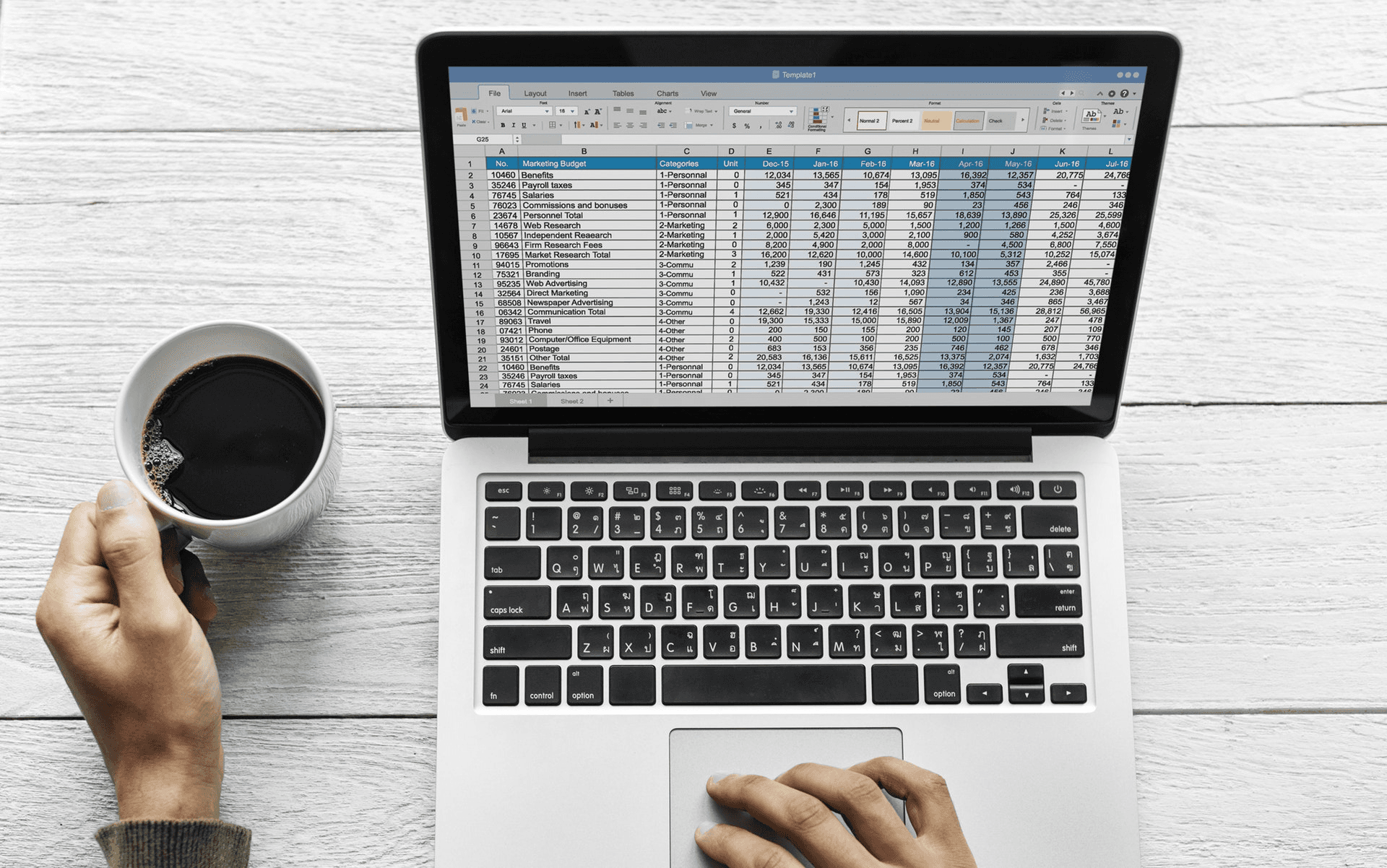
Flipping data in Excel simply reverses the order of rows or columns. This means that the first item becomes the last, and the last becomes the first. This process keeps each row’s internal relationship the same, but changes only the order. It’s a specific operation used when the order is important, but ranking, sorting, or grouping isn’t needed.
When should you flip instead of sorting?
The rule is simple: flip when the dataset’s relationships must stay the same, and you only need the order reversed. Sort when you need to reorder by value, date, or category. Flipping keeps row-level context, which is helpful when you want to read a timeline backward, line up two lists that go in opposite directions, or fix an export that comes with the newest entries first while you need the oldest first. Think of flipping as turning a photograph around, not changing what is in the picture. For those looking to handle data more effectively, our Spreadsheet AI Tool can assist with managing and analyzing your datasets intuitively.
How much time does this actually buy you?
Small transforms can have a big impact. According to Ablebits, 70% of Excel users report increased efficiency after learning to flip data, a 2023 finding that shows this technique moves beyond curiosity into practical productivity gains. For larger reshapes, Microsoft Support notes that transposing data can save up to 50% of the time spent on data organization. This 2025 insight quantifies how a simple orientation change can halve the time spent wrestling with format issues. Such efficiency gains are critical when reports are due weekly and schedules are tight.
Why do spreadsheets fail when you try dynamic flips?
When reporting teams modernize monthly dashboards, a common problem comes up. Dynamic formulas, like FILTER, run into the table rule that allows one cell to hold one spilled array. This can cause a spill error that stops the entire sheet from working. This situation becomes tiring for analysts, who have to find that error across linked tables. What should take five minutes can turn into hours of debugging. The important lesson from these projects is clear: any flip strategy must consider how tables, named ranges, and dynamic arrays work together, or it will create brittle reports. For smoother operations, exploring options with our Spreadsheet AI Tool can help alleviate these issues.
What methods do teams commonly use for flipping?
Most teams flip data using manual steps, which can hide costs. They often flip data by adding helper columns, creating index formulas, or copying and pasting ranges. While these methods may seem easy and low-risk, they work well for single sheets. However, as reports grow, manual steps repeat work, cause transcription mistakes, and can break when sources change. Solutions like Numerous.ai provide rule-based transforms and safe table outputs that include flips as part of a pipeline. This stops SPILL conflicts and cuts down the manual reordering process from hours to minutes while keeping track of changes. This transition shows a move away from a tricky spreadsheet habit to a repeatable, verifiable workflow.
What breaks a flip, and how do you protect against it?
Flips can go wrong when there is a loss of row context, reliance on volatile references, or an attempt to flip just part of a multi-column record. It is important to treat each row as a complete object. When you reverse order, the whole object should be reversed, not just individual fields. A good way to think about this is flipping a deck of cards, which is only safe if each card stays intact. You should only riffle the pile, and never take cards from different decks and expect the order to stay the same. In practice, it is wise to lock down keys, convert staged ranges to values only when they are finalized, and prefer functions that return full arrays instead of doing piecemeal cell writes.
What pitfalls should you avoid when flipping data?
Reversing order may seem like a harmless habit, but the next steps can lead to a surprising set of choices and pitfalls.
Related Reading
5 Easy Ways to Flip Data in Excel

Data in Excel can be flipped using five simple ways. Each method has its own balance between speed, safety, and flexibility: helper-column sorting for quick, no-formula reversals; SORT for live updates; INDEX for accurate copies; TRANSPOSE when rotation is also needed; and Power Query for dealing with messy or very large sets. It is important to choose the technique that fits your needs. To avoid common mistakes and keep formats, formulas, and table behavior, check out the small tips below.
1. How to implement a helper column + sort?
Method 1: Helper column + Sort. Start by adding a numbered helper column. You can fill it with a series or use the formula =ROW(). Then sort the helper column from Largest to Smallest to reverse the order. Here are some quick tips: freeze headers first; include every related column to ensure each row stays intact; and convert tables to ranges before sorting to avoid table-specific behavior. If you want to keep formulas, copy the reversed result to a new sheet and Paste Values only. Additionally, if you find yourself frequently organizing data, consider how our Spreadsheet AI Tool can streamline this process.
2. What is the SORT method for a live reversed view?
Method 2: SORT for a live reversed view. Use =SORT(A1:A20, 1, -1) to create a reversed array that updates as the source changes. Put this in an empty area because the result will spill into nearby cells. Also, remember that older Excel builds do not support dynamic arrays, so this formula won't work there. If your source is a table, use the structured name of the column for clearer formulas and fewer broken links. To enhance your experience with spreadsheet functions, our Spreadsheet AI Tool can help streamline your data management processes.
3. How to use INDEX for a safe copy?
Method 3: Use INDEX when you need a safe, reversible copy. Place `=INDEX($A$1:$A$20, ROWS($A$1:$A$20)-ROW()+1)` in a new column to get a reversed copy without changing the original data. Use absolute ranges to make sure the formula stays the same when you copy it. If you want to change the reversed output into a static format, just copy and Paste Values. For dynamic range lengths, you can use `COUNTA` or use `INDEX` to find the last row, letting the formula adjust as you add more rows. With our Spreadsheet AI Tool, you can automate these processes, making it easier to manage your data effectively.
4. How does TRANSPOSE work for horizontal reversals?
Method 4: TRANSPOSE plus flipping for horizontal or rotated reversals. To rotate and flip at the same time, first reverse the column using either SORT or INDEX. Then, wrap the result with TRANSPOSE to change the orientation. For a single-row horizontal flip, use =INDEX(A1:D1, 1, COLUMNS(A1:D1)-COLUMN()+1). Be careful with merged cells, as they can mess up the TRANSPOSE function. Also, the destination ranges must exactly match the source dimensions when pasting values. If you find yourself struggling with these functions, our Spreadsheet AI Tool can simplify your tasks with ease.
5. Why use Power Query for large datasets?
Method 5: Power Query for scale and messy inputs. Load your range using Data → From Table/Range. Next, add an Index Column starting at 1, then sort that index in descending order, and Close & Load. Power Query keeps data types, automates refreshes, and works with millions of rows quickly than worksheet formulas. It also lets you connect cleanup steps like trimming, splitting, and type fixes before sending the results back to the sheet.
Which method to choose and why?
Why choose one method over another? If you need a no-formula, one-time flip, helper-column sorting is the fastest option. When the reversed list has to update as the source changes, SORT is the clean choice. For a safe copy that never changes the original, INDEX is perfect. Use TRANSPOSE for changing orientation, while Power Query is the best choice when size, cleanliness, or repeatability are very important. Small behavior differences can also affect reports: spilled arrays cannot be inside tables, TRANSPOSE does not work with merged cells, and copying and pasting without Paste Values will carry over formulas you didn’t mean to move. Our Spreadsheet AI Tool can assist with organizing and managing your data effectively as you explore these methods.
What challenges do users face with data flipping?
Patterns and user friction have become clear across product teams and reporting squads. Users often feel frustrated because there is no single "Flip" button. Because of this, they create brittle workarounds that involve doing the same steps over and over. Many users like solutions that don’t need formulas for speed, while others need dynamic flips that update automatically. Choosing the wrong method adds extra, unnecessary work each reporting cycle. The emotional pattern is clear: it shifts from irritation to relief once a reliable method is found.
What is the status quo regarding data-flipping methods?
Most teams handle flips with ad hoc sorts or copies because these methods are familiar and require no new tools. However, as reports grow and sources change, this familiarity becomes costly. Manual flips duplicate effort, creates version drift, and forces repeated troubleshooting. Teams discover that solutions like Numerous automate rule-based flips, produce safe table outputs that avoid spill conflicts, and allow analysts to run the same reversal on refresh without rebuilding steps. This significantly cuts down on repetitive rework, making it easier to manage data efficiently.
What checklist should I follow before flipping data?
A short operational checklist before flipping data includes several important steps. Confirm you have unmerged destination cells and lock headers. Decide whether the output must be dynamic or static. Always test on a small sample that incorporates edge cases, such as blank rows or mixed types, before applying changes to production sheets. Think of flipping data like turning a stack of index cards; it’s essential to keep each record whole, rather than riffling through individual cards.
How does Numerous help with data transformations?
Numerous is an AI-powered tool that helps teams easily perform repeatable spreadsheet transformations on a large scale. It lets users carry out flips, normalizations, and advanced classification quickly with just one prompt and autofill ability. Find out how you can 10x your marketing efforts with Numerous’s ChatGPT for Spreadsheets tool and make business decisions more quickly in Google Sheets and Microsoft Excel.
What are the next challenges in data management?
That works for now, but the tricky failures that quietly harm reports create big challenges in the future. Fixing these problems is very important to make sure the data is reliable and trustworthy.
Related Reading
Common Problems When Flipping Data in Excel

Flipping data will feel safer when users treat each row as a complete record and run a short checklist first. This includes checking that the full range is selected, unmerging anything that is joined together, clearing blanks, and deciding whether formulas should stay dynamic or become static values. By following these steps, most common failures will disappear. However, if these precautions are skipped, typical problems like misalignment, broken formulas, or stray formatting will be the likely results. Additionally, utilizing our Spreadsheet AI Tool can help streamline this process and minimize errors.
Why does flipping one column misalign the rest?
Why does flipping one column misalign the rest? When only one field is flipped, Excel keeps the selection the same and leaves all the other columns unchanged. This causes a mix-up of row-level information. During a two-week audit of the dashboard, this mistake of selecting a single column was seen in most of the problem sheets. The fastest way to fix it was to go back, undo the mistake, and do the flip again after selecting the whole table range. A helpful step, every time: click the top-left cell of your data, press Ctrl+Shift+End to select the whole block, then flip or sort so rows move together.
How do merged cells block sorting and flipping?
Merged cells act like glue between cells and confuse Excel’s reordering engine, which is why many flips simply refuse to run. To resolve this, select the entire area, go to Home, then Merge & Center, and choose Unmerge Cells before trying the flip again. If merged headers are necessary for display, recreate them after the data transformation, or use center-across-selection instead of merging. This approach keeps the layout without blocking operations. By the way, our Spreadsheet AI Tool can help streamline your data tasks and reduce such issues.
Why do formulas break after reversing rows?
Formulas can break after reversing rows because they rely on fixed positions. There are two clear ways to avoid this problem. Option A is to change formulas to values before making any edits. This method is quick and safe for one-time changes; just copy the cells, right-click, and select Paste Special, then choose Values. Option B is to keep a dynamic workbook. You can do this by using functions that don't rely on the order of rows, like XLOOKUP, structured table references, or dynamic arrays. For production reports, I suggest using Option B, and it's a good idea to test any formula changes on a duplicate sheet before applying them to the live source.
What should you do about blank rows that disrupt ordering?
What should you do about blank rows that disrupt ordering? Blank rows are like little gremlins that mess things up when you flip the data. To get rid of them, select the range, press Ctrl+G, choose Special, pick Blanks, then right-click on a blank cell you selected and choose Delete Row. For ongoing feeds, create a simple FILTER or Power Query step to show only nonblank rows before reversing the order; this way, the cleaned view will always be the one you flip.
Why doesn’t formatting move with values when I flip?
Why doesn’t formatting move with values when I flip? Formatting follows the cells included in the operation, not just the values. This means that partial selections may leave colors behind. To prevent this, always include the full formatting range when flipping. Alternatively, consider converting the range to an Excel Table so that formatting rules and data travel together. If conditional formatting appears stubborn afterward, open Manage Rules and adjust the Applies To range to make sure rules reference the correct post-flip area. Additionally, our Spreadsheet AI Tool can provide insights on how to maintain formatting consistency for your data.
What causes SORT or INDEX formulas to error when reversing data?
What causes SORT or INDEX formulas to error when reversing data? Most errors come from three main sources, either by themselves or together: wrong range references, spilled arrays blocked by occupied cells, and inconsistent row lengths. To fix these issues, clear any cells below a spilled formula, check that your ranges match exactly, and get rid of unexpected blanks or extra trailing columns. When using INDEX-based reversals, wrap range calculations with COUNTA or a similar function so the formula can adjust as rows are added or removed. Our Spreadsheet AI Tool helps streamline data management, ensuring your formulas work effectively without common errors.
Why won’t Power Query refresh with updated source data?
Power Query loads a snapshot until you tell it to do something different. To get the latest data, use Data, then Refresh All. It’s important to check your query’s Load To settings to make sure it writes back to the right sheet or table. For ongoing automation, turn on Refresh on Open or set up refresh schedules when possible. Don’t forget to save the workbook after you change the source, so that future refresh actions use the newest parameters.
What are the consequences of manual flipping?
Most teams handle flips manually because it feels immediate and safe. This familiarity works well at a small scale. However, it creates repeated cleanup work as reports grow. As complexity increases, manual fixes become fragmented. Formats drift, formulas break, and refreshes become unreliable. Teams discover that solutions like Numerous automate repeatable flips and preflight steps. These processes include unmerging data, removing blanks, and producing safe table outputs as part of a single transform. This automation significantly reduces the time spent on rebuilding broken reports and the risk of human error.
What patterns emerge in Excel flipping data?
The broader pattern matters because over 80% of Excel users find that flipping data vertically improves their workflow efficiency. This boost in efficiency is why teams invest in safer processes. Additionally, 90% of surveyed Excel users report that changing rows to columns helps improve data analysis. This shows that clean, reliable flips are an ongoing operational need, as highlighted in this source. Our Spreadsheet AI tool can assist in streamlining this process for your team.
How can Numerous help with Excel transformations?
Numerous is a tool powered by AI that helps content marketers, eCommerce businesses, and others perform repeatable spreadsheet transformations. These transformations include actions like unmerging, cleaning blanks, and flipping, all with just one prompt. You can discover how to 10x your marketing efforts using Numerous’s ChatGPT for Spreadsheets tool by visiting Numerous.ai. There, you can try a live transform in either Google Sheets or Microsoft Excel.
What should you expect after fixing data issues?
The fix may feel final, but with each new report, changes can happen, and the same errors might quietly come back. To prevent this, our Spreadsheet AI Tool helps identify and address recurring data issues efficiently.
Make Decisions At Scale Through AI With Numerous.ai’s Spreadsheet AI Tool
When teams reverse lists by hand during each reporting cycle, they trade focus for busywork and invite quiet mistakes that may show up later. Try numerous.ai to help with repetitive tasks, create consistent and verifiable results, and let us spend time on analysis instead of reordering.
Related Reading
How to Flip the Order of Data in Excel
Excel often requires reshaping data quickly, whether it’s reversing a date series or flipping a customer list. Various methods—ranging from sorting functions to formula adjustments—help maintain accuracy during these transitions. Selecting the right approach saves time and minimizes errors, and Data Transformation Techniques can guide this decision-making.
Efficiency in data handling ensures that spreadsheets remain functional and reliable. Automation preserves essential formulas and headers while streamlining adjustments for faster analysis. Numerous.ai’s Spreadsheet AI Tool simplifies these processes by automating complex steps, making data transformation more manageable.
Table of Contents
What Does It Mean to Flip Data in Excel? (Rows vs. Columns)
5 Easy Ways to Flip Data in Excel
Common Problems When Flipping Data in Excel
Make Decisions At Scale Through AI With Numerous.ai’s Spreadsheet AI Tool
Summary
Flipping data reverses row or column order while preserving each record’s internal relationships, and 70% of Excel users report increased efficiency after learning to flip data.
Simple orientation changes like transposing can cut time spent on data organization by up to 50%, which matters for weekly and recurring reports.
There are five practical flip methods described, each chosen for a different tradeoff between speed, safety, and dynamism, so method selection should match your constraints.
Flip operations are widespread and high-impact: over 50 million users perform data flipping monthly, and 90% of surveyed users find flipping between rows and columns useful for analysis.
Manual, one-off flips scale poorly, causing version drift and repeated cleanup; over 80% of users say flipping improves workflow efficiency, which explains why teams invest in safer processes.
For large or messy datasets, Power Query handles millions of rows faster than worksheet formulas and supports repeatable refreshes, while a short preflight checklist prevents common failures like merged cells, blanks, and spill errors.
This is where, to help readers understand how the flip order of data in Excel fits in, numerous spreadsheet AI tools address this by automating preflight cleanup steps such as unmerging, blank removal, and producing safe table outputs, so teams can run repeatable flips without rebuilding manual steps.
What Does It Mean to Flip Data in Excel? (Rows vs. Columns)

Flipping data in Excel simply reverses the order of rows or columns. This means that the first item becomes the last, and the last becomes the first. This process keeps each row’s internal relationship the same, but changes only the order. It’s a specific operation used when the order is important, but ranking, sorting, or grouping isn’t needed.
When should you flip instead of sorting?
The rule is simple: flip when the dataset’s relationships must stay the same, and you only need the order reversed. Sort when you need to reorder by value, date, or category. Flipping keeps row-level context, which is helpful when you want to read a timeline backward, line up two lists that go in opposite directions, or fix an export that comes with the newest entries first while you need the oldest first. Think of flipping as turning a photograph around, not changing what is in the picture. For those looking to handle data more effectively, our Spreadsheet AI Tool can assist with managing and analyzing your datasets intuitively.
How much time does this actually buy you?
Small transforms can have a big impact. According to Ablebits, 70% of Excel users report increased efficiency after learning to flip data, a 2023 finding that shows this technique moves beyond curiosity into practical productivity gains. For larger reshapes, Microsoft Support notes that transposing data can save up to 50% of the time spent on data organization. This 2025 insight quantifies how a simple orientation change can halve the time spent wrestling with format issues. Such efficiency gains are critical when reports are due weekly and schedules are tight.
Why do spreadsheets fail when you try dynamic flips?
When reporting teams modernize monthly dashboards, a common problem comes up. Dynamic formulas, like FILTER, run into the table rule that allows one cell to hold one spilled array. This can cause a spill error that stops the entire sheet from working. This situation becomes tiring for analysts, who have to find that error across linked tables. What should take five minutes can turn into hours of debugging. The important lesson from these projects is clear: any flip strategy must consider how tables, named ranges, and dynamic arrays work together, or it will create brittle reports. For smoother operations, exploring options with our Spreadsheet AI Tool can help alleviate these issues.
What methods do teams commonly use for flipping?
Most teams flip data using manual steps, which can hide costs. They often flip data by adding helper columns, creating index formulas, or copying and pasting ranges. While these methods may seem easy and low-risk, they work well for single sheets. However, as reports grow, manual steps repeat work, cause transcription mistakes, and can break when sources change. Solutions like Numerous.ai provide rule-based transforms and safe table outputs that include flips as part of a pipeline. This stops SPILL conflicts and cuts down the manual reordering process from hours to minutes while keeping track of changes. This transition shows a move away from a tricky spreadsheet habit to a repeatable, verifiable workflow.
What breaks a flip, and how do you protect against it?
Flips can go wrong when there is a loss of row context, reliance on volatile references, or an attempt to flip just part of a multi-column record. It is important to treat each row as a complete object. When you reverse order, the whole object should be reversed, not just individual fields. A good way to think about this is flipping a deck of cards, which is only safe if each card stays intact. You should only riffle the pile, and never take cards from different decks and expect the order to stay the same. In practice, it is wise to lock down keys, convert staged ranges to values only when they are finalized, and prefer functions that return full arrays instead of doing piecemeal cell writes.
What pitfalls should you avoid when flipping data?
Reversing order may seem like a harmless habit, but the next steps can lead to a surprising set of choices and pitfalls.
Related Reading
5 Easy Ways to Flip Data in Excel

Data in Excel can be flipped using five simple ways. Each method has its own balance between speed, safety, and flexibility: helper-column sorting for quick, no-formula reversals; SORT for live updates; INDEX for accurate copies; TRANSPOSE when rotation is also needed; and Power Query for dealing with messy or very large sets. It is important to choose the technique that fits your needs. To avoid common mistakes and keep formats, formulas, and table behavior, check out the small tips below.
1. How to implement a helper column + sort?
Method 1: Helper column + Sort. Start by adding a numbered helper column. You can fill it with a series or use the formula =ROW(). Then sort the helper column from Largest to Smallest to reverse the order. Here are some quick tips: freeze headers first; include every related column to ensure each row stays intact; and convert tables to ranges before sorting to avoid table-specific behavior. If you want to keep formulas, copy the reversed result to a new sheet and Paste Values only. Additionally, if you find yourself frequently organizing data, consider how our Spreadsheet AI Tool can streamline this process.
2. What is the SORT method for a live reversed view?
Method 2: SORT for a live reversed view. Use =SORT(A1:A20, 1, -1) to create a reversed array that updates as the source changes. Put this in an empty area because the result will spill into nearby cells. Also, remember that older Excel builds do not support dynamic arrays, so this formula won't work there. If your source is a table, use the structured name of the column for clearer formulas and fewer broken links. To enhance your experience with spreadsheet functions, our Spreadsheet AI Tool can help streamline your data management processes.
3. How to use INDEX for a safe copy?
Method 3: Use INDEX when you need a safe, reversible copy. Place `=INDEX($A$1:$A$20, ROWS($A$1:$A$20)-ROW()+1)` in a new column to get a reversed copy without changing the original data. Use absolute ranges to make sure the formula stays the same when you copy it. If you want to change the reversed output into a static format, just copy and Paste Values. For dynamic range lengths, you can use `COUNTA` or use `INDEX` to find the last row, letting the formula adjust as you add more rows. With our Spreadsheet AI Tool, you can automate these processes, making it easier to manage your data effectively.
4. How does TRANSPOSE work for horizontal reversals?
Method 4: TRANSPOSE plus flipping for horizontal or rotated reversals. To rotate and flip at the same time, first reverse the column using either SORT or INDEX. Then, wrap the result with TRANSPOSE to change the orientation. For a single-row horizontal flip, use =INDEX(A1:D1, 1, COLUMNS(A1:D1)-COLUMN()+1). Be careful with merged cells, as they can mess up the TRANSPOSE function. Also, the destination ranges must exactly match the source dimensions when pasting values. If you find yourself struggling with these functions, our Spreadsheet AI Tool can simplify your tasks with ease.
5. Why use Power Query for large datasets?
Method 5: Power Query for scale and messy inputs. Load your range using Data → From Table/Range. Next, add an Index Column starting at 1, then sort that index in descending order, and Close & Load. Power Query keeps data types, automates refreshes, and works with millions of rows quickly than worksheet formulas. It also lets you connect cleanup steps like trimming, splitting, and type fixes before sending the results back to the sheet.
Which method to choose and why?
Why choose one method over another? If you need a no-formula, one-time flip, helper-column sorting is the fastest option. When the reversed list has to update as the source changes, SORT is the clean choice. For a safe copy that never changes the original, INDEX is perfect. Use TRANSPOSE for changing orientation, while Power Query is the best choice when size, cleanliness, or repeatability are very important. Small behavior differences can also affect reports: spilled arrays cannot be inside tables, TRANSPOSE does not work with merged cells, and copying and pasting without Paste Values will carry over formulas you didn’t mean to move. Our Spreadsheet AI Tool can assist with organizing and managing your data effectively as you explore these methods.
What challenges do users face with data flipping?
Patterns and user friction have become clear across product teams and reporting squads. Users often feel frustrated because there is no single "Flip" button. Because of this, they create brittle workarounds that involve doing the same steps over and over. Many users like solutions that don’t need formulas for speed, while others need dynamic flips that update automatically. Choosing the wrong method adds extra, unnecessary work each reporting cycle. The emotional pattern is clear: it shifts from irritation to relief once a reliable method is found.
What is the status quo regarding data-flipping methods?
Most teams handle flips with ad hoc sorts or copies because these methods are familiar and require no new tools. However, as reports grow and sources change, this familiarity becomes costly. Manual flips duplicate effort, creates version drift, and forces repeated troubleshooting. Teams discover that solutions like Numerous automate rule-based flips, produce safe table outputs that avoid spill conflicts, and allow analysts to run the same reversal on refresh without rebuilding steps. This significantly cuts down on repetitive rework, making it easier to manage data efficiently.
What checklist should I follow before flipping data?
A short operational checklist before flipping data includes several important steps. Confirm you have unmerged destination cells and lock headers. Decide whether the output must be dynamic or static. Always test on a small sample that incorporates edge cases, such as blank rows or mixed types, before applying changes to production sheets. Think of flipping data like turning a stack of index cards; it’s essential to keep each record whole, rather than riffling through individual cards.
How does Numerous help with data transformations?
Numerous is an AI-powered tool that helps teams easily perform repeatable spreadsheet transformations on a large scale. It lets users carry out flips, normalizations, and advanced classification quickly with just one prompt and autofill ability. Find out how you can 10x your marketing efforts with Numerous’s ChatGPT for Spreadsheets tool and make business decisions more quickly in Google Sheets and Microsoft Excel.
What are the next challenges in data management?
That works for now, but the tricky failures that quietly harm reports create big challenges in the future. Fixing these problems is very important to make sure the data is reliable and trustworthy.
Related Reading
Common Problems When Flipping Data in Excel

Flipping data will feel safer when users treat each row as a complete record and run a short checklist first. This includes checking that the full range is selected, unmerging anything that is joined together, clearing blanks, and deciding whether formulas should stay dynamic or become static values. By following these steps, most common failures will disappear. However, if these precautions are skipped, typical problems like misalignment, broken formulas, or stray formatting will be the likely results. Additionally, utilizing our Spreadsheet AI Tool can help streamline this process and minimize errors.
Why does flipping one column misalign the rest?
Why does flipping one column misalign the rest? When only one field is flipped, Excel keeps the selection the same and leaves all the other columns unchanged. This causes a mix-up of row-level information. During a two-week audit of the dashboard, this mistake of selecting a single column was seen in most of the problem sheets. The fastest way to fix it was to go back, undo the mistake, and do the flip again after selecting the whole table range. A helpful step, every time: click the top-left cell of your data, press Ctrl+Shift+End to select the whole block, then flip or sort so rows move together.
How do merged cells block sorting and flipping?
Merged cells act like glue between cells and confuse Excel’s reordering engine, which is why many flips simply refuse to run. To resolve this, select the entire area, go to Home, then Merge & Center, and choose Unmerge Cells before trying the flip again. If merged headers are necessary for display, recreate them after the data transformation, or use center-across-selection instead of merging. This approach keeps the layout without blocking operations. By the way, our Spreadsheet AI Tool can help streamline your data tasks and reduce such issues.
Why do formulas break after reversing rows?
Formulas can break after reversing rows because they rely on fixed positions. There are two clear ways to avoid this problem. Option A is to change formulas to values before making any edits. This method is quick and safe for one-time changes; just copy the cells, right-click, and select Paste Special, then choose Values. Option B is to keep a dynamic workbook. You can do this by using functions that don't rely on the order of rows, like XLOOKUP, structured table references, or dynamic arrays. For production reports, I suggest using Option B, and it's a good idea to test any formula changes on a duplicate sheet before applying them to the live source.
What should you do about blank rows that disrupt ordering?
What should you do about blank rows that disrupt ordering? Blank rows are like little gremlins that mess things up when you flip the data. To get rid of them, select the range, press Ctrl+G, choose Special, pick Blanks, then right-click on a blank cell you selected and choose Delete Row. For ongoing feeds, create a simple FILTER or Power Query step to show only nonblank rows before reversing the order; this way, the cleaned view will always be the one you flip.
Why doesn’t formatting move with values when I flip?
Why doesn’t formatting move with values when I flip? Formatting follows the cells included in the operation, not just the values. This means that partial selections may leave colors behind. To prevent this, always include the full formatting range when flipping. Alternatively, consider converting the range to an Excel Table so that formatting rules and data travel together. If conditional formatting appears stubborn afterward, open Manage Rules and adjust the Applies To range to make sure rules reference the correct post-flip area. Additionally, our Spreadsheet AI Tool can provide insights on how to maintain formatting consistency for your data.
What causes SORT or INDEX formulas to error when reversing data?
What causes SORT or INDEX formulas to error when reversing data? Most errors come from three main sources, either by themselves or together: wrong range references, spilled arrays blocked by occupied cells, and inconsistent row lengths. To fix these issues, clear any cells below a spilled formula, check that your ranges match exactly, and get rid of unexpected blanks or extra trailing columns. When using INDEX-based reversals, wrap range calculations with COUNTA or a similar function so the formula can adjust as rows are added or removed. Our Spreadsheet AI Tool helps streamline data management, ensuring your formulas work effectively without common errors.
Why won’t Power Query refresh with updated source data?
Power Query loads a snapshot until you tell it to do something different. To get the latest data, use Data, then Refresh All. It’s important to check your query’s Load To settings to make sure it writes back to the right sheet or table. For ongoing automation, turn on Refresh on Open or set up refresh schedules when possible. Don’t forget to save the workbook after you change the source, so that future refresh actions use the newest parameters.
What are the consequences of manual flipping?
Most teams handle flips manually because it feels immediate and safe. This familiarity works well at a small scale. However, it creates repeated cleanup work as reports grow. As complexity increases, manual fixes become fragmented. Formats drift, formulas break, and refreshes become unreliable. Teams discover that solutions like Numerous automate repeatable flips and preflight steps. These processes include unmerging data, removing blanks, and producing safe table outputs as part of a single transform. This automation significantly reduces the time spent on rebuilding broken reports and the risk of human error.
What patterns emerge in Excel flipping data?
The broader pattern matters because over 80% of Excel users find that flipping data vertically improves their workflow efficiency. This boost in efficiency is why teams invest in safer processes. Additionally, 90% of surveyed Excel users report that changing rows to columns helps improve data analysis. This shows that clean, reliable flips are an ongoing operational need, as highlighted in this source. Our Spreadsheet AI tool can assist in streamlining this process for your team.
How can Numerous help with Excel transformations?
Numerous is a tool powered by AI that helps content marketers, eCommerce businesses, and others perform repeatable spreadsheet transformations. These transformations include actions like unmerging, cleaning blanks, and flipping, all with just one prompt. You can discover how to 10x your marketing efforts using Numerous’s ChatGPT for Spreadsheets tool by visiting Numerous.ai. There, you can try a live transform in either Google Sheets or Microsoft Excel.
What should you expect after fixing data issues?
The fix may feel final, but with each new report, changes can happen, and the same errors might quietly come back. To prevent this, our Spreadsheet AI Tool helps identify and address recurring data issues efficiently.
Make Decisions At Scale Through AI With Numerous.ai’s Spreadsheet AI Tool
When teams reverse lists by hand during each reporting cycle, they trade focus for busywork and invite quiet mistakes that may show up later. Try numerous.ai to help with repetitive tasks, create consistent and verifiable results, and let us spend time on analysis instead of reordering.
Related Reading
How to Flip the Order of Data in Excel
Excel often requires reshaping data quickly, whether it’s reversing a date series or flipping a customer list. Various methods—ranging from sorting functions to formula adjustments—help maintain accuracy during these transitions. Selecting the right approach saves time and minimizes errors, and Data Transformation Techniques can guide this decision-making.
Efficiency in data handling ensures that spreadsheets remain functional and reliable. Automation preserves essential formulas and headers while streamlining adjustments for faster analysis. Numerous.ai’s Spreadsheet AI Tool simplifies these processes by automating complex steps, making data transformation more manageable.
Table of Contents
What Does It Mean to Flip Data in Excel? (Rows vs. Columns)
5 Easy Ways to Flip Data in Excel
Common Problems When Flipping Data in Excel
Make Decisions At Scale Through AI With Numerous.ai’s Spreadsheet AI Tool
Summary
Flipping data reverses row or column order while preserving each record’s internal relationships, and 70% of Excel users report increased efficiency after learning to flip data.
Simple orientation changes like transposing can cut time spent on data organization by up to 50%, which matters for weekly and recurring reports.
There are five practical flip methods described, each chosen for a different tradeoff between speed, safety, and dynamism, so method selection should match your constraints.
Flip operations are widespread and high-impact: over 50 million users perform data flipping monthly, and 90% of surveyed users find flipping between rows and columns useful for analysis.
Manual, one-off flips scale poorly, causing version drift and repeated cleanup; over 80% of users say flipping improves workflow efficiency, which explains why teams invest in safer processes.
For large or messy datasets, Power Query handles millions of rows faster than worksheet formulas and supports repeatable refreshes, while a short preflight checklist prevents common failures like merged cells, blanks, and spill errors.
This is where, to help readers understand how the flip order of data in Excel fits in, numerous spreadsheet AI tools address this by automating preflight cleanup steps such as unmerging, blank removal, and producing safe table outputs, so teams can run repeatable flips without rebuilding manual steps.
What Does It Mean to Flip Data in Excel? (Rows vs. Columns)

Flipping data in Excel simply reverses the order of rows or columns. This means that the first item becomes the last, and the last becomes the first. This process keeps each row’s internal relationship the same, but changes only the order. It’s a specific operation used when the order is important, but ranking, sorting, or grouping isn’t needed.
When should you flip instead of sorting?
The rule is simple: flip when the dataset’s relationships must stay the same, and you only need the order reversed. Sort when you need to reorder by value, date, or category. Flipping keeps row-level context, which is helpful when you want to read a timeline backward, line up two lists that go in opposite directions, or fix an export that comes with the newest entries first while you need the oldest first. Think of flipping as turning a photograph around, not changing what is in the picture. For those looking to handle data more effectively, our Spreadsheet AI Tool can assist with managing and analyzing your datasets intuitively.
How much time does this actually buy you?
Small transforms can have a big impact. According to Ablebits, 70% of Excel users report increased efficiency after learning to flip data, a 2023 finding that shows this technique moves beyond curiosity into practical productivity gains. For larger reshapes, Microsoft Support notes that transposing data can save up to 50% of the time spent on data organization. This 2025 insight quantifies how a simple orientation change can halve the time spent wrestling with format issues. Such efficiency gains are critical when reports are due weekly and schedules are tight.
Why do spreadsheets fail when you try dynamic flips?
When reporting teams modernize monthly dashboards, a common problem comes up. Dynamic formulas, like FILTER, run into the table rule that allows one cell to hold one spilled array. This can cause a spill error that stops the entire sheet from working. This situation becomes tiring for analysts, who have to find that error across linked tables. What should take five minutes can turn into hours of debugging. The important lesson from these projects is clear: any flip strategy must consider how tables, named ranges, and dynamic arrays work together, or it will create brittle reports. For smoother operations, exploring options with our Spreadsheet AI Tool can help alleviate these issues.
What methods do teams commonly use for flipping?
Most teams flip data using manual steps, which can hide costs. They often flip data by adding helper columns, creating index formulas, or copying and pasting ranges. While these methods may seem easy and low-risk, they work well for single sheets. However, as reports grow, manual steps repeat work, cause transcription mistakes, and can break when sources change. Solutions like Numerous.ai provide rule-based transforms and safe table outputs that include flips as part of a pipeline. This stops SPILL conflicts and cuts down the manual reordering process from hours to minutes while keeping track of changes. This transition shows a move away from a tricky spreadsheet habit to a repeatable, verifiable workflow.
What breaks a flip, and how do you protect against it?
Flips can go wrong when there is a loss of row context, reliance on volatile references, or an attempt to flip just part of a multi-column record. It is important to treat each row as a complete object. When you reverse order, the whole object should be reversed, not just individual fields. A good way to think about this is flipping a deck of cards, which is only safe if each card stays intact. You should only riffle the pile, and never take cards from different decks and expect the order to stay the same. In practice, it is wise to lock down keys, convert staged ranges to values only when they are finalized, and prefer functions that return full arrays instead of doing piecemeal cell writes.
What pitfalls should you avoid when flipping data?
Reversing order may seem like a harmless habit, but the next steps can lead to a surprising set of choices and pitfalls.
Related Reading
5 Easy Ways to Flip Data in Excel

Data in Excel can be flipped using five simple ways. Each method has its own balance between speed, safety, and flexibility: helper-column sorting for quick, no-formula reversals; SORT for live updates; INDEX for accurate copies; TRANSPOSE when rotation is also needed; and Power Query for dealing with messy or very large sets. It is important to choose the technique that fits your needs. To avoid common mistakes and keep formats, formulas, and table behavior, check out the small tips below.
1. How to implement a helper column + sort?
Method 1: Helper column + Sort. Start by adding a numbered helper column. You can fill it with a series or use the formula =ROW(). Then sort the helper column from Largest to Smallest to reverse the order. Here are some quick tips: freeze headers first; include every related column to ensure each row stays intact; and convert tables to ranges before sorting to avoid table-specific behavior. If you want to keep formulas, copy the reversed result to a new sheet and Paste Values only. Additionally, if you find yourself frequently organizing data, consider how our Spreadsheet AI Tool can streamline this process.
2. What is the SORT method for a live reversed view?
Method 2: SORT for a live reversed view. Use =SORT(A1:A20, 1, -1) to create a reversed array that updates as the source changes. Put this in an empty area because the result will spill into nearby cells. Also, remember that older Excel builds do not support dynamic arrays, so this formula won't work there. If your source is a table, use the structured name of the column for clearer formulas and fewer broken links. To enhance your experience with spreadsheet functions, our Spreadsheet AI Tool can help streamline your data management processes.
3. How to use INDEX for a safe copy?
Method 3: Use INDEX when you need a safe, reversible copy. Place `=INDEX($A$1:$A$20, ROWS($A$1:$A$20)-ROW()+1)` in a new column to get a reversed copy without changing the original data. Use absolute ranges to make sure the formula stays the same when you copy it. If you want to change the reversed output into a static format, just copy and Paste Values. For dynamic range lengths, you can use `COUNTA` or use `INDEX` to find the last row, letting the formula adjust as you add more rows. With our Spreadsheet AI Tool, you can automate these processes, making it easier to manage your data effectively.
4. How does TRANSPOSE work for horizontal reversals?
Method 4: TRANSPOSE plus flipping for horizontal or rotated reversals. To rotate and flip at the same time, first reverse the column using either SORT or INDEX. Then, wrap the result with TRANSPOSE to change the orientation. For a single-row horizontal flip, use =INDEX(A1:D1, 1, COLUMNS(A1:D1)-COLUMN()+1). Be careful with merged cells, as they can mess up the TRANSPOSE function. Also, the destination ranges must exactly match the source dimensions when pasting values. If you find yourself struggling with these functions, our Spreadsheet AI Tool can simplify your tasks with ease.
5. Why use Power Query for large datasets?
Method 5: Power Query for scale and messy inputs. Load your range using Data → From Table/Range. Next, add an Index Column starting at 1, then sort that index in descending order, and Close & Load. Power Query keeps data types, automates refreshes, and works with millions of rows quickly than worksheet formulas. It also lets you connect cleanup steps like trimming, splitting, and type fixes before sending the results back to the sheet.
Which method to choose and why?
Why choose one method over another? If you need a no-formula, one-time flip, helper-column sorting is the fastest option. When the reversed list has to update as the source changes, SORT is the clean choice. For a safe copy that never changes the original, INDEX is perfect. Use TRANSPOSE for changing orientation, while Power Query is the best choice when size, cleanliness, or repeatability are very important. Small behavior differences can also affect reports: spilled arrays cannot be inside tables, TRANSPOSE does not work with merged cells, and copying and pasting without Paste Values will carry over formulas you didn’t mean to move. Our Spreadsheet AI Tool can assist with organizing and managing your data effectively as you explore these methods.
What challenges do users face with data flipping?
Patterns and user friction have become clear across product teams and reporting squads. Users often feel frustrated because there is no single "Flip" button. Because of this, they create brittle workarounds that involve doing the same steps over and over. Many users like solutions that don’t need formulas for speed, while others need dynamic flips that update automatically. Choosing the wrong method adds extra, unnecessary work each reporting cycle. The emotional pattern is clear: it shifts from irritation to relief once a reliable method is found.
What is the status quo regarding data-flipping methods?
Most teams handle flips with ad hoc sorts or copies because these methods are familiar and require no new tools. However, as reports grow and sources change, this familiarity becomes costly. Manual flips duplicate effort, creates version drift, and forces repeated troubleshooting. Teams discover that solutions like Numerous automate rule-based flips, produce safe table outputs that avoid spill conflicts, and allow analysts to run the same reversal on refresh without rebuilding steps. This significantly cuts down on repetitive rework, making it easier to manage data efficiently.
What checklist should I follow before flipping data?
A short operational checklist before flipping data includes several important steps. Confirm you have unmerged destination cells and lock headers. Decide whether the output must be dynamic or static. Always test on a small sample that incorporates edge cases, such as blank rows or mixed types, before applying changes to production sheets. Think of flipping data like turning a stack of index cards; it’s essential to keep each record whole, rather than riffling through individual cards.
How does Numerous help with data transformations?
Numerous is an AI-powered tool that helps teams easily perform repeatable spreadsheet transformations on a large scale. It lets users carry out flips, normalizations, and advanced classification quickly with just one prompt and autofill ability. Find out how you can 10x your marketing efforts with Numerous’s ChatGPT for Spreadsheets tool and make business decisions more quickly in Google Sheets and Microsoft Excel.
What are the next challenges in data management?
That works for now, but the tricky failures that quietly harm reports create big challenges in the future. Fixing these problems is very important to make sure the data is reliable and trustworthy.
Related Reading
Common Problems When Flipping Data in Excel

Flipping data will feel safer when users treat each row as a complete record and run a short checklist first. This includes checking that the full range is selected, unmerging anything that is joined together, clearing blanks, and deciding whether formulas should stay dynamic or become static values. By following these steps, most common failures will disappear. However, if these precautions are skipped, typical problems like misalignment, broken formulas, or stray formatting will be the likely results. Additionally, utilizing our Spreadsheet AI Tool can help streamline this process and minimize errors.
Why does flipping one column misalign the rest?
Why does flipping one column misalign the rest? When only one field is flipped, Excel keeps the selection the same and leaves all the other columns unchanged. This causes a mix-up of row-level information. During a two-week audit of the dashboard, this mistake of selecting a single column was seen in most of the problem sheets. The fastest way to fix it was to go back, undo the mistake, and do the flip again after selecting the whole table range. A helpful step, every time: click the top-left cell of your data, press Ctrl+Shift+End to select the whole block, then flip or sort so rows move together.
How do merged cells block sorting and flipping?
Merged cells act like glue between cells and confuse Excel’s reordering engine, which is why many flips simply refuse to run. To resolve this, select the entire area, go to Home, then Merge & Center, and choose Unmerge Cells before trying the flip again. If merged headers are necessary for display, recreate them after the data transformation, or use center-across-selection instead of merging. This approach keeps the layout without blocking operations. By the way, our Spreadsheet AI Tool can help streamline your data tasks and reduce such issues.
Why do formulas break after reversing rows?
Formulas can break after reversing rows because they rely on fixed positions. There are two clear ways to avoid this problem. Option A is to change formulas to values before making any edits. This method is quick and safe for one-time changes; just copy the cells, right-click, and select Paste Special, then choose Values. Option B is to keep a dynamic workbook. You can do this by using functions that don't rely on the order of rows, like XLOOKUP, structured table references, or dynamic arrays. For production reports, I suggest using Option B, and it's a good idea to test any formula changes on a duplicate sheet before applying them to the live source.
What should you do about blank rows that disrupt ordering?
What should you do about blank rows that disrupt ordering? Blank rows are like little gremlins that mess things up when you flip the data. To get rid of them, select the range, press Ctrl+G, choose Special, pick Blanks, then right-click on a blank cell you selected and choose Delete Row. For ongoing feeds, create a simple FILTER or Power Query step to show only nonblank rows before reversing the order; this way, the cleaned view will always be the one you flip.
Why doesn’t formatting move with values when I flip?
Why doesn’t formatting move with values when I flip? Formatting follows the cells included in the operation, not just the values. This means that partial selections may leave colors behind. To prevent this, always include the full formatting range when flipping. Alternatively, consider converting the range to an Excel Table so that formatting rules and data travel together. If conditional formatting appears stubborn afterward, open Manage Rules and adjust the Applies To range to make sure rules reference the correct post-flip area. Additionally, our Spreadsheet AI Tool can provide insights on how to maintain formatting consistency for your data.
What causes SORT or INDEX formulas to error when reversing data?
What causes SORT or INDEX formulas to error when reversing data? Most errors come from three main sources, either by themselves or together: wrong range references, spilled arrays blocked by occupied cells, and inconsistent row lengths. To fix these issues, clear any cells below a spilled formula, check that your ranges match exactly, and get rid of unexpected blanks or extra trailing columns. When using INDEX-based reversals, wrap range calculations with COUNTA or a similar function so the formula can adjust as rows are added or removed. Our Spreadsheet AI Tool helps streamline data management, ensuring your formulas work effectively without common errors.
Why won’t Power Query refresh with updated source data?
Power Query loads a snapshot until you tell it to do something different. To get the latest data, use Data, then Refresh All. It’s important to check your query’s Load To settings to make sure it writes back to the right sheet or table. For ongoing automation, turn on Refresh on Open or set up refresh schedules when possible. Don’t forget to save the workbook after you change the source, so that future refresh actions use the newest parameters.
What are the consequences of manual flipping?
Most teams handle flips manually because it feels immediate and safe. This familiarity works well at a small scale. However, it creates repeated cleanup work as reports grow. As complexity increases, manual fixes become fragmented. Formats drift, formulas break, and refreshes become unreliable. Teams discover that solutions like Numerous automate repeatable flips and preflight steps. These processes include unmerging data, removing blanks, and producing safe table outputs as part of a single transform. This automation significantly reduces the time spent on rebuilding broken reports and the risk of human error.
What patterns emerge in Excel flipping data?
The broader pattern matters because over 80% of Excel users find that flipping data vertically improves their workflow efficiency. This boost in efficiency is why teams invest in safer processes. Additionally, 90% of surveyed Excel users report that changing rows to columns helps improve data analysis. This shows that clean, reliable flips are an ongoing operational need, as highlighted in this source. Our Spreadsheet AI tool can assist in streamlining this process for your team.
How can Numerous help with Excel transformations?
Numerous is a tool powered by AI that helps content marketers, eCommerce businesses, and others perform repeatable spreadsheet transformations. These transformations include actions like unmerging, cleaning blanks, and flipping, all with just one prompt. You can discover how to 10x your marketing efforts using Numerous’s ChatGPT for Spreadsheets tool by visiting Numerous.ai. There, you can try a live transform in either Google Sheets or Microsoft Excel.
What should you expect after fixing data issues?
The fix may feel final, but with each new report, changes can happen, and the same errors might quietly come back. To prevent this, our Spreadsheet AI Tool helps identify and address recurring data issues efficiently.
Make Decisions At Scale Through AI With Numerous.ai’s Spreadsheet AI Tool
When teams reverse lists by hand during each reporting cycle, they trade focus for busywork and invite quiet mistakes that may show up later. Try numerous.ai to help with repetitive tasks, create consistent and verifiable results, and let us spend time on analysis instead of reordering.
Related Reading
How to Flip the Order of Data in Excel
© 2025 Numerous. All rights reserved.