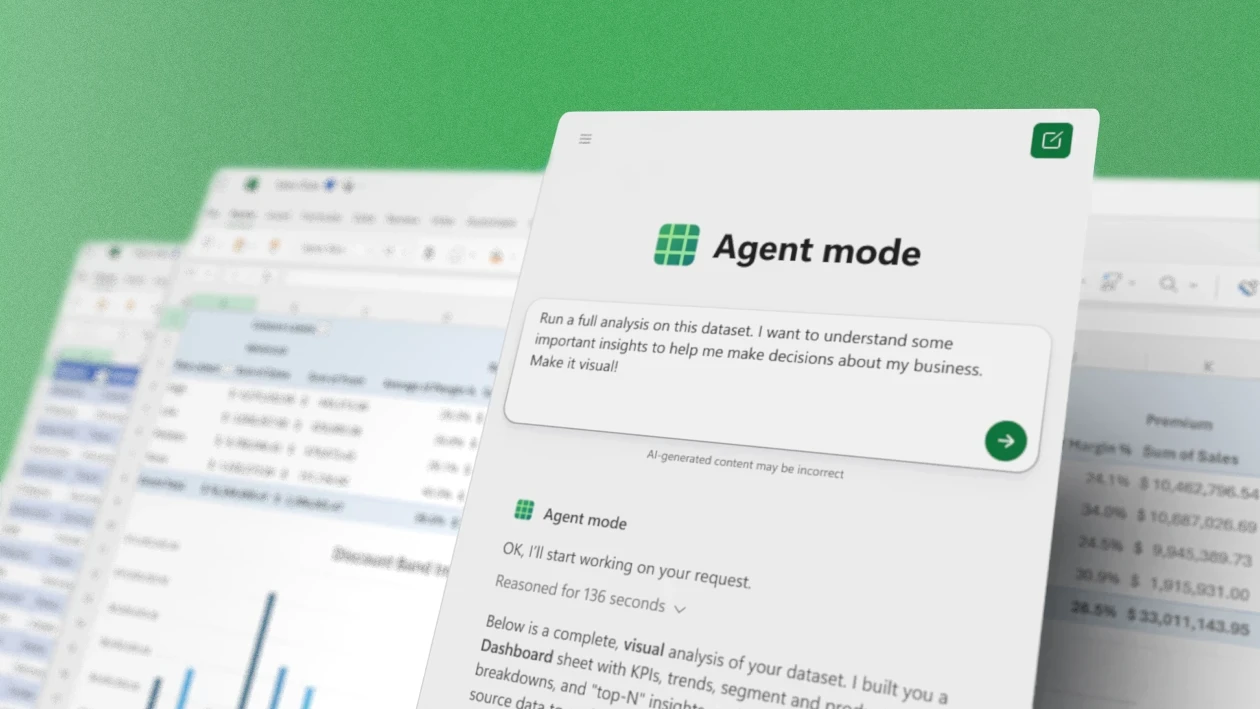
If you spend hours each week cleaning data, writing formulas, or trying to make sense of messy spreadsheets, you already know how much time Excel can eat up. The best AI agents for Excel are changing that, giving users smarter ways to automate repetitive tasks, generate insights, and work faster without needing a data science degree. This article breaks down exactly what these tools can do for you and how to pick the right one for your workflow.
Numerous takes this a step further with its clip creator tool, which helps you move from raw data to clear, shareable output in minutes rather than hours. Whether you are managing large datasets or trying to pull actionable information quickly, Numerous gives you a practical shortcut that fits directly into how you already work in Excel.
Table of Contents
Why Teams Struggle to Pick the Right AI Agent for Excel
The Hidden Cost of Picking One "Best" Agent for Every Task
7 Best AI Agents for Excel to Save Hours in 30 Minutes
The 30-Minute Workflow to Match AI Agents to Your Excel Tasks
Handle the Tasks These Agents Miss With Numerous
Summary
• Picking the right AI agent for Excel requires matching tools to specific tasks rather than selecting a single agent for everything. A March 2026 benchmark found GPT for Excel averaging roughly 16 seconds per task compared to nearly 2 minutes for Copilot, a difference that compounds significantly when teams run dozens of tasks daily. Applying the wrong agent to a task does not just slow the work down, it moves friction to a less visible place where it quietly accumulates.
• Documented capability gaps matter more than general reputation, and skipping the gap-check step is where most adoption decisions go wrong. Anthropic's own documentation explicitly lists macros and VBA as unsupported in the Claude Excel add-in, a specific confirmed limitation that only surfaces mid-project when teams skip the verification step. Checking capability documentation before committing takes less time than rebuilding a workflow after hitting a wall.
• Speed differences between leading tools are large enough to reshape how long recurring workflows actually take at scale. Data extraction tasks see a 99% time reduction when using AI spreadsheet agents, dropping from two hours to one minute according to MindStudio Blog analysis, which reframes what "fast enough" means for high-volume work. Workers using AI automation save an average of one hour per day, with some saving more than three hours daily, but those numbers assume the right tool is doing the right job.
• Financial analysts spend up to 80% of their time collecting and preparing data rather than analyzing it, which means a tool mismatch does not stay abstract for long. The cost lands directly on the hours that should be spent on actual analysis, not on correcting outputs or rebuilding workflows around a tool that does not fit the task. Task identification before tool selection is the step that prevents this outcome most reliably.
• Microsoft has confirmed the retirement of the in-cell COPILOT() function on September 14, 2026, and teams still building reports around it are facing a fixed deadline rather than a general capability gap. The migration path is documented and in most cases involves a single Find and Replace operation, but only teams that check current guidance ahead of time will complete it without disruption. AI agents can automate up to 70% of repetitive tasks in workflows according to Microsoft Pulse, which makes the architecture of those workflows worth protecting before a retiring function breaks them on a known date.
• The task-matching workflow that produces the most consistent results follows a specific sequence: identify the two or three most common recurring Excel tasks first, match each to its documented leader second, check for documented gaps third, and search for COPILOT() dependencies last. Specialized AI agents reach 96.1% accuracy on real-world documents using GPT-4.1, meaning the performance gap between a well-matched agent and a mismatched one is not marginal. Reversing that sequence and picking a tool before mapping tasks to it produces a workflow shaped around what the agent does well rather than what the team actually does.
• Numerous's clip creator tool fits into this workflow by helping teams move from raw spreadsheet output to clear, shareable summaries without switching to a separate application.
Why Teams Struggle to Pick the Right AI Agent for Excel

There is no single best AI agent for Excel. The honest answer, backed by every serious 2026 comparison, is that leadership is task-specific. Microsoft Copilot wins inside governed Microsoft 365 environments. Claude leads on complex model audits and formula tracing. GPT for Excel is the fastest and most portable option across platforms. Picking without naming the task first is like buying a tool before knowing what you need to build.
The failure point is usually a mismatch between reputation and actual use case. Teams hear that a particular agent is the most talked-about option, adopt it broadly, then run into friction on the specific work that matters most. A team using Claude for Excel because of its well-documented auditing strength can still hit a wall the moment a macro-dependent workbook enters the picture, because Anthropic's own documentation lists macros and VBA as unsupported. The gap is not hidden. It just goes unchecked when selection is driven by general reputation rather than task requirements.
Speed compounds the mismatch in ways that are easy to underestimate. A March 2026 AI agents benchmark found GPT for Excel fastest in 10 of 11 tested tasks, averaging roughly 16 seconds per typical spreadsheet task, compared to nearly 2 minutes for Copilot. For teams processing large datasets on a recurring basis, that difference is not a minor inconvenience. It reshapes how long a workflow actually takes at scale.
Most teams handle task-matching by scanning a ranked list and picking the top result. That approach made sense when software categories had one clear winner. It breaks down here because the underlying comparison data does not produce a single ranking. It produces a matrix. According to the [Daloopa Blog's analysis of Excel AI tools](https://daloopa.com/blog/analyst-best-practices/excel-power-query-vs-ai-agents-when-to-use-each-for-financial-data), financial analysts spend up to 80% of their time collecting and preparing data rather than analyzing it, which means the cost of a tool mismatch is not abstract. It lands directly on the hours that should be spent on actual analysis. Teams that skip the task-matching step pay for it in exactly that time.
The spreadsheet itself is often the most overlooked part of this conversation. When AI capabilities live directly inside a familiar grid, where formulas already run and data already lives, the barrier to adoption drops considerably. [Numerous](https://numerous.ai/) is built around exactly that idea: a simple =AI() function that runs ChatGPT inside Excel or Google Sheets, no API keys or developer setup required. For teams that need bulk processing, categorization, or content generation at scale, that kind of in-cell access means the right AI capability reaches the right task without requiring a separate tool or workflow change.
There is also a timing issue most teams miss entirely. Microsoft has confirmed the COPILOT() in-cell formula function will stop working in Excel on September 14, 2026. Teams still building reports around that function are not facing a capability gap. They are facing a deadline. The replacement path exists and is documented, but only teams that check current guidance ahead of time will migrate without disruption. What it actually costs to keep picking by reputation alone is a sharper question than it first appears.
Related Reading
The Hidden Cost of Picking One "Best" Agent for Every Task

Picking by reputation feels efficient. One evaluation, one decision, one tool for everything. The problem is that reputation travels faster than capability documentation does, and the gap between the two is exactly where teams get stuck.
The failure point is usually invisible until it isn't. A team standardizes on a single AI agent for Excel because it leads every roundup they've read, then discovers mid-workflow that the tool's documented gaps apply precisely to their most common task. That's not bad luck. That's what happens when adoption decisions skip the step of matching specific task types to specific tool strengths. The frustration isn't that the tool is weak; it's that no one checked whether its strengths actually aligned with the work on the table.
What the task-matching gap actually costs
The cost compounds in two directions: time and capability. On the time side, speed differences between leading AI automation tools for Excel aren't rounding errors. A March 2026 benchmark found GPT for Excel averaging roughly 16 seconds per task versus nearly 2 minutes for Copilot, a gap that multiplies fast across a team running dozens of tasks daily. On the capability side, the loss is quieter but more damaging: using a formula-auditing specialist for cross-platform spreadsheet work, or a governed in-workbook editor for large-dataset processing, means the documented advantage of the right tool never gets captured at all.
Most teams handle this by defaulting to whichever AI spreadsheet assistant performed best in the last comparison they read, then applying it uniformly across every Excel workflow they run. That works until task complexity diversifies. When content generation, data categorization, and bulk processing all live in the same spreadsheet environment, a single-tool approach starts leaving real capability on the table. Tools like [Numerous](https://numerous.ai/) address this differently: rather than requiring teams to switch between specialized agents, a simple =AI() function runs directly inside Excel or Google Sheets cells, handling bulk AI tasks at scale without API keys or context-switching, which keeps the spreadsheet itself as the natural home for all AI work.
Where the evaluation process breaks down
The pattern that surfaces repeatedly is reputation-as-capability substitution: a tool earns a strong reputation in one demanding area, and teams extend that reputation to cover unrelated tasks without checking whether the documentation supports it. Anthropic's own documentation explicitly lists macros and VBA as unsupported in the Claude Excel add-in, a specific confirmed gap, not a general limitation. Teams that discover this after building a workflow around the tool don't have a tool problem; they have an evaluation-sequence problem. Checking capability documentation before committing takes less time than rebuilding a workflow after hitting a wall.
The same logic applies to the COPILOT() retirement deadline covered earlier: both situations share the same root cause. Assumptions about continuity and generalizability replace the short, specific check that would have caught the issue before it became urgent. Identifying your team's two or three most common recurring Excel task types and matching each to the documented leading tool takes one focused pass, and it pays off the first time a task-matched AI data analysis tool avoids a gap the previous one-size-fits-all choice would have missed. But knowing which tools lead on which tasks is only half the picture, and the more interesting half is still ahead.
7 Best AI Agents for Excel to Save Hours in 30 Minutes

Task-specific leadership is only useful when you know exactly which agent belongs on which job. That's the gap this section closes.
Microsoft Copilot (Agent Mode)
Microsoft Copilot in Agent Mode is the right choice when your team operates inside a Microsoft 365 environment and data governance is non-negotiable. It edits cells directly, builds pivot tables and charts, and executes multi-step tasks through natural language, all without the file ever leaving your Microsoft 365 security boundary. Agent Mode reached general availability in early 2026, making it the only major option built into Excel's ribbon with that specific residency guarantee. For regulated industries or teams with strict IT policies, that constraint isn't a limitation; it's the entire point.
Claude for Excel
The failure point is usually invisible until it's expensive. Claude for Excel is the strongest documented option for tracing formula logic, auditing complex financial models, and reviewing Power Query steps, reaching general availability on May 7, 2026. But there's a hard boundary teams need to know before routing work to it: data tables, macros, and VBA are documented as unsupported. Macro-heavy workbooks need a different tool entirely, and discovering that gap mid-project costs more than choosing correctly upfront.
A common pattern surfaces here across teams adopting AI agents based on general reputation. Most professionals think of Claude as a general-purpose chat tool and never discover its formula auditing depth, while others assume it covers everything and only hit the VBA wall when it matters most. The fix is simple: identify whether your recurring Excel work involves formula complexity or macro execution before you commit to any single agent.
ChatGPT for Excel
When your team splits work across both Excel and Google Sheets, the hidden cost isn't capability; it's context-switching. ChatGPT for Excel reached general availability on May 5, 2026 across every plan, including the free tier, and it's the broadest cross-platform option available. It handles live multi-tab workbooks, formula generation, data cleanup, and ad-hoc analysis without requiring your team to learn two separate tools for two separate platforms. One agent, both environments, one learning curve.
Most teams handle cross-platform spreadsheet work by defaulting to whichever tool they already use most, then manually transferring outputs between platforms. As the volume of that work grows, the friction compounds quietly. Tools like [Numerous](https://numerous.ai/) address this differently: a simple =AI() function works directly inside both Excel and Google Sheets cells, so teams running bulk content generation, data categorization, or research tasks can process hundreds of rows at once without switching environments or managing separate subscriptions per platform.
GPT for Excel (GPT for Work)
Speed at scale is where the differences between agents become impossible to ignore. GPT for Work scales to a million rows per run with no artificial calculation cap, and a March 2026 benchmark found it fastest in 10 of 11 tested tasks, averaging roughly 16 seconds per task. It's also the documented replacement path for the retiring COPILOT() function, which matters for any team with formula-driven workbooks built around that function. According to the [MindStudio Blog](https://www.mindstudio.ai/blog/ai-agents-replace-spreadsheet-work), data extraction tasks see a 99% time reduction when using AI spreadsheet agents, dropping from two hours to one minute, which reframes what "fast enough" actually means for high-volume work.
Google Gemini in Sheets
The strongest free option for Google Workspace teams isn't a compromise; it's genuinely capable. Gemini generates formulas, builds pivots and charts, summarizes data, and pulls context from Drive and Gmail without requiring a separate subscription. For teams already inside Google Workspace, it's the documented leader in that specific environment at no additional cost. The constraint is platform: if your team works primarily in Excel, Gemini's native advantage disappears.
Migrate Off COPILOT() Before September 14, 2026
This one isn't a tool recommendation; it's a deadline. Microsoft has confirmed the retirement of the in-cell COPILOT() function on September 14, 2026, and the migration path is documented and straightforward. In most cases, it's a single Find and Replace operation from =COPILOT( to =GPT(, or one prompt asking an agent to handle the replacement. Teams that wait until August to think about this will spend time on a scramble that could have been a 20-minute task done months earlier.
Match Your Top 2-3 Recurring Tasks First
The truth is, the agent you pick matters less than the process you use to pick it. Before standardizing on any primary tool, identify your team's most common, repeated Excel task types: formula writing, model auditing, large-dataset processing, or cross-platform work. Then match each task type to the agent documented to lead on it specifically. [MindStudio Blog](https://www.mindstudio.ai/blog/ai-agents-replace-spreadsheet-work) reports that workers using AI automation save an average of one hour per day, with some saving more than three hours daily, but that number assumes the right tool is doing the right job. Mismatched agents don't save time; they just move the friction somewhere less visible.
The difference between before and after this matching process isn't adopting more AI tools. It's routing each recurring task to the agent built to handle it, and catching the COPILOT() deadline before it catches you. And the part most teams skip entirely is figuring out exactly how to run that matching process without it becoming another project that never gets finished.
Related Reading
The 30-Minute Workflow to Match AI Agents to Your Excel Tasks

Knowing which agent leads on which task is only useful if you can act on that knowledge before the next project starts. The workflow below puts task identification first, agent matching second, and gap-checking third, so the right tool gets assigned before anyone opens a blank workbook.
Minutes 0-10: List Your Top Recurring Excel Tasks
Start by writing down the two or three Excel tasks your team repeats most often. Not the tasks you wish you did more of, but the ones that actually consume hours every week: formula writing, dataset cleanup, financial model review, cross-platform work between Excel and Google Sheets, or governed in-workbook editing.
This step matters more than any other because every subsequent decision depends on it. Without a specific task list, tool selection defaults back to whichever AI agent has the most buzz this month, which is exactly how teams end up with a capable tool applied to the wrong job.
A common pattern surfaces here: teams skip this step because it feels obvious, then spend weeks discovering that their chosen agent handles four of their five recurring tasks well and fails completely on the fifth. That fifth task is usually the one that matters most on deadline.
Minutes 10-20: Match Each Task to Its Documented Leader
With your task list in hand, match each item to the agent documented to lead on it. Copilot for governed Microsoft-native editing, Claude for formula auditing and financial model review, ChatGPT for cross-platform breadth, GPT for Excel for speed and scale on large datasets, Gemini for free Google Workspace workflows.
The critical word is "documented." Not discussed, not assumed, not recommended by a colleague who used it once. According to the [MindStudio Blog](https://www.mindstudio.ai/blog/ai-agents-replace-spreadsheet-work), specialized AI agents reach 96.1% accuracy on real-world documents using GPT-4.1, which means the performance gap between a well-matched agent and a mismatched one is not marginal. It is the difference between a workflow that runs and one that quietly accumulates errors.
Most teams handle this matching step informally, relying on general reputation rather than task-specific documentation. The hidden cost is that informal matching produces consistent results only when the task happens to align with the tool's strength. When it doesn't, the gap surfaces mid-project, not during selection.
Minutes 20-25: Check for Documented Gaps Against Your Actual Workflow
This is the step most teams skip, and it is the one that prevents the most expensive surprises. Before committing to any matched agent, verify whether your workflow touches any of its documented limitations. The clearest example: if your recurring tasks include macros or VBA automation, Claude is not the right primary agent, regardless of how well it performs on formula auditing. That limitation is documented, specific, and non-negotiable. Catching it during a 5-minute check costs nothing. Discovering it during a live project costs hours and credibility.
If your work involves bulk AI processing across hundreds of rows, this is also where the tool's architecture matters. Many teams default to querying AI tools one task at a time, which multiplies both time and cost. [Numerous](https://numerous.ai/) addresses this differently: its =AI() function runs directly inside Excel and Google Sheets cells, processing entire columns in a single pass without requiring API keys or developer setup. For teams whose recurring tasks include large-scale categorization, content generation, or data enrichment, that architectural difference is worth checking against your specific workflow before finalizing your agent match.
Minutes 25-30: Search for COPILOT() Dependencies and Plan the Migration
Search your existing workbooks for the COPILOT() function before anything else moves forward. This is a specific, dated deadline: September 14, 2026 is when COPILOT() retires and GPT functions replace it. Teams that find dependencies now have months to migrate cleanly. Teams that find them in August 2026 have a problem.
The search itself takes under a minute using Excel's Find function. The migration planning takes longer, but only if dependencies are spread across multiple workbooks or embedded in shared templates. Identifying the scope now is what converts a potential crisis into a scheduled task.
[Microsoft Pulse](https://pulse.microsoft.com/en/work-productivity-en/na/fa2-transforming-every-workflow-every-process-with-ai-agents/) reports that AI agents can automate up to 70% of repetitive tasks in workflows, which makes the architecture of those workflows worth protecting. A workbook that relies on a retiring function is a workflow that breaks on a fixed date, regardless of how well everything else is matched.
Why the Sequence Is the Point
The workflow's value is not in the individual steps. Each step is straightforward. The value is in the order: task identification before tool selection, gap-checking before commitment, migration-checking before the deadline forces the decision.
When teams reverse that sequence, picking a tool first and then mapping tasks to it, they optimize for the tool's strengths rather than their actual needs. The result is a workflow shaped around what the agent does well, not around what the team actually does. That misalignment rarely announces itself loudly. It shows up as small frictions that compound: a formula that needs manual correction, a macro that the agent can't touch, a dataset that takes longer than expected because the wrong agent is handling it.
The improvement this workflow produces is not about adding more AI capability. It is about routing existing capability to the right jobs, in the right sequence, before the wrong routing becomes a habit. But the real challenge isn't finishing this workflow. It's what happens when you run it and realize some of your most time-consuming tasks don't fit cleanly into any of the agents you just mapped.
Handle the Tasks These Agents Miss With Numerous
When your matched agent finishes generating formulas or cleaning a dataset, the output still needs a fast, plain-language review before anyone acts on it. That review step is where most teams slow down, opening a separate tool or manually scanning rows for anything that looks off. [Numerous](https://numerous.ai/) handles that step inside the same sheet your agent already populated. Ask it to flag inconsistencies, summarize what changed, or cross-check totals, and you get a plain-language answer without switching tabs or writing a new formula.
The teams moving fastest through Excel workflows are not using more tools. They are using fewer, better-placed ones. Match each recurring task to its documented agent, generate the output, then open Numerous in that same sheet for a one-minute review before the result informs any decision. That sequence, repeated consistently, is where the real time savings compound.
Related Reading
• How to Use Python in Excel
• Best Python Tools for Excel
• Top Autonomous Agents for Web Research
• AI Agents for Multi-Step Tasks With No Coding