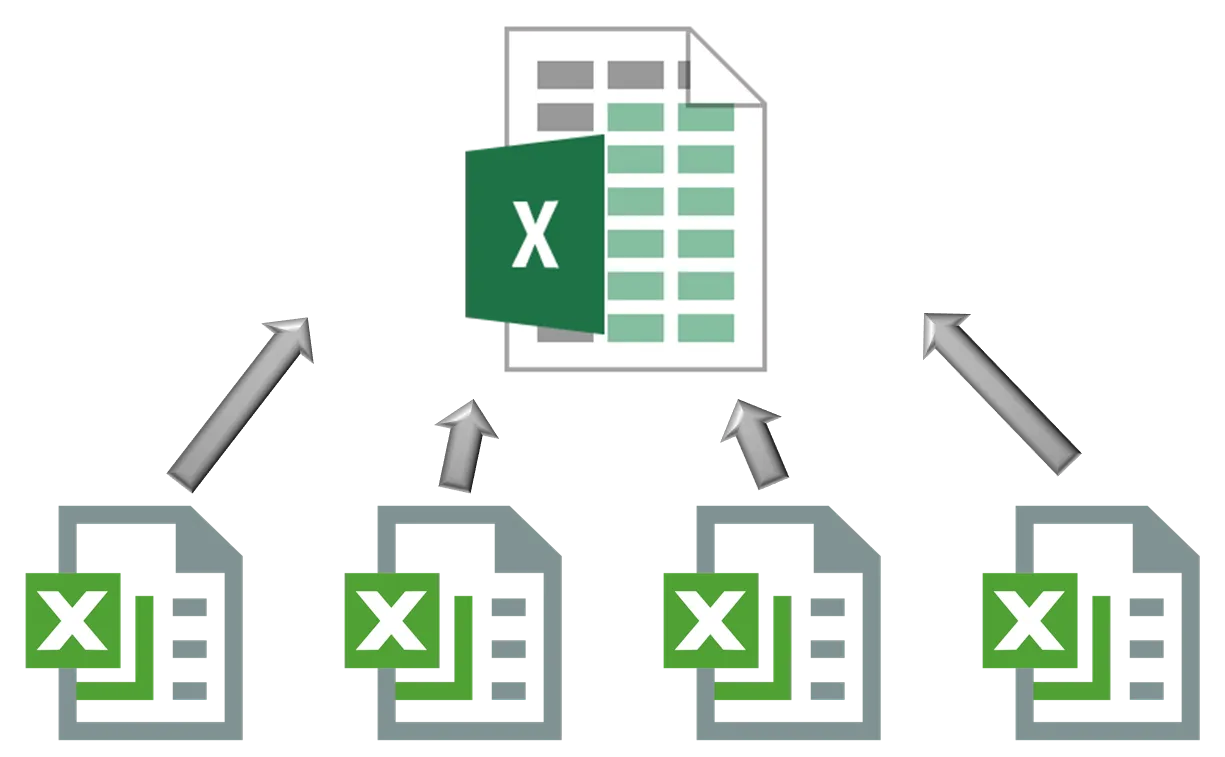
If you've ever stared at a dozen separate Excel sheets wondering how to pull them into one clean, unified file, you're not alone. Merging data from multiple worksheets, whether by consolidating rows, combining tabs, or appending sheets into a single master spreadsheet, is one of the most common Excel challenges people face. The good news is that the best AI agents for Excel are making this process faster and far less frustrating, and this article walks you through exactly how to get it done.
That's where the Numerous spreadsheet AI tool comes in. Instead of manually copying and pasting data across sheets or wrestling with complex formulas to merge and consolidate your workbook, this tool helps you combine multiple Excel sheets into one with far less effort, so you can focus on actually using your data rather than just organizing it.
Table of Contents
Why People Struggle to Combine Multiple Excel Sheets Into One
The Hidden Cost of Using the Wrong Combine Method
How to Combine Multiple Excel Sheets Into One in 20 Minutes
The 20-Minute Workflow to Combine Your Excel Sheets Correctly
Combine and Clean Your Data Faster With Numerous
Summary
Combining data from multiple Excel sheets is harder than it sounds because "combine" can mean two fundamentally different outcomes. Stacking every row into one continuous list requires a completely different method than calculating totals or averages across sheets. According to Microsoft Support, at least four distinct documented approaches exist for combining sheet data, each suited to a different output type, which means choosing the wrong one can produce a result that looks finished but is structurally broken.
Excel's built-in Consolidate feature is the most common first choice, and also the most common source of confusion. It is built exclusively for numerical rollups, so it silently drops text fields like names, categories, and notes without any error message. Gartner reports that dirty or structurally incomplete data costs businesses an average of $12.9 million per year, and a significant portion of that comes from data that passed a visual check and got used anyway.
Label inconsistency is one of the most dangerous failure points in any consolidation task because it produces plausible-looking results that are quietly wrong. When one sheet uses "Q1," and another uses "Qtr 1," Excel treats them as separate categories and splits the totals instead of combining them. No red cell or formula error signals the problem, so the only way to catch it is to already know the correct total.
The preparation step before running any combining method determines the outcome more than the tool itself does. Standardizing labels, confirming column alignment, and stripping duplicate header rows before merging takes five minutes upfront and prevents 30+ minutes of troubleshooting later. Harvard Business Review found that data workers already spend up to 60% of their time cleaning and organizing data, and a mismatched combine method adds another invisible layer of that same work.
Manual copy-paste, VSTACK, Power Query, Consolidate, and VBA macros each fit a specific scenario, and you should decide which one to use after confirming what the output needs to contain, not before. VSTACK is the fastest path for small datasets with matching column structures, Power Query handles structural inconsistency and larger volumes, and Consolidate belongs exclusively to numerical summaries that don't need text fields.
Consolidation is rarely the end of the task. A merged dataset sitting in a spreadsheet is still passive, and categorizing rows, summarizing patterns, or flagging anomalies still requires manual effort at every row. For a dataset with hundreds of records, that manual layer becomes the new bottleneck and the real productivity gap between teams.
Numerous spreadsheet AI tools address this post-consolidation step by letting teams run a simple =AI() function directly inside Excel or Google Sheets, applying AI across every row of a combined dataset without API keys or technical setup.
Why People Struggle to Combine Multiple Excel Sheets Into One

"Combine" sounds like a single action. It isn't. The word quietly describes two completely different outcomes: stacking every row from multiple sheets into one continuous list, or calculating totals and summaries across sheets. Picking the wrong method doesn't produce a partial result you can fix quickly. It produces a result that looks finished but isn't, and that distinction is where most people lose significant time.
The failure point is usually the word itself. When someone searches "how to combine Excel sheets," they expect one clear answer because combine feels like a well-defined task. According to Microsoft Support, combining data from multiple Excel sheets requires a detailed, multi-method explanation across four or more distinct approaches, which shows how much the right method depends on what you actually need the output to look like. That's not a documentation problem. That's the task being genuinely more complex than the word suggests.
Why Does the Wrong Tool Feel Like the Right One
Excel's built-in Consolidate feature is the most common first reach, and for good reason. The feature is literally named for the task. But Consolidate is built specifically for numerical rollups:
Sums
Averages
Counts across matching ranges
It ignores text fields entirely. So when someone uses it to merge customer records or contact lists from multiple worksheets into one master sheet, the names and addresses simply don't appear. The result looks like a bug. It's actually the tool working exactly as designed, just not for the task at hand.
Label Consistency Pitfalls
The same trap appears with label matching. When you consolidate by category rather than position, Excel requires exact label consistency across every source sheet. One sheet using "Q1" while another uses "Qtr 1" means Excel treats them as separate categories and splits the totals accordingly. The consolidated data looks complete until you notice the numbers are wrong, and tracing that back to a labeling inconsistency across twelve sheets is genuinely tedious work.
Post-Consolidation Data Cleanup
Most teams handle this by defaulting to manual copy-and-paste when Consolidate fails, which feels like the safe fallback. The hidden friction is that each sheet's header row comes along with the data, leaving "Date," "Customer," and "Amount" scattered through the middle of what should be a clean, unified list. Those stray headers quietly break sorting, filtering, and any Excel Table or formula that relies on consistent data structure.
Numerous spreadsheet AI tools address exactly this kind of post-consolidation friction: once your data is in one place, a simple =AI() function lets your whole team run bulk AI tasks directly inside the sheet, without API keys or technical setup, turning a consolidated dataset into something your organization can actually act on at scale.
Defining Your Consolidation Goal
The pattern that emerges across all of these scenarios is consistent. The problem isn't that Excel lacks the tools to combine sheets. It's that "combine" gets treated as a single decision rather than a first question:
Do you need rows stacked?
Do you need values calculated?
Answer that first, and the correct method becomes obvious. Skip it, and you're likely completing the task twice. But knowing the right method is only half the equation, and getting it wrong the first time costs more than wasted effort.
Related Reading
The Hidden Cost of Using the Wrong Combine Method

Using the wrong method to merge data across sheets doesn't just slow you down. It produces a result that looks finished but isn't, and that gap only surfaces after you've already acted on it. The failure pattern is consistent. When someone applies Excel's Consolidate feature to data that includes text fields, names, or categories, those fields disappear silently. No warning, no error flag, just a numerical output that feels complete until you compare it against the source sheets. Gartner reports that dirty data costs businesses an average of $12.9 million per year, and a meaningful share of that isn't corrupted data at all. It's structurally incomplete data that passed a visual check and got used anyway.
What the Rework Actually Costs You
The second pass is never just a copy of the first. When you discover that your combined sheet is missing text columns, or that category totals are off because "Q1" and "Qtr 1" were treated as separate groups, you don't just rerun the process. You audit what you already built on top of it. Reports get revisited. Filters get rebuilt. You correct formulas that referenced the incomplete data. According to Harvard Business Review, data workers already spend up to 60% of their time cleaning and organizing data, and a mismatched combine method adds another layer of that same work, except this time it's invisible until something downstream breaks.
Leveraging AI Beyond Basic Consolidation
Most teams handle this by defaulting to whatever method they used last time, whether that's a manual copy-paste across sheets or a quick run of the Consolidate tool, because it's familiar and requires no extra decision. The hidden cost is that familiarity doesn't account for what the current task actually needs.
Once your data is correctly merged across sheets, including every text field, every matching label, every row without a stray header, the real opportunity opens up: applying AI across that complete dataset at scale. Tools like Numerous let teams run a simple =AI() function directly inside Excel, no API keys, no technical setup, so the entire organization can work with the combined data intelligently, not just the person who built the sheet.
When Close Enough Isn't
The label mismatch problem deserves specific attention because it produces the most dangerous kind of error: a plausible-looking result. If two sheets use slightly different naming conventions for the same category, category-based consolidation splits them into separate rows instead of combining them. The total looks reasonable. It's just wrong. There's no red cell, no formula error, no prompt to check. The only way to catch it is to already know the correct total, which defeats the purpose of consolidating in the first place.
Prevention Over Painful Post-Cleanup
Leftover header rows from manual copy-paste operations carry a similar risk. They sit inside what looks like a clean data list and break sorting, filtering, and Excel Table functionality without announcing themselves. The fix for both problems is the same:
Confirm the task before choosing the method
Standardize labels before running any category-based consolidation
Strip headers before treating a manually combined list as a working dataset
That sequence takes minutes. The alternative takes hours, usually at the worst possible moment. And once you've done it correctly the first time, the next question is harder and more interesting than most people expect.
How to Combine Multiple Excel Sheets Into One in 20 Minutes

Matching the method to the task is the prerequisite. What comes next is execution, and that's where most people still lose time, not because they chose the wrong tool, but because they run the right tool in the wrong sequence.
The Methods are Only as Good as the Order You Use Them
Every combining task has a natural sequence: confirm the output type, prepare the source data, then run the merge. Skip the preparation step and even the correct tool produces a broken result.
Run VSTACK across ranges that still include header rows on every sheet, and you get a list with headers scattered through it.
Run Power Query on sheets where column names differ by a single space, and you get phantom columns filled with nulls.
The tool did exactly what you asked. The problem was what you asked it to do. The preparation step is not optional. It is the work.
Copy and Paste: Small Scale, One Time, Done
When you have three to five sheets and no expectation of updating the combined result later, manual copy and paste is the correct choice. It requires no formula knowledge and no configuration. Insert a blank sheet, copy each source range in sequence, paste in order, then scan the result for duplicate header rows and delete them before doing anything else with the data. That last step is the one people skip. A combined list with three copies of the header row embedded in it will break every sort, filter, and table operation you run. Two minutes of scanning saves an hour of troubleshooting.
VSTACK: Fast, Automatic, Column-Matched
VSTACK's constraint is strict: every source range must use the same columns in the same order. If that condition is true, VSTACK is the fastest path to an auto-updating combined list. The formula `=VSTACK(Sheet1!A2:D50, Sheet2!A2:D50)` stacks the ranges vertically and updates automatically when source data changes. Start each range reference on row 2, not row 1, for every sheet except the first. That habit prevents the repeated-header problem without extra cleanup.
Power Query: The Right Tool When Structure Varies
When column order differs between sheets
When some sheets have columns others don't
When you're pulling from more than five or six sheets
Power Query handles the complexity that VSTACK cannot. It maps columns by name rather than position, creates a unified column structure across all sources, and fills nulls where a specific sheet lacks a field. Excel has 4 documented methods for combining data from multiple sheets, and Power Query is the one built specifically for mismatched or large-scale data. The setup takes longer than a formula, but it produces a structured, refreshable table that handles structural inconsistency gracefully.
What Most Teams Do After Consolidation, and Where They Stop Short
Most teams treat consolidation as the finish line. They merge the data, save the file, and declare the work done. That's understandable. Getting the data into one place is genuinely difficult, and completing it feels like an achievement. The hidden cost is what happens next. A consolidated dataset sitting in a spreadsheet is still passive. Categorizing rows, summarizing patterns, flagging anomalies, or generating descriptions from structured fields still requires manual effort for every row. For a dataset with fifty rows, that's manageable. For five hundred, it becomes the new bottleneck.
Unlocking Spreadsheets as AI Processing Environments
This is where the spreadsheet stops being a storage tool and starts being a processing environment. Teams that recognize this shift early use tools like Numerous to apply AI directly inside Excel or Google Sheets, running operations like classification, summarization, or content generation across every row using a simple `=AI()` function. No API configuration, no external pipeline, no tool-switching. The consolidated data becomes the input; the AI output appears in the next column. That transition, from merged data to processed data, is where the real productivity gap opens between teams.
Data > Consolidate: Numerical Summaries Only
The Consolidate function in Excel is not a list-building tool. It is a calculation tool. Use it when you need totals, averages, or counts across sheets, not when you need every row preserved. If your task is show me the sum of sales across all regional sheets, use Consolidate. If your task is to show me every transaction from all regional sheets, it is the wrong tool and will silently drop every text field in the process. That distinction, calculation versus preservation, is the entire decision. Make it before opening the Data menu.
Standardizing Labels is Not a Detail; It is the Task
The failure point in any label-based consolidation is inconsistent naming. Q1 and Qtr 1 are not the same label to Excel. Neither are "Average" and "Avg," or "United States" and "US." Consolidate treats each unique string as a separate category, so mismatched labels produce split rows instead of combined ones, and the result looks correct but is structurally wrong. Review every label across every source sheet before running any consolidation. This is not a quality-control step you add at the end. It determines whether the output is usable.
VBA: Repeatable Tasks With Consistent Structure
A VBA macro earns its place when the combining task recurs on a predictable schedule, and every source sheet reliably uses the same structure. A script that loops through every sheet and copies data into a summary sheet removes the manual repetition entirely. The setup investment is front-loaded; after that, the task runs in seconds. The condition that matters is consistency. If sheet structure varies between runs, a macro that assumes fixed column positions will produce corrupted output without warning. VBA rewards disciplined source data. It punishes structural drift.
Why the Sequence Matters More Than the Tool
The pattern across every method is the same: preparation determines outcome.
Standardize labels before consolidating.
Confirm column alignment before using VSTACK.
Audit sheet structure before building a macro.
Strip headers before treating a pasted list as a working dataset.
The tool is the last decision, not the first. Every combining task that goes wrong does so because someone opened a tool before confirming what they needed it to do. Every one that goes right does so because the output was defined before choosing the method.
The High Demand for Reliable Consolidation
A tutorial video on merging multiple sheets into a master sheet in Excel generated 64,000 views on Facebook, which tells you something specific: this is not a niche problem solved by a small audience. It is a daily friction point for a large number of people who are actively looking for a reliable method, not a workaround. The reliable method exists. It is not one tool. It is a sequence applied consistently, regardless of which tool fits the task. The part nobody tells you is how fast that sequence actually runs when you know it cold.
Related Reading
• How to View Hidden Sheets in Excel
• How to Connect Google Sheets to CrewAI
• How to Connect Excel to CrewAI
• How to Connect Excel to LangChain
• How to Add VBA to Excel
• Data Visualization With Python in Excel
• How to Compare Two Excel Sheets Using VLOOKUP
• Integrate Agent With Google Sheets
• How to Delete Multiple Sheets in Excel
The 20-Minute Workflow to Combine Your Excel Sheets Correctly

Picking a method before confirming your actual need is where most combining attempts break down. The workflow below fixes that by sequencing the decision before the action, not after.
Minute 0–5: Confirm Whether You Need a List or a Summary
The first question is not "which tool should I use?" It is "what does the finished result actually need to contain?" A complete list of every row, including text fields like names, categories, and notes, requires a fundamentally different approach than a numerical summary of totals or averages across sheets. Consolidate and list-building methods aren't interchangeable, and treating them as such is the root cause of most combining failures.
Minutes 5–10: Check Source Sheet Consistency
If you are building a list, confirm that every source sheet shares the same column structure in the same order. If you are consolidating numerically by category, confirm that labels match exactly across sheets, because "Region" and "region" or "Q1 Sales" and "Q1 Revenue" will split into separate rows instead of combining. Catching this before you run any tool saves you from auditing a result that looks complete but is quietly wrong. The same structural problem surfaces in both small and large datasets: a single mismatched column header silently fragments your output. Standardizing takes five minutes upfront and prevents 30 minutes of troubleshooting afterward.
Minutes 10–15: Apply the Matched Method
Using the method matched to your confirmed need, not whichever one loads first, is the entire point of the earlier steps. Manual copy-paste or VSTACK works cleanly for small datasets with matching structures. Power Query handles larger volumes or inconsistent formatting. Consolidate belongs exclusively to numerical summaries where text fields aren't needed.
Most teams default to whatever they used last time. That habit works until the task changes slightly, and then the mismatch between method and need produces an output that requires rebuilding from scratch. Matching the method to the task, explicitly and deliberately, is what makes the result correct on the first attempt.
Minutes 15–18: Remove Leftover Headers or Confirm Missing Fields
After combining, run one targeted check:
If you used manual copying or VSTACK, scan for any scattered header rows that got pulled in as data rows.
If you used Consolidate, confirm that any text fields you expected to see are genuinely absent by design, not missing due to a configuration error.
This step takes two minutes and confirms that the output matches what the method is actually documented to produce.
Minutes 18–20: Test the Result Before You Rely on It
Sort a column.
Apply a filter.
Run a SUM or COUNTIF on the combined range.
If the result behaves like a clean, unified dataset, it is one. If sorting breaks the row order unexpectedly or a formula returns an error, that signals a structural issue in the combined data that is far easier to fix now than after you have built a report on top of it.
Functional Verification as a Scalable Baseline
Most teams handle this verification step by eye, scrolling through the combined sheet and assuming visual completeness equals functional completeness. Those two things are not the same. A dataset can look correct and still contain merged cells, inconsistent number formats, or phantom blank rows that break downstream formulas. A 90-second functional test catches what a visual scan misses. This is also where the real opportunity opens up. Once your data is clean and unified in a single sheet, you are no longer just organizing rows. You are sitting on a structured input that can be processed at scale. Teams that recognize this shift stop treating consolidation as the end of the task and start treating it as the starting point for something more useful.
Automating Insight Generation With In-Sheet AI
That shift, from organizing data to acting on it intelligently, is where tools like Numerous change the calculus. Most teams spend time after consolidation manually categorizing rows, writing summaries, or tagging entries one by one. Numerous lets you apply a simple =AI() function directly inside Excel or Google Sheets, running AI across every row in your combined dataset without API keys, without technical setup, and on a single plan your entire team can share. The consolidation work you just completed becomes the input; the AI layer becomes the output at scale.
Why the Sequence Matters More Than the Tools
The tools covered in earlier sections, VSTACK, Power Query, and Consolidate, are not complicated. What makes combining fail is not tool complexity. It is applying a tool before confirming what the task actually requires. This workflow sequence exists to prevent that specific error, not to add steps for the sake of structure. When you confirm the need first, check consistency second, apply the matched method third, and verify the result fourth, you are not following a checklist. You remove every point where a silent mismatch could produce an output you trust but shouldn't. That is the practical difference between combining data and combining it correctly.
Before vs. After: What Actually Changes
Before this workflow: the pattern is predictable: open the file, reach for Consolidate or copy-paste by instinct, discover the problem only after the fact, and spend more time fixing than the original task required.
After this workflow: the sequence runs in under 20 minutes because every decision point is resolved before it becomes a problem. The improvement is not a faster tool. It is a cleaner decision order. And once that order becomes habit, the 20-minute estimate stops feeling optimistic and starts feeling accurate. What nobody tells you is that the hardest part of this entire process has nothing to do with Excel at all.
Combine and Clean Your Data Faster With Numerous
The hardest part was never Excel. It was the sequence of decisions sitting in front of it: which method fits this task, whether the labels actually match, whether the headers will double up. That decision load is what makes a 20-minute job feel like an hour. If you want to skip it, open Numerous across your sheets and describe the combining task in plain language. It reads your sheets as-is, handles inconsistencies as part of the request, and returns a clean, consolidated result without requiring you to standardize anything first.
That matters because consolidation is rarely the finish line. Once your data sits in one place, the real opportunity is running AI across it at scale, categorizing records, summarizing patterns, flagging anomalies, all without leaving the spreadsheet. Numerous makes that the next natural step, not a separate project requiring new tools or technical setup. The people moving fastest through this work are not the ones who memorized every Power Query setting. They are the ones who resolved the decision layer first, and then let the right tool carry the rest.