
Manually pulling data from a website into Excel is slow and error-prone. Excel VBA web scraping solves that by automating data extraction directly inside the spreadsheet, and combining it with Python in Excel pushes that automation further. Whether the goal is parsing HTML tables, sending HTTP requests, or looping through multiple pages, both approaches can be set up and running in under 20 minutes.
Numerous makes that process even faster by acting as a spreadsheet AI tool that connects web data to Excel workflows without requiring complex code from scratch, helping users move from raw scraped data to clean, structured output in far less time than traditional methods allow.
Table of Contents
Why People Struggle to Understand Python in Excel and VBA Together
The Hidden Cost of Treating Python in Excel as a VBA Replacement
The 20-Minute Workflow to Split a Task Between Python and VBA
Summary
Long-standing VBA usage is far more common than many developers assume. According to Excelgoodies Editorial, over 750 million Excel users worldwide actively use VBA and rely on legacy macros. This scale explains why Python in Excel was never designed as a VBA replacement, and why treating it as one creates structural problems rather than solving them.
Python in Excel and VBA are not interchangeable tools with different aesthetics. Python in Excel runs inside a secure cloud container, which gives it real analytical power for cleaning, modeling, and visualization, but it cannot access the local file system, trigger emails, or interact with the operating system. VBA handles those local tasks but isn't available in browser-based Excel and is often restricted by corporate IT policies. These boundaries are non-overlapping by design.
The adoption gap between these tools is creating a specific knowledge problem. Anaconda reports that fewer than 5% of new developers are learning VBA as a primary language, while Python in Excel reached over one million enterprise users within its first year. Teams fluent in Python try to use it for automation tasks VBA was purpose-built to handle, and they often blame the tool rather than the category error.
The Shell() workaround is commonly treated as a bridge between Python scripts and Excel, but it carries a well-documented expiration date. Hardcoded file paths break when a colleague opens the file on a different machine, the script returns nothing to Excel automatically, and failures happen silently without error messages. For anything shared, scheduled, or maintained by more than one person, that fragility compounds over time into a workflow that becomes harder to read and harder to trust.
Web scraping workflows expose the Python-in-Excel versus VBA boundary more clearly than almost any other task type. VBA can make HTTP requests and parse HTML responses directly, but breaks on JavaScript-rendered pages because it only sees the initial HTML. Python's requests and BeautifulSoup libraries handle static scraping cleanly, while Selenium or Playwright handle dynamic pages, but neither runs inside Python in Excel's cloud container because it cannot reach a local browser. The correct architecture combines a local Python script for collection, Python in Excel for cleaning and analysis, and VBA for saving outputs and triggering downstream actions.
Mapping a task against the Python-versus-VBA boundary before writing any code is what prevents the most expensive kind of rework. When a step gets assigned to the wrong tool, and the problem surfaces mid-build, the cost isn't just the time spent on that step. The steps downstream were designed around a broken assumption, which means the structural integrity of the whole workflow needs to be rebuilt, not just the individual step.
Numerous Spreadsheet AI Tool addresses this by letting users run AI-powered data gathering, categorization, and summarization directly inside spreadsheet cells, skipping the tool-selection planning layer that consumes time before a single line of code gets written.
Why People Struggle to Understand Python in Excel and VBA Together
Python in Excel and VBA look like cousins because they both live inside the same application. That surface similarity causes confusion — users assume that because both tools exist within Excel, they must follow similar logic, syntax, and rules. They don't. They share a neighborhood but operate under completely different rules, with different execution environments, design philosophies, and use cases.
"Assuming Python in Excel and VBA work the same way is one of the most common mistakes new users make — the shared interface masks fundamentally different languages and runtime behaviors." — Numerous.ai
💡 Tip: Before writing a single line of code, identify which tool you're using — treating Python in Excel like VBA (or vice versa) is the fastest way to introduce hard-to-debug errors.
⚠️ Warning: The surface-level similarity of both tools living inside Excel is misleading. Their underlying architecture, syntax, and capabilities differ fundamentally—never assume what works in one will work in the other.
Feature | Python in Excel | VBA |
|---|---|---|
Language Origin | General-purpose modern language | Excel-specific legacy language |
Execution Environment | Cloud-based Python runtime | Local Excel application |
Primary Strength | Data analysis & machine learning | Automation & macro control |
Learning Curve | Moderate (Python knowledge required) | Moderate (Excel-specific syntax) |
Community & Libraries | Massive global ecosystem | Limited, Excel-focused |

Why does Python in Excel fail to replace what VBA actually does?
The failure point is usually this: someone discovers Python in Excel, reads that it runs inside the spreadsheet, and concludes it should do what VBA does with cleaner syntax. It can't. Python in Excel runs inside a secure cloud container that provides analytical power—data cleaning, modeling, visualization—but cannot reach outside the workbook. It cannot save files, trigger emails, or interact with your operating system. VBA can do all of those things locally, but Excel for the web completely blocks it and corporate IT policies often disable it. These are not overlapping tools with different aesthetics; they have non-overlapping technical boundaries by design.
According to Excelgoodies Editorial, over 750 million Excel users worldwide use VBA. This reflects a crucial reality: VBA is not a relic awaiting replacement, but a deeply embedded automation layer that Python in Excel was never designed to substitute. Meanwhile, Anaconda reports that over 8.2 million developers worldwide use Python. Python's reputation as a general-purpose language creates an expectation gap: while powerful in many contexts, "Python in Excel" is a specific, sandboxed implementation with distinct limitations.
Why does calling an external Python script through VBA fall apart in practice?
A third approach uses VBA's Shell function to call an external Python script. It works, but has practical limitations. Hard-coded file paths break when a coworker opens the file on a different computer with a different Python setup. It doesn't return values to Excel automatically, and a visible console window opens during execution. Those who succeed know from the start which of the three approaches they're choosing.
What happens when teams try to stitch these tools together manually?
Most teams handling mixed workflows default to building scripts and macros by hand. This works until the workflow scales or someone else needs to maintain it. Tools like Numerous sit inside the Excel environment and let you run AI-powered tasks directly from a spreadsheet cell, avoiding the Python-versus-VBA decision entirely for data gathering, classification, and content generation tasks.
The core issue is not complexity but a category error: treating Python in Excel as modern VBA when it is a data analysis environment that happens to live in the same application. When you use each tool for what it was built for, the friction disappears.
Related Reading
The Hidden Cost of Treating Python in Excel as a VBA Replacement
The cost of choosing the wrong tool becomes clear only when you're deep in a broken workflow. The failure point is usually not missing skill, but structural mismatch discovered too late.
"The failure point is usually not missing skill — it's a structural mismatch discovered too late, after real time and effort have already been spent."
⚠️ Warning: If you're evaluating Python in Excel as a VBA replacement, the mismatch won't surface until after you've committed to the approach.
💡 Tip: Before migrating any automation workflow, map out every external interaction your process requires: file saves, triggers, system calls. Verify the tool supports them before you build.

Someone spends real time trying to get Python in Excel to save a file to a specific folder or trigger an action outside the workbook, because Python's general-purpose reputation creates a reasonable expectation that it can. Python in Excel runs inside a secure cloud container that does not touch your file system. No amount of clever syntax changes that.
Capability | VBA | Python in Excel |
|---|---|---|
Save files to local folders | ✅ Yes | ❌ No |
Trigger external actions | ✅ Yes | ❌ No |
Access the file system | ✅ Yes | ❌ No |
Advanced data analysis | ⚠️ Limited | ✅ Yes |
Cloud container execution | ❌ No | ✅ Yes |
🎯 Key Point: Python in Excel is not a drop-in VBA replacement — it's a sandboxed analytics environment, and that distinction is critical to understand before you build anything that touches the outside world.
🔑 Takeaway: The secure cloud container model is a feature, not a bug — but it makes Python in Excel the wrong tool for any workflow requiring file system access or external triggers.
Where does invisible rework actually happen?
The same pattern appears in web scraping and data pipeline builds: developers encounter structural problems with their initial tool choice and rebuild using the tool designed for that layer. VBA handles HTTP requests and local workbook writes, while Python in Excel handles modeling and cleanup. Treating them as interchangeable means discovering this division through trial and error rather than design.
What happens when teams default to familiar tools?
Most teams use their most familiar tool and fix problems as they arise until workflows need to be shared, scaled, or handed off. Tools like Numerous skip the tool-selection problem entirely, letting non-technical users run AI-powered tasks directly in spreadsheets using simple functions to organize scraped data, generate summaries, or clean imported records at scale.
The Real Cost Is Measured in Rebuilds, Not Hours
According to Anaconda's VBA vs Python in Excel analysis, Python in Excel reached over one million enterprise users in its first year. Anaconda also reports that fewer than 5% of new developers are learning VBA as a main language. This creates a knowledge gap: teams fluent in Python attempt to use Python in Excel for automation tasks VBA was built to handle, then blame the tool rather than recognizing their misapplication of it.
What does skipping the boundary check actually cost you?
Spending a few minutes to determine which tool handles file interaction, which handles cloud-based analysis, and which handles local automation saves hours of troubleshooting. Skipping that step costs more than time: it builds a workflow on a foundation that cannot support the weight you are about to put on it.
Once you know the boundary, the next question becomes: what does a working combination of these two tools look like inside a real twenty-minute build?
How to Use Python in Excel and VBA Together in 20 Minutes
Python in Excel and VBA solve fundamentally different problems by design. Python in Excel handles data analysis inside a secure cloud container, while VBA handles local automation — and understanding this distinction is critical to building efficiently. The twenty-minute build becomes possible once you treat this boundary as a division of labor, not a limitation.
"Treating the Python-VBA boundary as a division of labor — not a conflict — is the architectural insight that makes rapid, powerful Excel automation actually achievable." — Core Design Principle
Tool | Primary Role | Environment |
|---|---|---|
Python in Excel | Data analysis & computation | Secure cloud container |
VBA | Local automation & UI control | Local Excel environment |
Combined | End-to-end workflow automation | Both layers working together |
💡 Tip: Always assign data-heavy tasks to Python in Excel and file or UI automation to VBA — this split is the secret to hitting that 20-minute build target.
⚠️ Warning: A common mistake is trying to force VBA to do data analysis or expecting Python in Excel to handle local file operations — respecting this boundary is essential to avoiding broken workflows.

⚡ Pro Tip: The moment you internalize that Python in Excel and VBA are complementary, not competing, your automation projects become faster, cleaner, and dramatically more scalable.
What does Python in Excel actually own in a real workflow?
The failure point is usually task assignment, not code quality. When you load a CSV, clean messy columns, run a regression, or build a chart from raw numbers, Python in Excel handles that work. According to Microsoft Support's introduction to Python in Excel, Python in Excel runs in a secure cloud environment without requiring local installation.
Where does VBA take over once Python finishes?
VBA picks up where that ends. Once your Python analysis produces clean output, VBA can save it to a specific folder, rename the file by date, send a summary email, or trigger a downstream process in another application. Both tools excel at their respective tasks.
The fragility hiding inside the Shell() workaround
The same pattern appears across different workflow types: someone encounters Python in Excel's local limitations, discovers that VBA's Shell function can launch an external Python script, and builds a bridge on that foundation. It works once. Then a colleague opens the file on a different machine with a different folder structure, and the hardcoded path breaks. The script runs invisibly, returns nothing to Excel, and the workflow fails silently with no error message.
Why does the Shell() approach break down over time?
Shell() is not a bridge. It is a temporary fix with an end date. For a personal script that runs on one computer twice a month, it may be acceptable. For anything shared, scheduled, or used by multiple people, the known problems represent a real cost that worsens over time.
Most teams handle this by adding more VBA around the Shell call, fixing each new problem as it arises. The workflow becomes harder to read, harder to pass on to others, and harder to trust, without gaining additional capability.
What is a more reliable alternative for spreadsheet-based teams?
Tools like Numerous offer a different way for teams to do bulk data tasks inside spreadsheets. Instead of building weak connections between Python scripts and Excel, our =AI() function lets you run AI-powered analysis, categorization, and content generation right inside your cells, without API keys, without installing anything on your computer, and without the problem of choosing tools that comes with mixing Python in Excel and VBA.
Why xlwings Lite changes the local integration equation
Shell() runs a script and then stops responding. A tool like xlwings Lite runs Python locally inside Excel's task pane, reads and writes cell values directly, and sends values back into the workbook: no hardcoded paths, no console window appearing on someone else's screen, and no silent failures.
This matters when Python's analytical output needs to feed back into VBA's automation logic. If VBA must determine whether a model flagged an anomaly before sending an alert email, Shell() cannot provide that answer. A local Python integration can.
Where the row limit becomes a real workflow decision
If your dataset fits within Excel's row limit, Python in Excel's cloud analysis suffices. According to Athena Stream's comparison of VBA and Python for Excel automation, Python can handle datasets with millions of rows, while Excel struggles beyond its 1,048,576-row limit. Large-scale data work must happen outside the workbook before you import results for automation.
Process externally, import results, automate locally: this is the correct structure for data at that scale.
Why does web scraping expose the boundary between Python in Excel and VBA?
Web scraping shows the difference between Python in Excel and VBA. VBA can make HTTP requests using MSXML2.XMLHTTP, parse HTML, and write data to cells. However, VBA's HTTP handling fails on dynamic pages that load content through JavaScript—VBA sees only the initial HTML response, not the rendered page.
What is the correct architecture when scraping hits Python in Excel's limits?
Python's requests and BeautifulSoup handle static HTML scraping cleanly. Selenium or Playwright handle pages with JavaScript, but neither runs inside Python in Excel's cloud container, which cannot reach your local browser. The right setup is a local Python script to collect data, Python in Excel or pandas to clean and analyze it, and VBA to save outputs and trigger downstream actions.
This three-part structure lets each tool do what it does best.
When browser-based Excel removes VBA from the equation entirely
VBA is unavailable in browser-based Excel. Any automation logic built in VBA will not run there: workflows depending on VBA macros for file saving or email triggers will silently fail without error messages for browser users.
If browser-based access is part of your workflow, VBA-dependent steps require either a desktop-only workaround or a cross-platform replacement.
Matching the tool to the task, not to habit
Most tool-selection mistakes stem from habit, not lack of knowledge. VBA is familiar, so people build automation in VBA even when Python would handle the analysis more cleanly. Python feels modern, so people reach for it even when VBA's local access is exactly what the task requires.
The twenty-minute build forces a specific question before any code is written: does this step need cloud-based analysis or local automation? Asked deliberately at the start, this question prevents the structural debt that takes hours to untangle later.
The part most people skip makes that question answerable in under twenty minutes.
Related Reading
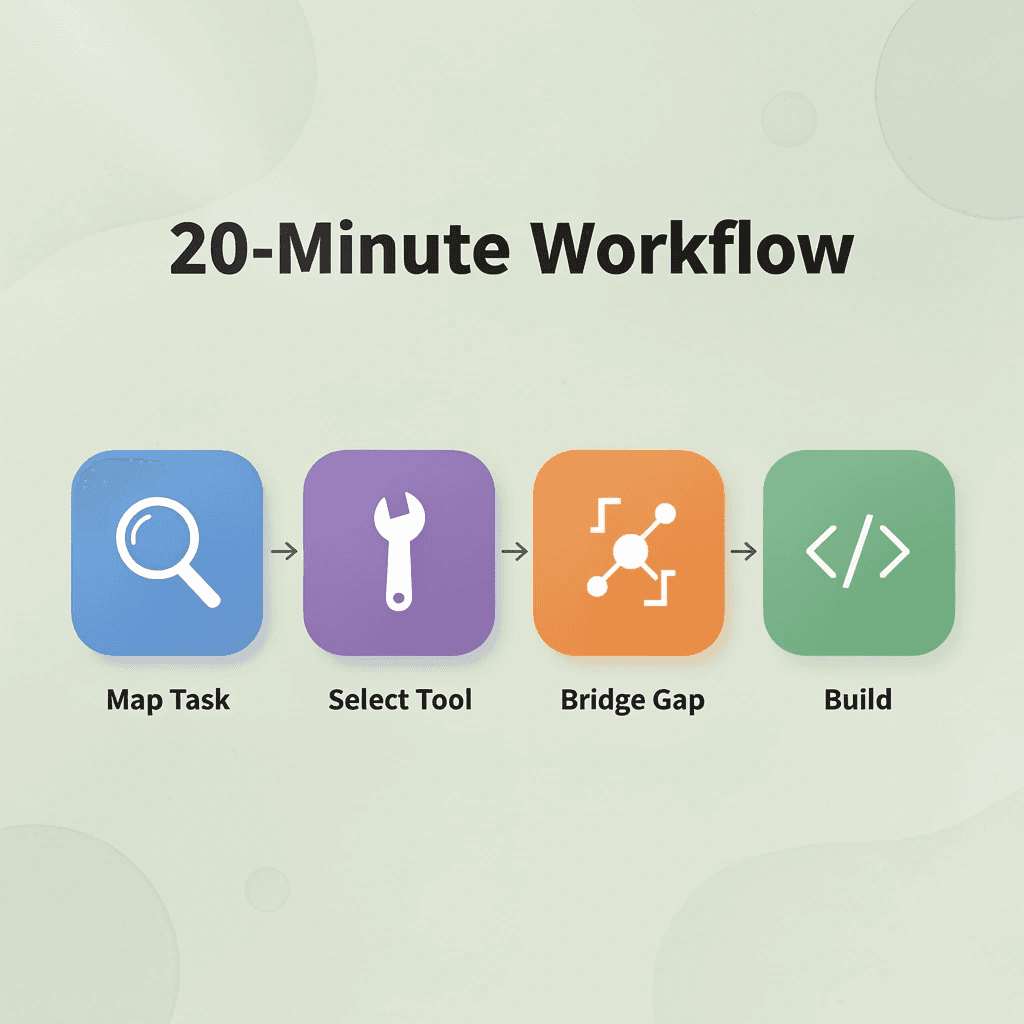
The 20-Minute Workflow to Split a Task Between Python and VBA
Most people lose the advantage of knowing the documented boundary because they don't map their specific task against it before building. The workflow below separates task-mapping, tool selection, and bridging so each part gets the tool it's documented to handle.
"The biggest mistake developers make is choosing a tool before defining the task — the 20-minute mapping process eliminates that guesswork entirely."
Phase | What You Do | Tool Assigned |
|---|---|---|
Task-Mapping | Define inputs, outputs, and logic boundaries | Pen & paper or doc |
Tool Selection | Match each sub-task to Python or VBA | Decision framework |
Bridging | Connect outputs across both environments | File I/O or COM layer |
💡 Tip: Before writing a single line of code, spend 5 minutes writing out what your task actually does — task-mapping is the step most developers skip and always regret.
⚠️ Warning: Skipping the bridging phase is the most common failure point — if Python and VBA can't cleanly hand off data, the entire workflow breaks regardless of how well each individual piece performs.
Minute 0-5: List Every Distinct Step in Your Task
Write out each individual step your workflow needs: cleaning a dataset, building a chart, saving a report, emailing it to a recipient. Breaking the task into individual steps lets you match each one separately, rather than assuming one tool must cover everything.
Minutes 5-10: Sort Each Step Into "Data Analysis" or "Automation"
Mark each step as either data analysis (cleaning, modeling, charting) or automation (saving, formatting, emailing, triggering actions). This creates a concrete checklist for your task.
People often skip this sorting step, then spend hours debugging a script that was never designed to handle file writes. Forty seconds of labeling prevents that entirely.
Minutes 10-15: Confirm Your Excel Environment
Check whether you're working in desktop Excel, Excel Online, or a managed corporate environment with IT restrictions, as this determines VBA availability. This prevents you from building a workflow around VBA steps that won't function in your actual environment.
Why does confirming your environment before building matter?
Someone builds a polished VBA macro for HTTP requests and data parsing, then discovers their company's Group Policy blocks the Microsoft XML HTTP object entirely. Confirming your environment at minute ten costs nothing; discovering the block after the build costs hours.
How do corporate IT restrictions turn a local problem into a permissions problem?
More and more companies are restricting the WinHttp.WinHttpRequest object and similar tools that VBA depends on for scraping tasks, turning what seems like a local automation problem into a permissions problem.
Most teams ask IT for exceptions or find ways around restrictions using different VBA methods, an approach that creates problems if the approver leaves. Tools like Numerous avoid this by running AI-powered data gathering and organization directly inside the spreadsheet, without local HTTP tools or IT approval for network access. For content creators and marketers who need organized data without writing scraping code, this path is often faster than VBA, even when VBA is available.
When should you bridge Python and VBA in the same workflow?
If your workflow needs both Python and VBA steps, decide whether a simple Shell-based call works for a personal, one-time script, or whether a local integration tool like xlwings Lite is worth setting up for anything shared or long-term. Shell's fragility is a known cost—deciding upfront whether it's acceptable prevents discovering the problem later when the file gets shared.
How do you know when Shell is off the table?
Apply this constraint: if the file will ever open on a machine you don't control, treat Shell as off the table. Hardcoded paths that work on your desktop become silent failures on anyone else's machine. This single rule eliminates most post-build debugging that makes hybrid workflows feel counterproductive.
Why the Sequence Matters
The problem wasn't understanding that Python and VBA are different: it was failing to match specific tasks against those differences before building. This workflow turns the Python-versus-VBA boundary into a concrete checklist applied to your actual task, so each step gets the right tool from the start instead of being retrofitted later.
Retrofitting is expensive. Assigning a step to the wrong tool mid-build wastes that step's time and breaks the workflow's structural integrity, since downstream steps were designed around an assumption that's now invalid.
What actually changes before and after this workflow?
Before this workflow, one tool was chosen for an entire multi-step task without distinguishing between data analysis and automation, VBA was assumed available without checking the environment, and a Shell-based bridge was treated as permanent despite documented problems.
After each task step maps to data analysis or automation, the environment is checked for VBA availability, and a bridging approach is chosen based on whether the workflow is personal or shared. The improvement comes from applying the documented division of labor to your specific task before building.
What happens when neither tool is the right fit?
This workflow surfaces a third outcome: tasks where neither Python nor VBA fits because the actual need is structured AI output rather than code-driven automation. Recognizing this early saves the build entirely.
But the step that changes how you think about all of this isn't the one most people expect.
Skip the Python-Versus-VBA Decision With Numerous
Open Numerous in your sheet, describe what you need in plain language, and get the result without deciding whether the job belongs to a sandboxed Python container or a local VBA macro.
💡 Tip: With Numerous, you skip the tool-selection debate — describe the task and let the platform handle the rest.
"The best tool is the one you never have to think about choosing." — A core principle behind AI-native spreadsheet workflows

The real-time cost was the planning layer before coding: confirming environment constraints, mapping task types, and testing which tool fits. For cleaning, summarizing, or flagging inconsistencies in a dataset, Numerous removes that layer entirely, leaving Python in Excel and VBA for tasks that genuinely need their specific capabilities.
Task Type | Traditional Approach | With Numerous |
|---|---|---|
Data Cleaning | ✅ Python or ❌ VBA debate | ✅ Plain language prompt |
Summarizing Data | ✅ Python scripts | ✅ Instant, no setup |
Flagging Inconsistencies | ❌ Manual tool selection | ✅ Automatic |
Environment Setup | ❌ Required every time | ✅ Eliminated |
Complex Automation | ✅ VBA or Python | ✅ Python/VBA when truly needed |
🔑 Takeaway: Numerous doesn't replace Python or VBA — it removes the unnecessary decision-making overhead so those tools are only used when they genuinely add value.
⚠️ Warning: The hidden cost of the Python-vs-VBA decision isn't just time — it's cognitive load that compounds across every project, every team member, and every deadline.