If you work with Excel and Python, you already know the frustration of sorting through endless libraries and not knowing which one fits your workflow. Whether you are pulling data from the web using the best web data scraping software or automating repetitive spreadsheet tasks, choosing the right Python tool for Excel can save you hours every week. This article cuts through the noise and gives you a clear look at the 7 best Python tools for Excel, with practical guidance to help you choose the right one in 30 minutes or less.
Speaking of making faster, smarter decisions, Numerous offers a spreadsheet AI tool that helps you process and act on information quickly, so you spend less time comparing options and more time getting results. If your goal is to understand libraries like openpyxl, pandas, xlwings, or xlrd without wading through dense documentation, Numerous gives you a shortcut that works.
Table of Contents
Why Excel Teams Struggle to Choose the Right Python Tool
The Hidden Cost of Choosing the Wrong Python Tool for Excel
7 Best Python Tools for Excel: What Each One Actually Does
The 30-Minute Workflow to Choose and Test Your First Python Tool
Prepare Excel Data for Python Analysis With Numerous
Summary
Over 750 million people worldwide use Excel, and most aren't software engineers. They are analysts, marketers, and operations professionals who need reliable output inside a spreadsheet, not a new runtime to maintain. This audience mismatch is a core reason Python tool selection goes wrong so often: tutorials and documentation are written for developers, not the people who will actually run the scripts.
The most common and costly failure in Python-Excel workflows is treating a successful code execution as proof of a correct output. A script can complete without errors while silently dropping formula dependencies, flattening conditional formatting, or splitting a regional total incorrectly because of inconsistent labels in a grouping column. That kind of silent failure is more dangerous than a crash because it passes unnoticed until a stakeholder catches the error in a review meeting.
Each of the seven major Python tools for Excel is designed for a specific output type, and the engineering overhead becomes a problem only when the tool doesn't match the job. The decision simplifies considerably when you frame it around one clarifying question: what does the finished output need to preserve? That single constraint collapses the choice from seven options to one or two serious candidates before you write any code.
According to Educative's analysis, Python can process data up to 1000x faster than Excel for large datasets using libraries like pandas and NumPy. That speed is a genuine asset, but it scales accuracy and error equally. When column mapping is incorrect, the same performance that makes Python valuable will reproduce a wrong number across every row before a human reviewer can notice.
A 30-minute proof-of-concept test with five rows of known data reveals more about a tool's actual fit than any feature comparison chart. Five controlled rows with expected totals make any deviation immediately visible, while a thousand-row file with unknown totals can hide a grouping error for weeks. The most skipped step in this process, deliberately breaking the script by renaming a column, also determines whether the workflow is safe to run on real data.
Numerous' spreadsheet AI tool addresses this broader pattern of information processing before action, helping teams quickly review and act on structured content rather than spending time manually reconciling inconsistencies upstream.
Why Excel Teams Struggle to Choose the Right Python Tool

Finance analysts, operations teams, and spreadsheet-heavy professionals share the same frustration:
They spend hours reading documentation for Python Excel libraries
Pick one that works in a test file
Then watch it break in the workbook that matters
The problem is not effort or intelligence. The problem is that "Python for Excel" describes three fundamentally different jobs, and most teams do not realize that until they are already two hours into a failing script.
According to the BIGXSTAR Blog's analysis of Power BI, Excel, and Python for data analysis, over 750 million people worldwide use Excel. That scale tells you something important: most of those users are not engineers. They are analysts, marketers, researchers, and operations leads who need results inside a spreadsheet, not a terminal. When that audience reaches for Python tools like openpyxl, xlrd, xlwings, or XlsxWriter, they often solve the wrong constraint because they start with "what's popular" rather than "what does my output actually require."
What Makes the Wrong Choice so Easy to Make
The failure point is usually a mismatch between the tool's architecture and what the workflow actually needs to produce. Pandas processes tabular data beautifully, but it treats a workbook as a data container, not a business document. When a finance team uses it to write results back into a branded monthly report, the formatted template, named ranges, and embedded charts do not survive the round trip. The script finishes without an error. The workbook looks wrong. That silent failure is more dangerous than a crash because it passes unnoticed until a stakeholder catches it.
Eliminating Tool Complexity With Spreadsheet AI Functions
Most teams handle this by adding more tools to the stack, layering openpyxl on top of pandas, or trying xlwings when the first two fall short. The hidden cost of that approach is not just time; it is compounding complexity. Each added library introduces its own environment requirements, version conflicts, and edge cases. For teams who need to categorize data, generate content, or run bulk AI tasks inside a spreadsheet without writing a single line of code, tools like Numerous offer a direct path: a simple =AI() function that works inside Excel and Google Sheets without API keys, package managers, or environment setup.
Where the Decision Tree Actually Starts
The critical difference between teams that choose well and those that cycle through three libraries is a single clarifying question asked before any code is written: what does the finished output need to preserve? A new report generated from clean data has different requirements than an existing approved template with embedded objects. A Python worksheet function running inside Excel has different infrastructure needs than a batch script processing exported CSVs overnight. Answering that question first collapses the decision from seven possible tools to one or two serious candidates.
Matching Strategy to Environment and Task Constraints
Constraint-based reasoning cuts through the noise faster than feature comparisons.
If the environment includes a qualifying Microsoft 365 subscription and internet access, it's worth evaluating Python in Excel for in-grid analysis.
If the task is editing existing workbook cells without opening the application, openpyxl is the natural starting point.
If the output needs polished formatting in a brand-new file, XlsxWriter earns its place. The tool is not the strategy.
Together, the output requirement, the environment constraint, and the validation check form the strategy, and skipping that sequence costs most people more than they measure.
Related Reading
The Hidden Cost of Choosing the Wrong Python Tool for Excel

You rarely measure the cost of a bad tool choice in the moment. The script runs, the file exports, and the team moves on. The invoice arrives later, quietly, as a rebuilt report, a reconciliation meeting, or a number that made it into a presentation before anyone caught the error. The failure pattern is consistent: teams treat a successful code execution as proof of a correct output. These are different things. A script that completes without errors and a workbook that passes a business review are not the same artifact. The gap between them is where the real cost lives, and it compounds across every reporting cycle that follows.
The Hidden Cost of Downstream Compatibility
According to Educative's analysis of Python versus Excel for data analytics, Excel files over 100MB slow down and become unstable, while Python handles gigabyte-scale files efficiently. That performance advantage is real. But it only pays off when the tool writing or modifying the file matches what the file needs to preserve. Speed on input means nothing if the output drops a formula dependency or flattens a conditional format that the finance team relies on every week.
Most teams handle the tool selection problem by testing whatever appears first in a tutorial search. That approach is not reckless; it is just incomplete. The hidden cost is not the wrong package itself. It is the downstream repair work that accumulates when nobody explicitly checks whether the tool supports the output layer the workbook requires.
The Dual-Edged Sword of AI and Scale
For teams whose spreadsheet tasks involve bulk categorization, content generation, or prompt-driven data work rather than raw data transformation, tools like Numerous offer a different path entirely, using a simple =AI() function inside Excel or Google Sheets without a single line of Python or an API key in sight. That option doesn't replace Python for engineering workflows, but it eliminates setup debt for tasks that never needed code in the first place.
The accuracy risk deserves its own attention. The same resource notes that Python can process data up to 1000x faster than Excel for large datasets using libraries like pandas and NumPy. That speed is a genuine asset when the column mapping is correct. When it isn't, that same speed reproduces the wrong number across every row before a human reviewer can notice. Automation scales both accuracy and error equally.
Measuring Requirements Before Selecting Tools
The break-even math from the previous section points at something worth sitting with:
If your reporting cycle is short
Your dataset is modest
Your workbook has formatting or formula logic that matters to stakeholders
The engineering overhead of choosing, validating, and maintaining a Python workflow may cost more than it saves. That is not an argument against Python. It is an argument for measuring the actual output requirement before selecting any tool, whether that tool is a Python library, a cloud runtime, or a spreadsheet plugin that runs AI natively in the cell. And once you know exactly what each tool can and cannot do, the choice stops feeling like guesswork.
7 Best Python Tools for Excel: What Each One Actually Does

Seven libraries. Seven distinct jobs. Most teams treat them as interchangeable options rather than purpose-built instruments, each designed for a specific kind of output.
1. Python in Excel: Analysis Inside the Grid
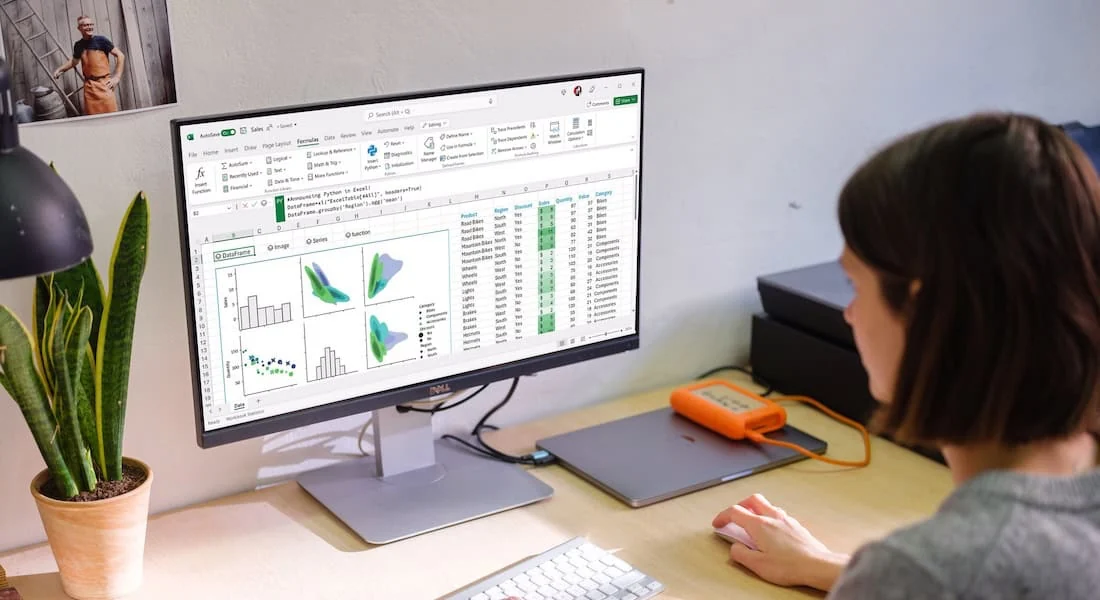
Python in Excel fits into the workflow when analysis needs to live where the data already lives. You write Python directly in worksheet cells; the code runs in Microsoft Cloud, and results return to the workbook without exports or local environment setup. The key constraint worth repeating:
It does not inherit locally installed packages
Cannot access arbitrary local files
Does not automate Excel the way VBA does
Treat it as a powerful analytical layer inside a supported Microsoft 365 subscription, not a general-purpose Python runtime.
2. pandas: The Workhorse for Table Transformation

The failure point is usually a mismatch between what pandas does and what teams expect. pandas excels at reading flat Excel exports, cleaning messy columns, grouping transactions, and writing results to a new file. It does not reconstruct formatted business templates or automate a running Excel application. When the job is "take this export, summarize it, and produce a clean output file," pandas is the right call every time.
3. openpyxl: Surgical Edits to Existing Workbooks

When a workbook already has structure worth preserving, openpyxl reaches inside the file and changes specific cells, labels, or formulas without rebuilding the whole document. The critical discipline is always working on a backup copy and reopening the result in desktop Excel to verify charts, controls, and formula dependencies survived the edit. Not every Excel object round-trips cleanly, and discovering that in a live report is a painful way to learn it.
4. xlwings: When Only Live Excel Will Do

The same pattern surfaces across finance and operations teams: the process genuinely requires interacting with a running Excel application, not just reading or writing a file. xlwings connects a local Python script directly to an open workbook on Windows or macOS, enabling range reads, writes, and Excel-side actions in sequence. Use this when the downstream workflow depends on Excel recalculating, refreshing data connections, or triggering application-level behavior that file-based libraries cannot reach.
5. XlsxWriter: Building Polished Reports From Scratch

If the deliverable is a new, consistently formatted Excel report generated automatically from structured data, XlsxWriter is the most reliable path. It handles charts, conditional formatting, tables, images, and number formats with precision at write time. The trade-off is absolute: it cannot read or modify an existing file. Use it to generate, not to edit.
6. Polars: Speed for Large Flat Datasets

According to DataLunch Consulting's Excel vs Python analysis, Python can handle datasets with millions of rows, far exceeding Excel's 1,048,576-row limit, and Polars is built for that. Its column-oriented processing model makes grouping and filtering across large flat exports faster than pandas in many scenarios. The practical note from Polars' own documentation: when Excel is just the delivery format and not the source of complex workbook structure, consider using Parquet or CSV as an intermediate format to keep performance high.
7. PyXLL: Python Functions That Feel Like Excel Functions

PyXLL sits in a narrow but genuinely useful category. It is a commercial Windows add-in that lets Python functions appear in worksheet cells like native Excel functions, so end users can call business logic without ever opening a script.
The operational cost is real:
It requires IT coordination for installation
Licensing after the trial period
Compatibility checks across Windows, Excel version, and Python runtime
Teams that need this capability and can manage it will find it works well; teams that can't should evaluate Python in Excel first.
Matching Tools to Output Requirements
The pattern is consistent across all seven tools. Each optimizes for a specific output type, and the engineering overhead becomes a problem only when the tool doesn't match the job. Most teams discover that mismatch after the report is already late. Most analysts handling bulk categorization, content generation, or prompt-driven research tasks inside spreadsheets reach for Python because it seems like the natural path to automation. The hidden cost is that setting up a local environment, managing dependencies, and validating output against Excel formatting takes time that has nothing to do with the actual analysis.
Choosing User-Centric Spreadsheet Tools
Numerous offers a different entry point: an AI-powered plugin that adds a simple =AI() function directly inside Google Sheets and Excel, handling tasks like data categorization, ad copy generation, and research summarization without API keys or environment configuration. For teams whose core need is AI-assisted spreadsheet work rather than programmatic file manipulation, that distinction matters.
Over 750 million people use Excel worldwide, so most users of these tools aren't software engineers. They are analysts, marketers, researchers, and operations leads who need reliable output, not a new runtime to maintain. The right Python tool respects that reality by fitting the deliverable, not the other way around.
Selecting Python-Excel Tools Through Constraint-Based Evaluation
Constraint-based thinking greatly simplifies the selection process.
If the output is an altered existing workbook, openpyxl.
If the output is a new formatted report, use XlsxWriter. If the job requires live Excel interaction, use xlwings.
If the task is summarizing imported table data, use pandas or Polars depending on volume.
If the calculation must happen inside the grid, use Python in Excel or PyXLL.
The tool follows the output requirement; the output requirement does not bend to fit the tool. Most teams skip the proof-of-concept step that would catch the mismatch before it costs anything. Thirty minutes with a sample file and a specific output target reveals more about a tool's actual fit than any feature comparison chart. That step isn't optional; it separates a tool that works from one that almost works until it doesn't.
The 30-Minute Workflow to Choose and Test Your First Python Tool

Thirty minutes is enough to run a real test, but only if you spend the first five minutes writing down exactly what success looks like. That single constraint, a one-sentence deliverable with a known expected output, is what separates a productive pilot from an afternoon of interesting but inconclusive tinkering. This workflow's steps are sequential by design. Skipping the schema check in Minute 15 to save time means the groupby in Minute 20 can silently drop rows with unexpected column names and still return a file that looks correct. A finished-looking result is not the same as a verified result. That distinction matters every time the output feeds a decision.
Minute 0–5: Write the Deliverable Before you Touch a Library
Define the exact output first. Not the tool, not the script, not the approach. Write one sentence that describes what the finished file should contain, who owns the source data, and what a human reviewer would check. If you cannot write that sentence, you are not ready tochoose a library yet.
Four yes-or-no questions sharpen the choice further:
Does Excel need to be open while the code runs?
Must an existing template survive unchanged?
Do colleagues need to enter Python formulas inside worksheet cells?
Are you processing flat table values or workbook objects like charts and named ranges?
Each "yes" eliminates at least one tool from the shortlist before you install anything.
Minutes 5–10: Pick One Tool and Write Down Why You Rejected the Others
The shortlist covers seven distinct use cases:
Python in Excel for in-grid cloud analysis
pandas for transforming export tables
openpyxl for surgical edits to existing XLSX structure
xlwings for automating a live desktop Excel session
XlsxWriter for generating new formatted reports from scratch
Polars for larger tabular datasets
PyXLL for Windows add-in workflows
Choosing one means consciously setting the other six aside, at least for this pilot. The decision record matters as much as the decision itself. When a colleague asks three weeks later why the team did not use xlwings, a written sentence explaining that the deliverable required no live Excel session answers the question without reopening the debate. Short documentation prevents repeated tool-selection meetings.
Minutes 10–15: Build a Five-Row Test File With Known Answers
Five rows is not laziness. It is precision. When you know the expected East total is 200, the West total is 200, and the North total is 50, any deviation in the output is immediately visible. A thousand-row file with unknown totals can hide a grouping error for weeks. Keep identifier columns as text from the start. Leading zeros in customer IDs or product codes disappear silently when pandas reads them as integers, and that kind of data loss is invisible until a reconciliation audit surfaces it. Catching it on five controlled rows costs nothing. Catching it after a published report costs credibility.
Minutes 15–20: Run the Script and Treat Every Assertion as a Gate
This workflow's script includes three assertions before any transformation runs:
Column names match
Row count matches
The Amount column contains no nulls
If any assertion fails, the script stops. That is the correct behavior. A script that continues past a schema mismatch and produces a plausible-looking output is more dangerous than one that crashes loudly. The reconciliation assertion after the groupby, confirming that the sum of regional totals equals the sum of the source column, is the numerical equivalent of a double-entry bookkeeping check. It costs two lines of code and catches the most common grouping error: rows dropped because of unexpected null values in the grouping key.
Minutes 20–25: Validate in Excel, Then Deliberately Break It
Open both files in Excel and manually verify every number. This step is not redundant. Python can return the right answer for the wrong reason, and a simple SUM formula in Excel on the source data catches that mismatch in under two minutes. Most pilots skip the controlled failure test, and that's a mistake. Rename the Amount column to Amt in a copy of the source file and rerun the script.
If the schema assertion stops execution, the guard works.
If the script continues and produces output anyway, the guard is broken and needs to be fixed before the workflow touches real data.
Where Text Fields Create a Hidden Problem
This pattern shows up in almost every real dataset: the numeric transformation works cleanly, but the grouping key has inconsistent labels. "East," "east," "EAST," and "East Region" are four different values to a groupby operation. The regional totals split incorrectly, and the error is invisible unless someone compares the output category count against the source.
Automating Recurring Data Cleaning Tasks
Most teams handle this by manually scanning the column for variants, correcting them in the source file, and rerunning the script. That works for a one-time task. When the same column arrives weekly with new inconsistencies, the manual correction step becomes a recurring bottleneck that quietly absorbs more time than the automation saved. Tools like Numerous address this friction point: you can standardize text fields like department names, product categories, or region labels directly in Excel with an AI function before the Python step runs, so groupby gets clean, consistent values without a separate cleaning script.
Minute 25–30: Save the Script and the Rules That Make it Repeatable
A script without a README is a liability. The person who wrote it knows the assumptions; everyone else is guessing.
Save the source filename
The required tab name
The expected column headers and data types
The output filename
The reconciliation rule
The specific error response for each failure mode
That document converts a one-time experiment into a process. The review rule belongs in the README too. A human checks changed business categories, unexpected blank rows, and total reconciliation before each published report. Automation handles repetition; judgment handles exceptions. That division of responsibility is not a limitation of the workflow. It is the design.
What the Before and After Actually Looks Like
Before this workflow: the common pattern is: open a large file, search for a tutorial that looks close enough, try two or three libraries, export the result over the original template, and trust the output because it looks finished. The error surfaces later, in a review meeting, when someone notices the North region is missing.
After this workflow: the sequence is fixed: one deliverable, one tool, one copied file, five known rows, three assertions, one reconciliation check, one separate output file, one README. The time savings do not come from moving faster. They come from refusing to proceed until each gate passes.
The one Failure Mode This Workflow Cannot Prevent
Every step here assumes the source data arrives with consistent structure. If the column names change between exports, or if the sheet tab is renamed by the person who sends the file, the schema check catches it and stops. That is the correct outcome. The schema check can't tell you whether the business categories in the data are meaningful. A Region column that contains 47 unique values when your business has 4 regions is a data quality problem, not a Python problem. Catching that before the transformation runs determines whether the output is trustworthy, and that step is harder than the code itself.
Related Reading
• How to View Hidden Sheets in Excel
• How to Connect Google Sheets to CrewAI
• How to Connect Excel to CrewAI
• How to Connect Excel to LangChain
• How to Add VBA to Excel
• How to Combine Multiple Excel Sheets Into One
• Data Visualization With Python in Excel
• How to Compare Two Excel Sheets Using VLOOKUP
• Integrate Agent With Google Sheets
• How to Delete Multiple Sheets in Excel
Prepare Excel Data for Python Analysis With Numerous
The technical obstacle was never really Python. It was the text sitting in column A before Python ever ran. When the same supplier appears as "IBM Corp," "IBM Corporation," and "IBM US," no groupby statement rescues the report. The fix happens upstream, in the cells themselves, before the script starts.
If your team already lives in Excel or Google Sheets, Numerous lets you place an =AI() function directly in a cell to categorize, clean, or reformat inconsistent text without writing a single line of Python. It does not replace pandas or openpyxl. It prepares the input those tools depend on, so the Python layer receives consistent labels instead of fragmented ones. That distinction matters because it means each tool does only what it does well.
Start with one column, approve the suggested labels against your own business rules, then hand that clean, reviewed data to whichever Python tool fits the task. That sequence, not the sophistication of the library, is what produces a report you can stand behind.
Related Reading
• How to Use Python in Excel
• Top Autonomous Agents for Web Research
• AI Agents for Multi-Step Tasks With No Coding