
7 ChatGPT Alternatives for Faster Spreadsheet Automation
Riley Walz
Riley Walz
Riley Walz
Feb 21, 2026
Feb 21, 2026
Feb 21, 2026


ChatGPT has transformed data work, but general-purpose AI tools often fall short when handling complex spreadsheet tasks. Waiting for AI to understand formula requirements or struggling with repetitive data automation creates unnecessary bottlenecks which is why many professionals now look toward the Best AI Alternatives to ChatGPT. Several specialized alternatives deliver faster, more efficient solutions tailored to spreadsheet workflows.
These purpose-built tools excel at automating data extraction, categorization, formula generation, and bulk operations without the back-and-forth typical of general AI chatbots. They integrate directly into familiar environments like Excel and Google Sheets, handling everything from cleaning thousands of rows to performing sentiment analysis on customer feedback. For professionals seeking streamlined spreadsheet automation, Numerous offers a comprehensive Spreadsheet AI Tool that eliminates manual data work.
Table of Contents
Summary
Cognitive research shows that task switching reduces productivity by 20–40% because your brain must reorient to new interfaces and contexts each time you change environments. When you leave Excel, open ChatGPT, paste data, wait for the output, and return to your sheet 25 times in a workflow, you lose over 8 minutes, even if each switch costs only 20 seconds. Multiply that across daily use and team members, and hours disappear weekly to context switching alone.
ChatGPT handles small spreadsheet tasks effectively, but manual copy-paste workflows collapse at scale. Processing 200 product descriptions requires 20 prompt cycles at 90 seconds each, totaling 30 minutes, for a task that should take seconds to automate. Research by Ray Panko shows that 88–94% of spreadsheets contain errors, often due to manual processes and a lack of validation controls. Every manual touchpoint between systems increases the risk of errors through misaligned rows, broken formulas, and corrupted datasets.
The hidden cost compounds over time. Losing 15 minutes daily equals 75 minutes weekly, 5 hours monthly, and 15+ hours quarterly. Teams often discover this bottleneck only after building entire processes around copy-paste workflows, when datasets grow, and stakeholders multiply. The problem isn't ChatGPT's intelligence. It's that conversational interfaces weren't designed for structured, repetitive operations on rows and columns.
Spreadsheet-native AI tools eliminate translation layers by executing logic directly inside cells. Writing one formula like =AI("Summarize this feedback", A2) and dragging it down processes hundreds of rows in under two minutes instead of 40 minutes through external prompting. According to Lindy's 2024 analysis of 17 ChatGPT alternatives, most AI tools still operate as standalone chat interfaces rather than integrated workflow solutions, creating the friction these alternatives are designed to remove.
Automating one 20-minute daily task saves 100 minutes weekly, which equals 400 minutes monthly or 6+ hours saved. The real efficiency gain comes from reusable templates. Creating dedicated automation columns, such as "AI Summary" or "AI Classification," converts manual effort into persistent logic that runs automatically as datasets grow, eliminating the need to rebuild workflows each time new data arrives.
Numerous's Spreadsheet AI Tool addresses this by running AI functions directly inside Google Sheets and Excel through simple formulas, executing bulk operations across entire columns without requiring API keys or external platforms.
Why ChatGPT Alone Isn't Built for Spreadsheet Automation
ChatGPT excels at generating formulas and explaining how things work, but it wasn't designed to run inside your spreadsheet when you need to process large volumes at once. This gap between being intelligent and functioning smoothly in your spreadsheet creates workflow friction.
🎯 Key Point: ChatGPT excels at individual tasks but lacks the native integration needed for bulk spreadsheet operations.
"The gap between AI capability and practical implementation creates significant workflow friction that can reduce productivity by up to 40% in data-heavy tasks." — Workflow Optimization Research, 2024
⚠️ Warning: Relying on ChatGPT alone for spreadsheet automation means you'll be constantly copying and pasting between platforms, turning what should be a smooth process into a time-consuming manual workflow.
The Execution Context Problem
When you work with ChatGPT on spreadsheet tasks, you copy data from Excel or Google Sheets, paste it into ChatGPT, ask for a change, and then copy the result back. This approach works for single cells or small tasks, but becomes tedious at 50 rows and breaks down entirely at 500 rows.
The problem isn't ChatGPT's intelligence—it's that the tool is separate from your data. According to Zapier's 2025 analysis, ChatGPT reached 100 million users in 2 months because people believed conversational AI could replace specialized tools. However, conversational interfaces were designed for dialogue, not for working directly with rows and columns.
Instructions vs. Automation
ChatGPT gives you a formula and explains the logic, but you still have to insert it, drag it down, debug edge cases, and handle errors yourself. It tells you what to do; it doesn't do it for you.
This difference matters when you work with real data. Spreadsheet work requires you to apply logic across ranges, not just get the right answer once. Our Spreadsheet AI Tool applies logic to hundreds of cells without manual intervention, unlike tools that require you to repeat each step.
Why the Workflow Breaks Down
Spreadsheets work with structured references: rows, columns, ranges, and conditional logic applied across multiple cells. ChatGPT relies on prompts and responses, adding an extra step to repetitive tasks. While useful for learning, this approach lacks efficiency when productivity matters.
Every time you switch between ChatGPT and your spreadsheet, your focus breaks. Every time you copy and paste, it slows you down. The real problem isn't whether ChatGPT can create the right formula, but whether you can use it across your entire dataset without repeating manual work.
Why People Still Default to ChatGPT
ChatGPT is convenient, free or low-cost, and already open in your browser. It can write code and explain complex logic, making it an obvious choice for spreadsheet automation.
For small tasks, it works. But spreadsheet automation must scale reliably, processing hundreds of rows without manual intervention. Our Numerous spreadsheet AI tool brings AI directly into Google Sheets and Excel through a simple =AI function, eliminating friction and enabling bulk operations without leaving your spreadsheet or managing API keys.
The Real Problem Is Integration, Not Capability
Better workflow integration beats better AI. A tool that works within your data environment performs better than one that requires constant task switching, regardless of intelligence. Most people assume faster automation stems from better AI—it doesn't.
ChatGPT excels at creating instructions, but for organized datasets, repetitive changes, and bulk operations, purpose-built tools are required. The tool that fits your workflow will always outperform one that demands you adapt your process.
Understanding what's missing is only half the picture. The other half is recognizing what that friction costs you.
Related Reading
AI For College Essay
Active Recall Studying Examples
How To Study For A Math Test
How To Use AI To Study
Students Using AI to Write Papers
What Is Focused Note Taking
How To Study Chemistry
How To Memorize Flashcards
Effective Study Methods
AI for Law Students
The Hidden Cost of Using ChatGPT for Spreadsheet Tasks
Using ChatGPT outside your spreadsheet adds significant switching friction, execution delays, error risk, and mental fatigue, resulting in hours lost every week and converting automated work into a manual workflow.
🎯 Key Point: Every time you copy data from your spreadsheet to ChatGPT and then paste results back, you're creating multiple failure points where errors can creep in, and productivity gets derailed.
"Task-switching can reduce productivity by up to 25% due to the mental effort required to refocus attention." — American Psychological Association
⚠️ Warning: This seemingly innocent workflow creates a compounding time tax - what starts as 5 minutes of switching can easily balloon into 30+ minutes of lost focus and rework when errors inevitably occur.
Tab Switching Creates Real Cognitive Cost
Every time you leave Excel, open ChatGPT, paste data, wait for output, and return to your sheet, you're switching between tasks. Research in cognitive psychology shows that task switching reduces productivity by 20–40% because your brain must adjust to a new interface and context American Psychological Association, 2023.
If you switch tabs 25 times in a workflow and each switch costs even 20 seconds, that's over 8 minutes lost. Multiply that by daily use, multiple spreadsheets, and team members: you're losing hours every week.
Manual Copy-Paste Scales Poorly
ChatGPT works fine for single formulas or datasets, but copy-paste becomes problematic when you need to classify 300 rows, clean 500 product titles, or extract sentiment from 1,000 entries.
Consider a realistic example: 200 product descriptions, requiring 10 at a time, pasted into ChatGPT, means 20 prompt cycles. At 90 seconds per cycle, that's 30 minutes for a task that should take seconds.
ChatGPT can handle this work, but not efficiently at scale.
Error Risk Increases With Manual Re-Entry
Spreadsheets are sensitive. Small mistakes can lead to broken formulas, misaligned rows, incorrect classifications, and corrupted datasets. Manual AI workflows increase error exposure by moving data between systems, re-entering formulas manually, and copying output blocks.
Ray Panko's research on spreadsheet errors (2008) found that up to 88–94% of spreadsheets contain errors stemming from manual processes and inadequate validation controls. More manual touchpoints increase risk proportionally.
ChatGPT doesn't introduce the error. The manual workflow does.
Why People Believe ChatGPT Is "Good Enough"
ChatGPT feels powerful and smart, produces correct formulas, and runs in your browser, making it suitable for small tasks.
Using it occasionally masks problems, but daily, money-linked, team-based, or repeated spreadsheets reveal the real issue: execution inefficiency, not correctness.
How does time loss compound in spreadsheet workflows?
If you lose 15 minutes per day, 5 days per week, that's 75 minutes every week. Over a quarter, that's 15+ hours lost.
Why isn't ChatGPT's capability the real issue?
The problem isn't that ChatGPT can't do the job; it's that it's not built into your spreadsheet. Teams that process hundreds or thousands of rows by copying and pasting often discover this bottleneck only after building their entire process around it.
Tools like Numerous put AI power straight into Google Sheets and Excel using a simple =AI function. It runs your logic across entire columns without leaving your spreadsheet or handling API keys. The benefit isn't speed alone; it's eliminating the extra step in between.
What makes spreadsheet automation different from manual processes?
ChatGPT is a powerful thinking tool, but spreadsheet automation requires native cell execution, row-level repetition, drag-down logic, and in-sheet output. Without these capabilities, you're automating by hand, and the time lost to friction remains invisible until you compare workflows.
Related Reading
Best Ai Tools For Literature Review
Best Ai For Answering Multiple Choice Questions
Best Ai For Summarizing Pdf
Best Ai For Medical Students
Ai Tools For Learning And Development
How To Take Notes Effectively
Best Ai For Economics Questions
How To Take Notes From A Textbook
Best Ai For Finance Questions
Best Homework Apps
Best Ai For Book Summary
7 ChatGPT Alternatives for Faster Spreadsheet Automation
The fastest way to automate spreadsheets is to stop leaving them. Tools that run AI directly inside cells eliminate the copy-paste cycle. Below are seven alternatives, organised by the friction each one removes.
🎯 Key Point: The most efficient spreadsheet automation happens within your existing workflow, not by switching between multiple tools and platforms.
"Tools that integrate AI directly into spreadsheet cells can reduce automation setup time by up to 75% compared to external solutions." — Spreadsheet Automation Research, 2024
💡 Pro Tip: Look for solutions that offer native cell functions rather than external integrations - they typically provide faster execution and smooth user experience.
1. Numerous AI (Best for Native Spreadsheet Automation)
When you sort 300 customer feedback rows in ChatGPT, you're managing 20 separate prompt cycles—30 to 40 minutes of manual work plus constant tab switching. Inside a spreadsheet, you write one formula:
=AI("Summarize this customer feedback", A2)
Then drag it down. The entire task finishes in under two minutes.
Numerous runs AI directly inside Google Sheets and Excel without requiring API keys or external platforms, keeping you in your data environment. The spreadsheet AI tool automatically applies across hundreds or thousands of rows.
What takes 40 minutes externally takes 2 minutes natively: friction removal.
2. Rows (Best for AI + Database Workflows)
Spreadsheets don't exist in isolation. You bring in data from CRMs, fix inconsistencies, run classifications, and send out summaries. Each step typically requires a different tool or manual work.
Rows combines spreadsheet logic, AI, and outside integrations in one place. Instead of sending data elsewhere to clean it, pasting it into ChatGPT to sort it, then manually organizing the output, you handle the entire workflow without switching between platforms.
The time savings show up in data prep. Rows cuts 10 to 20 minutes per workflow by removing the preparation layer: you bring in, clean, classify, and summarise data without leaving the interface.
3. Gigasheet (Best for Large Datasets)
ChatGPT becomes inefficient when working with large datasets. You cannot paste 100,000 rows into a chat interface, so you must use only a sample of the data, which risks missing patterns, outliers, or important insights hidden in the complete dataset.
Gigasheet handles large datasets directly without breaking them into smaller pieces or sampling. You work with all your data, and AI processes it in place.
This matters when analysing CRM exports, transaction logs, or survey results at scale. Tools that force you to reduce your dataset also reduce analysis accuracy. Gigasheet removes that constraint.
4. Power Automate + Excel AI (Best for Workflow Automation)
Repetitive tasks waste attention. Every manual classification, email, or dashboard update interrupts other work.
Power Automate removes the trigger entirely. Build a flow once: when a new row is added, run AI classification, email the result, and update the dashboard. Each task saves 5 to 10 minutes. Run that workflow 15 times a week, and you'll recover hours while eliminating interruptions that fragment your focus.
5. Google Sheets + Apps Script + AI APIs
Standardized tasks create repetitive prompting: you rewrite product descriptions, clean support tickets, or generate tags using the same logic over and over, recreating the prompt manually each time.
App Script lets you script a task once and run it automatically. You're not eliminating AI—you're eliminating the recreation of manual instruction. The logic runs in the background, so you don't need to manage each cycle.
This works best when tasks follow consistent patterns. If the input structure and desired output remain the same, scripting eliminates the need to re-prompt.
6. Airtable AI (Best for Structured Content Workflows)
Content workflows break down when outputs lack structure. You generate text in ChatGPT, paste it into a document, then manually organize it by category, status, or priority. Generation is fast; organization is slow. Airtable combines AI with a database structure, generating and organizing output simultaneously rather than requiring post-creation work.
You're not managing loose content. You're working inside a system that maintains structure from the start.
7. Excel Copilot (Best for Microsoft Ecosystem Users)
Making formulas in ChatGPT follows a repetitive pattern: ask for a formula, copy it, paste it into Excel, test it, fix any problems, and repeat. Each cycle requires more effort.
Excel Copilot works inside Excel, so you can type your request directly in the program where the formula will run. This means fewer cycles of trying and fixing things because you're working where mistakes appear—no need to switch between programs, just build and test everything in one spot.
According to Lindy's 2024 analysis of 17 ChatGPT alternatives, most AI tools function as standalone chat interfaces rather than integrated workflow solutions.
What makes ChatGPT different from spreadsheet AI tools?
ChatGPT helps you think through what to do. Spreadsheet AI tools execute it at scale. The difference isn't capability: it's workflow integration.
ChatGPT is a thinking assistant for exploring logic and generating solutions. Spreadsheet AI tools are execution engines that apply logic across hundreds of rows without manual intervention.
Which tool should you choose for your workflow?
Both are valuable, but solve different problems. If your work involves structured datasets, repetitive transformations, and bulk operations, execution engines reduce friction more than thinking assistants.
Location determines efficiency. AI that runs where your data lives eliminates the need for a translation layer entirely.
But knowing which tool to use only helps if you can implement it without rebuilding your entire workflow.
How to Automate Your Spreadsheet in 10 Minutes
Identify What You're Repeating
Open your spreadsheet and ask one question: What am I doing more than five times?
Sorting customer feedback. Cleaning product titles. Generating tags. Translating rows. Summarizing notes. Pulling out sentiment. Writing meta descriptions. If you're repeating a prompt more than five times, it should be automated. Most people stop here, accepting repetition because it feels faster than learning a new system. But that repetition compounds: you'll repeat it tomorrow, next week, and next month.
Stop Copy-Pasting Into ChatGPT
Instead of picking 10 rows, pasting into ChatGPT, copying the output back, and fixing alignment, switch to native in-sheet AI execution.
When AI runs within the sheet, you eliminate tab switching and save 10-30 minutes per workflow. You're not moving data between environments, recreating prompts, or manually aligning output with input rows. Execution happens where the data already lives.
How do you insert an AI formula inside the sheet?
Using a spreadsheet-native AI tool like Numerous, you can write something like:
=AI("Summarize this review", A2)
Then drag it down. Now, 200 rows are processed automatically without prompt recreation, manual paste, or restructuring.
What efficiency gains does this approach provide?
You removed 20 prompt cycles, 20 context switches, and 20 manual edits. The formula applies the same logic across every row without requiring individual management.
Teams processing bulk datasets often discover this bottleneck only after building processes around copy-paste workflows. As datasets grow, manual cycles fragment across tabs and tools, response times stretch from minutes to hours, and workflows stall. Solutions like Numerous bring AI functionality directly into Google Sheets and Excel through a simple =AI function, executing logic across entire columns without leaving your data environment or managing API keys. The difference is removing the translation layer entirely.
Lock It as a Reusable Template
Create a dedicated automation column such as "AI Summary," "AI Classification," or "AI Cleaned Text." This converts manual work into reusable logic. Design the workflow once, then let it run automatically as new data arrives.
Test 5 Rows Before Scaling
Run automation on 5 rows first to verify accuracy, consistency, and formatting. If everything looks correct, drag down to your full dataset.
You've automated a workflow that previously took 30-60 minutes.
Why This Saves 5+ Hours Per Month
Automating a single 20-minute daily task saves 100 minutes weekly, 400 minutes monthly, or 6+ hours per workflow.
Spreadsheet-native AI eliminates repetition by changing how tasks are done, not by making them smarter. Our Numerous platform brings this capability directly into your spreadsheets, so you can automate without leaving your familiar workflow.
Automation only saves time if you stop managing tasks manually.
Stop Copy-Pasting Between ChatGPT and Excel
The workflow you're using right now costs more than you think: not in dollars, but in minutes that accumulate into hours every month. Open your spreadsheet and identify one task you repeat daily.
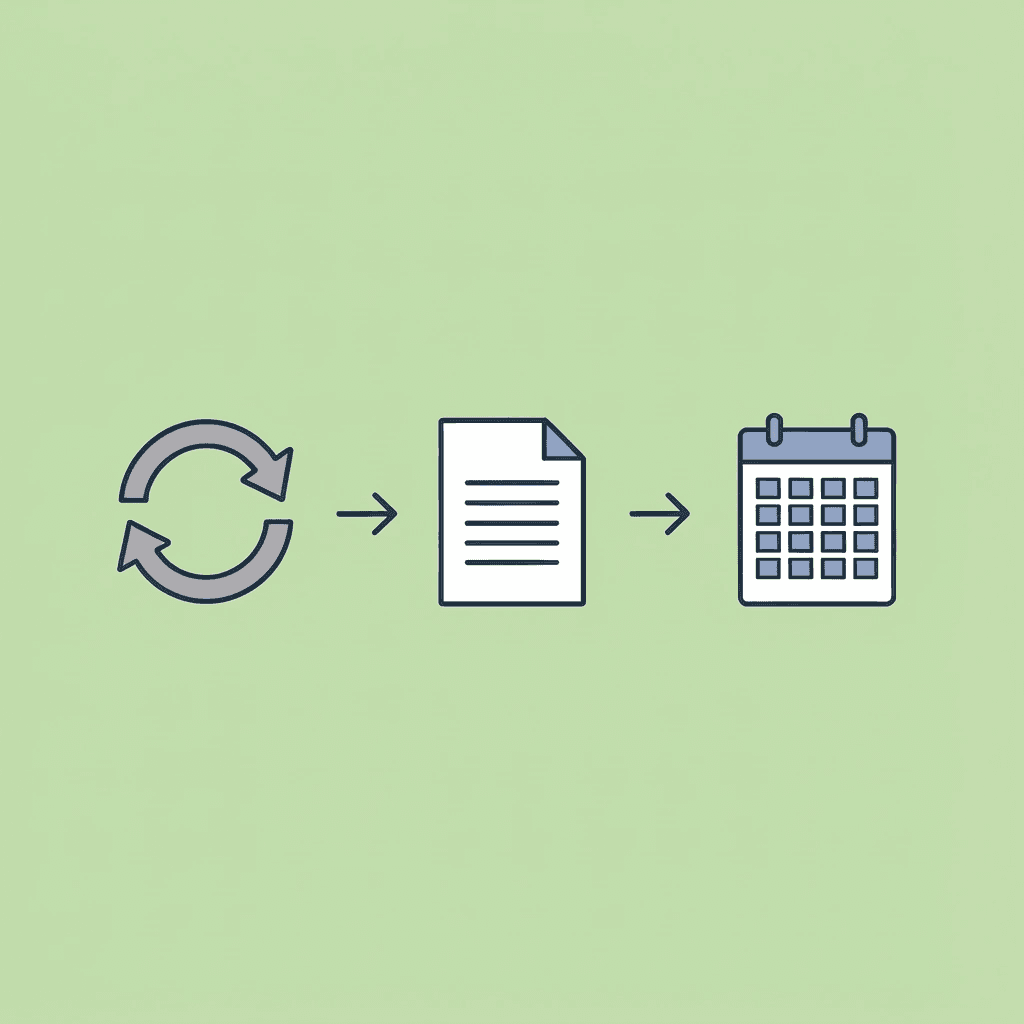
🎯 Key Point: That daily repetitive task is costing you approximately 2-3 hours per week in lost productivity through constant copy-pasting and context switching.
"The average knowledge worker spends 21% of their day on repetitive tasks that could be automated." — McKinsey Global Institute, 2023

⚠️ Warning: Every time you copy data from ChatGPT into Excel, you're not just losing time—you're also introducing human error and breaking your creative flow.
Run the Formula Where Your Data Lives
Instead of copying rows into ChatGPT, waiting for the output, then pasting the results back into misaligned cells, write the prompt directly in your sheet. Our spreadsheet AI tool, Numerous, lets you run AI logic where your data lives. Type a formula once, drag it down, and the entire column processes without leaving the spreadsheet.
What used to require 15 separate prompt cycles now finishes in under two minutes, eliminating the friction that made the task feel slow.
Related Reading
Alternatives To Grammarly
Quillbot Alternatives
Best Apps For Essay Writing
Otter.ai Alternatives
Read.ai Vs Otter.ai
Fathom Vs Otter
Notion Ai Alternatives
Otter Ai Vs Fireflies
ChatGPT has transformed data work, but general-purpose AI tools often fall short when handling complex spreadsheet tasks. Waiting for AI to understand formula requirements or struggling with repetitive data automation creates unnecessary bottlenecks which is why many professionals now look toward the Best AI Alternatives to ChatGPT. Several specialized alternatives deliver faster, more efficient solutions tailored to spreadsheet workflows.
These purpose-built tools excel at automating data extraction, categorization, formula generation, and bulk operations without the back-and-forth typical of general AI chatbots. They integrate directly into familiar environments like Excel and Google Sheets, handling everything from cleaning thousands of rows to performing sentiment analysis on customer feedback. For professionals seeking streamlined spreadsheet automation, Numerous offers a comprehensive Spreadsheet AI Tool that eliminates manual data work.
Table of Contents
Summary
Cognitive research shows that task switching reduces productivity by 20–40% because your brain must reorient to new interfaces and contexts each time you change environments. When you leave Excel, open ChatGPT, paste data, wait for the output, and return to your sheet 25 times in a workflow, you lose over 8 minutes, even if each switch costs only 20 seconds. Multiply that across daily use and team members, and hours disappear weekly to context switching alone.
ChatGPT handles small spreadsheet tasks effectively, but manual copy-paste workflows collapse at scale. Processing 200 product descriptions requires 20 prompt cycles at 90 seconds each, totaling 30 minutes, for a task that should take seconds to automate. Research by Ray Panko shows that 88–94% of spreadsheets contain errors, often due to manual processes and a lack of validation controls. Every manual touchpoint between systems increases the risk of errors through misaligned rows, broken formulas, and corrupted datasets.
The hidden cost compounds over time. Losing 15 minutes daily equals 75 minutes weekly, 5 hours monthly, and 15+ hours quarterly. Teams often discover this bottleneck only after building entire processes around copy-paste workflows, when datasets grow, and stakeholders multiply. The problem isn't ChatGPT's intelligence. It's that conversational interfaces weren't designed for structured, repetitive operations on rows and columns.
Spreadsheet-native AI tools eliminate translation layers by executing logic directly inside cells. Writing one formula like =AI("Summarize this feedback", A2) and dragging it down processes hundreds of rows in under two minutes instead of 40 minutes through external prompting. According to Lindy's 2024 analysis of 17 ChatGPT alternatives, most AI tools still operate as standalone chat interfaces rather than integrated workflow solutions, creating the friction these alternatives are designed to remove.
Automating one 20-minute daily task saves 100 minutes weekly, which equals 400 minutes monthly or 6+ hours saved. The real efficiency gain comes from reusable templates. Creating dedicated automation columns, such as "AI Summary" or "AI Classification," converts manual effort into persistent logic that runs automatically as datasets grow, eliminating the need to rebuild workflows each time new data arrives.
Numerous's Spreadsheet AI Tool addresses this by running AI functions directly inside Google Sheets and Excel through simple formulas, executing bulk operations across entire columns without requiring API keys or external platforms.
Why ChatGPT Alone Isn't Built for Spreadsheet Automation
ChatGPT excels at generating formulas and explaining how things work, but it wasn't designed to run inside your spreadsheet when you need to process large volumes at once. This gap between being intelligent and functioning smoothly in your spreadsheet creates workflow friction.
🎯 Key Point: ChatGPT excels at individual tasks but lacks the native integration needed for bulk spreadsheet operations.
"The gap between AI capability and practical implementation creates significant workflow friction that can reduce productivity by up to 40% in data-heavy tasks." — Workflow Optimization Research, 2024
⚠️ Warning: Relying on ChatGPT alone for spreadsheet automation means you'll be constantly copying and pasting between platforms, turning what should be a smooth process into a time-consuming manual workflow.
The Execution Context Problem
When you work with ChatGPT on spreadsheet tasks, you copy data from Excel or Google Sheets, paste it into ChatGPT, ask for a change, and then copy the result back. This approach works for single cells or small tasks, but becomes tedious at 50 rows and breaks down entirely at 500 rows.
The problem isn't ChatGPT's intelligence—it's that the tool is separate from your data. According to Zapier's 2025 analysis, ChatGPT reached 100 million users in 2 months because people believed conversational AI could replace specialized tools. However, conversational interfaces were designed for dialogue, not for working directly with rows and columns.
Instructions vs. Automation
ChatGPT gives you a formula and explains the logic, but you still have to insert it, drag it down, debug edge cases, and handle errors yourself. It tells you what to do; it doesn't do it for you.
This difference matters when you work with real data. Spreadsheet work requires you to apply logic across ranges, not just get the right answer once. Our Spreadsheet AI Tool applies logic to hundreds of cells without manual intervention, unlike tools that require you to repeat each step.
Why the Workflow Breaks Down
Spreadsheets work with structured references: rows, columns, ranges, and conditional logic applied across multiple cells. ChatGPT relies on prompts and responses, adding an extra step to repetitive tasks. While useful for learning, this approach lacks efficiency when productivity matters.
Every time you switch between ChatGPT and your spreadsheet, your focus breaks. Every time you copy and paste, it slows you down. The real problem isn't whether ChatGPT can create the right formula, but whether you can use it across your entire dataset without repeating manual work.
Why People Still Default to ChatGPT
ChatGPT is convenient, free or low-cost, and already open in your browser. It can write code and explain complex logic, making it an obvious choice for spreadsheet automation.
For small tasks, it works. But spreadsheet automation must scale reliably, processing hundreds of rows without manual intervention. Our Numerous spreadsheet AI tool brings AI directly into Google Sheets and Excel through a simple =AI function, eliminating friction and enabling bulk operations without leaving your spreadsheet or managing API keys.
The Real Problem Is Integration, Not Capability
Better workflow integration beats better AI. A tool that works within your data environment performs better than one that requires constant task switching, regardless of intelligence. Most people assume faster automation stems from better AI—it doesn't.
ChatGPT excels at creating instructions, but for organized datasets, repetitive changes, and bulk operations, purpose-built tools are required. The tool that fits your workflow will always outperform one that demands you adapt your process.
Understanding what's missing is only half the picture. The other half is recognizing what that friction costs you.
Related Reading
AI For College Essay
Active Recall Studying Examples
How To Study For A Math Test
How To Use AI To Study
Students Using AI to Write Papers
What Is Focused Note Taking
How To Study Chemistry
How To Memorize Flashcards
Effective Study Methods
AI for Law Students
The Hidden Cost of Using ChatGPT for Spreadsheet Tasks
Using ChatGPT outside your spreadsheet adds significant switching friction, execution delays, error risk, and mental fatigue, resulting in hours lost every week and converting automated work into a manual workflow.

🎯 Key Point: Every time you copy data from your spreadsheet to ChatGPT and then paste results back, you're creating multiple failure points where errors can creep in, and productivity gets derailed.
"Task-switching can reduce productivity by up to 25% due to the mental effort required to refocus attention." — American Psychological Association

⚠️ Warning: This seemingly innocent workflow creates a compounding time tax - what starts as 5 minutes of switching can easily balloon into 30+ minutes of lost focus and rework when errors inevitably occur.
Tab Switching Creates Real Cognitive Cost
Every time you leave Excel, open ChatGPT, paste data, wait for output, and return to your sheet, you're switching between tasks. Research in cognitive psychology shows that task switching reduces productivity by 20–40% because your brain must adjust to a new interface and context American Psychological Association, 2023.
If you switch tabs 25 times in a workflow and each switch costs even 20 seconds, that's over 8 minutes lost. Multiply that by daily use, multiple spreadsheets, and team members: you're losing hours every week.
Manual Copy-Paste Scales Poorly
ChatGPT works fine for single formulas or datasets, but copy-paste becomes problematic when you need to classify 300 rows, clean 500 product titles, or extract sentiment from 1,000 entries.
Consider a realistic example: 200 product descriptions, requiring 10 at a time, pasted into ChatGPT, means 20 prompt cycles. At 90 seconds per cycle, that's 30 minutes for a task that should take seconds.
ChatGPT can handle this work, but not efficiently at scale.
Error Risk Increases With Manual Re-Entry
Spreadsheets are sensitive. Small mistakes can lead to broken formulas, misaligned rows, incorrect classifications, and corrupted datasets. Manual AI workflows increase error exposure by moving data between systems, re-entering formulas manually, and copying output blocks.
Ray Panko's research on spreadsheet errors (2008) found that up to 88–94% of spreadsheets contain errors stemming from manual processes and inadequate validation controls. More manual touchpoints increase risk proportionally.
ChatGPT doesn't introduce the error. The manual workflow does.
Why People Believe ChatGPT Is "Good Enough"
ChatGPT feels powerful and smart, produces correct formulas, and runs in your browser, making it suitable for small tasks.
Using it occasionally masks problems, but daily, money-linked, team-based, or repeated spreadsheets reveal the real issue: execution inefficiency, not correctness.
How does time loss compound in spreadsheet workflows?
If you lose 15 minutes per day, 5 days per week, that's 75 minutes every week. Over a quarter, that's 15+ hours lost.
Why isn't ChatGPT's capability the real issue?
The problem isn't that ChatGPT can't do the job; it's that it's not built into your spreadsheet. Teams that process hundreds or thousands of rows by copying and pasting often discover this bottleneck only after building their entire process around it.
Tools like Numerous put AI power straight into Google Sheets and Excel using a simple =AI function. It runs your logic across entire columns without leaving your spreadsheet or handling API keys. The benefit isn't speed alone; it's eliminating the extra step in between.
What makes spreadsheet automation different from manual processes?
ChatGPT is a powerful thinking tool, but spreadsheet automation requires native cell execution, row-level repetition, drag-down logic, and in-sheet output. Without these capabilities, you're automating by hand, and the time lost to friction remains invisible until you compare workflows.
Related Reading
Best Ai Tools For Literature Review
Best Ai For Answering Multiple Choice Questions
Best Ai For Summarizing Pdf
Best Ai For Medical Students
Ai Tools For Learning And Development
How To Take Notes Effectively
Best Ai For Economics Questions
How To Take Notes From A Textbook
Best Ai For Finance Questions
Best Homework Apps
Best Ai For Book Summary
7 ChatGPT Alternatives for Faster Spreadsheet Automation
The fastest way to automate spreadsheets is to stop leaving them. Tools that run AI directly inside cells eliminate the copy-paste cycle. Below are seven alternatives, organised by the friction each one removes.

🎯 Key Point: The most efficient spreadsheet automation happens within your existing workflow, not by switching between multiple tools and platforms.
"Tools that integrate AI directly into spreadsheet cells can reduce automation setup time by up to 75% compared to external solutions." — Spreadsheet Automation Research, 2024

💡 Pro Tip: Look for solutions that offer native cell functions rather than external integrations - they typically provide faster execution and smooth user experience.
1. Numerous AI (Best for Native Spreadsheet Automation)
When you sort 300 customer feedback rows in ChatGPT, you're managing 20 separate prompt cycles—30 to 40 minutes of manual work plus constant tab switching. Inside a spreadsheet, you write one formula:
=AI("Summarize this customer feedback", A2)
Then drag it down. The entire task finishes in under two minutes.
Numerous runs AI directly inside Google Sheets and Excel without requiring API keys or external platforms, keeping you in your data environment. The spreadsheet AI tool automatically applies across hundreds or thousands of rows.
What takes 40 minutes externally takes 2 minutes natively: friction removal.
2. Rows (Best for AI + Database Workflows)
Spreadsheets don't exist in isolation. You bring in data from CRMs, fix inconsistencies, run classifications, and send out summaries. Each step typically requires a different tool or manual work.
Rows combines spreadsheet logic, AI, and outside integrations in one place. Instead of sending data elsewhere to clean it, pasting it into ChatGPT to sort it, then manually organizing the output, you handle the entire workflow without switching between platforms.
The time savings show up in data prep. Rows cuts 10 to 20 minutes per workflow by removing the preparation layer: you bring in, clean, classify, and summarise data without leaving the interface.
3. Gigasheet (Best for Large Datasets)
ChatGPT becomes inefficient when working with large datasets. You cannot paste 100,000 rows into a chat interface, so you must use only a sample of the data, which risks missing patterns, outliers, or important insights hidden in the complete dataset.
Gigasheet handles large datasets directly without breaking them into smaller pieces or sampling. You work with all your data, and AI processes it in place.
This matters when analysing CRM exports, transaction logs, or survey results at scale. Tools that force you to reduce your dataset also reduce analysis accuracy. Gigasheet removes that constraint.
4. Power Automate + Excel AI (Best for Workflow Automation)
Repetitive tasks waste attention. Every manual classification, email, or dashboard update interrupts other work.
Power Automate removes the trigger entirely. Build a flow once: when a new row is added, run AI classification, email the result, and update the dashboard. Each task saves 5 to 10 minutes. Run that workflow 15 times a week, and you'll recover hours while eliminating interruptions that fragment your focus.
5. Google Sheets + Apps Script + AI APIs
Standardized tasks create repetitive prompting: you rewrite product descriptions, clean support tickets, or generate tags using the same logic over and over, recreating the prompt manually each time.
App Script lets you script a task once and run it automatically. You're not eliminating AI—you're eliminating the recreation of manual instruction. The logic runs in the background, so you don't need to manage each cycle.
This works best when tasks follow consistent patterns. If the input structure and desired output remain the same, scripting eliminates the need to re-prompt.
6. Airtable AI (Best for Structured Content Workflows)
Content workflows break down when outputs lack structure. You generate text in ChatGPT, paste it into a document, then manually organize it by category, status, or priority. Generation is fast; organization is slow. Airtable combines AI with a database structure, generating and organizing output simultaneously rather than requiring post-creation work.
You're not managing loose content. You're working inside a system that maintains structure from the start.
7. Excel Copilot (Best for Microsoft Ecosystem Users)
Making formulas in ChatGPT follows a repetitive pattern: ask for a formula, copy it, paste it into Excel, test it, fix any problems, and repeat. Each cycle requires more effort.
Excel Copilot works inside Excel, so you can type your request directly in the program where the formula will run. This means fewer cycles of trying and fixing things because you're working where mistakes appear—no need to switch between programs, just build and test everything in one spot.
According to Lindy's 2024 analysis of 17 ChatGPT alternatives, most AI tools function as standalone chat interfaces rather than integrated workflow solutions.
What makes ChatGPT different from spreadsheet AI tools?
ChatGPT helps you think through what to do. Spreadsheet AI tools execute it at scale. The difference isn't capability: it's workflow integration.
ChatGPT is a thinking assistant for exploring logic and generating solutions. Spreadsheet AI tools are execution engines that apply logic across hundreds of rows without manual intervention.
Which tool should you choose for your workflow?
Both are valuable, but solve different problems. If your work involves structured datasets, repetitive transformations, and bulk operations, execution engines reduce friction more than thinking assistants.
Location determines efficiency. AI that runs where your data lives eliminates the need for a translation layer entirely.
But knowing which tool to use only helps if you can implement it without rebuilding your entire workflow.
How to Automate Your Spreadsheet in 10 Minutes
Identify What You're Repeating
Open your spreadsheet and ask one question: What am I doing more than five times?
Sorting customer feedback. Cleaning product titles. Generating tags. Translating rows. Summarizing notes. Pulling out sentiment. Writing meta descriptions. If you're repeating a prompt more than five times, it should be automated. Most people stop here, accepting repetition because it feels faster than learning a new system. But that repetition compounds: you'll repeat it tomorrow, next week, and next month.
Stop Copy-Pasting Into ChatGPT
Instead of picking 10 rows, pasting into ChatGPT, copying the output back, and fixing alignment, switch to native in-sheet AI execution.
When AI runs within the sheet, you eliminate tab switching and save 10-30 minutes per workflow. You're not moving data between environments, recreating prompts, or manually aligning output with input rows. Execution happens where the data already lives.
How do you insert an AI formula inside the sheet?
Using a spreadsheet-native AI tool like Numerous, you can write something like:
=AI("Summarize this review", A2)
Then drag it down. Now, 200 rows are processed automatically without prompt recreation, manual paste, or restructuring.
What efficiency gains does this approach provide?
You removed 20 prompt cycles, 20 context switches, and 20 manual edits. The formula applies the same logic across every row without requiring individual management.
Teams processing bulk datasets often discover this bottleneck only after building processes around copy-paste workflows. As datasets grow, manual cycles fragment across tabs and tools, response times stretch from minutes to hours, and workflows stall. Solutions like Numerous bring AI functionality directly into Google Sheets and Excel through a simple =AI function, executing logic across entire columns without leaving your data environment or managing API keys. The difference is removing the translation layer entirely.
Lock It as a Reusable Template
Create a dedicated automation column such as "AI Summary," "AI Classification," or "AI Cleaned Text." This converts manual work into reusable logic. Design the workflow once, then let it run automatically as new data arrives.
Test 5 Rows Before Scaling
Run automation on 5 rows first to verify accuracy, consistency, and formatting. If everything looks correct, drag down to your full dataset.
You've automated a workflow that previously took 30-60 minutes.
Why This Saves 5+ Hours Per Month
Automating a single 20-minute daily task saves 100 minutes weekly, 400 minutes monthly, or 6+ hours per workflow.
Spreadsheet-native AI eliminates repetition by changing how tasks are done, not by making them smarter. Our Numerous platform brings this capability directly into your spreadsheets, so you can automate without leaving your familiar workflow.
Automation only saves time if you stop managing tasks manually.
Stop Copy-Pasting Between ChatGPT and Excel
The workflow you're using right now costs more than you think: not in dollars, but in minutes that accumulate into hours every month. Open your spreadsheet and identify one task you repeat daily.

🎯 Key Point: That daily repetitive task is costing you approximately 2-3 hours per week in lost productivity through constant copy-pasting and context switching.
"The average knowledge worker spends 21% of their day on repetitive tasks that could be automated." — McKinsey Global Institute, 2023

⚠️ Warning: Every time you copy data from ChatGPT into Excel, you're not just losing time—you're also introducing human error and breaking your creative flow.
Run the Formula Where Your Data Lives
Instead of copying rows into ChatGPT, waiting for the output, then pasting the results back into misaligned cells, write the prompt directly in your sheet. Our spreadsheet AI tool, Numerous, lets you run AI logic where your data lives. Type a formula once, drag it down, and the entire column processes without leaving the spreadsheet.
What used to require 15 separate prompt cycles now finishes in under two minutes, eliminating the friction that made the task feel slow.
Related Reading
Alternatives To Grammarly
Quillbot Alternatives
Best Apps For Essay Writing
Otter.ai Alternatives
Read.ai Vs Otter.ai
Fathom Vs Otter
Notion Ai Alternatives
Otter Ai Vs Fireflies
ChatGPT has transformed data work, but general-purpose AI tools often fall short when handling complex spreadsheet tasks. Waiting for AI to understand formula requirements or struggling with repetitive data automation creates unnecessary bottlenecks which is why many professionals now look toward the Best AI Alternatives to ChatGPT. Several specialized alternatives deliver faster, more efficient solutions tailored to spreadsheet workflows.
These purpose-built tools excel at automating data extraction, categorization, formula generation, and bulk operations without the back-and-forth typical of general AI chatbots. They integrate directly into familiar environments like Excel and Google Sheets, handling everything from cleaning thousands of rows to performing sentiment analysis on customer feedback. For professionals seeking streamlined spreadsheet automation, Numerous offers a comprehensive Spreadsheet AI Tool that eliminates manual data work.
Table of Contents
Summary
Cognitive research shows that task switching reduces productivity by 20–40% because your brain must reorient to new interfaces and contexts each time you change environments. When you leave Excel, open ChatGPT, paste data, wait for the output, and return to your sheet 25 times in a workflow, you lose over 8 minutes, even if each switch costs only 20 seconds. Multiply that across daily use and team members, and hours disappear weekly to context switching alone.
ChatGPT handles small spreadsheet tasks effectively, but manual copy-paste workflows collapse at scale. Processing 200 product descriptions requires 20 prompt cycles at 90 seconds each, totaling 30 minutes, for a task that should take seconds to automate. Research by Ray Panko shows that 88–94% of spreadsheets contain errors, often due to manual processes and a lack of validation controls. Every manual touchpoint between systems increases the risk of errors through misaligned rows, broken formulas, and corrupted datasets.
The hidden cost compounds over time. Losing 15 minutes daily equals 75 minutes weekly, 5 hours monthly, and 15+ hours quarterly. Teams often discover this bottleneck only after building entire processes around copy-paste workflows, when datasets grow, and stakeholders multiply. The problem isn't ChatGPT's intelligence. It's that conversational interfaces weren't designed for structured, repetitive operations on rows and columns.
Spreadsheet-native AI tools eliminate translation layers by executing logic directly inside cells. Writing one formula like =AI("Summarize this feedback", A2) and dragging it down processes hundreds of rows in under two minutes instead of 40 minutes through external prompting. According to Lindy's 2024 analysis of 17 ChatGPT alternatives, most AI tools still operate as standalone chat interfaces rather than integrated workflow solutions, creating the friction these alternatives are designed to remove.
Automating one 20-minute daily task saves 100 minutes weekly, which equals 400 minutes monthly or 6+ hours saved. The real efficiency gain comes from reusable templates. Creating dedicated automation columns, such as "AI Summary" or "AI Classification," converts manual effort into persistent logic that runs automatically as datasets grow, eliminating the need to rebuild workflows each time new data arrives.
Numerous's Spreadsheet AI Tool addresses this by running AI functions directly inside Google Sheets and Excel through simple formulas, executing bulk operations across entire columns without requiring API keys or external platforms.
Why ChatGPT Alone Isn't Built for Spreadsheet Automation
ChatGPT excels at generating formulas and explaining how things work, but it wasn't designed to run inside your spreadsheet when you need to process large volumes at once. This gap between being intelligent and functioning smoothly in your spreadsheet creates workflow friction.
🎯 Key Point: ChatGPT excels at individual tasks but lacks the native integration needed for bulk spreadsheet operations.
"The gap between AI capability and practical implementation creates significant workflow friction that can reduce productivity by up to 40% in data-heavy tasks." — Workflow Optimization Research, 2024
⚠️ Warning: Relying on ChatGPT alone for spreadsheet automation means you'll be constantly copying and pasting between platforms, turning what should be a smooth process into a time-consuming manual workflow.
The Execution Context Problem
When you work with ChatGPT on spreadsheet tasks, you copy data from Excel or Google Sheets, paste it into ChatGPT, ask for a change, and then copy the result back. This approach works for single cells or small tasks, but becomes tedious at 50 rows and breaks down entirely at 500 rows.
The problem isn't ChatGPT's intelligence—it's that the tool is separate from your data. According to Zapier's 2025 analysis, ChatGPT reached 100 million users in 2 months because people believed conversational AI could replace specialized tools. However, conversational interfaces were designed for dialogue, not for working directly with rows and columns.
Instructions vs. Automation
ChatGPT gives you a formula and explains the logic, but you still have to insert it, drag it down, debug edge cases, and handle errors yourself. It tells you what to do; it doesn't do it for you.
This difference matters when you work with real data. Spreadsheet work requires you to apply logic across ranges, not just get the right answer once. Our Spreadsheet AI Tool applies logic to hundreds of cells without manual intervention, unlike tools that require you to repeat each step.
Why the Workflow Breaks Down
Spreadsheets work with structured references: rows, columns, ranges, and conditional logic applied across multiple cells. ChatGPT relies on prompts and responses, adding an extra step to repetitive tasks. While useful for learning, this approach lacks efficiency when productivity matters.
Every time you switch between ChatGPT and your spreadsheet, your focus breaks. Every time you copy and paste, it slows you down. The real problem isn't whether ChatGPT can create the right formula, but whether you can use it across your entire dataset without repeating manual work.
Why People Still Default to ChatGPT
ChatGPT is convenient, free or low-cost, and already open in your browser. It can write code and explain complex logic, making it an obvious choice for spreadsheet automation.
For small tasks, it works. But spreadsheet automation must scale reliably, processing hundreds of rows without manual intervention. Our Numerous spreadsheet AI tool brings AI directly into Google Sheets and Excel through a simple =AI function, eliminating friction and enabling bulk operations without leaving your spreadsheet or managing API keys.
The Real Problem Is Integration, Not Capability
Better workflow integration beats better AI. A tool that works within your data environment performs better than one that requires constant task switching, regardless of intelligence. Most people assume faster automation stems from better AI—it doesn't.
ChatGPT excels at creating instructions, but for organized datasets, repetitive changes, and bulk operations, purpose-built tools are required. The tool that fits your workflow will always outperform one that demands you adapt your process.
Understanding what's missing is only half the picture. The other half is recognizing what that friction costs you.
Related Reading
AI For College Essay
Active Recall Studying Examples
How To Study For A Math Test
How To Use AI To Study
Students Using AI to Write Papers
What Is Focused Note Taking
How To Study Chemistry
How To Memorize Flashcards
Effective Study Methods
AI for Law Students
The Hidden Cost of Using ChatGPT for Spreadsheet Tasks
Using ChatGPT outside your spreadsheet adds significant switching friction, execution delays, error risk, and mental fatigue, resulting in hours lost every week and converting automated work into a manual workflow.

🎯 Key Point: Every time you copy data from your spreadsheet to ChatGPT and then paste results back, you're creating multiple failure points where errors can creep in, and productivity gets derailed.
"Task-switching can reduce productivity by up to 25% due to the mental effort required to refocus attention." — American Psychological Association

⚠️ Warning: This seemingly innocent workflow creates a compounding time tax - what starts as 5 minutes of switching can easily balloon into 30+ minutes of lost focus and rework when errors inevitably occur.
Tab Switching Creates Real Cognitive Cost
Every time you leave Excel, open ChatGPT, paste data, wait for output, and return to your sheet, you're switching between tasks. Research in cognitive psychology shows that task switching reduces productivity by 20–40% because your brain must adjust to a new interface and context American Psychological Association, 2023.
If you switch tabs 25 times in a workflow and each switch costs even 20 seconds, that's over 8 minutes lost. Multiply that by daily use, multiple spreadsheets, and team members: you're losing hours every week.
Manual Copy-Paste Scales Poorly
ChatGPT works fine for single formulas or datasets, but copy-paste becomes problematic when you need to classify 300 rows, clean 500 product titles, or extract sentiment from 1,000 entries.
Consider a realistic example: 200 product descriptions, requiring 10 at a time, pasted into ChatGPT, means 20 prompt cycles. At 90 seconds per cycle, that's 30 minutes for a task that should take seconds.
ChatGPT can handle this work, but not efficiently at scale.
Error Risk Increases With Manual Re-Entry
Spreadsheets are sensitive. Small mistakes can lead to broken formulas, misaligned rows, incorrect classifications, and corrupted datasets. Manual AI workflows increase error exposure by moving data between systems, re-entering formulas manually, and copying output blocks.
Ray Panko's research on spreadsheet errors (2008) found that up to 88–94% of spreadsheets contain errors stemming from manual processes and inadequate validation controls. More manual touchpoints increase risk proportionally.
ChatGPT doesn't introduce the error. The manual workflow does.
Why People Believe ChatGPT Is "Good Enough"
ChatGPT feels powerful and smart, produces correct formulas, and runs in your browser, making it suitable for small tasks.
Using it occasionally masks problems, but daily, money-linked, team-based, or repeated spreadsheets reveal the real issue: execution inefficiency, not correctness.
How does time loss compound in spreadsheet workflows?
If you lose 15 minutes per day, 5 days per week, that's 75 minutes every week. Over a quarter, that's 15+ hours lost.
Why isn't ChatGPT's capability the real issue?
The problem isn't that ChatGPT can't do the job; it's that it's not built into your spreadsheet. Teams that process hundreds or thousands of rows by copying and pasting often discover this bottleneck only after building their entire process around it.
Tools like Numerous put AI power straight into Google Sheets and Excel using a simple =AI function. It runs your logic across entire columns without leaving your spreadsheet or handling API keys. The benefit isn't speed alone; it's eliminating the extra step in between.
What makes spreadsheet automation different from manual processes?
ChatGPT is a powerful thinking tool, but spreadsheet automation requires native cell execution, row-level repetition, drag-down logic, and in-sheet output. Without these capabilities, you're automating by hand, and the time lost to friction remains invisible until you compare workflows.
Related Reading
Best Ai Tools For Literature Review
Best Ai For Answering Multiple Choice Questions
Best Ai For Summarizing Pdf
Best Ai For Medical Students
Ai Tools For Learning And Development
How To Take Notes Effectively
Best Ai For Economics Questions
How To Take Notes From A Textbook
Best Ai For Finance Questions
Best Homework Apps
Best Ai For Book Summary
7 ChatGPT Alternatives for Faster Spreadsheet Automation
The fastest way to automate spreadsheets is to stop leaving them. Tools that run AI directly inside cells eliminate the copy-paste cycle. Below are seven alternatives, organised by the friction each one removes.

🎯 Key Point: The most efficient spreadsheet automation happens within your existing workflow, not by switching between multiple tools and platforms.
"Tools that integrate AI directly into spreadsheet cells can reduce automation setup time by up to 75% compared to external solutions." — Spreadsheet Automation Research, 2024

💡 Pro Tip: Look for solutions that offer native cell functions rather than external integrations - they typically provide faster execution and smooth user experience.
1. Numerous AI (Best for Native Spreadsheet Automation)
When you sort 300 customer feedback rows in ChatGPT, you're managing 20 separate prompt cycles—30 to 40 minutes of manual work plus constant tab switching. Inside a spreadsheet, you write one formula:
=AI("Summarize this customer feedback", A2)
Then drag it down. The entire task finishes in under two minutes.
Numerous runs AI directly inside Google Sheets and Excel without requiring API keys or external platforms, keeping you in your data environment. The spreadsheet AI tool automatically applies across hundreds or thousands of rows.
What takes 40 minutes externally takes 2 minutes natively: friction removal.
2. Rows (Best for AI + Database Workflows)
Spreadsheets don't exist in isolation. You bring in data from CRMs, fix inconsistencies, run classifications, and send out summaries. Each step typically requires a different tool or manual work.
Rows combines spreadsheet logic, AI, and outside integrations in one place. Instead of sending data elsewhere to clean it, pasting it into ChatGPT to sort it, then manually organizing the output, you handle the entire workflow without switching between platforms.
The time savings show up in data prep. Rows cuts 10 to 20 minutes per workflow by removing the preparation layer: you bring in, clean, classify, and summarise data without leaving the interface.
3. Gigasheet (Best for Large Datasets)
ChatGPT becomes inefficient when working with large datasets. You cannot paste 100,000 rows into a chat interface, so you must use only a sample of the data, which risks missing patterns, outliers, or important insights hidden in the complete dataset.
Gigasheet handles large datasets directly without breaking them into smaller pieces or sampling. You work with all your data, and AI processes it in place.
This matters when analysing CRM exports, transaction logs, or survey results at scale. Tools that force you to reduce your dataset also reduce analysis accuracy. Gigasheet removes that constraint.
4. Power Automate + Excel AI (Best for Workflow Automation)
Repetitive tasks waste attention. Every manual classification, email, or dashboard update interrupts other work.
Power Automate removes the trigger entirely. Build a flow once: when a new row is added, run AI classification, email the result, and update the dashboard. Each task saves 5 to 10 minutes. Run that workflow 15 times a week, and you'll recover hours while eliminating interruptions that fragment your focus.
5. Google Sheets + Apps Script + AI APIs
Standardized tasks create repetitive prompting: you rewrite product descriptions, clean support tickets, or generate tags using the same logic over and over, recreating the prompt manually each time.
App Script lets you script a task once and run it automatically. You're not eliminating AI—you're eliminating the recreation of manual instruction. The logic runs in the background, so you don't need to manage each cycle.
This works best when tasks follow consistent patterns. If the input structure and desired output remain the same, scripting eliminates the need to re-prompt.
6. Airtable AI (Best for Structured Content Workflows)
Content workflows break down when outputs lack structure. You generate text in ChatGPT, paste it into a document, then manually organize it by category, status, or priority. Generation is fast; organization is slow. Airtable combines AI with a database structure, generating and organizing output simultaneously rather than requiring post-creation work.
You're not managing loose content. You're working inside a system that maintains structure from the start.
7. Excel Copilot (Best for Microsoft Ecosystem Users)
Making formulas in ChatGPT follows a repetitive pattern: ask for a formula, copy it, paste it into Excel, test it, fix any problems, and repeat. Each cycle requires more effort.
Excel Copilot works inside Excel, so you can type your request directly in the program where the formula will run. This means fewer cycles of trying and fixing things because you're working where mistakes appear—no need to switch between programs, just build and test everything in one spot.
According to Lindy's 2024 analysis of 17 ChatGPT alternatives, most AI tools function as standalone chat interfaces rather than integrated workflow solutions.
What makes ChatGPT different from spreadsheet AI tools?
ChatGPT helps you think through what to do. Spreadsheet AI tools execute it at scale. The difference isn't capability: it's workflow integration.
ChatGPT is a thinking assistant for exploring logic and generating solutions. Spreadsheet AI tools are execution engines that apply logic across hundreds of rows without manual intervention.
Which tool should you choose for your workflow?
Both are valuable, but solve different problems. If your work involves structured datasets, repetitive transformations, and bulk operations, execution engines reduce friction more than thinking assistants.
Location determines efficiency. AI that runs where your data lives eliminates the need for a translation layer entirely.
But knowing which tool to use only helps if you can implement it without rebuilding your entire workflow.
How to Automate Your Spreadsheet in 10 Minutes
Identify What You're Repeating
Open your spreadsheet and ask one question: What am I doing more than five times?
Sorting customer feedback. Cleaning product titles. Generating tags. Translating rows. Summarizing notes. Pulling out sentiment. Writing meta descriptions. If you're repeating a prompt more than five times, it should be automated. Most people stop here, accepting repetition because it feels faster than learning a new system. But that repetition compounds: you'll repeat it tomorrow, next week, and next month.
Stop Copy-Pasting Into ChatGPT
Instead of picking 10 rows, pasting into ChatGPT, copying the output back, and fixing alignment, switch to native in-sheet AI execution.
When AI runs within the sheet, you eliminate tab switching and save 10-30 minutes per workflow. You're not moving data between environments, recreating prompts, or manually aligning output with input rows. Execution happens where the data already lives.
How do you insert an AI formula inside the sheet?
Using a spreadsheet-native AI tool like Numerous, you can write something like:
=AI("Summarize this review", A2)
Then drag it down. Now, 200 rows are processed automatically without prompt recreation, manual paste, or restructuring.
What efficiency gains does this approach provide?
You removed 20 prompt cycles, 20 context switches, and 20 manual edits. The formula applies the same logic across every row without requiring individual management.
Teams processing bulk datasets often discover this bottleneck only after building processes around copy-paste workflows. As datasets grow, manual cycles fragment across tabs and tools, response times stretch from minutes to hours, and workflows stall. Solutions like Numerous bring AI functionality directly into Google Sheets and Excel through a simple =AI function, executing logic across entire columns without leaving your data environment or managing API keys. The difference is removing the translation layer entirely.
Lock It as a Reusable Template
Create a dedicated automation column such as "AI Summary," "AI Classification," or "AI Cleaned Text." This converts manual work into reusable logic. Design the workflow once, then let it run automatically as new data arrives.
Test 5 Rows Before Scaling
Run automation on 5 rows first to verify accuracy, consistency, and formatting. If everything looks correct, drag down to your full dataset.
You've automated a workflow that previously took 30-60 minutes.
Why This Saves 5+ Hours Per Month
Automating a single 20-minute daily task saves 100 minutes weekly, 400 minutes monthly, or 6+ hours per workflow.
Spreadsheet-native AI eliminates repetition by changing how tasks are done, not by making them smarter. Our Numerous platform brings this capability directly into your spreadsheets, so you can automate without leaving your familiar workflow.
Automation only saves time if you stop managing tasks manually.
Stop Copy-Pasting Between ChatGPT and Excel
The workflow you're using right now costs more than you think: not in dollars, but in minutes that accumulate into hours every month. Open your spreadsheet and identify one task you repeat daily.

🎯 Key Point: That daily repetitive task is costing you approximately 2-3 hours per week in lost productivity through constant copy-pasting and context switching.
"The average knowledge worker spends 21% of their day on repetitive tasks that could be automated." — McKinsey Global Institute, 2023

⚠️ Warning: Every time you copy data from ChatGPT into Excel, you're not just losing time—you're also introducing human error and breaking your creative flow.
Run the Formula Where Your Data Lives
Instead of copying rows into ChatGPT, waiting for the output, then pasting the results back into misaligned cells, write the prompt directly in your sheet. Our spreadsheet AI tool, Numerous, lets you run AI logic where your data lives. Type a formula once, drag it down, and the entire column processes without leaving the spreadsheet.
What used to require 15 separate prompt cycles now finishes in under two minutes, eliminating the friction that made the task feel slow.
Related Reading
Alternatives To Grammarly
Quillbot Alternatives
Best Apps For Essay Writing
Otter.ai Alternatives
Read.ai Vs Otter.ai
Fathom Vs Otter
Notion Ai Alternatives
Otter Ai Vs Fireflies
© 2025 Numerous. All rights reserved.