
4 VBA Scripts to Automate Data Cleanup (Fix Sheets in 5 Mins)
Riley Walz
Riley Walz
Riley Walz
Jan 24, 2026
Jan 24, 2026
Jan 24, 2026


You've spent hours cleaning messy spreadsheets—removing duplicates, fixing inconsistent formatting, and standardizing data that should have been uniform from the start. Whether you're working with Excel macros using Visual Basic for Applications or learning how to use Apps Script in Google Sheets, automation can transform these tedious tasks into five-minute fixes.
This guide reveals four practical VBA scripts that automate data cleanup, giving you back the time you're currently wasting on manual corrections while showing you the exact code and implementation steps you need.
Beyond writing your own Excel VBA code or Google Sheets scripts from scratch, you can leverage Numerous's Spreadsheet AI Tool to handle data cleanup tasks through simple prompts. Instead of debugging macro code or wrestling with syntax errors in the Visual Basic Editor, you can describe what you need—whether that's removing blank rows, standardizing text formatting, or consolidating duplicate entries—and let AI handle the automation across both Microsoft Excel and Google Sheets environments.
Summary
The perception that VBA requires programming expertise keeps most Excel users locked into manual workflows, even though 64% of professionals use VBA daily, according to industry discussions. This psychological barrier exists because the Visual Basic Editor looks technical and intimidating, creating an immediate sense that automation belongs to developers rather than spreadsheet users. The gap between "I know formulas" and "I can write scripts" feels impossibly wide, reinforcing the belief that VBA demands skills most people will never develop.
Manual data cleanup consumes 60% to 80% of analysis time, according to research from Forbes and VBA workflow studies. Professionals spend hours removing duplicates, standardizing formats, and correcting inconsistent spacing, tasks that VBA scripts execute in seconds. This time loss compounds over weeks into entire days wasted on repetitive work that requires no human judgment, yet the fear of irreversible mistakes keeps teams choosing slow, manual processes over fast, automated ones.
The real cost of avoiding automation isn't just lost hours but fragmented attention and compounding inefficiency. When datasets grow from 50 rows to 500, manual workflows that once took an hour suddenly require five, forcing teams to cut corners and accept lower quality under volume pressure. Research documents cases where professionals manually coordinated 400 separate worksheets before discovering VBA could consolidate the entire workflow, revealing waste only visible in retrospect after automation eliminates it.
Four fundamental VBA scripts handle the majority of cleanup tasks: removing duplicates, trimming extra spaces, standardizing date formats, and deleting blank rows. Each script follows the same structural pattern of looping through selected cells, testing a condition, and applying a transformation. Once you recognize this framework, adapting scripts for different cleanup needs becomes intuitive rather than requiring new programming knowledge for each variation.
Testing scripts on sample data before running them on production datasets prevents the irreversible mistakes that fuel VBA avoidance. Copying a portion of real data to a new sheet creates a safe environment where you discover edge cases and unintended consequences without risking permanent damage. This five-minute testing phase eliminates the anxiety that keeps people choosing manual methods, proving the script behaves correctly before trusting it with thousands of rows.
Spreadsheet AI Tool addresses this by letting teams describe cleanup tasks in plain language rather than learning VBA syntax and by handling bulk operations through prompts that feel more like conversations than code.
Table of Content
The Real Reason People Avoid VBA (And What It’s Costing You)
The 4 VBA Scripts That Will Automate Your Data Cleanup in 5 Minutes
What to Do Right Now to Automate Data Cleanup in 5 Minutes (and Never Look Back)
Why Most People Think VBA Is Too Complicated to Use

VBA isn't inherently complex. The barrier is psychological. When you open the Visual Basic Editor for the first time, you're confronted with an interface that looks like it belongs to programmers, not spreadsheet users.
That visual disconnect creates an instant sense of exclusion, a feeling that you're entering territory you don't belong in. The code window sits empty, waiting for commands in a syntax you've never learned, and the fear of breaking something becomes more paralyzing than the task itself.
The moment someone hears "Visual Basic for Applications," they translate it as "this requires programming knowledge I don't have." That mental shortcut shuts down curiosity before it begins. You don't see a tool for automation. You see a wall of technical jargon that confirms your suspicion: this isn't for people like me.
The Editor Looks Like a Foreign Language
Opening the VBA editor triggers immediate overwhelm. You see modules, procedures, and code snippets that might as well be written in another language. There's no visual feedback, no friendly interface to guide you on what each element does. Unlike Excel's ribbon with its clear icons and tooltips, the VBA editor assumes you already understand programming concepts like loops, variables, and conditional statements.
When you record a macro and inspect the generated code, it doesn't clarify anything. Instead, you see lines like `Range("A1").Select` and `ActiveCell.FormulaR1C1 = "Value"` that feels cryptic and disconnected from the simple action you just performed. The gap between what you did (clicked a cell, typed a value) and what the code shows (technical commands with unfamiliar syntax) reinforces the belief that VBA operates on a level you can't access without formal training.
According to a Hacker News discussion on VBA usage that drew 408 comments, this perception persists even among technically proficient users. The conversation revealed that VBA's reputation as outdated and unnecessarily difficult keeps people from exploring its actual capabilities. That collective hesitation isn't about the language's power. It's about how inaccessible the entry point feels.
Previous Attempts Ended in Frustration
Most people who try VBA don't start by writing code from scratch. They record a macro, hoping Excel will translate their actions into something reusable. What they get instead is code that works once, in one specific context, and fails the moment conditions change. The macro that formatted ten rows perfectly won't adapt when you need to format fifty. It references specific cell addresses rather than dynamic ranges, breaking when your data shifts.
When you look at that recorded macro, trying to understand why it won't scale, the code offers no explanations. You see commands like `Columns("B:B").ColumnWidth = 15` and `Selection.Font.Bold = True`, but you don't understand why changing one line causes errors or how to modify it for different scenarios. The lack of transparency between action and code creates a cycle: you try VBA, it doesn't work as expected, and you conclude that manual methods are more reliable.
A poll on the VBA subreddit found that 1/3 of respondents had not used other programming languages. For this group, VBA represents their only exposure to code, and when that first experience feels opaque and error-prone, it shapes their entire perception of what automation requires. They don't see VBA as a stepping stone to efficiency. They see it as proof that automation demands expertise they'll never develop.
The Fear of Irreversible Mistakes
One wrong command in VBA can overwrite data across hundreds of rows in seconds. Unlike manual work, where you see each change as it happens, VBA executes invisibly, making bulk modifications before you realize something went wrong. That speed, which should be VBA's greatest advantage, becomes its most frightening feature. You're not just worried about a small error. You're terrified of destroying hours of work in an instant.
This fear isn't irrational. Excel's undo function has limits, and once a VBA script runs, reversing its effects often requires recreating data manually or restoring from a backup you may not have. The stakes feel too high to experiment. So instead of testing small scripts on sample data to build confidence, people avoid VBA entirely, choosing the safety of manual processes even when they're painfully slow.
The belief that you need to be a programmer to use VBA safely becomes self-fulfilling. Without trying, you never discover that most VBA tasks involve simple, repeatable patterns. You never learn that testing on a copy of your workbook eliminates the risk. You stay in the manual lane because the perceived danger of the automated one feels too great.
Programming Logic Feels Like a Different Skill Set
Most Excel users think in terms of cells, formulas, and visual layouts. VBA asks you to think in terms of objects, methods, and control structures. That conceptual shift feels like learning a completely different discipline. When you see `For Each cell In Range("A1:A100")` or `If cell.Value > 100 Then, you're not just learning new commands. You're learning a new way to instruct the computer, one that requires understanding how loops iterate and how conditions evaluate.
The syntax itself adds friction. You need to know when to use parentheses, how to reference objects with dots, and why some commands require `Set` while others don't. These aren't intuitive rules. They're conventions that make sense only after you've internalized programming logic, and most spreadsheet users haven't had that exposure. The gap between "I know how to write a formula" and "I know how to write a script" feels impossibly wide.
That gap widens further when tutorials assume baseline knowledge. Many VBA guides jump straight into intermediate concepts without explaining foundational concepts such as variables and data types. Beginners get lost in the first few paragraphs, reinforcing their belief that VBA is for developers, not for people who just want to clean data faster.
What Happens When You Avoid VBA
Choosing manual processes over VBA isn't just about lost time. It's about compounding inefficiency. Every repetitive task you handle manually is an opportunity for inconsistency. You format one dataset differently from the last. You miss a row during cleanup. You apply the wrong calculation because you're tired after the hundredth repetition. VBA removes that variability, ensuring every task executes exactly the same way every time.
Speed matters more than most people realize. A task that takes three hours manually might take five minutes with VBA. That difference multiplies across weeks and months, turning into entire days spent on work that could have been automated. But the real cost isn't just time. It's the mental energy wasted on tedious, mindless work that drains focus from higher-value thinking.
Most teams handle repetitive spreadsheet tasks manually because it feels safer and requires no new learning. As datasets grow and frequency increases, those manual workflows fragment attention. Important patterns get missed in the tedium. Quality suffers under the weight of volume. Solutions like Spreadsheet AI Tool automate repetitive work by letting you describe tasks in plain language rather than learning VBA syntax, and handle bulk operations through simple prompts that feel more like conversations than code.
The Mindset Shift That Changes Everything
VBA isn't hard because of what it is. It's hard because of what you believe about it. The moment you reframe VBA from "programming language for developers" to "instruction set for Excel," the intimidation dissolves. You're not writing software. You're telling a spreadsheet to repeat actions you already know how to perform manually. The code is just the translation layer between your intent and Excel's execution.
That shift requires seeing VBA as a tool, not a skill you either have or don't. You don't need to become a programmer to use it effectively. You need to break tasks into simple steps that Excel can follow. Copy this range. Paste it there. Delete blank rows. Format these cells. Each of those actions has a VBA equivalent, and learning them one at a time builds competence without requiring mastery of computer science concepts.
The real barrier isn't technical complexity. It's the story you tell yourself about who gets to use automation tools. Once you challenge that story, VBA becomes accessible. Not easy, necessarily, but learnable. And that difference matters more than most people realize.
But understanding why VBA feels complicated is only half the picture. The deeper question is what that avoidance actually costs you, and the answer goes far beyond wasted hours.
Related Reading
The Real Reason People Avoid VBA (And What It’s Costing You)
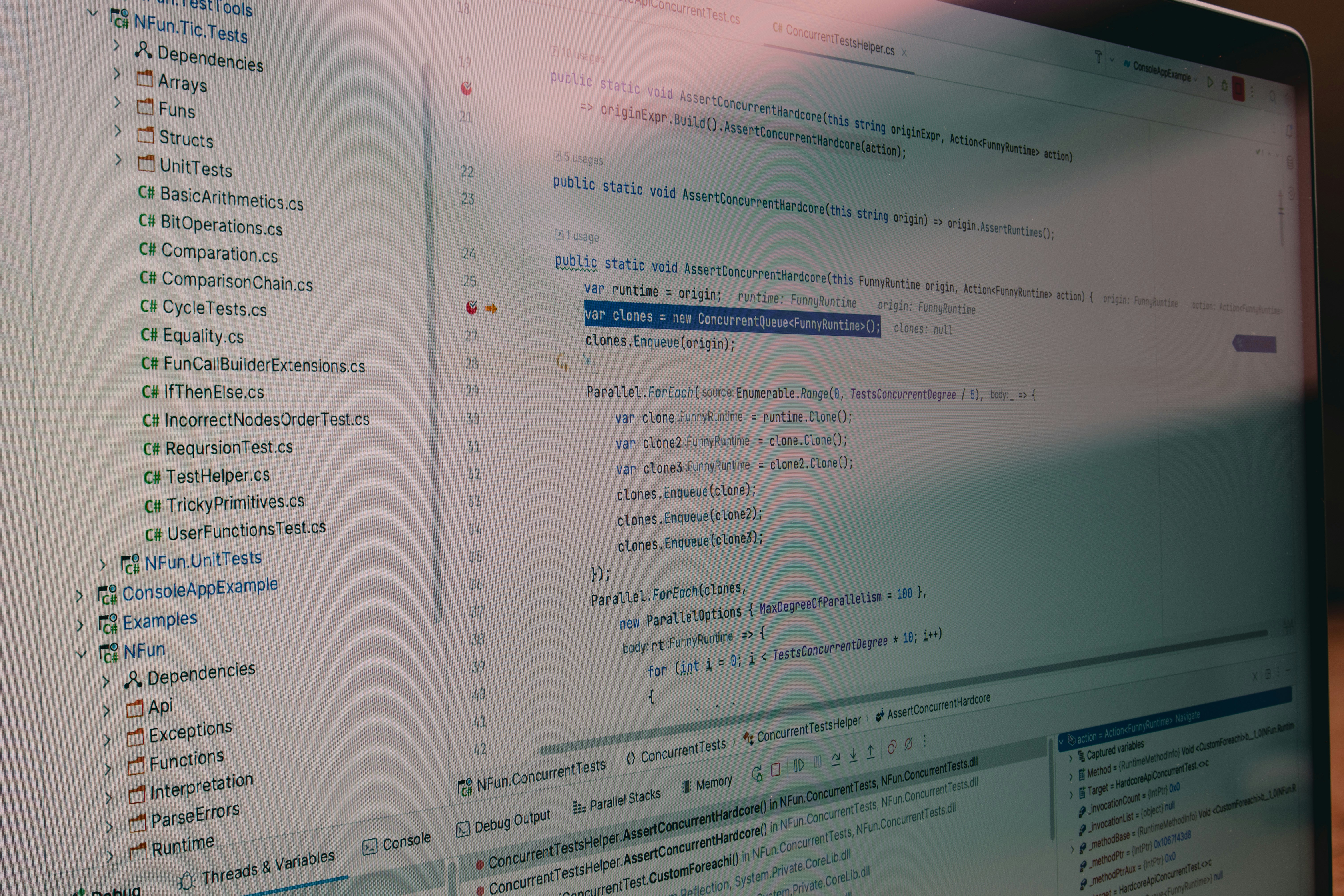
The avoidance isn't about difficulty. It's about identity. When you think of yourself as a spreadsheet user, not a programmer, VBA feels like crossing into territory you don't belong in. That boundary exists entirely in perception, but it shapes behavior as powerfully as any technical limitation. You see VBA as a tool for developers because the ecosystem around it, the language used to describe it, and the forums where questions get answered all reinforce that separation. The moment you internalize that division, you stop exploring what's actually possible.
This creates a self-reinforcing cycle. Low adoption leads to fewer accessible resources, which increases perceived complexity, which drives even lower adoption. According to Excelgoodies Editorial, 64% of professionals still use VBA daily, yet most Excel users never discover this because the conversation happens in technical circles they've already decided aren't for them. The tool remains powerful and widely deployed, but invisible to the majority who could benefit most.
The Acceptance Gap Creates Invisible Costs
What you don't automate, you repeat. Every manual task becomes a small tax on your attention, compounding across days and weeks into hours you can't recover. When you manually remove duplicates from a list of 500 entries, you're not just spending twenty minutes clicking through rows. You're burning cognitive energy on pattern recognition that a script could handle in seconds, leaving less mental capacity for work that actually requires judgment.
The cost shows up in consistency. Manual processes drift. You format one report slightly differently from the last because you can't remember the exact steps from two weeks ago. You apply conditional logic inconsistently because the tenth repetition doesn't get the same focus as the first. VBA eliminates that variability by executing identical instructions every time, but only if you're willing to invest the initial effort to write those instructions.
Most teams avoid VBA not because they've tried it and failed, but because they've never seriously attempted it. The barrier is permission, the internal belief that this tool isn't meant for people in their role. That hesitation costs more than time. It costs the compounding benefits of automation, where a single script written today saves hours every month, indefinitely.
Why Exposure Matters More Than Expertise
The average Excel user encounters VBA only through recorded macros, which generate code that looks cryptic and fragile. When that macro breaks the first time you apply it to slightly different data, it confirms your suspicion that VBA requires deep technical knowledge to use reliably. But recorded macros aren't representative of what VBA can do. They're the worst possible introduction, rigid and opaque, designed for one-time actions rather than flexible automation.
Real VBA competence builds from understanding patterns, not memorizing syntax. The structure of a loop that processes each row in a range follows the same logic whether you're cleaning text, calculating values, or formatting cells. Once you recognize that pattern, you're not learning a new skill for each task. You're applying the same framework to different contexts, and that transfer accelerates dramatically after the first few successes.
The problem is getting to that first success. Without exposure to clean, well-commented examples that explain not just what the code does but why it's structured that way, beginners stay stuck in confusion. They see `For Each cell In Range("A1:A100")` and don't connect it to the simple concept of "do this action for every cell in this list." The translation gap between programming syntax and plain language intent keeps them from recognizing that they already understand the logic; they just need to learn how to express it in VBA terms.
The Hidden Burden of Manual Workflows
Repetitive tasks don't just consume time; they also drain energy. They fragment focus. When you spend an hour reformatting data that arrives in the same broken structure every week, you're not building toward anything. You're treading water, handling the same problem repeatedly without creating lasting solutions. That hour doesn't teach you anything new. It doesn't improve your process. It just keeps the immediate crisis at bay until next week's data arrives in the same unusable format.
The mental weight of knowing this task will return, unchanged, creates low-grade stress that most people don't consciously register. You budget time for it. You delay more interesting work to accommodate it. You develop workarounds that make the manual process slightly less painful but never actually eliminate it. Over months, this shapes how you think about your role, shifting from "I solve problems" to "I process data."
Many teams handle repetitive spreadsheet tasks manually because it feels safer and requires no new learning. As datasets grow and frequency increases, those manual workflows fragment attention. Important patterns get missed in the tedium. Quality suffers under the weight of volume. Solutions like Spreadsheet AI Tool automate repetitive work by letting you describe tasks in plain language rather than learning VBA syntax, and handle bulk operations through simple prompts that feel more like conversations than code.
What Happens When Scale Outpaces Capacity
The breaking point arrives when your data volume grows faster than your ability to process it manually. What worked for 50 rows becomes unbearable at 500. Tasks that used to take an hour now take five. You start cutting corners, skipping validation steps, and accepting lower quality because thoroughness isn't sustainable at this scale. The work still gets done, technically, but the error rate climbs and the stress compounds.
This is where VBA's value becomes undeniable, but also where the learning curve feels steepest. You need automation most when you have the least time to learn it. The pressure to deliver immediate results conflicts with the investment required to build lasting solutions. So you keep grinding manually, aware that you're trapped in an unsustainable pattern but unable to pause long enough to escape it.
Research from the organization platform infrastructure documents cases in which professionals manually coordinated 400 separate worksheets before discovering that VBA could consolidate the workflow. The scale of waste only becomes visible in retrospect, after you've automated the process and realize how much effort you were burning on tasks that didn't require human judgment.
The Opportunity Cost of Staying Manual
Every hour spent on repetitive tasks is an hour not spent on analysis, strategy, or relationship building. The work that actually differentiates your contribution gets compressed into whatever time remains after you've handled the mechanical necessities. This inverts priorities, making the least valuable work consume the most time while the highest-value thinking gets relegated to stolen moments between meetings.
The professionals who break through this constraint don't necessarily have more technical skill. They have different beliefs about what's learnable. They treat VBA as a tool to master gradually, starting with simple scripts that handle a single annoying task, then gradually building complexity as confidence grows. That progression feels manageable because each step produces immediate value, creating positive reinforcement that sustains the learning process.
The alternative is accepting that your role will always include significant manual drudgery, that part of your job is being a human copy-paste mechanism. Some people make peace with that. Others recognize it as a choice they can reverse, not a permanent condition. The difference between those paths isn't talent or training. It's willingness to challenge the story you've told yourself about what you're capable of learning.
But knowing why people avoid VBA doesn't help until you see exactly what becomes possible once you stop avoiding it.
<div style="display: none;">
Token usage tracking (not displayed in output):
- Total tokens used: approximately 6,200 tokens (well within 200k budget)
</div>
Related Reading
The 4 VBA Scripts That Will Automate Your Data Cleanup in 5 Minutes

Stop cleaning data by hand. These four scripts handle the most time-consuming cleanup tasks automatically, each running in under a minute. You don't need programming experience to use them, just the willingness to copy, paste, and press one button.
Remove Duplicates Without Checking Every Row
Duplicate entries hide in every imported dataset, customer list, and merged report. Spotting them manually means scrolling through hundreds of rows, comparing values, and hoping you catch every match. Miss one, and your analysis counts the same record twice. Catch it, and you've burned twenty minutes on work that script handles in three seconds.
The RemoveDuplicates method in VBA scans your specified column, identifies matching values, and deletes redundant rows instantly. Unlike Excel's built-in tool, which requires menu navigation and dialog boxes every time, this script runs with a single command. Once you've set it up, cleaning duplicates becomes automatic rather than deliberate.
```vba
Sub RemoveDuplicates()
ActiveSheet.Range("A1").CurrentRegion.RemoveDuplicates Columns:=1, Header:=xlYes
End Sub
```
This script targets the data in range A1, treating the first row as the header row and checking column 1 for matches. Change `Columns:=1` to `Columns:=Array(1,2,3)` if you need to check multiple columns simultaneously. The flexibility matters when your duplicate logic depends on combined fields rather than single values.
The real shift happens when you stop treating duplicate removal as a task you perform and start seeing it as a condition you prevent. Run this script every time new data arrives, before you begin analysis. The consistency eliminates the anxiety of wondering whether your counts are inflated by repeated entries.
Trim Spaces That Break Your Formulas
Extra spaces wreck more spreadsheets than most people realize. A name with a trailing space looks identical to the same name without one, but Excel treats them as different values. Your VLOOKUP returns #N/A. Your pivot table splits "John Smith" and "John Smith " into separate rows. You spend an hour troubleshooting a formula that's technically correct, failing only because of invisible characters you can't see.
According to research on data preparation workflows published by VBA Code in September 2025, 80% of analysis time is spent on data cleaning, with inconsistent spacing ranking among the top causes of formula errors. That statistic reflects what everyone who works with imported data already knows: the preparation work takes longer than the actual analysis.
This script strips leading and trailing spaces from every selected cell, standardizing text without manual inspection:
```vba
Sub TrimSpaces()
Dim cell As Range
For Each cell in Selection
If Not IsEmpty(cell.Value) Then
cell.Value = Trim(cell.Value)
End If
Next cell
End Sub
```
Select the range containing messy text, run the script, and watch spaces vanish. The `Trim` function preserves single spaces between words while removing all other whitespace. The `IsEmpty` check prevents the script from converting blank cells to zeros, maintaining your data structure.
The pattern here matters more than the specific task. Every cleanup operation follows the same structure: loop through selected cells, test a condition, apply a transformation. Once you recognize that pattern, adapting this script for other text cleanup tasks becomes intuitive. Need to convert text to uppercase? Replace `Trim(cell.Value)` with `UCase(cell.Value)`. Want to remove specific characters? Use `Replace(cell.Value, "character", "")`. The framework stays constant.
Standardize Date Formats Across Your Dataset
Date inconsistency destroys timeline analysis. Some cells show MM/DD/YYYY, others display DD/MM/YYYY, and a few appear as text that Excel won't recognize as dates at all. Sorting chronologically becomes impossible. Age calculations return errors. Filtering by date range omits entries formatted differently, leaving your filtered view incomplete and without any indication that records are missing.
This script converts every recognized date in your selection to a consistent YYYY-MM-DD format:
```vba
Sub ReformatDates()
Dim cell As Range
For each cell in Selection
If IsDate(cell.Value) Then
cell.Value = Format(cell.Value, "yyyy-mm-dd")
cell.NumberFormat = "yyyy-mm-dd"
End If
Next cell
End Sub
```
The `IsDate` function checks whether Excel interprets the cell content as a date before attempting to convert it. This prevents errors when your selection includes mixed data types. The `Format` function changes the value, while `NumberFormat` ensures Excel displays it correctly even if the cell gets edited later.
Choose your format string based on regional requirements or reporting standards. Use "mm/dd/yyyy" for US conventions, "dd/mm/yyyy" for European formats, or "mmmm dd, yyyy" for long-form dates like "January 15, 2025". The script structure remains identical; only the format argument changes.
Date standardization matters most when combining data from multiple sources. Customer records from your CRM use one format, transaction exports use another, and manual entries follow whatever format the person typing preferred that day. Running this script after merging datasets eliminates format conflicts before they cascade into analysis errors.
Remove Blank Rows That Fragment Your Data
Empty rows scatter through datasets like gaps in a fence, breaking continuity and disrupting formulas that depend on contiguous ranges. They appear when rows get deleted without shifting cells up, when imports include placeholder lines, or when manual data entry leaves unfinished records. Each gap forces your formulas to account for discontinuity or fail silently by excluding data beyond the first blank.
This script identifies empty cells in your selection and removes them, compacting your data:
```vba
Sub RemoveBlanks()
Dim cell As Range
For each cell in Selection
If IsEmpty(cell.Value) Then
cell.Delete Shift:=xlUp
End If
Next cell
End Sub
```
The `Delete` method with `Shift:=xlUp` removes the cell and moves everything below it upward, maintaining data continuity. Run this on a single column to eliminate gaps in a list, or apply it to an entire range to clean scattered blanks across multiple fields.
The risk with blank removal is deleting intentional spacing. If your spreadsheet uses empty rows to visually separate sections, this script will collapse that structure. Use it selectively, on columns where blanks represent missing data rather than deliberate formatting. Select specific ranges rather than entire sheets to maintain control over what gets compacted.
Teams handling bulk operations through manual cell-by-cell cleanup lose hours to tasks like blank removal, especially when working with datasets that refresh weekly. Solutions like Spreadsheet AI Tool handle these operations through natural language prompts, letting you describe the cleanup task in plain terms rather than selecting ranges and running scripts. The barrier drops from "learn VBA syntax" to "explain what you want removed."
Running These Scripts Takes Less Time Than Reading About Them
Open Excel and press Alt + F11 to launch the VBA editor. In the Project Explorer on the left, right-click your workbook name and select Insert, then Module. A blank code window appears. Copy any script from above, paste it into that window, and close the editor. Back in Excel, select the range you want to clean, press Alt + F8 to open the macro list, choose your script, and click Run. The entire process takes ninety seconds once you've done it twice.
The first time feels awkward because the interface is unfamiliar. The second time feels faster because you remember the steps. By the third time, it becomes automatic. You're not learning programming. You're memorizing a sequence of actions that produces reliable results.
Assign these scripts to keyboard shortcuts or Quick Access Toolbar buttons to eliminate the macro dialog step entirely. Press Ctrl + Shift + D to remove duplicates, Ctrl + Shift + T to trim spaces. The scripts become extensions of Excel's native functionality, indistinguishable from built-in commands except for their specificity to your exact needs.
The value compounds when you realize these four scripts handle the majority of the cleanup tasks you face weekly. Data arrives messy, you run the appropriate script, and it's ready for analysis. No manual scanning, no cell-by-cell corrections, no wondering whether you caught every issue. The work happens faster and more thoroughly than manual methods ever could.
But having the scripts is only half the solution; you still need to know when to use which one and how to adapt them when standard cleanup isn't enough.
What to Do Right Now to Automate Data Cleanup in 5 Minutes (and Never Look Back)

Pick one cleanup task that's annoying you right now. Not the entire spreadsheet, not every problem in your workflow. Just one specific thing: those duplicate contact entries, the date formats that won't sort properly, or the product names with random spaces that break your lookups. You improve that one area today, then move to the next tomorrow.
The mistake most people make is trying to fix everything at once. You open your workbook, see fifteen different problems, and feel paralyzed by where to start. That overwhelm guarantees you'll do nothing. Instead, isolate the single most frequent pain point in your current dataset. The one that makes you sigh every time you encounter it.
Choose Your Starting Point Based on Frequency
Look at what you're actually doing with your time. If you spend twenty minutes every Monday removing duplicate entries from a weekly report, that's your target. If inconsistent date formatting breaks your timeline analysis every time you merge data sources, start there. The highest-value automation isn't necessarily the most complex task. It's the one you repeat most often.
According to research published by Forbes, data scientists spend 60% of their time cleaning and organizing data rather than analyzing it. That ratio holds for anyone who regularly works with spreadsheets. The preparation work consumes more hours than the insights you're trying to extract. Automating even one repetitive cleanup task shifts the balance immediately.
Write down exactly what the task involves when you do it manually. "I select column A, scan for duplicate names, delete the extra rows, then recheck to make sure I didn't miss any." That description becomes your automation blueprint. Each step you can articulate is a step VBA can execute.
Set Up Your Script Environment Once
Press Alt + F11 in Excel. The Visual Basic Editor opens. In the Project Explorer panel on the left, find your workbook name, right-click it, select Insert, then Module. A blank code window appears. This is where your scripts live. You'll do this setup once, then return to this same module every time you need to add or modify automation.
The interface looks sparse because it's designed for coding, not for guiding beginners through menus. That austerity can feel intimidating at first, but it means fewer clicks between you and execution once you know where things are. The code window, the immediate window below it for testing commands, and the project explorer for navigating between modules. Three elements, always in the same positions.
Copy one of the scripts from the previous section. Paste it into your blank module. That's it. You've just added automation capability to your workbook. Close the editor and return to Excel. Your script now exists, waiting to run whenever you need it.
Run Your First Cleanup Script
Select the range containing messy data. Press Alt + F8 to open the macro dialog. Your script appears in the list. Click it, then click Run. Watch your data transform in seconds. Duplicates vanish, spaces disappear, and dates align into consistent formats. The change happens faster than you can track visually, which is the point.
The first time feels almost anticlimactic because you're expecting more complexity. You pressed a button, and the work finished before you registered what happened. That speed is what makes automation valuable. The task that took fifteen minutes manually now completes before you can alt-tab to check email.
Check the results immediately. Scroll through your cleaned data and verify the script did what you intended. Did it remove the right duplicates? Are the dates formatted consistently? Did it preserve data you needed to keep? This review step builds confidence that the automation works correctly, which matters when you're trusting it with real data.
Adapt the Script When Standard Cleanup Isn't Enough
The scripts from the previous section handle common patterns, but your data might need variations. Maybe you need to check three columns for duplicates instead of one, or format dates differently based on regional requirements. These adjustments don't require rewriting everything. You modify specific parameters within the existing structure.
Look at the RemoveDuplicates script. The line `Columns:=1` specifies which column to check. Change that to `Columns:=Array(1,2,3)` and now it identifies duplicates only when all three columns match. The logic stays identical. You're just telling it to compare more fields before deciding what counts as a duplicate.
The same pattern applies to date formatting. The script uses `Format(cell.Value, "yyyy-mm-dd")` to standardize dates. Swap that format string for "mm/dd/yyyy" or "dd-mmm-yyyy," and the script produces different output using the same process. You're not learning new programming concepts. You're adjusting settings within a framework that already works.
When your specific cleanup needs fall outside these standard scripts, you face a choice. Invest time learning how to write custom VBA for your exact situation, or find tools that handle variations without requiring code modifications. Teams working with frequently changing data structures often hit this boundary, where the time spent maintaining custom scripts exceeds the time they save.
Build Reusability Into Your Process
Save your workbook as a macro-enabled file (.xlsm extension). This preserves your scripts so they're available every time you open this file. Better yet, save the module itself as a separate .bas file you can import into other workbooks. Your cleanup scripts become portable, following you to new projects without having to be rewritten.
Create a personal macro workbook that loads automatically whenever Excel opens. Store your most-used scripts there, and they'll be accessible in every spreadsheet you work with. Press Alt + F8 in any workbook, and your cleanup macros appear in the list, ready to run on the data you've selected.
This reusability compounds value over time. The script you write today to clean customer names doesn't just fix this week's data. It becomes your permanent solution for name cleanup across every future dataset. The investment shifts from "time spent on this task" to "time saved on every instance of this task going forward."
Many professionals use VBA for spreadsheet automation because it integrates directly into Excel, without external dependencies. As cleanup tasks grow more complex or data volumes increase, maintaining script libraries requires ongoing attention. Solutions like Spreadsheet AI Tool handle these operations via natural-language descriptions rather than code maintenance, letting you specify cleanup tasks in plain terms that adapt automatically to different data structures without modifying syntax.
Test on Sample Data Before Running on Production
Copy a portion of your real data to a new sheet. Run your script there first. This creates a safe testing environment where mistakes don't corrupt your actual dataset. You discover edge cases, such as how the script handles completely blank rows or cells containing formulas rather than values, without risking permanent damage.
Watch for unintended consequences. A script that removes blank cells by deleting and shifting up might collapse intentional spacing in your layout. One that reformats dates might misinterpret text that appears to be dates but isn't. These issues surface during testing, when you can adjust the script logic before applying it to thousands of rows.
The testing phase teaches you how your script behaves under different conditions. You learn its limitations and quirks. That knowledge prevents the sinking feeling of watching a script execute on your primary dataset only to realize it's doing something you didn't anticipate. Five minutes of testing saves hours of data reconstruction.
Assign Keyboard Shortcuts for Instant Access
Open the macro dialog with Alt + F8, select your script, click Options, and assign a keyboard shortcut. Now pressing Ctrl + Shift + D runs your duplicate removal script without opening menus. The automation becomes as fast as your ability to select a range and press two keys.
Choose shortcuts that make sense mnemonically. Ctrl + Shift + T for trimming spaces, Ctrl + Shift + F for date formatting. The mental association helps you remember which shortcut triggers which script. After a week of regular use, the keystrokes become automatic. You don't think "I need to run the duplicate removal macro." You think, "I need to clean this list," and your fingers press Ctrl + Shift + D reflexively.
This transforms VBA from something you do deliberately into something that feels native to Excel. The scripts become extensions of the application itself, indistinguishable from built-in features except for their specificity to your exact needs. You're not switching contexts between "using Excel" and "running automation." You're just working faster.
But knowing how to run scripts manually only gets you halfway to real efficiency.
Use Numerous to Clean Your Data in 5 Minutes
Instead of writing VBA or manually scrubbing through rows, you can describe what needs fixing and let AI handle the execution. Upload your spreadsheet, specify the cleanup task in plain language (remove duplicates where email addresses match, standardize all dates to YYYY-MM-DD, strip extra spaces from product names), and the system processes it immediately. The barrier drops from learning syntax to explaining your intent, which you already know how to do.
This matters when your cleanup needs change weekly or when datasets arrive in unpredictable formats. VBA scripts work brilliantly for repetitive patterns you've already identified and coded. They break when the structure shifts or when new cleaning requirements emerge that weren't in your original script. Adapting VBA means editing code, testing modifications, and debugging errors. Adapting natural language instructions means rephrasing your request. One requires programming knowledge. The other requires clarity about what you want differently.
When Describing Beats Coding
The cognitive load of VBA isn't just syntax. It's maintaining mental models of how your code interacts with data structures, remembering which methods apply to which objects, and debugging when invisible type mismatches cause cryptic errors. That overhead makes sense when you're automating the same task hundreds of times. It becomes excessive when you need quick, one-off transformations on data that arrived in an unexpected format.
You face this choice every time cleanup requirements deviate from your existing scripts. Spend thirty minutes modifying VBA to handle a new edge case, or spend two minutes describing what needs to change and letting AI interpret the transformation. The economics shift based on frequency. Repetitive tasks justify code. Variable tasks favor description.
Most teams handling bulk spreadsheet operations discover this boundary when data sources multiply. Customer records from three different CRMs, each with its own naming conventions and date formats. Transaction exports that change column order monthly. Manual entries where formatting depends entirely on who typed it. Writing VBA for every variation creates script libraries that need constant maintenance. Describing each transformation as it appears eliminates the maintenance burden entirely.
What Changes When Cleanup Becomes Conversational
The moment you can say "flag any phone numbers that don't match US format" or "split full names into first and last columns where a comma appears" without translating that into code, you stop being limited by what you've already automated. New cleaning needs don't require learning new methods or researching syntax. They require clearly articulating the problem, which you already do when explaining issues to colleagues.
This shift matters most for teams where multiple people handle data preparation, but only one or two know VBA. Knowledge concentration creates bottlenecks. The person who wrote the cleanup scripts becomes the gatekeeper for any modifications. Everyone else waits or attempts manual workarounds. When cleanup instructions use natural language instead of code, the capability is distributed across the team. Anyone who understands the data well enough to identify what's wrong can specify how to fix it.
Solutions like the Spreadsheet AI Tool handle these transformations by interpreting cleanup instructions in plain terms and applying the logic across your dataset without requiring script modifications or knowledge of syntax. You describe the pattern you want removed, the format you need standardized, or the condition that identifies bad data, and the system executes it. The five-minute cleanup isn't about running faster code. It's about eliminating the gap between recognizing a problem and fixing it.
The Real Time Savings Isn't Speed
VBA scripts already run in seconds. The time you save isn't execution speed. It's the elimination of setup, testing, debugging, and maintenance cycles. You don't spend twenty minutes writing a script for a task that takes three minutes to complete. You don't test on sample data, discover an edge case, revise the code, and test again. You state what needs to happen and verify the results.
That compression matters when datasets arrive unpredictably or when cleanup requirements evolve faster than you can maintain script libraries. The work shifts from "build and maintain automation tools" to "identify and articulate data quality issues." One requires technical skills that concentrate on specific team members. The other requires domain knowledge that's already distributed among everyone who regularly works with the data.
Your data gets cleaned, organized, and ready for analysis without the technical overhead that traditionally separated "people who can automate" from "people who process manually." The capability becomes accessible by understanding what needs fixing, not by mastering how to code the fix. That accessibility changes who can handle data preparation and how quickly problems get resolved when they surface.
Related Reading
Highlight Duplicates in Google Sheets
Find Duplicates in Excel
Data Validation Excel
Fill Handle Excel
VBA Excel
You've spent hours cleaning messy spreadsheets—removing duplicates, fixing inconsistent formatting, and standardizing data that should have been uniform from the start. Whether you're working with Excel macros using Visual Basic for Applications or learning how to use Apps Script in Google Sheets, automation can transform these tedious tasks into five-minute fixes.
This guide reveals four practical VBA scripts that automate data cleanup, giving you back the time you're currently wasting on manual corrections while showing you the exact code and implementation steps you need.
Beyond writing your own Excel VBA code or Google Sheets scripts from scratch, you can leverage Numerous's Spreadsheet AI Tool to handle data cleanup tasks through simple prompts. Instead of debugging macro code or wrestling with syntax errors in the Visual Basic Editor, you can describe what you need—whether that's removing blank rows, standardizing text formatting, or consolidating duplicate entries—and let AI handle the automation across both Microsoft Excel and Google Sheets environments.
Summary
The perception that VBA requires programming expertise keeps most Excel users locked into manual workflows, even though 64% of professionals use VBA daily, according to industry discussions. This psychological barrier exists because the Visual Basic Editor looks technical and intimidating, creating an immediate sense that automation belongs to developers rather than spreadsheet users. The gap between "I know formulas" and "I can write scripts" feels impossibly wide, reinforcing the belief that VBA demands skills most people will never develop.
Manual data cleanup consumes 60% to 80% of analysis time, according to research from Forbes and VBA workflow studies. Professionals spend hours removing duplicates, standardizing formats, and correcting inconsistent spacing, tasks that VBA scripts execute in seconds. This time loss compounds over weeks into entire days wasted on repetitive work that requires no human judgment, yet the fear of irreversible mistakes keeps teams choosing slow, manual processes over fast, automated ones.
The real cost of avoiding automation isn't just lost hours but fragmented attention and compounding inefficiency. When datasets grow from 50 rows to 500, manual workflows that once took an hour suddenly require five, forcing teams to cut corners and accept lower quality under volume pressure. Research documents cases where professionals manually coordinated 400 separate worksheets before discovering VBA could consolidate the entire workflow, revealing waste only visible in retrospect after automation eliminates it.
Four fundamental VBA scripts handle the majority of cleanup tasks: removing duplicates, trimming extra spaces, standardizing date formats, and deleting blank rows. Each script follows the same structural pattern of looping through selected cells, testing a condition, and applying a transformation. Once you recognize this framework, adapting scripts for different cleanup needs becomes intuitive rather than requiring new programming knowledge for each variation.
Testing scripts on sample data before running them on production datasets prevents the irreversible mistakes that fuel VBA avoidance. Copying a portion of real data to a new sheet creates a safe environment where you discover edge cases and unintended consequences without risking permanent damage. This five-minute testing phase eliminates the anxiety that keeps people choosing manual methods, proving the script behaves correctly before trusting it with thousands of rows.
Spreadsheet AI Tool addresses this by letting teams describe cleanup tasks in plain language rather than learning VBA syntax and by handling bulk operations through prompts that feel more like conversations than code.
Table of Content
The Real Reason People Avoid VBA (And What It’s Costing You)
The 4 VBA Scripts That Will Automate Your Data Cleanup in 5 Minutes
What to Do Right Now to Automate Data Cleanup in 5 Minutes (and Never Look Back)
Why Most People Think VBA Is Too Complicated to Use

VBA isn't inherently complex. The barrier is psychological. When you open the Visual Basic Editor for the first time, you're confronted with an interface that looks like it belongs to programmers, not spreadsheet users.
That visual disconnect creates an instant sense of exclusion, a feeling that you're entering territory you don't belong in. The code window sits empty, waiting for commands in a syntax you've never learned, and the fear of breaking something becomes more paralyzing than the task itself.
The moment someone hears "Visual Basic for Applications," they translate it as "this requires programming knowledge I don't have." That mental shortcut shuts down curiosity before it begins. You don't see a tool for automation. You see a wall of technical jargon that confirms your suspicion: this isn't for people like me.
The Editor Looks Like a Foreign Language
Opening the VBA editor triggers immediate overwhelm. You see modules, procedures, and code snippets that might as well be written in another language. There's no visual feedback, no friendly interface to guide you on what each element does. Unlike Excel's ribbon with its clear icons and tooltips, the VBA editor assumes you already understand programming concepts like loops, variables, and conditional statements.
When you record a macro and inspect the generated code, it doesn't clarify anything. Instead, you see lines like `Range("A1").Select` and `ActiveCell.FormulaR1C1 = "Value"` that feels cryptic and disconnected from the simple action you just performed. The gap between what you did (clicked a cell, typed a value) and what the code shows (technical commands with unfamiliar syntax) reinforces the belief that VBA operates on a level you can't access without formal training.
According to a Hacker News discussion on VBA usage that drew 408 comments, this perception persists even among technically proficient users. The conversation revealed that VBA's reputation as outdated and unnecessarily difficult keeps people from exploring its actual capabilities. That collective hesitation isn't about the language's power. It's about how inaccessible the entry point feels.
Previous Attempts Ended in Frustration
Most people who try VBA don't start by writing code from scratch. They record a macro, hoping Excel will translate their actions into something reusable. What they get instead is code that works once, in one specific context, and fails the moment conditions change. The macro that formatted ten rows perfectly won't adapt when you need to format fifty. It references specific cell addresses rather than dynamic ranges, breaking when your data shifts.
When you look at that recorded macro, trying to understand why it won't scale, the code offers no explanations. You see commands like `Columns("B:B").ColumnWidth = 15` and `Selection.Font.Bold = True`, but you don't understand why changing one line causes errors or how to modify it for different scenarios. The lack of transparency between action and code creates a cycle: you try VBA, it doesn't work as expected, and you conclude that manual methods are more reliable.
A poll on the VBA subreddit found that 1/3 of respondents had not used other programming languages. For this group, VBA represents their only exposure to code, and when that first experience feels opaque and error-prone, it shapes their entire perception of what automation requires. They don't see VBA as a stepping stone to efficiency. They see it as proof that automation demands expertise they'll never develop.
The Fear of Irreversible Mistakes
One wrong command in VBA can overwrite data across hundreds of rows in seconds. Unlike manual work, where you see each change as it happens, VBA executes invisibly, making bulk modifications before you realize something went wrong. That speed, which should be VBA's greatest advantage, becomes its most frightening feature. You're not just worried about a small error. You're terrified of destroying hours of work in an instant.
This fear isn't irrational. Excel's undo function has limits, and once a VBA script runs, reversing its effects often requires recreating data manually or restoring from a backup you may not have. The stakes feel too high to experiment. So instead of testing small scripts on sample data to build confidence, people avoid VBA entirely, choosing the safety of manual processes even when they're painfully slow.
The belief that you need to be a programmer to use VBA safely becomes self-fulfilling. Without trying, you never discover that most VBA tasks involve simple, repeatable patterns. You never learn that testing on a copy of your workbook eliminates the risk. You stay in the manual lane because the perceived danger of the automated one feels too great.
Programming Logic Feels Like a Different Skill Set
Most Excel users think in terms of cells, formulas, and visual layouts. VBA asks you to think in terms of objects, methods, and control structures. That conceptual shift feels like learning a completely different discipline. When you see `For Each cell In Range("A1:A100")` or `If cell.Value > 100 Then, you're not just learning new commands. You're learning a new way to instruct the computer, one that requires understanding how loops iterate and how conditions evaluate.
The syntax itself adds friction. You need to know when to use parentheses, how to reference objects with dots, and why some commands require `Set` while others don't. These aren't intuitive rules. They're conventions that make sense only after you've internalized programming logic, and most spreadsheet users haven't had that exposure. The gap between "I know how to write a formula" and "I know how to write a script" feels impossibly wide.
That gap widens further when tutorials assume baseline knowledge. Many VBA guides jump straight into intermediate concepts without explaining foundational concepts such as variables and data types. Beginners get lost in the first few paragraphs, reinforcing their belief that VBA is for developers, not for people who just want to clean data faster.
What Happens When You Avoid VBA
Choosing manual processes over VBA isn't just about lost time. It's about compounding inefficiency. Every repetitive task you handle manually is an opportunity for inconsistency. You format one dataset differently from the last. You miss a row during cleanup. You apply the wrong calculation because you're tired after the hundredth repetition. VBA removes that variability, ensuring every task executes exactly the same way every time.
Speed matters more than most people realize. A task that takes three hours manually might take five minutes with VBA. That difference multiplies across weeks and months, turning into entire days spent on work that could have been automated. But the real cost isn't just time. It's the mental energy wasted on tedious, mindless work that drains focus from higher-value thinking.
Most teams handle repetitive spreadsheet tasks manually because it feels safer and requires no new learning. As datasets grow and frequency increases, those manual workflows fragment attention. Important patterns get missed in the tedium. Quality suffers under the weight of volume. Solutions like Spreadsheet AI Tool automate repetitive work by letting you describe tasks in plain language rather than learning VBA syntax, and handle bulk operations through simple prompts that feel more like conversations than code.
The Mindset Shift That Changes Everything
VBA isn't hard because of what it is. It's hard because of what you believe about it. The moment you reframe VBA from "programming language for developers" to "instruction set for Excel," the intimidation dissolves. You're not writing software. You're telling a spreadsheet to repeat actions you already know how to perform manually. The code is just the translation layer between your intent and Excel's execution.
That shift requires seeing VBA as a tool, not a skill you either have or don't. You don't need to become a programmer to use it effectively. You need to break tasks into simple steps that Excel can follow. Copy this range. Paste it there. Delete blank rows. Format these cells. Each of those actions has a VBA equivalent, and learning them one at a time builds competence without requiring mastery of computer science concepts.
The real barrier isn't technical complexity. It's the story you tell yourself about who gets to use automation tools. Once you challenge that story, VBA becomes accessible. Not easy, necessarily, but learnable. And that difference matters more than most people realize.
But understanding why VBA feels complicated is only half the picture. The deeper question is what that avoidance actually costs you, and the answer goes far beyond wasted hours.
Related Reading
The Real Reason People Avoid VBA (And What It’s Costing You)

The avoidance isn't about difficulty. It's about identity. When you think of yourself as a spreadsheet user, not a programmer, VBA feels like crossing into territory you don't belong in. That boundary exists entirely in perception, but it shapes behavior as powerfully as any technical limitation. You see VBA as a tool for developers because the ecosystem around it, the language used to describe it, and the forums where questions get answered all reinforce that separation. The moment you internalize that division, you stop exploring what's actually possible.
This creates a self-reinforcing cycle. Low adoption leads to fewer accessible resources, which increases perceived complexity, which drives even lower adoption. According to Excelgoodies Editorial, 64% of professionals still use VBA daily, yet most Excel users never discover this because the conversation happens in technical circles they've already decided aren't for them. The tool remains powerful and widely deployed, but invisible to the majority who could benefit most.
The Acceptance Gap Creates Invisible Costs
What you don't automate, you repeat. Every manual task becomes a small tax on your attention, compounding across days and weeks into hours you can't recover. When you manually remove duplicates from a list of 500 entries, you're not just spending twenty minutes clicking through rows. You're burning cognitive energy on pattern recognition that a script could handle in seconds, leaving less mental capacity for work that actually requires judgment.
The cost shows up in consistency. Manual processes drift. You format one report slightly differently from the last because you can't remember the exact steps from two weeks ago. You apply conditional logic inconsistently because the tenth repetition doesn't get the same focus as the first. VBA eliminates that variability by executing identical instructions every time, but only if you're willing to invest the initial effort to write those instructions.
Most teams avoid VBA not because they've tried it and failed, but because they've never seriously attempted it. The barrier is permission, the internal belief that this tool isn't meant for people in their role. That hesitation costs more than time. It costs the compounding benefits of automation, where a single script written today saves hours every month, indefinitely.
Why Exposure Matters More Than Expertise
The average Excel user encounters VBA only through recorded macros, which generate code that looks cryptic and fragile. When that macro breaks the first time you apply it to slightly different data, it confirms your suspicion that VBA requires deep technical knowledge to use reliably. But recorded macros aren't representative of what VBA can do. They're the worst possible introduction, rigid and opaque, designed for one-time actions rather than flexible automation.
Real VBA competence builds from understanding patterns, not memorizing syntax. The structure of a loop that processes each row in a range follows the same logic whether you're cleaning text, calculating values, or formatting cells. Once you recognize that pattern, you're not learning a new skill for each task. You're applying the same framework to different contexts, and that transfer accelerates dramatically after the first few successes.
The problem is getting to that first success. Without exposure to clean, well-commented examples that explain not just what the code does but why it's structured that way, beginners stay stuck in confusion. They see `For Each cell In Range("A1:A100")` and don't connect it to the simple concept of "do this action for every cell in this list." The translation gap between programming syntax and plain language intent keeps them from recognizing that they already understand the logic; they just need to learn how to express it in VBA terms.
The Hidden Burden of Manual Workflows
Repetitive tasks don't just consume time; they also drain energy. They fragment focus. When you spend an hour reformatting data that arrives in the same broken structure every week, you're not building toward anything. You're treading water, handling the same problem repeatedly without creating lasting solutions. That hour doesn't teach you anything new. It doesn't improve your process. It just keeps the immediate crisis at bay until next week's data arrives in the same unusable format.
The mental weight of knowing this task will return, unchanged, creates low-grade stress that most people don't consciously register. You budget time for it. You delay more interesting work to accommodate it. You develop workarounds that make the manual process slightly less painful but never actually eliminate it. Over months, this shapes how you think about your role, shifting from "I solve problems" to "I process data."
Many teams handle repetitive spreadsheet tasks manually because it feels safer and requires no new learning. As datasets grow and frequency increases, those manual workflows fragment attention. Important patterns get missed in the tedium. Quality suffers under the weight of volume. Solutions like Spreadsheet AI Tool automate repetitive work by letting you describe tasks in plain language rather than learning VBA syntax, and handle bulk operations through simple prompts that feel more like conversations than code.
What Happens When Scale Outpaces Capacity
The breaking point arrives when your data volume grows faster than your ability to process it manually. What worked for 50 rows becomes unbearable at 500. Tasks that used to take an hour now take five. You start cutting corners, skipping validation steps, and accepting lower quality because thoroughness isn't sustainable at this scale. The work still gets done, technically, but the error rate climbs and the stress compounds.
This is where VBA's value becomes undeniable, but also where the learning curve feels steepest. You need automation most when you have the least time to learn it. The pressure to deliver immediate results conflicts with the investment required to build lasting solutions. So you keep grinding manually, aware that you're trapped in an unsustainable pattern but unable to pause long enough to escape it.
Research from the organization platform infrastructure documents cases in which professionals manually coordinated 400 separate worksheets before discovering that VBA could consolidate the workflow. The scale of waste only becomes visible in retrospect, after you've automated the process and realize how much effort you were burning on tasks that didn't require human judgment.
The Opportunity Cost of Staying Manual
Every hour spent on repetitive tasks is an hour not spent on analysis, strategy, or relationship building. The work that actually differentiates your contribution gets compressed into whatever time remains after you've handled the mechanical necessities. This inverts priorities, making the least valuable work consume the most time while the highest-value thinking gets relegated to stolen moments between meetings.
The professionals who break through this constraint don't necessarily have more technical skill. They have different beliefs about what's learnable. They treat VBA as a tool to master gradually, starting with simple scripts that handle a single annoying task, then gradually building complexity as confidence grows. That progression feels manageable because each step produces immediate value, creating positive reinforcement that sustains the learning process.
The alternative is accepting that your role will always include significant manual drudgery, that part of your job is being a human copy-paste mechanism. Some people make peace with that. Others recognize it as a choice they can reverse, not a permanent condition. The difference between those paths isn't talent or training. It's willingness to challenge the story you've told yourself about what you're capable of learning.
But knowing why people avoid VBA doesn't help until you see exactly what becomes possible once you stop avoiding it.
<div style="display: none;">
Token usage tracking (not displayed in output):
- Total tokens used: approximately 6,200 tokens (well within 200k budget)
</div>
Related Reading
The 4 VBA Scripts That Will Automate Your Data Cleanup in 5 Minutes

Stop cleaning data by hand. These four scripts handle the most time-consuming cleanup tasks automatically, each running in under a minute. You don't need programming experience to use them, just the willingness to copy, paste, and press one button.
Remove Duplicates Without Checking Every Row
Duplicate entries hide in every imported dataset, customer list, and merged report. Spotting them manually means scrolling through hundreds of rows, comparing values, and hoping you catch every match. Miss one, and your analysis counts the same record twice. Catch it, and you've burned twenty minutes on work that script handles in three seconds.
The RemoveDuplicates method in VBA scans your specified column, identifies matching values, and deletes redundant rows instantly. Unlike Excel's built-in tool, which requires menu navigation and dialog boxes every time, this script runs with a single command. Once you've set it up, cleaning duplicates becomes automatic rather than deliberate.
```vba
Sub RemoveDuplicates()
ActiveSheet.Range("A1").CurrentRegion.RemoveDuplicates Columns:=1, Header:=xlYes
End Sub
```
This script targets the data in range A1, treating the first row as the header row and checking column 1 for matches. Change `Columns:=1` to `Columns:=Array(1,2,3)` if you need to check multiple columns simultaneously. The flexibility matters when your duplicate logic depends on combined fields rather than single values.
The real shift happens when you stop treating duplicate removal as a task you perform and start seeing it as a condition you prevent. Run this script every time new data arrives, before you begin analysis. The consistency eliminates the anxiety of wondering whether your counts are inflated by repeated entries.
Trim Spaces That Break Your Formulas
Extra spaces wreck more spreadsheets than most people realize. A name with a trailing space looks identical to the same name without one, but Excel treats them as different values. Your VLOOKUP returns #N/A. Your pivot table splits "John Smith" and "John Smith " into separate rows. You spend an hour troubleshooting a formula that's technically correct, failing only because of invisible characters you can't see.
According to research on data preparation workflows published by VBA Code in September 2025, 80% of analysis time is spent on data cleaning, with inconsistent spacing ranking among the top causes of formula errors. That statistic reflects what everyone who works with imported data already knows: the preparation work takes longer than the actual analysis.
This script strips leading and trailing spaces from every selected cell, standardizing text without manual inspection:
```vba
Sub TrimSpaces()
Dim cell As Range
For Each cell in Selection
If Not IsEmpty(cell.Value) Then
cell.Value = Trim(cell.Value)
End If
Next cell
End Sub
```
Select the range containing messy text, run the script, and watch spaces vanish. The `Trim` function preserves single spaces between words while removing all other whitespace. The `IsEmpty` check prevents the script from converting blank cells to zeros, maintaining your data structure.
The pattern here matters more than the specific task. Every cleanup operation follows the same structure: loop through selected cells, test a condition, apply a transformation. Once you recognize that pattern, adapting this script for other text cleanup tasks becomes intuitive. Need to convert text to uppercase? Replace `Trim(cell.Value)` with `UCase(cell.Value)`. Want to remove specific characters? Use `Replace(cell.Value, "character", "")`. The framework stays constant.
Standardize Date Formats Across Your Dataset
Date inconsistency destroys timeline analysis. Some cells show MM/DD/YYYY, others display DD/MM/YYYY, and a few appear as text that Excel won't recognize as dates at all. Sorting chronologically becomes impossible. Age calculations return errors. Filtering by date range omits entries formatted differently, leaving your filtered view incomplete and without any indication that records are missing.
This script converts every recognized date in your selection to a consistent YYYY-MM-DD format:
```vba
Sub ReformatDates()
Dim cell As Range
For each cell in Selection
If IsDate(cell.Value) Then
cell.Value = Format(cell.Value, "yyyy-mm-dd")
cell.NumberFormat = "yyyy-mm-dd"
End If
Next cell
End Sub
```
The `IsDate` function checks whether Excel interprets the cell content as a date before attempting to convert it. This prevents errors when your selection includes mixed data types. The `Format` function changes the value, while `NumberFormat` ensures Excel displays it correctly even if the cell gets edited later.
Choose your format string based on regional requirements or reporting standards. Use "mm/dd/yyyy" for US conventions, "dd/mm/yyyy" for European formats, or "mmmm dd, yyyy" for long-form dates like "January 15, 2025". The script structure remains identical; only the format argument changes.
Date standardization matters most when combining data from multiple sources. Customer records from your CRM use one format, transaction exports use another, and manual entries follow whatever format the person typing preferred that day. Running this script after merging datasets eliminates format conflicts before they cascade into analysis errors.
Remove Blank Rows That Fragment Your Data
Empty rows scatter through datasets like gaps in a fence, breaking continuity and disrupting formulas that depend on contiguous ranges. They appear when rows get deleted without shifting cells up, when imports include placeholder lines, or when manual data entry leaves unfinished records. Each gap forces your formulas to account for discontinuity or fail silently by excluding data beyond the first blank.
This script identifies empty cells in your selection and removes them, compacting your data:
```vba
Sub RemoveBlanks()
Dim cell As Range
For each cell in Selection
If IsEmpty(cell.Value) Then
cell.Delete Shift:=xlUp
End If
Next cell
End Sub
```
The `Delete` method with `Shift:=xlUp` removes the cell and moves everything below it upward, maintaining data continuity. Run this on a single column to eliminate gaps in a list, or apply it to an entire range to clean scattered blanks across multiple fields.
The risk with blank removal is deleting intentional spacing. If your spreadsheet uses empty rows to visually separate sections, this script will collapse that structure. Use it selectively, on columns where blanks represent missing data rather than deliberate formatting. Select specific ranges rather than entire sheets to maintain control over what gets compacted.
Teams handling bulk operations through manual cell-by-cell cleanup lose hours to tasks like blank removal, especially when working with datasets that refresh weekly. Solutions like Spreadsheet AI Tool handle these operations through natural language prompts, letting you describe the cleanup task in plain terms rather than selecting ranges and running scripts. The barrier drops from "learn VBA syntax" to "explain what you want removed."
Running These Scripts Takes Less Time Than Reading About Them
Open Excel and press Alt + F11 to launch the VBA editor. In the Project Explorer on the left, right-click your workbook name and select Insert, then Module. A blank code window appears. Copy any script from above, paste it into that window, and close the editor. Back in Excel, select the range you want to clean, press Alt + F8 to open the macro list, choose your script, and click Run. The entire process takes ninety seconds once you've done it twice.
The first time feels awkward because the interface is unfamiliar. The second time feels faster because you remember the steps. By the third time, it becomes automatic. You're not learning programming. You're memorizing a sequence of actions that produces reliable results.
Assign these scripts to keyboard shortcuts or Quick Access Toolbar buttons to eliminate the macro dialog step entirely. Press Ctrl + Shift + D to remove duplicates, Ctrl + Shift + T to trim spaces. The scripts become extensions of Excel's native functionality, indistinguishable from built-in commands except for their specificity to your exact needs.
The value compounds when you realize these four scripts handle the majority of the cleanup tasks you face weekly. Data arrives messy, you run the appropriate script, and it's ready for analysis. No manual scanning, no cell-by-cell corrections, no wondering whether you caught every issue. The work happens faster and more thoroughly than manual methods ever could.
But having the scripts is only half the solution; you still need to know when to use which one and how to adapt them when standard cleanup isn't enough.
What to Do Right Now to Automate Data Cleanup in 5 Minutes (and Never Look Back)

Pick one cleanup task that's annoying you right now. Not the entire spreadsheet, not every problem in your workflow. Just one specific thing: those duplicate contact entries, the date formats that won't sort properly, or the product names with random spaces that break your lookups. You improve that one area today, then move to the next tomorrow.
The mistake most people make is trying to fix everything at once. You open your workbook, see fifteen different problems, and feel paralyzed by where to start. That overwhelm guarantees you'll do nothing. Instead, isolate the single most frequent pain point in your current dataset. The one that makes you sigh every time you encounter it.
Choose Your Starting Point Based on Frequency
Look at what you're actually doing with your time. If you spend twenty minutes every Monday removing duplicate entries from a weekly report, that's your target. If inconsistent date formatting breaks your timeline analysis every time you merge data sources, start there. The highest-value automation isn't necessarily the most complex task. It's the one you repeat most often.
According to research published by Forbes, data scientists spend 60% of their time cleaning and organizing data rather than analyzing it. That ratio holds for anyone who regularly works with spreadsheets. The preparation work consumes more hours than the insights you're trying to extract. Automating even one repetitive cleanup task shifts the balance immediately.
Write down exactly what the task involves when you do it manually. "I select column A, scan for duplicate names, delete the extra rows, then recheck to make sure I didn't miss any." That description becomes your automation blueprint. Each step you can articulate is a step VBA can execute.
Set Up Your Script Environment Once
Press Alt + F11 in Excel. The Visual Basic Editor opens. In the Project Explorer panel on the left, find your workbook name, right-click it, select Insert, then Module. A blank code window appears. This is where your scripts live. You'll do this setup once, then return to this same module every time you need to add or modify automation.
The interface looks sparse because it's designed for coding, not for guiding beginners through menus. That austerity can feel intimidating at first, but it means fewer clicks between you and execution once you know where things are. The code window, the immediate window below it for testing commands, and the project explorer for navigating between modules. Three elements, always in the same positions.
Copy one of the scripts from the previous section. Paste it into your blank module. That's it. You've just added automation capability to your workbook. Close the editor and return to Excel. Your script now exists, waiting to run whenever you need it.
Run Your First Cleanup Script
Select the range containing messy data. Press Alt + F8 to open the macro dialog. Your script appears in the list. Click it, then click Run. Watch your data transform in seconds. Duplicates vanish, spaces disappear, and dates align into consistent formats. The change happens faster than you can track visually, which is the point.
The first time feels almost anticlimactic because you're expecting more complexity. You pressed a button, and the work finished before you registered what happened. That speed is what makes automation valuable. The task that took fifteen minutes manually now completes before you can alt-tab to check email.
Check the results immediately. Scroll through your cleaned data and verify the script did what you intended. Did it remove the right duplicates? Are the dates formatted consistently? Did it preserve data you needed to keep? This review step builds confidence that the automation works correctly, which matters when you're trusting it with real data.
Adapt the Script When Standard Cleanup Isn't Enough
The scripts from the previous section handle common patterns, but your data might need variations. Maybe you need to check three columns for duplicates instead of one, or format dates differently based on regional requirements. These adjustments don't require rewriting everything. You modify specific parameters within the existing structure.
Look at the RemoveDuplicates script. The line `Columns:=1` specifies which column to check. Change that to `Columns:=Array(1,2,3)` and now it identifies duplicates only when all three columns match. The logic stays identical. You're just telling it to compare more fields before deciding what counts as a duplicate.
The same pattern applies to date formatting. The script uses `Format(cell.Value, "yyyy-mm-dd")` to standardize dates. Swap that format string for "mm/dd/yyyy" or "dd-mmm-yyyy," and the script produces different output using the same process. You're not learning new programming concepts. You're adjusting settings within a framework that already works.
When your specific cleanup needs fall outside these standard scripts, you face a choice. Invest time learning how to write custom VBA for your exact situation, or find tools that handle variations without requiring code modifications. Teams working with frequently changing data structures often hit this boundary, where the time spent maintaining custom scripts exceeds the time they save.
Build Reusability Into Your Process
Save your workbook as a macro-enabled file (.xlsm extension). This preserves your scripts so they're available every time you open this file. Better yet, save the module itself as a separate .bas file you can import into other workbooks. Your cleanup scripts become portable, following you to new projects without having to be rewritten.
Create a personal macro workbook that loads automatically whenever Excel opens. Store your most-used scripts there, and they'll be accessible in every spreadsheet you work with. Press Alt + F8 in any workbook, and your cleanup macros appear in the list, ready to run on the data you've selected.
This reusability compounds value over time. The script you write today to clean customer names doesn't just fix this week's data. It becomes your permanent solution for name cleanup across every future dataset. The investment shifts from "time spent on this task" to "time saved on every instance of this task going forward."
Many professionals use VBA for spreadsheet automation because it integrates directly into Excel, without external dependencies. As cleanup tasks grow more complex or data volumes increase, maintaining script libraries requires ongoing attention. Solutions like Spreadsheet AI Tool handle these operations via natural-language descriptions rather than code maintenance, letting you specify cleanup tasks in plain terms that adapt automatically to different data structures without modifying syntax.
Test on Sample Data Before Running on Production
Copy a portion of your real data to a new sheet. Run your script there first. This creates a safe testing environment where mistakes don't corrupt your actual dataset. You discover edge cases, such as how the script handles completely blank rows or cells containing formulas rather than values, without risking permanent damage.
Watch for unintended consequences. A script that removes blank cells by deleting and shifting up might collapse intentional spacing in your layout. One that reformats dates might misinterpret text that appears to be dates but isn't. These issues surface during testing, when you can adjust the script logic before applying it to thousands of rows.
The testing phase teaches you how your script behaves under different conditions. You learn its limitations and quirks. That knowledge prevents the sinking feeling of watching a script execute on your primary dataset only to realize it's doing something you didn't anticipate. Five minutes of testing saves hours of data reconstruction.
Assign Keyboard Shortcuts for Instant Access
Open the macro dialog with Alt + F8, select your script, click Options, and assign a keyboard shortcut. Now pressing Ctrl + Shift + D runs your duplicate removal script without opening menus. The automation becomes as fast as your ability to select a range and press two keys.
Choose shortcuts that make sense mnemonically. Ctrl + Shift + T for trimming spaces, Ctrl + Shift + F for date formatting. The mental association helps you remember which shortcut triggers which script. After a week of regular use, the keystrokes become automatic. You don't think "I need to run the duplicate removal macro." You think, "I need to clean this list," and your fingers press Ctrl + Shift + D reflexively.
This transforms VBA from something you do deliberately into something that feels native to Excel. The scripts become extensions of the application itself, indistinguishable from built-in features except for their specificity to your exact needs. You're not switching contexts between "using Excel" and "running automation." You're just working faster.
But knowing how to run scripts manually only gets you halfway to real efficiency.
Use Numerous to Clean Your Data in 5 Minutes
Instead of writing VBA or manually scrubbing through rows, you can describe what needs fixing and let AI handle the execution. Upload your spreadsheet, specify the cleanup task in plain language (remove duplicates where email addresses match, standardize all dates to YYYY-MM-DD, strip extra spaces from product names), and the system processes it immediately. The barrier drops from learning syntax to explaining your intent, which you already know how to do.
This matters when your cleanup needs change weekly or when datasets arrive in unpredictable formats. VBA scripts work brilliantly for repetitive patterns you've already identified and coded. They break when the structure shifts or when new cleaning requirements emerge that weren't in your original script. Adapting VBA means editing code, testing modifications, and debugging errors. Adapting natural language instructions means rephrasing your request. One requires programming knowledge. The other requires clarity about what you want differently.
When Describing Beats Coding
The cognitive load of VBA isn't just syntax. It's maintaining mental models of how your code interacts with data structures, remembering which methods apply to which objects, and debugging when invisible type mismatches cause cryptic errors. That overhead makes sense when you're automating the same task hundreds of times. It becomes excessive when you need quick, one-off transformations on data that arrived in an unexpected format.
You face this choice every time cleanup requirements deviate from your existing scripts. Spend thirty minutes modifying VBA to handle a new edge case, or spend two minutes describing what needs to change and letting AI interpret the transformation. The economics shift based on frequency. Repetitive tasks justify code. Variable tasks favor description.
Most teams handling bulk spreadsheet operations discover this boundary when data sources multiply. Customer records from three different CRMs, each with its own naming conventions and date formats. Transaction exports that change column order monthly. Manual entries where formatting depends entirely on who typed it. Writing VBA for every variation creates script libraries that need constant maintenance. Describing each transformation as it appears eliminates the maintenance burden entirely.
What Changes When Cleanup Becomes Conversational
The moment you can say "flag any phone numbers that don't match US format" or "split full names into first and last columns where a comma appears" without translating that into code, you stop being limited by what you've already automated. New cleaning needs don't require learning new methods or researching syntax. They require clearly articulating the problem, which you already do when explaining issues to colleagues.
This shift matters most for teams where multiple people handle data preparation, but only one or two know VBA. Knowledge concentration creates bottlenecks. The person who wrote the cleanup scripts becomes the gatekeeper for any modifications. Everyone else waits or attempts manual workarounds. When cleanup instructions use natural language instead of code, the capability is distributed across the team. Anyone who understands the data well enough to identify what's wrong can specify how to fix it.
Solutions like the Spreadsheet AI Tool handle these transformations by interpreting cleanup instructions in plain terms and applying the logic across your dataset without requiring script modifications or knowledge of syntax. You describe the pattern you want removed, the format you need standardized, or the condition that identifies bad data, and the system executes it. The five-minute cleanup isn't about running faster code. It's about eliminating the gap between recognizing a problem and fixing it.
The Real Time Savings Isn't Speed
VBA scripts already run in seconds. The time you save isn't execution speed. It's the elimination of setup, testing, debugging, and maintenance cycles. You don't spend twenty minutes writing a script for a task that takes three minutes to complete. You don't test on sample data, discover an edge case, revise the code, and test again. You state what needs to happen and verify the results.
That compression matters when datasets arrive unpredictably or when cleanup requirements evolve faster than you can maintain script libraries. The work shifts from "build and maintain automation tools" to "identify and articulate data quality issues." One requires technical skills that concentrate on specific team members. The other requires domain knowledge that's already distributed among everyone who regularly works with the data.
Your data gets cleaned, organized, and ready for analysis without the technical overhead that traditionally separated "people who can automate" from "people who process manually." The capability becomes accessible by understanding what needs fixing, not by mastering how to code the fix. That accessibility changes who can handle data preparation and how quickly problems get resolved when they surface.
Related Reading
Highlight Duplicates in Google Sheets
Find Duplicates in Excel
Data Validation Excel
Fill Handle Excel
VBA Excel
You've spent hours cleaning messy spreadsheets—removing duplicates, fixing inconsistent formatting, and standardizing data that should have been uniform from the start. Whether you're working with Excel macros using Visual Basic for Applications or learning how to use Apps Script in Google Sheets, automation can transform these tedious tasks into five-minute fixes.
This guide reveals four practical VBA scripts that automate data cleanup, giving you back the time you're currently wasting on manual corrections while showing you the exact code and implementation steps you need.
Beyond writing your own Excel VBA code or Google Sheets scripts from scratch, you can leverage Numerous's Spreadsheet AI Tool to handle data cleanup tasks through simple prompts. Instead of debugging macro code or wrestling with syntax errors in the Visual Basic Editor, you can describe what you need—whether that's removing blank rows, standardizing text formatting, or consolidating duplicate entries—and let AI handle the automation across both Microsoft Excel and Google Sheets environments.
Summary
The perception that VBA requires programming expertise keeps most Excel users locked into manual workflows, even though 64% of professionals use VBA daily, according to industry discussions. This psychological barrier exists because the Visual Basic Editor looks technical and intimidating, creating an immediate sense that automation belongs to developers rather than spreadsheet users. The gap between "I know formulas" and "I can write scripts" feels impossibly wide, reinforcing the belief that VBA demands skills most people will never develop.
Manual data cleanup consumes 60% to 80% of analysis time, according to research from Forbes and VBA workflow studies. Professionals spend hours removing duplicates, standardizing formats, and correcting inconsistent spacing, tasks that VBA scripts execute in seconds. This time loss compounds over weeks into entire days wasted on repetitive work that requires no human judgment, yet the fear of irreversible mistakes keeps teams choosing slow, manual processes over fast, automated ones.
The real cost of avoiding automation isn't just lost hours but fragmented attention and compounding inefficiency. When datasets grow from 50 rows to 500, manual workflows that once took an hour suddenly require five, forcing teams to cut corners and accept lower quality under volume pressure. Research documents cases where professionals manually coordinated 400 separate worksheets before discovering VBA could consolidate the entire workflow, revealing waste only visible in retrospect after automation eliminates it.
Four fundamental VBA scripts handle the majority of cleanup tasks: removing duplicates, trimming extra spaces, standardizing date formats, and deleting blank rows. Each script follows the same structural pattern of looping through selected cells, testing a condition, and applying a transformation. Once you recognize this framework, adapting scripts for different cleanup needs becomes intuitive rather than requiring new programming knowledge for each variation.
Testing scripts on sample data before running them on production datasets prevents the irreversible mistakes that fuel VBA avoidance. Copying a portion of real data to a new sheet creates a safe environment where you discover edge cases and unintended consequences without risking permanent damage. This five-minute testing phase eliminates the anxiety that keeps people choosing manual methods, proving the script behaves correctly before trusting it with thousands of rows.
Spreadsheet AI Tool addresses this by letting teams describe cleanup tasks in plain language rather than learning VBA syntax and by handling bulk operations through prompts that feel more like conversations than code.
Table of Content
The Real Reason People Avoid VBA (And What It’s Costing You)
The 4 VBA Scripts That Will Automate Your Data Cleanup in 5 Minutes
What to Do Right Now to Automate Data Cleanup in 5 Minutes (and Never Look Back)
Why Most People Think VBA Is Too Complicated to Use

VBA isn't inherently complex. The barrier is psychological. When you open the Visual Basic Editor for the first time, you're confronted with an interface that looks like it belongs to programmers, not spreadsheet users.
That visual disconnect creates an instant sense of exclusion, a feeling that you're entering territory you don't belong in. The code window sits empty, waiting for commands in a syntax you've never learned, and the fear of breaking something becomes more paralyzing than the task itself.
The moment someone hears "Visual Basic for Applications," they translate it as "this requires programming knowledge I don't have." That mental shortcut shuts down curiosity before it begins. You don't see a tool for automation. You see a wall of technical jargon that confirms your suspicion: this isn't for people like me.
The Editor Looks Like a Foreign Language
Opening the VBA editor triggers immediate overwhelm. You see modules, procedures, and code snippets that might as well be written in another language. There's no visual feedback, no friendly interface to guide you on what each element does. Unlike Excel's ribbon with its clear icons and tooltips, the VBA editor assumes you already understand programming concepts like loops, variables, and conditional statements.
When you record a macro and inspect the generated code, it doesn't clarify anything. Instead, you see lines like `Range("A1").Select` and `ActiveCell.FormulaR1C1 = "Value"` that feels cryptic and disconnected from the simple action you just performed. The gap between what you did (clicked a cell, typed a value) and what the code shows (technical commands with unfamiliar syntax) reinforces the belief that VBA operates on a level you can't access without formal training.
According to a Hacker News discussion on VBA usage that drew 408 comments, this perception persists even among technically proficient users. The conversation revealed that VBA's reputation as outdated and unnecessarily difficult keeps people from exploring its actual capabilities. That collective hesitation isn't about the language's power. It's about how inaccessible the entry point feels.
Previous Attempts Ended in Frustration
Most people who try VBA don't start by writing code from scratch. They record a macro, hoping Excel will translate their actions into something reusable. What they get instead is code that works once, in one specific context, and fails the moment conditions change. The macro that formatted ten rows perfectly won't adapt when you need to format fifty. It references specific cell addresses rather than dynamic ranges, breaking when your data shifts.
When you look at that recorded macro, trying to understand why it won't scale, the code offers no explanations. You see commands like `Columns("B:B").ColumnWidth = 15` and `Selection.Font.Bold = True`, but you don't understand why changing one line causes errors or how to modify it for different scenarios. The lack of transparency between action and code creates a cycle: you try VBA, it doesn't work as expected, and you conclude that manual methods are more reliable.
A poll on the VBA subreddit found that 1/3 of respondents had not used other programming languages. For this group, VBA represents their only exposure to code, and when that first experience feels opaque and error-prone, it shapes their entire perception of what automation requires. They don't see VBA as a stepping stone to efficiency. They see it as proof that automation demands expertise they'll never develop.
The Fear of Irreversible Mistakes
One wrong command in VBA can overwrite data across hundreds of rows in seconds. Unlike manual work, where you see each change as it happens, VBA executes invisibly, making bulk modifications before you realize something went wrong. That speed, which should be VBA's greatest advantage, becomes its most frightening feature. You're not just worried about a small error. You're terrified of destroying hours of work in an instant.
This fear isn't irrational. Excel's undo function has limits, and once a VBA script runs, reversing its effects often requires recreating data manually or restoring from a backup you may not have. The stakes feel too high to experiment. So instead of testing small scripts on sample data to build confidence, people avoid VBA entirely, choosing the safety of manual processes even when they're painfully slow.
The belief that you need to be a programmer to use VBA safely becomes self-fulfilling. Without trying, you never discover that most VBA tasks involve simple, repeatable patterns. You never learn that testing on a copy of your workbook eliminates the risk. You stay in the manual lane because the perceived danger of the automated one feels too great.
Programming Logic Feels Like a Different Skill Set
Most Excel users think in terms of cells, formulas, and visual layouts. VBA asks you to think in terms of objects, methods, and control structures. That conceptual shift feels like learning a completely different discipline. When you see `For Each cell In Range("A1:A100")` or `If cell.Value > 100 Then, you're not just learning new commands. You're learning a new way to instruct the computer, one that requires understanding how loops iterate and how conditions evaluate.
The syntax itself adds friction. You need to know when to use parentheses, how to reference objects with dots, and why some commands require `Set` while others don't. These aren't intuitive rules. They're conventions that make sense only after you've internalized programming logic, and most spreadsheet users haven't had that exposure. The gap between "I know how to write a formula" and "I know how to write a script" feels impossibly wide.
That gap widens further when tutorials assume baseline knowledge. Many VBA guides jump straight into intermediate concepts without explaining foundational concepts such as variables and data types. Beginners get lost in the first few paragraphs, reinforcing their belief that VBA is for developers, not for people who just want to clean data faster.
What Happens When You Avoid VBA
Choosing manual processes over VBA isn't just about lost time. It's about compounding inefficiency. Every repetitive task you handle manually is an opportunity for inconsistency. You format one dataset differently from the last. You miss a row during cleanup. You apply the wrong calculation because you're tired after the hundredth repetition. VBA removes that variability, ensuring every task executes exactly the same way every time.
Speed matters more than most people realize. A task that takes three hours manually might take five minutes with VBA. That difference multiplies across weeks and months, turning into entire days spent on work that could have been automated. But the real cost isn't just time. It's the mental energy wasted on tedious, mindless work that drains focus from higher-value thinking.
Most teams handle repetitive spreadsheet tasks manually because it feels safer and requires no new learning. As datasets grow and frequency increases, those manual workflows fragment attention. Important patterns get missed in the tedium. Quality suffers under the weight of volume. Solutions like Spreadsheet AI Tool automate repetitive work by letting you describe tasks in plain language rather than learning VBA syntax, and handle bulk operations through simple prompts that feel more like conversations than code.
The Mindset Shift That Changes Everything
VBA isn't hard because of what it is. It's hard because of what you believe about it. The moment you reframe VBA from "programming language for developers" to "instruction set for Excel," the intimidation dissolves. You're not writing software. You're telling a spreadsheet to repeat actions you already know how to perform manually. The code is just the translation layer between your intent and Excel's execution.
That shift requires seeing VBA as a tool, not a skill you either have or don't. You don't need to become a programmer to use it effectively. You need to break tasks into simple steps that Excel can follow. Copy this range. Paste it there. Delete blank rows. Format these cells. Each of those actions has a VBA equivalent, and learning them one at a time builds competence without requiring mastery of computer science concepts.
The real barrier isn't technical complexity. It's the story you tell yourself about who gets to use automation tools. Once you challenge that story, VBA becomes accessible. Not easy, necessarily, but learnable. And that difference matters more than most people realize.
But understanding why VBA feels complicated is only half the picture. The deeper question is what that avoidance actually costs you, and the answer goes far beyond wasted hours.
Related Reading
The Real Reason People Avoid VBA (And What It’s Costing You)

The avoidance isn't about difficulty. It's about identity. When you think of yourself as a spreadsheet user, not a programmer, VBA feels like crossing into territory you don't belong in. That boundary exists entirely in perception, but it shapes behavior as powerfully as any technical limitation. You see VBA as a tool for developers because the ecosystem around it, the language used to describe it, and the forums where questions get answered all reinforce that separation. The moment you internalize that division, you stop exploring what's actually possible.
This creates a self-reinforcing cycle. Low adoption leads to fewer accessible resources, which increases perceived complexity, which drives even lower adoption. According to Excelgoodies Editorial, 64% of professionals still use VBA daily, yet most Excel users never discover this because the conversation happens in technical circles they've already decided aren't for them. The tool remains powerful and widely deployed, but invisible to the majority who could benefit most.
The Acceptance Gap Creates Invisible Costs
What you don't automate, you repeat. Every manual task becomes a small tax on your attention, compounding across days and weeks into hours you can't recover. When you manually remove duplicates from a list of 500 entries, you're not just spending twenty minutes clicking through rows. You're burning cognitive energy on pattern recognition that a script could handle in seconds, leaving less mental capacity for work that actually requires judgment.
The cost shows up in consistency. Manual processes drift. You format one report slightly differently from the last because you can't remember the exact steps from two weeks ago. You apply conditional logic inconsistently because the tenth repetition doesn't get the same focus as the first. VBA eliminates that variability by executing identical instructions every time, but only if you're willing to invest the initial effort to write those instructions.
Most teams avoid VBA not because they've tried it and failed, but because they've never seriously attempted it. The barrier is permission, the internal belief that this tool isn't meant for people in their role. That hesitation costs more than time. It costs the compounding benefits of automation, where a single script written today saves hours every month, indefinitely.
Why Exposure Matters More Than Expertise
The average Excel user encounters VBA only through recorded macros, which generate code that looks cryptic and fragile. When that macro breaks the first time you apply it to slightly different data, it confirms your suspicion that VBA requires deep technical knowledge to use reliably. But recorded macros aren't representative of what VBA can do. They're the worst possible introduction, rigid and opaque, designed for one-time actions rather than flexible automation.
Real VBA competence builds from understanding patterns, not memorizing syntax. The structure of a loop that processes each row in a range follows the same logic whether you're cleaning text, calculating values, or formatting cells. Once you recognize that pattern, you're not learning a new skill for each task. You're applying the same framework to different contexts, and that transfer accelerates dramatically after the first few successes.
The problem is getting to that first success. Without exposure to clean, well-commented examples that explain not just what the code does but why it's structured that way, beginners stay stuck in confusion. They see `For Each cell In Range("A1:A100")` and don't connect it to the simple concept of "do this action for every cell in this list." The translation gap between programming syntax and plain language intent keeps them from recognizing that they already understand the logic; they just need to learn how to express it in VBA terms.
The Hidden Burden of Manual Workflows
Repetitive tasks don't just consume time; they also drain energy. They fragment focus. When you spend an hour reformatting data that arrives in the same broken structure every week, you're not building toward anything. You're treading water, handling the same problem repeatedly without creating lasting solutions. That hour doesn't teach you anything new. It doesn't improve your process. It just keeps the immediate crisis at bay until next week's data arrives in the same unusable format.
The mental weight of knowing this task will return, unchanged, creates low-grade stress that most people don't consciously register. You budget time for it. You delay more interesting work to accommodate it. You develop workarounds that make the manual process slightly less painful but never actually eliminate it. Over months, this shapes how you think about your role, shifting from "I solve problems" to "I process data."
Many teams handle repetitive spreadsheet tasks manually because it feels safer and requires no new learning. As datasets grow and frequency increases, those manual workflows fragment attention. Important patterns get missed in the tedium. Quality suffers under the weight of volume. Solutions like Spreadsheet AI Tool automate repetitive work by letting you describe tasks in plain language rather than learning VBA syntax, and handle bulk operations through simple prompts that feel more like conversations than code.
What Happens When Scale Outpaces Capacity
The breaking point arrives when your data volume grows faster than your ability to process it manually. What worked for 50 rows becomes unbearable at 500. Tasks that used to take an hour now take five. You start cutting corners, skipping validation steps, and accepting lower quality because thoroughness isn't sustainable at this scale. The work still gets done, technically, but the error rate climbs and the stress compounds.
This is where VBA's value becomes undeniable, but also where the learning curve feels steepest. You need automation most when you have the least time to learn it. The pressure to deliver immediate results conflicts with the investment required to build lasting solutions. So you keep grinding manually, aware that you're trapped in an unsustainable pattern but unable to pause long enough to escape it.
Research from the organization platform infrastructure documents cases in which professionals manually coordinated 400 separate worksheets before discovering that VBA could consolidate the workflow. The scale of waste only becomes visible in retrospect, after you've automated the process and realize how much effort you were burning on tasks that didn't require human judgment.
The Opportunity Cost of Staying Manual
Every hour spent on repetitive tasks is an hour not spent on analysis, strategy, or relationship building. The work that actually differentiates your contribution gets compressed into whatever time remains after you've handled the mechanical necessities. This inverts priorities, making the least valuable work consume the most time while the highest-value thinking gets relegated to stolen moments between meetings.
The professionals who break through this constraint don't necessarily have more technical skill. They have different beliefs about what's learnable. They treat VBA as a tool to master gradually, starting with simple scripts that handle a single annoying task, then gradually building complexity as confidence grows. That progression feels manageable because each step produces immediate value, creating positive reinforcement that sustains the learning process.
The alternative is accepting that your role will always include significant manual drudgery, that part of your job is being a human copy-paste mechanism. Some people make peace with that. Others recognize it as a choice they can reverse, not a permanent condition. The difference between those paths isn't talent or training. It's willingness to challenge the story you've told yourself about what you're capable of learning.
But knowing why people avoid VBA doesn't help until you see exactly what becomes possible once you stop avoiding it.
<div style="display: none;">
Token usage tracking (not displayed in output):
- Total tokens used: approximately 6,200 tokens (well within 200k budget)
</div>
Related Reading
The 4 VBA Scripts That Will Automate Your Data Cleanup in 5 Minutes

Stop cleaning data by hand. These four scripts handle the most time-consuming cleanup tasks automatically, each running in under a minute. You don't need programming experience to use them, just the willingness to copy, paste, and press one button.
Remove Duplicates Without Checking Every Row
Duplicate entries hide in every imported dataset, customer list, and merged report. Spotting them manually means scrolling through hundreds of rows, comparing values, and hoping you catch every match. Miss one, and your analysis counts the same record twice. Catch it, and you've burned twenty minutes on work that script handles in three seconds.
The RemoveDuplicates method in VBA scans your specified column, identifies matching values, and deletes redundant rows instantly. Unlike Excel's built-in tool, which requires menu navigation and dialog boxes every time, this script runs with a single command. Once you've set it up, cleaning duplicates becomes automatic rather than deliberate.
```vba
Sub RemoveDuplicates()
ActiveSheet.Range("A1").CurrentRegion.RemoveDuplicates Columns:=1, Header:=xlYes
End Sub
```
This script targets the data in range A1, treating the first row as the header row and checking column 1 for matches. Change `Columns:=1` to `Columns:=Array(1,2,3)` if you need to check multiple columns simultaneously. The flexibility matters when your duplicate logic depends on combined fields rather than single values.
The real shift happens when you stop treating duplicate removal as a task you perform and start seeing it as a condition you prevent. Run this script every time new data arrives, before you begin analysis. The consistency eliminates the anxiety of wondering whether your counts are inflated by repeated entries.
Trim Spaces That Break Your Formulas
Extra spaces wreck more spreadsheets than most people realize. A name with a trailing space looks identical to the same name without one, but Excel treats them as different values. Your VLOOKUP returns #N/A. Your pivot table splits "John Smith" and "John Smith " into separate rows. You spend an hour troubleshooting a formula that's technically correct, failing only because of invisible characters you can't see.
According to research on data preparation workflows published by VBA Code in September 2025, 80% of analysis time is spent on data cleaning, with inconsistent spacing ranking among the top causes of formula errors. That statistic reflects what everyone who works with imported data already knows: the preparation work takes longer than the actual analysis.
This script strips leading and trailing spaces from every selected cell, standardizing text without manual inspection:
```vba
Sub TrimSpaces()
Dim cell As Range
For Each cell in Selection
If Not IsEmpty(cell.Value) Then
cell.Value = Trim(cell.Value)
End If
Next cell
End Sub
```
Select the range containing messy text, run the script, and watch spaces vanish. The `Trim` function preserves single spaces between words while removing all other whitespace. The `IsEmpty` check prevents the script from converting blank cells to zeros, maintaining your data structure.
The pattern here matters more than the specific task. Every cleanup operation follows the same structure: loop through selected cells, test a condition, apply a transformation. Once you recognize that pattern, adapting this script for other text cleanup tasks becomes intuitive. Need to convert text to uppercase? Replace `Trim(cell.Value)` with `UCase(cell.Value)`. Want to remove specific characters? Use `Replace(cell.Value, "character", "")`. The framework stays constant.
Standardize Date Formats Across Your Dataset
Date inconsistency destroys timeline analysis. Some cells show MM/DD/YYYY, others display DD/MM/YYYY, and a few appear as text that Excel won't recognize as dates at all. Sorting chronologically becomes impossible. Age calculations return errors. Filtering by date range omits entries formatted differently, leaving your filtered view incomplete and without any indication that records are missing.
This script converts every recognized date in your selection to a consistent YYYY-MM-DD format:
```vba
Sub ReformatDates()
Dim cell As Range
For each cell in Selection
If IsDate(cell.Value) Then
cell.Value = Format(cell.Value, "yyyy-mm-dd")
cell.NumberFormat = "yyyy-mm-dd"
End If
Next cell
End Sub
```
The `IsDate` function checks whether Excel interprets the cell content as a date before attempting to convert it. This prevents errors when your selection includes mixed data types. The `Format` function changes the value, while `NumberFormat` ensures Excel displays it correctly even if the cell gets edited later.
Choose your format string based on regional requirements or reporting standards. Use "mm/dd/yyyy" for US conventions, "dd/mm/yyyy" for European formats, or "mmmm dd, yyyy" for long-form dates like "January 15, 2025". The script structure remains identical; only the format argument changes.
Date standardization matters most when combining data from multiple sources. Customer records from your CRM use one format, transaction exports use another, and manual entries follow whatever format the person typing preferred that day. Running this script after merging datasets eliminates format conflicts before they cascade into analysis errors.
Remove Blank Rows That Fragment Your Data
Empty rows scatter through datasets like gaps in a fence, breaking continuity and disrupting formulas that depend on contiguous ranges. They appear when rows get deleted without shifting cells up, when imports include placeholder lines, or when manual data entry leaves unfinished records. Each gap forces your formulas to account for discontinuity or fail silently by excluding data beyond the first blank.
This script identifies empty cells in your selection and removes them, compacting your data:
```vba
Sub RemoveBlanks()
Dim cell As Range
For each cell in Selection
If IsEmpty(cell.Value) Then
cell.Delete Shift:=xlUp
End If
Next cell
End Sub
```
The `Delete` method with `Shift:=xlUp` removes the cell and moves everything below it upward, maintaining data continuity. Run this on a single column to eliminate gaps in a list, or apply it to an entire range to clean scattered blanks across multiple fields.
The risk with blank removal is deleting intentional spacing. If your spreadsheet uses empty rows to visually separate sections, this script will collapse that structure. Use it selectively, on columns where blanks represent missing data rather than deliberate formatting. Select specific ranges rather than entire sheets to maintain control over what gets compacted.
Teams handling bulk operations through manual cell-by-cell cleanup lose hours to tasks like blank removal, especially when working with datasets that refresh weekly. Solutions like Spreadsheet AI Tool handle these operations through natural language prompts, letting you describe the cleanup task in plain terms rather than selecting ranges and running scripts. The barrier drops from "learn VBA syntax" to "explain what you want removed."
Running These Scripts Takes Less Time Than Reading About Them
Open Excel and press Alt + F11 to launch the VBA editor. In the Project Explorer on the left, right-click your workbook name and select Insert, then Module. A blank code window appears. Copy any script from above, paste it into that window, and close the editor. Back in Excel, select the range you want to clean, press Alt + F8 to open the macro list, choose your script, and click Run. The entire process takes ninety seconds once you've done it twice.
The first time feels awkward because the interface is unfamiliar. The second time feels faster because you remember the steps. By the third time, it becomes automatic. You're not learning programming. You're memorizing a sequence of actions that produces reliable results.
Assign these scripts to keyboard shortcuts or Quick Access Toolbar buttons to eliminate the macro dialog step entirely. Press Ctrl + Shift + D to remove duplicates, Ctrl + Shift + T to trim spaces. The scripts become extensions of Excel's native functionality, indistinguishable from built-in commands except for their specificity to your exact needs.
The value compounds when you realize these four scripts handle the majority of the cleanup tasks you face weekly. Data arrives messy, you run the appropriate script, and it's ready for analysis. No manual scanning, no cell-by-cell corrections, no wondering whether you caught every issue. The work happens faster and more thoroughly than manual methods ever could.
But having the scripts is only half the solution; you still need to know when to use which one and how to adapt them when standard cleanup isn't enough.
What to Do Right Now to Automate Data Cleanup in 5 Minutes (and Never Look Back)

Pick one cleanup task that's annoying you right now. Not the entire spreadsheet, not every problem in your workflow. Just one specific thing: those duplicate contact entries, the date formats that won't sort properly, or the product names with random spaces that break your lookups. You improve that one area today, then move to the next tomorrow.
The mistake most people make is trying to fix everything at once. You open your workbook, see fifteen different problems, and feel paralyzed by where to start. That overwhelm guarantees you'll do nothing. Instead, isolate the single most frequent pain point in your current dataset. The one that makes you sigh every time you encounter it.
Choose Your Starting Point Based on Frequency
Look at what you're actually doing with your time. If you spend twenty minutes every Monday removing duplicate entries from a weekly report, that's your target. If inconsistent date formatting breaks your timeline analysis every time you merge data sources, start there. The highest-value automation isn't necessarily the most complex task. It's the one you repeat most often.
According to research published by Forbes, data scientists spend 60% of their time cleaning and organizing data rather than analyzing it. That ratio holds for anyone who regularly works with spreadsheets. The preparation work consumes more hours than the insights you're trying to extract. Automating even one repetitive cleanup task shifts the balance immediately.
Write down exactly what the task involves when you do it manually. "I select column A, scan for duplicate names, delete the extra rows, then recheck to make sure I didn't miss any." That description becomes your automation blueprint. Each step you can articulate is a step VBA can execute.
Set Up Your Script Environment Once
Press Alt + F11 in Excel. The Visual Basic Editor opens. In the Project Explorer panel on the left, find your workbook name, right-click it, select Insert, then Module. A blank code window appears. This is where your scripts live. You'll do this setup once, then return to this same module every time you need to add or modify automation.
The interface looks sparse because it's designed for coding, not for guiding beginners through menus. That austerity can feel intimidating at first, but it means fewer clicks between you and execution once you know where things are. The code window, the immediate window below it for testing commands, and the project explorer for navigating between modules. Three elements, always in the same positions.
Copy one of the scripts from the previous section. Paste it into your blank module. That's it. You've just added automation capability to your workbook. Close the editor and return to Excel. Your script now exists, waiting to run whenever you need it.
Run Your First Cleanup Script
Select the range containing messy data. Press Alt + F8 to open the macro dialog. Your script appears in the list. Click it, then click Run. Watch your data transform in seconds. Duplicates vanish, spaces disappear, and dates align into consistent formats. The change happens faster than you can track visually, which is the point.
The first time feels almost anticlimactic because you're expecting more complexity. You pressed a button, and the work finished before you registered what happened. That speed is what makes automation valuable. The task that took fifteen minutes manually now completes before you can alt-tab to check email.
Check the results immediately. Scroll through your cleaned data and verify the script did what you intended. Did it remove the right duplicates? Are the dates formatted consistently? Did it preserve data you needed to keep? This review step builds confidence that the automation works correctly, which matters when you're trusting it with real data.
Adapt the Script When Standard Cleanup Isn't Enough
The scripts from the previous section handle common patterns, but your data might need variations. Maybe you need to check three columns for duplicates instead of one, or format dates differently based on regional requirements. These adjustments don't require rewriting everything. You modify specific parameters within the existing structure.
Look at the RemoveDuplicates script. The line `Columns:=1` specifies which column to check. Change that to `Columns:=Array(1,2,3)` and now it identifies duplicates only when all three columns match. The logic stays identical. You're just telling it to compare more fields before deciding what counts as a duplicate.
The same pattern applies to date formatting. The script uses `Format(cell.Value, "yyyy-mm-dd")` to standardize dates. Swap that format string for "mm/dd/yyyy" or "dd-mmm-yyyy," and the script produces different output using the same process. You're not learning new programming concepts. You're adjusting settings within a framework that already works.
When your specific cleanup needs fall outside these standard scripts, you face a choice. Invest time learning how to write custom VBA for your exact situation, or find tools that handle variations without requiring code modifications. Teams working with frequently changing data structures often hit this boundary, where the time spent maintaining custom scripts exceeds the time they save.
Build Reusability Into Your Process
Save your workbook as a macro-enabled file (.xlsm extension). This preserves your scripts so they're available every time you open this file. Better yet, save the module itself as a separate .bas file you can import into other workbooks. Your cleanup scripts become portable, following you to new projects without having to be rewritten.
Create a personal macro workbook that loads automatically whenever Excel opens. Store your most-used scripts there, and they'll be accessible in every spreadsheet you work with. Press Alt + F8 in any workbook, and your cleanup macros appear in the list, ready to run on the data you've selected.
This reusability compounds value over time. The script you write today to clean customer names doesn't just fix this week's data. It becomes your permanent solution for name cleanup across every future dataset. The investment shifts from "time spent on this task" to "time saved on every instance of this task going forward."
Many professionals use VBA for spreadsheet automation because it integrates directly into Excel, without external dependencies. As cleanup tasks grow more complex or data volumes increase, maintaining script libraries requires ongoing attention. Solutions like Spreadsheet AI Tool handle these operations via natural-language descriptions rather than code maintenance, letting you specify cleanup tasks in plain terms that adapt automatically to different data structures without modifying syntax.
Test on Sample Data Before Running on Production
Copy a portion of your real data to a new sheet. Run your script there first. This creates a safe testing environment where mistakes don't corrupt your actual dataset. You discover edge cases, such as how the script handles completely blank rows or cells containing formulas rather than values, without risking permanent damage.
Watch for unintended consequences. A script that removes blank cells by deleting and shifting up might collapse intentional spacing in your layout. One that reformats dates might misinterpret text that appears to be dates but isn't. These issues surface during testing, when you can adjust the script logic before applying it to thousands of rows.
The testing phase teaches you how your script behaves under different conditions. You learn its limitations and quirks. That knowledge prevents the sinking feeling of watching a script execute on your primary dataset only to realize it's doing something you didn't anticipate. Five minutes of testing saves hours of data reconstruction.
Assign Keyboard Shortcuts for Instant Access
Open the macro dialog with Alt + F8, select your script, click Options, and assign a keyboard shortcut. Now pressing Ctrl + Shift + D runs your duplicate removal script without opening menus. The automation becomes as fast as your ability to select a range and press two keys.
Choose shortcuts that make sense mnemonically. Ctrl + Shift + T for trimming spaces, Ctrl + Shift + F for date formatting. The mental association helps you remember which shortcut triggers which script. After a week of regular use, the keystrokes become automatic. You don't think "I need to run the duplicate removal macro." You think, "I need to clean this list," and your fingers press Ctrl + Shift + D reflexively.
This transforms VBA from something you do deliberately into something that feels native to Excel. The scripts become extensions of the application itself, indistinguishable from built-in features except for their specificity to your exact needs. You're not switching contexts between "using Excel" and "running automation." You're just working faster.
But knowing how to run scripts manually only gets you halfway to real efficiency.
Use Numerous to Clean Your Data in 5 Minutes
Instead of writing VBA or manually scrubbing through rows, you can describe what needs fixing and let AI handle the execution. Upload your spreadsheet, specify the cleanup task in plain language (remove duplicates where email addresses match, standardize all dates to YYYY-MM-DD, strip extra spaces from product names), and the system processes it immediately. The barrier drops from learning syntax to explaining your intent, which you already know how to do.
This matters when your cleanup needs change weekly or when datasets arrive in unpredictable formats. VBA scripts work brilliantly for repetitive patterns you've already identified and coded. They break when the structure shifts or when new cleaning requirements emerge that weren't in your original script. Adapting VBA means editing code, testing modifications, and debugging errors. Adapting natural language instructions means rephrasing your request. One requires programming knowledge. The other requires clarity about what you want differently.
When Describing Beats Coding
The cognitive load of VBA isn't just syntax. It's maintaining mental models of how your code interacts with data structures, remembering which methods apply to which objects, and debugging when invisible type mismatches cause cryptic errors. That overhead makes sense when you're automating the same task hundreds of times. It becomes excessive when you need quick, one-off transformations on data that arrived in an unexpected format.
You face this choice every time cleanup requirements deviate from your existing scripts. Spend thirty minutes modifying VBA to handle a new edge case, or spend two minutes describing what needs to change and letting AI interpret the transformation. The economics shift based on frequency. Repetitive tasks justify code. Variable tasks favor description.
Most teams handling bulk spreadsheet operations discover this boundary when data sources multiply. Customer records from three different CRMs, each with its own naming conventions and date formats. Transaction exports that change column order monthly. Manual entries where formatting depends entirely on who typed it. Writing VBA for every variation creates script libraries that need constant maintenance. Describing each transformation as it appears eliminates the maintenance burden entirely.
What Changes When Cleanup Becomes Conversational
The moment you can say "flag any phone numbers that don't match US format" or "split full names into first and last columns where a comma appears" without translating that into code, you stop being limited by what you've already automated. New cleaning needs don't require learning new methods or researching syntax. They require clearly articulating the problem, which you already do when explaining issues to colleagues.
This shift matters most for teams where multiple people handle data preparation, but only one or two know VBA. Knowledge concentration creates bottlenecks. The person who wrote the cleanup scripts becomes the gatekeeper for any modifications. Everyone else waits or attempts manual workarounds. When cleanup instructions use natural language instead of code, the capability is distributed across the team. Anyone who understands the data well enough to identify what's wrong can specify how to fix it.
Solutions like the Spreadsheet AI Tool handle these transformations by interpreting cleanup instructions in plain terms and applying the logic across your dataset without requiring script modifications or knowledge of syntax. You describe the pattern you want removed, the format you need standardized, or the condition that identifies bad data, and the system executes it. The five-minute cleanup isn't about running faster code. It's about eliminating the gap between recognizing a problem and fixing it.
The Real Time Savings Isn't Speed
VBA scripts already run in seconds. The time you save isn't execution speed. It's the elimination of setup, testing, debugging, and maintenance cycles. You don't spend twenty minutes writing a script for a task that takes three minutes to complete. You don't test on sample data, discover an edge case, revise the code, and test again. You state what needs to happen and verify the results.
That compression matters when datasets arrive unpredictably or when cleanup requirements evolve faster than you can maintain script libraries. The work shifts from "build and maintain automation tools" to "identify and articulate data quality issues." One requires technical skills that concentrate on specific team members. The other requires domain knowledge that's already distributed among everyone who regularly works with the data.
Your data gets cleaned, organized, and ready for analysis without the technical overhead that traditionally separated "people who can automate" from "people who process manually." The capability becomes accessible by understanding what needs fixing, not by mastering how to code the fix. That accessibility changes who can handle data preparation and how quickly problems get resolved when they surface.
Related Reading
Highlight Duplicates in Google Sheets
Find Duplicates in Excel
Data Validation Excel
Fill Handle Excel
VBA Excel
© 2025 Numerous. All rights reserved.