
Combining data from separate spreadsheets into one clean, usable file is a common challenge for anyone working with scraped or exported datasets. Appending data in Excel means adding rows from one dataset to another without overwriting or losing existing records. When done correctly, it eliminates manual copy-paste errors and reduces the time spent organizing files before any real analysis can begin.
For those who regularly import new data into Excel, the process can quickly become repetitive. Power Query and formula-based methods work well, but they require setup each time a new file arrives. A faster alternative is to use a Spreadsheet AI Tool like Numerous, which handles row consolidation and dataset merging automatically so the focus stays on what the data reveals rather than how it is arranged.
Table of Contents
Why Data Teams Struggle to Append Data in Excel
The Hidden Cost of Manually Copy-Pasting Data to Combine It
5 Ways to Append Data in Excel
The 15-Minute Workflow to Append Data in Excel
Append and Analyze Data Faster With Numerous
Summary
Manual data appending in Excel fails not because of the volume of rows being combined, but because of structural drift between source files. When a column is renamed from "Order Date" to "Order_Date," or a contributor adds a new field mid-cycle, copy-paste moves the data anyway without flagging the misalignment. Poor data quality from these silent errors costs organizations an average of $12.9 million annually, according to Harvard Business Review research, with the majority of that loss tracing back to structural inconsistencies rather than missing data.
Employees spend up to 40% of their work time on manual data entry tasks, according to Infrrd research. For teams running weekly reporting cycles, that represents nearly half the workweek absorbed by a process with no built-in structure validation and no memory of what source files looked like during the previous cycle. The verification burden does not stay flat as source files multiply. It compounds with every new contributor, every new system, and every new column added upstream.
The method used to combine data determines whether errors surface immediately or accumulate silently across reporting cycles. Power Query's Append Queries function matches tables by column name and surfaces mismatches as visible nulls rather than shifting adjacent data into the wrong field. VSTACK creates a live formula that recalculates automatically when either source range changes, removing the "which rows did I already paste" problem entirely. Each structured method moves structure checking from a human habit to a repeatable system behavior.
A properly configured append workflow takes around 15 minutes to set up, according to Centida's guide on appending multiple Excel files. That one-time investment eliminates the manual re-verification loop for every future update cycle. Teams that default to manual methods for recurring tasks often underestimate the cost because each individual paste may feel quick. The actual time cost is the cumulative time spent on rechecking column alignment, flagging duplicates, and confirming row counts in every cycle.
The most consequential decision in any append workflow is whether the data combination occurs once or recurs on a weekly or monthly schedule. One-time tasks fit lighter methods like Consolidate or a validated manual paste with conditional formatting for duplicate detection. Recurring tasks justify the Power Query or VSTACK setup cost entirely, because the structural confirmation from initial setup carries forward rather than requiring a full reverification each cycle.
Append workflows that cannot be inspected at any point are workflows that accumulate quiet errors until those errors appear in the wrong place at the wrong time. A combined dataset built on Power Query or VSTACK is auditable by design. You can trace exactly which sources contributed and confirm the output reflects current source data. That auditability is not a secondary benefit. It is the entire reason structured methods outperform manual ones across recurring cycles.
Numerous Spreadsheet AI Tool fits into this workflow after the append is complete, letting teams run structural checks, flag inconsistencies, and classify or summarize rows across a freshly combined dataset directly inside the same workbook without writing formulas or switching tools.
Why Data Teams Struggle to Append Data in Excel
Data teams struggle to append data in Excel because the default method breaks when columns shift, headers don't match, or files need updating repeatedly. The challenge isn't simply combining two datasets — it's keeping accuracy as data changes.
"The real problem with appending data in Excel isn't the initial merge — it's maintaining data integrity every time a source file shifts, a column moves, or a header is renamed." — Data Operations Best Practices
⚠️ Warning: Even a single misaligned column or mismatched header can silently corrupt your entire appended dataset — often without any error message to alert you.
💡 Tip: Before appending any datasets, audit every column header across all source files to ensure exact naming consistency. This one step prevents the majority of data accuracy failures that plague Excel-based workflows.
Common Append Failure | Root Cause | Impact |
|---|---|---|
Shifted columns | Manual file edits or exports | Data lands in wrong fields |
Mismatched headers | Inconsistent naming conventions | Rows fail to align correctly |
Repeated file updates | No automated refresh logic | Stale or duplicated records |

When structure drift becomes the real enemy
Copy-paste has no memory. When a team member adds a "Region" column to their sales report or a software export renames "Order Date" to "Order_Date," the paste still runs, and the misalignment sits silently in the dataset until someone catches it three reports later. According to a 2021 Harvard Business Review study, poor data quality costs organizations an average of $12.9 million annually, with most problems stemming from structural inconsistencies rather than missing data.
Why does formatting drift compound across recurring cycles?
The same issue arises when combining exports from different systems or merging files from multiple people. The challenge isn't volume—it's formatting inconsistencies, mismatched dates, and duplicate entries from accidental pastes. Each mismatch requires manual verification, compounding as the problem repeats.
How does manual verification turn into its own maintenance burden?
Most teams handle this with a checklist, opening both files side by side to scan column headers before each append. As source files multiply and cycles repeat weekly or monthly, the checklist becomes a maintenance burden itself. Our Spreadsheet AI Tool at Numerous addresses this by automatically handling structural alignment, eliminating the manual verification step.
Why recurring cycles make this harder, not easier
The hidden expansion effect is real. Teams assume that because last month's add worked cleanly, this month's will too. But source files change: new columns appear in one file but not the other, number formats shift, and headers gain trailing spaces. These changes announce themselves to no one, and copy-paste cannot flag them. The result is a dataset that appears complete but accumulates increasing inaccuracies with each cycle it runs.
How does upstream change turn appending into a reliability problem?
Adding data stops being a formatting task and becomes a reliability problem. A team that adds data manually every week takes on the full risk of any structural changes that occurred upstream since the last cycle ran. That risk doesn't stay flat: it grows with every new source file, every new contributor, and every new system added to the reporting chain. The true cost of manual copy-pasting extends beyond the spreadsheet, affecting areas most people overlook.
Related Reading
The Hidden Cost of Manually Copy-Pasting Data to Combine It
Copy-paste appending carries a cost that doesn't show up in the time it takes to do the task: it shows up later, in the decisions made from data that was quietly wrong before anyone opened the report.

Why do manual data errors go unnoticed for so long?
The failure point is usually invisible until it isn't. According to the Infrrd Blog's research on the hidden cost of manual data entry, manual data entry errors cost businesses an average of $12.9 million per year. A column that lands one position off, a duplicate paste that runs twice, or a header mismatch that creates a ghost column instead of combining into the right one—these aren't catastrophic failures, but quiet ones, and quiet failures are the hardest to catch. The same research shows that employees spend up to 40% of their time on manual data entry tasks. For teams running weekly reporting cycles, that's nearly half the workweek consumed by a process lacking built-in error checks, structure validation, and memory of previous source files.
How do informal verification habits fail as data complexity grows?
Most teams handle this by building informal verification habits: scrolling through the combined sheet, spot-checking totals, comparing row counts. But as source files multiply and contributors change, those checks scale with data complexity rather than available review time. Our Numerous spreadsheet AI tool lets teams run AI-powered checks and transformations directly inside their spreadsheet without switching tools or writing formulas, moving verification from a human habit into a repeatable, automated step.
The critical difference between manual appending and a structured alternative isn't speed—it's confirmation. Power Query's Append Queries function combines tables by matching column names exactly, so a renamed header produces a visible new column rather than a silent misalignment. That structural feedback is what copy-paste will never provide.
How do small misalignments compound into costly decisions over time?
When you add data manually, small mistakes compound over time. A duplicate row in month three inflates the total in month four, leading to incorrect budget decisions in month five. The problem widens the gap between recorded data and actual results. The ways to stop this from happening are closer than most people think, and some require no technical setup at all.
5 Ways to Append Data in Excel
The right way to add data depends on whether your data happens again, changes in structure, or needs to stay live. Here are five approaches that address the failure modes of manual adding.
"Choosing the wrong append method is one of the most common causes of data corruption, broken formulas, and lost records in Excel workflows." — Excel Best Practices Guide
Method | Best For | Key Benefit |
|---|---|---|
Paste & Extend | One-time data additions | Fast and simple |
Power Query | Recurring, structured imports | Automated refresh |
Table Expansion | Live, growing datasets | Dynamic range updates |
VSTACK Formula | Combining multiple ranges | Non-destructive stacking |
VBA Macro | Repetitive append tasks | Full automation |
💡 Tip: If your data refreshes regularly, Power Query is almost always the right choice — it eliminates manual steps and reduces human error dramatically.
⚠️ Warning: Never paste new data over an existing range without first checking for active formulas or named ranges — doing so can silently break your entire workbook.

1. Power Query Append Queries
Manual column alignment can fail without showing errors until problems occur later. Power Query mitigates this risk by displaying missing columns as nulls rather than inserting data into the wrong fields. According to Microsoft Support's documentation on Append Queries, the Append operation combines rows from two or more queries into a single new query. This transparent error handling distinguishes a reliable combine step from one that appears functional until issues surface.
How does refreshing combined results work after source data updates?
Load each source sheet as a separate query, then use the Home tab, Combine, Append Queries to stack them. When source data updates, a single click of Refresh All rebuilds the entire combined result without re-pasting or manual column verification.
2. VSTACK The Live Formula Approach
The "which rows did I already paste" problem is one of the quieter ways appended data goes wrong. VSTACK removes the question entirely. A formula like =VSTACK(Sheet1!A1:D50, Sheet2!A1:D50) creates a spilled array that recalculates automatically whenever either source range changes, keeping the combined result always up to date without manual intervention. There is no paste step, so there is no paste error. This method works best when your source ranges stay in the same location but grow in content. If ranges shift significantly between cycles, Power Query handles that more gracefully.
3. Data, Consolidate For Same-Position Summaries
The Consolidate feature (Data tab, Consolidate) handles a specific situation: multiple sheets where the same data occupies identical cell positions. Three regional sales sheets, with totals in the same positions, consolidate into a single summary without manual re-entry. It's faster than formulas for position-based summaries, though it cannot replace Power Query or VSTACK when you need to retain every row. If source data changes frequently, you must reopen Consolidate and select the ranges again. For regularly updated data, VSTACK or Power Query automatically stays up to date.
4. Excel Tables With Structured References
Most teams format their append destination as a plain range and don't notice the problem until a formula silently omits the newest rows. When you format both source and destination as Excel Tables (Ctrl+T), formulas referencing a Table column automatically include every row added beneath it. A SUM referencing a fixed range like A2:A100 silently excludes anything pasted below row 100; the same SUM referencing a Table column has no limit. This method does not automate the append itself. It makes downstream calculations trustworthy once the append happens. Pair it with Power Query or VSTACK, and the entire pipeline stays structurally sound.
5. Copy-Paste Into a Validated Table: The Safer Manual Fallback
Sometimes a quick manual paste is the right choice. The problem is the lack of verification afterward. Teams often discover duplicate records three or four cycles later, when tracing the source becomes impossible. Pasting new rows directly beneath an Excel Table with a conditional formatting rule that flags duplicate IDs immediately makes the error visible when it occurs, rather than after subsequent work has been built on it. This is a manual method with a built-in checkpoint: a meaningful difference from a manual method with no checkpoint.
What pattern connects all five methods?
The pattern across all five methods is the same: structure-checking moves from the human to the tool. These methods either verify automatically or make the error impossible to miss. That shift, from human vigilance to structural enforcement, makes combined data trustworthy across cycles. Most teams handle the append step first and think about downstream calculations second. That sequencing is where things go wrong. Numerous lets you layer an AI function directly inside the spreadsheet after data is combined, so tasks like classifying rows, generating summaries, or flagging anomalies run at scale without leaving Excel. The append becomes the foundation for something more useful, not the final step.
Why does auditability matter more than complexity?
The key difference between methods is not how hard they are to use, but whether the process can tell you when something went wrong before you use incorrect data. Each method lets you see the current state of your combined data and which sources contributed to the Power Query output. You can verify that VSTACK reflects both ranges as they currently stand. This ability to check your work is not an extra feature: it is the whole point. Append workflows that cannot be checked accumulate quiet errors until they surface in the wrong place, at the wrong time. The one scenario none of these methods fully address is when the data you are appending needs to be understood, not just combined. That is where the fifteen minutes you spend on setup matters.
Related Reading
The 15-Minute Workflow to Append Data in Excel
Knowing what to do with your data in the right order separates a clean combined dataset from one that breaks reports later.
"The difference between a dataset that works and one that corrupts your reports comes down to following the right sequence — every single time."
💡 Tip: Always audit your column headers and data types before appending — mismatched fields are the #1 cause of broken datasets.
⚠️ Warning: Skipping the correct order of operations when combining data is a critical mistake that can silently corrupt your pivot tables, formulas, and downstream reports.
Step | Action | Why It Matters |
|---|---|---|
1 | Standardize column headers | Prevents mismatched field merges |
2 | Align data types | Avoids formula errors and broken lookups |
3 | Append the data | Ensures a clean combined dataset |
4 | Validate the output | Catches errors before they reach reports |
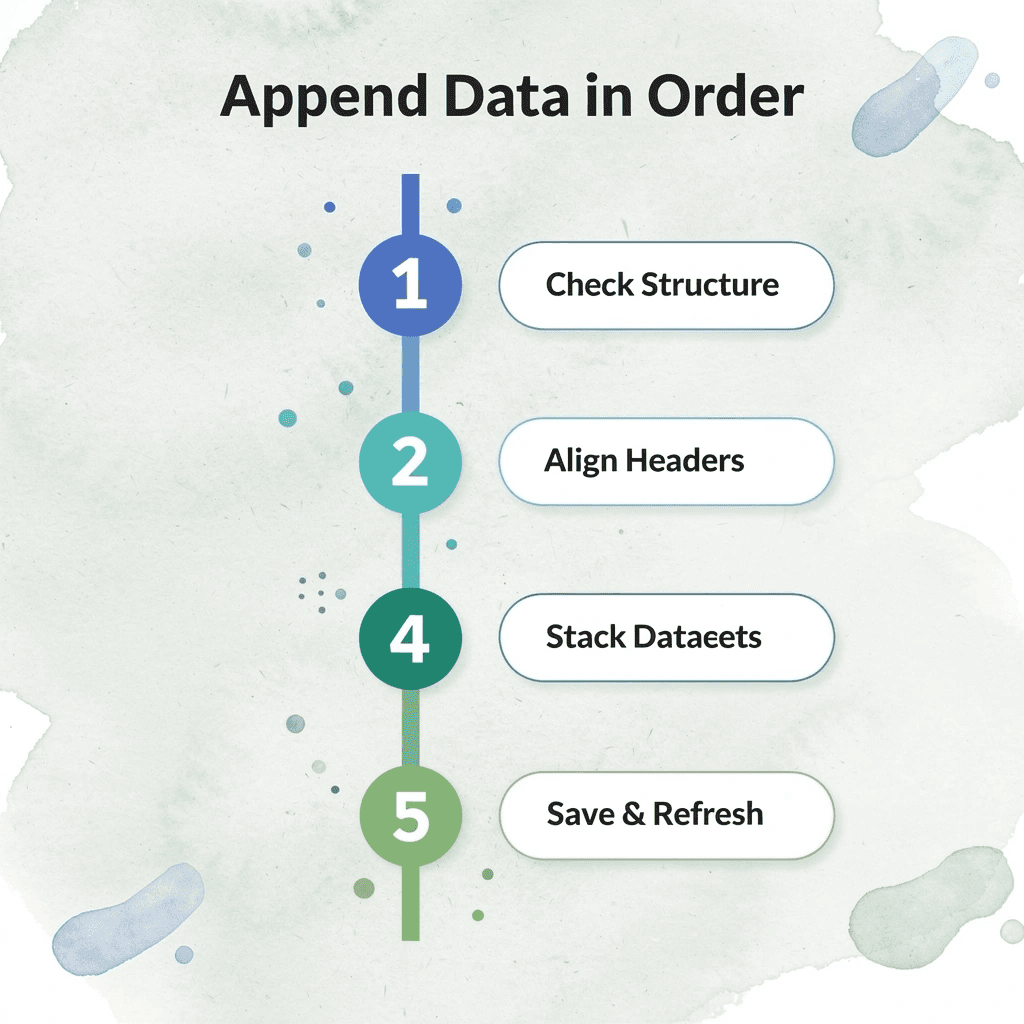
Do your column headers match exactly across every source sheet?
Start at minute zero: do the column headers across every source sheet match exactly? Not approximately. A column labeled "Customer Name" in one sheet and "client_name" in another will not line up in Power Query or VSTACK, and neither tool will warn you. It will produce empty cells or mismatched rows that appear fine until someone filters by that column and finds half the data missing. This check is what most manual copy-paste workflows skip. The problem surfaces two weeks later when a pivot table returns unexpected totals, and nobody can identify the cause.
What should you decide about mismatched columns before setup begins?
While checking headers, note any columns that exist in one source but not in the other. Decide before setup begins: keep them with nulls in the sources that lack them, or exclude them from the combined output. Making that decision early costs nothing; making it after the method is built costs a rebuild.
One question decides your entire method
The most important decision in the entire workflow takes about ninety seconds: is this data combination a one-time task, or will it repeat on a weekly or monthly cycle? That answer determines everything that follows.
Does the task repeat, or is it truly one-time?
If it is a one-time combination, Excel's Consolidate feature or a validated manual paste with duplicate-flagging conditional formatting suffices. If the data will update on a recurring schedule, that single question justifies the cost of the Power Query or VSTACK setup entirely, since you pay it only once.
Why do teams keep choosing manual methods even when they shouldn't?
Teams often default to manual methods for recurring tasks because the one-time setup of Power Query feels like overhead. According to Centida's guide on appending multiple Excel files from one folder, a properly configured append workflow takes around 15 minutes to set up and eliminates the manual re-verification loop for every future update.
How do you set up the method that matches the answer?
For data that returns regularly, load each source into Power Query using "Get Data," then use Append Queries to combine them. Power Query displays structural problems as nulls rather than hiding them, making errors visible during setup. VSTACK works similarly for Microsoft 365 users, referencing named Tables so the formula recalculates automatically as source data grows.
What is the best approach for one-time combinations?
For one-time combinations, Consolidate handles numeric summation when source ranges share the same structure. A validated manual paste also works, provided conditional formatting is applied immediately to flag duplicates.
What is the hidden cost of repeating manual steps each cycle?
Most teams handle recurring combinations by repeating the manual paste each cycle. The hidden cost: every cycle requires rechecking column alignment, reflagging duplicates, and reconfirming row counts—a compounding expense. Our Spreadsheet AI Tool at Numerous addresses this by layering AI functions directly into the spreadsheet, automating structural checks, flagging inconsistencies, and categorizing data after an append, all without leaving the sheet or writing code.
How do you confirm the merged output is actually reliable?
Once the method is set up, run one specific check before treating the output as reliable: compare the combined row count against the sum of the individual source sheets using a SUM formula. If the numbers do not match, something was left out, duplicated, or dropped during the merge.
What column issues should you catch before they compound?
Also confirm that no columns were unexpectedly split or renamed during the append. Power Query sometimes renames columns if source files use inconsistent capitalization, and VSTACK will quietly include a column from a source table even if that column was added after the formula was written. Catching either issue early costs nothing; catching it after three months of reports have been built on the output becomes a significant problem.
What changes after the setup is done
Before, you had to copy rows each cycle and check alignment by eye, risking missed duplicates or shifted columns, and verify the structure repeatedly. After the source structure is confirmed once, combining happens automatically, and future updates require only a refresh or a recalculation instead of rebuilding everything.
Where do the real-time savings actually come from?
Time savings don't come from appending faster in the moment. They come from eliminating the re-checking loop that manual methods require every cycle—the actual return on the fifteen minutes of setup.
What does updating the data look like going forward?
For Power Query and VSTACK setups, future updates require only clicking Refresh or letting the formula recalculate. For Consolidate or validated manual methods, validation occurs each cycle, but structural confirmation begins from the start. You confirm nothing has changed rather than checking everything from the beginning.
The structure is clean, the method matches your needs, and output is verified. This is where the more interesting work begins.
Append and Analyze Data Faster With Numerous
Once your append method is running and your combined dataset is verified, the next question is interpretive: What does the merged data show, and how quickly can you act on it?

Most teams review merged data by manually scanning rows, building pivot tables, or writing new formulas on already-complex workbooks. This breaks down as datasets grow or refresh cycles shorten. Our Spreadsheet AI Tool at Numerous solves this directly: open it in the same workbook your Power Query or VSTACK append populates, select the combined range, and ask a plain-language question like "flag rows that look like duplicates" or "summarize what changed since last month." No new syntax, no export, no migration. The review that used to take a full cycle now happens in minutes.
"The review that used to take a full cycle now happens in minutes — no new syntax, no export, no migration." — Numerous
💡 Tip: You don't need to leave your workbook or learn new tools. Numerous works directly inside the spreadsheet you append, already populating — making AI-powered analysis as simple as asking a question.
Traditional Review Method | With Numerous AI |
|---|---|
Manual row scanning | Plain-language queries |
Building pivot tables | Instant summaries |
Writing complex formulas | No syntax required |
Full-cycle review time | Minutes |
Requires export or migration | Works in your existing workbook |
⚠️ Warning: Relying on manual review methods as your datasets grow is a compounding bottleneck — the larger the data, the more time you lose every single refresh cycle.
The append is the foundation. What you build on it determines whether the work compounds or resets with each new data arrival.
🔑 Takeaway: A well-structured append pipeline paired with an AI analysis layer like Numerous transforms your spreadsheet from a static record into a continuously actionable asset.