
Copying data from a website into a spreadsheet manually is tedious enough the first time, and it becomes a real problem when that data changes regularly. The IMPORTDATA function in Google Sheets solves this by pulling live CSV or TSV data from a URL directly into cells, updating automatically without any manual effort. Understanding how it works, from basic syntax to practical use cases, takes about 20 minutes and can eliminate hours of repetitive work.
For those who want to go further, cleaning and transforming the data after importing it is often where the real challenge begins. Raw fetched data rarely arrives ready to use, and writing formulas or scripts to handle it adds friction to an otherwise smooth workflow. Numerous tools help bridge that gap, and getting started is straightforward with a reliable Spreadsheet AI Tool.
Table of Contents
Why Data Analysts Struggle to Import External Data Into Google Sheets
The Hidden Cost of Importing CSV Data Manually
7 Ways to Use the IMPORTDATA Function in Google Sheets
The 20-Minute Workflow to Use the IMPORTDATA Function in Google Sheets
Automate External Data Imports With Numerous
Summary
Manual data entry into spreadsheets introduces errors at a rate most teams underestimate. Research cited in the article found that 88% of spreadsheets contain errors when data is entered manually, a figure that reflects not carelessness but the structural reality of humans serving as the bridge between data sources and reporting tools, repeatedly, under time pressure.
Data preparation consumes a disproportionate share of analyst time. According to Synapx, data professionals spend up to 80% of their time on preparation tasks, which means the majority of a working week produces no analytical insight on its own. That imbalance points to a systemic workflow problem, not a skills gap.
Google Sheets places a hard ceiling on how far IMPORTDATA can scale. The function supports up to 50 calls per spreadsheet and handles CSV or TSV files with up to 1,000 rows. Teams that build reporting workflows without accounting for these limits often discover them mid-project, when the cost of redesigning is highest.
Automated refresh reduces a specific category of reporting failure. IMPORTDATA refreshes connected data approximately every hour by default, removing human dependency on scheduled downloads. The practical value is not just convenience but the elimination of a failure point that compounds across every reporting cycle, every stakeholder, and every deadline.
Raw imported data is rarely analysis-ready on arrival. Column headers are inconsistent, date formats vary, and datasets from different sources rarely share the same structure. Treating data cleaning as a defined phase rather than an informal fix applied as problems surface is what separates a workflow that holds up over time from one that quietly degrades with each refresh.
Numerous's Spreadsheet AI Tool addresses the gap between live data arriving in Google Sheets and that data becoming something a team can act on by running AI-powered processing directly on imported rows without requiring API configuration or a separate platform.
Why Data Analysts Struggle to Import External Data Into Google Sheets
Keeping spreadsheets connected to live outside data is harder than it looks. The problem stems from the gap between how often external data changes and the manual work required to keep your reports up to date.
"The gap between how fast external data changes and how slowly manual workflows can keep up is the core reason analyst productivity stalls." — Data Engineering Insight
⚠️ Warning: If your reporting workflow depends entirely on manual imports, you're not managing data — you're managing a ticking clock.

Most data analysts start with a deceptively simple workflow: download a CSV, import it, build a report. That works fine for one dataset updated once a week. But reporting needs rarely stay the same. As you add more data sources, more frequent updates, and more people expecting accurate dashboards, that first workflow becomes a structural bottleneck. The process that took 10 minutes now uses an hour, repeated daily, across multiple systems.
Workflow Stage | Single Source | Multiple Sources |
|---|---|---|
Time to import | 10 minutes | 1+ hour |
Update frequency | Once a week | Daily or more |
Error risk | Low | High |
Scalability | Limited | Critical bottleneck |
💡 Tip: The moment you're managing more than two data sources, it's essential to move beyond manual CSV imports — your time and data accuracy depend on it.
🔑 Takeaway: What starts as a 10-minute task can silently scale into an hour-long daily burden — and that is where analyst efficiency goes to die.
How does manual data importing create a bottleneck for analysts?
The pattern appears consistently across teams that track sales performance, monitor marketing campaigns, and manage financial data. Analysts spend most of their time moving data between platforms rather than analyzing it. According to the Rows Blog, Google Sheets limits users to 50 IMPORTDATA function calls per spreadsheet, meaning that as your reporting environment grows, you will eventually hit a ceiling that forces you to reconsider how you connect external data sources.
Most teams handle this by building a rhythm of manual exports and imports, with the hidden cost being context switching. Every time you leave Google Sheets to download an updated CSV from your CRM, marketing platform, or public dataset, you break focus and add a step that compounds across every data source you manage. Our Spreadsheet AI Tool addresses this by sitting directly inside Google Sheets, allowing teams to process and act on data without bouncing between systems.
Why does raw imported data rarely arrive ready to use?
OWOX's 2024 guide to IMPORTDATA notes that the function refreshes data hourly automatically, helping keep information current but not addressing the challenge of organizing incoming data. Raw CSV data from external sources rarely arrives clean and ready to analyze. Column headers lack consistency, values need standardization, and datasets from different sources rarely share the same structure. The real bottleneck is not the import itself, but everything that happens between the moment data arrives in your spreadsheet and the moment it becomes information someone can use to make a decision.
Related Reading
The Hidden Cost of Importing CSV Data Manually
Manual imports corrupt the information your team uses to make decisions, and that corruption gets worse every reporting cycle. Each time someone manually moves data, they introduce invisible risk into the foundation of your business decisions. This is a structural problem that compounds over time, eroding data integrity at every reporting cycle.
"Manual imports quietly change the information your team uses to make decisions, and that change gets worse every reporting cycle." — Numerous.ai
⚠️ Warning: The damage from manual data imports is cumulative. Each reporting cycle doesn't repeat the problem; it amplifies it.
💡 Tip: If your team relies on manually imported CSVs for any recurring report, you are introducing compounding data risk into your decision-making pipeline.
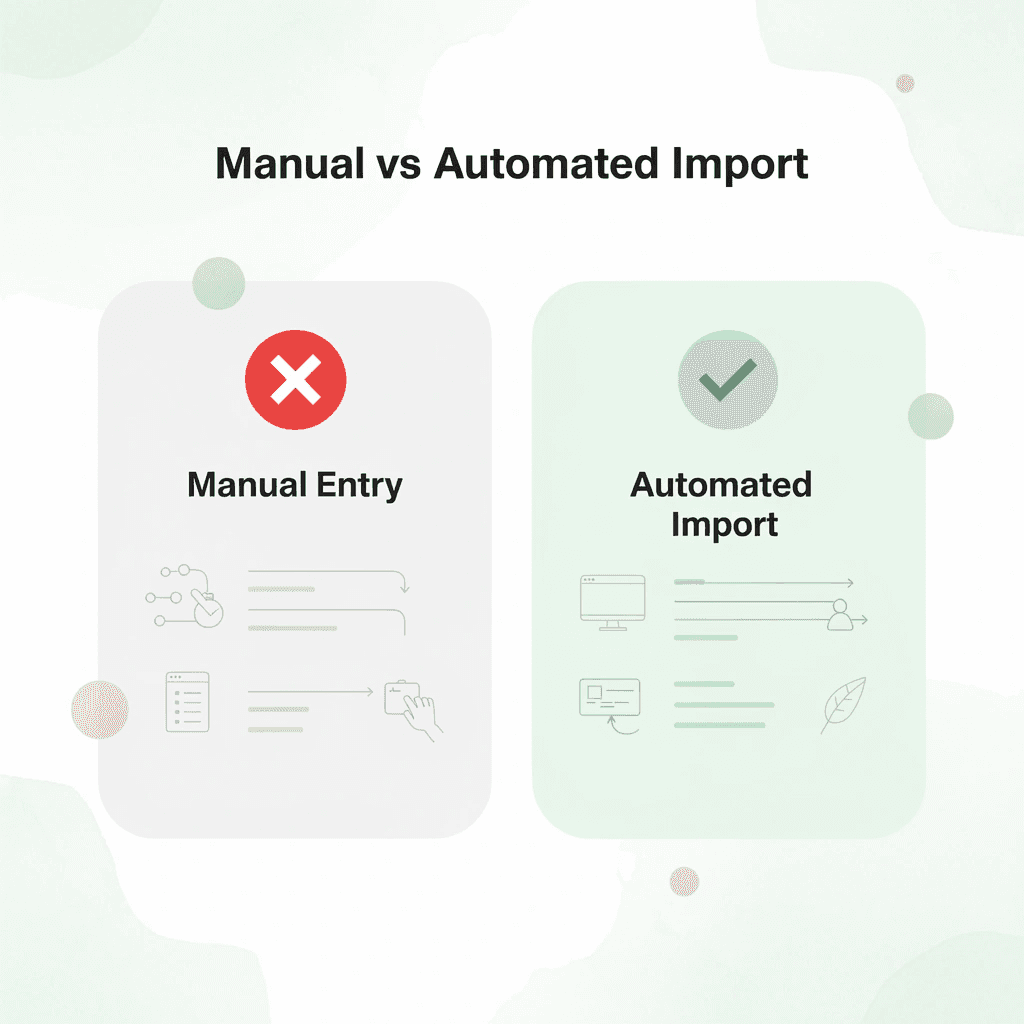
According to Doubletrack's Hidden Cost of Dirty Data, 88% of spreadsheets have errors when data is entered by hand. This reveals what happens when a person moves data from one source to a spreadsheet over and over again while working quickly. Every manual step is a place where a column can shift, a value can be pasted into the wrong row, or a date format can break a formula.
"88% of spreadsheets contain errors when data is entered by hand." — Doubletrack, Hidden Cost of Dirty Data
Manual Import Risk | What Goes Wrong |
|---|---|
Column shift | Data lands in the wrong field entirely |
Wrong row paste | Values overwrite or misalign existing records |
Date format break | Formulas fail, producing silent calculation errors |
Repeated entry | Each cycle multiplies the chance of a new mistake |
🔑 Takeaway: With 88% of hand-entered spreadsheets containing errors, manual CSV imports aren't a reliable workflow — they're a liability. Every repetitive manual step is not just inefficient; it's a direct threat to data accuracy.
✅ Best Practice: Automate your CSV imports wherever possible to eliminate the human error layer that corrupts nearly 9 out of 10 manually managed spreadsheets.
How much time does manual data preparation actually consume?
Synapx reports that data professionals spend up to 80% of their time on data preparation tasks. The average analyst spends most of their week on work that yields no insight on its own. Preparation without analysis is logistics, not progress.
Most teams create routines around manual processes: scheduling downloads, assigning tasks, and hoping nothing changes mid-cycle. The real cost is workflow fragility: one missed update means a dashboard shows last week's numbers while someone makes this week's decisions. Our Spreadsheet AI Tool fixes this by connecting live data processing directly inside Google Sheets, enabling fresh data to be understood immediately rather than waiting for manual review.
What happens when stakeholders stop trusting the data?
When stakeholders question whether a number is current, they lose trust in the report. Analysts then spend time defending data instead of explaining what it means. The spreadsheet becomes a problem not because the analyst failed, but because the workflow cannot keep pace with how often underlying data changes. The real question is whether your workflow can handle the next data source, reporting frequency, or stakeholder request without adding another hour to your week.
Related Reading
7 Ways to Use the IMPORTDATA Function in Google Sheets
The IMPORTDATA function pulls publicly available CSV or TSV data directly into Google Sheets from a URL and keeps it current automatically. When used on purpose, this ability becomes the foundation for workflows that most analysts never build inside a spreadsheet.
"The ability to pull live external data automatically into a spreadsheet transforms Google Sheets from a static tool into a dynamic, always-updated data engine." — Data Workflow Best Practices
💡 Tip: IMPORTDATA works with any publicly accessible CSV or TSV URL — making it one of the most underutilized functions in Google Sheets for real-time data workflows.
Feature | IMPORTDATA Capability |
|---|---|
Supported Formats | CSV and TSV |
Data Source | Any public URL |
Refresh Behavior | Updates automatically |
Primary Use Case | Live external data feeds |
Skill Level Required | Beginner to Intermediate |
🎯 Key Point: Most analysts underestimate IMPORTDATA as a simple import tool — but its automatic refresh capability is what makes it the cornerstone of advanced, real-time spreadsheet workflows.
⚠️ Warning: IMPORTDATA only works with publicly accessible URLs — data behind logins, paywalls, or authentication walls will not load successfully.

1. What the function actually supports
According to the OWOX Blog's 2024 guide to IMPORTDATA, the function supports CSV and TSV files and covers most structured data exports from government databases, analytics platforms, e-commerce tools, and financial providers. Understanding these boundaries lets you stop experimenting and start building. Google Sheets refreshes IMPORTDATA every hour automatically, so publicly hosted CSV or TSV files update on their own schedule. This pace suits daily reporting but reveals the function's limitation for near-real-time monitoring. It lets you design around the constraint rather than discover it mid-project.
2. Import CSV files automatically
Put a publicly accessible CSV URL into an IMPORTDATA formula, and the file loads into your sheet immediately. The connection is live: no download, no manual import dialog, no replacing last week's data with this week's file. Data analysts tracking competitor pricing, public health statistics, or open government datasets spend less time on file management and more time analyzing. The formula automatically checks for updates every hour.
3. Import TSV data without file conversion
The same workflow applies to tab-separated value files. Many enterprise systems, legacy databases, and academic data repositories export TSV by default. Without IMPORTDATA, these files must be converted before they can be cleanly imported into a spreadsheet. With IMPORTDATA, the conversion step disappears. You point the formula at the hosted TSV file, and the data arrives organized and ready to use. Teams working with systems never designed for Google Sheets suddenly gain a direct connection requiring no technical support.
4. Keep reports automatically updated
The failure point in most recurring reports is not the analysis: it's when someone forgets to update the underlying data before a deadline. IMPORTDATA removes that failure point by automating the update. When the source file changes, the imported data updates accordingly. Most teams rely on calendar reminders to download and re-import data on a fixed schedule. This breaks when someone is traveling, sick, or distracted by higher-priority tasks. Automated refresh does not have a sick day.
5. Build live dashboards
When IMPORTDATA feeds directly into a dashboard, it becomes a living document. Charts, pivot tables, and summary metrics update as the source updates, ensuring users see current data rather than outdated snapshots. The key difference between a live dashboard and a static one is whether the data layer updates automatically. IMPORTDATA handles that.
6. Combine IMPORTDATA with QUERY
Pulling an entire dataset into a sheet is useful, but pulling only the rows and columns you need is better. The QUERY function wraps around imported data and filters it using SQL-like syntax to isolate specific date ranges, product categories, or geographic regions without altering the raw import. This combination is particularly powerful with large source files and specific reporting needs. Instead of importing ten thousand rows to find the relevant two hundred, QUERY surfaces only what matters, keeping the spreadsheet fast and analysis focused.
7. Combine IMPORTDATA with ARRAYFORMULA
ARRAYFORMULA extends a single formula across an entire column or row automatically, so calculations apply to every new row without manual copying. When the imported dataset grows, the calculations grow with it. Most teams that skip this combination find that their formulas only cover the original rows. New data arrives, but calculations stop short. ARRAYFORMULA closes that gap.
Build automated reporting workflows
Teams that spend the least time on reporting aren't using the most complicated tools: they've connected their data sources once and let formulas handle repetitive work.
How do formulas replace manual data work?
IMPORTDATA combined with QUERY, ARRAYFORMULA, and Google Sheets' native charting creates a reporting pipeline that requires no scheduler or developer. The analyst's job shifts from moving data to understanding what it means.
How can AI process imported data inside the same sheet?
The next logical step is to process the imported data with AI. Our Spreadsheet AI Tool lets you run ChatGPT-powered analysis directly inside Google Sheets, so the same sheet that imports live data can also classify, summarize, or score it automatically without API setup, separate platforms, or context switching.
Why do the workflow compounds over time
The first time you replace a manual CSV import with an IMPORTDATA formula, you save twenty minutes. By the tenth automatic refresh, the value compounds. You're not saving time; you're removing an entire category of error from your process. Structured data pulled automatically, processed consistently, and displayed in real time separates a spreadsheet that reports the past from one that tracks the present. The surprising part is how quickly you can have this workflow running.
The 20-Minute Workflow to Use the IMPORTDATA Function in Google Sheets
Structure makes things faster. Without a clear plan, IMPORTDATA setups become weak and fail without warning at important times. Every wasted minute debugging a broken import is a minute spent on troubleshooting rather than using your data — which is why building the right foundation from the start is essential.
"A structured workflow doesn't just save time — it prevents the kind of silent failures that only surface when the stakes are highest." — Google Sheets Best Practices
💡 Tip: Before writing a single formula, always ask yourself: Do I have a clear goal for this data? Skipping this step is the #1 reason IMPORTDATA setups break unexpectedly.

The 20-minute framework has five phases: defining your goal, checking your source, connecting your data, cleaning it, and verifying that it works. Skipping any phase creates problems that take longer to fix later — sometimes much longer.
Phase | What You Do | Why It Matters |
|---|---|---|
1. Define Your Goal | Clarify exactly what data you need | Prevents scope creep and wasted imports |
2. Check Your Source | Validate the URL and file format | Avoids broken connections at runtime |
3. Connect Your Data | Write and deploy the IMPORTDATA formula | The core of your entire workflow |
4. Clean Your Data | Remove errors, fix formatting issues | Ensures reliable, usable output |
5. Verify It Works | Test live updates and edge cases | Catches silent failures before they matter |
⚠️ Warning: Skipping Phase 2 (source checking) is the most common mistake — a bad URL or unsupported file type will cause your entire IMPORTDATA setup to fail silently.
🎯 Key Point: This 5-phase structure is designed to fit inside 20 minutes — but only if you follow every phase in order. Cutting corners on any single step compounds into problems that can take hours to untangle.
Minute 0–3 Define Your Data Import Goal
Before writing a single formula, decide what the imported data needs to do. Are you feeding a sales dashboard, tracking marketing metrics, or monitoring inventory levels? The answer shapes every decision that follows, including which CSV source you connect, how you organize the worksheet, and which columns matter. A clear objective prevents scope creep—teams that skip this step often import entire datasets when they need only three columns, adding noise to every downstream report.
Minutes 3–6: Verify the Data Source
The problem almost always comes from the URL, not the formula. IMPORTDATA can only access publicly available CSV or TSV files, so ensure your source provides the correct file format before building in Google Sheets. Verify that the URL points to a raw file, not a download page, and that it updates on a schedule matching your reporting needs. If the source changes structure without warning, your import breaks silently.
Minutes 6–10 Connect the Data With IMPORTDATA
Add the IMPORTDATA formula using the direct file URL. According to the OWOX Blog, IMPORTDATA refreshes data automatically every hour by default in Google Sheets, so your spreadsheet works immediately without additional setup. Review the imported data immediately. Check column headers, data types, and look for import errors or missing values. Finding problems now takes two minutes; finding them after you build a dashboard using bad data takes two hours.
Minutes 10–15 Clean and Organize the Imported Data
Raw imported data is rarely ready to report. Rename columns to show what they represent, remove duplicates, standardize date formats, and align number formatting. These adjustments are essential: they determine whether a dataset filters correctly and produces accurate pivot tables.
Why does informal cleaning cause problems over time?
Most teams handle cleaning informally, fixing issues as they notice them. This approach is inconsistent, and inconsistency worsens with each data refresh. A structured, documented cleaning step eliminates this problem.
How does pairing IMPORTDATA with an AI layer change what's possible?
When cleaning requires organizing, summarizing, or finding patterns, pairing IMPORTDATA with an AI layer transforms what's possible. Our Spreadsheet AI Tool lets you run AI-powered processing directly on imported rows using a simple formula, without API configuration. That combination turns a static import into a live, intelligent dataset that updates and interprets itself as new data arrives.
Minutes 15–18: Validate the Imported Data
Validation is the step most people skip because the data looks right—which is exactly why it matters. Open the original external source and compare a sample of records against what Google Sheets imported. Look for missing rows, shifted values, or stale data from refresh timing issues. The OWOX Blog notes that IMPORTDATA supports CSV and TSV files with up to 1,000 rows. If your source regularly exceeds this threshold, you need a different connection strategy to prevent silent report truncation.
Minutes 18–20: Build a Repeatable Reporting Workflow
Create a dashboard or summary view that reads from your cleaned, validated import range. Build it so that when the external CSV updates and IMPORTDATA refreshes, the report updates automatically. This is the real goal: a structured data pipeline running in the background so your team can focus on decisions rather than data management. The spreadsheet updates itself and delivers useful insights each time you open it. The surprising part is what becomes possible once your data is live, clean, and consistently structured.
Automate External Data Imports With Numerous
The workflow you just built is already more reliable than what most teams run today. The next move is ensuring it stays that way without requiring your attention each time source data changes. Numerous closes this gap by letting you run AI prompts directly inside Google Sheets, so your spreadsheet organizes, summarizes, and flags new data automatically whenever IMPORTDATA pulls a fresh CSV feed.
"Teams that treat their spreadsheet as an active, AI-powered system — not a passive container — get dramatically more value from every live data feed they connect." — Numerous
💡 Tip: Connect Numerous to your IMPORTDATA feed once, and it handles the entire repetitive layer with no manual intervention required when your source data refreshes.
⚠️ Warning: Without an automation layer like Numerous, even well-structured live data imports become a manual burden, requiring constant attention, reformatting, and review each time the feed updates.

Teams that get the most from live external data treat their spreadsheet as an active system, not a passive container. Start with one imported dataset today and let Numerous handle the repetitive layer — so your team focuses on decisions, not data wrangling.
Approach | Without Numerous | With Numerous |
|---|---|---|
Data Organization | Manual, time-consuming | Automatic on every refresh |
Summarization | Requires human review | AI-generated instantly |
Flagging Changes | Easy to miss | Automated alerts built in |
Team Attention Needed | Every data update | Set once, runs continuously |
🎯 Key Point: The difference between a passive spreadsheet and an active data system is a single setup with Numerous — start with one dataset and scale from there.
🔑 Takeaway: Live external data is only as powerful as the system processing it. Numerous transforms your Google Sheets workflow from a static snapshot into a continuously intelligent, self-updating engine.