Raw data pulled from the web becomes useful only after the right formulas are in place. Learning how to create a formula in Google Sheets does not have to take long — with a clear process, most users can move from basic cell references to functions like SUM, IF, and VLOOKUP in under 20 minutes.
The key is knowing where to start and how to gradually build complexity, from simple arithmetic to nested formulas such as ARRAYFORMULA. For those who want to move even faster, Numerous offers a Spreadsheet AI Tool that helps users write and apply formulas directly inside Google Sheets, without memorizing syntax or spending time troubleshooting errors.
Table of Contents
Why Beginners Struggle to Create Formulas in Google Sheets
The Hidden Cost of Avoiding Formulas After One Error
7 Ways to Create Formulas in Google Sheets
The 20-Minute Workflow to Build Your First Formula
Build Formulas Faster With Numerous
Summary
Google Sheets has over 400 built-in functions available to users, but that number works against beginners rather than for them. The real barrier is not the size of the function list. It is the absence of a mental model that sorts tasks into categories before any function is chosen. Most spreadsheet work falls into a small set of repeating types: math across a range, pulling a value from another location, testing a condition, or combining text. Recognizing the category first makes function selection almost mechanical.
Avoiding formulas after a single confusing error carries a higher cost than most people realize. Research by Barchard and Pace found human error rates of roughly 1% per field for skilled operators and 3-4% for average operators during manual data entry. A formula, once debugged, runs the same logic correctly every time. The manual alternative resets its error risk with every new entry, with no visible flag when something goes wrong.
Error messages in Google Sheets are not verdicts on the formula approach. A #VALUE! error means a cell contains the wrong data type for the operation. A #REF! error means a referenced cell no longer exists, usually because a row or column was deleted. Both are bounded, solvable problems. Treating them as stop signs is what pushes users toward manual workarounds that carry their own silent, uncorrected errors.
The right formula for a task depends on the structure of the problem, not on personal preference or familiarity. Static, small datasets are handled well by SUM and IF. Data that grows past a few hundred rows and refreshes regularly benefits from ARRAYFORMULA and FILTER. Reporting on specific subsets calls for QUERY. Connecting records across multiple tables points to XLOOKUP. Each function solves a specific structural problem, and choosing the wrong one creates fragile logic that breaks when data changes shape.
A structured five-phase workflow, covering problem definition, function selection, formula construction, edge-case testing, and validation against a known benchmark, consistently produces reliable formulas in under 20 minutes. The time savings come not from typing faster but from eliminating rework. A formula built without a defined goal gets rebuilt when the goal clarifies. A formula tested only on clean data gets debugged when real data arrives. Removing those rework cycles is where the actual efficiency gain comes from.
Validation against a known benchmark is not optional. Comparing formula output against a manually verified sample, even just 5 to 10 rows, is the only way to confirm that a formula that looks correct actually is correct. Documenting the formula's purpose in a comment or notes column after validation reduces the time required to audit or update the logic later, for both collaborators and the person who wrote it.
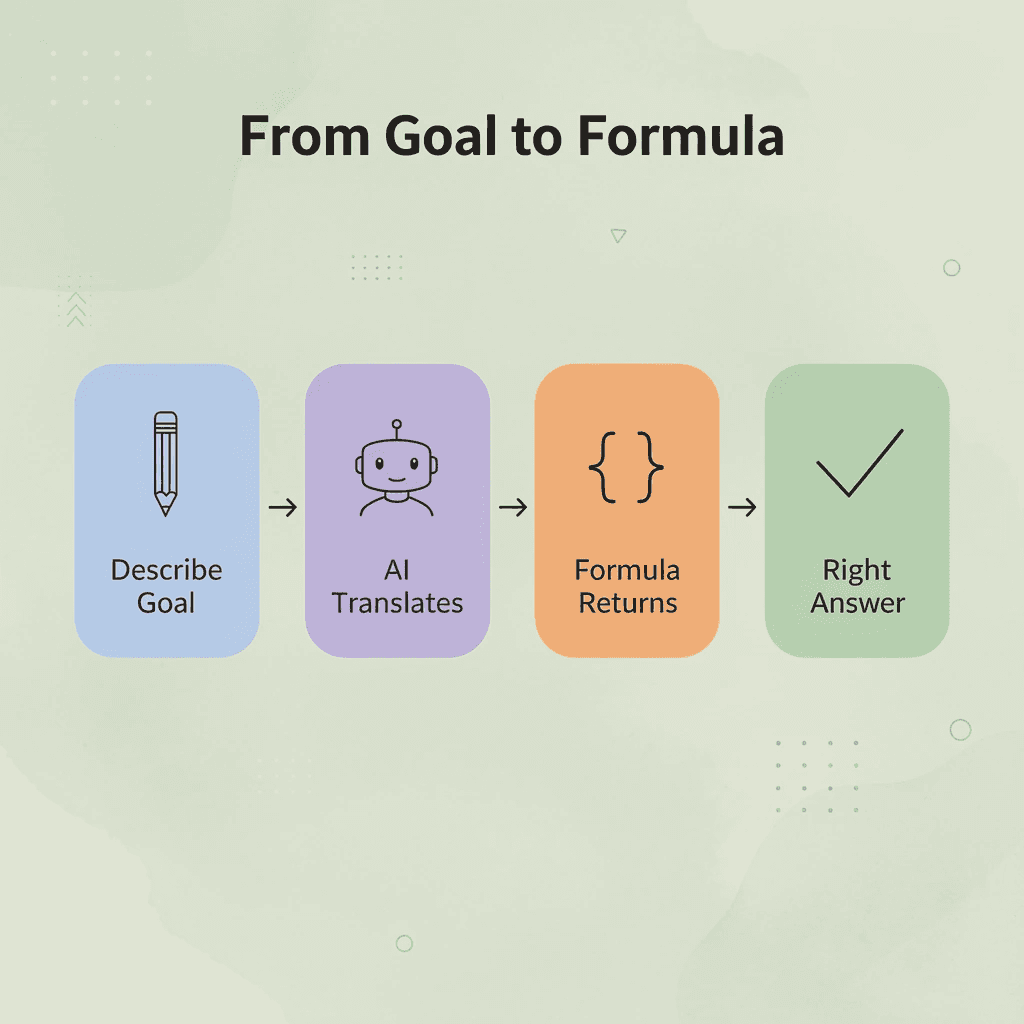
Numerous Spreadsheet AI Tool addresses the gap between knowing what a formula should do and knowing the exact syntax to write it, by letting users describe their goal in plain language inside Google Sheets and receiving a working formula in return.
Why Beginners Struggle to Create Formulas in Google Sheets
Formulas feel hard before they feel useful. Most beginners try to memorize function names and syntax, when the actual skill is recognizing what kind of problem they're solving. Get the logic right first, and the syntax almost writes itself.
💡 Tip: Before typing into a cell, ask yourself what outcome you need: summarizing data, finding a value, or comparing conditions. That mental step eliminates 90% of formula confusion.

According to Coefficient, Google Sheets has over 400 built-in functions available. That number is not a selling point for beginners: it's a wall. Without a mental model that sorts tasks into categories, 400 options feel less like a library and more like a maze with no map.
"Google Sheets has over 400 built-in functions available — without a mental model, that number feels less like a library and more like a maze with no map." — Coefficient
⚠️ Warning: Jumping straight into function syntax without understanding the underlying logic is the #1 mistake beginners make, and it's why so many give up before seeing results.
🔑 Takeaway: The problem is never the number of functions — it's the absence of a sorting framework. Learn to categorize your tasks first (lookup, calculation, logic, text), and 400 functions shrink down to the handful that matter for your use case.
Why syntax-first learning stalls beginners
The failure point is almost always the same: a beginner copies a formula from a forum, it works once, and then the data changes shape slightly, and the whole thing breaks. Without understanding why the formula worked, there's no way to adapt it. A #VALUE! error appears, the beginner assumes formulas are unpredictable, and a calculator becomes the backup plan. What looks like a formula problem is a logic problem that was never solved in the first place.
Why does recognizing formula categories matter more than memorizing functions?
Most spreadsheet tasks fall into a small number of repeating categories: doing math across a range (SUM, AVERAGE), pulling a value from another location (VLOOKUP, INDEX/MATCH), testing a condition (IF, IFS), or combining and extracting text (CONCATENATE, LEFT, SPLIT). Beginners who don't recognize these categories search for a new function each time instead of asking: is this a lookup problem, a math problem, or a comparison problem? Recognizing the category first makes the cell reference logic, function arguments, and error messages easier to understand.
How do saved formula lists fall short when tasks change?
Many teams bookmark formula cheat sheets or keep lists of formulas that worked before. This approach fails when the task changes slightly, and no saved formula fits. Our Spreadsheet AI Tool addresses this by letting users describe what they need in plain language in Google Sheets, then generating the correct formula without requiring upfront knowledge of the function name. You can learn more at Numerous' Spreadsheet AI Tool.
Coefficient also notes that understanding the basics of Google Sheets formulas takes an estimated 6 minutes of focused reading. A beginner who grasps that every formula starts with an equals sign, references cells rather than values, and follows a consistent argument structure has cleared the hardest conceptual hurdle. Everything after that is pattern recognition, not memorization. But avoiding formulas after a single confusing error costs far more than most people expect.
Related Reading
The Hidden Cost of Avoiding Formulas After One Error
That cost adds up quietly. Every manual workaround you build after abandoning a formula carries a hidden error rate that never announces itself with a red cell or a warning code.
"Every manual workaround built after abandoning a formula carries a hidden error rate that never announces itself with a red cell or a warning code."
⚠️ Warning: Manual workarounds feel safer after a formula error but silently introduce new mistakes that are far harder to detect or trace to their source.
💡 Tip: Before abandoning a formula entirely, ask yourself: is the real cost the formula's complexity, or the invisible error rate of doing it by hand?

Why does skipping a formula make errors harder to catch?
According to Wikipedia's documentation on Type I and Type II errors, a Type II error rate of 20% means one in five true effects go undetected per test, which maps directly to formula avoidance. When you skip the formula and calculate by hand, you lose the built-in detection mechanism. A formula error is visible and correctable. A manual miscalculation in a cell reference, a copied value, or a hardcoded number sits silently in your sheet until someone catches it by accident, or never.
Why the "safe" option isn't actually safe
The failure point is usually invisible. Peer-reviewed research from Barchard and Pace (Behavior Research Methods, 2011) found human error rates of roughly 1% per field for skilled operators and up to 3–4% for average operators during manual data entry. The backup people choose because it feels reliable carries a documented, non-zero error rate with no warning when something goes wrong. A formula, once fixed, runs the same logic correctly every time.
How does error risk compound as datasets grow?
Most teams default to typed values and copy-paste for repetitive calculations because it feels faster. But as datasets grow and the same calculation is repeated across dozens of rows, the risk of error compounds. Our Spreadsheet AI Tool at Numerous addresses this scaling problem by running bulk AI-assisted tasks directly inside Google Sheets, eliminating the need to export, reprocess, or manually reconcile outputs across tools.
What a formula error is actually telling you
A #VALUE! error means a cell contains the wrong type of data for the operation you asked it to perform. A #REF! error means a referenced cell no longer exists, usually because a row or column was deleted. Neither signals that the formula approach was wrong; rather, they indicate that one specific input needs adjusting, a solvable, bounded problem with a clear resolution path.
Why does treating an error as a stop sign cost more than one calculation?
The real cost of treating that error as a stop sign is not the time spent on one manual calculation, but the pattern that follows: every future formula attempt starts with the memory of that abandoned error, making the next attempt feel riskier than it is. That pattern keeps spreadsheet users doing by hand exactly the kind of repetitive, error-prone work that a correctly written formula would handle automatically, reliably, and without complaint. Once you understand what errors mean, the question becomes less about avoiding them and more about knowing which method to reach for first.
7 Ways to Create Formulas in Google Sheets
Choosing the right formula matters more than knowing every formula. According to the Google Sheets function list, there are over 400 functions available, making selection—not memorization—the real skill.
"There are over 400 functions available in Google Sheets, making selection—not memorization—the real skill." — Google Sheets Function List
💡 Tip: You don't need to memorize every formula — you need to know which formula fits the job. Mastering selection is what separates casual users from power users.
🎯 Key Point: With 400+ functions at your fingertips, the most valuable skill in Google Sheets isn't rote memorization — it's knowing exactly where to look and what to apply.
Approach | Result |
|---|---|
Memorizing every formula | Overwhelming and unsustainable |
Learning to select the right formula | Efficient, scalable mastery |
Using the Google Sheets function list | 400+ functions at your fingertips |

1. SUM Function
The SUM function adds numbers across any range you define and updates automatically when data changes. It requires minimal knowledge of syntax and handles totals for budgets, sales reports, and project trackers.
2. IF Function
The IF function makes decisions: if a condition is true, return one result; if not, return another. This logic transforms a static table into a rule-based system that responds to your data in real time. The failure point is usually overcomplication. Analysts stack nested IF statements six layers deep when simpler conditions would work. Keep the logic readable so the formula remains maintainable months later.
3. ARRAYFORMULA
ARRAYFORMULA applies one formula across an entire column range, expanding automatically as new data arrives. Instead of copying formulas down each row, you write the logic once, and the spreadsheet handles the rest, which is essential when datasets grow past a few hundred rows.
4. QUERY Function
The QUERY function lets spreadsheet users write database-like code without knowing SQL. It filters, sorts, groups, and summarises data using SQL-like syntax, pulling exactly the rows needed into a clean reporting view. For teams building weekly dashboards from raw data exports, QUERY replaces hours of manual filtering with a single, reusable formula.
How does QUERY reduce manual reporting errors in spreadsheets?
Manual reporting—filtering columns, copying results to separate sheets, and reformatting before each meeting—creates version control problems and silent errors as datasets grow. Our Numerous AI tool lets teams generate, test, and apply complex formulas like QUERY across large spreadsheets directly inside Google Sheets without SQL syntax or debugging time.
5. XLOOKUP
XLOOKUP replaced VLOOKUP because it searches in any direction: left, right, vertical, and horizontal. It also handles errors gracefully by allowing you to define a fallback value when no match is found, preventing spreadsheet breaks caused by incomplete source data. For connecting product IDs to pricing tables or matching customer names to account records, XLOOKUP is the cleaner, more reliable choice.
6. FILTER Function
The FILTER function returns only rows that meet your conditions and updates live whenever the underlying data changes. It's ideal for dashboards where source data is constantly changing, because the filtered view stays accurate without manual adjustment.
7. Numerous AI Tools for Formula Generation
According to GeeksforGeeks, there are 7 core ways to create formulas in Google Sheets, and AI-assisted generation is now one of them. Several AI tools work as add-ons within Google Sheets, letting you describe what you want in plain language and receive a working formula in return. For teams handling bulk categorization, sentiment analysis, or content classification across thousands of rows, this capability expands what a spreadsheet can realistically accomplish.
Why the right formula changes the whole workflow
The old workflow: calculate by hand, copy formulas row by row, update before each report, check for errors, repeat. The new workflow: choose the formula, automate the calculation, review the output. The difference is the elimination of every decision point where human error could occur.
How do you know which formula fits your data?
The way you think about limits helps you choose the right formula. Use SUM and IF for small, stable datasets. Use ARRAYFORMULA and FILTER for hundreds of regularly updated rows. Use QUERY to extract specific information for reports. Use XLOOKUP to connect data from different tables. Each formula solves a different data problem.
What does a spreadsheet built with the right formula actually do?
A spreadsheet built with the right formula grows without breaking, maintains its logic under pressure, and produces trustworthy results. The next question: can you build it from a blank cell in under twenty minutes?
The 20-Minute Workflow to Build Your First Formula
Building a formula the right way starts with the choices you make before you start typing. The workflow has five phases: problem definition, function selection, formula construction, testing, and validation. Each phase has a clear exit condition, so you always know exactly when to move forward.
"A structured, phase-by-phase approach ensures you never skip the steps that prevent costly formula errors down the line." — Formula Design Best Practices
Phase | What You Do | Exit Condition |
|---|---|---|
Problem Definition | Clarify what the formula must solve | Goal is unambiguous |
Function Selection | Choose the right functions for the job | Functions match the logic |
Formula Construction | Build and assemble the formula | Syntax is complete |
Testing | Run against known inputs | Outputs match expectations |
Validation | Confirm accuracy across edge cases | Zero unexpected results |
💡 Tip: Never skip the problem definition phase — it's the step most beginners rush past, and the root cause of the majority of formula failures.
⚠️ Warning: Jumping straight to formula construction without completing function selection first is one of the most common — and most avoidable — mistakes new formula builders make.

Minute 0–3: Define the Problem First
The failure point is almost always here. Most people start by typing a function before answering: what number, text, or classification does this cell need to produce? Write the answer in plain English first. "I want to calculate total revenue for completed orders only." That sentence tells you the function category, the data range, and the condition you need to apply. If you cannot write the goal in one sentence, the formula will not work cleanly. Unclear goals produce formulas with excessive nested layers that break when your data changes shape.
Minute 3–6: Match the Goal to the Right Function
Once the goal is clear, choosing the function becomes straightforward. Totals point to SUM or SUMIF. Classification problems point to IF or IFS. Retrieval from another table points to XLOOKUP or INDEX/MATCH. Pattern-based filtering across a column points to FILTER or QUERY. Apply the function categories covered earlier to your specific goal.
Why does specificity in your goal matter for function selection?
Being specific about your goal helps you choose the right function. "I want to find a value" is too vague to distinguish between VLOOKUP, XLOOKUP, and INDEX/MATCH. "I want to get a price from a product table where the product ID matches, and the table might have new columns added later" points directly to XLOOKUP.
Minutes 6–10: Build the Formula With Deliberate Syntax
Write the formula in a single cell with real data, not placeholder values. Use actual cell references from your sheet so errors surface immediately. Before pressing Enter, verify correct range boundaries, matching parentheses, accurate logical operators, and whether any referenced cells are empty by default.
How do absolute versus relative references cause silent copying errors?
A common construction error is locking the wrong cells when using absolute versus relative references. If you plan to copy the formula down a column, any reference that should stay fixed needs a dollar sign before the column letter, the row number, or both. Getting this wrong means every copied cell silently pulls from the wrong row, compounding invisibly until validation catches it.
Minutes 10–15: Test Against Edge Cases, Not Just Clean Data
Most people test a formula once with a straightforward example and call it done. The real test is what happens when a cell is empty, when a value is zero instead of blank, when text appears where a number is expected, or when a lookup returns no match. Build at least three test scenarios: the expected case, an empty or missing input, and an out-of-range or unexpected value. If your formula returns a #N/A error on a missing match, decide whether that should display as a zero, a blank, or a custom message using IFERROR. Catching this during testing takes 30 seconds; catching it after the formula has been copied across 500 rows costs considerably more.
Minutes 15–18: Expand and Structure the Output
Once the formula works in a test, copy it down the full range using ARRAYFORMULA at the top of the column so it runs automatically as new rows are added. This eliminates the need to manually extend formulas.
Why does clear labeling matter for spreadsheet structure?
Label your columns clearly. A column header like "Revenue (Completed Orders Only)" tells anyone who checks or updates the file later what the information means. Organized spreadsheets reduce cognitive load when the logic needs to change.
How does ARRAYFORMULA prevent formula drift at scale?
Copying formulas by hand causes problems as your data grows. You might skip a row or mess up a reference, leaving your totals mismatched. Using ARRAYFORMULA or structured table references prevents this issue.
How does a tool like Numerous transform this workflow at scale?
At scale, a tool like Numerous transforms this workflow. Instead of writing complex nested formulas to classify, summarize, or generate text across hundreds of rows, the =AI function lets you describe the task in plain language and apply it across an entire column at once, without API keys or repeated queries for duplicate values.
Minutes 18–20: Validate Against a Known Benchmark
Compare your formula output against a number you already trust. If calculating total sales, cross-check the result against a manually added sample of ten rows. When classifying customer status, spot-check five records for which you know the correct answer. This validation step is the only way to confirm that a formula that looks correct actually is correct.
Why do calculated outputs need a ground-truth reference?
According to R-bloggers, Formula 1 analysts verify every calculated metric against raw timing data before trusting combined outputs. The same principle applies to spreadsheet work: calculated outputs become trustworthy only after comparison with a ground-truth reference.
How should you document a formula after validation?
After validation, document the formula's purpose in a comment or notes column if the spreadsheet will be shared. One sentence suffices: "Calculates total revenue for rows where status equals Completed." This saves the next person from reverse-engineering your logic and saves you from doing the same six weeks from now.
The Before and After Is Not About Speed
The common assumption is that a structured workflow saves time because you write formulas faster. That is not quite right. The time savings come from eliminating rework. A formula built without a defined goal gets rebuilt when the goal becomes clear. A formula tested only on clean data gets debugged when real data arrives. A formula expanded by manual copying gets checked when a row goes missing. The structured workflow removes each of those rework cycles. A well-scoped formula in this workflow takes under twenty minutes; the same formula built without structure, including subsequent debugging and re-copying, rarely takes under an hour.
Why does a structured formula become easier to reuse?
This workflow makes formulas reusable. A formula built with clear references, tested against edge cases, and documented with intent can be copied into a new sheet and adapted in minutes. A formula built by trial and error is fragile, undocumented, and tied to the specific context where it works.
What separates a working formula from a reliable one?
The spreadsheet you build using this sequence retains its logic as data changes, grows without manual effort, and makes its purpose clear to anyone who opens it. That separates a working formula from a reliable one.
Related Reading
Build Formulas Faster With Numerous
You already have the workflow: the plain-language goal, the function match, the single-row test before scaling. What slows most people down is not the logic but the gap between knowing what they want and knowing which syntax delivers it.
"The biggest barrier to spreadsheet productivity isn't understanding the goal — it's bridging the gap between plain-language intent and working syntax."
💡 Tip: If you can describe your goal in plain English, you have everything needed to build a working formula — you need the right tool to handle the translation.

That is exactly where Numerous fits. Open the Numerous Spreadsheet AI Tool inside your sheet, describe your goal the same way you would write it on paper — "sum column B where column A equals East" — and it returns a working formula directly. No function lookup, no syntax guessing. A $1 seven-day trial lets you test it against your own data.
The Old Way | With Numerous |
|---|---|
Search for the right function | Describe your goal in plain language |
Guess at syntax rules | Get a working formula instantly |
Test and debug manually | Single-row validation built into your flow |
Waste time on lookups | Stay focused on the actual problem |
🎯 Key Point: Numerous eliminates the syntax gap entirely — turning a plain-language description into a production-ready formula without ever leaving your spreadsheet.
✅ Best Practice: Start with the $1 seven-day trial and run Numerous against a real dataset you're already working with — the results speak for themselves.
The people who build reliable spreadsheets fastest are not the ones who memorized every function. They are the ones who stay in the problem and let the right tools handle the translation. The goal was never to become a syntax expert: it was always to get the right answer, faster.
🔑 Takeaway: Speed and reliability in spreadsheet work come from staying focused on the problem, not from memorizing formulas. Tools like Numerous exist so your energy goes toward analysis and decisions — not debugging brackets.