
Copying data from websites into a spreadsheet by hand is slow, error-prone, and outdated the moment the source updates. Google Sheets offers built-in functions that pull live web data directly into cells, no coding required, and the entire setup takes under 30 minutes. Knowing how to use these tools correctly saves hours of manual work and keeps information current without repeated effort.
The process becomes even more efficient when paired with the right tools. Numerous helps users collect, organize, and refresh web data inside Google Sheets without wrestling with complex formulas or third-party workarounds, and getting started is straightforward with the Spreadsheet AI Tool.
Table of Contents
Why Excel Users Scrape Data From Websites
The Hidden Cost of Collecting Website Data Manually
7 Ways to Scrape Data From a Website Into Excel
The 30-Minute Workflow to Scrape Data From a Website Into Excel
Scrape Website Data Into Excel Faster With Numerous
Summary
Manual data collection is one of the most underestimated drains on analyst productivity. Research from TDWI found that employees spend up to 80% of their time on data preparation and cleaning rather than on actual analysis. That ratio means the majority of a workday is lost before any decision-making begins.
The accuracy risk in manual workflows is harder to see but equally costly. Manual data entry errors cost businesses an estimated $600 billion annually, according to Spider Strategies. The problem is not just wasted effort but decisions built on corrupted inputs, since a spreadsheet that looks complete is not the same as one that is correct.
Demand for web-to-spreadsheet pipelines is not a niche technical interest. Over 750,000 Excel users search for ways to import web data into spreadsheets every month, and more than 80% of business analysts still use Excel as their primary tool for data analysis. The need is not to replace spreadsheets but to make them faster and more reliable by closing the gap between where data lives online and where decisions get made.
The choice of scraping method matters more than most teams realize. There are at least 7 distinct approaches available, ranging from Excel's built-in Power Query to enterprise platforms like Bright Data, each suited to a different combination of source complexity, update frequency, and team size. Selecting a tool based on familiarity rather than fit is one of the most common reasons scraping workflows break down within weeks of setup.
A structured 30-minute workflow can replace hours of recurring manual effort, but only if it accounts for what happens after the data lands in the spreadsheet. Verification, formatting, and cleanup steps are where most time savings are lost, because teams treat them as afterthoughts rather than as core parts of the process. Automating these steps turns a one-time scraping task into a repeatable, reliable system.
Outdated data does not announce itself inside a static spreadsheet. A price that changed three days ago looks identical to the current one, which means decisions made on that data are not wrong due to carelessness but because the collection workflow lacked a mechanism to stay current. Automation changes the reliability profile of every decision downstream, not just the speed of collection.
Numerous's Spreadsheet AI Tool addresses the post-import gap by handling data cleaning, classification, and summarization directly inside Google Sheets or Excel, without requiring users to export files or switch between platforms.
Why Excel Users Scrape Data From Websites
Most Excel users turn to scraping website data when manual copying becomes impractical. Tracking five product prices is manageable; tracking five hundred prices across a dozen competitors updated weekly is not.
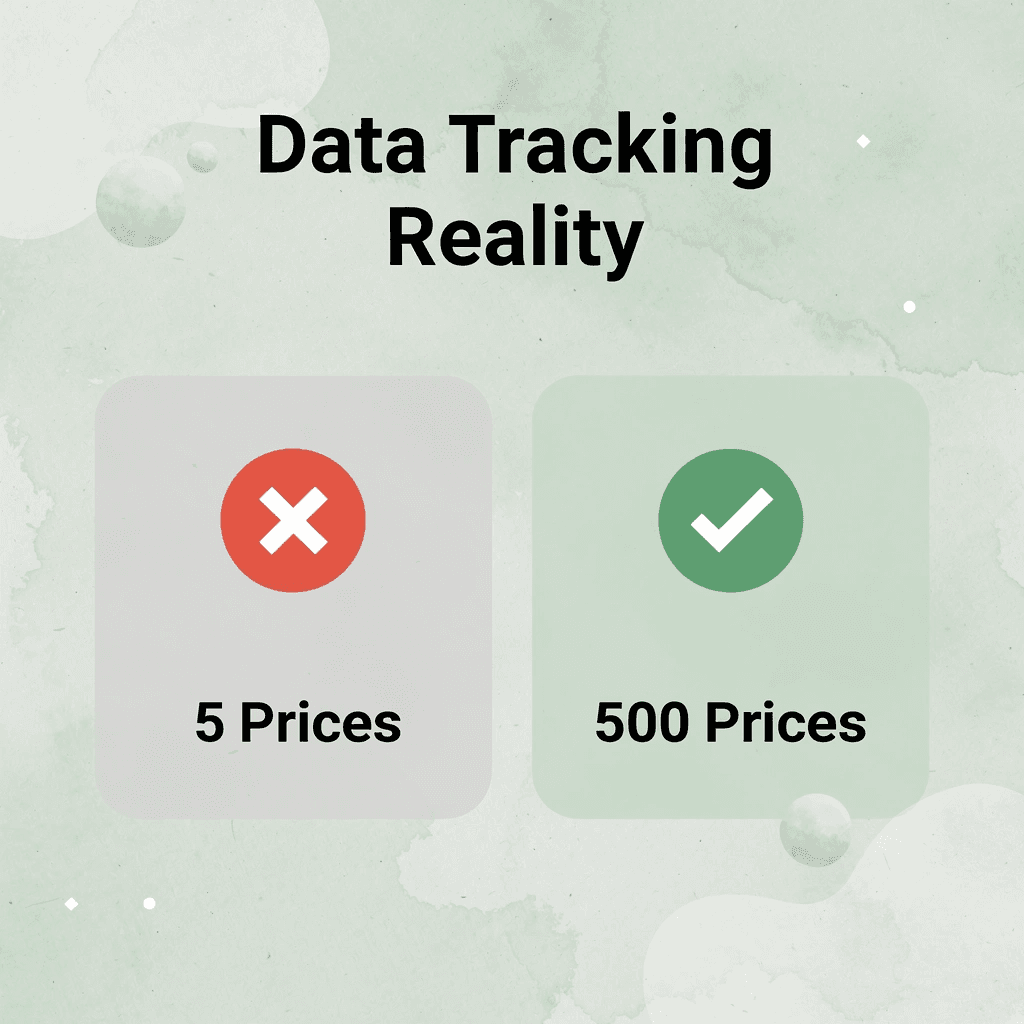
This same problem appears across many industries: marketing analysts examining competitor pricing, researchers collecting job listings, and small business owners checking supplier rates. Each starts with copy-paste and encounters the same obstacle—data grows faster than available time. According to Scrape Talk's Web Scraping Statistics and Trends, over 750,000 Excel users search monthly for ways to bring web data into spreadsheets. This is a widespread work problem, not a niche concern.
Why does volume combined with frequency create the real pressure?
The real pressure is not just about how much data you have, but how often you get it. Collecting data once is a task; collecting the same data weekly from the same sources in the same way is a system. When that system depends entirely on people, every missed update creates a gap in your knowledge. Competitive pricing reports get old. Lead lists fall behind. Market trend data shows last month, not today.
What is the hidden cost of relying on human attention for repetitive data work?
Most teams assign this work to whoever has time, usually the same person building the reports. The hidden cost is not the hour spent copying data, but the interrupted focus, broken workflow, and compounding errors that appear when tired eyes paste numbers into the wrong cells. Tools like Numerous's Spreadsheet AI address this friction by letting users pull, organize, and process web data directly in Google Sheets, keeping the workflow in one place and reducing the mental effort required by manual collection.
Why spreadsheets remain the destination
Spreadsheets are not going anywhere: that's a feature, not a limitation. Scrape Talk's research reports that over 80% of business analysts use Excel as their primary tool for data analysis. Web scraping, whether through built-in Google Sheets functions like IMPORTHTML or automated import solutions, bridges the gap between where data lives online and where decisions get made in spreadsheets. Scraping is not a technical hobby for developers: it's a practical response to a workflow problem that grows quietly until it becomes impossible to ignore. Once you see how much time disappears into manual data collection, the next question becomes harder to sit with.
Related Reading
The Hidden Cost of Collecting Website Data Manually
Manual copy-and-paste grows from a small problem into a bigger structural problem faster than expected. The real cost isn't the time spent copying: it's the growing weight of everything that breaks when data collection can't keep pace with actual needs.
"The real cost of manual data collection isn't measured in hours lost — it's measured in the compounding failures that emerge when your process can't scale."
⚠️ Warning: What starts as a quick workaround becomes a permanent bottleneck that undermines every downstream decision.
🔑 Takeaway: When your data collection process falls behind real demand, you're no longer dealing with a minor inefficiency — you're dealing with a structural risk to your entire workflow.

Where does the time actually go
The failure point is usually invisible until it is not. According to TDWI's research on hidden data costs, employees spend up to 80% of their time on data preparation and cleaning rather than analysis. Manual workflows consume hours that could be spent on meaningful work.
The accuracy problem nobody budgets for
When you copy data by hand, switched numbers, skipped entries, and formatting inconsistencies accumulate until the dataset becomes unreliable without notice. The Spider Strategies Blog on manual KPI reporting reports that manual data entry errors cost businesses $600 billion annually. A complete spreadsheet is not correct. Most teams add a verification step: a second person reviewing entries or periodic audits. This fixes individual errors but not the source. As datasets grow, the verification burden grows proportionally, eventually taking longer than the original collection.
When the spreadsheet becomes the bottleneck
The spreadsheet was supposed to be the solution. When data collection remains manual, it becomes a problem instead. Teams pulling website data into Google Sheets for price tracking, competitor monitoring, or market research find themselves rebuilding the same dataset from scratch each week, lacking an automated refresh to pull updated records into the existing structure. Tools like Numerous change this by positioning the spreadsheet as an active workspace where AI handles repetitive processing, cleaning, and organizing of scraped data at scale, without requiring technical setup or exporting to a separate platform.
Why does outdated data go unnoticed until it causes a problem?
Old data doesn't tell you it's old. A price that changed three days ago looks identical to the current one inside a static spreadsheet. Decisions made on that data fail not because the analyst lacked care, but because the collection workflow couldn't stay current. Automation determines how reliable every downstream decision will be. The methods you choose for getting website data into Excel matter far more than most people realize.
7 Ways to Scrape Data From a Website Into Excel
There are several ways to pull website data into Excel — and not all of them are created equal. According to the Browse AI Blog, there are 7 different methods for scraping data from a website into Excel. These methods range from built-in features to enterprise-grade automation platforms, covering every skill level and use case imaginable.
"These methods range from built-in features to enterprise-grade automation platforms — each solving a different problem for a different user." — Browse AI Blog
🎯 Key Point: Each method solves a different problem — so choosing the wrong one costs you more than just time. Matching your method to your specific use case is essential before you begin.
Method Type | Best For | Skill Level |
|---|---|---|
Built-in Excel Features | Simple, one-time imports | Beginner |
Browser Extensions | Quick scrapes, no coding | Beginner–Intermediate |
Manual Copy & Paste | Small datasets | Beginner |
Power Query | Structured, repeatable pulls | Intermediate |
APIs | Real-time, scalable data | Intermediate–Advanced |
Custom Scripts (Python/JS) | Flexible, complex scraping | Advanced |
Enterprise Automation Platforms | Large-scale, scheduled scraping | Enterprise |
💡 Tip: If you're just getting started, built-in Excel features and browser extensions are the fastest way to get data flowing — no coding required. For high-volume or recurring scraping tasks, investing in an enterprise-grade platform pays off significantly in the long run.
⚠️ Warning: Choosing the wrong scraping method for your needs doesn't just waste time — it can result in broken workflows, incomplete data, and costly rework. Always assess your data volume, frequency, and technical resources before committing to a method.

1. Excel Power Query
Power Query is built into Excel, making it the easiest way for most users to get started. It connects directly to supported websites, imports organized data, and can refresh automatically on a schedule. If your data source stays the same and you want to remain within Excel, Power Query eliminates the need for third-party tools. However, it cannot read JavaScript-rendered or dynamic content, which is where other methods become necessary.
2. ChatGPT
ChatGPT doesn't collect data from websites. Its value lies in summarizing large datasets, generating formulas, cleaning up inconsistent formatting, and explaining patterns that would otherwise require manual interpretation by analysts. It's the thinking layer on top of your data, not the collection layer.
3. Numerous AI
Most teams handle web-scraped data by switching between tools: exporting from a scraper, opening Excel, cleaning rows by hand, then copying results into a report. This switching causes inconsistencies that compound across hundreds of rows. Numerous solve this by bringing AI directly into the spreadsheet, letting you classify, enrich, and summarize scraped data using simple prompts without leaving the grid. Teams working across shared sheets benefit especially, as a single plan covers the whole group, keeping costs predictable as the dataset grows.
4. Octoparse
Many no-code tools fail because they seem easy in demos but require constant updates as website layouts shift. Octoparse handles this better than most, thanks to its visual workflow builder and template library. These tools let non-technical users rebuild a scraping flow in minutes instead of hours. For business users needing organized data from multiple pages without writing code, it is one of the most reliable options available.
5. ParseHub
Some websites load content via JavaScript, require user interactions such as clicking dropdowns or scrolling, and display different HTML to bots than to browsers. ParseHub was built for these situations, using a visual selection interface that works on dynamic pages where simpler tools fail. If your target data is behind an interactive element, ParseHub is worth testing before assuming the site is unscrapeable.
6. Apify
Scraping one page is easy, but scraping thousands reliably on a schedule with clean output is an infrastructure problem that marketing teams and research operations face. Apify addresses this at the platform level, offering ready-made scraping actors for common use cases and the ability to build fully custom workflows. It's the right choice when your data collection needs outgrow what a single desktop tool can handle.
7. Bright Data
Bright Data is built for enterprise-grade reliability where most tools break. Its proxy network and browser automation infrastructure serve organizations that collect large volumes of public web data, where consistency and uptime are non-negotiable. The tradeoff is cost and complexity: wrong for lighter workloads, but essential for teams where data collection is a core business function.
Choosing the right method
More features do not equal better results. A team scraping weekly competitor pricing into a shared Excel sheet does not need enterprise proxy infrastructure. A researcher pulling dynamic content from a government database does not need a cloud automation platform. Matching the tool to the actual constraint produces accurate spreadsheets with less maintenance.
Why does tool complexity create friction instead of results?
The tools that feel most powerful when used alone often create the most problems when they don't fit how your team works. The best scraping setup is the one your team will maintain six months from now, not the one that impressed you in a product demo. Once you know which method fits your situation, the next question is: what does doing this look like step by step in under thirty minutes?
Related Reading
The 30-Minute Workflow to Scrape Data From a Website Into Excel
Thirty minutes is enough time to build something that saves thirty hours—the real promise of a structured scraping workflow, as long as you follow the steps in order.
"Thirty minutes of setup can eliminate thirty hours of manual data collection—making a structured scraping workflow one of the highest-ROI productivity investments you can make."
💡 Tip: Don't skip steps or try to shortcut the process—the order of operations in a scraping workflow is critical to getting clean, usable data in Excel without errors.
⚠️ Warning: Jumping into scraping without a structured plan is the most common mistake beginners make—it leads to messy data, broken imports, and wasted time that defeats the entire purpose of automating the workflow.
Approach | Time Investment | Time Saved |
|---|---|---|
Manual data collection | 30+ hours | None |
Unstructured scraping | 5–10 hours | Minimal |
Structured scraping workflow | 30 minutes | 30+ hours |

Minute 0–5: Define what you actually need
The failure point is almost always the same: people open a scraping tool before defining what they want. Being specific here is the difference between a clean dataset and a spreadsheet full of unused columns. Before touching any tool, answer four questions: What information do you need? Which websites have it? How often does that data change? How will you use the output? A competitor pricing tracker has different update requirements than a one-time research pull on real estate listings.
Minute 5–10: Match the method to the source
Not every website works the same way, and scraping methods handle changing content, split results, and login-protected data differently. Choosing based on existing knowledge rather than actual fit creates long-term problems: tools that work well initially often need constant fixes after websites change their structure.
What's the right question to ask when choosing a scraping tool?
The right question is not "what's the most powerful tool?" but "what's most appropriate for this specific source and update frequency?" For stable, structured HTML tables, Excel's Power Query works cleanly. For JavaScript-heavy pages or recurring bulk pulls, a dedicated web scraping API or cloud-based tool like Octoparse offers greater durability. Match the tool to the data source behavior, not the reverse.
Minute 10–15: Extract with structure in mind
When you run the extraction, you're making decisions about column names, page structure, and how missing values are handled downstream. A poorly named column at extraction becomes confusing in every subsequent report. Review the raw output before moving on. Check for duplicate records, inconsistent formatting, and partial values. The quality of your initial extraction determines cleanup time in the next phase, a hidden cost most tutorials overlook.
Minute 15–20: Import and organize inside your spreadsheet
Once data lands in Excel or Google Sheets, format the table, standardize date fields, remove duplicates, and align text values so filters and formulas work as expected. A well-organized import takes ten minutes; a disorganized one costs you that time every time you run a report.
Why do most teams struggle with manual imports?
Most teams handle this manually, copying and pasting the same columns every week. This slows down analysis and creates problems as datasets grow or require more frequent updates.
How can you clean and enrich data without leaving your spreadsheet?
Tools like Numerous let you clean text fields, sort records, pull structured values from messy strings, and add information to rows directly in Google Sheets or Excel without sending data elsewhere. Working from one shared sheet keeps the process affordable and output consistent.
Minute 20–25: Verify before you trust
According to the Browse AI Blog, setting up a workflow to scrape data from a website into Excel takes around 30 minutes. Unchecked data creates problems rather than saving time. Look for missing records, values outside expected ranges, and extraction artifacts. Catching pattern breaks here takes two minutes; finding them after building a dashboard takes considerably longer and usually involves an uncomfortable conversation.
Minute 25–30: Build for repetition, not just completion
The goal is to have a workflow that runs again next week without having to rebuild it from scratch. Schedule your scraping jobs, save your import templates, and document the source URLs and field mappings you used. You save time by eliminating repetitive steps. Every manual task you automate in this final phase permanently returns time to you.
Before and after, what actually changes
Before a structured workflow, copying data by hand, pasting into a fresh sheet, and cleaning the same columns repeatedly for each update cycle felt like normal work. The inefficiency is hidden in plain sight. After the workflow is set, defined goals drive targeted extraction. Automated jobs push clean data into organized templates. Validation catches errors before they reach reports. Your role shifts from data handler to data analyst: the real outcome that a thirty-minute setup creates. The surprising part is how much clearer your data becomes once the process behind it is deliberate.
Scrape Website Data Into Excel Faster With Numerous
Most Excel users find their biggest problem isn't getting data into the spreadsheet—it's everything that happens after. Cleaning, organizing, summarizing, and preparing data for reports still takes hours when done by hand, even when the data arrives clean. The post-import workflow is where time disappears and where most teams fall behind on reporting cycles.
"Even when data comes in clean, manual cleanup, organization, and summarization can consume hours of valuable time—turning a simple import into a full-day project." — Data Quality Research
💡 Tip: If your team spends more time cleaning data than analyzing it, the problem isn't your data source—it's your post-import process.
A Spreadsheet AI Tool can change this entirely. Numerous works directly inside your spreadsheet and handles the critical work after you import data: cleaning datasets, organizing records, and creating report-ready summaries straight from your instructions—without moving data around or switching between tools. One organized workspace stops repetitive cleanup work from piling up each time new data arrives.
Task | Without Numerous | With Numerous |
|---|---|---|
Dataset Cleaning | Manual, time-consuming | Automated from instructions |
Organizing Records | Done by hand | Handled inside the spreadsheet |
Report Summaries | Built separately | Generated directly in-tool |
Tool Switching | Constant context shifts | Single, unified workspace |
✅ Best Practice: Use Numerous to handle cleanup and summarization immediately after import—so your data is report-ready before you even open a new tab.
If getting website data into Excel still feels slow, Numerous transforms raw, messy imports into clean, actionable datasets without manual work.
🎯 Key Point: The goal is to ensure every dataset you bring in is immediately usable, organized, and ready for real analysis.
⚠️ Warning: Skipping the post-import cleanup step means your reports are only as good as your rawest data—don't let unstructured imports undermine your insights.
