
XPath queries in Google Sheets let users extract specific data points directly from web pages using the IMPORTXML function, eliminating the need for manual copying and pasting. Mastering this approach takes less time than most expect, and the payoff is live, structured data flowing straight into a spreadsheet.
Getting the syntax right is often the biggest hurdle, especially when IMPORTXML returns errors without an obvious explanation. Writing XPath expressions from scratch can slow the process down considerably, which is why tools built for this purpose make a real difference. Numerous has helped many users skip the trial-and-error stage entirely, and their Spreadsheet AI Tool is a practical starting point for anyone who wants accurate queries without the frustration.
Table of Contents
Why Data Analysts Struggle With XPath Queries in Google Sheets
The 20-Minute Workflow to Build XPath Queries in Google Sheets
Summary
XPath queries in Google Sheets allow analysts to extract specific data points directly from web pages using the IMPORTXML function, replacing hours of manual copying and pasting with a formula that automatically retrieves live data. The core challenge is not the spreadsheet itself, but the web, where every site uses a different HTML architecture, and the XPath expression that works on one page is completely useless on the next.
Manual XPath development carries hidden costs that go far beyond the time spent writing syntax. According to research cited across multiple data quality studies, 88% of spreadsheets contain at least one significant error, with manual data entry as the leading cause. When data pipelines rely on hand-built XPath expressions, the error rate becomes a real threat to every report built on those values.
Maintenance, not creation, is where most of the workload actually lives. Analysis from HackerNoon on data pipeline costs found that 80% of pipeline time is spent on cleaning and maintenance rather than analysis. Every XPath query written is effectively a small maintenance contract, and multiplied across multiple sites and reports, the load compounds quickly enough to crowd out the analytical thinking the data was supposed to enable.
Precision in XPath expressions matters more than complexity. A query that uses a single, well-chosen attribute selector will outperform a deeply nested path that breaks the moment a site's HTML shifts by one level. Writing slightly more resilient selectors using functions like
contains()absorbs minor HTML changes without requiring a full rebuild each time a site updates its structure.A structured, sequential workflow separates the stages that require judgment from the mechanical steps that require only consistency. Defining the specific data fields needed before inspecting any HTML, testing the simplest possible expression first, and validating imported values against the live page before they are fed into any report all reduce the chance that a silent failure reaches a dashboard or a stakeholder presentation.
Treating each XPath query as a component in a repeatable system rather than a one-off solution is what separates a dashboard that runs itself from one that breaks every few weeks. Documenting which expression pulls which field, noting the HTML structure it targets, and flagging elements most likely to shift during a site redesign turns a working formula into durable reporting infrastructure.
Numerous's Spreadsheet AI Tool addresses the post-import stage of this workflow by letting analysts categorize, clean, and summarize imported web data using plain-language prompts directly inside Google Sheets, without switching tools or writing custom scripts.
Why Data Analysts Struggle With XPath Queries in Google Sheets
Most data analysts don't struggle with Google Sheets. They struggle with the web. Every webpage has a different structure: different nested divs, tables, and dynamic elements. The XPath query that works on one site doesn't work on the next.
💡 Tip: Before building any scraping workflow, audit the HTML structure of every target site. What works on one page will almost certainly break on another.

"Just three sets of financial figures on a single page required different XPath navigation — that's three separate queries for one page, and most dashboards pull from dozens." — Web Applications Stack Exchange
A data analyst building a competitive pricing tracker might spend an entire hour getting the right XPath for one retailer's product page, only to discover a second retailer uses a completely different HTML structure. According to a Web Applications Stack Exchange question on finding XPath queries for financial data, just three sets of financial figures on a single page required different XPath navigation. That's three separate queries for one page — and most dashboards pull from dozens.
Challenge | Impact on Analysts |
|---|---|
Different HTML structures per site | Must write a unique XPath for every source |
Nested divs and dynamic elements | Queries break without warning |
Multiple data points per page | Requires 3+ separate queries for one page |
Dozens of sources per dashboard | Hours of manual query-writing per project |
⚠️ Warning: Relying on a single XPath query across multiple retailers is one of the most common mistakes analysts make — it creates fragile dashboards that break the moment a site updates its layout.
🔑 Takeaway: The real bottleneck isn't data analysis — it's the time-consuming, site-by-site XPath work that must be done before any analysis can begin.
Where does the real bottleneck in XPath workflows come from?
The bottleneck is never the spreadsheet formula itself. It's the time spent switching between browser developer tools, inspecting HTML structures, writing XPath expressions, pasting them into IMPORTXML formulas, and discovering errors or wrong elements. That cycle repeats—sometimes a dozen times per data point—before the right query is confirmed.
What happens when websites change their HTML structures without warning?
Most teams build libraries of working XPath queries as reusable assets. But websites update their HTML structures without notice, causing IMPORTXML to return nothing or silently return incorrect values—discovered only when a report looks wrong in a meeting. Anomaly AI's Google Sheets Data Analysis Tools 2026 report notes that Google Sheets supports up to 10 million cells per spreadsheet. At that scale, a single broken XPath query can corrupt an entire reporting layer before anyone notices.
How do AI tools reduce the friction of writing XPath queries?
Tools like Numerous's Spreadsheet AI help solve this problem. Instead of manually building XPath expressions through trial and error, the Spreadsheet AI tool lets analysts describe the data they want in plain language and create the correct IMPORTXML formula directly inside Google Sheets. The back-and-forth between developer tools and the spreadsheet becomes one simple step.
The real cost is not the difficulty of XPath itself, but what that difficulty takes away: focus, speed, and confidence that your data is correct.
Related Reading
The Hidden Cost of Building XPath Queries Manually
The real problem isn't the hour you spend testing an IMPORTXML formula against a product page. It's the hours that follow: checking the output, catching silent failures, and rebuilding queries after a site's HTML structure changes. According to the Spider Strategies Blog, 88% of spreadsheets contain at least one error due to manual data entry. When your data pipeline runs through hand-built XPath expressions, that error rate becomes a live threat to every report depending on those values.
"88% of spreadsheets contain at least one error due to manual data entry, making hand-built XPath pipelines a silent liability inside every report they touch." — Spider Strategies Blog
⚠️ Warning: The highest cost of manual XPath isn't the initial build time. It's the compounding maintenance burden each time a site's HTML structure shifts beneath your queries.
🔑 Takeaway: When 88% of spreadsheets carry at least one manual data error, a pipeline built on hand-crafted XPath expressions doesn't risk occasional mistakes—it makes errors statistically inevitable across every downstream report.

Where does the time actually go
The failure point is invisible until a decision has already been made on bad data. An analyst builds a working XPath selector for a competitor's pricing page, confirms it pulls the right nodes, and moves on. Three weeks later, the retailer updates their HTML structure. The IMPORTXML function returns blank cells or old values. The report looks fine. The data isn't. There's no built-in alert when a web scraping formula stops working.
Why does maintaining XPath selectors drain so much time?
Most teams handle this by building a personal library of XPath expressions, copying selectors from browser developer tools, and testing each one individually against the target webpage. Every new URL resets the process, and every website update can invalidate the work already done. Numerous, an AI-powered spreadsheet plugin for Google Sheets, addresses this by letting analysts describe what data they need in plain language rather than constructing and maintaining XPath syntax by hand.
Why does repetition make data pipelines so expensive to maintain?
HackerNoon's analysis on data pipeline costs reports that 80% of data pipeline time is spent on cleaning and maintenance rather than analysis. Every XPath query you write commits you to ongoing maintenance. Multiply that across ten product pages, five competitor sites, and weekly reports: maintenance consumes the time your data was meant to enable for analytical thinking.
What separates a functional data workflow from a fragile one?
The key difference between a data workflow that works well and one that breaks easily is whether the system can handle change without complete rebuilding. A single website restructure shouldn't cause problems requiring an afternoon to fix broken IMPORTXML formulas across a Google Sheets dashboard—yet without a repeatable, organized approach to web data extraction, it does.
Once you understand how much work maintenance requires compared to creation, your approach to building XPath queries in Google Sheets shifts fundamentally.
7 Ways to Use XPath Queries in Google Sheets
XPath queries paired with IMPORTXML pull data directly from webpages into your spreadsheet automatically. Write a query that targets the exact HTML element you need, and Google Sheets retrieves it—no manual copy-paste or endless browser tabs required.
"The combination of XPath and IMPORTXML turns Google Sheets into a fully functional web scraping tool—without writing a single line of traditional code." — Google Sheets Power Users
💡 Tip: You can target any HTML element—headings, prices, links, or metadata—by writing the right XPath expression once and letting Sheets do the heavy lifting automatically.
Method | Effort Required | Best For |
|---|---|---|
Manual Copy-Paste | High — repeated every time | One-off lookups |
IMPORTXML + XPath | Low — write once, auto-updates | Live, recurring data pulls |
Browser Extensions | Medium — setup per site | Non-technical users |
⚠️ Warning: If your XPath query targets the wrong HTML element, Google Sheets will return an error or incorrect data—always validate your query in browser dev tools first.
🎯 Key Point: IMPORTXML + XPath is the fastest way to eliminate manual data collection—one well-written query can replace hours of repetitive copy-paste work every single week.

1. Extract Page Titles
The simplest starting point is =IMPORTXML(url, "//title"), which returns the page title directly into a cell. For data analysts tracking dozens of article pages, product listings, or competitor URLs, this formula replaces manual audits that consumed hours.
2. Import Product Prices
Price monitoring without XPath requires manual visits to competitor pages and spreadsheet entry. XPath targets specific HTML nodes, usually a span or div with a class like product-price, to automate this work and refresh your sheet whenever Google re-fetches the source.
The main failure point is class name specificity. A query like //span[@class="price"] breaks when sites rename classes to product-price-current. Writing stronger queries using contains(), such as //span[contains(@class,"price")], handles minor HTML changes without requiring rebuilds.
3. Collect Hyperlinks
SEO professionals and researchers can pull every outbound link from a resource page or internal link from a site's navigation using the XPath expression //a/@href, which returns all anchor tag URLs in a single IMPORTXML call. This eliminates the need for dedicated crawler tools or manual link audits.
How do teams avoid the multi-tool export process when collecting links?
Most teams collect links by running a separate tool, exporting a CSV file, and pasting it into their sheet. This process consumes hours of work per reporting cycle as the number of pages grows. Tools like numerous let teams describe what they need in plain language directly inside Google Sheets. Our spreadsheet AI tool generates the correct IMPORTXML formula without requiring knowledge of XPath syntax. This keeps the work inside the spreadsheet environment where the analysis happens.
4. Import Tables
Published tables on government sites, financial databases, or research pages are structured data you shouldn't retype. The XPath expression //table//tr gets table rows, and //table//td pulls individual cell values, putting them directly in your sheet, formatted and ready for QUERY or FILTER functions.
According to the OWOX Blog's guide to Google Sheets QUERY, the QUERY function supports up to 10 clauses, including SELECT, WHERE, GROUP BY, and ORDER BY, providing a full analytical layer without leaving the spreadsheet.
5. Monitor Website Changes
Teams often treat IMPORTXML as a one-time import rather than a live connection. When a webpage updates, your formula re-fetches it on the next Google Sheets refresh, making IMPORTXML useful for tracking pages that publish new figures, update product availability, or revise pricing.
Pair the imported value with a timestamp using NOW() and a conditional check to flag when the retrieved value changes from its previous state. This transforms a passive import into an active monitoring layer without external tools.
6. Build Dynamic Dashboards
Dynamic dashboards update automatically when IMPORTXML queries feed directly into cells, so every chart and summary table displays current website data without manual refreshes or version confusion.
The OWOX Blog notes that Google Sheets QUERY uses the Google Visualization API Query Language, with one required parameter and two optional ones, enabling sophisticated filtering logic on raw, imported data without writing code outside the spreadsheet.
7. Combine XPath With Google Sheets Functions
XPath handles extraction; Google Sheets functions handle analysis. For example: IMPORTXML pulls product names from a competitor's catalog, ARRAYFORMULA applies classification rules across every row, and UNIQUE filters duplicates, creating a clean, categorized dataset from live web data.
The same logic applies when combining IMPORTXML with TRIM and SUBSTITUTE to clean strings, or with SORT to rank values. Each function layer adds analytical depth without moving data outside the spreadsheet. The XPath query is the entry point; the formula stack is where reporting happens.
Why the Right Query Matters More Than a Complex One
A common misconception is that better XPath means longer XPath. A query using a single, well-chosen attribute selector outperforms a deeply nested path that breaks when the site's HTML shifts by one level. Precision beats complexity.
How does targeting semantic elements make queries more resilient?
When you write //h1 to grab a page heading, you target the semantic element rather than layout structure. This makes your formula more portable across similar pages and resilient to minor HTML updates.
What makes a query structure hold up as web data changes over time?
The harder problem isn't writing the XPath query itself: it's knowing which of these seven use cases your reporting workflow needs, then building a query structure that withstands changes to underlying web data. A structured, repeatable approach becomes the difference between a self-running dashboard and one that breaks every few weeks.
The 20-Minute Workflow to Build XPath Queries in Google Sheets
Structured workflows beat clever shortcuts. The twenty-minute framework below separates decisions that need judgment from mechanical steps that need consistency.
"The difference between a working XPath query and a broken one is almost never cleverness — it's structured thinking applied consistently." — Web Scraping Best Practices
💡 Tip: Before writing a single XPath expression, spend the first 5 minutes mapping out your data structure — this single habit eliminates the most common query failures.
⚠️ Warning: Skipping the planning phase and jumping straight to writing queries is the #1 mistake that turns a 20-minute workflow into a 2-hour debugging session.
Phase | Task | Time |
|---|---|---|
Planning | Map data structure & identify targets | 5 min |
Building | Write and test XPath expressions | 10 min |
Validation | Check consistency & edge cases | 5 min |
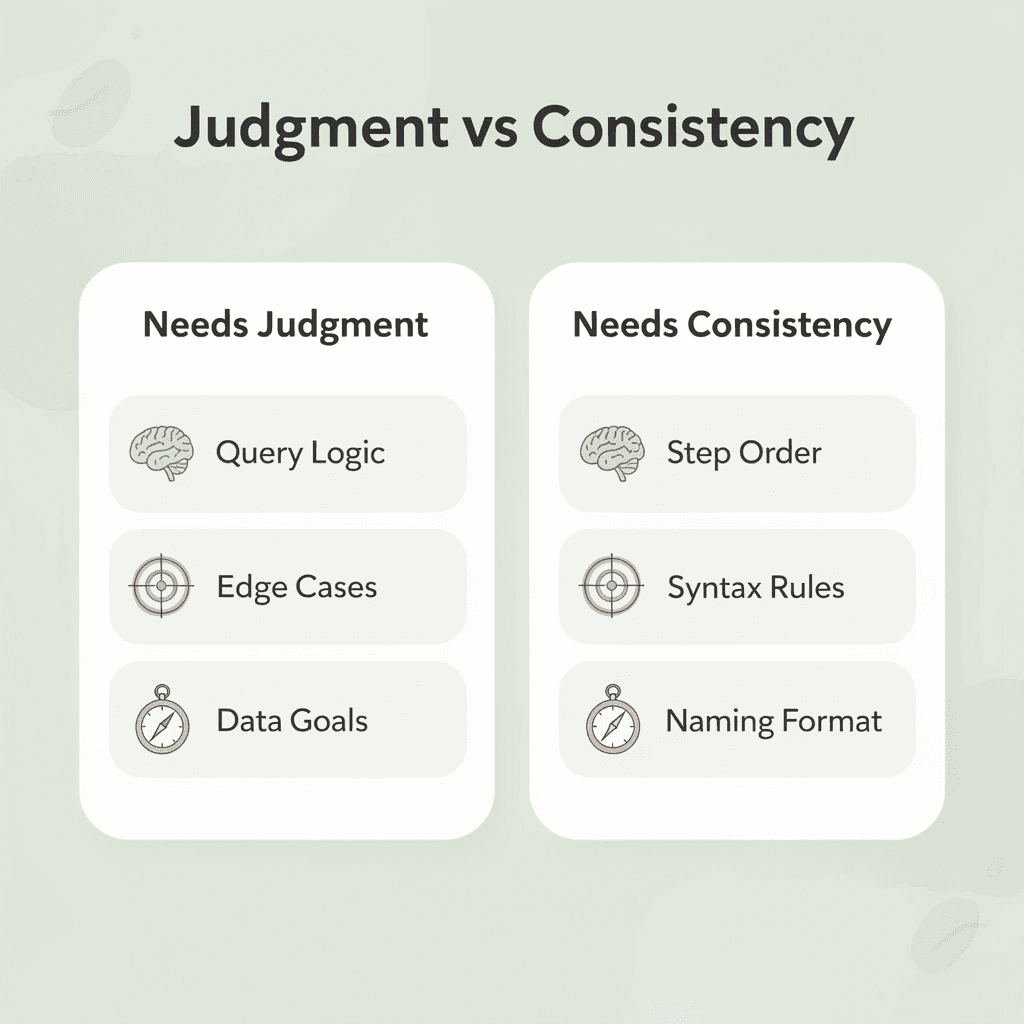
🎯 Key Point: The real power of this framework isn't speed — it's repeatability. Every time you follow the structured workflow, you build muscle memory that makes future queries faster and more reliable.
Minute 0–3 Define Your Data Collection Goal
Before you write a single XPath expression, write down what you need. Not "product data" or "competitor info," but the specific fields: price, stock status, product title, last updated date. That specificity shapes how you build the query. A vague objective produces a vague selector, and a vague selector breaks when the page structure shifts.
The failure point is usually not the XPath syntax—it's in inspecting HTML before deciding how the imported data will be used. If the answer is "a weekly pricing dashboard," you need stable, repeatable values. If it's "one-time research," you have more flexibility. The use case determines the query design.
Minutes 3–6: Inspect the Webpage Structure Before Writing Anything
Open the page, right-click the element you need, and inspect the HTML. Look for consistent patterns: repeated class names, predictable table structures, stable heading hierarchies. Websites built on content management systems often repeat the same HTML patterns across hundreds of pages, so one well-built XPath query can cover the entire site.
Generic class names like product-price or article-title signal intentional consistent styling, making them structurally stable across updates. Reliable queries target semantic, human-readable identifiers; fragile ones target deeply nested elements with auto-generated class names.
Minutes 6–10: Write, Test, and Confirm Your XPath Expression
The IMPORTXML function in Google Sheets takes two arguments: the URL and the XPath query. Write the simplest possible expression first, then test it. If //h1 returns the right heading, you don't need //div[@class="content-wrapper"]/section/h1.
Check the returned values carefully. Missing data usually indicates the XPath is slightly off. Incorrect matches suggest the selector is too broad. Formula errors often point to a URL that requires authentication or returns non-standard HTML structure.
Minute 10–15 Clean and Organize the Imported Data
Raw imported data almost always requires column renaming, duplicate removal, and number formatting before use in a report. Dates scraped from webpages often arrive as plain text strings. Prices frequently include currency symbols that break subsequent math formulas.
Most teams handle this cleanup by hand, cell by cell, each time the data refreshes. Tools like numerous let you run AI-powered cleaning and categorization directly inside Google Sheets using a single formula, so the same spreadsheet that imports your XPath data can also standardize, label, and summarize it without switching tools or writing custom scripts.
Minutes 15–18: Validate Against the Live Webpage
After cleaning, open the original webpage and compare it to what Google Sheets imported. Website HTML changes happen without announcements: a class name gets renamed, a table gets restructured, and your IMPORTXML formula keeps returning the wrong values.
Compare at least three data points between the live page and the spreadsheet: prices, publication dates, and titles. If all three match, the XPath expressions are holding. If one field is off, that selector needs attention before the data feeds into any dashboard or report.
Minutes 18–20: Build the Workflow to Run Itself
The final two minutes ensure the next fifty refreshes require zero manual intervention. Document which XPath expression pulls which field, note the HTML structure it targets, and flag elements most likely to change if the site updates its design.
A repeatable reporting workflow treats each XPath query as a system component rather than a one-off solution. When you build a price tracker, research dataset, or competitive intelligence dashboard this way, the spreadsheet becomes infrastructure that runs, validates, and feeds reports on its own schedule.
What does the workflow actually change before and after?
Before this workflow, the typical pattern unfolded like this: someone needed data, opened a webpage, tried an XPath expression, got an error, tried another, got partial results, copied the rest manually, and repeated the following week. According to a University of Hawaii study cited in multiple data-quality research papers, 88% of spreadsheets contain at least one significant error, with manual data entry as the leading cause.
How does the process invert once the workflow is in place?
After the workflow, the process reverses: define the goal first, examine the HTML intentionally, test the XPath query before trusting it, and clean and check the data before it reaches any report. The workflow doesn't prevent mistakes—it catches them at the right stage, before they compound.
Why does separating planning from execution matter so much?
The most important change is keeping planning separate from doing the work. When you determine what you need before writing XPath expressions, you build selectors that work after page updates, work across different URLs, and fit smoothly into dashboards your stakeholders depend on.
Yet even a perfectly built workflow has one weak spot most people don't discover until it wastes their time.
Related Reading
Build and Manage XPath Workflows Faster With Numerous
That vulnerability is time—specifically, the time spent after data arrives: sorting, labeling, cleaning, and turning raw records into something stakeholders can read. The XPath query gets you the data. What happens next is where most workflows collapse.
"The XPath query gets you the data. What happens next is where most workflows collapse." — Core Insight
⚠️ Warning: A perfectly built XPath selector means nothing if your post-extraction workflow is manual, slow, and impossible to scale. The bottleneck isn't the query—it's everything after it.

Numerous changes this. Most analysts paste imported website data into spreadsheets and manually categorize rows, write formulas, and rebuild reporting structures for each new dataset. Our spreadsheet AI tool lets you run AI directly inside your spreadsheet to categorize competitor pricing, summarize market trends, and generate report-ready insights from a single prompt—without leaving the environment where your XPath queries already live.
Manual Workflow | Numerous AI Workflow |
|---|---|
Paste data, sort rows manually | Run AI directly inside your spreadsheet |
Write formulas from scratch each time | Generate report-ready insights from one prompt |
Rebuild structures per dataset | Repeatable system that scales automatically |
Hours of categorization work | Instant categorization of competitor pricing & trends |
💡 Tip: You don't need to change your environment. Numerous works inside the spreadsheet where your XPath data already lands—making it the zero-friction upgrade to your existing workflow.
The hard part is already solved: you know how to define data goals, inspect HTML structure, and build selectors that hold up. The remaining choice is whether to manually process every dataset or build a repeatable system that handles it automatically. Start with one dataset today and let the structure do the work.
🎯 Key Point: You've mastered the technical skill. The only question is whether your post-extraction workflow matches the quality of your XPath selectors—or holds your entire pipeline back.
