
10 Practical Ways to Automate Google Sheets Without Coding
Riley Walz
Riley Walz
Riley Walz
Jan 15, 2026
Jan 15, 2026
Jan 15, 2026


Routine tasks in Google Sheets, such as repairing formulas, merging duplicates, and manually sending reports, can drain productivity. Automating these processes with Apps Script transforms hassle into efficiency by scheduling tasks, reacting to edits, and linking to other tools. This streamlined approach refocuses efforts from repetitive fixes to more value-driven analysis.
Automation not only minimizes errors but also liberates time for strategic work. By shifting the workload to reliable, automated workflows, manual tasks become a thing of the past. With the Spreadsheet AI Tool from Numerous, users can easily set up data cleaning, time triggers, custom functions, and integrations without any coding.
Summary
Most users equate automation with code, creating a psychological barrier, and over 70% of users report finding Google Sheets automation challenging without coding skills.
Manual data entry is a persistent drain: 60% of businesses spend more than 10 hours per week on manual entry in Google Sheets.
Spreadsheet mismanagement has a measurable business impact: Harvard Business Review estimates that companies lose about 20% of revenue due to spreadsheet inefficiencies.
Adoption is difficult to achieve on your own, as only 25% of companies have successfully implemented Google Sheets automation without external support.
Small, targeted automations deliver significant returns, and companies using AI in Google Sheets report a roughly 30% increase in productivity when repetitive classification is automated.
Simple operational practices reduce risk and build trust. For example, the article recommends a three-row sandbox test, a one-line changelog, and weekly checks of five random rows.
This is where the 'Spreadsheet AI Tool' fits in: it enables in-sheet no-code prompts that mass-categorize rows, surface audit trails, and run quick sandbox tests.
Table of Contents
Why Automating Google Sheets Feels Hard Without Coding
Why Manual Sheet Work Quietly Wastes Time and Creates Errors
10 Practical Ways to Automate Google Sheets Without Coding
How to Start Automating Your Sheets Today
Make Decisions At Scale Through AI With Numerous AI’s Spreadsheet AI Tool
Why Automating Google Sheets Feels Hard Without Coding

You can automate Google Sheets without writing any code. The real problem is psychological; many people think automation means developers and scripts. As a result, they often give up before realizing that built-in tools can do the hard work for them.
Why do people think automation means code?
The answer is simple: the way automation is taught supports this idea. Tutorials, blog posts, and flashy videos present automation as Apps Script, JavaScript, and APIs. This leads non-technical users to overlook that Sheets itself offers reliable automation. During a four-week training program for a mid-market operations team, we observed a clear pattern. They avoided the automation menus, not because they were uninterested, but because every resource they found required coding. This early focus creates a mental block that keeps people stuck doing tasks by hand. Our spreadsheet AI tool can streamline these processes, making automation accessible to users without a coding background.
Why does a broken script scare teams so much?
Broken scripts cause a specific type of damage that feels quiet and personal. I worked with a finance group that copied a colleague’s Apps Script for a monthly import. When an API changed, the script stopped working and didn’t send any error messages. They spent two days making reports by hand and then stopped trusting any automation they didn’t control. That worry is reasonable. Configuration: driven tools fail differently, and our Spreadsheet AI Tool helps mitigate these risks by providing better insights and control over automation. They have clear rules and testable steps, but users mix up one failure type with all kinds of automation.
What counts as automation that most people miss?
Automation includes more than just scheduled jobs or server hooks. Formulas that spill into new rows, QUERY functions that reshape data when needed, dropdown-driven logic, conditional formatting that highlights unusual data, and linked ranges that show updates are all types of automation. Think of it like wiring a house: automatic lights may not seem exciting; they are hidden until the room stays lit even when you're not there. These small, everyday automations can save you hours over the month. To further streamline your processes, consider how our Spreadsheet AI Tool can automate data management.
Why does manual work feel faster right now?
Typing provides instant feedback, and humans prefer immediate results. This preference explains why teams often choose manual edits, even for repetitive tasks. The hidden cost becomes clear when looking at the time spent on routine data entry. According to the Dataslayer Blog (2026), "60% of businesses report spending more than 10 hours a week on manual data entry in Google Sheets." This shows how short-term convenience can lead to significant weekly waste. Although the benefits of automation often come later, it struggles to compete with the illusion of speed in the moment. Our Spreadsheet AI Tool helps streamline these repetitive tasks, saving valuable time.
Where does Sheets hide its most powerful features?
Sheets hides high-leverage tools in menus and complex terminology, making it hard for users to find all available options. Teams that learn only basic functions, such as filters and simple sums, often miss out on more powerful features, including QUERY, advanced pivot techniques, and safe data validation methods. This happens because the documentation typically focuses solely on those features, creating a mental block. Research highlights this problem: Dataslayer Blog (2026), "Over 70% of users find automating Google Sheets challenging without coding skills." This helps explain why skilled users often don't check what’s already there. To streamline this process, our Spreadsheet AI Tool simplifies feature discovery, helping you unlock the full potential of Google Sheets.
What are the consequences of adding manual steps?
Most teams manage tasks by adding manual steps and temporary solutions because this approach feels familiar and easy to use. However, as spreadsheets grow in size, these bandages create significant problems. Issues such as duplicated effort, fragile copy-paste chains, and reports that don't match arise and require constant fixes. Platforms like the Spreadsheet AI Tool offer teams an alternative. They provide no-code connectors, scheduled updates, and secure test environments, allowing users to create repeatable processes, keep the sheet as the source of truth, and reduce report fix time from days to minutes.
How does incremental automation change the workload?
Carrying out routine tasks by hand can be exhausting. With incremental automation, this burden is reduced through small, manageable steps. It protects the shared spreadsheet while restoring trust without requiring a large engineering project. Our Spreadsheet AI Tool simplifies these processes, allowing teams to focus on more strategic tasks.
What is the deeper reason for resistance to automation?
The real reason for this ongoing resistance goes deeper than most people realise.
Related Reading
Why Manual Sheet Work Quietly Wastes Time and Creates Errors

Most people continue to work manually because it feels safer and clearer right now, not because they prefer doing busywork. This feeling of control gives them peace of mind in the short term, but it pushes risks into the future. Mistakes, duplicated efforts, and stalled decisions build up quietly over time.
Why does seeing every keystroke seem trustworthy?
This feeling shows up in small teams and operations groups: watching edits happen provides a clear view of what changed and when, which feels like accountability. However, this visibility comes at a cost; manual edits don’t leave a consistent trail for checking or reversing changes. When teams rely on visual checks, errors can go unnoticed and spread across sheets, resulting in reports that appear correct but are actually incorrect.
What are the real costs when these mistakes pile up?
At a larger scale, the cost isn't just annoying; it is measurable business leakage. For instance, Harvard Business Review reported in 2025 that companies lose 20% of their revenue due to spreadsheet management issues. This number shows how small daily habits can add up to big strategic losses. Such losses underscore why treating spreadsheets as simple checklists is a major executive concern, not just a spreadsheet problem.
Why Does Automation Itself Feel Risky?
The failure mode is predictable: a custom script or fragile formula fails silently when data changes, leaving the team scrambling without a clear way to revert or test. Most breakdowns concern discoverability and ownership, notlogic. Configuration-first tools, like our Spreadsheet AI Tool, show rules and logs, turning failure from a hidden surprise into a clear, fixable event. This change shifts how trust is built: it moves from fearing a black-box script to trusting named rules with tests that can be run.
How do you begin without overhauling everything?
If rewriting processes overnight isn't possible, focus on high-frequency, high-impact checks for automation. Begin with inputs that cause the most problems, such as poor formatting, missing fields, or incorrect dates. Set up one rule that rejects bad rows, one conditional format that highlights mistakes, and one scheduled import that replaces daily copy-paste tasks. Each of these changes can be reversed, is easy to see, and is small enough to test within a week. Consider how our Spreadsheet AI Tool can help identify and correct these common issues more efficiently.
What actually changes within teams when small automations are implemented?
The shift is both behavioural and fast. Repeated fixes stop being daily chores and become exceptions that trigger investigations rather than routine tasks. This reduction in mental load allows team members to focus on analysis rather than just repairing issues. As a result, confidence in shared sheets improves. Over time, this change encourages a culture that shifts from firefighting to actively maintaining clean data. The tools also make errors clear and cheap to fix, as mentioned in the article on AI tools for time management. Additionally, our Spreadsheet AI Tool streamlines data management, enhancing overall team productivity.
Why don’t silent mistakes feel urgent?
Many spreadsheet errors do not cause obvious problems; they simply change a number that still appears correct or alter a row that only shows up weeks later, after a decision has already been made. This invisibility is fragile by design. It explains why teams often accept rework instead of fixing the problem at its source. As a result, both technical controls and behavioural changes are very important.
How can small changes create outsized leverage?
Small changes can create outsized leverage, but the next step is to choose which changes really save time and reduce mistakes. This selection process is where most teams struggle. Leveraging our Spreadsheet AI Tool can help identify which tasks could be automated, saving significant time. A simple question remains: what task would free up an hour of your week if it didn't need to be done?
10 Practical Ways to Automate Google Sheets Without Coding

Treat your spreadsheet like a small, checkable system. Separate raw inputs from changed data, add light barriers to ensure everything is correct, and provide clear visibility so mistakes are visible before they spread. By doing these three things, automations stop being fragile tricks and become reliable operations anyone can manage.
1. Who has access to the sheet?
This is more about people than technology. The usual approach is to grant everyone edit access, which seems quick and easy; however, this choice creates problems and unintentional changes. Assign one person as the owner for each automation, list them on the sheet, and protect the raw-data area so that imports and forms can only write there. The owner should perform two simple tasks: a weekly quick check and a monthly test of any connected import. These habits turn random disasters into planned maintenance.
2. What rules should live beside your data?
Validation and checksum columns are not just for looks; they are contracts. Add a small validation column that shows PASS/FAIL, and include a checksum or hash of the key fields to find silent changes. Use protected helper columns to keep normalized keys: lowercase names, standardized dates, and canonical IDs. Additionally, consider how our Spreadsheet AI tool can help you manage validations efficiently. When a row fails validation, flag it in the reviewer view and prevent other formulas from using it until the issue is resolved. This method shifts guessing into triage, allowing you to spend minutes investigating rather than hours reconciling.
3. How do you test and roll back without drama?
Create a sandbox tab that mirrors the production pipeline and test changes there before applying them to live formulas. Version-controlled snapshots are low-cost; just copy the raw tab, make the change, and run the pivot or QUERY that the team uses for decisions. If the snapshot check is successful, move the change to production and note it in a one-line changelog: who made the change, when, and why. This log will be the first place to check when a number appears incorrect, reducing debugging time from hours to minutes. For projects involving complex data manipulation, consider utilizing our Spreadsheet AI Tool to enhance efficiency.
4. When should you add observability?
You should add observability as soon as your sheet starts to influence decisions. Implement a small status dashboard with five cells at the top. This dashboard should display the last update time, the number of failed rows, and the most recent user who ran a manual sync. Teams that consider the sheet as the source of truth need these three signals more than they need big dashboards. As you implement this, you might also benefit from our Spreadsheet AI Tool, which supports data management and integrity, ensuring your datasets remain reliable and actionable. These signals function like warning lights on a machine, prompting prompt action before customers or executives encounter bad data.
5. What breaks as you scale, and how do you prepare for it?
This pattern shows up regularly in finance and operations. The same issue arises when people copy rows to fix a report: formulas no longer display the correct information, and the copies become inconsistent. The solution is structural, not just cosmetic. To fix this, make raw data append-only, do transformations in a separate sheet, and use IMPORTRANGE or controlled imports for other files. When sharing is important, provide read-only views that pull from the transformed tab. This method preserves auditability while enabling smooth collaboration.
6. Why is the hidden cost of quick paths important?
Most teams choose the quick path because it seems productive, but the hidden cost is the time spent fixing messy inputs and figuring out why pivots broke apart. According to a report from Dataslayer Blog (2026), "Only 25% of companies have successfully implemented Google Sheets automation without external help", the issue is more about how things are done and who is in charge rather than ability. The size of the problem is reflected in the amount of work each week, as Dataslayer Blog (2026) reports: "60% of businesses report spending more than 10 hours a week on manual data entry in Google Sheets." This is time that could be saved if toys and bandages were replaced by a simple approach focused on contracts and visibility, which is exactly what our Spreadsheet AI Tool aims to achieve.
7. Why add a human-in-the-loop rather than fully automate?
Constraint-based thinking helps clarify the decision-making process. If the task requires judgment, it is important to include a checkpoint; if it is deterministic, full automation is the right choice. For example, you can automatically assign a "needs review" tag when confidence is low, and send those entries to a reviewer column with a single click for acceptance or correction. This way, human judgment is used where it matters, while repetitive decisions are automated. Think of it like a factory-quality gate, where an inspector handles only exceptions. Our Spreadsheet AI Tool ensures key decisions receive the necessary human oversight to ensure accuracy and reliability.
8. What's the issue with ad-hoc fixes as stakeholders grow?
Many teams think automation is either very easy or all-or-nothing, which creates confusion. Right now, people often use quick fixes to handle processes because these solutions are easy to see and use. But as more people and data sources are involved, these temporary fixes can hinder workflows and make things more fragile. Tools like the Spreadsheet AI Tool provide a balanced method with connectors that prioritise configuration, scheduled transformations, and clear test sandboxes. This helps teams keep the spreadsheet as the main source of truth and reduces manual check time from days to hours. To tackle these challenges more effectively, consider how our Spreadsheet AI Tool can streamline your data management processes.
9. What analogy helps understand the operational mindset?
A short practical analogy to close this part is to think of raw rows as raw materials. Validation works like inspection, transforms like assembly, and dashboards like the shipping manifest. This assembly-line approach transforms messy spreadsheets into reliable operations.
10. What is the practical obstacle most guides ignore?
The catch is that there is one practical obstacle that most guides ignore. This obstacle changes how fixes should be prioritised. For instance, using our Spreadsheet AI Tool can help effectively prioritise these fixes.
Related Reading
How to Start Automating Your Sheets Today
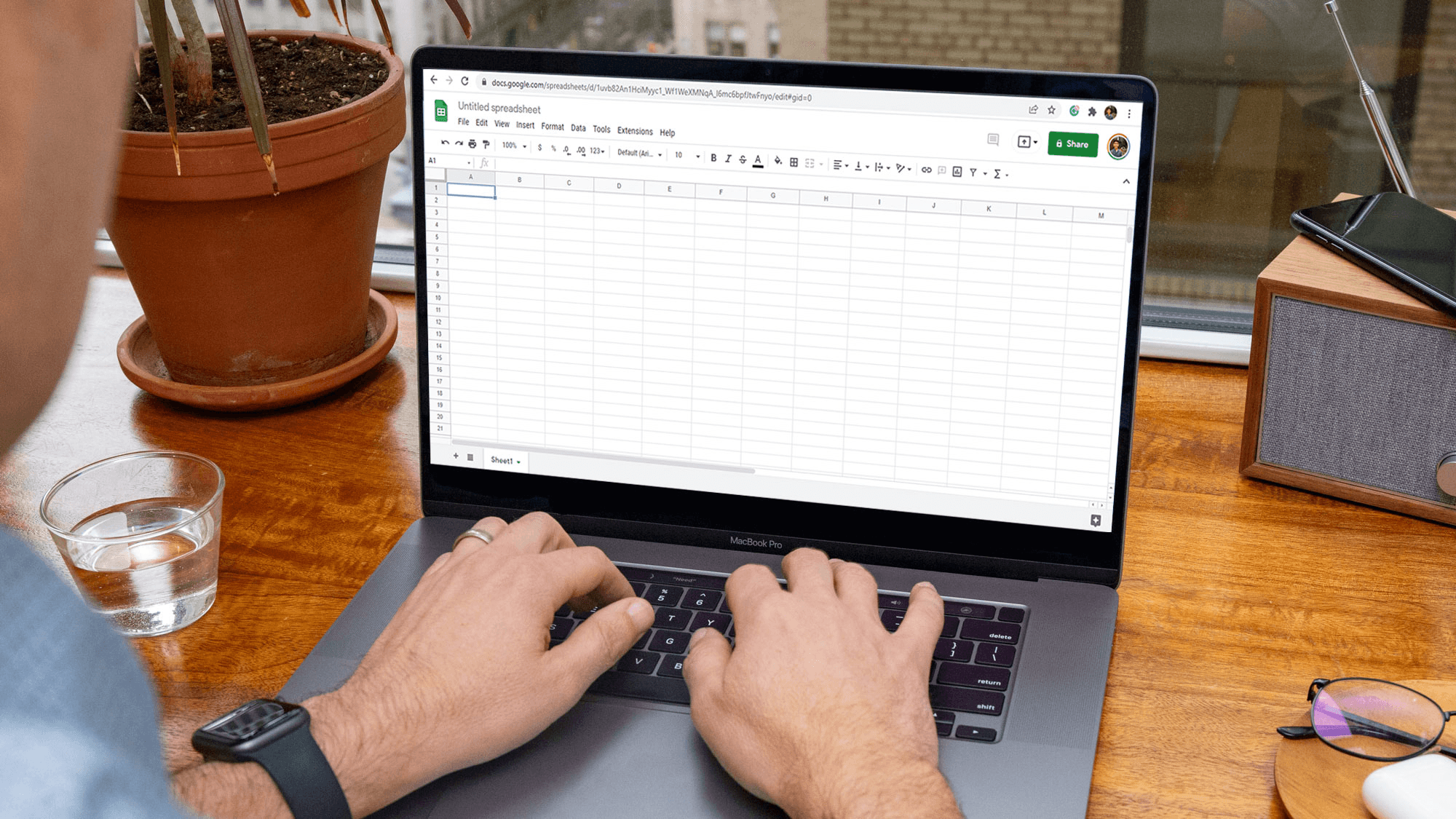
Start by automating one small weekly task. This can lead to immediate benefits, including measurable time savings, fewer errors, and greater confidence to expand your efforts. Choose the task that takes up your mind each Monday, and stop pretending that you need a complete overhaul to make progress. Tools like our spreadsheet AI tool can help you optimise these tasks.
Which single task should you pick first?
Choose the activity that occurs often and requires judgment or cleanup, rather than the rare case. You should rate candidates based on how often they occur, how long each occurrence lasts, and the cost of a mistake. Multiplying the frequency by the number of minutes yields a weekly-hours score. Tasks that score high and can be solved with simple rules usually give the quickest results: think about normalizing product SKUs, standardizing UTM tags, or mapping messy vendor names to standard IDs. Our Spreadsheet AI Tool helps streamline and automate these tasks effectively.
How do you make problems visible instead of hunting for them?
Add lightweight gates that make errors show up. Use conditional formatting and data validation to mark missing IDs, inconsistent formats, and outliers. Include a PASS/FAIL helper column that later formulas ignore until it is fixed. This small investment in visibility pays off. Research shows that 60% of businesses spend more than 10 hours per week on manual data entry in Google Sheets. This means that making problems visible can save entire workdays each week. For more insights, check out the Dataslayer Blog (2026).
How do you replace repeated filtering with a live report?
Create a single-tab view that shows only the important rows using FILTER or QUERY. Include a clear header that shows the last update time and lists any failed rows. Use a small number of helper columns for normalized keys to ensure the view remains stable as the underlying rows change. When the report is used to make decisions, it reduces human error. The view updates automatically, so approvals focus on the data rather than rerunning filters. Additionally, you may find that our Spreadsheet AI Tool enhances your reporting by automating these processes.
When should you lock summaries with pivot tables or calculated fields?
Create a pivot that groups by the dimensions you actually act on. Then, add calculated fields for ratios and growth. Protect the pivot outputs and place them on a dashboard with a changelog cell and a timestamp. This process transforms manual rebuilds into reproducible artifacts and greatly reduces silent errors. The pivot is computed from normalized, validated inputs to ensure reliable results.
When should you bring in Numerous for 'thinking' work?
Pattern recognition is very important. While spreadsheets can automate structure well, they struggle with repeated human judgment. If you find yourself reading a line and deciding on a category, that is the exact moment to use Numerous. Many teams label rows manually because it feels familiar and requires no new tools. However, as work volume increases, this familiarity can create problems: tags get mixed up, category rules break down, and overall consistency erodes.
Platforms like Numerous offer no-code prompts that help categorise data in bulk, fix inconsistent text, and create descriptions directly in cells. This method not only keeps the sheet as the primary source of information but also reduces judgment time from hours to seconds through steady work.
What short test proves the automation is safe?
To ensure the automation is safe, create a sandbox copy and add three synthetic rows to represent edge cases. Then, run the automation and watch the results. If any failures occur, set up a simple "needs review" flag that returns rows to a human queue. This stops bad data from spreading. Keep a one-line changelog, check five random rows every week, and save rollback snapshots of the raw tab. These practices help build psychological trust more reliably than strict, rarely reviewed scripts. Additionally, consider how tools like our Spreadsheet AI Tool can enhance your automation workflow effectively.
How will you measure whether the change mattered?
Track two metrics for four weeks: weekly manual hours saved and the number of downstream fixes. If you automate a judgment task, you can expect a measurable improvement, given the 30% increase in productivity reported by companies using AI tools for Google Sheets automation. This data comes from Blog Le Wagon: "30% increase in productivity reported by companies using AI tools for Google Sheets automation." This serves as a realistic benchmark for what happens when humans stop performing repetitive classification and instead interpret results.
What Practical Prompt Pattern to Use With Numerous?
Write a single prompt that describes the output you want. Include three examples in the same cell, then drag down to apply the prompt. Treat the prompt like a rule, not a magic trick. Provide expected outputs, acceptable synonyms, and a fallback tag for cases where you are not sure. This method ensures the tool never claims confidence it does not actually have.
What is the cost of the status quo?
Most teams continue to fix rows manually because it seems quick and low-risk. However, this way of working doesn't scale well; as more people get involved, there’s more rework, which leads to noisy reports filled with inconsistent tags. Solutions like Numerous help by providing no-code AI that works in the sheet, with visible prompts and audit traces. This lets teams shorten review cycles from hours to minutes while keeping the spreadsheet as the canonical record.
What short habit can lock this in?
Automate one task, run the three-row sandbox test, and schedule a five-minute weekly review. This pattern turns one-off wins into a repeatable routine, helping prevent errors from recurring. Using our Spreadsheet AI Tool simplifies this process, allowing you to focus on what matters most.
What changes about decision speed and risk management?
Numerous is an AI-powered tool that helps content marketers, e-commerce teams, and operations automate repetitive spreadsheet tasks. By just dragging down a cell, users can get organised outputs in seconds. Get started at Numerous.ai and see how “ChatGPT for Spreadsheets” can change boring step-by-step work into consistent, auditable results. This process appears complete at first glance; however, it quickly becomes clear that automation at scale significantly changes how quickly decisions are made and how risks are managed.
Make Decisions At Scale Through AI With Numerous AI’s Spreadsheet AI Tool
Many teams rely on manual edits because this approach seems manageable. However, the small, repetitive tagging and cleanup tasks quietly divert focus and lead to inconsistent results as volume and stakeholder count grow. Platforms like Numerous, a Spreadsheet AI Tool, let users apply no-code prompts directly in a sheet to automate Google Sheets workflows. Users can run quick tests on a few rows and maintain clear audit trails, saving valuable time and building trust without redoing their work. Our Spreadsheet AI Tool simplifies complex data tasks, making it easier to scale your decision-making process.
Related Reading
How to Use Excel for Business
Google Sheets Pull Data From Another Tab Based on Criteria
How to Remove Duplicates in Google Sheets
How to Find Duplicates in Google Sheets
How to Use the Fill Handle in Excel
How to Split Text Into Two Columns in Excel
How to Link a Google Form to a Google Sheet
Routine tasks in Google Sheets, such as repairing formulas, merging duplicates, and manually sending reports, can drain productivity. Automating these processes with Apps Script transforms hassle into efficiency by scheduling tasks, reacting to edits, and linking to other tools. This streamlined approach refocuses efforts from repetitive fixes to more value-driven analysis.
Automation not only minimizes errors but also liberates time for strategic work. By shifting the workload to reliable, automated workflows, manual tasks become a thing of the past. With the Spreadsheet AI Tool from Numerous, users can easily set up data cleaning, time triggers, custom functions, and integrations without any coding.
Summary
Most users equate automation with code, creating a psychological barrier, and over 70% of users report finding Google Sheets automation challenging without coding skills.
Manual data entry is a persistent drain: 60% of businesses spend more than 10 hours per week on manual entry in Google Sheets.
Spreadsheet mismanagement has a measurable business impact: Harvard Business Review estimates that companies lose about 20% of revenue due to spreadsheet inefficiencies.
Adoption is difficult to achieve on your own, as only 25% of companies have successfully implemented Google Sheets automation without external support.
Small, targeted automations deliver significant returns, and companies using AI in Google Sheets report a roughly 30% increase in productivity when repetitive classification is automated.
Simple operational practices reduce risk and build trust. For example, the article recommends a three-row sandbox test, a one-line changelog, and weekly checks of five random rows.
This is where the 'Spreadsheet AI Tool' fits in: it enables in-sheet no-code prompts that mass-categorize rows, surface audit trails, and run quick sandbox tests.
Table of Contents
Why Automating Google Sheets Feels Hard Without Coding
Why Manual Sheet Work Quietly Wastes Time and Creates Errors
10 Practical Ways to Automate Google Sheets Without Coding
How to Start Automating Your Sheets Today
Make Decisions At Scale Through AI With Numerous AI’s Spreadsheet AI Tool
Why Automating Google Sheets Feels Hard Without Coding

You can automate Google Sheets without writing any code. The real problem is psychological; many people think automation means developers and scripts. As a result, they often give up before realizing that built-in tools can do the hard work for them.
Why do people think automation means code?
The answer is simple: the way automation is taught supports this idea. Tutorials, blog posts, and flashy videos present automation as Apps Script, JavaScript, and APIs. This leads non-technical users to overlook that Sheets itself offers reliable automation. During a four-week training program for a mid-market operations team, we observed a clear pattern. They avoided the automation menus, not because they were uninterested, but because every resource they found required coding. This early focus creates a mental block that keeps people stuck doing tasks by hand. Our spreadsheet AI tool can streamline these processes, making automation accessible to users without a coding background.
Why does a broken script scare teams so much?
Broken scripts cause a specific type of damage that feels quiet and personal. I worked with a finance group that copied a colleague’s Apps Script for a monthly import. When an API changed, the script stopped working and didn’t send any error messages. They spent two days making reports by hand and then stopped trusting any automation they didn’t control. That worry is reasonable. Configuration: driven tools fail differently, and our Spreadsheet AI Tool helps mitigate these risks by providing better insights and control over automation. They have clear rules and testable steps, but users mix up one failure type with all kinds of automation.
What counts as automation that most people miss?
Automation includes more than just scheduled jobs or server hooks. Formulas that spill into new rows, QUERY functions that reshape data when needed, dropdown-driven logic, conditional formatting that highlights unusual data, and linked ranges that show updates are all types of automation. Think of it like wiring a house: automatic lights may not seem exciting; they are hidden until the room stays lit even when you're not there. These small, everyday automations can save you hours over the month. To further streamline your processes, consider how our Spreadsheet AI Tool can automate data management.
Why does manual work feel faster right now?
Typing provides instant feedback, and humans prefer immediate results. This preference explains why teams often choose manual edits, even for repetitive tasks. The hidden cost becomes clear when looking at the time spent on routine data entry. According to the Dataslayer Blog (2026), "60% of businesses report spending more than 10 hours a week on manual data entry in Google Sheets." This shows how short-term convenience can lead to significant weekly waste. Although the benefits of automation often come later, it struggles to compete with the illusion of speed in the moment. Our Spreadsheet AI Tool helps streamline these repetitive tasks, saving valuable time.
Where does Sheets hide its most powerful features?
Sheets hides high-leverage tools in menus and complex terminology, making it hard for users to find all available options. Teams that learn only basic functions, such as filters and simple sums, often miss out on more powerful features, including QUERY, advanced pivot techniques, and safe data validation methods. This happens because the documentation typically focuses solely on those features, creating a mental block. Research highlights this problem: Dataslayer Blog (2026), "Over 70% of users find automating Google Sheets challenging without coding skills." This helps explain why skilled users often don't check what’s already there. To streamline this process, our Spreadsheet AI Tool simplifies feature discovery, helping you unlock the full potential of Google Sheets.
What are the consequences of adding manual steps?
Most teams manage tasks by adding manual steps and temporary solutions because this approach feels familiar and easy to use. However, as spreadsheets grow in size, these bandages create significant problems. Issues such as duplicated effort, fragile copy-paste chains, and reports that don't match arise and require constant fixes. Platforms like the Spreadsheet AI Tool offer teams an alternative. They provide no-code connectors, scheduled updates, and secure test environments, allowing users to create repeatable processes, keep the sheet as the source of truth, and reduce report fix time from days to minutes.
How does incremental automation change the workload?
Carrying out routine tasks by hand can be exhausting. With incremental automation, this burden is reduced through small, manageable steps. It protects the shared spreadsheet while restoring trust without requiring a large engineering project. Our Spreadsheet AI Tool simplifies these processes, allowing teams to focus on more strategic tasks.
What is the deeper reason for resistance to automation?
The real reason for this ongoing resistance goes deeper than most people realise.
Related Reading
Why Manual Sheet Work Quietly Wastes Time and Creates Errors

Most people continue to work manually because it feels safer and clearer right now, not because they prefer doing busywork. This feeling of control gives them peace of mind in the short term, but it pushes risks into the future. Mistakes, duplicated efforts, and stalled decisions build up quietly over time.
Why does seeing every keystroke seem trustworthy?
This feeling shows up in small teams and operations groups: watching edits happen provides a clear view of what changed and when, which feels like accountability. However, this visibility comes at a cost; manual edits don’t leave a consistent trail for checking or reversing changes. When teams rely on visual checks, errors can go unnoticed and spread across sheets, resulting in reports that appear correct but are actually incorrect.
What are the real costs when these mistakes pile up?
At a larger scale, the cost isn't just annoying; it is measurable business leakage. For instance, Harvard Business Review reported in 2025 that companies lose 20% of their revenue due to spreadsheet management issues. This number shows how small daily habits can add up to big strategic losses. Such losses underscore why treating spreadsheets as simple checklists is a major executive concern, not just a spreadsheet problem.
Why Does Automation Itself Feel Risky?
The failure mode is predictable: a custom script or fragile formula fails silently when data changes, leaving the team scrambling without a clear way to revert or test. Most breakdowns concern discoverability and ownership, notlogic. Configuration-first tools, like our Spreadsheet AI Tool, show rules and logs, turning failure from a hidden surprise into a clear, fixable event. This change shifts how trust is built: it moves from fearing a black-box script to trusting named rules with tests that can be run.
How do you begin without overhauling everything?
If rewriting processes overnight isn't possible, focus on high-frequency, high-impact checks for automation. Begin with inputs that cause the most problems, such as poor formatting, missing fields, or incorrect dates. Set up one rule that rejects bad rows, one conditional format that highlights mistakes, and one scheduled import that replaces daily copy-paste tasks. Each of these changes can be reversed, is easy to see, and is small enough to test within a week. Consider how our Spreadsheet AI Tool can help identify and correct these common issues more efficiently.
What actually changes within teams when small automations are implemented?
The shift is both behavioural and fast. Repeated fixes stop being daily chores and become exceptions that trigger investigations rather than routine tasks. This reduction in mental load allows team members to focus on analysis rather than just repairing issues. As a result, confidence in shared sheets improves. Over time, this change encourages a culture that shifts from firefighting to actively maintaining clean data. The tools also make errors clear and cheap to fix, as mentioned in the article on AI tools for time management. Additionally, our Spreadsheet AI Tool streamlines data management, enhancing overall team productivity.
Why don’t silent mistakes feel urgent?
Many spreadsheet errors do not cause obvious problems; they simply change a number that still appears correct or alter a row that only shows up weeks later, after a decision has already been made. This invisibility is fragile by design. It explains why teams often accept rework instead of fixing the problem at its source. As a result, both technical controls and behavioural changes are very important.
How can small changes create outsized leverage?
Small changes can create outsized leverage, but the next step is to choose which changes really save time and reduce mistakes. This selection process is where most teams struggle. Leveraging our Spreadsheet AI Tool can help identify which tasks could be automated, saving significant time. A simple question remains: what task would free up an hour of your week if it didn't need to be done?
10 Practical Ways to Automate Google Sheets Without Coding

Treat your spreadsheet like a small, checkable system. Separate raw inputs from changed data, add light barriers to ensure everything is correct, and provide clear visibility so mistakes are visible before they spread. By doing these three things, automations stop being fragile tricks and become reliable operations anyone can manage.
1. Who has access to the sheet?
This is more about people than technology. The usual approach is to grant everyone edit access, which seems quick and easy; however, this choice creates problems and unintentional changes. Assign one person as the owner for each automation, list them on the sheet, and protect the raw-data area so that imports and forms can only write there. The owner should perform two simple tasks: a weekly quick check and a monthly test of any connected import. These habits turn random disasters into planned maintenance.
2. What rules should live beside your data?
Validation and checksum columns are not just for looks; they are contracts. Add a small validation column that shows PASS/FAIL, and include a checksum or hash of the key fields to find silent changes. Use protected helper columns to keep normalized keys: lowercase names, standardized dates, and canonical IDs. Additionally, consider how our Spreadsheet AI tool can help you manage validations efficiently. When a row fails validation, flag it in the reviewer view and prevent other formulas from using it until the issue is resolved. This method shifts guessing into triage, allowing you to spend minutes investigating rather than hours reconciling.
3. How do you test and roll back without drama?
Create a sandbox tab that mirrors the production pipeline and test changes there before applying them to live formulas. Version-controlled snapshots are low-cost; just copy the raw tab, make the change, and run the pivot or QUERY that the team uses for decisions. If the snapshot check is successful, move the change to production and note it in a one-line changelog: who made the change, when, and why. This log will be the first place to check when a number appears incorrect, reducing debugging time from hours to minutes. For projects involving complex data manipulation, consider utilizing our Spreadsheet AI Tool to enhance efficiency.
4. When should you add observability?
You should add observability as soon as your sheet starts to influence decisions. Implement a small status dashboard with five cells at the top. This dashboard should display the last update time, the number of failed rows, and the most recent user who ran a manual sync. Teams that consider the sheet as the source of truth need these three signals more than they need big dashboards. As you implement this, you might also benefit from our Spreadsheet AI Tool, which supports data management and integrity, ensuring your datasets remain reliable and actionable. These signals function like warning lights on a machine, prompting prompt action before customers or executives encounter bad data.
5. What breaks as you scale, and how do you prepare for it?
This pattern shows up regularly in finance and operations. The same issue arises when people copy rows to fix a report: formulas no longer display the correct information, and the copies become inconsistent. The solution is structural, not just cosmetic. To fix this, make raw data append-only, do transformations in a separate sheet, and use IMPORTRANGE or controlled imports for other files. When sharing is important, provide read-only views that pull from the transformed tab. This method preserves auditability while enabling smooth collaboration.
6. Why is the hidden cost of quick paths important?
Most teams choose the quick path because it seems productive, but the hidden cost is the time spent fixing messy inputs and figuring out why pivots broke apart. According to a report from Dataslayer Blog (2026), "Only 25% of companies have successfully implemented Google Sheets automation without external help", the issue is more about how things are done and who is in charge rather than ability. The size of the problem is reflected in the amount of work each week, as Dataslayer Blog (2026) reports: "60% of businesses report spending more than 10 hours a week on manual data entry in Google Sheets." This is time that could be saved if toys and bandages were replaced by a simple approach focused on contracts and visibility, which is exactly what our Spreadsheet AI Tool aims to achieve.
7. Why add a human-in-the-loop rather than fully automate?
Constraint-based thinking helps clarify the decision-making process. If the task requires judgment, it is important to include a checkpoint; if it is deterministic, full automation is the right choice. For example, you can automatically assign a "needs review" tag when confidence is low, and send those entries to a reviewer column with a single click for acceptance or correction. This way, human judgment is used where it matters, while repetitive decisions are automated. Think of it like a factory-quality gate, where an inspector handles only exceptions. Our Spreadsheet AI Tool ensures key decisions receive the necessary human oversight to ensure accuracy and reliability.
8. What's the issue with ad-hoc fixes as stakeholders grow?
Many teams think automation is either very easy or all-or-nothing, which creates confusion. Right now, people often use quick fixes to handle processes because these solutions are easy to see and use. But as more people and data sources are involved, these temporary fixes can hinder workflows and make things more fragile. Tools like the Spreadsheet AI Tool provide a balanced method with connectors that prioritise configuration, scheduled transformations, and clear test sandboxes. This helps teams keep the spreadsheet as the main source of truth and reduces manual check time from days to hours. To tackle these challenges more effectively, consider how our Spreadsheet AI Tool can streamline your data management processes.
9. What analogy helps understand the operational mindset?
A short practical analogy to close this part is to think of raw rows as raw materials. Validation works like inspection, transforms like assembly, and dashboards like the shipping manifest. This assembly-line approach transforms messy spreadsheets into reliable operations.
10. What is the practical obstacle most guides ignore?
The catch is that there is one practical obstacle that most guides ignore. This obstacle changes how fixes should be prioritised. For instance, using our Spreadsheet AI Tool can help effectively prioritise these fixes.
Related Reading
How to Start Automating Your Sheets Today

Start by automating one small weekly task. This can lead to immediate benefits, including measurable time savings, fewer errors, and greater confidence to expand your efforts. Choose the task that takes up your mind each Monday, and stop pretending that you need a complete overhaul to make progress. Tools like our spreadsheet AI tool can help you optimise these tasks.
Which single task should you pick first?
Choose the activity that occurs often and requires judgment or cleanup, rather than the rare case. You should rate candidates based on how often they occur, how long each occurrence lasts, and the cost of a mistake. Multiplying the frequency by the number of minutes yields a weekly-hours score. Tasks that score high and can be solved with simple rules usually give the quickest results: think about normalizing product SKUs, standardizing UTM tags, or mapping messy vendor names to standard IDs. Our Spreadsheet AI Tool helps streamline and automate these tasks effectively.
How do you make problems visible instead of hunting for them?
Add lightweight gates that make errors show up. Use conditional formatting and data validation to mark missing IDs, inconsistent formats, and outliers. Include a PASS/FAIL helper column that later formulas ignore until it is fixed. This small investment in visibility pays off. Research shows that 60% of businesses spend more than 10 hours per week on manual data entry in Google Sheets. This means that making problems visible can save entire workdays each week. For more insights, check out the Dataslayer Blog (2026).
How do you replace repeated filtering with a live report?
Create a single-tab view that shows only the important rows using FILTER or QUERY. Include a clear header that shows the last update time and lists any failed rows. Use a small number of helper columns for normalized keys to ensure the view remains stable as the underlying rows change. When the report is used to make decisions, it reduces human error. The view updates automatically, so approvals focus on the data rather than rerunning filters. Additionally, you may find that our Spreadsheet AI Tool enhances your reporting by automating these processes.
When should you lock summaries with pivot tables or calculated fields?
Create a pivot that groups by the dimensions you actually act on. Then, add calculated fields for ratios and growth. Protect the pivot outputs and place them on a dashboard with a changelog cell and a timestamp. This process transforms manual rebuilds into reproducible artifacts and greatly reduces silent errors. The pivot is computed from normalized, validated inputs to ensure reliable results.
When should you bring in Numerous for 'thinking' work?
Pattern recognition is very important. While spreadsheets can automate structure well, they struggle with repeated human judgment. If you find yourself reading a line and deciding on a category, that is the exact moment to use Numerous. Many teams label rows manually because it feels familiar and requires no new tools. However, as work volume increases, this familiarity can create problems: tags get mixed up, category rules break down, and overall consistency erodes.
Platforms like Numerous offer no-code prompts that help categorise data in bulk, fix inconsistent text, and create descriptions directly in cells. This method not only keeps the sheet as the primary source of information but also reduces judgment time from hours to seconds through steady work.
What short test proves the automation is safe?
To ensure the automation is safe, create a sandbox copy and add three synthetic rows to represent edge cases. Then, run the automation and watch the results. If any failures occur, set up a simple "needs review" flag that returns rows to a human queue. This stops bad data from spreading. Keep a one-line changelog, check five random rows every week, and save rollback snapshots of the raw tab. These practices help build psychological trust more reliably than strict, rarely reviewed scripts. Additionally, consider how tools like our Spreadsheet AI Tool can enhance your automation workflow effectively.
How will you measure whether the change mattered?
Track two metrics for four weeks: weekly manual hours saved and the number of downstream fixes. If you automate a judgment task, you can expect a measurable improvement, given the 30% increase in productivity reported by companies using AI tools for Google Sheets automation. This data comes from Blog Le Wagon: "30% increase in productivity reported by companies using AI tools for Google Sheets automation." This serves as a realistic benchmark for what happens when humans stop performing repetitive classification and instead interpret results.
What Practical Prompt Pattern to Use With Numerous?
Write a single prompt that describes the output you want. Include three examples in the same cell, then drag down to apply the prompt. Treat the prompt like a rule, not a magic trick. Provide expected outputs, acceptable synonyms, and a fallback tag for cases where you are not sure. This method ensures the tool never claims confidence it does not actually have.
What is the cost of the status quo?
Most teams continue to fix rows manually because it seems quick and low-risk. However, this way of working doesn't scale well; as more people get involved, there’s more rework, which leads to noisy reports filled with inconsistent tags. Solutions like Numerous help by providing no-code AI that works in the sheet, with visible prompts and audit traces. This lets teams shorten review cycles from hours to minutes while keeping the spreadsheet as the canonical record.
What short habit can lock this in?
Automate one task, run the three-row sandbox test, and schedule a five-minute weekly review. This pattern turns one-off wins into a repeatable routine, helping prevent errors from recurring. Using our Spreadsheet AI Tool simplifies this process, allowing you to focus on what matters most.
What changes about decision speed and risk management?
Numerous is an AI-powered tool that helps content marketers, e-commerce teams, and operations automate repetitive spreadsheet tasks. By just dragging down a cell, users can get organised outputs in seconds. Get started at Numerous.ai and see how “ChatGPT for Spreadsheets” can change boring step-by-step work into consistent, auditable results. This process appears complete at first glance; however, it quickly becomes clear that automation at scale significantly changes how quickly decisions are made and how risks are managed.
Make Decisions At Scale Through AI With Numerous AI’s Spreadsheet AI Tool
Many teams rely on manual edits because this approach seems manageable. However, the small, repetitive tagging and cleanup tasks quietly divert focus and lead to inconsistent results as volume and stakeholder count grow. Platforms like Numerous, a Spreadsheet AI Tool, let users apply no-code prompts directly in a sheet to automate Google Sheets workflows. Users can run quick tests on a few rows and maintain clear audit trails, saving valuable time and building trust without redoing their work. Our Spreadsheet AI Tool simplifies complex data tasks, making it easier to scale your decision-making process.
Related Reading
How to Use Excel for Business
Google Sheets Pull Data From Another Tab Based on Criteria
How to Remove Duplicates in Google Sheets
How to Find Duplicates in Google Sheets
How to Use the Fill Handle in Excel
How to Split Text Into Two Columns in Excel
How to Link a Google Form to a Google Sheet
Routine tasks in Google Sheets, such as repairing formulas, merging duplicates, and manually sending reports, can drain productivity. Automating these processes with Apps Script transforms hassle into efficiency by scheduling tasks, reacting to edits, and linking to other tools. This streamlined approach refocuses efforts from repetitive fixes to more value-driven analysis.
Automation not only minimizes errors but also liberates time for strategic work. By shifting the workload to reliable, automated workflows, manual tasks become a thing of the past. With the Spreadsheet AI Tool from Numerous, users can easily set up data cleaning, time triggers, custom functions, and integrations without any coding.
Summary
Most users equate automation with code, creating a psychological barrier, and over 70% of users report finding Google Sheets automation challenging without coding skills.
Manual data entry is a persistent drain: 60% of businesses spend more than 10 hours per week on manual entry in Google Sheets.
Spreadsheet mismanagement has a measurable business impact: Harvard Business Review estimates that companies lose about 20% of revenue due to spreadsheet inefficiencies.
Adoption is difficult to achieve on your own, as only 25% of companies have successfully implemented Google Sheets automation without external support.
Small, targeted automations deliver significant returns, and companies using AI in Google Sheets report a roughly 30% increase in productivity when repetitive classification is automated.
Simple operational practices reduce risk and build trust. For example, the article recommends a three-row sandbox test, a one-line changelog, and weekly checks of five random rows.
This is where the 'Spreadsheet AI Tool' fits in: it enables in-sheet no-code prompts that mass-categorize rows, surface audit trails, and run quick sandbox tests.
Table of Contents
Why Automating Google Sheets Feels Hard Without Coding
Why Manual Sheet Work Quietly Wastes Time and Creates Errors
10 Practical Ways to Automate Google Sheets Without Coding
How to Start Automating Your Sheets Today
Make Decisions At Scale Through AI With Numerous AI’s Spreadsheet AI Tool
Why Automating Google Sheets Feels Hard Without Coding

You can automate Google Sheets without writing any code. The real problem is psychological; many people think automation means developers and scripts. As a result, they often give up before realizing that built-in tools can do the hard work for them.
Why do people think automation means code?
The answer is simple: the way automation is taught supports this idea. Tutorials, blog posts, and flashy videos present automation as Apps Script, JavaScript, and APIs. This leads non-technical users to overlook that Sheets itself offers reliable automation. During a four-week training program for a mid-market operations team, we observed a clear pattern. They avoided the automation menus, not because they were uninterested, but because every resource they found required coding. This early focus creates a mental block that keeps people stuck doing tasks by hand. Our spreadsheet AI tool can streamline these processes, making automation accessible to users without a coding background.
Why does a broken script scare teams so much?
Broken scripts cause a specific type of damage that feels quiet and personal. I worked with a finance group that copied a colleague’s Apps Script for a monthly import. When an API changed, the script stopped working and didn’t send any error messages. They spent two days making reports by hand and then stopped trusting any automation they didn’t control. That worry is reasonable. Configuration: driven tools fail differently, and our Spreadsheet AI Tool helps mitigate these risks by providing better insights and control over automation. They have clear rules and testable steps, but users mix up one failure type with all kinds of automation.
What counts as automation that most people miss?
Automation includes more than just scheduled jobs or server hooks. Formulas that spill into new rows, QUERY functions that reshape data when needed, dropdown-driven logic, conditional formatting that highlights unusual data, and linked ranges that show updates are all types of automation. Think of it like wiring a house: automatic lights may not seem exciting; they are hidden until the room stays lit even when you're not there. These small, everyday automations can save you hours over the month. To further streamline your processes, consider how our Spreadsheet AI Tool can automate data management.
Why does manual work feel faster right now?
Typing provides instant feedback, and humans prefer immediate results. This preference explains why teams often choose manual edits, even for repetitive tasks. The hidden cost becomes clear when looking at the time spent on routine data entry. According to the Dataslayer Blog (2026), "60% of businesses report spending more than 10 hours a week on manual data entry in Google Sheets." This shows how short-term convenience can lead to significant weekly waste. Although the benefits of automation often come later, it struggles to compete with the illusion of speed in the moment. Our Spreadsheet AI Tool helps streamline these repetitive tasks, saving valuable time.
Where does Sheets hide its most powerful features?
Sheets hides high-leverage tools in menus and complex terminology, making it hard for users to find all available options. Teams that learn only basic functions, such as filters and simple sums, often miss out on more powerful features, including QUERY, advanced pivot techniques, and safe data validation methods. This happens because the documentation typically focuses solely on those features, creating a mental block. Research highlights this problem: Dataslayer Blog (2026), "Over 70% of users find automating Google Sheets challenging without coding skills." This helps explain why skilled users often don't check what’s already there. To streamline this process, our Spreadsheet AI Tool simplifies feature discovery, helping you unlock the full potential of Google Sheets.
What are the consequences of adding manual steps?
Most teams manage tasks by adding manual steps and temporary solutions because this approach feels familiar and easy to use. However, as spreadsheets grow in size, these bandages create significant problems. Issues such as duplicated effort, fragile copy-paste chains, and reports that don't match arise and require constant fixes. Platforms like the Spreadsheet AI Tool offer teams an alternative. They provide no-code connectors, scheduled updates, and secure test environments, allowing users to create repeatable processes, keep the sheet as the source of truth, and reduce report fix time from days to minutes.
How does incremental automation change the workload?
Carrying out routine tasks by hand can be exhausting. With incremental automation, this burden is reduced through small, manageable steps. It protects the shared spreadsheet while restoring trust without requiring a large engineering project. Our Spreadsheet AI Tool simplifies these processes, allowing teams to focus on more strategic tasks.
What is the deeper reason for resistance to automation?
The real reason for this ongoing resistance goes deeper than most people realise.
Related Reading
Why Manual Sheet Work Quietly Wastes Time and Creates Errors

Most people continue to work manually because it feels safer and clearer right now, not because they prefer doing busywork. This feeling of control gives them peace of mind in the short term, but it pushes risks into the future. Mistakes, duplicated efforts, and stalled decisions build up quietly over time.
Why does seeing every keystroke seem trustworthy?
This feeling shows up in small teams and operations groups: watching edits happen provides a clear view of what changed and when, which feels like accountability. However, this visibility comes at a cost; manual edits don’t leave a consistent trail for checking or reversing changes. When teams rely on visual checks, errors can go unnoticed and spread across sheets, resulting in reports that appear correct but are actually incorrect.
What are the real costs when these mistakes pile up?
At a larger scale, the cost isn't just annoying; it is measurable business leakage. For instance, Harvard Business Review reported in 2025 that companies lose 20% of their revenue due to spreadsheet management issues. This number shows how small daily habits can add up to big strategic losses. Such losses underscore why treating spreadsheets as simple checklists is a major executive concern, not just a spreadsheet problem.
Why Does Automation Itself Feel Risky?
The failure mode is predictable: a custom script or fragile formula fails silently when data changes, leaving the team scrambling without a clear way to revert or test. Most breakdowns concern discoverability and ownership, notlogic. Configuration-first tools, like our Spreadsheet AI Tool, show rules and logs, turning failure from a hidden surprise into a clear, fixable event. This change shifts how trust is built: it moves from fearing a black-box script to trusting named rules with tests that can be run.
How do you begin without overhauling everything?
If rewriting processes overnight isn't possible, focus on high-frequency, high-impact checks for automation. Begin with inputs that cause the most problems, such as poor formatting, missing fields, or incorrect dates. Set up one rule that rejects bad rows, one conditional format that highlights mistakes, and one scheduled import that replaces daily copy-paste tasks. Each of these changes can be reversed, is easy to see, and is small enough to test within a week. Consider how our Spreadsheet AI Tool can help identify and correct these common issues more efficiently.
What actually changes within teams when small automations are implemented?
The shift is both behavioural and fast. Repeated fixes stop being daily chores and become exceptions that trigger investigations rather than routine tasks. This reduction in mental load allows team members to focus on analysis rather than just repairing issues. As a result, confidence in shared sheets improves. Over time, this change encourages a culture that shifts from firefighting to actively maintaining clean data. The tools also make errors clear and cheap to fix, as mentioned in the article on AI tools for time management. Additionally, our Spreadsheet AI Tool streamlines data management, enhancing overall team productivity.
Why don’t silent mistakes feel urgent?
Many spreadsheet errors do not cause obvious problems; they simply change a number that still appears correct or alter a row that only shows up weeks later, after a decision has already been made. This invisibility is fragile by design. It explains why teams often accept rework instead of fixing the problem at its source. As a result, both technical controls and behavioural changes are very important.
How can small changes create outsized leverage?
Small changes can create outsized leverage, but the next step is to choose which changes really save time and reduce mistakes. This selection process is where most teams struggle. Leveraging our Spreadsheet AI Tool can help identify which tasks could be automated, saving significant time. A simple question remains: what task would free up an hour of your week if it didn't need to be done?
10 Practical Ways to Automate Google Sheets Without Coding

Treat your spreadsheet like a small, checkable system. Separate raw inputs from changed data, add light barriers to ensure everything is correct, and provide clear visibility so mistakes are visible before they spread. By doing these three things, automations stop being fragile tricks and become reliable operations anyone can manage.
1. Who has access to the sheet?
This is more about people than technology. The usual approach is to grant everyone edit access, which seems quick and easy; however, this choice creates problems and unintentional changes. Assign one person as the owner for each automation, list them on the sheet, and protect the raw-data area so that imports and forms can only write there. The owner should perform two simple tasks: a weekly quick check and a monthly test of any connected import. These habits turn random disasters into planned maintenance.
2. What rules should live beside your data?
Validation and checksum columns are not just for looks; they are contracts. Add a small validation column that shows PASS/FAIL, and include a checksum or hash of the key fields to find silent changes. Use protected helper columns to keep normalized keys: lowercase names, standardized dates, and canonical IDs. Additionally, consider how our Spreadsheet AI tool can help you manage validations efficiently. When a row fails validation, flag it in the reviewer view and prevent other formulas from using it until the issue is resolved. This method shifts guessing into triage, allowing you to spend minutes investigating rather than hours reconciling.
3. How do you test and roll back without drama?
Create a sandbox tab that mirrors the production pipeline and test changes there before applying them to live formulas. Version-controlled snapshots are low-cost; just copy the raw tab, make the change, and run the pivot or QUERY that the team uses for decisions. If the snapshot check is successful, move the change to production and note it in a one-line changelog: who made the change, when, and why. This log will be the first place to check when a number appears incorrect, reducing debugging time from hours to minutes. For projects involving complex data manipulation, consider utilizing our Spreadsheet AI Tool to enhance efficiency.
4. When should you add observability?
You should add observability as soon as your sheet starts to influence decisions. Implement a small status dashboard with five cells at the top. This dashboard should display the last update time, the number of failed rows, and the most recent user who ran a manual sync. Teams that consider the sheet as the source of truth need these three signals more than they need big dashboards. As you implement this, you might also benefit from our Spreadsheet AI Tool, which supports data management and integrity, ensuring your datasets remain reliable and actionable. These signals function like warning lights on a machine, prompting prompt action before customers or executives encounter bad data.
5. What breaks as you scale, and how do you prepare for it?
This pattern shows up regularly in finance and operations. The same issue arises when people copy rows to fix a report: formulas no longer display the correct information, and the copies become inconsistent. The solution is structural, not just cosmetic. To fix this, make raw data append-only, do transformations in a separate sheet, and use IMPORTRANGE or controlled imports for other files. When sharing is important, provide read-only views that pull from the transformed tab. This method preserves auditability while enabling smooth collaboration.
6. Why is the hidden cost of quick paths important?
Most teams choose the quick path because it seems productive, but the hidden cost is the time spent fixing messy inputs and figuring out why pivots broke apart. According to a report from Dataslayer Blog (2026), "Only 25% of companies have successfully implemented Google Sheets automation without external help", the issue is more about how things are done and who is in charge rather than ability. The size of the problem is reflected in the amount of work each week, as Dataslayer Blog (2026) reports: "60% of businesses report spending more than 10 hours a week on manual data entry in Google Sheets." This is time that could be saved if toys and bandages were replaced by a simple approach focused on contracts and visibility, which is exactly what our Spreadsheet AI Tool aims to achieve.
7. Why add a human-in-the-loop rather than fully automate?
Constraint-based thinking helps clarify the decision-making process. If the task requires judgment, it is important to include a checkpoint; if it is deterministic, full automation is the right choice. For example, you can automatically assign a "needs review" tag when confidence is low, and send those entries to a reviewer column with a single click for acceptance or correction. This way, human judgment is used where it matters, while repetitive decisions are automated. Think of it like a factory-quality gate, where an inspector handles only exceptions. Our Spreadsheet AI Tool ensures key decisions receive the necessary human oversight to ensure accuracy and reliability.
8. What's the issue with ad-hoc fixes as stakeholders grow?
Many teams think automation is either very easy or all-or-nothing, which creates confusion. Right now, people often use quick fixes to handle processes because these solutions are easy to see and use. But as more people and data sources are involved, these temporary fixes can hinder workflows and make things more fragile. Tools like the Spreadsheet AI Tool provide a balanced method with connectors that prioritise configuration, scheduled transformations, and clear test sandboxes. This helps teams keep the spreadsheet as the main source of truth and reduces manual check time from days to hours. To tackle these challenges more effectively, consider how our Spreadsheet AI Tool can streamline your data management processes.
9. What analogy helps understand the operational mindset?
A short practical analogy to close this part is to think of raw rows as raw materials. Validation works like inspection, transforms like assembly, and dashboards like the shipping manifest. This assembly-line approach transforms messy spreadsheets into reliable operations.
10. What is the practical obstacle most guides ignore?
The catch is that there is one practical obstacle that most guides ignore. This obstacle changes how fixes should be prioritised. For instance, using our Spreadsheet AI Tool can help effectively prioritise these fixes.
Related Reading
How to Start Automating Your Sheets Today

Start by automating one small weekly task. This can lead to immediate benefits, including measurable time savings, fewer errors, and greater confidence to expand your efforts. Choose the task that takes up your mind each Monday, and stop pretending that you need a complete overhaul to make progress. Tools like our spreadsheet AI tool can help you optimise these tasks.
Which single task should you pick first?
Choose the activity that occurs often and requires judgment or cleanup, rather than the rare case. You should rate candidates based on how often they occur, how long each occurrence lasts, and the cost of a mistake. Multiplying the frequency by the number of minutes yields a weekly-hours score. Tasks that score high and can be solved with simple rules usually give the quickest results: think about normalizing product SKUs, standardizing UTM tags, or mapping messy vendor names to standard IDs. Our Spreadsheet AI Tool helps streamline and automate these tasks effectively.
How do you make problems visible instead of hunting for them?
Add lightweight gates that make errors show up. Use conditional formatting and data validation to mark missing IDs, inconsistent formats, and outliers. Include a PASS/FAIL helper column that later formulas ignore until it is fixed. This small investment in visibility pays off. Research shows that 60% of businesses spend more than 10 hours per week on manual data entry in Google Sheets. This means that making problems visible can save entire workdays each week. For more insights, check out the Dataslayer Blog (2026).
How do you replace repeated filtering with a live report?
Create a single-tab view that shows only the important rows using FILTER or QUERY. Include a clear header that shows the last update time and lists any failed rows. Use a small number of helper columns for normalized keys to ensure the view remains stable as the underlying rows change. When the report is used to make decisions, it reduces human error. The view updates automatically, so approvals focus on the data rather than rerunning filters. Additionally, you may find that our Spreadsheet AI Tool enhances your reporting by automating these processes.
When should you lock summaries with pivot tables or calculated fields?
Create a pivot that groups by the dimensions you actually act on. Then, add calculated fields for ratios and growth. Protect the pivot outputs and place them on a dashboard with a changelog cell and a timestamp. This process transforms manual rebuilds into reproducible artifacts and greatly reduces silent errors. The pivot is computed from normalized, validated inputs to ensure reliable results.
When should you bring in Numerous for 'thinking' work?
Pattern recognition is very important. While spreadsheets can automate structure well, they struggle with repeated human judgment. If you find yourself reading a line and deciding on a category, that is the exact moment to use Numerous. Many teams label rows manually because it feels familiar and requires no new tools. However, as work volume increases, this familiarity can create problems: tags get mixed up, category rules break down, and overall consistency erodes.
Platforms like Numerous offer no-code prompts that help categorise data in bulk, fix inconsistent text, and create descriptions directly in cells. This method not only keeps the sheet as the primary source of information but also reduces judgment time from hours to seconds through steady work.
What short test proves the automation is safe?
To ensure the automation is safe, create a sandbox copy and add three synthetic rows to represent edge cases. Then, run the automation and watch the results. If any failures occur, set up a simple "needs review" flag that returns rows to a human queue. This stops bad data from spreading. Keep a one-line changelog, check five random rows every week, and save rollback snapshots of the raw tab. These practices help build psychological trust more reliably than strict, rarely reviewed scripts. Additionally, consider how tools like our Spreadsheet AI Tool can enhance your automation workflow effectively.
How will you measure whether the change mattered?
Track two metrics for four weeks: weekly manual hours saved and the number of downstream fixes. If you automate a judgment task, you can expect a measurable improvement, given the 30% increase in productivity reported by companies using AI tools for Google Sheets automation. This data comes from Blog Le Wagon: "30% increase in productivity reported by companies using AI tools for Google Sheets automation." This serves as a realistic benchmark for what happens when humans stop performing repetitive classification and instead interpret results.
What Practical Prompt Pattern to Use With Numerous?
Write a single prompt that describes the output you want. Include three examples in the same cell, then drag down to apply the prompt. Treat the prompt like a rule, not a magic trick. Provide expected outputs, acceptable synonyms, and a fallback tag for cases where you are not sure. This method ensures the tool never claims confidence it does not actually have.
What is the cost of the status quo?
Most teams continue to fix rows manually because it seems quick and low-risk. However, this way of working doesn't scale well; as more people get involved, there’s more rework, which leads to noisy reports filled with inconsistent tags. Solutions like Numerous help by providing no-code AI that works in the sheet, with visible prompts and audit traces. This lets teams shorten review cycles from hours to minutes while keeping the spreadsheet as the canonical record.
What short habit can lock this in?
Automate one task, run the three-row sandbox test, and schedule a five-minute weekly review. This pattern turns one-off wins into a repeatable routine, helping prevent errors from recurring. Using our Spreadsheet AI Tool simplifies this process, allowing you to focus on what matters most.
What changes about decision speed and risk management?
Numerous is an AI-powered tool that helps content marketers, e-commerce teams, and operations automate repetitive spreadsheet tasks. By just dragging down a cell, users can get organised outputs in seconds. Get started at Numerous.ai and see how “ChatGPT for Spreadsheets” can change boring step-by-step work into consistent, auditable results. This process appears complete at first glance; however, it quickly becomes clear that automation at scale significantly changes how quickly decisions are made and how risks are managed.
Make Decisions At Scale Through AI With Numerous AI’s Spreadsheet AI Tool
Many teams rely on manual edits because this approach seems manageable. However, the small, repetitive tagging and cleanup tasks quietly divert focus and lead to inconsistent results as volume and stakeholder count grow. Platforms like Numerous, a Spreadsheet AI Tool, let users apply no-code prompts directly in a sheet to automate Google Sheets workflows. Users can run quick tests on a few rows and maintain clear audit trails, saving valuable time and building trust without redoing their work. Our Spreadsheet AI Tool simplifies complex data tasks, making it easier to scale your decision-making process.
Related Reading
How to Use Excel for Business
Google Sheets Pull Data From Another Tab Based on Criteria
How to Remove Duplicates in Google Sheets
How to Find Duplicates in Google Sheets
How to Use the Fill Handle in Excel
How to Split Text Into Two Columns in Excel
How to Link a Google Form to a Google Sheet
© 2025 Numerous. All rights reserved.