
10 VBA Sheet Activation Shortcuts to Speed Up Reports in 5 Minutes
Riley Walz
Riley Walz
Riley Walz
Jan 14, 2026
Jan 14, 2026
Jan 14, 2026


Switching between sheets can slow report generation, whether working in Excel with VBA or using cloud-based scripts. Efficient sheet activation methods—such as the Activate method, Worksheets('SheetName'). Activate, ActiveSheet, and Application. Goto—helps reduce delays. Practical techniques also demonstrate how to use Apps Script in Google Sheets to improve navigation and reduce manual effort.
Clear distinctions between select and activate functions help users avoid common pitfalls when navigating workbooks, with an emphasis on keyboard-friendly shortcuts and macros. Numerous's solution, Spreadsheet AI Tool, provides ready code snippets, smart navigation suggestions, and automation examples to streamline report generation and enhance overall workflow.
Summary
Recorded macro habits produce Select and Activate patterns that tie code to the UI, which becomes brittle in real reports, especially when macros hop between 10 to 30 sheets, and a single renamed tab can silently misroute data.
Using Activate incurs measurable costs: Activate-based macros run about 30% slower, while refactored, direct-object code can run up to 2x faster.
UI-dependent scripts and single-cell loops drive latency and quota usage, with teams seeing up to a 30% increase in report generation time and hundreds of small API calls eliminated by batching reads and writes.
Concurrency and silent misreports are common, so serialize critical sections with LockService, store shared state outside the active cell, and use metrics such as execution seconds and API write counts to aim to reduce silent misreports to zero over two billing cycles.
Small, deliberate refactors pay off quickly: applying focused activation shortcuts takes about 5 minutes, and a careful, staged refactor can be completed in under an hour with a dry-run flag and incremental commits.
Rollout and testing should be incremental and fast, use a canary on a small slice, keep a 48-hour staging owner, and design change sets that can be reviewed and validated within 15 minutes to enable quick rollback on any failed smoke test.
This is where the Spreadsheet AI Tool fits in, providing ready code snippets, batch update patterns, and audit-friendly automation that reduce UI-dependent calls and shorten debugging cycles.
Table of Conetnts
Why Activating Sheets in VBA Feels Harder Than It Should
Why Sticking With “Activate/Select Everywhere” Quietly Wrecks Your Reports
10 VBA Sheet Activation Shortcuts That Actually Speed Up Reports
How to Apply These Shortcuts in 5 Minutes
Make Decisions At Scale Through AI With Numerous AI’s Spreadsheet AI Tool
Why Activating Sheets in VBA Feels Harder Than It Should

Activating sheets in VBA is easy; the issue is not with the Activate command itself, but with the bad habits many people pick up from recorded macros. These habits can break when the workbook changes. The Activate pattern can be challenging because it links your code to the user interface and relies on assumptions about which workbook or sheet will be active when the code runs.
Why do recorded macros teach the wrong pattern?
When you use the recorder, Excel converts your clicks into code, such as Sheets("Sheet1"). Select and Range("A1"). Select. This trains you to equate selection with action. The recorder's output is easy to copy into projects, so many beginners create fragile macros across finance and operations teams. This pattern works correctly once, but fails when a sheet is renamed or another workbook is opened. Suddenly, a "working" macro edits the wrong file. It can be frustrating because the error is not visible until the report reaches a manager's desk.
How does workbook focus cause silent failures?
Workbook focus can lead to silent failures during automation tasks. Activate and Select depend on the active workbook and window. If a user clicks another file while a macro is running or if your macro opens a dialog, Excel can shift focus. Although the code will still run, it may do so in the wrong context. This is why real automation should treat Worksheet and Workbook objects as clear targets rather than relying on UI proxies. The failure mode is predictable: everything looks fine in the editor, yet results appear incorrect in production. Tracebacks rarely point directly to the assumption of activation, which can lead to confusion. To help streamline your processes, consider our Spreadsheet AI Tool, which enhances automation efficiency.
Does activating sheets actually hurt performance?
Yes, and there is hard evidence that the cost is not only conceptual. The Stack Overflow note "Using 'Activate' in VBA can slow down execution by 30% compared to direct cell referencing." (Stack Overflow, 2023) shows that the runtime penalty is real and activation is more than just a styling choice. Likewise, "Macros that avoid sheet activation can run 2x faster." (Stack Overflow, 2023) shows the actual speed gains you get when you reference objects directly. This helps explain why users see screen flicker and have to wait a long time when a macro switches between 10 to 30 sheets.
Why does this break more in real reports than in toy examples?
Real workbooks change over time. Tabs are often renamed, and templates may add additional sheets. Team members frequently add "Final" to names, which makes things harder. Code that uses fixed indices or depends on what you see on the screen fails when used widely. This often occurs in month-end reporting and when assembling models. For example, a macro might work fine in February, but when March comes, and a sheet is renamed, the process might quietly lose track of data. The emotional effects can be significant: teams begin to distrust automation, and instead of focusing on analysis, they spend time fixing name errors and misplaced formulas.
How do you stop confusing activation with work?
To avoid conflating activation with work, think of Worksheets and Ranges as objects you can address directly. Use With blocks, fully qualified references, and set Worksheet variables at the start of the routine. This way, the macro can make edits without changing the UI. Consider using Select and Activate as you would a keyboard shortcut: this method relies on the file's physical location, whereas calling it by name in code is consistent. To streamline integration, our Spreadsheet AI Tool simplifies these processes and enhances your automation experience.
Why do teams rely on the recorder despite downsides?
Most teams rely on the recorder because it allows for a quick start. This makes sense in the early stages. However, as project complexity increases, this approach can lead to hidden costs: unpredictable edits, slow runtimes, and fragile maintenance. Solutions such as the Spreadsheet AI Tool automate bulk worksheet operations without requiring UI interaction. They maintain explicit object references and audit logs, which significantly reduces the time engineers spend debugging name and focus errors. This automation helps preserve a familiar spreadsheet workflow, and our Spreadsheet AI Tool can further enhance your productivity by streamlining repetitive tasks.
Why is the deeper issue with activation?
Think of Activate as walking through rooms, flipping the lights on as you need something. This is different from setting up a smart system that lets you get any item from any room without running around. The real reason this keeps happening goes deeper than most people realize.
Related Reading
Why Sticking With “Activate/Select Everywhere” Quietly Wrecks Your Reports
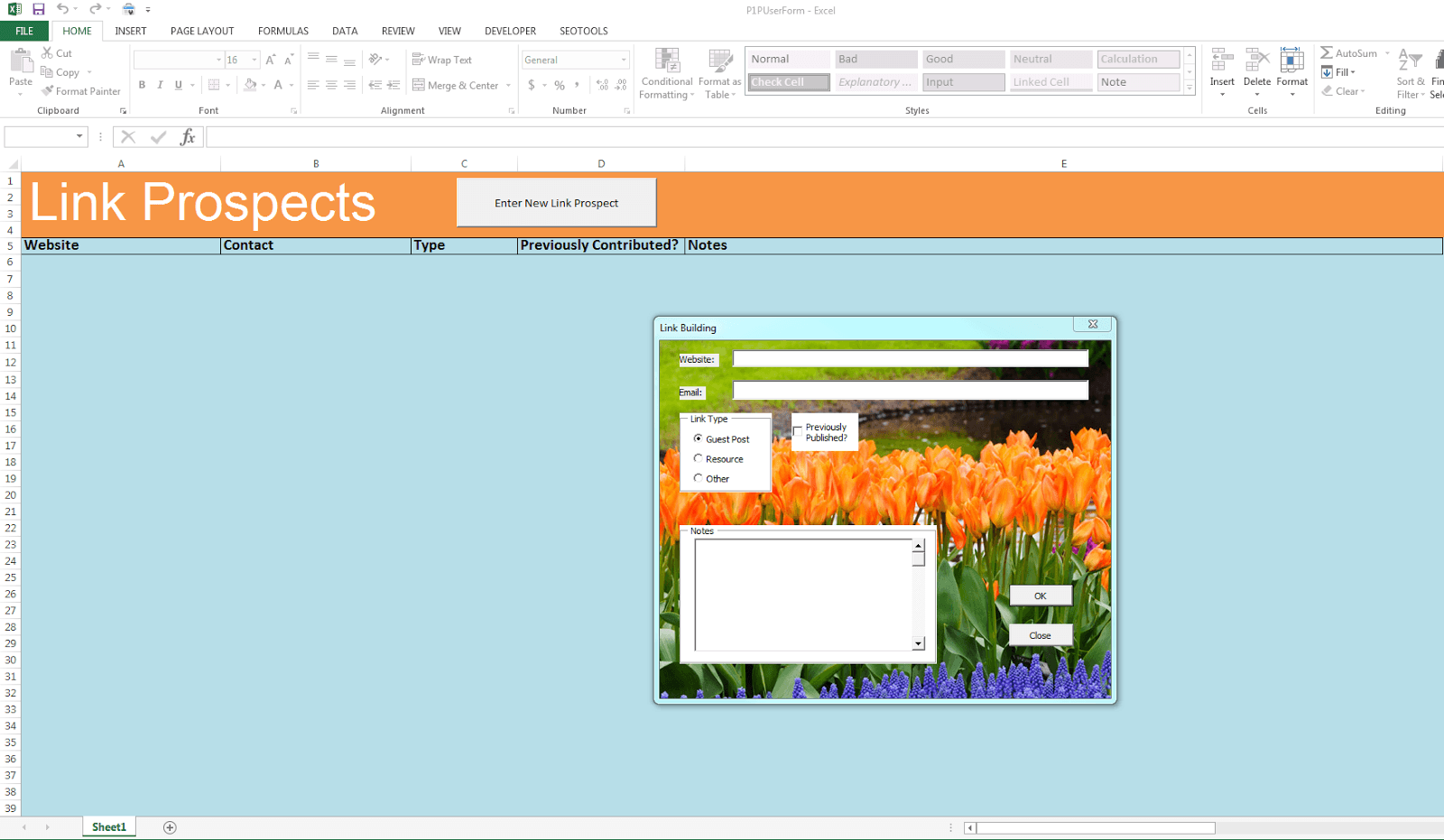
Relying on Activate-style shortcuts in Apps Script can make automation weak and hard to predict, especially when scripts run without any user interaction. Instead, target sheets and ranges directly. Batch reads and writes make operations run more smoothly, and plan for headless triggers to ensure your code behaves the same way whether a user starts it or an automated schedule does. If you're looking for a way to enhance your workflow, consider how our Spreadsheet AI Tool can streamline your processes.
How do triggers and headless runs change the rules?
Triggers run without a visible spreadsheet window. As a result, calls such as getActiveSheet, getActiveRange, and other UI-dependent functions can become unreliable in scheduled or installable triggers. Instead, use the event object in the onEdit handler. Always call SpreadsheetApp.getActiveSpreadsheet().getSheetByName('SheetName') or pass Sheet objects into functions. This change is important because headless runs reveal assumptions that may not appear during interactive testing. These assumptions often fail when ownership, permissions, or the environment differ. Our Spreadsheet AI Tool helps streamline these processes, making it easier to automate tasks without the usual pitfalls.
What Wastes Execution Time and Eats Quota?
Frequent round-trips to the server, like reading or writing single cells in a loop, add latency and push users toward quota limits. It's better to read one block with getValues and write back using setValues. For big structural changes, the Advanced Sheets API's batchUpdate or RangeList functions can be used to avoid thousands of small calls. The cost of inefficiency is not just a guess; it slows reports in real teams. This finding aligns with 2023 National Security Archive research, which found that users reported a 30% increase in report generation time due to the feature. It's a clear signal that UI-heavy patterns slow everyone down. Our Spreadsheet AI Tool helps streamline data processes, significantly reducing execution time.
How do you prevent concurrent edits and race conditions?
When multiple users or triggers use the same sheet, file-level conflicts can happen quickly. To prevent this, use LockService to organize important sections. Also, store small shared information in PropertiesService or CacheService instead of depending on the active cell to hold context. This method prevents two scripts from modifying the same rows simultaneously, ensuring deterministic outcomes even when running in parallel or scheduled multiple times.
What testing and maintainability patterns actually work?
Effective testing and maintainability patterns start with writing pure functions that transform arrays. These functions should be separate from any I/O operations that read or write to the spreadsheet. Create thin wrapper functions that accept a Sheet object. This approach allows you to call them in tests using a dedicated test sheet or a mock. Additionally, consider how our Spreadsheet AI Tool can help optimize your testing processes. Furthermore, log actions to a single audit sheet with batched setValues instead of scattering Logger.log calls throughout tight loops. This method significantly accelerates reproducing and debugging failures. It also helps streamline handovers when someone else inherits your code.
What are the hidden costs of copying recorder-like habits?
Many teams start adopting recorder-like habits because they feel quick and easy. While this method might work at first, as reports grow, hidden costs begin to accumulate. Problems like slow runs, confused users, and unreliable jobs that fail overnight become clear. Teams find that platforms like the Spreadsheet AI Tool can integrate automation patterns, provide batch update connectors, and display audit trails. This helps reduce time spent fixing failures while maintaining familiar spreadsheet workflows.
Which APIs and features should you lean on instead of active selection?
When working with Google Sheets, it's important to select the right APIs and features rather than relying on the active selection. Use getSheetByName and getRange with specific row and column indexes for accurate access. For bulk writes, use Range.setValues, and for dealing with noncontiguous ranges, use RangeList. The Advanced Sheets API batchUpdate is great for making structural changes. Also, Named Ranges can help keep your code separate from changing tab names. Store configuration in PropertiesService to make sure scripts don’t assume the sheet order. When you need an immediate UI update, use SpreadsheetApp.flush carefully, and only after doing a large batched operation. Our Spreadsheet AI Tool simplifies management and enhances your productivity.
What makes silent failures dangerous?
This pattern of failure consistently shows up in ad hoc scripts and scheduled jobs. Code that changes behavior based on the cursor or active range often works during development but produces silent misreports in production. This kind of silent failure is especially dangerous. The script runs without errors, but the data is misplaced.
What should you rethink in your script-building process?
The apparent finish line conceals the factors that will prompt us to rethink how scripts are created. This is where the process gets interesting.
Related Reading
10 VBA Sheet Activation Shortcuts That Actually Speed Up Reports
Use activation carefully: flip the visible tab only when a person needs to see it, or when a UI action needs attention. Replace every other activation with a direct sheet reference or a sheet variable. This method ensures your script runs reliably and quickly.
1. When should you activate a sheet by name?
Use activation by name when visibility is important, like during an interactive menu or a guided review step. In Apps Script: const ss = SpreadsheetApp.getActive(); const sheet = ss.getSheetByName('Summary'); if (sheet) sheet.activate(); This single line makes the intent clear, keeps the script easy to read, and works even if the sheets are reordered because you target the tab by name, not by index.
2. How do you check if a sheet exists before activating it?
Prevent runtime errors with a simple guard. The pattern is as follows: function getSafeSheet(ss, name) { const s = ss.getSheetByName(name); if (!s) { Logger.log('Missing sheet: ' + name); return null; } return s; } const summary = getSafeSheet(ss, 'Summary'); if (!summary) return; // fail gracefully, log, alert user. By implementing this function, crashes during report execution are avoided. This approach centralizes fallbacks, logging, and automated recovery in one place.
3. How do you use sheet variables instead of activating?
Assign the sheet once and use that reference for every action. This approach replaces UI calls with direct object manipulation: `const data = ss.getSheetByName('Data'); Then, you can use `data.getRange(1, 1).setValue('Done'); By grouping your logic around that variable, it becomes clear what you want to do, the code is shorter, and the runtime does not jump through the UI between operations. For those seeking more efficient solutions, our Spreadsheet AI Tool can further streamline your workflow.
4. Why avoid selecting or activating just to read or write values?
Selecting is a UI shortcut, not a programmatic necessity. Direct range calls remove ambiguity: ss.getSheetByName('Report').getRange('B2').setValue(total); You reduce the chance of writing into the wrong sheet, and your intent is clear in one statement instead of spread across several UI-dependent lines.
5. What does “activate once, work many times” look like in practice?
When a visible change is needed, set the active sheet just once. Then, do everything that needs visible context: const ws = ss.getSheetByName('Review'); ws.activate(); // perform multiple visible edits or user-facing selections ws.getRange('A1:A10').setBackground('#fff3cd'); ws.getRange('B1').setValue('Ready'); This reduces screen flicker and keeps the user experience clean by minimizing UI interruptions. Our Spreadsheet AI Tool simplifies this process, enhancing the user interface and streamlining your workflow.
6. How can you imitate a With block pattern in Apps Script?
JavaScript does not have VBA With blocks, but you can still achieve similar clarity by using a short helper or a local block. For example, (function(sheet) { sheet.getRange('A1').setValue('Report'); sheet.getRange('A2').setValue(new Date()); })(ss.getSheetByName('Summary'));
Alternatively, you can create a named helper: function writeHeader(sheet) { sheet.getRange('A1').setValue('Report'); sheet.getRange('A2').setValue(new Date()); }.
Using a focused function keeps repeated references in one place and makes the intent clear. If you're looking to enhance your workflow, consider how our Spreadsheet AI Tool can simplify data management.
7. How do you activate sheets across spreadsheets safely?
Fully qualify targets before interacting with them. Use this code: const other = SpreadsheetApp.openById(remoteId).getSheetByName('Summary'); if (other) { SpreadsheetApp.setActiveSpreadsheet(SpreadsheetApp.openById(remoteId)); other.activate(); } Open the specified spreadsheet by ID, retrieve the sheet by name, and activate it. This method helps prevent accidental edits to the file open in the user's window. To further enhance your spreadsheet experience, consider how our Spreadsheet AI Tool can help you manage data seamlessly across multiple sheets.
8. How should you handle hidden sheets before activating?
Before activating, check for and show any hidden tabs to avoid mistakes. Here's a simple code snippet to do that: const s = ss.getSheetByName('Archive'); if (s) { if (typeof s.isSheetHidden === 'function' && s.isSheetHidden()) { s.showSheet(); } s.activate(); } This small feature check keeps everything working well in different environments and stops runtime errors when the visibility of sheets changes. Using our Spreadsheet AI Tool can streamline your workflow.
9. What’s the analogue to “disable screen updating” in Apps Script?
Apps Script does not have a direct toggle for screen updates. A good way to handle this is to reduce UI churn: limit what users see, group your updates into `setValues` calls, and use `SpreadsheetApp.flush()` only after you have made a large set of changes. This method provides users with a single clear update rather than multiple visible changes. To further streamline your workflow, consider how our Spreadsheet AI Tool can optimize data management and processing.
10. When should you not activate at all?
If the script runs without supervision or the end user does not need to review the steps, it's better to skip activation entirely and pass sheet objects directly to functions. This way, the script behaves the same whether triggered manually or on schedule, helping prevent weak UI dependencies.
What pattern helps avoid lost trust in automation?
This pattern shows up in finance and operations scripts. Teams often stick to a recorder-style habit because it seems fast. However, they can spend days fixing problems when a tab is renamed or hidden. The hidden cost includes not only runtime but also the loss of trust in automation. By switching to sheet variables, using existence guards, and activating only when necessary, these debugging cycles can be reduced. As a result, users stop seeing scripts as fragile toys.
Why do teams change course?
Most teams handle manual tab switching because it fits how people work, making it familiar. Over time, this habit can make reports fragile, leading to hours spent fixing misplaced values and chasing hidden problems. Teams find that platforms like the spreadsheet AI tool bring together common patterns, offer checked batch updates, and show errors before they affect production. This reduces repair time from days to hours while keeping the spreadsheet interface everyone uses. Our spreadsheet AI tool enhances collaboration by streamlining data management for teams.
What is a concrete analogy for activation?
Think of activation as opening a filing cabinet drawer. You open it when someone needs to access a file. But you should do your sorting and writing with the file in hand. This way, you can avoid walking back and forth between drawers.
What is the curiosity loop related to these changes?
This practical tradeoff is just the beginning. Making these changes in five minutes requires a different kind of checklist, which is where our Spreadsheet AI Tool helps streamline your processes.
How to Apply These Shortcuts in 5 Minutes
You can convert a weak macro into a reliable Apps Script in less than an hour by working in small, reversible steps. First, take a snapshot of the project. Then replace UI-dependent calls, one file at a time, with stable helpers. Finally, add a dry-run mode that proves correctness before making any changes. If you do these three things, your next run will be predictable, verifiable, and much quieter for users.
How do I refactor safely, step by step?
Start with a controlled workspace. Clone the live spreadsheet to a staging copy and use Clasp or the online editor with versioning, so every change is reversible. Run a targeted search for UI-dependent calls to avoid, and replace them with small commits rather than a wholesale rewrite. This approach allows you to run the script after each commit, helping you identify the exact change that introduced the bug.
What helper functions save the most time when you stop touching the UI?
Create three lightweight helpers early: a `getSheetOrFail` function that returns a sheet or logs and stops, a `bufferedWriter` that batches writes and then flushes once, and a `dryRun` toggle stored in PropertiesService. This toggle lets you switch between simulate and execute without changing the code. These helpers make it easier to consolidate many scattered edits into two clear calls: read from memory, transform arrays, and then write the results in one step. If you want to optimize your workflow, consider how our Spreadsheet AI Tool can further streamline these processes.
What does a safe dry-run pattern look like?
To run a safe dry-run pattern, use a single boolean flag and maintain a separate audit ledger on a different sheet. When dryRun is true, the bufferedWriter records the intended actions in the audit ledger, capturing both old and new values, but does not execute the setValues call. On the other hand, when dryRun is false, the same bufferedWriter uses the batched writes. This pattern provides automatic, cell-level evidence that the refactor did not change results when replacing UI-dependent lines. If you're looking to improve your process, consider how our Spreadsheet AI Tool can simplify data management.
How should I test changes without risking production data?
Adopt a canary approach. First, run the updated script on a small portion of rows in the staging sheet and check the audit ledger entries. Then, run it on the whole staging file. Only after two successful runs, plan a short maintenance window and run the script on production with dryRun disabled. Always keep a timestamped backup of the sheet, and use a short smoke-test script to verify key totals and counts immediately after the run.
What metrics prove the refactor worked?
Select measurable indicators before making code changes: total execution time for each run, the number of write actions to the API, and how many UI activations were removed. After the changes, expect execution time to decrease significantly and write actions to be combined into fewer batched operations. It's important to track failures for each scheduled run to reduce hidden misreports to zero over two billing cycles. Using our Spreadsheet AI Tool can streamline this process.
When should you roll back changes, and how quickly should you iterate?
If a single smoke-test assertion fails, revert to the previous commit, turn dryRun back on, and replay the audit ledger to identify the mismatch. After that, make changes in smaller steps. Try to aim for change sets that can be reviewed and validated in 15 minutes each. This method helps the team build confidence quickly and prevents long, confusing outages.
What quick tooling speeds up the refactor?
Use Clasp with Git to keep track of small changes and differences.
Implement a linter and type hints whenever you can to find misspellings of sheet names before the program runs.
Add a simple time tracer at the start and end of long functions to identify potential slow sections.
Which small refactor yields the greatest payoff immediately?
Replace single-cell writes inside loops with a read-transform-write block. First, read the range into a 2D array. Then, use the native array map/filter to compute the new values. Finally, write the whole block back in one `setValues` call. This single change eliminates hundreds of API round-trips, removes many implicit dependencies on cursor state, and makes the logic testable in memory before any cell is touched. By utilizing our Spreadsheet AI Tool, you can streamline these processes even further.
How do you keep people calm while you change shared automation?
Communicate small wins instead of theoretical gains. Show the audit ledger and provide a side-by-side before/after snapshot for one report run. Assign one person ownership of the staging copy for 48 hours and publish a short checklist for running the smoke tests. Real confidence comes from quick, verifiable proof rather than just claims.
What simple analogy helps explain refactoring?
A simple analogy is that refactoring a macro is like replacing a sloppy courier who runs between rooms with a pickup truck. This truck collects everything, delivers it all at once, and comes back with a signed manifest. Although this process may seem slower at first, it is much more reliable and auditable. For those looking to further optimize their workflow, our Spreadsheet AI Tool can automate and streamline your data organization.
What impact does this change have on automation?
This shift may seem complete, but it introduces a different set of choices about scale and intelligence. As a result, it changes how automation works for your whole team, making it a valuable opportunity to use our _Spreadsheet AI Tool_ to improve decision-making.
How can Numerous help with automation?
Numerous is an AI-powered tool that transforms tedious spreadsheet tasks into easy drag-and-drop functions. This helps teams work faster on activities such as SEO copywriting, hashtag generation, and mass product categorization directly in a spreadsheet. Try Numerous.ai to increase your team’s output with a simple prompt and see how its ChatGPT for Spreadsheets features make work easier in both Google Sheets and Excel.
Make Decisions At Scale Through AI With Numerous AI’s Spreadsheet AI Tool
Most teams continue to use VBA ActivateSheet or Select to fix workflows because it seems quick and keeps everything in a familiar interface. However, they should think about Numerous.ai. This tool converts a simple prompt into a dropdown of spreadsheet functions that work in both Google Sheets and Excel, making users' workflows easier. By doing this, teams can stop linking logic to active tabs and effectively handle tasks such as SEO copy, hashtag creation, and mass product categorization. With our Spreadsheet AI Tool, managing your tasks like these can become even more streamlined and efficient.
Related Reading
How to Remove Duplicates in Google Sheets
How to Split Text Into Two Columns in Excel
How to Automate Google Sheets
Google Sheets Pull Data From Another Tab Based on Criteria
How to Link a Google Form to a Google Sheet
How to Use Excel for Business
Best Spreadsheets Software
How to Use the Fill Handle in Excel
How to Automate Sending Emails From Excel
How to Find Duplicates in Google Sheets
Switching between sheets can slow report generation, whether working in Excel with VBA or using cloud-based scripts. Efficient sheet activation methods—such as the Activate method, Worksheets('SheetName'). Activate, ActiveSheet, and Application. Goto—helps reduce delays. Practical techniques also demonstrate how to use Apps Script in Google Sheets to improve navigation and reduce manual effort.
Clear distinctions between select and activate functions help users avoid common pitfalls when navigating workbooks, with an emphasis on keyboard-friendly shortcuts and macros. Numerous's solution, Spreadsheet AI Tool, provides ready code snippets, smart navigation suggestions, and automation examples to streamline report generation and enhance overall workflow.
Summary
Recorded macro habits produce Select and Activate patterns that tie code to the UI, which becomes brittle in real reports, especially when macros hop between 10 to 30 sheets, and a single renamed tab can silently misroute data.
Using Activate incurs measurable costs: Activate-based macros run about 30% slower, while refactored, direct-object code can run up to 2x faster.
UI-dependent scripts and single-cell loops drive latency and quota usage, with teams seeing up to a 30% increase in report generation time and hundreds of small API calls eliminated by batching reads and writes.
Concurrency and silent misreports are common, so serialize critical sections with LockService, store shared state outside the active cell, and use metrics such as execution seconds and API write counts to aim to reduce silent misreports to zero over two billing cycles.
Small, deliberate refactors pay off quickly: applying focused activation shortcuts takes about 5 minutes, and a careful, staged refactor can be completed in under an hour with a dry-run flag and incremental commits.
Rollout and testing should be incremental and fast, use a canary on a small slice, keep a 48-hour staging owner, and design change sets that can be reviewed and validated within 15 minutes to enable quick rollback on any failed smoke test.
This is where the Spreadsheet AI Tool fits in, providing ready code snippets, batch update patterns, and audit-friendly automation that reduce UI-dependent calls and shorten debugging cycles.
Table of Conetnts
Why Activating Sheets in VBA Feels Harder Than It Should
Why Sticking With “Activate/Select Everywhere” Quietly Wrecks Your Reports
10 VBA Sheet Activation Shortcuts That Actually Speed Up Reports
How to Apply These Shortcuts in 5 Minutes
Make Decisions At Scale Through AI With Numerous AI’s Spreadsheet AI Tool
Why Activating Sheets in VBA Feels Harder Than It Should

Activating sheets in VBA is easy; the issue is not with the Activate command itself, but with the bad habits many people pick up from recorded macros. These habits can break when the workbook changes. The Activate pattern can be challenging because it links your code to the user interface and relies on assumptions about which workbook or sheet will be active when the code runs.
Why do recorded macros teach the wrong pattern?
When you use the recorder, Excel converts your clicks into code, such as Sheets("Sheet1"). Select and Range("A1"). Select. This trains you to equate selection with action. The recorder's output is easy to copy into projects, so many beginners create fragile macros across finance and operations teams. This pattern works correctly once, but fails when a sheet is renamed or another workbook is opened. Suddenly, a "working" macro edits the wrong file. It can be frustrating because the error is not visible until the report reaches a manager's desk.
How does workbook focus cause silent failures?
Workbook focus can lead to silent failures during automation tasks. Activate and Select depend on the active workbook and window. If a user clicks another file while a macro is running or if your macro opens a dialog, Excel can shift focus. Although the code will still run, it may do so in the wrong context. This is why real automation should treat Worksheet and Workbook objects as clear targets rather than relying on UI proxies. The failure mode is predictable: everything looks fine in the editor, yet results appear incorrect in production. Tracebacks rarely point directly to the assumption of activation, which can lead to confusion. To help streamline your processes, consider our Spreadsheet AI Tool, which enhances automation efficiency.
Does activating sheets actually hurt performance?
Yes, and there is hard evidence that the cost is not only conceptual. The Stack Overflow note "Using 'Activate' in VBA can slow down execution by 30% compared to direct cell referencing." (Stack Overflow, 2023) shows that the runtime penalty is real and activation is more than just a styling choice. Likewise, "Macros that avoid sheet activation can run 2x faster." (Stack Overflow, 2023) shows the actual speed gains you get when you reference objects directly. This helps explain why users see screen flicker and have to wait a long time when a macro switches between 10 to 30 sheets.
Why does this break more in real reports than in toy examples?
Real workbooks change over time. Tabs are often renamed, and templates may add additional sheets. Team members frequently add "Final" to names, which makes things harder. Code that uses fixed indices or depends on what you see on the screen fails when used widely. This often occurs in month-end reporting and when assembling models. For example, a macro might work fine in February, but when March comes, and a sheet is renamed, the process might quietly lose track of data. The emotional effects can be significant: teams begin to distrust automation, and instead of focusing on analysis, they spend time fixing name errors and misplaced formulas.
How do you stop confusing activation with work?
To avoid conflating activation with work, think of Worksheets and Ranges as objects you can address directly. Use With blocks, fully qualified references, and set Worksheet variables at the start of the routine. This way, the macro can make edits without changing the UI. Consider using Select and Activate as you would a keyboard shortcut: this method relies on the file's physical location, whereas calling it by name in code is consistent. To streamline integration, our Spreadsheet AI Tool simplifies these processes and enhances your automation experience.
Why do teams rely on the recorder despite downsides?
Most teams rely on the recorder because it allows for a quick start. This makes sense in the early stages. However, as project complexity increases, this approach can lead to hidden costs: unpredictable edits, slow runtimes, and fragile maintenance. Solutions such as the Spreadsheet AI Tool automate bulk worksheet operations without requiring UI interaction. They maintain explicit object references and audit logs, which significantly reduces the time engineers spend debugging name and focus errors. This automation helps preserve a familiar spreadsheet workflow, and our Spreadsheet AI Tool can further enhance your productivity by streamlining repetitive tasks.
Why is the deeper issue with activation?
Think of Activate as walking through rooms, flipping the lights on as you need something. This is different from setting up a smart system that lets you get any item from any room without running around. The real reason this keeps happening goes deeper than most people realize.
Related Reading
Why Sticking With “Activate/Select Everywhere” Quietly Wrecks Your Reports

Relying on Activate-style shortcuts in Apps Script can make automation weak and hard to predict, especially when scripts run without any user interaction. Instead, target sheets and ranges directly. Batch reads and writes make operations run more smoothly, and plan for headless triggers to ensure your code behaves the same way whether a user starts it or an automated schedule does. If you're looking for a way to enhance your workflow, consider how our Spreadsheet AI Tool can streamline your processes.
How do triggers and headless runs change the rules?
Triggers run without a visible spreadsheet window. As a result, calls such as getActiveSheet, getActiveRange, and other UI-dependent functions can become unreliable in scheduled or installable triggers. Instead, use the event object in the onEdit handler. Always call SpreadsheetApp.getActiveSpreadsheet().getSheetByName('SheetName') or pass Sheet objects into functions. This change is important because headless runs reveal assumptions that may not appear during interactive testing. These assumptions often fail when ownership, permissions, or the environment differ. Our Spreadsheet AI Tool helps streamline these processes, making it easier to automate tasks without the usual pitfalls.
What Wastes Execution Time and Eats Quota?
Frequent round-trips to the server, like reading or writing single cells in a loop, add latency and push users toward quota limits. It's better to read one block with getValues and write back using setValues. For big structural changes, the Advanced Sheets API's batchUpdate or RangeList functions can be used to avoid thousands of small calls. The cost of inefficiency is not just a guess; it slows reports in real teams. This finding aligns with 2023 National Security Archive research, which found that users reported a 30% increase in report generation time due to the feature. It's a clear signal that UI-heavy patterns slow everyone down. Our Spreadsheet AI Tool helps streamline data processes, significantly reducing execution time.
How do you prevent concurrent edits and race conditions?
When multiple users or triggers use the same sheet, file-level conflicts can happen quickly. To prevent this, use LockService to organize important sections. Also, store small shared information in PropertiesService or CacheService instead of depending on the active cell to hold context. This method prevents two scripts from modifying the same rows simultaneously, ensuring deterministic outcomes even when running in parallel or scheduled multiple times.
What testing and maintainability patterns actually work?
Effective testing and maintainability patterns start with writing pure functions that transform arrays. These functions should be separate from any I/O operations that read or write to the spreadsheet. Create thin wrapper functions that accept a Sheet object. This approach allows you to call them in tests using a dedicated test sheet or a mock. Additionally, consider how our Spreadsheet AI Tool can help optimize your testing processes. Furthermore, log actions to a single audit sheet with batched setValues instead of scattering Logger.log calls throughout tight loops. This method significantly accelerates reproducing and debugging failures. It also helps streamline handovers when someone else inherits your code.
What are the hidden costs of copying recorder-like habits?
Many teams start adopting recorder-like habits because they feel quick and easy. While this method might work at first, as reports grow, hidden costs begin to accumulate. Problems like slow runs, confused users, and unreliable jobs that fail overnight become clear. Teams find that platforms like the Spreadsheet AI Tool can integrate automation patterns, provide batch update connectors, and display audit trails. This helps reduce time spent fixing failures while maintaining familiar spreadsheet workflows.
Which APIs and features should you lean on instead of active selection?
When working with Google Sheets, it's important to select the right APIs and features rather than relying on the active selection. Use getSheetByName and getRange with specific row and column indexes for accurate access. For bulk writes, use Range.setValues, and for dealing with noncontiguous ranges, use RangeList. The Advanced Sheets API batchUpdate is great for making structural changes. Also, Named Ranges can help keep your code separate from changing tab names. Store configuration in PropertiesService to make sure scripts don’t assume the sheet order. When you need an immediate UI update, use SpreadsheetApp.flush carefully, and only after doing a large batched operation. Our Spreadsheet AI Tool simplifies management and enhances your productivity.
What makes silent failures dangerous?
This pattern of failure consistently shows up in ad hoc scripts and scheduled jobs. Code that changes behavior based on the cursor or active range often works during development but produces silent misreports in production. This kind of silent failure is especially dangerous. The script runs without errors, but the data is misplaced.
What should you rethink in your script-building process?
The apparent finish line conceals the factors that will prompt us to rethink how scripts are created. This is where the process gets interesting.
Related Reading
10 VBA Sheet Activation Shortcuts That Actually Speed Up Reports

Use activation carefully: flip the visible tab only when a person needs to see it, or when a UI action needs attention. Replace every other activation with a direct sheet reference or a sheet variable. This method ensures your script runs reliably and quickly.
1. When should you activate a sheet by name?
Use activation by name when visibility is important, like during an interactive menu or a guided review step. In Apps Script: const ss = SpreadsheetApp.getActive(); const sheet = ss.getSheetByName('Summary'); if (sheet) sheet.activate(); This single line makes the intent clear, keeps the script easy to read, and works even if the sheets are reordered because you target the tab by name, not by index.
2. How do you check if a sheet exists before activating it?
Prevent runtime errors with a simple guard. The pattern is as follows: function getSafeSheet(ss, name) { const s = ss.getSheetByName(name); if (!s) { Logger.log('Missing sheet: ' + name); return null; } return s; } const summary = getSafeSheet(ss, 'Summary'); if (!summary) return; // fail gracefully, log, alert user. By implementing this function, crashes during report execution are avoided. This approach centralizes fallbacks, logging, and automated recovery in one place.
3. How do you use sheet variables instead of activating?
Assign the sheet once and use that reference for every action. This approach replaces UI calls with direct object manipulation: `const data = ss.getSheetByName('Data'); Then, you can use `data.getRange(1, 1).setValue('Done'); By grouping your logic around that variable, it becomes clear what you want to do, the code is shorter, and the runtime does not jump through the UI between operations. For those seeking more efficient solutions, our Spreadsheet AI Tool can further streamline your workflow.
4. Why avoid selecting or activating just to read or write values?
Selecting is a UI shortcut, not a programmatic necessity. Direct range calls remove ambiguity: ss.getSheetByName('Report').getRange('B2').setValue(total); You reduce the chance of writing into the wrong sheet, and your intent is clear in one statement instead of spread across several UI-dependent lines.
5. What does “activate once, work many times” look like in practice?
When a visible change is needed, set the active sheet just once. Then, do everything that needs visible context: const ws = ss.getSheetByName('Review'); ws.activate(); // perform multiple visible edits or user-facing selections ws.getRange('A1:A10').setBackground('#fff3cd'); ws.getRange('B1').setValue('Ready'); This reduces screen flicker and keeps the user experience clean by minimizing UI interruptions. Our Spreadsheet AI Tool simplifies this process, enhancing the user interface and streamlining your workflow.
6. How can you imitate a With block pattern in Apps Script?
JavaScript does not have VBA With blocks, but you can still achieve similar clarity by using a short helper or a local block. For example, (function(sheet) { sheet.getRange('A1').setValue('Report'); sheet.getRange('A2').setValue(new Date()); })(ss.getSheetByName('Summary'));
Alternatively, you can create a named helper: function writeHeader(sheet) { sheet.getRange('A1').setValue('Report'); sheet.getRange('A2').setValue(new Date()); }.
Using a focused function keeps repeated references in one place and makes the intent clear. If you're looking to enhance your workflow, consider how our Spreadsheet AI Tool can simplify data management.
7. How do you activate sheets across spreadsheets safely?
Fully qualify targets before interacting with them. Use this code: const other = SpreadsheetApp.openById(remoteId).getSheetByName('Summary'); if (other) { SpreadsheetApp.setActiveSpreadsheet(SpreadsheetApp.openById(remoteId)); other.activate(); } Open the specified spreadsheet by ID, retrieve the sheet by name, and activate it. This method helps prevent accidental edits to the file open in the user's window. To further enhance your spreadsheet experience, consider how our Spreadsheet AI Tool can help you manage data seamlessly across multiple sheets.
8. How should you handle hidden sheets before activating?
Before activating, check for and show any hidden tabs to avoid mistakes. Here's a simple code snippet to do that: const s = ss.getSheetByName('Archive'); if (s) { if (typeof s.isSheetHidden === 'function' && s.isSheetHidden()) { s.showSheet(); } s.activate(); } This small feature check keeps everything working well in different environments and stops runtime errors when the visibility of sheets changes. Using our Spreadsheet AI Tool can streamline your workflow.
9. What’s the analogue to “disable screen updating” in Apps Script?
Apps Script does not have a direct toggle for screen updates. A good way to handle this is to reduce UI churn: limit what users see, group your updates into `setValues` calls, and use `SpreadsheetApp.flush()` only after you have made a large set of changes. This method provides users with a single clear update rather than multiple visible changes. To further streamline your workflow, consider how our Spreadsheet AI Tool can optimize data management and processing.
10. When should you not activate at all?
If the script runs without supervision or the end user does not need to review the steps, it's better to skip activation entirely and pass sheet objects directly to functions. This way, the script behaves the same whether triggered manually or on schedule, helping prevent weak UI dependencies.
What pattern helps avoid lost trust in automation?
This pattern shows up in finance and operations scripts. Teams often stick to a recorder-style habit because it seems fast. However, they can spend days fixing problems when a tab is renamed or hidden. The hidden cost includes not only runtime but also the loss of trust in automation. By switching to sheet variables, using existence guards, and activating only when necessary, these debugging cycles can be reduced. As a result, users stop seeing scripts as fragile toys.
Why do teams change course?
Most teams handle manual tab switching because it fits how people work, making it familiar. Over time, this habit can make reports fragile, leading to hours spent fixing misplaced values and chasing hidden problems. Teams find that platforms like the spreadsheet AI tool bring together common patterns, offer checked batch updates, and show errors before they affect production. This reduces repair time from days to hours while keeping the spreadsheet interface everyone uses. Our spreadsheet AI tool enhances collaboration by streamlining data management for teams.
What is a concrete analogy for activation?
Think of activation as opening a filing cabinet drawer. You open it when someone needs to access a file. But you should do your sorting and writing with the file in hand. This way, you can avoid walking back and forth between drawers.
What is the curiosity loop related to these changes?
This practical tradeoff is just the beginning. Making these changes in five minutes requires a different kind of checklist, which is where our Spreadsheet AI Tool helps streamline your processes.
How to Apply These Shortcuts in 5 Minutes

You can convert a weak macro into a reliable Apps Script in less than an hour by working in small, reversible steps. First, take a snapshot of the project. Then replace UI-dependent calls, one file at a time, with stable helpers. Finally, add a dry-run mode that proves correctness before making any changes. If you do these three things, your next run will be predictable, verifiable, and much quieter for users.
How do I refactor safely, step by step?
Start with a controlled workspace. Clone the live spreadsheet to a staging copy and use Clasp or the online editor with versioning, so every change is reversible. Run a targeted search for UI-dependent calls to avoid, and replace them with small commits rather than a wholesale rewrite. This approach allows you to run the script after each commit, helping you identify the exact change that introduced the bug.
What helper functions save the most time when you stop touching the UI?
Create three lightweight helpers early: a `getSheetOrFail` function that returns a sheet or logs and stops, a `bufferedWriter` that batches writes and then flushes once, and a `dryRun` toggle stored in PropertiesService. This toggle lets you switch between simulate and execute without changing the code. These helpers make it easier to consolidate many scattered edits into two clear calls: read from memory, transform arrays, and then write the results in one step. If you want to optimize your workflow, consider how our Spreadsheet AI Tool can further streamline these processes.
What does a safe dry-run pattern look like?
To run a safe dry-run pattern, use a single boolean flag and maintain a separate audit ledger on a different sheet. When dryRun is true, the bufferedWriter records the intended actions in the audit ledger, capturing both old and new values, but does not execute the setValues call. On the other hand, when dryRun is false, the same bufferedWriter uses the batched writes. This pattern provides automatic, cell-level evidence that the refactor did not change results when replacing UI-dependent lines. If you're looking to improve your process, consider how our Spreadsheet AI Tool can simplify data management.
How should I test changes without risking production data?
Adopt a canary approach. First, run the updated script on a small portion of rows in the staging sheet and check the audit ledger entries. Then, run it on the whole staging file. Only after two successful runs, plan a short maintenance window and run the script on production with dryRun disabled. Always keep a timestamped backup of the sheet, and use a short smoke-test script to verify key totals and counts immediately after the run.
What metrics prove the refactor worked?
Select measurable indicators before making code changes: total execution time for each run, the number of write actions to the API, and how many UI activations were removed. After the changes, expect execution time to decrease significantly and write actions to be combined into fewer batched operations. It's important to track failures for each scheduled run to reduce hidden misreports to zero over two billing cycles. Using our Spreadsheet AI Tool can streamline this process.
When should you roll back changes, and how quickly should you iterate?
If a single smoke-test assertion fails, revert to the previous commit, turn dryRun back on, and replay the audit ledger to identify the mismatch. After that, make changes in smaller steps. Try to aim for change sets that can be reviewed and validated in 15 minutes each. This method helps the team build confidence quickly and prevents long, confusing outages.
What quick tooling speeds up the refactor?
Use Clasp with Git to keep track of small changes and differences.
Implement a linter and type hints whenever you can to find misspellings of sheet names before the program runs.
Add a simple time tracer at the start and end of long functions to identify potential slow sections.
Which small refactor yields the greatest payoff immediately?
Replace single-cell writes inside loops with a read-transform-write block. First, read the range into a 2D array. Then, use the native array map/filter to compute the new values. Finally, write the whole block back in one `setValues` call. This single change eliminates hundreds of API round-trips, removes many implicit dependencies on cursor state, and makes the logic testable in memory before any cell is touched. By utilizing our Spreadsheet AI Tool, you can streamline these processes even further.
How do you keep people calm while you change shared automation?
Communicate small wins instead of theoretical gains. Show the audit ledger and provide a side-by-side before/after snapshot for one report run. Assign one person ownership of the staging copy for 48 hours and publish a short checklist for running the smoke tests. Real confidence comes from quick, verifiable proof rather than just claims.
What simple analogy helps explain refactoring?
A simple analogy is that refactoring a macro is like replacing a sloppy courier who runs between rooms with a pickup truck. This truck collects everything, delivers it all at once, and comes back with a signed manifest. Although this process may seem slower at first, it is much more reliable and auditable. For those looking to further optimize their workflow, our Spreadsheet AI Tool can automate and streamline your data organization.
What impact does this change have on automation?
This shift may seem complete, but it introduces a different set of choices about scale and intelligence. As a result, it changes how automation works for your whole team, making it a valuable opportunity to use our _Spreadsheet AI Tool_ to improve decision-making.
How can Numerous help with automation?
Numerous is an AI-powered tool that transforms tedious spreadsheet tasks into easy drag-and-drop functions. This helps teams work faster on activities such as SEO copywriting, hashtag generation, and mass product categorization directly in a spreadsheet. Try Numerous.ai to increase your team’s output with a simple prompt and see how its ChatGPT for Spreadsheets features make work easier in both Google Sheets and Excel.
Make Decisions At Scale Through AI With Numerous AI’s Spreadsheet AI Tool
Most teams continue to use VBA ActivateSheet or Select to fix workflows because it seems quick and keeps everything in a familiar interface. However, they should think about Numerous.ai. This tool converts a simple prompt into a dropdown of spreadsheet functions that work in both Google Sheets and Excel, making users' workflows easier. By doing this, teams can stop linking logic to active tabs and effectively handle tasks such as SEO copy, hashtag creation, and mass product categorization. With our Spreadsheet AI Tool, managing your tasks like these can become even more streamlined and efficient.
Related Reading
How to Remove Duplicates in Google Sheets
How to Split Text Into Two Columns in Excel
How to Automate Google Sheets
Google Sheets Pull Data From Another Tab Based on Criteria
How to Link a Google Form to a Google Sheet
How to Use Excel for Business
Best Spreadsheets Software
How to Use the Fill Handle in Excel
How to Automate Sending Emails From Excel
How to Find Duplicates in Google Sheets
Switching between sheets can slow report generation, whether working in Excel with VBA or using cloud-based scripts. Efficient sheet activation methods—such as the Activate method, Worksheets('SheetName'). Activate, ActiveSheet, and Application. Goto—helps reduce delays. Practical techniques also demonstrate how to use Apps Script in Google Sheets to improve navigation and reduce manual effort.
Clear distinctions between select and activate functions help users avoid common pitfalls when navigating workbooks, with an emphasis on keyboard-friendly shortcuts and macros. Numerous's solution, Spreadsheet AI Tool, provides ready code snippets, smart navigation suggestions, and automation examples to streamline report generation and enhance overall workflow.
Summary
Recorded macro habits produce Select and Activate patterns that tie code to the UI, which becomes brittle in real reports, especially when macros hop between 10 to 30 sheets, and a single renamed tab can silently misroute data.
Using Activate incurs measurable costs: Activate-based macros run about 30% slower, while refactored, direct-object code can run up to 2x faster.
UI-dependent scripts and single-cell loops drive latency and quota usage, with teams seeing up to a 30% increase in report generation time and hundreds of small API calls eliminated by batching reads and writes.
Concurrency and silent misreports are common, so serialize critical sections with LockService, store shared state outside the active cell, and use metrics such as execution seconds and API write counts to aim to reduce silent misreports to zero over two billing cycles.
Small, deliberate refactors pay off quickly: applying focused activation shortcuts takes about 5 minutes, and a careful, staged refactor can be completed in under an hour with a dry-run flag and incremental commits.
Rollout and testing should be incremental and fast, use a canary on a small slice, keep a 48-hour staging owner, and design change sets that can be reviewed and validated within 15 minutes to enable quick rollback on any failed smoke test.
This is where the Spreadsheet AI Tool fits in, providing ready code snippets, batch update patterns, and audit-friendly automation that reduce UI-dependent calls and shorten debugging cycles.
Table of Conetnts
Why Activating Sheets in VBA Feels Harder Than It Should
Why Sticking With “Activate/Select Everywhere” Quietly Wrecks Your Reports
10 VBA Sheet Activation Shortcuts That Actually Speed Up Reports
How to Apply These Shortcuts in 5 Minutes
Make Decisions At Scale Through AI With Numerous AI’s Spreadsheet AI Tool
Why Activating Sheets in VBA Feels Harder Than It Should

Activating sheets in VBA is easy; the issue is not with the Activate command itself, but with the bad habits many people pick up from recorded macros. These habits can break when the workbook changes. The Activate pattern can be challenging because it links your code to the user interface and relies on assumptions about which workbook or sheet will be active when the code runs.
Why do recorded macros teach the wrong pattern?
When you use the recorder, Excel converts your clicks into code, such as Sheets("Sheet1"). Select and Range("A1"). Select. This trains you to equate selection with action. The recorder's output is easy to copy into projects, so many beginners create fragile macros across finance and operations teams. This pattern works correctly once, but fails when a sheet is renamed or another workbook is opened. Suddenly, a "working" macro edits the wrong file. It can be frustrating because the error is not visible until the report reaches a manager's desk.
How does workbook focus cause silent failures?
Workbook focus can lead to silent failures during automation tasks. Activate and Select depend on the active workbook and window. If a user clicks another file while a macro is running or if your macro opens a dialog, Excel can shift focus. Although the code will still run, it may do so in the wrong context. This is why real automation should treat Worksheet and Workbook objects as clear targets rather than relying on UI proxies. The failure mode is predictable: everything looks fine in the editor, yet results appear incorrect in production. Tracebacks rarely point directly to the assumption of activation, which can lead to confusion. To help streamline your processes, consider our Spreadsheet AI Tool, which enhances automation efficiency.
Does activating sheets actually hurt performance?
Yes, and there is hard evidence that the cost is not only conceptual. The Stack Overflow note "Using 'Activate' in VBA can slow down execution by 30% compared to direct cell referencing." (Stack Overflow, 2023) shows that the runtime penalty is real and activation is more than just a styling choice. Likewise, "Macros that avoid sheet activation can run 2x faster." (Stack Overflow, 2023) shows the actual speed gains you get when you reference objects directly. This helps explain why users see screen flicker and have to wait a long time when a macro switches between 10 to 30 sheets.
Why does this break more in real reports than in toy examples?
Real workbooks change over time. Tabs are often renamed, and templates may add additional sheets. Team members frequently add "Final" to names, which makes things harder. Code that uses fixed indices or depends on what you see on the screen fails when used widely. This often occurs in month-end reporting and when assembling models. For example, a macro might work fine in February, but when March comes, and a sheet is renamed, the process might quietly lose track of data. The emotional effects can be significant: teams begin to distrust automation, and instead of focusing on analysis, they spend time fixing name errors and misplaced formulas.
How do you stop confusing activation with work?
To avoid conflating activation with work, think of Worksheets and Ranges as objects you can address directly. Use With blocks, fully qualified references, and set Worksheet variables at the start of the routine. This way, the macro can make edits without changing the UI. Consider using Select and Activate as you would a keyboard shortcut: this method relies on the file's physical location, whereas calling it by name in code is consistent. To streamline integration, our Spreadsheet AI Tool simplifies these processes and enhances your automation experience.
Why do teams rely on the recorder despite downsides?
Most teams rely on the recorder because it allows for a quick start. This makes sense in the early stages. However, as project complexity increases, this approach can lead to hidden costs: unpredictable edits, slow runtimes, and fragile maintenance. Solutions such as the Spreadsheet AI Tool automate bulk worksheet operations without requiring UI interaction. They maintain explicit object references and audit logs, which significantly reduces the time engineers spend debugging name and focus errors. This automation helps preserve a familiar spreadsheet workflow, and our Spreadsheet AI Tool can further enhance your productivity by streamlining repetitive tasks.
Why is the deeper issue with activation?
Think of Activate as walking through rooms, flipping the lights on as you need something. This is different from setting up a smart system that lets you get any item from any room without running around. The real reason this keeps happening goes deeper than most people realize.
Related Reading
Why Sticking With “Activate/Select Everywhere” Quietly Wrecks Your Reports

Relying on Activate-style shortcuts in Apps Script can make automation weak and hard to predict, especially when scripts run without any user interaction. Instead, target sheets and ranges directly. Batch reads and writes make operations run more smoothly, and plan for headless triggers to ensure your code behaves the same way whether a user starts it or an automated schedule does. If you're looking for a way to enhance your workflow, consider how our Spreadsheet AI Tool can streamline your processes.
How do triggers and headless runs change the rules?
Triggers run without a visible spreadsheet window. As a result, calls such as getActiveSheet, getActiveRange, and other UI-dependent functions can become unreliable in scheduled or installable triggers. Instead, use the event object in the onEdit handler. Always call SpreadsheetApp.getActiveSpreadsheet().getSheetByName('SheetName') or pass Sheet objects into functions. This change is important because headless runs reveal assumptions that may not appear during interactive testing. These assumptions often fail when ownership, permissions, or the environment differ. Our Spreadsheet AI Tool helps streamline these processes, making it easier to automate tasks without the usual pitfalls.
What Wastes Execution Time and Eats Quota?
Frequent round-trips to the server, like reading or writing single cells in a loop, add latency and push users toward quota limits. It's better to read one block with getValues and write back using setValues. For big structural changes, the Advanced Sheets API's batchUpdate or RangeList functions can be used to avoid thousands of small calls. The cost of inefficiency is not just a guess; it slows reports in real teams. This finding aligns with 2023 National Security Archive research, which found that users reported a 30% increase in report generation time due to the feature. It's a clear signal that UI-heavy patterns slow everyone down. Our Spreadsheet AI Tool helps streamline data processes, significantly reducing execution time.
How do you prevent concurrent edits and race conditions?
When multiple users or triggers use the same sheet, file-level conflicts can happen quickly. To prevent this, use LockService to organize important sections. Also, store small shared information in PropertiesService or CacheService instead of depending on the active cell to hold context. This method prevents two scripts from modifying the same rows simultaneously, ensuring deterministic outcomes even when running in parallel or scheduled multiple times.
What testing and maintainability patterns actually work?
Effective testing and maintainability patterns start with writing pure functions that transform arrays. These functions should be separate from any I/O operations that read or write to the spreadsheet. Create thin wrapper functions that accept a Sheet object. This approach allows you to call them in tests using a dedicated test sheet or a mock. Additionally, consider how our Spreadsheet AI Tool can help optimize your testing processes. Furthermore, log actions to a single audit sheet with batched setValues instead of scattering Logger.log calls throughout tight loops. This method significantly accelerates reproducing and debugging failures. It also helps streamline handovers when someone else inherits your code.
What are the hidden costs of copying recorder-like habits?
Many teams start adopting recorder-like habits because they feel quick and easy. While this method might work at first, as reports grow, hidden costs begin to accumulate. Problems like slow runs, confused users, and unreliable jobs that fail overnight become clear. Teams find that platforms like the Spreadsheet AI Tool can integrate automation patterns, provide batch update connectors, and display audit trails. This helps reduce time spent fixing failures while maintaining familiar spreadsheet workflows.
Which APIs and features should you lean on instead of active selection?
When working with Google Sheets, it's important to select the right APIs and features rather than relying on the active selection. Use getSheetByName and getRange with specific row and column indexes for accurate access. For bulk writes, use Range.setValues, and for dealing with noncontiguous ranges, use RangeList. The Advanced Sheets API batchUpdate is great for making structural changes. Also, Named Ranges can help keep your code separate from changing tab names. Store configuration in PropertiesService to make sure scripts don’t assume the sheet order. When you need an immediate UI update, use SpreadsheetApp.flush carefully, and only after doing a large batched operation. Our Spreadsheet AI Tool simplifies management and enhances your productivity.
What makes silent failures dangerous?
This pattern of failure consistently shows up in ad hoc scripts and scheduled jobs. Code that changes behavior based on the cursor or active range often works during development but produces silent misreports in production. This kind of silent failure is especially dangerous. The script runs without errors, but the data is misplaced.
What should you rethink in your script-building process?
The apparent finish line conceals the factors that will prompt us to rethink how scripts are created. This is where the process gets interesting.
Related Reading
10 VBA Sheet Activation Shortcuts That Actually Speed Up Reports

Use activation carefully: flip the visible tab only when a person needs to see it, or when a UI action needs attention. Replace every other activation with a direct sheet reference or a sheet variable. This method ensures your script runs reliably and quickly.
1. When should you activate a sheet by name?
Use activation by name when visibility is important, like during an interactive menu or a guided review step. In Apps Script: const ss = SpreadsheetApp.getActive(); const sheet = ss.getSheetByName('Summary'); if (sheet) sheet.activate(); This single line makes the intent clear, keeps the script easy to read, and works even if the sheets are reordered because you target the tab by name, not by index.
2. How do you check if a sheet exists before activating it?
Prevent runtime errors with a simple guard. The pattern is as follows: function getSafeSheet(ss, name) { const s = ss.getSheetByName(name); if (!s) { Logger.log('Missing sheet: ' + name); return null; } return s; } const summary = getSafeSheet(ss, 'Summary'); if (!summary) return; // fail gracefully, log, alert user. By implementing this function, crashes during report execution are avoided. This approach centralizes fallbacks, logging, and automated recovery in one place.
3. How do you use sheet variables instead of activating?
Assign the sheet once and use that reference for every action. This approach replaces UI calls with direct object manipulation: `const data = ss.getSheetByName('Data'); Then, you can use `data.getRange(1, 1).setValue('Done'); By grouping your logic around that variable, it becomes clear what you want to do, the code is shorter, and the runtime does not jump through the UI between operations. For those seeking more efficient solutions, our Spreadsheet AI Tool can further streamline your workflow.
4. Why avoid selecting or activating just to read or write values?
Selecting is a UI shortcut, not a programmatic necessity. Direct range calls remove ambiguity: ss.getSheetByName('Report').getRange('B2').setValue(total); You reduce the chance of writing into the wrong sheet, and your intent is clear in one statement instead of spread across several UI-dependent lines.
5. What does “activate once, work many times” look like in practice?
When a visible change is needed, set the active sheet just once. Then, do everything that needs visible context: const ws = ss.getSheetByName('Review'); ws.activate(); // perform multiple visible edits or user-facing selections ws.getRange('A1:A10').setBackground('#fff3cd'); ws.getRange('B1').setValue('Ready'); This reduces screen flicker and keeps the user experience clean by minimizing UI interruptions. Our Spreadsheet AI Tool simplifies this process, enhancing the user interface and streamlining your workflow.
6. How can you imitate a With block pattern in Apps Script?
JavaScript does not have VBA With blocks, but you can still achieve similar clarity by using a short helper or a local block. For example, (function(sheet) { sheet.getRange('A1').setValue('Report'); sheet.getRange('A2').setValue(new Date()); })(ss.getSheetByName('Summary'));
Alternatively, you can create a named helper: function writeHeader(sheet) { sheet.getRange('A1').setValue('Report'); sheet.getRange('A2').setValue(new Date()); }.
Using a focused function keeps repeated references in one place and makes the intent clear. If you're looking to enhance your workflow, consider how our Spreadsheet AI Tool can simplify data management.
7. How do you activate sheets across spreadsheets safely?
Fully qualify targets before interacting with them. Use this code: const other = SpreadsheetApp.openById(remoteId).getSheetByName('Summary'); if (other) { SpreadsheetApp.setActiveSpreadsheet(SpreadsheetApp.openById(remoteId)); other.activate(); } Open the specified spreadsheet by ID, retrieve the sheet by name, and activate it. This method helps prevent accidental edits to the file open in the user's window. To further enhance your spreadsheet experience, consider how our Spreadsheet AI Tool can help you manage data seamlessly across multiple sheets.
8. How should you handle hidden sheets before activating?
Before activating, check for and show any hidden tabs to avoid mistakes. Here's a simple code snippet to do that: const s = ss.getSheetByName('Archive'); if (s) { if (typeof s.isSheetHidden === 'function' && s.isSheetHidden()) { s.showSheet(); } s.activate(); } This small feature check keeps everything working well in different environments and stops runtime errors when the visibility of sheets changes. Using our Spreadsheet AI Tool can streamline your workflow.
9. What’s the analogue to “disable screen updating” in Apps Script?
Apps Script does not have a direct toggle for screen updates. A good way to handle this is to reduce UI churn: limit what users see, group your updates into `setValues` calls, and use `SpreadsheetApp.flush()` only after you have made a large set of changes. This method provides users with a single clear update rather than multiple visible changes. To further streamline your workflow, consider how our Spreadsheet AI Tool can optimize data management and processing.
10. When should you not activate at all?
If the script runs without supervision or the end user does not need to review the steps, it's better to skip activation entirely and pass sheet objects directly to functions. This way, the script behaves the same whether triggered manually or on schedule, helping prevent weak UI dependencies.
What pattern helps avoid lost trust in automation?
This pattern shows up in finance and operations scripts. Teams often stick to a recorder-style habit because it seems fast. However, they can spend days fixing problems when a tab is renamed or hidden. The hidden cost includes not only runtime but also the loss of trust in automation. By switching to sheet variables, using existence guards, and activating only when necessary, these debugging cycles can be reduced. As a result, users stop seeing scripts as fragile toys.
Why do teams change course?
Most teams handle manual tab switching because it fits how people work, making it familiar. Over time, this habit can make reports fragile, leading to hours spent fixing misplaced values and chasing hidden problems. Teams find that platforms like the spreadsheet AI tool bring together common patterns, offer checked batch updates, and show errors before they affect production. This reduces repair time from days to hours while keeping the spreadsheet interface everyone uses. Our spreadsheet AI tool enhances collaboration by streamlining data management for teams.
What is a concrete analogy for activation?
Think of activation as opening a filing cabinet drawer. You open it when someone needs to access a file. But you should do your sorting and writing with the file in hand. This way, you can avoid walking back and forth between drawers.
What is the curiosity loop related to these changes?
This practical tradeoff is just the beginning. Making these changes in five minutes requires a different kind of checklist, which is where our Spreadsheet AI Tool helps streamline your processes.
How to Apply These Shortcuts in 5 Minutes

You can convert a weak macro into a reliable Apps Script in less than an hour by working in small, reversible steps. First, take a snapshot of the project. Then replace UI-dependent calls, one file at a time, with stable helpers. Finally, add a dry-run mode that proves correctness before making any changes. If you do these three things, your next run will be predictable, verifiable, and much quieter for users.
How do I refactor safely, step by step?
Start with a controlled workspace. Clone the live spreadsheet to a staging copy and use Clasp or the online editor with versioning, so every change is reversible. Run a targeted search for UI-dependent calls to avoid, and replace them with small commits rather than a wholesale rewrite. This approach allows you to run the script after each commit, helping you identify the exact change that introduced the bug.
What helper functions save the most time when you stop touching the UI?
Create three lightweight helpers early: a `getSheetOrFail` function that returns a sheet or logs and stops, a `bufferedWriter` that batches writes and then flushes once, and a `dryRun` toggle stored in PropertiesService. This toggle lets you switch between simulate and execute without changing the code. These helpers make it easier to consolidate many scattered edits into two clear calls: read from memory, transform arrays, and then write the results in one step. If you want to optimize your workflow, consider how our Spreadsheet AI Tool can further streamline these processes.
What does a safe dry-run pattern look like?
To run a safe dry-run pattern, use a single boolean flag and maintain a separate audit ledger on a different sheet. When dryRun is true, the bufferedWriter records the intended actions in the audit ledger, capturing both old and new values, but does not execute the setValues call. On the other hand, when dryRun is false, the same bufferedWriter uses the batched writes. This pattern provides automatic, cell-level evidence that the refactor did not change results when replacing UI-dependent lines. If you're looking to improve your process, consider how our Spreadsheet AI Tool can simplify data management.
How should I test changes without risking production data?
Adopt a canary approach. First, run the updated script on a small portion of rows in the staging sheet and check the audit ledger entries. Then, run it on the whole staging file. Only after two successful runs, plan a short maintenance window and run the script on production with dryRun disabled. Always keep a timestamped backup of the sheet, and use a short smoke-test script to verify key totals and counts immediately after the run.
What metrics prove the refactor worked?
Select measurable indicators before making code changes: total execution time for each run, the number of write actions to the API, and how many UI activations were removed. After the changes, expect execution time to decrease significantly and write actions to be combined into fewer batched operations. It's important to track failures for each scheduled run to reduce hidden misreports to zero over two billing cycles. Using our Spreadsheet AI Tool can streamline this process.
When should you roll back changes, and how quickly should you iterate?
If a single smoke-test assertion fails, revert to the previous commit, turn dryRun back on, and replay the audit ledger to identify the mismatch. After that, make changes in smaller steps. Try to aim for change sets that can be reviewed and validated in 15 minutes each. This method helps the team build confidence quickly and prevents long, confusing outages.
What quick tooling speeds up the refactor?
Use Clasp with Git to keep track of small changes and differences.
Implement a linter and type hints whenever you can to find misspellings of sheet names before the program runs.
Add a simple time tracer at the start and end of long functions to identify potential slow sections.
Which small refactor yields the greatest payoff immediately?
Replace single-cell writes inside loops with a read-transform-write block. First, read the range into a 2D array. Then, use the native array map/filter to compute the new values. Finally, write the whole block back in one `setValues` call. This single change eliminates hundreds of API round-trips, removes many implicit dependencies on cursor state, and makes the logic testable in memory before any cell is touched. By utilizing our Spreadsheet AI Tool, you can streamline these processes even further.
How do you keep people calm while you change shared automation?
Communicate small wins instead of theoretical gains. Show the audit ledger and provide a side-by-side before/after snapshot for one report run. Assign one person ownership of the staging copy for 48 hours and publish a short checklist for running the smoke tests. Real confidence comes from quick, verifiable proof rather than just claims.
What simple analogy helps explain refactoring?
A simple analogy is that refactoring a macro is like replacing a sloppy courier who runs between rooms with a pickup truck. This truck collects everything, delivers it all at once, and comes back with a signed manifest. Although this process may seem slower at first, it is much more reliable and auditable. For those looking to further optimize their workflow, our Spreadsheet AI Tool can automate and streamline your data organization.
What impact does this change have on automation?
This shift may seem complete, but it introduces a different set of choices about scale and intelligence. As a result, it changes how automation works for your whole team, making it a valuable opportunity to use our _Spreadsheet AI Tool_ to improve decision-making.
How can Numerous help with automation?
Numerous is an AI-powered tool that transforms tedious spreadsheet tasks into easy drag-and-drop functions. This helps teams work faster on activities such as SEO copywriting, hashtag generation, and mass product categorization directly in a spreadsheet. Try Numerous.ai to increase your team’s output with a simple prompt and see how its ChatGPT for Spreadsheets features make work easier in both Google Sheets and Excel.
Make Decisions At Scale Through AI With Numerous AI’s Spreadsheet AI Tool
Most teams continue to use VBA ActivateSheet or Select to fix workflows because it seems quick and keeps everything in a familiar interface. However, they should think about Numerous.ai. This tool converts a simple prompt into a dropdown of spreadsheet functions that work in both Google Sheets and Excel, making users' workflows easier. By doing this, teams can stop linking logic to active tabs and effectively handle tasks such as SEO copy, hashtag creation, and mass product categorization. With our Spreadsheet AI Tool, managing your tasks like these can become even more streamlined and efficient.
Related Reading
How to Remove Duplicates in Google Sheets
How to Split Text Into Two Columns in Excel
How to Automate Google Sheets
Google Sheets Pull Data From Another Tab Based on Criteria
How to Link a Google Form to a Google Sheet
How to Use Excel for Business
Best Spreadsheets Software
How to Use the Fill Handle in Excel
How to Automate Sending Emails From Excel
How to Find Duplicates in Google Sheets
© 2025 Numerous. All rights reserved.