
5 Powerful Tips to Build a Social Media Content Calendar in 20 Minutes

5 Powerful Tips to Build a Social Media Content Calendar in 20 Minutes

Riley Walz

Riley Walz

Riley Walz

Jan 13, 2026

Jan 13, 2026

Jan 13, 2026

woman holding ipad - How to Create a Content Calendar in Google Sheets

Content creators often juggle a wealth of ideas with tight deadlines that can lead to stressful, last-minute decisions. A strategic approach to planning, including how to use Apps Script in Google Sheets for automation, can simplify tasks like transferring drafts into a publishing schedule or auto-filling templates. Streamlining these repetitive chores allows creative energy to focus on producing compelling content rather than managing logistics.

A methodical setup powered by practical templates transforms the way social media calendars are built, reducing the friction of manual entry and error-checking. Numerous's Spreadsheet AI Tool delivers an integrated workflow that suggests content ideas, auto-populates calendars, and manages reminders, ensuring that planning remains efficient and aligned with creative goals.

Summary

  • Skipping a content calendar quietly costs time and predictability, and using a calendar can reclaim up to 30 hours per month in content planning, according to HubSpot, by turning ad hoc posting into a repeatable process.

  • Good idea capture and lightweight automation prevent lost work, for example flagging ideas older than 90 days and trimming duplicates, and a single menu click can convert a saved idea into a draft row to cut decision time.

  • Batching and a fast setup matter, you can build a usable editorial calendar in about 20 minutes, and organizations that use a social media calendar are 3 times more likely to succeed in their marketing efforts, per Hootsuite.

  • Small, timeboxed experiments lower the learning curve for Apps Script, start with 15 minute edits and a 15 to 20 minute weekly review, and within 2 weeks teams typically see fewer last-minute scrambles.

  • Measure operational signals not vanity metrics, track PlanningMinutes and TimeToPublish and pull performance into the sheet, because 82% of marketers who blog report positive ROI when measurement is in place.

  • Design for scale and performance by limiting the active calendar to the current 30 days, archiving monthly sheets, and keeping helper scripts short and testable, for example, 20 to 45 lines of code and custom functions that return 5 content variants.

  • This is where the Spreadsheet AI Tool fits in; it addresses these workflows by generating platform-specific variants and auto-populating editorial calendars directly inside spreadsheets.

Table of Contents

  • Why Continuing Without a Content Calendar Quietly Hurts Your Growth

  • Why Building a Content Calendar Feels Harder Than It Should

  • 5 Powerful Tips to Build a Social Media Content Calendar in 20 Minutes

  • What to Do Right Now to Build Your Calendar (and Keep Using It)

  • Make Decisions At Scale Through AI With Numerous AI’s Spreadsheet AI Tool

Why Continuing Without a Content Calendar Quietly Hurts Your Growth
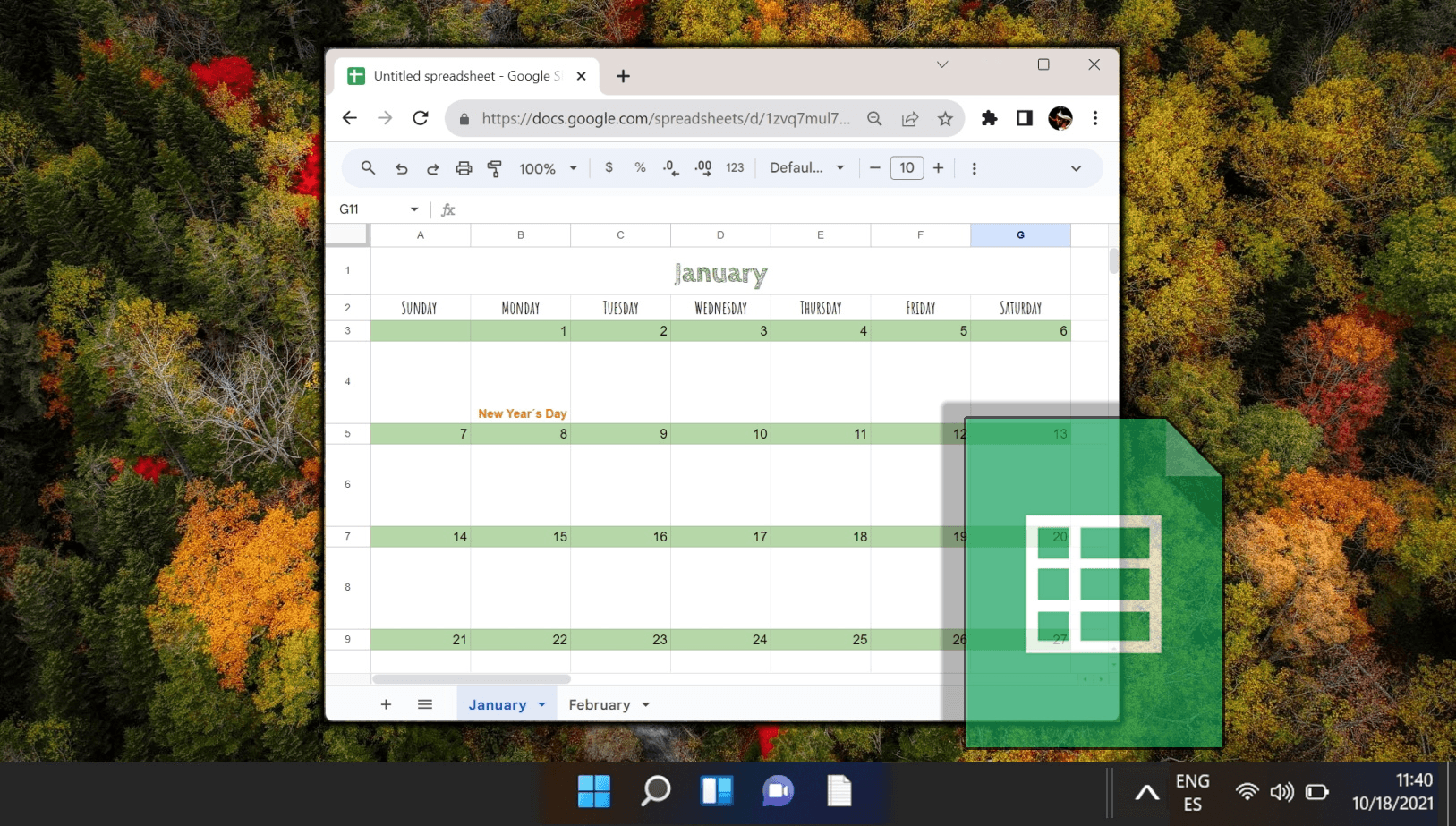
 Google Sheets calendar on a desktop - How to Create a Content Calendar in Google Sheets

Skipping a content calendar does more than create a messy posting schedule; it leads to predictable problems. Time is wasted deciding what to post at the last minute, and often the best ideas are lost. This lack of structure can strain collaboration among team members, and growth becomes a matter of guesswork rather than a repeatable process. Fortunately, most of these issues can be resolved by creating a single source of truth in Google Sheets and a few simple Apps Script automations to keep the calendar organized.

Why do you spend more time deciding what to post?

You spend more time deciding what to post than actually posting. When you open each platform and treat posting like a daily creative sprint, you trade consistency for context switching. Consider using an "Ideas" tab with simple fields: title, short angle, asset link, priority, and a one-line CTA. Pair this with a script that turns a chosen idea into a draft row on your editorial calendar with a single menu click. This change turns decision time into execution time, letting you choose once and then automate where and when it shows up. With our Spreadsheet AI Tool, you can streamline this process even further, enhancing your content planning efficiency.

What happens to your good content ideas?

Good content ideas often get lost. Loose notes and chat threads look like index cards spread out on a desk; they seem easy to find until you need the right one for a deadline, then it's nowhere in sight. To fix this, standardizing capture is key. Use one sheet with timestamps and a source column. Add a script to remove duplicates and flag ideas older than 90 days. This way, your backlog stays easy to search and useful, rather than just a stack of possibilities that never come through.

Is posting becoming reactive instead of intentional?

Posting can become reactive rather than intentional if you wait for inspiration before publishing. This approach to working leads to results as unpredictable as the weather. To fix this, create weekly batches in your planning sheet and use Apps Script to set publish dates that you control. Then, export these dates to your scheduling tool. Batching reduces context switching and helps develop a predictable cadence; this rhythm is important because attention builds up over time. Our Spreadsheet AI Tool helps streamline this process and improve organization.

Why does content creation feel like a burden?

Content creation can feel burdensome when rebuilding every post from scratch drains creative energy. To help with this, you can create reusable blocks in columns: headline, hook, body outline, and supporting asset. A script can then assemble these parts into a draft ready for editing. This setup preserves the voice and quality while allowing some adjustments during final edits. Our Spreadsheet AI Tool simplifies this process by automating the creation of these reusable content blocks, making your workflow more efficient.

How does collaboration become messy?

Collaboration can become messy or even impossible when sharing ideas across chats leads to version chaos. To improve organization, it's important to add owner, status, and approval columns. Then, implement a triggered script that notifies the owner when the status changes and locks rows once approved. This approach creates a lightweight version control system that significantly reduces back-and-forth communication without requiring a complex toolchain.

Can you track what’s working?

You can’t track what’s working if you never log format, theme, or performance. Without this data, you keep guessing which posts deserve changes. Add a performance tab and an Apps Script connector that pulls basic metrics into the sheet on a schedule. Tag posts by format and theme so you can quickly filter the successful ones. This way, making improvements becomes a regular habit rather than wishful thinking. It explains why Identify Marketing Strategy and Training reports that "82% of marketers who blog see positive ROI from their inbound marketing." Measurement is essential; it is where effort turns into results. To help you track and organize this data, our Spreadsheet AI Tool automates the process, ensuring you stay on top of your performance metrics.

Are you wasting time every week?

Time is wasted every single week. Manual planning often means repeating the same work. Automating routine tasks can significantly improve how quickly work gets done. For example, a script that copies a weekly template, adds publish dates, and assigns owners can really reduce setup time. Studies on batching show that this method can save significant time on repetitive work. Also, adding a few smart triggers in Apps Script can turn weekly planning from a hassle into a five-minute routine.

Why does growth feel random?

Growth often feels random and unpredictable. Random posting can train algorithms and audiences to ignore content. To fix this, users should plan out themes for the month using a planning sheet. Focus on the key pieces that align with long-term goals, then automatically schedule supporting posts. This discipline changes random bursts of activity into a predictable engine for meaningful reach.

Are you mistaking busy for productive?

Many professionals mistakenly think that being busy means being productive. Constantly changing things without limits can drain your creative energy. Setting status stages and using time-boxed editing periods in the calendar can help. Using an onEdit script to mark when a draft is changed to final keeps the momentum going. This method shows where work gets stuck, helping you fix problems rather than chasing perfection. Additionally, utilizing our Spreadsheet AI Tool can streamline your workflow and enhance productivity.

Do you delay starting because it feels too big?

You may delay starting because it feels too big. Perfectionism can make the first calendar feel overwhelming. Begin with a simple template that includes the date, title, owner, status, asset link, and a one-line goal. Add an app script that creates a new monthly sheet based on that template. Achieving small, repeatable wins can reduce perceived complexity and make the process easier. This is important because 60% of marketers cite consistency as their biggest challenge, according to Sprout Social. Keeping up with this habit is the tough part, not creating the first sheet, as mentioned in the Identify Marketing Strategy and Training report.

How do teams manage content loads?

Most teams manage content workloads by juggling files and chats because this method seems easy at first. While it works well at the beginning, as the content workload increases, hidden costs emerge. These costs include duplicated efforts, missed deadlines, and misaligned priorities. Solutions like the Spreadsheet AI Tool bring everything together, automate routing, and highlight bottlenecks. This helps teams maintain a single source of truth, reducing planning time from hours to minutes. Our Spreadsheet AI Tool makes it easier to manage your workflow effectively.

What is the pattern among solo creators?

A common pattern emerges among individual creators and small teams: without the right structure, small inefficiencies accumulate, resulting in lost hours each week and a constant sense of being rushed. By creating a calendar that supports quick capture, automated scheduling, and measurable outcomes, the work shifts from heroics to a more predictable craft. Additionally, using our Spreadsheet AI Tool can streamline your workflow and enhance productivity.

What is the frustrating part of this process?

The frustrating part is that the visible mess points to a quieter reason. Once this underlying issue is recognized, everything about planning will look different. Using a sophisticated tool like our Spreadsheet AI Tool can streamline the process and help you uncover insights more efficiently.

Related Reading

Why Building a Content Calendar Feels Harder Than It Should
Google Calendar interface in dark mode - How to Create a Content Calendar in Google Sheets

Creating a functional content calendar in Google Sheets doesn't require advanced skills. The most important thing is not to master every feature; instead, it's about making a few easy choices that reduce difficulty. This helps you deliver content consistently. Skill develops through practice, not by waiting until you feel ready.

Why does it seem like you need to be an expert? 

This idea comes from comparison and scope creep. When you see polished team dashboards, you might think that level of quality is what you should aim for. This raises expectations beyond what a solo creator really needs. This pressure feels fair, especially given how difficult content creation can be. According to the Content Marketing Institute (2023), 60% of marketers struggle to consistently produce engaging content. This explains why many creators hold back rather than take the first steps. Ultimately, the main problem is perceived competence, not actual ability.

What matters more than technical skill?

A simple, written plan and a process you can repeat work better than clever tricks, because consistency adds up. HubSpot, Only 35% of content creators have a documented content strategy (2023), explains why many creators spend too much on tools and not enough on the plan that leads them. Having a strategy provides boundaries, and basic skills in Sheets give you the support you need. When you focus on the idea-to-post loop and make it a weekly habit, small technical changes become optional upgrades.

How can you build confidence with Apps Script without getting overwhelmed?

Treat Apps Script like a set of small switches, not as a new language to master. Start with timeboxed experiments: copy your sheet, spend 15 minutes adding one harmless menu item, then run it and observe the results for a week. Repeat this pattern, making one change per session and tracking whether the tweak saved time or reduced friction. This constraint-based learning approach, which involves making reversible edits in a sandbox, teaches durable skills while preserving creative flow. Think of it like learning to use a screwdriver: you do one fastener at a time, then move on to assembling the cabinet.

How do familiar templates affect planning?

Most teams plan using familiar templates and manual edits because it feels safe and doesn't need a new workflow. But as content volume increases, more versions are created, and even small issues can waste significant time, slowing decision-making. Tools like the Spreadsheet AI Tool offer ready-made templates, simple automations, and one-click actions that keep the easy workflow creators like Numerous while reducing routine setup time from hours to minutes.

What does friction in planning indicate?

The friction you feel now is an opening, not a wall. The next section will show how to turn small, low-risk moves into a 20-minute weekly system that increases your output.

Related Reading

5 Powerful Tips to Build a Social Media Content Calendar in 20 Minutes

Man using Google Sheets on laptop - How to Create a Content Calendar in Google Sheets

Stop wasting time by letting the calendar handle small, repeatable tasks. Using templates, tokenized captions, and some Apps Script helpers can change complex choices into simple edits. Build these tools once and copy them each week, turning the calendar into a low-friction machine you use instead of a project you dread. For tasks involving data organization, consider how tools like our spreadsheet AI can streamline your workflow.

1. How can I make captions and assets truly reusable?

Treat captions as templates with tokens, not just fixed text. Create a short template row with placeholders such as {headline}, {cta}, and {shortlink}. Then use an Apps Script function to replace these tokens with values from the row, shorten links using your Drive or a URL shortener, and create drafts ready for platforms in the Caption column. This same script can also automatically generate different lengths, giving you a 125-character excerpt for Twitter-style limits and a longer version for LinkedIn. This way, you don't have to copy and paste or manually trim each post.

2. How do I generate content variants without leaving Sheets?

Use one-sheet prompt rows and custom functions. Allocate a “Prompt” named range and write an Apps Script custom function, for exampl, =GENERATE_VARIANTS(A2, "education", 5). This function returns five hooks or short captions directly into the cells next to it. Since this work is done in Sheets, users can keep prompts, outputs, and publish dates together, helping avoid switching between tools. To further streamline your workflow, consider how Numerous's Spreadsheet AI Tool can help you generate content variants seamlessly.

3. Which practical scripts should I add first?

Start small by selecting three scripts to reduce repetitive clicks. Think about: (1) a menu item that copies a template row and updates the date pattern; (2) a token-replacer that makes captions and UTM-tagged links; and (3) an exporter that produces a platform CSV or an ICS file for calendar import. Each script should be limited to 20–45 lines of code, be testable independently, and be reversible by saving the last 30 edits in a History sheet. To enhance your experience, consider how our Spreadsheet AI Tool streamlines scripting tasks.

4. Why worry about scale and spreadsheet performance?

Sheets slow down as rows, formulas, and live lookups increase. Instead of putting everything in a single spreadsheet, it's better to organize it by month. Use IMPORTRANGE or a simple query sheet that only pulls the last 30 days. Also, consider adding a time-driven script that moves completed months into a new spreadsheet. This process reduces historical media and keeps the active calendar fast as content volume grows. For more streamlined management, consider how our Spreadsheet AI Tool can help you organize your data more efficiently.

5. How can I keep quality without adding overhead?

To maintain high quality without adding more work, use lightweight validation, protected ranges, and an approval snapshot. Validation helps ensure consistent formatting, while protection prevents accidental changes to formulas. Also, a script that captures an unchangeable snapshot of the row when the status changes creates an audit trail without needing additional management. Think of the sheet as a live manuscript with versioned snapshots, not just a free-for-all whiteboard.

Does this actually save time and improve outcomes?

Yes, if you treat the sheet as an execution engine rather than an ideas board. Using a content calendar can save up to 30 hours per month in content planning, according to HubSpot. This is precisely the kind of reclaimed time you can spend iterating rather than formatting. That practical discipline correlates with better results: as Hootsuite shows, companies that use a social media calendar are three times more likely to succeed in their marketing efforts.

What is Numerous, and how can it help?

Numerous is an AI-powered tool made for spreadsheets. It helps marketers and teams create captions, hashtags, product categories, and more just by dragging down a cell. Users can try Numerous’s ChatGPT for Spreadsheets, which changes simple prompts into repeatable spreadsheet functions in Google Sheets or Microsoft Excel. Additionally, our spreadsheet AI tool enhances efficiency and maximizes productivity.

What is the ongoing challenge after setup?

While the initial setup may seem like the end, the real test arises in maintaining it week after week. The challenge is to build small habits that ensure the system endures over time. Our Spreadsheet AI Tool helps streamline this process, ensuring that your data management remains efficient and effective.

What to Do Right Now to Build Your Calendar (and Keep Using It)

Digital calendar showing project launch date - How to Create a Content Calendar in Google Sheets

Build the seven-day calendar today, fill it quickly, and run a short weekly review for two weeks. This small habit, rather than a perfect template, creates real momentum. Use three tiny automations and two measurement columns to keep the system honest. Treat the sheet like a live tool you check on a fixed day each week. To enhance automation, consider how our Spreadsheet AI Tool can streamline your workflow.

How can one create a seven-day calendar in just a few minutes? 

Open a new Google Sheet and add these columns: Date, Pillar, Post Type, Topic, and Owner. Then run a simple Apps Script that populates the Date column with the next seven days so you don't have to type anything manually. Paste this into Extensions > Apps Script, then run it once to populate the range A2:A8.

How do I create a 7-day calendar in minutes?

Here is a simple function to fill in the next seven days in a Google Sheets calendar: function fillNext7Days() { var ss = SpreadsheetApp.getActive(); var sheet = ss.getActiveSheet(); var start = sheet.getRange("A2"); var today = new Date(); for (var i = 0; i < 7; i++) { var d = new Date(today); d.setDate(today.getDate() + i); start.offset(i, 0).setValue(Utilities.formatDate(d, ss.getSpreadsheetTimeZone(), "yyyy-MM-dd")); } }. This setup takes under three minutes to complete, reducing the initial difficulty of getting started. This simplicity is important because a study published in 2025, "75% of people who use a calendar regularly report increased productivity," shows that using a calendar often leads to clearer focus and higher output.

How can I fill topics fast without freezing?

Timebox ideation to 10 minutes and place rough drafts in each Topic cell. You can also use a single prompt row in the sheet that you can copy all week. Think of rough topics as placeholders, not final posts. To see whether speed improves results, add a PlanningMinutes column to track time spent; this will help you compare weeks without guessing. Small experiments can help you determine whether speed is more effective than polish. In this process, it's worth exploring how our Spreadsheet AI Tool can enhance your efficiency in managing multiple topics effectively.

What’s the cleanest way to enable AI to accelerate ideation within the sheet?

Most teams manage ideation across many tabs and apps because it feels familiar. This method works well when there's a low volume of ideas. However, as the number of ideas or deadlines grows, idea fragments scatter, wasting significant time reassembling them. Teams find that platforms like Numerous can help centralize ideation within a spreadsheet. This lets users create post ideas, hooks, and caption angles right in the cells. This change can reduce scattered thinking from 20 to 30 minutes to just a few minutes of focused creation.

How do I lock the habit so 7 days becomes the norm?

Pick one weekday and set aside a 15 to 20-minute time slot to build your habit. Instead of relying on a manual reminder, use a time-based trigger that sends an email or alert to the owner with a link to the sheet. This will ensure the review is automated and not easily missed.

You can use this simple script as a weekly trigger, changing the recipient if needed:

function weeklyReminder() {

var ss = SpreadsheetApp.getActive();

var url = ss.getUrl();

MailApp.sendEmail("[email protected]", "15 minute calendar review", "Quick review time. Open your calendar: " + url);

}

What metrics actually prove the system is working?

Stop measuring vanity metrics during setup. Instead, track two important signals: Planning Minutes per week and Time To Publish. Time To Publish is the time in hours from when you finalize your topic to when the post goes live. You can use a simple week-over-week formula to compare:

=SUMIFS(PlanningMinutesRange, WeekRange, ThisWeek)

If the average Planning Minutes decreases while Time To Publish shortens, you are making progress.

Also, keep track of qualitative signals: Did planning feel easier this week? Did you avoid a panic publish? Did teamwork need fewer clarifying threads? These human signals matter as much as the numbers.

How should I tune the system after the first 7 to 14 days?

If the sheet feels heavy, trim some columns. If you get stuck on ideas, think about using guided prompts or a one-click generator for each pillar. When you need to work quickly, a function that gives you many ideas in nearby cells can save a lot of time. As a practical limit, keep the active calendar on a single sheet for the current 7 to 14 days, and move older items to an archive to keep things running smoothly. Additionally, remember that our Spreadsheet AI Tool can help you optimize your workflow and generate new ideas effortlessly.

Quick habit comparison you can try now?

  • Build a 7-day Google Sheets calendar and run the fillNext7Days() function.

  • Add Pillar and Post Type columns, then limit topic drafting to 10 minutes.

  • Set a weekly reminder trigger for the review period.

How Planning Ahead Changes Time Budgets?

Planning ahead can make a big difference in time budgets. A study from Time Management Research called "Users who plan their day in advance save an average of 2 hours per week", which was published in 2025, is a helpful way to see how well time management strategies work.

What is Numerous, and how can it help?

Numerous is an AI-powered tool that helps content marketers and eCommerce teams do repeatable tasks quickly inside Google Sheets and Excel. It makes everything easier, from writing SEO blog posts to categorizing products in bulk, just by dragging down a cell. With a simple prompt, Numerous can provide any spreadsheet function in seconds, working like a useful ChatGPT for Spreadsheets. Get started at Numerous.ai to make faster and data-driven decisions while 10x your marketing efforts. Our spreadsheet AI tool helps teams optimize their workflow.

How will this change affect my decisions?

That change may seem small now, but it will soon make you think twice about how decisions expand in a spreadsheet. Our Spreadsheet AI Tool helps streamline your decision-making process by effortlessly organizing and analyzing data.

Make Decisions At Scale Through AI With Numerous AI’s Spreadsheet AI Tool

The truth is, we do not need to change our entire workflow to see if AI can help. Try a focused, reversible experiment in your Google Sheets content calendar for one week. See if a single prompt reduces the small, recurring issues that slow down planning. Teams that run this test with tools like Numerous look at it as low-risk evidence. They then use the results to decide whether to include lightweight automation, such as Numerous’s Spreadsheet AI Tool, in their editorial calendar.

Related Reading

Content creators often juggle a wealth of ideas with tight deadlines that can lead to stressful, last-minute decisions. A strategic approach to planning, including how to use Apps Script in Google Sheets for automation, can simplify tasks like transferring drafts into a publishing schedule or auto-filling templates. Streamlining these repetitive chores allows creative energy to focus on producing compelling content rather than managing logistics.

A methodical setup powered by practical templates transforms the way social media calendars are built, reducing the friction of manual entry and error-checking. Numerous's Spreadsheet AI Tool delivers an integrated workflow that suggests content ideas, auto-populates calendars, and manages reminders, ensuring that planning remains efficient and aligned with creative goals.

Summary

  • Skipping a content calendar quietly costs time and predictability, and using a calendar can reclaim up to 30 hours per month in content planning, according to HubSpot, by turning ad hoc posting into a repeatable process.

  • Good idea capture and lightweight automation prevent lost work, for example flagging ideas older than 90 days and trimming duplicates, and a single menu click can convert a saved idea into a draft row to cut decision time.

  • Batching and a fast setup matter, you can build a usable editorial calendar in about 20 minutes, and organizations that use a social media calendar are 3 times more likely to succeed in their marketing efforts, per Hootsuite.

  • Small, timeboxed experiments lower the learning curve for Apps Script, start with 15 minute edits and a 15 to 20 minute weekly review, and within 2 weeks teams typically see fewer last-minute scrambles.

  • Measure operational signals not vanity metrics, track PlanningMinutes and TimeToPublish and pull performance into the sheet, because 82% of marketers who blog report positive ROI when measurement is in place.

  • Design for scale and performance by limiting the active calendar to the current 30 days, archiving monthly sheets, and keeping helper scripts short and testable, for example, 20 to 45 lines of code and custom functions that return 5 content variants.

  • This is where the Spreadsheet AI Tool fits in; it addresses these workflows by generating platform-specific variants and auto-populating editorial calendars directly inside spreadsheets.

Table of Contents

  • Why Continuing Without a Content Calendar Quietly Hurts Your Growth

  • Why Building a Content Calendar Feels Harder Than It Should

  • 5 Powerful Tips to Build a Social Media Content Calendar in 20 Minutes

  • What to Do Right Now to Build Your Calendar (and Keep Using It)

  • Make Decisions At Scale Through AI With Numerous AI’s Spreadsheet AI Tool

Why Continuing Without a Content Calendar Quietly Hurts Your Growth

 Google Sheets calendar on a desktop - How to Create a Content Calendar in Google Sheets

Skipping a content calendar does more than create a messy posting schedule; it leads to predictable problems. Time is wasted deciding what to post at the last minute, and often the best ideas are lost. This lack of structure can strain collaboration among team members, and growth becomes a matter of guesswork rather than a repeatable process. Fortunately, most of these issues can be resolved by creating a single source of truth in Google Sheets and a few simple Apps Script automations to keep the calendar organized.

Why do you spend more time deciding what to post?

You spend more time deciding what to post than actually posting. When you open each platform and treat posting like a daily creative sprint, you trade consistency for context switching. Consider using an "Ideas" tab with simple fields: title, short angle, asset link, priority, and a one-line CTA. Pair this with a script that turns a chosen idea into a draft row on your editorial calendar with a single menu click. This change turns decision time into execution time, letting you choose once and then automate where and when it shows up. With our Spreadsheet AI Tool, you can streamline this process even further, enhancing your content planning efficiency.

What happens to your good content ideas?

Good content ideas often get lost. Loose notes and chat threads look like index cards spread out on a desk; they seem easy to find until you need the right one for a deadline, then it's nowhere in sight. To fix this, standardizing capture is key. Use one sheet with timestamps and a source column. Add a script to remove duplicates and flag ideas older than 90 days. This way, your backlog stays easy to search and useful, rather than just a stack of possibilities that never come through.

Is posting becoming reactive instead of intentional?

Posting can become reactive rather than intentional if you wait for inspiration before publishing. This approach to working leads to results as unpredictable as the weather. To fix this, create weekly batches in your planning sheet and use Apps Script to set publish dates that you control. Then, export these dates to your scheduling tool. Batching reduces context switching and helps develop a predictable cadence; this rhythm is important because attention builds up over time. Our Spreadsheet AI Tool helps streamline this process and improve organization.

Why does content creation feel like a burden?

Content creation can feel burdensome when rebuilding every post from scratch drains creative energy. To help with this, you can create reusable blocks in columns: headline, hook, body outline, and supporting asset. A script can then assemble these parts into a draft ready for editing. This setup preserves the voice and quality while allowing some adjustments during final edits. Our Spreadsheet AI Tool simplifies this process by automating the creation of these reusable content blocks, making your workflow more efficient.

How does collaboration become messy?

Collaboration can become messy or even impossible when sharing ideas across chats leads to version chaos. To improve organization, it's important to add owner, status, and approval columns. Then, implement a triggered script that notifies the owner when the status changes and locks rows once approved. This approach creates a lightweight version control system that significantly reduces back-and-forth communication without requiring a complex toolchain.

Can you track what’s working?

You can’t track what’s working if you never log format, theme, or performance. Without this data, you keep guessing which posts deserve changes. Add a performance tab and an Apps Script connector that pulls basic metrics into the sheet on a schedule. Tag posts by format and theme so you can quickly filter the successful ones. This way, making improvements becomes a regular habit rather than wishful thinking. It explains why Identify Marketing Strategy and Training reports that "82% of marketers who blog see positive ROI from their inbound marketing." Measurement is essential; it is where effort turns into results. To help you track and organize this data, our Spreadsheet AI Tool automates the process, ensuring you stay on top of your performance metrics.

Are you wasting time every week?

Time is wasted every single week. Manual planning often means repeating the same work. Automating routine tasks can significantly improve how quickly work gets done. For example, a script that copies a weekly template, adds publish dates, and assigns owners can really reduce setup time. Studies on batching show that this method can save significant time on repetitive work. Also, adding a few smart triggers in Apps Script can turn weekly planning from a hassle into a five-minute routine.

Why does growth feel random?

Growth often feels random and unpredictable. Random posting can train algorithms and audiences to ignore content. To fix this, users should plan out themes for the month using a planning sheet. Focus on the key pieces that align with long-term goals, then automatically schedule supporting posts. This discipline changes random bursts of activity into a predictable engine for meaningful reach.

Are you mistaking busy for productive?

Many professionals mistakenly think that being busy means being productive. Constantly changing things without limits can drain your creative energy. Setting status stages and using time-boxed editing periods in the calendar can help. Using an onEdit script to mark when a draft is changed to final keeps the momentum going. This method shows where work gets stuck, helping you fix problems rather than chasing perfection. Additionally, utilizing our Spreadsheet AI Tool can streamline your workflow and enhance productivity.

Do you delay starting because it feels too big?

You may delay starting because it feels too big. Perfectionism can make the first calendar feel overwhelming. Begin with a simple template that includes the date, title, owner, status, asset link, and a one-line goal. Add an app script that creates a new monthly sheet based on that template. Achieving small, repeatable wins can reduce perceived complexity and make the process easier. This is important because 60% of marketers cite consistency as their biggest challenge, according to Sprout Social. Keeping up with this habit is the tough part, not creating the first sheet, as mentioned in the Identify Marketing Strategy and Training report.

How do teams manage content loads?

Most teams manage content workloads by juggling files and chats because this method seems easy at first. While it works well at the beginning, as the content workload increases, hidden costs emerge. These costs include duplicated efforts, missed deadlines, and misaligned priorities. Solutions like the Spreadsheet AI Tool bring everything together, automate routing, and highlight bottlenecks. This helps teams maintain a single source of truth, reducing planning time from hours to minutes. Our Spreadsheet AI Tool makes it easier to manage your workflow effectively.

What is the pattern among solo creators?

A common pattern emerges among individual creators and small teams: without the right structure, small inefficiencies accumulate, resulting in lost hours each week and a constant sense of being rushed. By creating a calendar that supports quick capture, automated scheduling, and measurable outcomes, the work shifts from heroics to a more predictable craft. Additionally, using our Spreadsheet AI Tool can streamline your workflow and enhance productivity.

What is the frustrating part of this process?

The frustrating part is that the visible mess points to a quieter reason. Once this underlying issue is recognized, everything about planning will look different. Using a sophisticated tool like our Spreadsheet AI Tool can streamline the process and help you uncover insights more efficiently.

Related Reading

Why Building a Content Calendar Feels Harder Than It Should

Google Calendar interface in dark mode - How to Create a Content Calendar in Google Sheets

Creating a functional content calendar in Google Sheets doesn't require advanced skills. The most important thing is not to master every feature; instead, it's about making a few easy choices that reduce difficulty. This helps you deliver content consistently. Skill develops through practice, not by waiting until you feel ready.

Why does it seem like you need to be an expert? 

This idea comes from comparison and scope creep. When you see polished team dashboards, you might think that level of quality is what you should aim for. This raises expectations beyond what a solo creator really needs. This pressure feels fair, especially given how difficult content creation can be. According to the Content Marketing Institute (2023), 60% of marketers struggle to consistently produce engaging content. This explains why many creators hold back rather than take the first steps. Ultimately, the main problem is perceived competence, not actual ability.

What matters more than technical skill?

A simple, written plan and a process you can repeat work better than clever tricks, because consistency adds up. HubSpot, Only 35% of content creators have a documented content strategy (2023), explains why many creators spend too much on tools and not enough on the plan that leads them. Having a strategy provides boundaries, and basic skills in Sheets give you the support you need. When you focus on the idea-to-post loop and make it a weekly habit, small technical changes become optional upgrades.

How can you build confidence with Apps Script without getting overwhelmed?

Treat Apps Script like a set of small switches, not as a new language to master. Start with timeboxed experiments: copy your sheet, spend 15 minutes adding one harmless menu item, then run it and observe the results for a week. Repeat this pattern, making one change per session and tracking whether the tweak saved time or reduced friction. This constraint-based learning approach, which involves making reversible edits in a sandbox, teaches durable skills while preserving creative flow. Think of it like learning to use a screwdriver: you do one fastener at a time, then move on to assembling the cabinet.

How do familiar templates affect planning?

Most teams plan using familiar templates and manual edits because it feels safe and doesn't need a new workflow. But as content volume increases, more versions are created, and even small issues can waste significant time, slowing decision-making. Tools like the Spreadsheet AI Tool offer ready-made templates, simple automations, and one-click actions that keep the easy workflow creators like Numerous while reducing routine setup time from hours to minutes.

What does friction in planning indicate?

The friction you feel now is an opening, not a wall. The next section will show how to turn small, low-risk moves into a 20-minute weekly system that increases your output.

Related Reading

5 Powerful Tips to Build a Social Media Content Calendar in 20 Minutes

Man using Google Sheets on laptop - How to Create a Content Calendar in Google Sheets

Stop wasting time by letting the calendar handle small, repeatable tasks. Using templates, tokenized captions, and some Apps Script helpers can change complex choices into simple edits. Build these tools once and copy them each week, turning the calendar into a low-friction machine you use instead of a project you dread. For tasks involving data organization, consider how tools like our spreadsheet AI can streamline your workflow.

1. How can I make captions and assets truly reusable?

Treat captions as templates with tokens, not just fixed text. Create a short template row with placeholders such as {headline}, {cta}, and {shortlink}. Then use an Apps Script function to replace these tokens with values from the row, shorten links using your Drive or a URL shortener, and create drafts ready for platforms in the Caption column. This same script can also automatically generate different lengths, giving you a 125-character excerpt for Twitter-style limits and a longer version for LinkedIn. This way, you don't have to copy and paste or manually trim each post.

2. How do I generate content variants without leaving Sheets?

Use one-sheet prompt rows and custom functions. Allocate a “Prompt” named range and write an Apps Script custom function, for exampl, =GENERATE_VARIANTS(A2, "education", 5). This function returns five hooks or short captions directly into the cells next to it. Since this work is done in Sheets, users can keep prompts, outputs, and publish dates together, helping avoid switching between tools. To further streamline your workflow, consider how Numerous's Spreadsheet AI Tool can help you generate content variants seamlessly.

3. Which practical scripts should I add first?

Start small by selecting three scripts to reduce repetitive clicks. Think about: (1) a menu item that copies a template row and updates the date pattern; (2) a token-replacer that makes captions and UTM-tagged links; and (3) an exporter that produces a platform CSV or an ICS file for calendar import. Each script should be limited to 20–45 lines of code, be testable independently, and be reversible by saving the last 30 edits in a History sheet. To enhance your experience, consider how our Spreadsheet AI Tool streamlines scripting tasks.

4. Why worry about scale and spreadsheet performance?

Sheets slow down as rows, formulas, and live lookups increase. Instead of putting everything in a single spreadsheet, it's better to organize it by month. Use IMPORTRANGE or a simple query sheet that only pulls the last 30 days. Also, consider adding a time-driven script that moves completed months into a new spreadsheet. This process reduces historical media and keeps the active calendar fast as content volume grows. For more streamlined management, consider how our Spreadsheet AI Tool can help you organize your data more efficiently.

5. How can I keep quality without adding overhead?

To maintain high quality without adding more work, use lightweight validation, protected ranges, and an approval snapshot. Validation helps ensure consistent formatting, while protection prevents accidental changes to formulas. Also, a script that captures an unchangeable snapshot of the row when the status changes creates an audit trail without needing additional management. Think of the sheet as a live manuscript with versioned snapshots, not just a free-for-all whiteboard.

Does this actually save time and improve outcomes?

Yes, if you treat the sheet as an execution engine rather than an ideas board. Using a content calendar can save up to 30 hours per month in content planning, according to HubSpot. This is precisely the kind of reclaimed time you can spend iterating rather than formatting. That practical discipline correlates with better results: as Hootsuite shows, companies that use a social media calendar are three times more likely to succeed in their marketing efforts.

What is Numerous, and how can it help?

Numerous is an AI-powered tool made for spreadsheets. It helps marketers and teams create captions, hashtags, product categories, and more just by dragging down a cell. Users can try Numerous’s ChatGPT for Spreadsheets, which changes simple prompts into repeatable spreadsheet functions in Google Sheets or Microsoft Excel. Additionally, our spreadsheet AI tool enhances efficiency and maximizes productivity.

What is the ongoing challenge after setup?

While the initial setup may seem like the end, the real test arises in maintaining it week after week. The challenge is to build small habits that ensure the system endures over time. Our Spreadsheet AI Tool helps streamline this process, ensuring that your data management remains efficient and effective.

What to Do Right Now to Build Your Calendar (and Keep Using It)

Digital calendar showing project launch date - How to Create a Content Calendar in Google Sheets

Build the seven-day calendar today, fill it quickly, and run a short weekly review for two weeks. This small habit, rather than a perfect template, creates real momentum. Use three tiny automations and two measurement columns to keep the system honest. Treat the sheet like a live tool you check on a fixed day each week. To enhance automation, consider how our Spreadsheet AI Tool can streamline your workflow.

How can one create a seven-day calendar in just a few minutes? 

Open a new Google Sheet and add these columns: Date, Pillar, Post Type, Topic, and Owner. Then run a simple Apps Script that populates the Date column with the next seven days so you don't have to type anything manually. Paste this into Extensions > Apps Script, then run it once to populate the range A2:A8.

How do I create a 7-day calendar in minutes?

Here is a simple function to fill in the next seven days in a Google Sheets calendar: function fillNext7Days() { var ss = SpreadsheetApp.getActive(); var sheet = ss.getActiveSheet(); var start = sheet.getRange("A2"); var today = new Date(); for (var i = 0; i < 7; i++) { var d = new Date(today); d.setDate(today.getDate() + i); start.offset(i, 0).setValue(Utilities.formatDate(d, ss.getSpreadsheetTimeZone(), "yyyy-MM-dd")); } }. This setup takes under three minutes to complete, reducing the initial difficulty of getting started. This simplicity is important because a study published in 2025, "75% of people who use a calendar regularly report increased productivity," shows that using a calendar often leads to clearer focus and higher output.

How can I fill topics fast without freezing?

Timebox ideation to 10 minutes and place rough drafts in each Topic cell. You can also use a single prompt row in the sheet that you can copy all week. Think of rough topics as placeholders, not final posts. To see whether speed improves results, add a PlanningMinutes column to track time spent; this will help you compare weeks without guessing. Small experiments can help you determine whether speed is more effective than polish. In this process, it's worth exploring how our Spreadsheet AI Tool can enhance your efficiency in managing multiple topics effectively.

What’s the cleanest way to enable AI to accelerate ideation within the sheet?

Most teams manage ideation across many tabs and apps because it feels familiar. This method works well when there's a low volume of ideas. However, as the number of ideas or deadlines grows, idea fragments scatter, wasting significant time reassembling them. Teams find that platforms like Numerous can help centralize ideation within a spreadsheet. This lets users create post ideas, hooks, and caption angles right in the cells. This change can reduce scattered thinking from 20 to 30 minutes to just a few minutes of focused creation.

How do I lock the habit so 7 days becomes the norm?

Pick one weekday and set aside a 15 to 20-minute time slot to build your habit. Instead of relying on a manual reminder, use a time-based trigger that sends an email or alert to the owner with a link to the sheet. This will ensure the review is automated and not easily missed.

You can use this simple script as a weekly trigger, changing the recipient if needed:

function weeklyReminder() {

var ss = SpreadsheetApp.getActive();

var url = ss.getUrl();

MailApp.sendEmail("[email protected]", "15 minute calendar review", "Quick review time. Open your calendar: " + url);

}

What metrics actually prove the system is working?

Stop measuring vanity metrics during setup. Instead, track two important signals: Planning Minutes per week and Time To Publish. Time To Publish is the time in hours from when you finalize your topic to when the post goes live. You can use a simple week-over-week formula to compare:

=SUMIFS(PlanningMinutesRange, WeekRange, ThisWeek)

If the average Planning Minutes decreases while Time To Publish shortens, you are making progress.

Also, keep track of qualitative signals: Did planning feel easier this week? Did you avoid a panic publish? Did teamwork need fewer clarifying threads? These human signals matter as much as the numbers.

How should I tune the system after the first 7 to 14 days?

If the sheet feels heavy, trim some columns. If you get stuck on ideas, think about using guided prompts or a one-click generator for each pillar. When you need to work quickly, a function that gives you many ideas in nearby cells can save a lot of time. As a practical limit, keep the active calendar on a single sheet for the current 7 to 14 days, and move older items to an archive to keep things running smoothly. Additionally, remember that our Spreadsheet AI Tool can help you optimize your workflow and generate new ideas effortlessly.

Quick habit comparison you can try now?

  • Build a 7-day Google Sheets calendar and run the fillNext7Days() function.

  • Add Pillar and Post Type columns, then limit topic drafting to 10 minutes.

  • Set a weekly reminder trigger for the review period.

How Planning Ahead Changes Time Budgets?

Planning ahead can make a big difference in time budgets. A study from Time Management Research called "Users who plan their day in advance save an average of 2 hours per week", which was published in 2025, is a helpful way to see how well time management strategies work.

What is Numerous, and how can it help?

Numerous is an AI-powered tool that helps content marketers and eCommerce teams do repeatable tasks quickly inside Google Sheets and Excel. It makes everything easier, from writing SEO blog posts to categorizing products in bulk, just by dragging down a cell. With a simple prompt, Numerous can provide any spreadsheet function in seconds, working like a useful ChatGPT for Spreadsheets. Get started at Numerous.ai to make faster and data-driven decisions while 10x your marketing efforts. Our spreadsheet AI tool helps teams optimize their workflow.

How will this change affect my decisions?

That change may seem small now, but it will soon make you think twice about how decisions expand in a spreadsheet. Our Spreadsheet AI Tool helps streamline your decision-making process by effortlessly organizing and analyzing data.

Make Decisions At Scale Through AI With Numerous AI’s Spreadsheet AI Tool

The truth is, we do not need to change our entire workflow to see if AI can help. Try a focused, reversible experiment in your Google Sheets content calendar for one week. See if a single prompt reduces the small, recurring issues that slow down planning. Teams that run this test with tools like Numerous look at it as low-risk evidence. They then use the results to decide whether to include lightweight automation, such as Numerous’s Spreadsheet AI Tool, in their editorial calendar.

Related Reading

Content creators often juggle a wealth of ideas with tight deadlines that can lead to stressful, last-minute decisions. A strategic approach to planning, including how to use Apps Script in Google Sheets for automation, can simplify tasks like transferring drafts into a publishing schedule or auto-filling templates. Streamlining these repetitive chores allows creative energy to focus on producing compelling content rather than managing logistics.

A methodical setup powered by practical templates transforms the way social media calendars are built, reducing the friction of manual entry and error-checking. Numerous's Spreadsheet AI Tool delivers an integrated workflow that suggests content ideas, auto-populates calendars, and manages reminders, ensuring that planning remains efficient and aligned with creative goals.

Summary

  • Skipping a content calendar quietly costs time and predictability, and using a calendar can reclaim up to 30 hours per month in content planning, according to HubSpot, by turning ad hoc posting into a repeatable process.

  • Good idea capture and lightweight automation prevent lost work, for example flagging ideas older than 90 days and trimming duplicates, and a single menu click can convert a saved idea into a draft row to cut decision time.

  • Batching and a fast setup matter, you can build a usable editorial calendar in about 20 minutes, and organizations that use a social media calendar are 3 times more likely to succeed in their marketing efforts, per Hootsuite.

  • Small, timeboxed experiments lower the learning curve for Apps Script, start with 15 minute edits and a 15 to 20 minute weekly review, and within 2 weeks teams typically see fewer last-minute scrambles.

  • Measure operational signals not vanity metrics, track PlanningMinutes and TimeToPublish and pull performance into the sheet, because 82% of marketers who blog report positive ROI when measurement is in place.

  • Design for scale and performance by limiting the active calendar to the current 30 days, archiving monthly sheets, and keeping helper scripts short and testable, for example, 20 to 45 lines of code and custom functions that return 5 content variants.

  • This is where the Spreadsheet AI Tool fits in; it addresses these workflows by generating platform-specific variants and auto-populating editorial calendars directly inside spreadsheets.

Table of Contents

  • Why Continuing Without a Content Calendar Quietly Hurts Your Growth

  • Why Building a Content Calendar Feels Harder Than It Should

  • 5 Powerful Tips to Build a Social Media Content Calendar in 20 Minutes

  • What to Do Right Now to Build Your Calendar (and Keep Using It)

  • Make Decisions At Scale Through AI With Numerous AI’s Spreadsheet AI Tool

Why Continuing Without a Content Calendar Quietly Hurts Your Growth

 Google Sheets calendar on a desktop - How to Create a Content Calendar in Google Sheets

Skipping a content calendar does more than create a messy posting schedule; it leads to predictable problems. Time is wasted deciding what to post at the last minute, and often the best ideas are lost. This lack of structure can strain collaboration among team members, and growth becomes a matter of guesswork rather than a repeatable process. Fortunately, most of these issues can be resolved by creating a single source of truth in Google Sheets and a few simple Apps Script automations to keep the calendar organized.

Why do you spend more time deciding what to post?

You spend more time deciding what to post than actually posting. When you open each platform and treat posting like a daily creative sprint, you trade consistency for context switching. Consider using an "Ideas" tab with simple fields: title, short angle, asset link, priority, and a one-line CTA. Pair this with a script that turns a chosen idea into a draft row on your editorial calendar with a single menu click. This change turns decision time into execution time, letting you choose once and then automate where and when it shows up. With our Spreadsheet AI Tool, you can streamline this process even further, enhancing your content planning efficiency.

What happens to your good content ideas?

Good content ideas often get lost. Loose notes and chat threads look like index cards spread out on a desk; they seem easy to find until you need the right one for a deadline, then it's nowhere in sight. To fix this, standardizing capture is key. Use one sheet with timestamps and a source column. Add a script to remove duplicates and flag ideas older than 90 days. This way, your backlog stays easy to search and useful, rather than just a stack of possibilities that never come through.

Is posting becoming reactive instead of intentional?

Posting can become reactive rather than intentional if you wait for inspiration before publishing. This approach to working leads to results as unpredictable as the weather. To fix this, create weekly batches in your planning sheet and use Apps Script to set publish dates that you control. Then, export these dates to your scheduling tool. Batching reduces context switching and helps develop a predictable cadence; this rhythm is important because attention builds up over time. Our Spreadsheet AI Tool helps streamline this process and improve organization.

Why does content creation feel like a burden?

Content creation can feel burdensome when rebuilding every post from scratch drains creative energy. To help with this, you can create reusable blocks in columns: headline, hook, body outline, and supporting asset. A script can then assemble these parts into a draft ready for editing. This setup preserves the voice and quality while allowing some adjustments during final edits. Our Spreadsheet AI Tool simplifies this process by automating the creation of these reusable content blocks, making your workflow more efficient.

How does collaboration become messy?

Collaboration can become messy or even impossible when sharing ideas across chats leads to version chaos. To improve organization, it's important to add owner, status, and approval columns. Then, implement a triggered script that notifies the owner when the status changes and locks rows once approved. This approach creates a lightweight version control system that significantly reduces back-and-forth communication without requiring a complex toolchain.

Can you track what’s working?

You can’t track what’s working if you never log format, theme, or performance. Without this data, you keep guessing which posts deserve changes. Add a performance tab and an Apps Script connector that pulls basic metrics into the sheet on a schedule. Tag posts by format and theme so you can quickly filter the successful ones. This way, making improvements becomes a regular habit rather than wishful thinking. It explains why Identify Marketing Strategy and Training reports that "82% of marketers who blog see positive ROI from their inbound marketing." Measurement is essential; it is where effort turns into results. To help you track and organize this data, our Spreadsheet AI Tool automates the process, ensuring you stay on top of your performance metrics.

Are you wasting time every week?

Time is wasted every single week. Manual planning often means repeating the same work. Automating routine tasks can significantly improve how quickly work gets done. For example, a script that copies a weekly template, adds publish dates, and assigns owners can really reduce setup time. Studies on batching show that this method can save significant time on repetitive work. Also, adding a few smart triggers in Apps Script can turn weekly planning from a hassle into a five-minute routine.

Why does growth feel random?

Growth often feels random and unpredictable. Random posting can train algorithms and audiences to ignore content. To fix this, users should plan out themes for the month using a planning sheet. Focus on the key pieces that align with long-term goals, then automatically schedule supporting posts. This discipline changes random bursts of activity into a predictable engine for meaningful reach.

Are you mistaking busy for productive?

Many professionals mistakenly think that being busy means being productive. Constantly changing things without limits can drain your creative energy. Setting status stages and using time-boxed editing periods in the calendar can help. Using an onEdit script to mark when a draft is changed to final keeps the momentum going. This method shows where work gets stuck, helping you fix problems rather than chasing perfection. Additionally, utilizing our Spreadsheet AI Tool can streamline your workflow and enhance productivity.

Do you delay starting because it feels too big?

You may delay starting because it feels too big. Perfectionism can make the first calendar feel overwhelming. Begin with a simple template that includes the date, title, owner, status, asset link, and a one-line goal. Add an app script that creates a new monthly sheet based on that template. Achieving small, repeatable wins can reduce perceived complexity and make the process easier. This is important because 60% of marketers cite consistency as their biggest challenge, according to Sprout Social. Keeping up with this habit is the tough part, not creating the first sheet, as mentioned in the Identify Marketing Strategy and Training report.

How do teams manage content loads?

Most teams manage content workloads by juggling files and chats because this method seems easy at first. While it works well at the beginning, as the content workload increases, hidden costs emerge. These costs include duplicated efforts, missed deadlines, and misaligned priorities. Solutions like the Spreadsheet AI Tool bring everything together, automate routing, and highlight bottlenecks. This helps teams maintain a single source of truth, reducing planning time from hours to minutes. Our Spreadsheet AI Tool makes it easier to manage your workflow effectively.

What is the pattern among solo creators?

A common pattern emerges among individual creators and small teams: without the right structure, small inefficiencies accumulate, resulting in lost hours each week and a constant sense of being rushed. By creating a calendar that supports quick capture, automated scheduling, and measurable outcomes, the work shifts from heroics to a more predictable craft. Additionally, using our Spreadsheet AI Tool can streamline your workflow and enhance productivity.

What is the frustrating part of this process?

The frustrating part is that the visible mess points to a quieter reason. Once this underlying issue is recognized, everything about planning will look different. Using a sophisticated tool like our Spreadsheet AI Tool can streamline the process and help you uncover insights more efficiently.

Related Reading

Why Building a Content Calendar Feels Harder Than It Should

Google Calendar interface in dark mode - How to Create a Content Calendar in Google Sheets

Creating a functional content calendar in Google Sheets doesn't require advanced skills. The most important thing is not to master every feature; instead, it's about making a few easy choices that reduce difficulty. This helps you deliver content consistently. Skill develops through practice, not by waiting until you feel ready.

Why does it seem like you need to be an expert? 

This idea comes from comparison and scope creep. When you see polished team dashboards, you might think that level of quality is what you should aim for. This raises expectations beyond what a solo creator really needs. This pressure feels fair, especially given how difficult content creation can be. According to the Content Marketing Institute (2023), 60% of marketers struggle to consistently produce engaging content. This explains why many creators hold back rather than take the first steps. Ultimately, the main problem is perceived competence, not actual ability.

What matters more than technical skill?

A simple, written plan and a process you can repeat work better than clever tricks, because consistency adds up. HubSpot, Only 35% of content creators have a documented content strategy (2023), explains why many creators spend too much on tools and not enough on the plan that leads them. Having a strategy provides boundaries, and basic skills in Sheets give you the support you need. When you focus on the idea-to-post loop and make it a weekly habit, small technical changes become optional upgrades.

How can you build confidence with Apps Script without getting overwhelmed?

Treat Apps Script like a set of small switches, not as a new language to master. Start with timeboxed experiments: copy your sheet, spend 15 minutes adding one harmless menu item, then run it and observe the results for a week. Repeat this pattern, making one change per session and tracking whether the tweak saved time or reduced friction. This constraint-based learning approach, which involves making reversible edits in a sandbox, teaches durable skills while preserving creative flow. Think of it like learning to use a screwdriver: you do one fastener at a time, then move on to assembling the cabinet.

How do familiar templates affect planning?

Most teams plan using familiar templates and manual edits because it feels safe and doesn't need a new workflow. But as content volume increases, more versions are created, and even small issues can waste significant time, slowing decision-making. Tools like the Spreadsheet AI Tool offer ready-made templates, simple automations, and one-click actions that keep the easy workflow creators like Numerous while reducing routine setup time from hours to minutes.

What does friction in planning indicate?

The friction you feel now is an opening, not a wall. The next section will show how to turn small, low-risk moves into a 20-minute weekly system that increases your output.

Related Reading

5 Powerful Tips to Build a Social Media Content Calendar in 20 Minutes

Man using Google Sheets on laptop - How to Create a Content Calendar in Google Sheets

Stop wasting time by letting the calendar handle small, repeatable tasks. Using templates, tokenized captions, and some Apps Script helpers can change complex choices into simple edits. Build these tools once and copy them each week, turning the calendar into a low-friction machine you use instead of a project you dread. For tasks involving data organization, consider how tools like our spreadsheet AI can streamline your workflow.

1. How can I make captions and assets truly reusable?

Treat captions as templates with tokens, not just fixed text. Create a short template row with placeholders such as {headline}, {cta}, and {shortlink}. Then use an Apps Script function to replace these tokens with values from the row, shorten links using your Drive or a URL shortener, and create drafts ready for platforms in the Caption column. This same script can also automatically generate different lengths, giving you a 125-character excerpt for Twitter-style limits and a longer version for LinkedIn. This way, you don't have to copy and paste or manually trim each post.

2. How do I generate content variants without leaving Sheets?

Use one-sheet prompt rows and custom functions. Allocate a “Prompt” named range and write an Apps Script custom function, for exampl, =GENERATE_VARIANTS(A2, "education", 5). This function returns five hooks or short captions directly into the cells next to it. Since this work is done in Sheets, users can keep prompts, outputs, and publish dates together, helping avoid switching between tools. To further streamline your workflow, consider how Numerous's Spreadsheet AI Tool can help you generate content variants seamlessly.

3. Which practical scripts should I add first?

Start small by selecting three scripts to reduce repetitive clicks. Think about: (1) a menu item that copies a template row and updates the date pattern; (2) a token-replacer that makes captions and UTM-tagged links; and (3) an exporter that produces a platform CSV or an ICS file for calendar import. Each script should be limited to 20–45 lines of code, be testable independently, and be reversible by saving the last 30 edits in a History sheet. To enhance your experience, consider how our Spreadsheet AI Tool streamlines scripting tasks.

4. Why worry about scale and spreadsheet performance?

Sheets slow down as rows, formulas, and live lookups increase. Instead of putting everything in a single spreadsheet, it's better to organize it by month. Use IMPORTRANGE or a simple query sheet that only pulls the last 30 days. Also, consider adding a time-driven script that moves completed months into a new spreadsheet. This process reduces historical media and keeps the active calendar fast as content volume grows. For more streamlined management, consider how our Spreadsheet AI Tool can help you organize your data more efficiently.

5. How can I keep quality without adding overhead?

To maintain high quality without adding more work, use lightweight validation, protected ranges, and an approval snapshot. Validation helps ensure consistent formatting, while protection prevents accidental changes to formulas. Also, a script that captures an unchangeable snapshot of the row when the status changes creates an audit trail without needing additional management. Think of the sheet as a live manuscript with versioned snapshots, not just a free-for-all whiteboard.

Does this actually save time and improve outcomes?

Yes, if you treat the sheet as an execution engine rather than an ideas board. Using a content calendar can save up to 30 hours per month in content planning, according to HubSpot. This is precisely the kind of reclaimed time you can spend iterating rather than formatting. That practical discipline correlates with better results: as Hootsuite shows, companies that use a social media calendar are three times more likely to succeed in their marketing efforts.

What is Numerous, and how can it help?

Numerous is an AI-powered tool made for spreadsheets. It helps marketers and teams create captions, hashtags, product categories, and more just by dragging down a cell. Users can try Numerous’s ChatGPT for Spreadsheets, which changes simple prompts into repeatable spreadsheet functions in Google Sheets or Microsoft Excel. Additionally, our spreadsheet AI tool enhances efficiency and maximizes productivity.

What is the ongoing challenge after setup?

While the initial setup may seem like the end, the real test arises in maintaining it week after week. The challenge is to build small habits that ensure the system endures over time. Our Spreadsheet AI Tool helps streamline this process, ensuring that your data management remains efficient and effective.

What to Do Right Now to Build Your Calendar (and Keep Using It)

Digital calendar showing project launch date - How to Create a Content Calendar in Google Sheets

Build the seven-day calendar today, fill it quickly, and run a short weekly review for two weeks. This small habit, rather than a perfect template, creates real momentum. Use three tiny automations and two measurement columns to keep the system honest. Treat the sheet like a live tool you check on a fixed day each week. To enhance automation, consider how our Spreadsheet AI Tool can streamline your workflow.

How can one create a seven-day calendar in just a few minutes? 

Open a new Google Sheet and add these columns: Date, Pillar, Post Type, Topic, and Owner. Then run a simple Apps Script that populates the Date column with the next seven days so you don't have to type anything manually. Paste this into Extensions > Apps Script, then run it once to populate the range A2:A8.

How do I create a 7-day calendar in minutes?

Here is a simple function to fill in the next seven days in a Google Sheets calendar: function fillNext7Days() { var ss = SpreadsheetApp.getActive(); var sheet = ss.getActiveSheet(); var start = sheet.getRange("A2"); var today = new Date(); for (var i = 0; i < 7; i++) { var d = new Date(today); d.setDate(today.getDate() + i); start.offset(i, 0).setValue(Utilities.formatDate(d, ss.getSpreadsheetTimeZone(), "yyyy-MM-dd")); } }. This setup takes under three minutes to complete, reducing the initial difficulty of getting started. This simplicity is important because a study published in 2025, "75% of people who use a calendar regularly report increased productivity," shows that using a calendar often leads to clearer focus and higher output.

How can I fill topics fast without freezing?

Timebox ideation to 10 minutes and place rough drafts in each Topic cell. You can also use a single prompt row in the sheet that you can copy all week. Think of rough topics as placeholders, not final posts. To see whether speed improves results, add a PlanningMinutes column to track time spent; this will help you compare weeks without guessing. Small experiments can help you determine whether speed is more effective than polish. In this process, it's worth exploring how our Spreadsheet AI Tool can enhance your efficiency in managing multiple topics effectively.

What’s the cleanest way to enable AI to accelerate ideation within the sheet?

Most teams manage ideation across many tabs and apps because it feels familiar. This method works well when there's a low volume of ideas. However, as the number of ideas or deadlines grows, idea fragments scatter, wasting significant time reassembling them. Teams find that platforms like Numerous can help centralize ideation within a spreadsheet. This lets users create post ideas, hooks, and caption angles right in the cells. This change can reduce scattered thinking from 20 to 30 minutes to just a few minutes of focused creation.

How do I lock the habit so 7 days becomes the norm?

Pick one weekday and set aside a 15 to 20-minute time slot to build your habit. Instead of relying on a manual reminder, use a time-based trigger that sends an email or alert to the owner with a link to the sheet. This will ensure the review is automated and not easily missed.

You can use this simple script as a weekly trigger, changing the recipient if needed:

function weeklyReminder() {

var ss = SpreadsheetApp.getActive();

var url = ss.getUrl();

MailApp.sendEmail("[email protected]", "15 minute calendar review", "Quick review time. Open your calendar: " + url);

}

What metrics actually prove the system is working?

Stop measuring vanity metrics during setup. Instead, track two important signals: Planning Minutes per week and Time To Publish. Time To Publish is the time in hours from when you finalize your topic to when the post goes live. You can use a simple week-over-week formula to compare:

=SUMIFS(PlanningMinutesRange, WeekRange, ThisWeek)

If the average Planning Minutes decreases while Time To Publish shortens, you are making progress.

Also, keep track of qualitative signals: Did planning feel easier this week? Did you avoid a panic publish? Did teamwork need fewer clarifying threads? These human signals matter as much as the numbers.

How should I tune the system after the first 7 to 14 days?

If the sheet feels heavy, trim some columns. If you get stuck on ideas, think about using guided prompts or a one-click generator for each pillar. When you need to work quickly, a function that gives you many ideas in nearby cells can save a lot of time. As a practical limit, keep the active calendar on a single sheet for the current 7 to 14 days, and move older items to an archive to keep things running smoothly. Additionally, remember that our Spreadsheet AI Tool can help you optimize your workflow and generate new ideas effortlessly.

Quick habit comparison you can try now?

  • Build a 7-day Google Sheets calendar and run the fillNext7Days() function.

  • Add Pillar and Post Type columns, then limit topic drafting to 10 minutes.

  • Set a weekly reminder trigger for the review period.

How Planning Ahead Changes Time Budgets?

Planning ahead can make a big difference in time budgets. A study from Time Management Research called "Users who plan their day in advance save an average of 2 hours per week", which was published in 2025, is a helpful way to see how well time management strategies work.

What is Numerous, and how can it help?

Numerous is an AI-powered tool that helps content marketers and eCommerce teams do repeatable tasks quickly inside Google Sheets and Excel. It makes everything easier, from writing SEO blog posts to categorizing products in bulk, just by dragging down a cell. With a simple prompt, Numerous can provide any spreadsheet function in seconds, working like a useful ChatGPT for Spreadsheets. Get started at Numerous.ai to make faster and data-driven decisions while 10x your marketing efforts. Our spreadsheet AI tool helps teams optimize their workflow.

How will this change affect my decisions?

That change may seem small now, but it will soon make you think twice about how decisions expand in a spreadsheet. Our Spreadsheet AI Tool helps streamline your decision-making process by effortlessly organizing and analyzing data.

Make Decisions At Scale Through AI With Numerous AI’s Spreadsheet AI Tool

The truth is, we do not need to change our entire workflow to see if AI can help. Try a focused, reversible experiment in your Google Sheets content calendar for one week. See if a single prompt reduces the small, recurring issues that slow down planning. Teams that run this test with tools like Numerous look at it as low-risk evidence. They then use the results to decide whether to include lightweight automation, such as Numerous’s Spreadsheet AI Tool, in their editorial calendar.

Related Reading