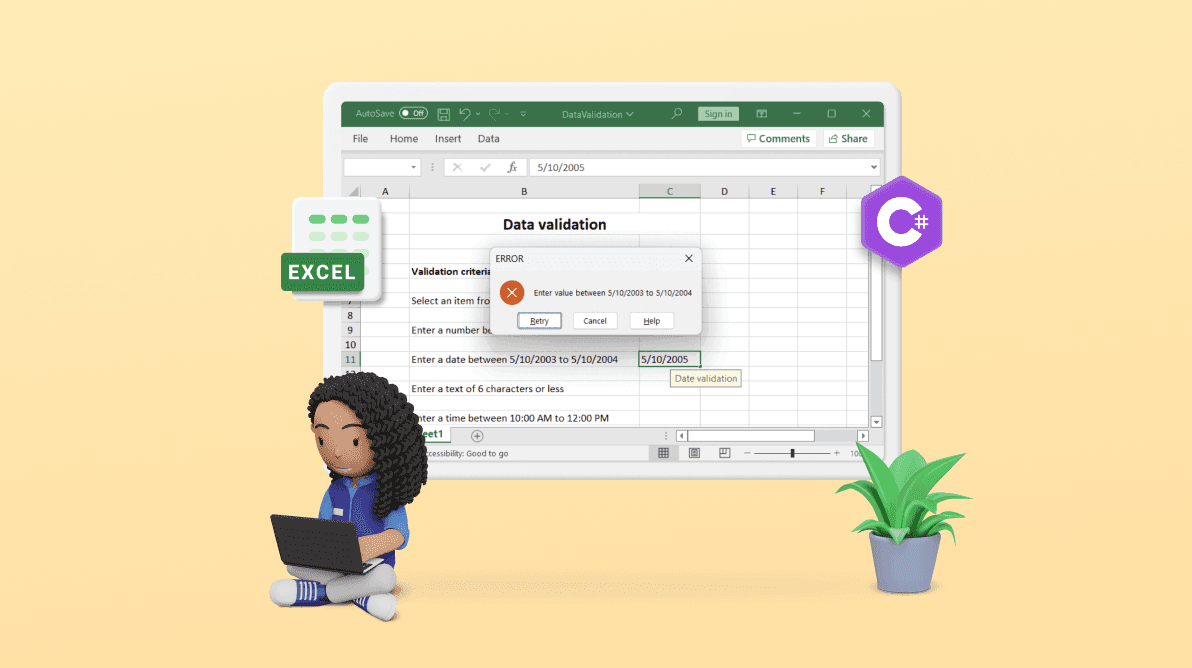
10 Data Validation Tricks to Prevent Excel Errors in 10 Minutes

10 Data Validation Tricks to Prevent Excel Errors in 10 Minutes

Riley Walz

Riley Walz

Riley Walz

Jan 28, 2026

Jan 28, 2026

Jan 28, 2026

woman validating data - Data Validation Excel

Excel spreadsheets are prone to errors when input validation is overlooked, such as entering text into a cell intended for numbers. Data validation enforces rules that help maintain consistency across inventory lists, sales data, and custom forms. This built-in feature minimizes manual corrections and preserves the integrity of your formulas. Although methods on how to use Apps Script in Google Sheets exist, Excel’s validation tools offer robust, offline reliability.

Practical techniques, from specifying precise data types to designing dependent dropdowns, can streamline complex worksheets and reduce repetitive setup tasks. Such measures ensure that errors are caught early and workflows remain efficient. Numerous’s Spreadsheet AI Tool helps automate these tasks by applying consistent rules across sheets, so users can focus on deeper analysis.

Summary

  • Data validation prevents 88% of spreadsheet errors, according to research from the University of Hawaii, yet most Excel files lack input controls. Organizations lose $15 million annually due to poor data quality, much of it stemming from unchecked text entries in number fields, inconsistent category spellings, and duplicate IDs that fragment reports. The financial damage isn't abstract. It represents miscalculated budgets, incorrect inventory orders, and strategic decisions built on numbers that looked right but weren't.

  • Cleanup costs exceed prevention by orders of magnitude in spreadsheet management. Adding a dropdown menu to enforce consistent region names takes thirty seconds, while discovering and fixing fragmented regional data three months later takes three days. That ratio holds across nearly every validation scenario, yet most teams experience it the other way around. They build spreadsheets quickly, encounter problems later, and retrofit validation after the damage has already spread through formulas and reports.

  • Collaboration amplifies data chaos when shared files lack validation rules. One person enters dates as MM/DD/YYYY, another uses DD-MM-YY, and a third types "March 2025" because it feels clearer. Excel accepts all three formats, but stores them inconsistently, breaking any formula that expects uniformity. Studies show that 90% of spreadsheets with more than 150 rows contain errors, and as more hands touch files without enforced standards, the probability of clean data approaches zero.

  • Manual entry without validation creates predictable failure patterns that compound silently. Someone types "Lagos," another types "lagos," and a third abbreviates it as "LG." Excel accepts all three without question. When someone builds a pivot table to analyze regional trends, Lagos is split into three categories. The error propagates into executive reporting before anyone realizes the original inconsistency, and by then, it has shaped real outcomes that require uncomfortable explanations about data integrity.

  • Trust becomes the scarcest resource once stakeholders stop believing your numbers. A finance team that presents revised projections twice in three months loses executive confidence, regardless of whether they fix the underlying data. The technical problem might be solved, but the relational problem lingers. People remember when your spreadsheet was wrong more vividly than when it was right, making credibility harder to rebuild than the corrupted cells themselves.

  • Static validation rules protect future entries but don't address the existing mess, which is where the Spreadsheet AI Tool fits in: standardizing inconsistent entries across thousands of rows in seconds, rather than requiring manual cleanup before validation can even begin.

Table of Contents

Why Excel Errors Keep Happening

Woman working on office computer spreadsheet - Data Validation Excel

Excel errors happen because the software treats every cell as open to anything. By default, it accepts any input without checking, relying entirely on human care to keep data integrity. When someone types text into a numeric field or accidentally adds a space before a value, the error quietly creeps into calculations. This isn’t a flaw in Excel's design; it’s a feature made for flexibility, not control. Problems come up when this flexibility meets reality, like tight deadlines, many collaborators, and the mental strain of handling dozens of inputs at once. Errors don’t announce themselves; instead, they build up over time. Out of the box, Excel works on trust. It assumes that anyone using the spreadsheet knows exactly what belongs in each cell and will enter it correctly every time. To alleviate some of these issues, considering automated solutions like our Spreadsheet AI Tool can significantly improve data accuracy.

How does input flexibility lead to errors?

A date column accepts "Next Tuesday" just as easily as it accepts "2025-03-15". In the same way, a revenue field accepts letters, symbols, or empty spaces without complaint. Because of this, a formula that uses that faulty cell can still perform calculations. It might show a result that looks correct, but it is actually based on incorrect data. Leveraging our Spreadsheet AI Tool can help identify such inconsistencies and improve data accuracy.

Why is the system problematic for complex tasks?

This flexibility feels convenient when you are working alone on a simple task. However, it can become risky as things get more complicated. Research from Raymond Panko at the University of Hawaii shows that 88% of spreadsheets have errors. This problem doesn’t stem from a lack of user skill; instead, the system itself fails to prevent mistakes. Our Spreadsheet AI Tool helps mitigate these risks by ensuring accuracy and reliability in your data. The spreadsheet does not make loud mistakes. Totals still calculate, charts still show up, and dashboards still look nice. But beneath the surface, the numbers have already strayed from the truth.

How do data entry practices contribute to errors?

Most spreadsheet errors happen when people enter data. Fast typing, copying from another source, or making quick edits in a rush can lead to mistakes. The result is often extra spaces that break formulas, different spellings that confuse pivot tables, or incomplete entries that make entire rows unusable. Even careful users can make mistakes. When entering the same kind of data across fifty rows, the brain starts to automate the process. Focus can drift, and fingers can mistype. A 'Yes' might be entered as 'yes', 'Y', or '1', depending on who is entering the data and when.

Do double-checking strategies actually work?

Teams often think that vigilance will fix this issue. Phrases like "I'll double-check it later" or "I'm careful enough" seem like good safety measures, but they don't really work. Mistakes build up faster than anyone can check them by hand. This issue is especially noticeable in shared files where many people contribute without working together. For teams that manage large datasets, checking everything by hand can become too much to handle. Tools like Numerous's Spreadsheet AI Tool can spot and fix inconsistent entries across thousands of rows. Instead of looking for different forms like "Yes," "Y," or "True," AI-powered validation finds pattern breaks and normalizes data quickly. This technology turns hours of cleanup into just seconds of automated correction.

How does collaboration increase vulnerability to errors?

Collaboration introduces a new layer of vulnerability. When three people edit the same spreadsheet, each person has their own idea of what correct looks like. For example, one person might enter dates as MM/DD/YYYY, while another may use DD-MM-YY. A third person could type March 2025 because it seems clearer. Excel accepts all three formats, leading to inconsistent storage and breaking any formula that expects a single format.

This same problem happens with categories, status labels, and numeric formats. Without standard rules, every contributor can make mistakes. The Coopers & Lybrand study found that 90% of spreadsheets with more than 150 rows have errors. As files grow larger and more people edit them, the likelihood of clean data becomes very low. To help mitigate these issues, using our Spreadsheet AI Tool can streamline the process by providing a consistent format across all entries.

What is the impact of a single corrupted cell?

Nobody aims to create chaos; they are just working within a system that never needed alignment in the first place. One bad cell rarely stays alone. It feeds into formulas, which then feed into summaries, ultimately impacting reports. The error spreads automatically, carried through your calculations like a virus replicating across cells that were healthy before. Our Spreadsheet AI Tool helps prevent these issues by identifying and correcting errors before they escalate. The person looking at the final dashboard never sees the original mistake. Instead, they see a chart that trends strangely, a total that doesn't match, or a comparison that contradicts known facts. By the time the error appears, it is hidden under layers of dependent calculations.

How difficult is it to track the source of an error?

Tracking backward to find the source can take a lot of time. Users often check formulas, look at references, and question every input. Eventually, they might find out that someone typed "1,200" instead of "1200" three weeks ago. That one comma could have messed up everything that followed. Excel does not warn users when this happens; it keeps calculating with confidence, assuming the input was intended to be that way. To avoid these errors, using our Spreadsheet AI Tool can significantly streamline the process and help ensure data accuracy.

What is the real solution to Excel errors?

Treating Excel errors as a training issue misses the point. Even experienced analysts deal with corrupted data because the system can't prevent it. As long as spreadsheets rely on memory, manual checks, and personal discipline, errors will remain unavoidable. The solution isn't just about working harder or being more careful; it's about preventing bad data from entering the system in the first place. This means changing from fixing problems after they happen to preventing them by adding constraints directly into the spreadsheet before anyone enters any value. Our Spreadsheet AI Tool helps in streamlining these constraints efficiently. Many people don't see how much harm builds up while they wait to "check it later."

Related Reading

Why Continuing Without Data Validation Is Costly

 Woman processing invoices using dual monitors - Data Validation Excel

Unvalidated spreadsheets don't just have mistakes; they also cause financial losses, lower team confidence, and lead to big problems that grow over time. The longer a company runs without input controls, the more costly the fixes become. Plus, the chance that faulty data influences decisions increases before anyone sees the issue. According to Gartner research, organizations lose $15 million each year due to poor data quality. This number isn't just a statistic; it shows budget errors, incorrect inventory orders, flawed pricing models, and strategic choices based on numbers that seemed right but weren't.

A sales team tracking regional performance without checking the data might list North as "North," "NORTH," "N," and "Northern" in different entries. When management reviews quarterly results, the pivot table breaks that region's revenue into four rows. As a result, the region appears not to be doing well, leading to changes in resource allocation, lower bonuses, and shifts in strategic goals based on data that was never actually brought together. To avoid these issues, consider how Numerous's Spreadsheet AI Tool can enhance data validation and streamline your reporting.

What is the cost of correcting errors?

The correction process uses up even more resources. Someone has to manually review thousands of rows, standardize entries, rebuild reports, and explain to stakeholders why the numbers from last month suddenly changed. What could have been avoided with a dropdown list now costs days of work and harms credibility. A harder-to-see but equally harmful result happens when errors become normal. Teams start to lose trust in their own spreadsheets. People begin double-checking totals with other tools. They export data to confirm it elsewhere, which weakens confidence in their systems. Automation is ignored because there is doubt about the accuracy of the basic numbers. Every calculation seems questionable; every dashboard needs manual checks; and Excel becomes a tool for productivity rather than a source of stress.

How do errors impact team collaboration?

This erosion happens quietly. One person finds a mistake and starts checking everything. Another person rebuilds a report from the beginning instead of just updating the existing file because it's safer that way. A third person won’t use formulas at all, choosing to do manual counts that they can check cell by cell. The spreadsheet still works, and formulas still calculate. However, the team's connection with their data has fundamentally broken. They are no longer working together efficiently; instead, they follow unnecessary verification steps because the system never ensured accuracy in the first place.

What is the result of inconsistent data entry?

Manual data entry without checking leads to a predictable pattern of mistakes. One person types "Lagos," another types "lagos," and a third shortens it to "LG." Excel accepts all three entries without question. None of these entries creates warnings, so the spreadsheet seems fine. When someone creates a pivot table to examine regional trends, Lagos is split into three categories. The total looks off, but nobody knows why. This pivot is then used in a dashboard, allowing the mistake to spread into executive reporting. A manager shows this incorrect data in a strategy meeting, which can lead to poor decisions.

By the time the original mistake is found, it has gone through many layers of analysis and affected real outcomes. Going back to find the source can take a lot of time. Fixing every calculation that depends on it takes even longer. Explaining why the numbers changed often requires uncomfortable conversations about data integrity that should never have been necessary. Consider how our Spreadsheet AI Tool can streamline this process and minimize data entry errors.

What does prevention versus correction look like?

This isn’t the worst-case situation; it's the usual path for uncontrolled spreadsheets at scale. Adding a dropdown menu to ensure region names are consistent takes 30 seconds. However, finding and fixing mismatched regional data three months later takes three days. This comparison works for almost every situation where validation is needed. For example, a date format rule saves hours of time spent troubleshooting formulas. A numeric rule prevents calculation mistakes before they cause bigger problems. Also, checking for required fields prevents incomplete records from ruining the analysis with our Spreadsheet AI Tool.

How do teams typically handle validation?

Prevention work can feel like extra work when teams are rushing to finish tasks. In contrast, cleanup work feels like crisis management, especially when explaining to leadership why this quarter's forecast doesn't match last quarter's results. Most teams go through this process the wrong way. They quickly create spreadsheets and often face problems later, only checking for accuracy after the damage has spread. This pattern happens again and again because the cost of mistakes stays hidden until it becomes very obvious. Utilizing our Spreadsheet AI Tool can help minimize these errors by ensuring data accuracy right from the start.

What role does automation play in data validation?

For teams managing large datasets, where manual cleanup becomes overwhelming, tools like Numerous's Spreadsheet AI Tool can find and standardize inconsistent entries across thousands of rows. Instead of manually searching for variations like “Yes”, “Y”, or “True”, AI-powered validation spots pattern breaks and normalizes data in bulk. This change turns hours of cleanup into just seconds of automated correction. Once stakeholders stop believing your numbers, credibility doesn't come back quickly. It doesn't matter if the underlying data is fixed; the damage lasts in how people see your work.

A finance team that shares updated projections twice in three months loses executive confidence. Similarly, a marketing analyst whose campaign performance reports have inconsistencies may find themselves left out of strategy discussions. Also, a product manager whose feature usage data doesn't match faces questions about their prioritization recommendations.

Why is validation critical for maintaining trust?

The technical problem might be solved, but the relational problem lingers. People remember when your spreadsheet was wrong more clearly than when it was right. Validation prevents this erosion by making errors impossible rather than merely unlikely. When input controls ensure data consistency, confidence becomes part of the structure rather than just a goal. Teams can rely on each other's work without redundant verification. Leadership can act on insights without needing to ask for manual audits first. Every hour spent fixing spreadsheet errors is an hour not spent analyzing trends, testing ideas, or building better models. Teams stuck in data cleanup aren't ineffective; they're caught in a cycle that reactive quality control can never break free from.

How does validation affect decision-making?

The spreadsheet becomes a liability instead of an asset. People often avoid ambitious analysis because they do not trust the data's foundation. Instead, they choose simple calculations that they can check themselves. Collaboration is also avoided, as shared files bring shared risk. The tool that is meant to speed up decision-making ends up limiting it. Validation plays a key role; it not only prevents mistakes but also opens opportunities that mistakes would otherwise block. Just knowing why validation is important does not mean that most people understand which methods work well under pressure and when things get complicated.

10 Data Validation Tricks That Actually Prevent Errors

Man analyzing data charts and spreadsheets - Data Validation Excel

Data validation stops bad data at the point of entry, rather than allowing it to spread through formulas and reports. Instead of relying on everyone typing correctly, constraints can be built directly into cells. These constraints reject invalid input before calculations begin. This shift from reactive cleanup to proactive prevention fundamentally changes how spreadsheets function. According to research by Numerous.ai, 88% of spreadsheets contain errors. This statistic shows the problems that come from using Excel without guardrails. The techniques below do not need advanced skills or complex macros; they use Excel's built-in validation tools to enforce rules that make common errors structurally impossible. Additionally, using our Spreadsheet AI Tool can streamline the setup of these validations.

1. Restrict Cells to Accept Only Numbers

Text in a numeric column can silently break formulas. A single letter or space changes "1200" into a string that SUM functions ignore. The total may look correct because Excel still shows it, but the calculation leaves out the corrupted cell entirely. To set numerical limits, select the column where the numbers go. Go to Data, then Data Validation. Choose either "Whole number" or "Decimal" based on your needs. Set minimum and maximum values that match realistic business ranges. For example, a quantity field might allow values from 1 to 10,000, while a percentage can range from 0 to 100. Excel now blocks text, symbols, and blanks right at the source. If someone tries to type "approx 50," they will see an error message. The cell stays empty until a valid number is entered. This prevents formulas from receiving bad input later, ensuring data processing runs smoothly.

2. Use Drop-Down Lists for Fixed Categories

Free typing for categories creates many different variations. For example, "In Progress" can appear as "In Progress," "in progress," "WIP," "Working," or "Ongoing" across different rows. Each variation splits data into separate categories when filtering or making pivot tables. To make this process easier, create a list of valid options: Pending, In Progress, Complete, and On Hold. Choose the cells where the status should appear, open Data Validation, and select "List" as the criteria. You can either enter options directly or refer to a range on another sheet.

With predefined lists, users can click a dropdown instead of typing. This limits choices to the specified selections, which removes spelling mistakes. As a result, filters and pivot tables will work correctly, bringing together data without issues. Mental effort decreases because users do not need to remember the exact wording. Additionally, using a dedicated tool like our Spreadsheet AI Tool can greatly streamline this process, allowing for even more efficient data management.

3. Prevent Duplicate Entries in Key Columns

Duplicate invoice numbers mess up financial reconciliation. Duplicate customer IDs make lookup formulas fail. Duplicate order references can lead to shipping errors. These duplicates can sneak in quietly because Excel allows them without any warnings. To stop this, pick the column that should have unique values. Open Data Validation and select "Custom." Then, type in this formula: `=COUNTIF($A:$A,A1)=1`, changing the column reference to fit your data.

After you apply this, Excel checks the entire column before letting new information in. If someone tries to enter an ID that is already in use, the system will reject it immediately. This prevents duplicates from entering your dataset and ensures that reconciliation processes run smoothly. Additionally, our Spreadsheet AI Tool ensures data integrity by flagging potential duplicates as you enter information, making spreadsheet management even smoother.

5. Enforce Date Ranges Automatically

Future dates in historical data break trend analysis. Past dates in scheduling systems create impossible timelines. Dates outside fiscal periods mess up financial reporting. These mistakes happen because Excel accepts any date without context. To enforce valid date entries, select the date columns and open Data Validation. Choose "Date" as the criteria and set limits that fit your business needs. For example, a project tracker might restrict dates to the current quarter, while an archive might accept only dates before today. Our Spreadsheet AI Tool automates such validations, making it easier to maintain data integrity. With these validations in place, the system understands time limits. If someone tries to schedule a meeting in 2023 while working in 2025, Excel will stop this error. As a result, forecasting formulas work on clear timelines. Reports are accurate because every date falls within expected ranges.

6. Block Blank Cells Where Data Is Required

Missing data often fails silently. A formula might reference an empty cell, resulting in 0 or an error. Reports may be exported with incomplete records, leading to analyses that omit rows that should have been included. This gap usually appears later, after the moment when someone could have easily filled it in. To avoid this, use custom validation with the formula: =LEN(A1)>0. Apply it to required fields like customer name, product code, or transaction amount. Our Spreadsheet AI Tool ensures that critical data is captured effectively. Excel does not let users skip these cells without entering something. As a result, the spreadsheet becomes self-documenting. Required fields are enforced by the system, not by memory or discipline. As a result, datasets arrive complete because incompleteness is structurally prevented.

7. Add Input Messages to Guide Users

Confusion leads to errors when users are unsure of the format or the information needed for a cell. This often leads to guessing, which can create mistakes that go unnoticed until a problem is discovered. To avoid these issues, open Data Validation and click the input message tab. Here, write clear instructions: "Enter product SKU in format ABC-1234" or "Select region from dropdown." This message will show up automatically when someone clicks the cell, guiding them effectively. Giving guidance at the moment of action is better than relying on separate documents that are often unread. New team members can understand what's expected right away because the spreadsheet teaches itself, so less expertise is needed to contribute correctly. Our Spreadsheet AI Tool makes it easier to provide clear, effective input messages, so your team can focus on what matters.

8. Use Error Alerts That Explain the Mistake

Generic error messages frustrate users. For example, saying, "This value doesn't meet the data validation restrictions," tells someone they're wrong without explaining why or how to fix it. Users often try different variations randomly. This approach wastes time and builds resentment toward the system. In the Error Alert tab of Data Validation, choose "Stop" as the style. Write a clear message like, "Invoice numbers must be 6 digits. Please check your entry and try again." This clarity helps users understand what went wrong. When users understand the error, correcting it happens faster. As frustration decreases, the validation system feels more helpful than punishing. People follow the rules not out of fear of making a mistake, but because the guidelines are clear and make sense.

9. Validate Text Length for IDs and Codes

Product SKUs should be exactly 8 characters, while employee IDs must have 6 digits. Reference codes must follow a specific pattern. When the lengths are different, lookup formulas do not work. Systems that expect fixed formats may reject imports, causing integration issues. To manage input lengths, choose "Text length" in Data Validation. You can set an exact length or a maximum length based on what you need. For example, a ZIP code is usually exactly 5 characters, while a description field might allow up to 200 characters. This consistency becomes automatic. If someone tries to enter a 7-character SKU in a system that expects 8, Excel will stop them. Because of this, database imports work well since every field matches the expected formats. Our Spreadsheet AI Tool can help you manage these inputs efficiently, ensuring smooth data handling. VLOOKUP formulas also find matches reliably because key fields maintain a consistent structure.

10. Control Numeric Ranges for Business Logic

Discounts shouldn't exceed 50%; quantities shouldn't be negative; and tax rates shouldn't exceed 100%. These rules show what is realistic for a business, but Excel doesn't enforce them unless you create specific rules. Use decimal validation with set minimum and maximum values. For example, a discount field can take values from 0 to 50, a quantity field from 1 to 999, and a percentage field from 0 to 100. These rules prevent the entry of unrealistic inputs. Financial models work within safe limits, so forecasts show believable scenarios. The spreadsheet includes business knowledge directly in its design, preventing problems before they need explanation.

How to manage validation lists efficiently?

When the same dropdown appears across many columns or sheets, updating each validation rule individually takes time and results in inconsistencies. One list can be updated while another stays the same, leading to different parts of the spreadsheet accepting different options. To make this process easier, create a helper sheet with your validation lists. Set named ranges for each list, like "StatusOptions," "RegionList," and "ProductCategories." By updating the list just once, every validation rule that uses that named range is automatically updated. This keeps maintenance centralized. New options spread quickly, letting the spreadsheet grow without turning into different, incompatible versions.

What tools can help manage data validation?

Teams managing large datasets often find that tools like Numerous's Spreadsheet AI Tool can find and standardize inconsistent entries across thousands of rows. Instead of manually setting validation rules for every column, AI-powered systems can spot pattern breaks and adjust data in bulk. While the well-known Excel layout remains, the tedious task of checking has shifted from human oversight to automated intelligence. Understanding which cells need validation and the correct order for applying the rules is important for effective data management.

10-Minute Setup Checklist (So Errors Stop Today)

Man typing data into laptop spreadsheet - Data Validation Excel

Validation rules work when you apply them to your three highest-risk columns right now: test them immediately; then expand from there. This checklist gives you the exact steps to stop errors today instead of waiting until later.

Minute 1-2: Identify Your Three Error Hotspots

Open your spreadsheet and look for columns where a single wrong entry breaks everything that depends on it. These are usually the ones that provide calculations, reports, or decisions that others rely on. The most common problems come from Amount fields that produce totals, Status columns that manage workflows, Date fields that track timelines, ID columns that prevent duplicates, and Category fields that organize analysis. If someone types the wrong value into one of these cells, your whole system produces unreliable results. Write down the three columns where mistakes cost you the most time or money. That's your list of validation priorities. Everything else can wait.

Minute 3-5: Lock Down Status With a Dropdown

Select your Status column. Go to Data, then Data Validation. Pick a list from the choices. Type your exact status values separated by commas: New, Contacted, Waiting, Closed. You can also refer to a range on a helper sheet to keep everything organized. Click Save. Now your Status column only accepts specific values. This helps avoid the confusion of entries like "new / New / NEW / pending / n/a" that can mess up your filters and pivot tables. Our Spreadsheet AI Tool ensures every entry will match exactly, every time.

Minute 6-7: Block Text From Your Amount Column

Select the column where the numbers should go. Open Data Validation, then select Decimal as your criteria. Set Minimum to 0 (or 1 if negative values and zero don't matter in your situation). Add a Maximum if your business needs it. For example, a budget line might have a limit of 100,000, while a discount percentage usually stops at 50. Excel now blocks text, symbols, and spaces, which helps keep your SUM formulas accurate. If someone tries to type "₦2000" or "approximately 1500," they will be stopped right away. This way, your totals calculate correctly because invalid input never gets into the system.

Minute 8: Prevent Duplicate IDs

Begin by selecting your ID column. Open Data Validation and choose the Custom formula option. Next, enter this formula: `=COUNTIF($A:$A,A1)=1`. Make sure the column letter matches the location of your ID. This formula checks the whole column before allowing new input. If that ID is already in the column above or below, Excel will block the entry. This way, double-counting is impossible. Reconciliation works well because uniqueness is guaranteed, not just hoped for. If you're looking for a way to enhance your data management, consider how our Spreadsheet AI Tool streamlines processes to ensure accuracy.

Minute 9: Add Error Messages That Actually Help

For each validation rule you just created, click back into Data Validation and open the Error Alert tab. Choose Stop as your style, and write a specific message that explains both the problem and the fix. For instance, you might say, "Status must be one of: New, Contacted, Waiting, Closed" or "Amount must be a number between 0 and 100,000." Users will then understand what went wrong and how to correct it. This way, frustration drops, and compliance increases. The validation system evolves to teach users rather than just block them.

Minute 10: Test by Trying to Break It

Deliberately enter incorrect data into each validated column. For example, type text into the Amount field, select a status that's not in your dropdown, or duplicate an existing ID. If Excel blocks all three attempts with your custom error messages, your sheet is now protected in the right places. If any invalid data gets through, change the validation rule and test again. Most teams stop here and see immediate improvement. Errors go down, confidence increases, and reports become more reliable. To further streamline this process, consider how our Spreadsheet AI Tool can help enhance your data management.

How to handle messy existing data?

This checklist works great for new data going forward. However, the problem surfaces when dealing with hundreds of existing rows that are already messy. For example, you might import a customer list with the Status column containing values such as "waiting response," "awaiting reply," "pending," and "wait" across 200 rows. Manually rewriting each entry to match your new dropdown values could take 30 minutes and test your patience. Instead, you could add a helper column and use a prompt like "Standardize these statuses into: New, Contacted, Waiting, Closed," letting Numerous's Spreadsheet AI Tool clean all 200 rows in seconds. Once done, our tool ensures that your validation rules permanently lock the clean versions in.

What are the benefits of AI-powered standardization?

The same pattern applies to messy product categories, inconsistent region names, or any text field where human typing has created many variations that should be standardized. According to research published in The Journal of Supercomputing, focused data collection across 500 universities revealed patterns that would have taken months to find by hand. AI-powered standardization detects these patterns instantly, turning cleanup into a simple task. Manual validation enforces rules, while AI-powered standardization creates the clean data that those rules are meant to protect. This combination offers both prevention and correction, removing the boring step of fixing everything by hand. By using our Spreadsheet AI Tool, you can experience a powerful solution for data cleaning that supports your ongoing projects.

How to expand your validation efforts?

Once your core validation is working well, expand to secondary columns using the same pattern. Add date-range validation for all timeline fields. You can do this by using Data Validation with date criteria, setting minimum and maximum limits that match your business needs. For example, a project tracker might limit dates to the current fiscal year, while an archive might accept only dates earlier than today. Use text length validation for ID fields that need specific formats. Choose Text Length as your criterion and set exact character limits. This ensures that employee IDs are consistent and product SKUs follow expected patterns. As a result, database imports will not fail, since every field will keep a consistent structure.

What additional rules should you implement?

Implement decimal validation with realistic ranges for any numeric field beyond the main Amount column. Quantities should not be negative, percentages should not be over 100, and discount rates should not go beyond your maximum policy limit. Build these business rules directly into the cells where users enter data. Each extra validation rule takes just two minutes to set up, but it saves hours of cleanup later. With these validations, the spreadsheet enforces its own rules. This way, new team members cannot accidentally break standards they might not even know about yet. Additionally, using our Spreadsheet AI Tool can further streamline this process and ensure consistent data integrity.

What shifts when you implement these changes?

Your spreadsheet now works differently. Users can type into validated cells and get immediate feedback when something is wrong. They learn the rules by interacting, not by reading documentation that often gets ignored. Errors stop building up as formulas calculate correctly; the inputs they need meet the expected criteria. Pivot tables can combine data effectively because categories stay consistent. Reports become more reliable because the underlying data maintains its integrity automatically. The mental effort drops a lot. Nobody needs to remember exact formatting rules or approved status values. The system enforces standards, freeing up mental energy for actual analysis rather than data policing. With our Spreadsheet AI Tool, you can streamline your processes even further.

How does validation affect team confidence?

When confidence returns, teams no longer double-check totals in different tools. Stakeholders stop worrying about whether the numbers are trustworthy. The spreadsheet changes from a source of stress into a dependable foundation for decision-making. However, validation rules only prevent future mistakes. Most spreadsheets already have issues that need to be addressed before these rules can be used effectively.

Related Reading

Turn Data Validation Into a Scalable System With Numerous

Validation rules protect spreadsheets going forward, but they don't fix the mess already in your columns. For example, you might have 800 rows where "Status" shows up as "pending," "Pending," "PENDING," "pend," and "waiting" before you set up your dropdown. Cleaning that data by hand before applying validation rules means scrolling, rewriting, and hoping to catch every different version. That’s where automation changes everything. Our Spreadsheet AI Tool helps streamline data cleanup effortlessly. Instead of seeing cleanup as something annoying that you have to do first, you can standardize existing data in just a few seconds. Then, you can lock those results behind validation rules that keep mistakes from creeping back in. This combination changes your spreadsheet into a system that not only fixes itself but also protects itself for good.

Clean Existing Data Before Rules Take Effect

The validation dropdown only works on new entries. The 500 rows with inconsistent region names remain broken until someone fixes them manually. This is a common problem most teams face after they read validation tutorials. They understand the idea, create the rules, and then deal with columns full of old chaos, not knowing where to start. Most teams deal with this problem by sorting, filtering, and rewriting variations one at a time. A team member will open the Status column, filter for "pending," change them all to "Pending," and then look for "pend" to do it again. With ten variations across 800 rows, this method can take 40 minutes of mind-numbing work before actual validation can even start.

As datasets grow larger and variations increase, manual cleanup becomes the bottleneck that slows down validation implementation. The issue isn't understanding the rules; it's getting the data ready that those rules were meant to protect. Teams like Numerous's Spreadsheet AI Tool can standardize messy columns across thousands of rows in seconds by identifying patterns and automatically normalizing variations. Users can prompt it to combine status values into an approved list, review the output, and then apply validation rules to keep the results clean. This tedious middle step goes away.

Scale Validation Across Multiple Sheets Without Rebuilding Rules

Single-sheet validation works well until a workbook grows to the point where it tracks projects, customers, and inventory across separate tabs. When you need the same Status dropdown in five locations, you build it once and copy the validation rule to each sheet, manually updating cell references. If leadership adds a new status option, you have to update five separate validation rules, hoping you didn't miss one. Using named ranges can help with this problem. You create a helper sheet with your main Status list, call it "StatusOptions," and then use that name in validation rules on every sheet.

By updating the master list once, every dropdown shows the change right away. This method works great for static lists. However, this approach doesn't work as well when you need to standardize data dynamically, especially as new data sources come in. A customer import might have region names you’ve never seen, or a form submission could use abbreviations that your dropdown doesn't recognize. A partner might send a file where product categories follow their own naming instead of yours. Manual mapping then takes hours each time data crosses company boundaries.

Automate Category Mapping for External Data Sources

Integration failures happen where clean internal data meets messy external inputs. For example, a vendor might send an order file where their product categories don't match yours. You could also export survey results that include respondents' typed answers instead of selected options. Also, a CRM dump might include status labels that reflect their workflow rather than your reporting structure.

The usual solution is to create lookup tables that link external values to your internal categories. You make a reference sheet showing that "In Transit" means "Shipped," "Awaiting Response" is "Pending," and "Finalized" is the same as "Complete." Then, using VLOOKUP formulas, you translate incoming data before it is entered into your validated columns. This method works until the next file brings new variations that your lookup table does not cover.

Pattern-based standardization gives a different approach. Instead of keeping detailed mapping tables, you simply describe the target structure and let AI adjust variations automatically. For example, a column with "Completed," "Done," "Finished," "Complete," and "Closed" can be combined into "Complete" without needing to specify each mapping manually. New variations are standardized based on semantic similarity rather than exact matches you thought of months ago. Our Spreadsheet AI Tool simplifies this process by automating these adjustments.

Build Validation That Teaches Itself Through Use

Static validation rules assume users know all acceptable values before they start typing. This expectation often fails because business categories can change. For example, you might start in three regions and create a dropdown with those options, but then expand to five regions next quarter. If someone forgets to update the validation rule, new team members will not be able to enter valid data for existing markets.

Adaptive systems learn from patterns in your data rather than relying on manually maintained lists. As new products are launched, customer segments emerge, or operational statuses change, the validation structure evolves to reflect reality without requiring constant rule rewrites. The spreadsheet becomes a living system that reflects how your business works now, not just how it worked when you first built the file.

This flexibility is very important for teams that handle data that changes faster than documentation can be updated. For instance, marketing campaigns introduce new channel names, product teams create feature categories that did not exist last sprint, and sales regions get reorganized every quarter. Validation rules that require manual updates for every change create problems that can lead people to ignore the system completely.

Maintain Validation Across Team Workflows Without Constant Oversight

Shared spreadsheets often have problems when one person understands the rules but others do not. New collaborators may not know which columns have limits. They might copy data from other places and accidentally overwrite these rules. When they copy formulas that connect to validated cells, errors can appear out of nowhere. Self-documenting validation helps solve this problem by showing input messages when someone clicks on a cell. This guidance is available right in the spreadsheet, not in a separate document that people often ignore. These messages are only useful if users see them before making mistakes.

However, pasting data can completely skip validation, and bulk imports might miss these messages too. Moreover, API connections do not use these helpful hints. Strong systems check data at different points, not just when it's entered by hand. For example, imports can be standardized before they touch validated columns, and pasting data can cause checks to reject wrong formats. Formulas that connect to validated cells inherit their restrictions, helping prevent errors in later calculations. This makes protection more about structure than just giving instructions.

Validation rules build a strong base. AI-powered standardization gets the data ready for these rules. Together, they transform spreadsheets from error-prone collections into systems that automatically maintain quality. Our AI Spreadsheet tool helps ensure your team stops spending hours fixing mistakes that validation and standardization can prevent before they become a problem. As a result, the spreadsheet becomes a reliable platform to build on, rather than a document that needs constant repairs.

Related Reading

Excel spreadsheets are prone to errors when input validation is overlooked, such as entering text into a cell intended for numbers. Data validation enforces rules that help maintain consistency across inventory lists, sales data, and custom forms. This built-in feature minimizes manual corrections and preserves the integrity of your formulas. Although methods on how to use Apps Script in Google Sheets exist, Excel’s validation tools offer robust, offline reliability.

Practical techniques, from specifying precise data types to designing dependent dropdowns, can streamline complex worksheets and reduce repetitive setup tasks. Such measures ensure that errors are caught early and workflows remain efficient. Numerous’s Spreadsheet AI Tool helps automate these tasks by applying consistent rules across sheets, so users can focus on deeper analysis.

Summary

  • Data validation prevents 88% of spreadsheet errors, according to research from the University of Hawaii, yet most Excel files lack input controls. Organizations lose $15 million annually due to poor data quality, much of it stemming from unchecked text entries in number fields, inconsistent category spellings, and duplicate IDs that fragment reports. The financial damage isn't abstract. It represents miscalculated budgets, incorrect inventory orders, and strategic decisions built on numbers that looked right but weren't.

  • Cleanup costs exceed prevention by orders of magnitude in spreadsheet management. Adding a dropdown menu to enforce consistent region names takes thirty seconds, while discovering and fixing fragmented regional data three months later takes three days. That ratio holds across nearly every validation scenario, yet most teams experience it the other way around. They build spreadsheets quickly, encounter problems later, and retrofit validation after the damage has already spread through formulas and reports.

  • Collaboration amplifies data chaos when shared files lack validation rules. One person enters dates as MM/DD/YYYY, another uses DD-MM-YY, and a third types "March 2025" because it feels clearer. Excel accepts all three formats, but stores them inconsistently, breaking any formula that expects uniformity. Studies show that 90% of spreadsheets with more than 150 rows contain errors, and as more hands touch files without enforced standards, the probability of clean data approaches zero.

  • Manual entry without validation creates predictable failure patterns that compound silently. Someone types "Lagos," another types "lagos," and a third abbreviates it as "LG." Excel accepts all three without question. When someone builds a pivot table to analyze regional trends, Lagos is split into three categories. The error propagates into executive reporting before anyone realizes the original inconsistency, and by then, it has shaped real outcomes that require uncomfortable explanations about data integrity.

  • Trust becomes the scarcest resource once stakeholders stop believing your numbers. A finance team that presents revised projections twice in three months loses executive confidence, regardless of whether they fix the underlying data. The technical problem might be solved, but the relational problem lingers. People remember when your spreadsheet was wrong more vividly than when it was right, making credibility harder to rebuild than the corrupted cells themselves.

  • Static validation rules protect future entries but don't address the existing mess, which is where the Spreadsheet AI Tool fits in: standardizing inconsistent entries across thousands of rows in seconds, rather than requiring manual cleanup before validation can even begin.

Table of Contents

Why Excel Errors Keep Happening

Woman working on office computer spreadsheet - Data Validation Excel

Excel errors happen because the software treats every cell as open to anything. By default, it accepts any input without checking, relying entirely on human care to keep data integrity. When someone types text into a numeric field or accidentally adds a space before a value, the error quietly creeps into calculations. This isn’t a flaw in Excel's design; it’s a feature made for flexibility, not control. Problems come up when this flexibility meets reality, like tight deadlines, many collaborators, and the mental strain of handling dozens of inputs at once. Errors don’t announce themselves; instead, they build up over time. Out of the box, Excel works on trust. It assumes that anyone using the spreadsheet knows exactly what belongs in each cell and will enter it correctly every time. To alleviate some of these issues, considering automated solutions like our Spreadsheet AI Tool can significantly improve data accuracy.

How does input flexibility lead to errors?

A date column accepts "Next Tuesday" just as easily as it accepts "2025-03-15". In the same way, a revenue field accepts letters, symbols, or empty spaces without complaint. Because of this, a formula that uses that faulty cell can still perform calculations. It might show a result that looks correct, but it is actually based on incorrect data. Leveraging our Spreadsheet AI Tool can help identify such inconsistencies and improve data accuracy.

Why is the system problematic for complex tasks?

This flexibility feels convenient when you are working alone on a simple task. However, it can become risky as things get more complicated. Research from Raymond Panko at the University of Hawaii shows that 88% of spreadsheets have errors. This problem doesn’t stem from a lack of user skill; instead, the system itself fails to prevent mistakes. Our Spreadsheet AI Tool helps mitigate these risks by ensuring accuracy and reliability in your data. The spreadsheet does not make loud mistakes. Totals still calculate, charts still show up, and dashboards still look nice. But beneath the surface, the numbers have already strayed from the truth.

How do data entry practices contribute to errors?

Most spreadsheet errors happen when people enter data. Fast typing, copying from another source, or making quick edits in a rush can lead to mistakes. The result is often extra spaces that break formulas, different spellings that confuse pivot tables, or incomplete entries that make entire rows unusable. Even careful users can make mistakes. When entering the same kind of data across fifty rows, the brain starts to automate the process. Focus can drift, and fingers can mistype. A 'Yes' might be entered as 'yes', 'Y', or '1', depending on who is entering the data and when.

Do double-checking strategies actually work?

Teams often think that vigilance will fix this issue. Phrases like "I'll double-check it later" or "I'm careful enough" seem like good safety measures, but they don't really work. Mistakes build up faster than anyone can check them by hand. This issue is especially noticeable in shared files where many people contribute without working together. For teams that manage large datasets, checking everything by hand can become too much to handle. Tools like Numerous's Spreadsheet AI Tool can spot and fix inconsistent entries across thousands of rows. Instead of looking for different forms like "Yes," "Y," or "True," AI-powered validation finds pattern breaks and normalizes data quickly. This technology turns hours of cleanup into just seconds of automated correction.

How does collaboration increase vulnerability to errors?

Collaboration introduces a new layer of vulnerability. When three people edit the same spreadsheet, each person has their own idea of what correct looks like. For example, one person might enter dates as MM/DD/YYYY, while another may use DD-MM-YY. A third person could type March 2025 because it seems clearer. Excel accepts all three formats, leading to inconsistent storage and breaking any formula that expects a single format.

This same problem happens with categories, status labels, and numeric formats. Without standard rules, every contributor can make mistakes. The Coopers & Lybrand study found that 90% of spreadsheets with more than 150 rows have errors. As files grow larger and more people edit them, the likelihood of clean data becomes very low. To help mitigate these issues, using our Spreadsheet AI Tool can streamline the process by providing a consistent format across all entries.

What is the impact of a single corrupted cell?

Nobody aims to create chaos; they are just working within a system that never needed alignment in the first place. One bad cell rarely stays alone. It feeds into formulas, which then feed into summaries, ultimately impacting reports. The error spreads automatically, carried through your calculations like a virus replicating across cells that were healthy before. Our Spreadsheet AI Tool helps prevent these issues by identifying and correcting errors before they escalate. The person looking at the final dashboard never sees the original mistake. Instead, they see a chart that trends strangely, a total that doesn't match, or a comparison that contradicts known facts. By the time the error appears, it is hidden under layers of dependent calculations.

How difficult is it to track the source of an error?

Tracking backward to find the source can take a lot of time. Users often check formulas, look at references, and question every input. Eventually, they might find out that someone typed "1,200" instead of "1200" three weeks ago. That one comma could have messed up everything that followed. Excel does not warn users when this happens; it keeps calculating with confidence, assuming the input was intended to be that way. To avoid these errors, using our Spreadsheet AI Tool can significantly streamline the process and help ensure data accuracy.

What is the real solution to Excel errors?

Treating Excel errors as a training issue misses the point. Even experienced analysts deal with corrupted data because the system can't prevent it. As long as spreadsheets rely on memory, manual checks, and personal discipline, errors will remain unavoidable. The solution isn't just about working harder or being more careful; it's about preventing bad data from entering the system in the first place. This means changing from fixing problems after they happen to preventing them by adding constraints directly into the spreadsheet before anyone enters any value. Our Spreadsheet AI Tool helps in streamlining these constraints efficiently. Many people don't see how much harm builds up while they wait to "check it later."

Related Reading

Why Continuing Without Data Validation Is Costly

 Woman processing invoices using dual monitors - Data Validation Excel

Unvalidated spreadsheets don't just have mistakes; they also cause financial losses, lower team confidence, and lead to big problems that grow over time. The longer a company runs without input controls, the more costly the fixes become. Plus, the chance that faulty data influences decisions increases before anyone sees the issue. According to Gartner research, organizations lose $15 million each year due to poor data quality. This number isn't just a statistic; it shows budget errors, incorrect inventory orders, flawed pricing models, and strategic choices based on numbers that seemed right but weren't.

A sales team tracking regional performance without checking the data might list North as "North," "NORTH," "N," and "Northern" in different entries. When management reviews quarterly results, the pivot table breaks that region's revenue into four rows. As a result, the region appears not to be doing well, leading to changes in resource allocation, lower bonuses, and shifts in strategic goals based on data that was never actually brought together. To avoid these issues, consider how Numerous's Spreadsheet AI Tool can enhance data validation and streamline your reporting.

What is the cost of correcting errors?

The correction process uses up even more resources. Someone has to manually review thousands of rows, standardize entries, rebuild reports, and explain to stakeholders why the numbers from last month suddenly changed. What could have been avoided with a dropdown list now costs days of work and harms credibility. A harder-to-see but equally harmful result happens when errors become normal. Teams start to lose trust in their own spreadsheets. People begin double-checking totals with other tools. They export data to confirm it elsewhere, which weakens confidence in their systems. Automation is ignored because there is doubt about the accuracy of the basic numbers. Every calculation seems questionable; every dashboard needs manual checks; and Excel becomes a tool for productivity rather than a source of stress.

How do errors impact team collaboration?

This erosion happens quietly. One person finds a mistake and starts checking everything. Another person rebuilds a report from the beginning instead of just updating the existing file because it's safer that way. A third person won’t use formulas at all, choosing to do manual counts that they can check cell by cell. The spreadsheet still works, and formulas still calculate. However, the team's connection with their data has fundamentally broken. They are no longer working together efficiently; instead, they follow unnecessary verification steps because the system never ensured accuracy in the first place.

What is the result of inconsistent data entry?

Manual data entry without checking leads to a predictable pattern of mistakes. One person types "Lagos," another types "lagos," and a third shortens it to "LG." Excel accepts all three entries without question. None of these entries creates warnings, so the spreadsheet seems fine. When someone creates a pivot table to examine regional trends, Lagos is split into three categories. The total looks off, but nobody knows why. This pivot is then used in a dashboard, allowing the mistake to spread into executive reporting. A manager shows this incorrect data in a strategy meeting, which can lead to poor decisions.

By the time the original mistake is found, it has gone through many layers of analysis and affected real outcomes. Going back to find the source can take a lot of time. Fixing every calculation that depends on it takes even longer. Explaining why the numbers changed often requires uncomfortable conversations about data integrity that should never have been necessary. Consider how our Spreadsheet AI Tool can streamline this process and minimize data entry errors.

What does prevention versus correction look like?

This isn’t the worst-case situation; it's the usual path for uncontrolled spreadsheets at scale. Adding a dropdown menu to ensure region names are consistent takes 30 seconds. However, finding and fixing mismatched regional data three months later takes three days. This comparison works for almost every situation where validation is needed. For example, a date format rule saves hours of time spent troubleshooting formulas. A numeric rule prevents calculation mistakes before they cause bigger problems. Also, checking for required fields prevents incomplete records from ruining the analysis with our Spreadsheet AI Tool.

How do teams typically handle validation?

Prevention work can feel like extra work when teams are rushing to finish tasks. In contrast, cleanup work feels like crisis management, especially when explaining to leadership why this quarter's forecast doesn't match last quarter's results. Most teams go through this process the wrong way. They quickly create spreadsheets and often face problems later, only checking for accuracy after the damage has spread. This pattern happens again and again because the cost of mistakes stays hidden until it becomes very obvious. Utilizing our Spreadsheet AI Tool can help minimize these errors by ensuring data accuracy right from the start.

What role does automation play in data validation?

For teams managing large datasets, where manual cleanup becomes overwhelming, tools like Numerous's Spreadsheet AI Tool can find and standardize inconsistent entries across thousands of rows. Instead of manually searching for variations like “Yes”, “Y”, or “True”, AI-powered validation spots pattern breaks and normalizes data in bulk. This change turns hours of cleanup into just seconds of automated correction. Once stakeholders stop believing your numbers, credibility doesn't come back quickly. It doesn't matter if the underlying data is fixed; the damage lasts in how people see your work.

A finance team that shares updated projections twice in three months loses executive confidence. Similarly, a marketing analyst whose campaign performance reports have inconsistencies may find themselves left out of strategy discussions. Also, a product manager whose feature usage data doesn't match faces questions about their prioritization recommendations.

Why is validation critical for maintaining trust?

The technical problem might be solved, but the relational problem lingers. People remember when your spreadsheet was wrong more clearly than when it was right. Validation prevents this erosion by making errors impossible rather than merely unlikely. When input controls ensure data consistency, confidence becomes part of the structure rather than just a goal. Teams can rely on each other's work without redundant verification. Leadership can act on insights without needing to ask for manual audits first. Every hour spent fixing spreadsheet errors is an hour not spent analyzing trends, testing ideas, or building better models. Teams stuck in data cleanup aren't ineffective; they're caught in a cycle that reactive quality control can never break free from.

How does validation affect decision-making?

The spreadsheet becomes a liability instead of an asset. People often avoid ambitious analysis because they do not trust the data's foundation. Instead, they choose simple calculations that they can check themselves. Collaboration is also avoided, as shared files bring shared risk. The tool that is meant to speed up decision-making ends up limiting it. Validation plays a key role; it not only prevents mistakes but also opens opportunities that mistakes would otherwise block. Just knowing why validation is important does not mean that most people understand which methods work well under pressure and when things get complicated.

10 Data Validation Tricks That Actually Prevent Errors

Man analyzing data charts and spreadsheets - Data Validation Excel

Data validation stops bad data at the point of entry, rather than allowing it to spread through formulas and reports. Instead of relying on everyone typing correctly, constraints can be built directly into cells. These constraints reject invalid input before calculations begin. This shift from reactive cleanup to proactive prevention fundamentally changes how spreadsheets function. According to research by Numerous.ai, 88% of spreadsheets contain errors. This statistic shows the problems that come from using Excel without guardrails. The techniques below do not need advanced skills or complex macros; they use Excel's built-in validation tools to enforce rules that make common errors structurally impossible. Additionally, using our Spreadsheet AI Tool can streamline the setup of these validations.

1. Restrict Cells to Accept Only Numbers

Text in a numeric column can silently break formulas. A single letter or space changes "1200" into a string that SUM functions ignore. The total may look correct because Excel still shows it, but the calculation leaves out the corrupted cell entirely. To set numerical limits, select the column where the numbers go. Go to Data, then Data Validation. Choose either "Whole number" or "Decimal" based on your needs. Set minimum and maximum values that match realistic business ranges. For example, a quantity field might allow values from 1 to 10,000, while a percentage can range from 0 to 100. Excel now blocks text, symbols, and blanks right at the source. If someone tries to type "approx 50," they will see an error message. The cell stays empty until a valid number is entered. This prevents formulas from receiving bad input later, ensuring data processing runs smoothly.

2. Use Drop-Down Lists for Fixed Categories

Free typing for categories creates many different variations. For example, "In Progress" can appear as "In Progress," "in progress," "WIP," "Working," or "Ongoing" across different rows. Each variation splits data into separate categories when filtering or making pivot tables. To make this process easier, create a list of valid options: Pending, In Progress, Complete, and On Hold. Choose the cells where the status should appear, open Data Validation, and select "List" as the criteria. You can either enter options directly or refer to a range on another sheet.

With predefined lists, users can click a dropdown instead of typing. This limits choices to the specified selections, which removes spelling mistakes. As a result, filters and pivot tables will work correctly, bringing together data without issues. Mental effort decreases because users do not need to remember the exact wording. Additionally, using a dedicated tool like our Spreadsheet AI Tool can greatly streamline this process, allowing for even more efficient data management.

3. Prevent Duplicate Entries in Key Columns

Duplicate invoice numbers mess up financial reconciliation. Duplicate customer IDs make lookup formulas fail. Duplicate order references can lead to shipping errors. These duplicates can sneak in quietly because Excel allows them without any warnings. To stop this, pick the column that should have unique values. Open Data Validation and select "Custom." Then, type in this formula: `=COUNTIF($A:$A,A1)=1`, changing the column reference to fit your data.

After you apply this, Excel checks the entire column before letting new information in. If someone tries to enter an ID that is already in use, the system will reject it immediately. This prevents duplicates from entering your dataset and ensures that reconciliation processes run smoothly. Additionally, our Spreadsheet AI Tool ensures data integrity by flagging potential duplicates as you enter information, making spreadsheet management even smoother.

5. Enforce Date Ranges Automatically

Future dates in historical data break trend analysis. Past dates in scheduling systems create impossible timelines. Dates outside fiscal periods mess up financial reporting. These mistakes happen because Excel accepts any date without context. To enforce valid date entries, select the date columns and open Data Validation. Choose "Date" as the criteria and set limits that fit your business needs. For example, a project tracker might restrict dates to the current quarter, while an archive might accept only dates before today. Our Spreadsheet AI Tool automates such validations, making it easier to maintain data integrity. With these validations in place, the system understands time limits. If someone tries to schedule a meeting in 2023 while working in 2025, Excel will stop this error. As a result, forecasting formulas work on clear timelines. Reports are accurate because every date falls within expected ranges.

6. Block Blank Cells Where Data Is Required

Missing data often fails silently. A formula might reference an empty cell, resulting in 0 or an error. Reports may be exported with incomplete records, leading to analyses that omit rows that should have been included. This gap usually appears later, after the moment when someone could have easily filled it in. To avoid this, use custom validation with the formula: =LEN(A1)>0. Apply it to required fields like customer name, product code, or transaction amount. Our Spreadsheet AI Tool ensures that critical data is captured effectively. Excel does not let users skip these cells without entering something. As a result, the spreadsheet becomes self-documenting. Required fields are enforced by the system, not by memory or discipline. As a result, datasets arrive complete because incompleteness is structurally prevented.

7. Add Input Messages to Guide Users

Confusion leads to errors when users are unsure of the format or the information needed for a cell. This often leads to guessing, which can create mistakes that go unnoticed until a problem is discovered. To avoid these issues, open Data Validation and click the input message tab. Here, write clear instructions: "Enter product SKU in format ABC-1234" or "Select region from dropdown." This message will show up automatically when someone clicks the cell, guiding them effectively. Giving guidance at the moment of action is better than relying on separate documents that are often unread. New team members can understand what's expected right away because the spreadsheet teaches itself, so less expertise is needed to contribute correctly. Our Spreadsheet AI Tool makes it easier to provide clear, effective input messages, so your team can focus on what matters.

8. Use Error Alerts That Explain the Mistake

Generic error messages frustrate users. For example, saying, "This value doesn't meet the data validation restrictions," tells someone they're wrong without explaining why or how to fix it. Users often try different variations randomly. This approach wastes time and builds resentment toward the system. In the Error Alert tab of Data Validation, choose "Stop" as the style. Write a clear message like, "Invoice numbers must be 6 digits. Please check your entry and try again." This clarity helps users understand what went wrong. When users understand the error, correcting it happens faster. As frustration decreases, the validation system feels more helpful than punishing. People follow the rules not out of fear of making a mistake, but because the guidelines are clear and make sense.

9. Validate Text Length for IDs and Codes

Product SKUs should be exactly 8 characters, while employee IDs must have 6 digits. Reference codes must follow a specific pattern. When the lengths are different, lookup formulas do not work. Systems that expect fixed formats may reject imports, causing integration issues. To manage input lengths, choose "Text length" in Data Validation. You can set an exact length or a maximum length based on what you need. For example, a ZIP code is usually exactly 5 characters, while a description field might allow up to 200 characters. This consistency becomes automatic. If someone tries to enter a 7-character SKU in a system that expects 8, Excel will stop them. Because of this, database imports work well since every field matches the expected formats. Our Spreadsheet AI Tool can help you manage these inputs efficiently, ensuring smooth data handling. VLOOKUP formulas also find matches reliably because key fields maintain a consistent structure.

10. Control Numeric Ranges for Business Logic

Discounts shouldn't exceed 50%; quantities shouldn't be negative; and tax rates shouldn't exceed 100%. These rules show what is realistic for a business, but Excel doesn't enforce them unless you create specific rules. Use decimal validation with set minimum and maximum values. For example, a discount field can take values from 0 to 50, a quantity field from 1 to 999, and a percentage field from 0 to 100. These rules prevent the entry of unrealistic inputs. Financial models work within safe limits, so forecasts show believable scenarios. The spreadsheet includes business knowledge directly in its design, preventing problems before they need explanation.

How to manage validation lists efficiently?

When the same dropdown appears across many columns or sheets, updating each validation rule individually takes time and results in inconsistencies. One list can be updated while another stays the same, leading to different parts of the spreadsheet accepting different options. To make this process easier, create a helper sheet with your validation lists. Set named ranges for each list, like "StatusOptions," "RegionList," and "ProductCategories." By updating the list just once, every validation rule that uses that named range is automatically updated. This keeps maintenance centralized. New options spread quickly, letting the spreadsheet grow without turning into different, incompatible versions.

What tools can help manage data validation?

Teams managing large datasets often find that tools like Numerous's Spreadsheet AI Tool can find and standardize inconsistent entries across thousands of rows. Instead of manually setting validation rules for every column, AI-powered systems can spot pattern breaks and adjust data in bulk. While the well-known Excel layout remains, the tedious task of checking has shifted from human oversight to automated intelligence. Understanding which cells need validation and the correct order for applying the rules is important for effective data management.

10-Minute Setup Checklist (So Errors Stop Today)

Man typing data into laptop spreadsheet - Data Validation Excel

Validation rules work when you apply them to your three highest-risk columns right now: test them immediately; then expand from there. This checklist gives you the exact steps to stop errors today instead of waiting until later.

Minute 1-2: Identify Your Three Error Hotspots

Open your spreadsheet and look for columns where a single wrong entry breaks everything that depends on it. These are usually the ones that provide calculations, reports, or decisions that others rely on. The most common problems come from Amount fields that produce totals, Status columns that manage workflows, Date fields that track timelines, ID columns that prevent duplicates, and Category fields that organize analysis. If someone types the wrong value into one of these cells, your whole system produces unreliable results. Write down the three columns where mistakes cost you the most time or money. That's your list of validation priorities. Everything else can wait.

Minute 3-5: Lock Down Status With a Dropdown

Select your Status column. Go to Data, then Data Validation. Pick a list from the choices. Type your exact status values separated by commas: New, Contacted, Waiting, Closed. You can also refer to a range on a helper sheet to keep everything organized. Click Save. Now your Status column only accepts specific values. This helps avoid the confusion of entries like "new / New / NEW / pending / n/a" that can mess up your filters and pivot tables. Our Spreadsheet AI Tool ensures every entry will match exactly, every time.

Minute 6-7: Block Text From Your Amount Column

Select the column where the numbers should go. Open Data Validation, then select Decimal as your criteria. Set Minimum to 0 (or 1 if negative values and zero don't matter in your situation). Add a Maximum if your business needs it. For example, a budget line might have a limit of 100,000, while a discount percentage usually stops at 50. Excel now blocks text, symbols, and spaces, which helps keep your SUM formulas accurate. If someone tries to type "₦2000" or "approximately 1500," they will be stopped right away. This way, your totals calculate correctly because invalid input never gets into the system.

Minute 8: Prevent Duplicate IDs

Begin by selecting your ID column. Open Data Validation and choose the Custom formula option. Next, enter this formula: `=COUNTIF($A:$A,A1)=1`. Make sure the column letter matches the location of your ID. This formula checks the whole column before allowing new input. If that ID is already in the column above or below, Excel will block the entry. This way, double-counting is impossible. Reconciliation works well because uniqueness is guaranteed, not just hoped for. If you're looking for a way to enhance your data management, consider how our Spreadsheet AI Tool streamlines processes to ensure accuracy.

Minute 9: Add Error Messages That Actually Help

For each validation rule you just created, click back into Data Validation and open the Error Alert tab. Choose Stop as your style, and write a specific message that explains both the problem and the fix. For instance, you might say, "Status must be one of: New, Contacted, Waiting, Closed" or "Amount must be a number between 0 and 100,000." Users will then understand what went wrong and how to correct it. This way, frustration drops, and compliance increases. The validation system evolves to teach users rather than just block them.

Minute 10: Test by Trying to Break It

Deliberately enter incorrect data into each validated column. For example, type text into the Amount field, select a status that's not in your dropdown, or duplicate an existing ID. If Excel blocks all three attempts with your custom error messages, your sheet is now protected in the right places. If any invalid data gets through, change the validation rule and test again. Most teams stop here and see immediate improvement. Errors go down, confidence increases, and reports become more reliable. To further streamline this process, consider how our Spreadsheet AI Tool can help enhance your data management.

How to handle messy existing data?

This checklist works great for new data going forward. However, the problem surfaces when dealing with hundreds of existing rows that are already messy. For example, you might import a customer list with the Status column containing values such as "waiting response," "awaiting reply," "pending," and "wait" across 200 rows. Manually rewriting each entry to match your new dropdown values could take 30 minutes and test your patience. Instead, you could add a helper column and use a prompt like "Standardize these statuses into: New, Contacted, Waiting, Closed," letting Numerous's Spreadsheet AI Tool clean all 200 rows in seconds. Once done, our tool ensures that your validation rules permanently lock the clean versions in.

What are the benefits of AI-powered standardization?

The same pattern applies to messy product categories, inconsistent region names, or any text field where human typing has created many variations that should be standardized. According to research published in The Journal of Supercomputing, focused data collection across 500 universities revealed patterns that would have taken months to find by hand. AI-powered standardization detects these patterns instantly, turning cleanup into a simple task. Manual validation enforces rules, while AI-powered standardization creates the clean data that those rules are meant to protect. This combination offers both prevention and correction, removing the boring step of fixing everything by hand. By using our Spreadsheet AI Tool, you can experience a powerful solution for data cleaning that supports your ongoing projects.

How to expand your validation efforts?

Once your core validation is working well, expand to secondary columns using the same pattern. Add date-range validation for all timeline fields. You can do this by using Data Validation with date criteria, setting minimum and maximum limits that match your business needs. For example, a project tracker might limit dates to the current fiscal year, while an archive might accept only dates earlier than today. Use text length validation for ID fields that need specific formats. Choose Text Length as your criterion and set exact character limits. This ensures that employee IDs are consistent and product SKUs follow expected patterns. As a result, database imports will not fail, since every field will keep a consistent structure.

What additional rules should you implement?

Implement decimal validation with realistic ranges for any numeric field beyond the main Amount column. Quantities should not be negative, percentages should not be over 100, and discount rates should not go beyond your maximum policy limit. Build these business rules directly into the cells where users enter data. Each extra validation rule takes just two minutes to set up, but it saves hours of cleanup later. With these validations, the spreadsheet enforces its own rules. This way, new team members cannot accidentally break standards they might not even know about yet. Additionally, using our Spreadsheet AI Tool can further streamline this process and ensure consistent data integrity.

What shifts when you implement these changes?

Your spreadsheet now works differently. Users can type into validated cells and get immediate feedback when something is wrong. They learn the rules by interacting, not by reading documentation that often gets ignored. Errors stop building up as formulas calculate correctly; the inputs they need meet the expected criteria. Pivot tables can combine data effectively because categories stay consistent. Reports become more reliable because the underlying data maintains its integrity automatically. The mental effort drops a lot. Nobody needs to remember exact formatting rules or approved status values. The system enforces standards, freeing up mental energy for actual analysis rather than data policing. With our Spreadsheet AI Tool, you can streamline your processes even further.

How does validation affect team confidence?

When confidence returns, teams no longer double-check totals in different tools. Stakeholders stop worrying about whether the numbers are trustworthy. The spreadsheet changes from a source of stress into a dependable foundation for decision-making. However, validation rules only prevent future mistakes. Most spreadsheets already have issues that need to be addressed before these rules can be used effectively.

Related Reading

Turn Data Validation Into a Scalable System With Numerous

Validation rules protect spreadsheets going forward, but they don't fix the mess already in your columns. For example, you might have 800 rows where "Status" shows up as "pending," "Pending," "PENDING," "pend," and "waiting" before you set up your dropdown. Cleaning that data by hand before applying validation rules means scrolling, rewriting, and hoping to catch every different version. That’s where automation changes everything. Our Spreadsheet AI Tool helps streamline data cleanup effortlessly. Instead of seeing cleanup as something annoying that you have to do first, you can standardize existing data in just a few seconds. Then, you can lock those results behind validation rules that keep mistakes from creeping back in. This combination changes your spreadsheet into a system that not only fixes itself but also protects itself for good.

Clean Existing Data Before Rules Take Effect

The validation dropdown only works on new entries. The 500 rows with inconsistent region names remain broken until someone fixes them manually. This is a common problem most teams face after they read validation tutorials. They understand the idea, create the rules, and then deal with columns full of old chaos, not knowing where to start. Most teams deal with this problem by sorting, filtering, and rewriting variations one at a time. A team member will open the Status column, filter for "pending," change them all to "Pending," and then look for "pend" to do it again. With ten variations across 800 rows, this method can take 40 minutes of mind-numbing work before actual validation can even start.

As datasets grow larger and variations increase, manual cleanup becomes the bottleneck that slows down validation implementation. The issue isn't understanding the rules; it's getting the data ready that those rules were meant to protect. Teams like Numerous's Spreadsheet AI Tool can standardize messy columns across thousands of rows in seconds by identifying patterns and automatically normalizing variations. Users can prompt it to combine status values into an approved list, review the output, and then apply validation rules to keep the results clean. This tedious middle step goes away.

Scale Validation Across Multiple Sheets Without Rebuilding Rules

Single-sheet validation works well until a workbook grows to the point where it tracks projects, customers, and inventory across separate tabs. When you need the same Status dropdown in five locations, you build it once and copy the validation rule to each sheet, manually updating cell references. If leadership adds a new status option, you have to update five separate validation rules, hoping you didn't miss one. Using named ranges can help with this problem. You create a helper sheet with your main Status list, call it "StatusOptions," and then use that name in validation rules on every sheet.

By updating the master list once, every dropdown shows the change right away. This method works great for static lists. However, this approach doesn't work as well when you need to standardize data dynamically, especially as new data sources come in. A customer import might have region names you’ve never seen, or a form submission could use abbreviations that your dropdown doesn't recognize. A partner might send a file where product categories follow their own naming instead of yours. Manual mapping then takes hours each time data crosses company boundaries.

Automate Category Mapping for External Data Sources

Integration failures happen where clean internal data meets messy external inputs. For example, a vendor might send an order file where their product categories don't match yours. You could also export survey results that include respondents' typed answers instead of selected options. Also, a CRM dump might include status labels that reflect their workflow rather than your reporting structure.

The usual solution is to create lookup tables that link external values to your internal categories. You make a reference sheet showing that "In Transit" means "Shipped," "Awaiting Response" is "Pending," and "Finalized" is the same as "Complete." Then, using VLOOKUP formulas, you translate incoming data before it is entered into your validated columns. This method works until the next file brings new variations that your lookup table does not cover.

Pattern-based standardization gives a different approach. Instead of keeping detailed mapping tables, you simply describe the target structure and let AI adjust variations automatically. For example, a column with "Completed," "Done," "Finished," "Complete," and "Closed" can be combined into "Complete" without needing to specify each mapping manually. New variations are standardized based on semantic similarity rather than exact matches you thought of months ago. Our Spreadsheet AI Tool simplifies this process by automating these adjustments.

Build Validation That Teaches Itself Through Use

Static validation rules assume users know all acceptable values before they start typing. This expectation often fails because business categories can change. For example, you might start in three regions and create a dropdown with those options, but then expand to five regions next quarter. If someone forgets to update the validation rule, new team members will not be able to enter valid data for existing markets.

Adaptive systems learn from patterns in your data rather than relying on manually maintained lists. As new products are launched, customer segments emerge, or operational statuses change, the validation structure evolves to reflect reality without requiring constant rule rewrites. The spreadsheet becomes a living system that reflects how your business works now, not just how it worked when you first built the file.

This flexibility is very important for teams that handle data that changes faster than documentation can be updated. For instance, marketing campaigns introduce new channel names, product teams create feature categories that did not exist last sprint, and sales regions get reorganized every quarter. Validation rules that require manual updates for every change create problems that can lead people to ignore the system completely.

Maintain Validation Across Team Workflows Without Constant Oversight

Shared spreadsheets often have problems when one person understands the rules but others do not. New collaborators may not know which columns have limits. They might copy data from other places and accidentally overwrite these rules. When they copy formulas that connect to validated cells, errors can appear out of nowhere. Self-documenting validation helps solve this problem by showing input messages when someone clicks on a cell. This guidance is available right in the spreadsheet, not in a separate document that people often ignore. These messages are only useful if users see them before making mistakes.

However, pasting data can completely skip validation, and bulk imports might miss these messages too. Moreover, API connections do not use these helpful hints. Strong systems check data at different points, not just when it's entered by hand. For example, imports can be standardized before they touch validated columns, and pasting data can cause checks to reject wrong formats. Formulas that connect to validated cells inherit their restrictions, helping prevent errors in later calculations. This makes protection more about structure than just giving instructions.

Validation rules build a strong base. AI-powered standardization gets the data ready for these rules. Together, they transform spreadsheets from error-prone collections into systems that automatically maintain quality. Our AI Spreadsheet tool helps ensure your team stops spending hours fixing mistakes that validation and standardization can prevent before they become a problem. As a result, the spreadsheet becomes a reliable platform to build on, rather than a document that needs constant repairs.

Related Reading

Excel spreadsheets are prone to errors when input validation is overlooked, such as entering text into a cell intended for numbers. Data validation enforces rules that help maintain consistency across inventory lists, sales data, and custom forms. This built-in feature minimizes manual corrections and preserves the integrity of your formulas. Although methods on how to use Apps Script in Google Sheets exist, Excel’s validation tools offer robust, offline reliability.

Practical techniques, from specifying precise data types to designing dependent dropdowns, can streamline complex worksheets and reduce repetitive setup tasks. Such measures ensure that errors are caught early and workflows remain efficient. Numerous’s Spreadsheet AI Tool helps automate these tasks by applying consistent rules across sheets, so users can focus on deeper analysis.

Summary

  • Data validation prevents 88% of spreadsheet errors, according to research from the University of Hawaii, yet most Excel files lack input controls. Organizations lose $15 million annually due to poor data quality, much of it stemming from unchecked text entries in number fields, inconsistent category spellings, and duplicate IDs that fragment reports. The financial damage isn't abstract. It represents miscalculated budgets, incorrect inventory orders, and strategic decisions built on numbers that looked right but weren't.

  • Cleanup costs exceed prevention by orders of magnitude in spreadsheet management. Adding a dropdown menu to enforce consistent region names takes thirty seconds, while discovering and fixing fragmented regional data three months later takes three days. That ratio holds across nearly every validation scenario, yet most teams experience it the other way around. They build spreadsheets quickly, encounter problems later, and retrofit validation after the damage has already spread through formulas and reports.

  • Collaboration amplifies data chaos when shared files lack validation rules. One person enters dates as MM/DD/YYYY, another uses DD-MM-YY, and a third types "March 2025" because it feels clearer. Excel accepts all three formats, but stores them inconsistently, breaking any formula that expects uniformity. Studies show that 90% of spreadsheets with more than 150 rows contain errors, and as more hands touch files without enforced standards, the probability of clean data approaches zero.

  • Manual entry without validation creates predictable failure patterns that compound silently. Someone types "Lagos," another types "lagos," and a third abbreviates it as "LG." Excel accepts all three without question. When someone builds a pivot table to analyze regional trends, Lagos is split into three categories. The error propagates into executive reporting before anyone realizes the original inconsistency, and by then, it has shaped real outcomes that require uncomfortable explanations about data integrity.

  • Trust becomes the scarcest resource once stakeholders stop believing your numbers. A finance team that presents revised projections twice in three months loses executive confidence, regardless of whether they fix the underlying data. The technical problem might be solved, but the relational problem lingers. People remember when your spreadsheet was wrong more vividly than when it was right, making credibility harder to rebuild than the corrupted cells themselves.

  • Static validation rules protect future entries but don't address the existing mess, which is where the Spreadsheet AI Tool fits in: standardizing inconsistent entries across thousands of rows in seconds, rather than requiring manual cleanup before validation can even begin.

Table of Contents

Why Excel Errors Keep Happening

Woman working on office computer spreadsheet - Data Validation Excel

Excel errors happen because the software treats every cell as open to anything. By default, it accepts any input without checking, relying entirely on human care to keep data integrity. When someone types text into a numeric field or accidentally adds a space before a value, the error quietly creeps into calculations. This isn’t a flaw in Excel's design; it’s a feature made for flexibility, not control. Problems come up when this flexibility meets reality, like tight deadlines, many collaborators, and the mental strain of handling dozens of inputs at once. Errors don’t announce themselves; instead, they build up over time. Out of the box, Excel works on trust. It assumes that anyone using the spreadsheet knows exactly what belongs in each cell and will enter it correctly every time. To alleviate some of these issues, considering automated solutions like our Spreadsheet AI Tool can significantly improve data accuracy.

How does input flexibility lead to errors?

A date column accepts "Next Tuesday" just as easily as it accepts "2025-03-15". In the same way, a revenue field accepts letters, symbols, or empty spaces without complaint. Because of this, a formula that uses that faulty cell can still perform calculations. It might show a result that looks correct, but it is actually based on incorrect data. Leveraging our Spreadsheet AI Tool can help identify such inconsistencies and improve data accuracy.

Why is the system problematic for complex tasks?

This flexibility feels convenient when you are working alone on a simple task. However, it can become risky as things get more complicated. Research from Raymond Panko at the University of Hawaii shows that 88% of spreadsheets have errors. This problem doesn’t stem from a lack of user skill; instead, the system itself fails to prevent mistakes. Our Spreadsheet AI Tool helps mitigate these risks by ensuring accuracy and reliability in your data. The spreadsheet does not make loud mistakes. Totals still calculate, charts still show up, and dashboards still look nice. But beneath the surface, the numbers have already strayed from the truth.

How do data entry practices contribute to errors?

Most spreadsheet errors happen when people enter data. Fast typing, copying from another source, or making quick edits in a rush can lead to mistakes. The result is often extra spaces that break formulas, different spellings that confuse pivot tables, or incomplete entries that make entire rows unusable. Even careful users can make mistakes. When entering the same kind of data across fifty rows, the brain starts to automate the process. Focus can drift, and fingers can mistype. A 'Yes' might be entered as 'yes', 'Y', or '1', depending on who is entering the data and when.

Do double-checking strategies actually work?

Teams often think that vigilance will fix this issue. Phrases like "I'll double-check it later" or "I'm careful enough" seem like good safety measures, but they don't really work. Mistakes build up faster than anyone can check them by hand. This issue is especially noticeable in shared files where many people contribute without working together. For teams that manage large datasets, checking everything by hand can become too much to handle. Tools like Numerous's Spreadsheet AI Tool can spot and fix inconsistent entries across thousands of rows. Instead of looking for different forms like "Yes," "Y," or "True," AI-powered validation finds pattern breaks and normalizes data quickly. This technology turns hours of cleanup into just seconds of automated correction.

How does collaboration increase vulnerability to errors?

Collaboration introduces a new layer of vulnerability. When three people edit the same spreadsheet, each person has their own idea of what correct looks like. For example, one person might enter dates as MM/DD/YYYY, while another may use DD-MM-YY. A third person could type March 2025 because it seems clearer. Excel accepts all three formats, leading to inconsistent storage and breaking any formula that expects a single format.

This same problem happens with categories, status labels, and numeric formats. Without standard rules, every contributor can make mistakes. The Coopers & Lybrand study found that 90% of spreadsheets with more than 150 rows have errors. As files grow larger and more people edit them, the likelihood of clean data becomes very low. To help mitigate these issues, using our Spreadsheet AI Tool can streamline the process by providing a consistent format across all entries.

What is the impact of a single corrupted cell?

Nobody aims to create chaos; they are just working within a system that never needed alignment in the first place. One bad cell rarely stays alone. It feeds into formulas, which then feed into summaries, ultimately impacting reports. The error spreads automatically, carried through your calculations like a virus replicating across cells that were healthy before. Our Spreadsheet AI Tool helps prevent these issues by identifying and correcting errors before they escalate. The person looking at the final dashboard never sees the original mistake. Instead, they see a chart that trends strangely, a total that doesn't match, or a comparison that contradicts known facts. By the time the error appears, it is hidden under layers of dependent calculations.

How difficult is it to track the source of an error?

Tracking backward to find the source can take a lot of time. Users often check formulas, look at references, and question every input. Eventually, they might find out that someone typed "1,200" instead of "1200" three weeks ago. That one comma could have messed up everything that followed. Excel does not warn users when this happens; it keeps calculating with confidence, assuming the input was intended to be that way. To avoid these errors, using our Spreadsheet AI Tool can significantly streamline the process and help ensure data accuracy.

What is the real solution to Excel errors?

Treating Excel errors as a training issue misses the point. Even experienced analysts deal with corrupted data because the system can't prevent it. As long as spreadsheets rely on memory, manual checks, and personal discipline, errors will remain unavoidable. The solution isn't just about working harder or being more careful; it's about preventing bad data from entering the system in the first place. This means changing from fixing problems after they happen to preventing them by adding constraints directly into the spreadsheet before anyone enters any value. Our Spreadsheet AI Tool helps in streamlining these constraints efficiently. Many people don't see how much harm builds up while they wait to "check it later."

Related Reading

Why Continuing Without Data Validation Is Costly

 Woman processing invoices using dual monitors - Data Validation Excel

Unvalidated spreadsheets don't just have mistakes; they also cause financial losses, lower team confidence, and lead to big problems that grow over time. The longer a company runs without input controls, the more costly the fixes become. Plus, the chance that faulty data influences decisions increases before anyone sees the issue. According to Gartner research, organizations lose $15 million each year due to poor data quality. This number isn't just a statistic; it shows budget errors, incorrect inventory orders, flawed pricing models, and strategic choices based on numbers that seemed right but weren't.

A sales team tracking regional performance without checking the data might list North as "North," "NORTH," "N," and "Northern" in different entries. When management reviews quarterly results, the pivot table breaks that region's revenue into four rows. As a result, the region appears not to be doing well, leading to changes in resource allocation, lower bonuses, and shifts in strategic goals based on data that was never actually brought together. To avoid these issues, consider how Numerous's Spreadsheet AI Tool can enhance data validation and streamline your reporting.

What is the cost of correcting errors?

The correction process uses up even more resources. Someone has to manually review thousands of rows, standardize entries, rebuild reports, and explain to stakeholders why the numbers from last month suddenly changed. What could have been avoided with a dropdown list now costs days of work and harms credibility. A harder-to-see but equally harmful result happens when errors become normal. Teams start to lose trust in their own spreadsheets. People begin double-checking totals with other tools. They export data to confirm it elsewhere, which weakens confidence in their systems. Automation is ignored because there is doubt about the accuracy of the basic numbers. Every calculation seems questionable; every dashboard needs manual checks; and Excel becomes a tool for productivity rather than a source of stress.

How do errors impact team collaboration?

This erosion happens quietly. One person finds a mistake and starts checking everything. Another person rebuilds a report from the beginning instead of just updating the existing file because it's safer that way. A third person won’t use formulas at all, choosing to do manual counts that they can check cell by cell. The spreadsheet still works, and formulas still calculate. However, the team's connection with their data has fundamentally broken. They are no longer working together efficiently; instead, they follow unnecessary verification steps because the system never ensured accuracy in the first place.

What is the result of inconsistent data entry?

Manual data entry without checking leads to a predictable pattern of mistakes. One person types "Lagos," another types "lagos," and a third shortens it to "LG." Excel accepts all three entries without question. None of these entries creates warnings, so the spreadsheet seems fine. When someone creates a pivot table to examine regional trends, Lagos is split into three categories. The total looks off, but nobody knows why. This pivot is then used in a dashboard, allowing the mistake to spread into executive reporting. A manager shows this incorrect data in a strategy meeting, which can lead to poor decisions.

By the time the original mistake is found, it has gone through many layers of analysis and affected real outcomes. Going back to find the source can take a lot of time. Fixing every calculation that depends on it takes even longer. Explaining why the numbers changed often requires uncomfortable conversations about data integrity that should never have been necessary. Consider how our Spreadsheet AI Tool can streamline this process and minimize data entry errors.

What does prevention versus correction look like?

This isn’t the worst-case situation; it's the usual path for uncontrolled spreadsheets at scale. Adding a dropdown menu to ensure region names are consistent takes 30 seconds. However, finding and fixing mismatched regional data three months later takes three days. This comparison works for almost every situation where validation is needed. For example, a date format rule saves hours of time spent troubleshooting formulas. A numeric rule prevents calculation mistakes before they cause bigger problems. Also, checking for required fields prevents incomplete records from ruining the analysis with our Spreadsheet AI Tool.

How do teams typically handle validation?

Prevention work can feel like extra work when teams are rushing to finish tasks. In contrast, cleanup work feels like crisis management, especially when explaining to leadership why this quarter's forecast doesn't match last quarter's results. Most teams go through this process the wrong way. They quickly create spreadsheets and often face problems later, only checking for accuracy after the damage has spread. This pattern happens again and again because the cost of mistakes stays hidden until it becomes very obvious. Utilizing our Spreadsheet AI Tool can help minimize these errors by ensuring data accuracy right from the start.

What role does automation play in data validation?

For teams managing large datasets, where manual cleanup becomes overwhelming, tools like Numerous's Spreadsheet AI Tool can find and standardize inconsistent entries across thousands of rows. Instead of manually searching for variations like “Yes”, “Y”, or “True”, AI-powered validation spots pattern breaks and normalizes data in bulk. This change turns hours of cleanup into just seconds of automated correction. Once stakeholders stop believing your numbers, credibility doesn't come back quickly. It doesn't matter if the underlying data is fixed; the damage lasts in how people see your work.

A finance team that shares updated projections twice in three months loses executive confidence. Similarly, a marketing analyst whose campaign performance reports have inconsistencies may find themselves left out of strategy discussions. Also, a product manager whose feature usage data doesn't match faces questions about their prioritization recommendations.

Why is validation critical for maintaining trust?

The technical problem might be solved, but the relational problem lingers. People remember when your spreadsheet was wrong more clearly than when it was right. Validation prevents this erosion by making errors impossible rather than merely unlikely. When input controls ensure data consistency, confidence becomes part of the structure rather than just a goal. Teams can rely on each other's work without redundant verification. Leadership can act on insights without needing to ask for manual audits first. Every hour spent fixing spreadsheet errors is an hour not spent analyzing trends, testing ideas, or building better models. Teams stuck in data cleanup aren't ineffective; they're caught in a cycle that reactive quality control can never break free from.

How does validation affect decision-making?

The spreadsheet becomes a liability instead of an asset. People often avoid ambitious analysis because they do not trust the data's foundation. Instead, they choose simple calculations that they can check themselves. Collaboration is also avoided, as shared files bring shared risk. The tool that is meant to speed up decision-making ends up limiting it. Validation plays a key role; it not only prevents mistakes but also opens opportunities that mistakes would otherwise block. Just knowing why validation is important does not mean that most people understand which methods work well under pressure and when things get complicated.

10 Data Validation Tricks That Actually Prevent Errors

Man analyzing data charts and spreadsheets - Data Validation Excel

Data validation stops bad data at the point of entry, rather than allowing it to spread through formulas and reports. Instead of relying on everyone typing correctly, constraints can be built directly into cells. These constraints reject invalid input before calculations begin. This shift from reactive cleanup to proactive prevention fundamentally changes how spreadsheets function. According to research by Numerous.ai, 88% of spreadsheets contain errors. This statistic shows the problems that come from using Excel without guardrails. The techniques below do not need advanced skills or complex macros; they use Excel's built-in validation tools to enforce rules that make common errors structurally impossible. Additionally, using our Spreadsheet AI Tool can streamline the setup of these validations.

1. Restrict Cells to Accept Only Numbers

Text in a numeric column can silently break formulas. A single letter or space changes "1200" into a string that SUM functions ignore. The total may look correct because Excel still shows it, but the calculation leaves out the corrupted cell entirely. To set numerical limits, select the column where the numbers go. Go to Data, then Data Validation. Choose either "Whole number" or "Decimal" based on your needs. Set minimum and maximum values that match realistic business ranges. For example, a quantity field might allow values from 1 to 10,000, while a percentage can range from 0 to 100. Excel now blocks text, symbols, and blanks right at the source. If someone tries to type "approx 50," they will see an error message. The cell stays empty until a valid number is entered. This prevents formulas from receiving bad input later, ensuring data processing runs smoothly.

2. Use Drop-Down Lists for Fixed Categories

Free typing for categories creates many different variations. For example, "In Progress" can appear as "In Progress," "in progress," "WIP," "Working," or "Ongoing" across different rows. Each variation splits data into separate categories when filtering or making pivot tables. To make this process easier, create a list of valid options: Pending, In Progress, Complete, and On Hold. Choose the cells where the status should appear, open Data Validation, and select "List" as the criteria. You can either enter options directly or refer to a range on another sheet.

With predefined lists, users can click a dropdown instead of typing. This limits choices to the specified selections, which removes spelling mistakes. As a result, filters and pivot tables will work correctly, bringing together data without issues. Mental effort decreases because users do not need to remember the exact wording. Additionally, using a dedicated tool like our Spreadsheet AI Tool can greatly streamline this process, allowing for even more efficient data management.

3. Prevent Duplicate Entries in Key Columns

Duplicate invoice numbers mess up financial reconciliation. Duplicate customer IDs make lookup formulas fail. Duplicate order references can lead to shipping errors. These duplicates can sneak in quietly because Excel allows them without any warnings. To stop this, pick the column that should have unique values. Open Data Validation and select "Custom." Then, type in this formula: `=COUNTIF($A:$A,A1)=1`, changing the column reference to fit your data.

After you apply this, Excel checks the entire column before letting new information in. If someone tries to enter an ID that is already in use, the system will reject it immediately. This prevents duplicates from entering your dataset and ensures that reconciliation processes run smoothly. Additionally, our Spreadsheet AI Tool ensures data integrity by flagging potential duplicates as you enter information, making spreadsheet management even smoother.

5. Enforce Date Ranges Automatically

Future dates in historical data break trend analysis. Past dates in scheduling systems create impossible timelines. Dates outside fiscal periods mess up financial reporting. These mistakes happen because Excel accepts any date without context. To enforce valid date entries, select the date columns and open Data Validation. Choose "Date" as the criteria and set limits that fit your business needs. For example, a project tracker might restrict dates to the current quarter, while an archive might accept only dates before today. Our Spreadsheet AI Tool automates such validations, making it easier to maintain data integrity. With these validations in place, the system understands time limits. If someone tries to schedule a meeting in 2023 while working in 2025, Excel will stop this error. As a result, forecasting formulas work on clear timelines. Reports are accurate because every date falls within expected ranges.

6. Block Blank Cells Where Data Is Required

Missing data often fails silently. A formula might reference an empty cell, resulting in 0 or an error. Reports may be exported with incomplete records, leading to analyses that omit rows that should have been included. This gap usually appears later, after the moment when someone could have easily filled it in. To avoid this, use custom validation with the formula: =LEN(A1)>0. Apply it to required fields like customer name, product code, or transaction amount. Our Spreadsheet AI Tool ensures that critical data is captured effectively. Excel does not let users skip these cells without entering something. As a result, the spreadsheet becomes self-documenting. Required fields are enforced by the system, not by memory or discipline. As a result, datasets arrive complete because incompleteness is structurally prevented.

7. Add Input Messages to Guide Users

Confusion leads to errors when users are unsure of the format or the information needed for a cell. This often leads to guessing, which can create mistakes that go unnoticed until a problem is discovered. To avoid these issues, open Data Validation and click the input message tab. Here, write clear instructions: "Enter product SKU in format ABC-1234" or "Select region from dropdown." This message will show up automatically when someone clicks the cell, guiding them effectively. Giving guidance at the moment of action is better than relying on separate documents that are often unread. New team members can understand what's expected right away because the spreadsheet teaches itself, so less expertise is needed to contribute correctly. Our Spreadsheet AI Tool makes it easier to provide clear, effective input messages, so your team can focus on what matters.

8. Use Error Alerts That Explain the Mistake

Generic error messages frustrate users. For example, saying, "This value doesn't meet the data validation restrictions," tells someone they're wrong without explaining why or how to fix it. Users often try different variations randomly. This approach wastes time and builds resentment toward the system. In the Error Alert tab of Data Validation, choose "Stop" as the style. Write a clear message like, "Invoice numbers must be 6 digits. Please check your entry and try again." This clarity helps users understand what went wrong. When users understand the error, correcting it happens faster. As frustration decreases, the validation system feels more helpful than punishing. People follow the rules not out of fear of making a mistake, but because the guidelines are clear and make sense.

9. Validate Text Length for IDs and Codes

Product SKUs should be exactly 8 characters, while employee IDs must have 6 digits. Reference codes must follow a specific pattern. When the lengths are different, lookup formulas do not work. Systems that expect fixed formats may reject imports, causing integration issues. To manage input lengths, choose "Text length" in Data Validation. You can set an exact length or a maximum length based on what you need. For example, a ZIP code is usually exactly 5 characters, while a description field might allow up to 200 characters. This consistency becomes automatic. If someone tries to enter a 7-character SKU in a system that expects 8, Excel will stop them. Because of this, database imports work well since every field matches the expected formats. Our Spreadsheet AI Tool can help you manage these inputs efficiently, ensuring smooth data handling. VLOOKUP formulas also find matches reliably because key fields maintain a consistent structure.

10. Control Numeric Ranges for Business Logic

Discounts shouldn't exceed 50%; quantities shouldn't be negative; and tax rates shouldn't exceed 100%. These rules show what is realistic for a business, but Excel doesn't enforce them unless you create specific rules. Use decimal validation with set minimum and maximum values. For example, a discount field can take values from 0 to 50, a quantity field from 1 to 999, and a percentage field from 0 to 100. These rules prevent the entry of unrealistic inputs. Financial models work within safe limits, so forecasts show believable scenarios. The spreadsheet includes business knowledge directly in its design, preventing problems before they need explanation.

How to manage validation lists efficiently?

When the same dropdown appears across many columns or sheets, updating each validation rule individually takes time and results in inconsistencies. One list can be updated while another stays the same, leading to different parts of the spreadsheet accepting different options. To make this process easier, create a helper sheet with your validation lists. Set named ranges for each list, like "StatusOptions," "RegionList," and "ProductCategories." By updating the list just once, every validation rule that uses that named range is automatically updated. This keeps maintenance centralized. New options spread quickly, letting the spreadsheet grow without turning into different, incompatible versions.

What tools can help manage data validation?

Teams managing large datasets often find that tools like Numerous's Spreadsheet AI Tool can find and standardize inconsistent entries across thousands of rows. Instead of manually setting validation rules for every column, AI-powered systems can spot pattern breaks and adjust data in bulk. While the well-known Excel layout remains, the tedious task of checking has shifted from human oversight to automated intelligence. Understanding which cells need validation and the correct order for applying the rules is important for effective data management.

10-Minute Setup Checklist (So Errors Stop Today)

Man typing data into laptop spreadsheet - Data Validation Excel

Validation rules work when you apply them to your three highest-risk columns right now: test them immediately; then expand from there. This checklist gives you the exact steps to stop errors today instead of waiting until later.

Minute 1-2: Identify Your Three Error Hotspots

Open your spreadsheet and look for columns where a single wrong entry breaks everything that depends on it. These are usually the ones that provide calculations, reports, or decisions that others rely on. The most common problems come from Amount fields that produce totals, Status columns that manage workflows, Date fields that track timelines, ID columns that prevent duplicates, and Category fields that organize analysis. If someone types the wrong value into one of these cells, your whole system produces unreliable results. Write down the three columns where mistakes cost you the most time or money. That's your list of validation priorities. Everything else can wait.

Minute 3-5: Lock Down Status With a Dropdown

Select your Status column. Go to Data, then Data Validation. Pick a list from the choices. Type your exact status values separated by commas: New, Contacted, Waiting, Closed. You can also refer to a range on a helper sheet to keep everything organized. Click Save. Now your Status column only accepts specific values. This helps avoid the confusion of entries like "new / New / NEW / pending / n/a" that can mess up your filters and pivot tables. Our Spreadsheet AI Tool ensures every entry will match exactly, every time.

Minute 6-7: Block Text From Your Amount Column

Select the column where the numbers should go. Open Data Validation, then select Decimal as your criteria. Set Minimum to 0 (or 1 if negative values and zero don't matter in your situation). Add a Maximum if your business needs it. For example, a budget line might have a limit of 100,000, while a discount percentage usually stops at 50. Excel now blocks text, symbols, and spaces, which helps keep your SUM formulas accurate. If someone tries to type "₦2000" or "approximately 1500," they will be stopped right away. This way, your totals calculate correctly because invalid input never gets into the system.

Minute 8: Prevent Duplicate IDs

Begin by selecting your ID column. Open Data Validation and choose the Custom formula option. Next, enter this formula: `=COUNTIF($A:$A,A1)=1`. Make sure the column letter matches the location of your ID. This formula checks the whole column before allowing new input. If that ID is already in the column above or below, Excel will block the entry. This way, double-counting is impossible. Reconciliation works well because uniqueness is guaranteed, not just hoped for. If you're looking for a way to enhance your data management, consider how our Spreadsheet AI Tool streamlines processes to ensure accuracy.

Minute 9: Add Error Messages That Actually Help

For each validation rule you just created, click back into Data Validation and open the Error Alert tab. Choose Stop as your style, and write a specific message that explains both the problem and the fix. For instance, you might say, "Status must be one of: New, Contacted, Waiting, Closed" or "Amount must be a number between 0 and 100,000." Users will then understand what went wrong and how to correct it. This way, frustration drops, and compliance increases. The validation system evolves to teach users rather than just block them.

Minute 10: Test by Trying to Break It

Deliberately enter incorrect data into each validated column. For example, type text into the Amount field, select a status that's not in your dropdown, or duplicate an existing ID. If Excel blocks all three attempts with your custom error messages, your sheet is now protected in the right places. If any invalid data gets through, change the validation rule and test again. Most teams stop here and see immediate improvement. Errors go down, confidence increases, and reports become more reliable. To further streamline this process, consider how our Spreadsheet AI Tool can help enhance your data management.

How to handle messy existing data?

This checklist works great for new data going forward. However, the problem surfaces when dealing with hundreds of existing rows that are already messy. For example, you might import a customer list with the Status column containing values such as "waiting response," "awaiting reply," "pending," and "wait" across 200 rows. Manually rewriting each entry to match your new dropdown values could take 30 minutes and test your patience. Instead, you could add a helper column and use a prompt like "Standardize these statuses into: New, Contacted, Waiting, Closed," letting Numerous's Spreadsheet AI Tool clean all 200 rows in seconds. Once done, our tool ensures that your validation rules permanently lock the clean versions in.

What are the benefits of AI-powered standardization?

The same pattern applies to messy product categories, inconsistent region names, or any text field where human typing has created many variations that should be standardized. According to research published in The Journal of Supercomputing, focused data collection across 500 universities revealed patterns that would have taken months to find by hand. AI-powered standardization detects these patterns instantly, turning cleanup into a simple task. Manual validation enforces rules, while AI-powered standardization creates the clean data that those rules are meant to protect. This combination offers both prevention and correction, removing the boring step of fixing everything by hand. By using our Spreadsheet AI Tool, you can experience a powerful solution for data cleaning that supports your ongoing projects.

How to expand your validation efforts?

Once your core validation is working well, expand to secondary columns using the same pattern. Add date-range validation for all timeline fields. You can do this by using Data Validation with date criteria, setting minimum and maximum limits that match your business needs. For example, a project tracker might limit dates to the current fiscal year, while an archive might accept only dates earlier than today. Use text length validation for ID fields that need specific formats. Choose Text Length as your criterion and set exact character limits. This ensures that employee IDs are consistent and product SKUs follow expected patterns. As a result, database imports will not fail, since every field will keep a consistent structure.

What additional rules should you implement?

Implement decimal validation with realistic ranges for any numeric field beyond the main Amount column. Quantities should not be negative, percentages should not be over 100, and discount rates should not go beyond your maximum policy limit. Build these business rules directly into the cells where users enter data. Each extra validation rule takes just two minutes to set up, but it saves hours of cleanup later. With these validations, the spreadsheet enforces its own rules. This way, new team members cannot accidentally break standards they might not even know about yet. Additionally, using our Spreadsheet AI Tool can further streamline this process and ensure consistent data integrity.

What shifts when you implement these changes?

Your spreadsheet now works differently. Users can type into validated cells and get immediate feedback when something is wrong. They learn the rules by interacting, not by reading documentation that often gets ignored. Errors stop building up as formulas calculate correctly; the inputs they need meet the expected criteria. Pivot tables can combine data effectively because categories stay consistent. Reports become more reliable because the underlying data maintains its integrity automatically. The mental effort drops a lot. Nobody needs to remember exact formatting rules or approved status values. The system enforces standards, freeing up mental energy for actual analysis rather than data policing. With our Spreadsheet AI Tool, you can streamline your processes even further.

How does validation affect team confidence?

When confidence returns, teams no longer double-check totals in different tools. Stakeholders stop worrying about whether the numbers are trustworthy. The spreadsheet changes from a source of stress into a dependable foundation for decision-making. However, validation rules only prevent future mistakes. Most spreadsheets already have issues that need to be addressed before these rules can be used effectively.

Related Reading

Turn Data Validation Into a Scalable System With Numerous

Validation rules protect spreadsheets going forward, but they don't fix the mess already in your columns. For example, you might have 800 rows where "Status" shows up as "pending," "Pending," "PENDING," "pend," and "waiting" before you set up your dropdown. Cleaning that data by hand before applying validation rules means scrolling, rewriting, and hoping to catch every different version. That’s where automation changes everything. Our Spreadsheet AI Tool helps streamline data cleanup effortlessly. Instead of seeing cleanup as something annoying that you have to do first, you can standardize existing data in just a few seconds. Then, you can lock those results behind validation rules that keep mistakes from creeping back in. This combination changes your spreadsheet into a system that not only fixes itself but also protects itself for good.

Clean Existing Data Before Rules Take Effect

The validation dropdown only works on new entries. The 500 rows with inconsistent region names remain broken until someone fixes them manually. This is a common problem most teams face after they read validation tutorials. They understand the idea, create the rules, and then deal with columns full of old chaos, not knowing where to start. Most teams deal with this problem by sorting, filtering, and rewriting variations one at a time. A team member will open the Status column, filter for "pending," change them all to "Pending," and then look for "pend" to do it again. With ten variations across 800 rows, this method can take 40 minutes of mind-numbing work before actual validation can even start.

As datasets grow larger and variations increase, manual cleanup becomes the bottleneck that slows down validation implementation. The issue isn't understanding the rules; it's getting the data ready that those rules were meant to protect. Teams like Numerous's Spreadsheet AI Tool can standardize messy columns across thousands of rows in seconds by identifying patterns and automatically normalizing variations. Users can prompt it to combine status values into an approved list, review the output, and then apply validation rules to keep the results clean. This tedious middle step goes away.

Scale Validation Across Multiple Sheets Without Rebuilding Rules

Single-sheet validation works well until a workbook grows to the point where it tracks projects, customers, and inventory across separate tabs. When you need the same Status dropdown in five locations, you build it once and copy the validation rule to each sheet, manually updating cell references. If leadership adds a new status option, you have to update five separate validation rules, hoping you didn't miss one. Using named ranges can help with this problem. You create a helper sheet with your main Status list, call it "StatusOptions," and then use that name in validation rules on every sheet.

By updating the master list once, every dropdown shows the change right away. This method works great for static lists. However, this approach doesn't work as well when you need to standardize data dynamically, especially as new data sources come in. A customer import might have region names you’ve never seen, or a form submission could use abbreviations that your dropdown doesn't recognize. A partner might send a file where product categories follow their own naming instead of yours. Manual mapping then takes hours each time data crosses company boundaries.

Automate Category Mapping for External Data Sources

Integration failures happen where clean internal data meets messy external inputs. For example, a vendor might send an order file where their product categories don't match yours. You could also export survey results that include respondents' typed answers instead of selected options. Also, a CRM dump might include status labels that reflect their workflow rather than your reporting structure.

The usual solution is to create lookup tables that link external values to your internal categories. You make a reference sheet showing that "In Transit" means "Shipped," "Awaiting Response" is "Pending," and "Finalized" is the same as "Complete." Then, using VLOOKUP formulas, you translate incoming data before it is entered into your validated columns. This method works until the next file brings new variations that your lookup table does not cover.

Pattern-based standardization gives a different approach. Instead of keeping detailed mapping tables, you simply describe the target structure and let AI adjust variations automatically. For example, a column with "Completed," "Done," "Finished," "Complete," and "Closed" can be combined into "Complete" without needing to specify each mapping manually. New variations are standardized based on semantic similarity rather than exact matches you thought of months ago. Our Spreadsheet AI Tool simplifies this process by automating these adjustments.

Build Validation That Teaches Itself Through Use

Static validation rules assume users know all acceptable values before they start typing. This expectation often fails because business categories can change. For example, you might start in three regions and create a dropdown with those options, but then expand to five regions next quarter. If someone forgets to update the validation rule, new team members will not be able to enter valid data for existing markets.

Adaptive systems learn from patterns in your data rather than relying on manually maintained lists. As new products are launched, customer segments emerge, or operational statuses change, the validation structure evolves to reflect reality without requiring constant rule rewrites. The spreadsheet becomes a living system that reflects how your business works now, not just how it worked when you first built the file.

This flexibility is very important for teams that handle data that changes faster than documentation can be updated. For instance, marketing campaigns introduce new channel names, product teams create feature categories that did not exist last sprint, and sales regions get reorganized every quarter. Validation rules that require manual updates for every change create problems that can lead people to ignore the system completely.

Maintain Validation Across Team Workflows Without Constant Oversight

Shared spreadsheets often have problems when one person understands the rules but others do not. New collaborators may not know which columns have limits. They might copy data from other places and accidentally overwrite these rules. When they copy formulas that connect to validated cells, errors can appear out of nowhere. Self-documenting validation helps solve this problem by showing input messages when someone clicks on a cell. This guidance is available right in the spreadsheet, not in a separate document that people often ignore. These messages are only useful if users see them before making mistakes.

However, pasting data can completely skip validation, and bulk imports might miss these messages too. Moreover, API connections do not use these helpful hints. Strong systems check data at different points, not just when it's entered by hand. For example, imports can be standardized before they touch validated columns, and pasting data can cause checks to reject wrong formats. Formulas that connect to validated cells inherit their restrictions, helping prevent errors in later calculations. This makes protection more about structure than just giving instructions.

Validation rules build a strong base. AI-powered standardization gets the data ready for these rules. Together, they transform spreadsheets from error-prone collections into systems that automatically maintain quality. Our AI Spreadsheet tool helps ensure your team stops spending hours fixing mistakes that validation and standardization can prevent before they become a problem. As a result, the spreadsheet becomes a reliable platform to build on, rather than a document that needs constant repairs.

Related Reading