
10 Tips for Using Conditional Formatting in Google Sheets (Become an Expert in 10 Minutes)

10 Tips for Using Conditional Formatting in Google Sheets (Become an Expert in 10 Minutes)

Riley Walz

Riley Walz

Riley Walz

Jan 9, 2026

Jan 9, 2026

Jan 9, 2026

person with google sheets - How to Do Conditional Formatting in Google Sheets

Conditional formatting turns rows and cells into visual signals that let you spot trends, errors, and deadlines at a glance, and it pairs naturally with how to use Apps Script in Google Sheets when you want to automate rules or build custom triggers. Have you ever scanned a sheet for overdue invoices or duplicate entries, only to spend minutes hunting for the right color or filter? This guide provides clear steps and practical rule examples, covering color scales, custom formulas, conditional rules, the rules editor, format rules, dynamic ranges, highlighting duplicates, and date-based rules. To help readers know, 10 Tips for Using Conditional Formatting in Excel to Become an Expert in 10 Minutes.

To speed that process, Numerous's Spreadsheet AI Tool suggests rules, builds formulas, and applies formatting across ranges so you can reach goals like To help readers know 10 Tips for Using Conditional Formatting in Excel to Become an Expert in 10 Minutes without the guesswork.

Summary

  • Conditional formatting remains unfamiliar to most users; over 70% of Excel users report that it is challenging to understand at first.  

  • Manual data processing materially raises risk, with manual entry linked to a 30% increase in errors that distort forecasts and create downstream rework.  

  • Applying conditional formatting as a consistent rule set converts sheets into visual dashboards and can reduce data analysis time by up to 50%.  

  • Rule maintenance is a hidden cost, since rules often fail on edge cases, and about 50% of beginners struggle to set them up correctly, turning clever rules into ongoing headaches.  

  • As sheets grow, manual styling fragments workflows and creates bottlenecks, and switching to automated processing can cut repetitive formatting and processing time by roughly 50%.  

  • Training gaps are real, not theoretical: in five introductory Excel workshops over three months, trainees spent most of their practice time adjusting colors and borders rather than testing formulas, underscoring the need for practical, repeatable workflows.  

  • This is where Numerous's Spreadsheet AI Tool fits in: it suggests rules, builds formulas, and applies formatting across ranges, enabling teams to automate rule application and compress review cycles.

Table of Contents

Why Conditional Formatting in Excel Feels Complicated for Beginners
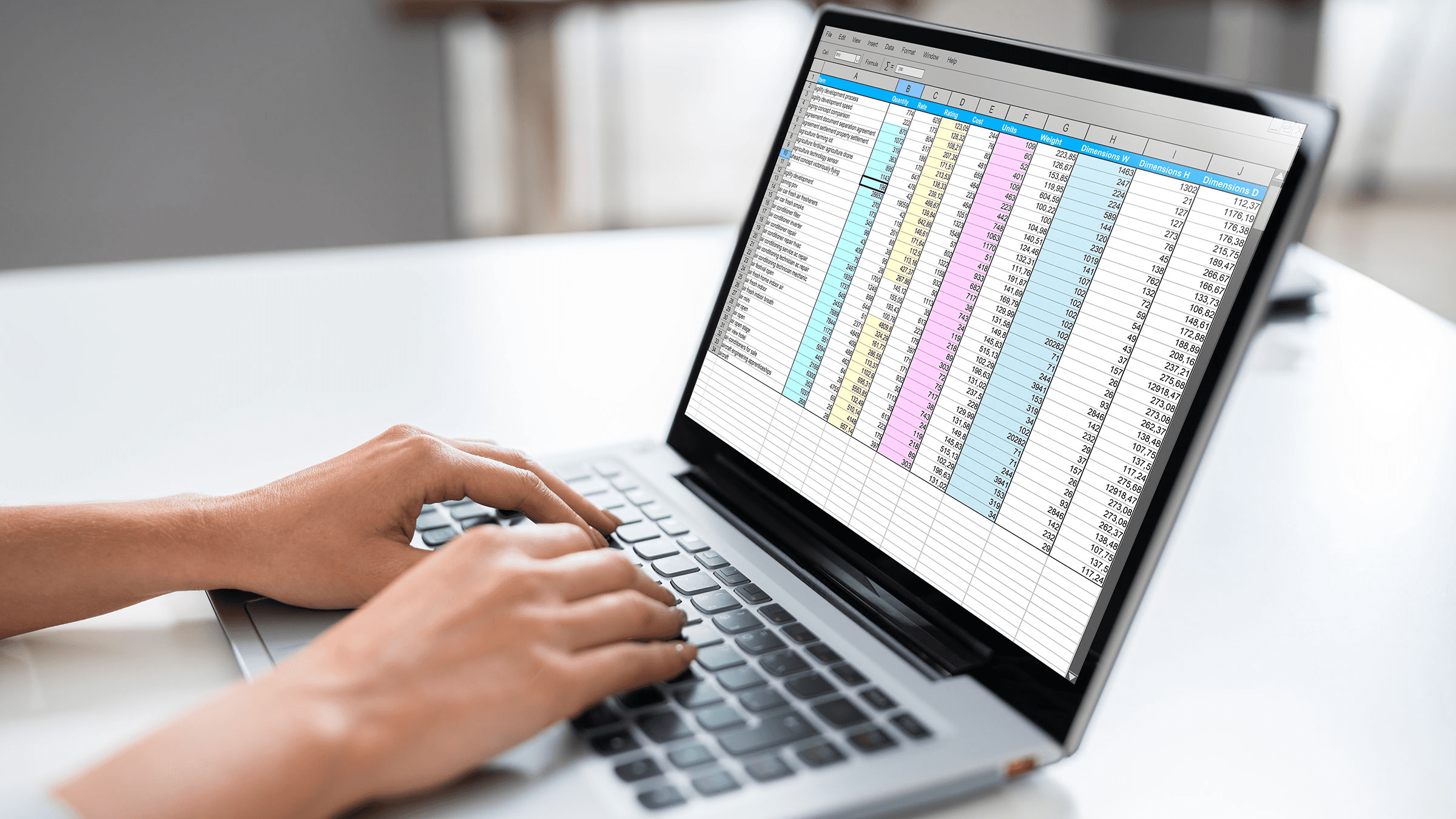
 Person using a laptop for spreadsheets - How to Do Conditional Formatting in Google Sheets

Conditional formatting can be challenging because many people treat it as manual styling rather than a rules-driven tool, which turns simple visual cues into hours of repetitive work and guesswork. You end up fighting formats, not the data, which makes every new import or update feel like starting over.

Why is manual formatting such a time sink?

When we taught five introductory Excel workshops over three months, the same pattern emerged: trainees spent most of their practice time adjusting colors, borders, and fonts rather than testing formulas or analyzing trends. It’s exhausting, like painting each brick on a wall every time the weather changes, and it steals attention from the analysis that actually matters.

How does missing visual cues warp interpretation?

Without dynamic highlights, teams treat large sheets as flat blocks of numbers, and that flattens judgment. That pattern appears across small teams and cross-functional groups: when there are no consistent visual rules, spikes and anomalies go unnoticed, and decisions slow because people must recheck raw data.

Why do rules feel like magic until they break?

Rules feel magical because they work until edge cases appear, then they fail silently. 50% of beginners struggle with setting up rules in conditional formatting. That gap is why a rule that seemed clever on day one becomes a maintenance headache on day ten, and why many avoid rules altogether. Most teams handle formatting by hand because it is familiar and immediate. That makes sense at first, but as data volume or the number of collaborators grows, manual tweaks fragment and errors multiply. Platforms like Numerous offer a different path: shared rule templates, a visual rule editor that previews changes, and automated propagation across sheets, so teams keep consistent visuals as data changes without redoing work.

Why aren’t these features learned earlier?

Beginners default to bold and color fills because they do not see the payoff of rules until a real problem forces them to learn. More than 70% of Excel users find conditional formatting challenging to understand at first. That explains the hesitancy: the mental friction of rule logic outweighs the perceived time savings until someone demonstrates a clear, repeatable workflow. It’s one thing to know a feature exists, and another to make it reliable under pressure, with messy imports and tight deadlines—once you solve that, the real gains show up in quieter ways, like fewer late nights reconciling formats and more time for actual insight. But the frustrating part? This isn't even the hardest piece to figure out.

Related Reading

Why Continuing to Process Data in Excel Manually is Costly for Your Workflow

 Woman analyzing data on monitor - How to Do Conditional Formatting in Google Sheets

Manual Excel processing without conditional rules taxes every part of a workflow: it slows decisions, increases mistakes, and turns routine updates into recurring crises. Those are operational losses you can feel in missed opportunities, rework, and long evenings spent fixing avoidable errors.

Why do manual workflows delay decisions?

This pattern appears across marketing, finance, and operations: teams wait for reconciled spreadsheets instead of acting on signals. When a campaign report or inventory sheet requires manual cleaning, color correction, and verification, it creates a 24–48-hour window during which nothing changes, while competitors that automate are already iterating. It feels frustrating and urgent because decisions that should be tactical become strategic due to sheer latency.

How much does manual entry raise risk?

The math is blunt: manual data processing invites avoidable mistakes. Manual data processing in Excel can lead to a 30% increase in errors, according to Hyperlean. Those errors do more than trigger audits; they distort forecasts, misallocate budgets, and create downstream tasks that take hours to trace and correct.

When does Excel stop scaling?

Spreadsheets behave like elastic until they do not, then they freeze or crash without warning. As rows, collaborators, and formula chains grow, recalculation times balloon and cross-sheet consistency collapses. That brittleness forces teams to adopt brittle workarounds: split files, manual exports, or single-person gatekeepers who become the process bottleneck.

How much time do repetitive formatting tasks cost?

Repetitive formatting is invisible waste until you add it up. Switching to automated solutions can reduce processing time by 50%, according to Hyperlean. When people spend hours each week reapplying highlights, cleaning imports, and normalizing columns, they stop doing analysis and start doing housekeeping.

Why do inconsistent formats and poor integrations break trust?

Inconsistent sheets create cognitive friction: comparing two reports becomes a scavenger hunt for matching formats and definitions. Manually copying data between systems introduces small timing mismatches that compound into incorrect stock levels, missed invoices, or stale customer lists. The result is not just wasted time, it is a loss of confidence in the numbers people are expected to act on.

Most teams handle this by sticking to familiar steps: export, paste, fix, repeat. That makes sense when the scale is small and the team is tiny. As headcount, data sources, and decision tempo increase, that habit turns into wasted cycles and fragile reporting. Solutions like Numerous address this by automating rule application, connecting live data sources, and letting teams apply AI-driven functions directly in a sheet so formatting, validation, and imports update themselves without manual intervention, compressing review cycles and cutting repetitive work.

Numerous is an AI-powered tool that enables content marketers and eCommerce teams to automate tasks such as writing SEO posts, generating hashtags, and mass-categorizing products by simply dragging a cell in a spreadsheet. Learn how you can 10x your marketing efforts with Numerous’s ChatGPT for Spreadsheets tool at Numerous.ai. The frustrating part? The real leverage point is simpler than most people expect, and it changes how quickly you can act.

Related Reading

How Conditional Formatting Solves These Problems and Saves You Time

Man using Google Sheets on laptop - How to Do Conditional Formatting in Google Sheets

Conditional formatting turns rules into persistent signals so you can see the important rows instantly, and it automates checks that were once manual and fragile. When you apply rules consistently across a workbook, you spend less time hunting for values and more time deciding what to do with them.

How do I set rules that surface key values?

Use built-in rules to flag what matters, not to prettify a sheet. Choose New Rule, pick a condition such as greater than, less than, or duplicate, and set a single, high-contrast format that reads well when scanned. Keep rules simple and consistent across ranges, and use relative references when the same rule should move down rows. The reward is immediate: high-value transactions, outliers, or missing items jump out without scrolling.

How can I turn raw numbers into visual signals fast?

Pick data bars, color scales, or icon sets so magnitude and direction become visual language. Data bars make size obvious, color scales show distribution, and icon sets convert thresholds into discrete signals. Apply the style to the entire column, test it on a sample of extreme values, then expand. This converts a wall of numbers into a quick dashboard, and when that standard is enforced, cross-sheet comparisons stay reliable. In practice, this visual layer is what shrinks the time you spend parsing reports, and according to [Conditional formatting can reduce data analysis time by up to 50% — Microsoft Support, teams see that cut in their analysis cycles.

When should I write custom formulas instead of using a preset?

Custom formulas matter when logic involves multiple columns or when thresholds change by context. Use a formula to determine which cells to format, then write expressions like =AND($C2>0.5,$D2<100) or =COUNTIFS($A:$A,$A2,$B:$B,$B2)>1 for composite checks. Name ranges for readability and lock columns with $ when needed. Treat formulas as small, testable pieces of logic: validate them on a few rows, then apply them to the full range. This is where conditional formatting becomes a rule engine, not a paintbrush, and small investments here cut long-term review time and reduce rework by baking the decision rules into the sheet.

Why use conditional formatting to find duplicates and gaps?

Use Duplicate Values for quick checks, but for subtle issues, use COUNTIF or MATCH-based formulas that scan multiple fields. For example, flag rows where a composite key repeats with =COUNTIFS($A:$A,$A2,$B:$B,$B2)>1, or highlight blanks with =TRIM($C2)="". For large imports, add a temporary helper column that concatenates keys, apply the rule to that column, then hide it. That approach surfaces collision points before they corrupt joins or lookups, so reconciliations become targeted fixes rather than scavenger hunts.

How do I make time-based alerts actually useful?

Set date rules to show upcoming deadlines or overdue items using Date Occurring or custom formulas like =AND($E2>=TODAY(),$E2<=TODAY()+7) to mark the next week. Keep these rules lightweight so they do not compete visually with high-priority financial or quality flags. Use a consistent color convention for time windows so stakeholders learn the rhythm at a glance, and consider pairing the visual with a short filter view for rapid triage.

Most teams apply rules by hand at first because it feels immediate and familiar, and that approach works for a handful of files. But as sheets, collaborators, and refresh cycles multiply, manual styling fragments and teams spend their attention on presentation rather than on decisions. Solutions like Numerous provide templates and automated propagation so teams keep consistent formats, run rule-driven checks across live data sources, and compress review time without adding governance overhead.

Applied correctly, conditional formatting stops being a cosmetic finish and becomes a lightweight automation layer that enforces business rules every time data changes, and Microsoft Support (2025) notes that using conditional formatting can increase productivity by 30%, a clear efficiency gain for teams that standardize visual rules [Using conditional formatting can increase productivity by 30% — Microsoft Support.

Think of well-designed rules as traffic lights for decisions: they do not make the choice for you, they keep flows moving and prevent collisions. That small metaphor explains why a few consistent formats can reduce review cycles, prevent errors, and enable people to act with confidence rather than second-guessing the numbers. Numerous helps teams scale those rules without manual upkeep, by applying shared templates, connecting live sources, and returning complex spreadsheet functions from a single prompt. Learn how you can 10x routine workflows with Numerous’s ChatGPT for Spreadsheets tool at Numerous.ai. That solution sounds tidy, but the tricky tradeoffs come next, and what most teams miss will change how you use these rules.

10 Powerful Tips for Using Conditional Formatting

Two people reviewing data on screen - How to Do Conditional Formatting in Google Sheets

The critical difference at scale is not smarter formulas; it is the predictable, auditable application of conditional rules that enables teams to act without second-guessing. Platforms like Numerous let us capture a prompt as a repeatable cell function, so non-technical collaborators can run conditional logic, preserve change history, and apply the same workflow across Google Sheets and Excel, freeing analysts to focus on decisions rather than upkeep.

1. Pick One Tip and Start Automating

What to do

Choose one of the key tips that fits your workflow. Start by highlighting key data using Excel's built-in rules (e.g., values above a defined threshold) or data bars to visualize trends. If you want to save time on more advanced tasks, you can also use Numerous, an AI-powered tool that helps automate data visualization and formatting in Excel.

How to do it

In Excel, you can easily start with highlighting data using conditional formatting rules by going to Home → Conditional Formatting → New Rule. For visual trends, go to Home → Conditional Formatting → Data Bars or Color Scales. Several options can further enhance your experience by automating formatting, even for larger datasets. It integrates seamlessly with Excel and automates data entry, categorization, and formatting.

Outcome

By using conditional formatting, you'll automatically highlight trends and key data points, reducing the time spent manually searching for important information. If you incorporate Numerous, the time spent formatting and organizing data will be even more efficient. This will allow you to focus on more valuable tasks, like data analysis and strategic planning.

2. Set Up Your First Rule and Test It

What to do

Set up your first conditional formatting rule. Start simple by formatting cells based on specific conditions, like values above a set threshold, or use icon sets to visually represent different values. Try out Numerous to help streamline the creation of formatting rules, especially if you're working with large amounts of data.

How to do it

In Excel, navigate to Home → Conditional Formatting → New Rule. Select Data Bars, Color Scales, or Icon Sets and apply them to your data. You can also use custom formulas for greater flexibility. Numerous tools can help you automate repetitive formatting tasks by generating rules based on your criteria or by organizing data visually based on the conditions you specify.

Outcome

By setting up your first rule, you will see immediate benefits in organizing your data visually. Whether it's highlighting important figures, showing trends, or tracking performance, conditional formatting will give you a clear visual representation of your data in minutes. If you use Numerous, the automation process becomes even faster, allowing you to format and organize data with ease.

3. Track Time Saved and Measure Efficiency

What to do

Now that you’ve set up your first rule and started automating, it’s essential to track the time you save by using conditional formatting to automate repetitive tasks in Excel. This allows you to measure the true efficiency gains and see the value of the changes you've made.

How to do it

Keep track of how much time you spend on data entry, analysis, and formatting before and after implementing conditional formatting. Measure how much faster you can spot key insights, visualize trends, and analyze the data after applying formatting rules. Using Numerous with Excel will help automate not only formatting but also data categorization, error checking, and the organization of large datasets.

Outcome

With conditional formatting and Numerous in place, you should see a significant reduction in time spent on manual formatting. You’ll now have automated formatting in Excel, which translates to quicker, more efficient workflows, allowing you to focus on what matters most: data analysis and actionable insights. This could save you hours each week, allowing you to focus on higher-value tasks such as strategy planning, decision-making, or business forecasting.

4. Visualize Trends with Data Bars, Color Scales, and Icon Sets

What to do

Data bars, color scales, and icon sets are excellent for visualizing trends and distributions in your data. For example, data bars can show which values are larger or smaller relative to others, color scales can highlight high or low values, and icon sets can show performance with visual symbols.

How to do it

Go to Home → Conditional Formatting → Data Bars/Color Scales/Icons. Choose the format (e.g., a green-to-red color scale to represent performance from high to low, or data bars to show values in proportion). Apply the formatting to your dataset.

Outcome

These visual formats give you an instant overview of your data’s patterns and distributions, helping you quickly identify trends. For example, if you're tracking sales performance, you'll immediately see which months had higher sales and which had lower sales. This enables quick decision-making without manually sorting through data.

5. Automatically Highlight Key Data Based on Rules

What to do

Automatically highlight important data points, such as cells with values above a specified threshold (e.g., sales above $1000 or inventory below a certain level).

How to do it

Go to Home → Conditional Formatting → New Rule. Select Format only cells that contain, then set a condition such as greater than or less than a certain number. Apply a visual style (e.g., background color, bold text).

Outcome

You’ll immediately see important data points that meet your criteria. For example, highlighting low inventory levels will draw attention to products that need restocking. This automates alerts, so you don’t have to manually check for critical values.

6. Use Formulas for Custom Formatting

What to do

Apply custom formatting rules using Excel formulas. This allows you to set more complex criteria for highlighting cells based on multiple conditions.

How to do it

Go to Home → Conditional Formatting → New Rule → Use a formula to determine which cells to format. Enter your formula. For example, =A1>50 to highlight cells where the value in A1 is greater than 50. Choose your formatting style and apply it.

Outcome

This provides greater flexibility for complex conditions. For instance, you can highlight rows based on multiple criteria, like highlighting sales greater than $500 and completed after a certain date. This saves time and ensures you focus on the most important data.

7. Automatically Highlight Duplicate Entries

What to do

Use conditional formatting to quickly identify duplicate entries and ensure your records are free of duplicates. This is especially useful when dealing with large datasets or imported data.

How to do it

Select the data range. Go to Home → Conditional Formatting → Highlight Cells Rules → Duplicate Values. Choose the formatting style (e.g., color highlighting).

Outcome

This will highlight duplicates in your dataset, making it easy to identify repeated values and prevent errors such as duplicate entries in customer data or inventory numbers. It streamlines the data cleaning process and ensures accuracy.

8. Highlight Specific Dates or Time Periods

What to do

Use conditional formatting to highlight specific dates or time periods, such as upcoming deadlines, past-due dates, or dates within a specified range.

How to do it

Go to Home → Conditional Formatting → New Rule → Format cells with dates occurring. Choose your time period (e.g., next 30 days, last 7 days, between two specific dates). Apply your desired formatting style.

Outcome

This allows you to focus on time-sensitive data, such as highlighting upcoming deadlines for important projects or flagging overdue tasks. This automated highlighting helps you stay on top of critical dates without having to search for them manually.

9. Use Icon Sets to Represent Different Categories

What to do

You can use icon sets to display data visually with icons (such as arrows, circles, or flags). This is especially useful for showing performance or status (e.g., high, medium, low).

How to do it

Go to Home → Conditional Formatting → Icon Sets. Choose from various icon styles (e.g., traffic lights for status, arrows for performance). Customize the rules for when each icon should appear (e.g., greater than 75% for green, 50–75% for yellow).

Outcome

The use of icons allows you to quickly identify performance, statuses, or outcomes without reading the data. For example, using traffic lights to represent sales performance lets you instantly see which regions or products are performing well or poorly.

10. Format Entire Rows Based on Specific Criteria

What to do

You can apply conditional formatting to entire rows based on specific criteria, which is useful when you need to highlight or group related data together. This is ideal for tracking items such as project completion status and task assignments.

How to do it

Select your entire data range. Go to Home → Conditional Formatting → New Rule → Use a formula to determine which cells to format. Enter a formula that applies to the entire row, such as =A2="Completed", to highlight the row when the task is marked as "Completed." Choose your desired formatting.

Outcome

This allows you to visually organize your data by conditions, making it easier to see which projects are complete, which tasks are incomplete, or which customers require attention. You get a clear, structured view of your data.

Related Reading

• How to Create a Content Calendar in Google Sheets
• How to Use Excel for Business
• How to Automate Sending Emails From Excel
• How to Find Duplicates in Google Sheets
• How to Remove Duplicates in Google Sheets
• How to Use the Fill Handle in Excel
• How to Split Text Into Two Columns in Excel
• How to Link Google Form to Google Sheet
• How to Automate Google Sheets
• Google Sheets Pull Data From Another Tab Based on Criteria
• Best Spreadsheets Software
• VBA Activate Sheet

Make Decisions At Scale Through AI With Numerous AI’s Spreadsheet AI Tool

When we spend evenings wiring Apps Script and building Power Automate flows to keep reports accurate, that work feels necessary but quietly locks us into maintenance. Consider Numerous as an autopilot for spreadsheets: it generates formulas and automations from plain‑language prompts and surfaces them as reusable functions that integrate with Excel connectors, flow triggers, recurrence schedules, and batched writes in Google Sheets and Excel, so you can stop babysitting pipelines and focus on higher‑value decisions.

Conditional formatting turns rows and cells into visual signals that let you spot trends, errors, and deadlines at a glance, and it pairs naturally with how to use Apps Script in Google Sheets when you want to automate rules or build custom triggers. Have you ever scanned a sheet for overdue invoices or duplicate entries, only to spend minutes hunting for the right color or filter? This guide provides clear steps and practical rule examples, covering color scales, custom formulas, conditional rules, the rules editor, format rules, dynamic ranges, highlighting duplicates, and date-based rules. To help readers know, 10 Tips for Using Conditional Formatting in Excel to Become an Expert in 10 Minutes.

To speed that process, Numerous's Spreadsheet AI Tool suggests rules, builds formulas, and applies formatting across ranges so you can reach goals like To help readers know 10 Tips for Using Conditional Formatting in Excel to Become an Expert in 10 Minutes without the guesswork.

Summary

  • Conditional formatting remains unfamiliar to most users; over 70% of Excel users report that it is challenging to understand at first.  

  • Manual data processing materially raises risk, with manual entry linked to a 30% increase in errors that distort forecasts and create downstream rework.  

  • Applying conditional formatting as a consistent rule set converts sheets into visual dashboards and can reduce data analysis time by up to 50%.  

  • Rule maintenance is a hidden cost, since rules often fail on edge cases, and about 50% of beginners struggle to set them up correctly, turning clever rules into ongoing headaches.  

  • As sheets grow, manual styling fragments workflows and creates bottlenecks, and switching to automated processing can cut repetitive formatting and processing time by roughly 50%.  

  • Training gaps are real, not theoretical: in five introductory Excel workshops over three months, trainees spent most of their practice time adjusting colors and borders rather than testing formulas, underscoring the need for practical, repeatable workflows.  

  • This is where Numerous's Spreadsheet AI Tool fits in: it suggests rules, builds formulas, and applies formatting across ranges, enabling teams to automate rule application and compress review cycles.

Table of Contents

Why Conditional Formatting in Excel Feels Complicated for Beginners

 Person using a laptop for spreadsheets - How to Do Conditional Formatting in Google Sheets

Conditional formatting can be challenging because many people treat it as manual styling rather than a rules-driven tool, which turns simple visual cues into hours of repetitive work and guesswork. You end up fighting formats, not the data, which makes every new import or update feel like starting over.

Why is manual formatting such a time sink?

When we taught five introductory Excel workshops over three months, the same pattern emerged: trainees spent most of their practice time adjusting colors, borders, and fonts rather than testing formulas or analyzing trends. It’s exhausting, like painting each brick on a wall every time the weather changes, and it steals attention from the analysis that actually matters.

How does missing visual cues warp interpretation?

Without dynamic highlights, teams treat large sheets as flat blocks of numbers, and that flattens judgment. That pattern appears across small teams and cross-functional groups: when there are no consistent visual rules, spikes and anomalies go unnoticed, and decisions slow because people must recheck raw data.

Why do rules feel like magic until they break?

Rules feel magical because they work until edge cases appear, then they fail silently. 50% of beginners struggle with setting up rules in conditional formatting. That gap is why a rule that seemed clever on day one becomes a maintenance headache on day ten, and why many avoid rules altogether. Most teams handle formatting by hand because it is familiar and immediate. That makes sense at first, but as data volume or the number of collaborators grows, manual tweaks fragment and errors multiply. Platforms like Numerous offer a different path: shared rule templates, a visual rule editor that previews changes, and automated propagation across sheets, so teams keep consistent visuals as data changes without redoing work.

Why aren’t these features learned earlier?

Beginners default to bold and color fills because they do not see the payoff of rules until a real problem forces them to learn. More than 70% of Excel users find conditional formatting challenging to understand at first. That explains the hesitancy: the mental friction of rule logic outweighs the perceived time savings until someone demonstrates a clear, repeatable workflow. It’s one thing to know a feature exists, and another to make it reliable under pressure, with messy imports and tight deadlines—once you solve that, the real gains show up in quieter ways, like fewer late nights reconciling formats and more time for actual insight. But the frustrating part? This isn't even the hardest piece to figure out.

Related Reading

Why Continuing to Process Data in Excel Manually is Costly for Your Workflow

 Woman analyzing data on monitor - How to Do Conditional Formatting in Google Sheets

Manual Excel processing without conditional rules taxes every part of a workflow: it slows decisions, increases mistakes, and turns routine updates into recurring crises. Those are operational losses you can feel in missed opportunities, rework, and long evenings spent fixing avoidable errors.

Why do manual workflows delay decisions?

This pattern appears across marketing, finance, and operations: teams wait for reconciled spreadsheets instead of acting on signals. When a campaign report or inventory sheet requires manual cleaning, color correction, and verification, it creates a 24–48-hour window during which nothing changes, while competitors that automate are already iterating. It feels frustrating and urgent because decisions that should be tactical become strategic due to sheer latency.

How much does manual entry raise risk?

The math is blunt: manual data processing invites avoidable mistakes. Manual data processing in Excel can lead to a 30% increase in errors, according to Hyperlean. Those errors do more than trigger audits; they distort forecasts, misallocate budgets, and create downstream tasks that take hours to trace and correct.

When does Excel stop scaling?

Spreadsheets behave like elastic until they do not, then they freeze or crash without warning. As rows, collaborators, and formula chains grow, recalculation times balloon and cross-sheet consistency collapses. That brittleness forces teams to adopt brittle workarounds: split files, manual exports, or single-person gatekeepers who become the process bottleneck.

How much time do repetitive formatting tasks cost?

Repetitive formatting is invisible waste until you add it up. Switching to automated solutions can reduce processing time by 50%, according to Hyperlean. When people spend hours each week reapplying highlights, cleaning imports, and normalizing columns, they stop doing analysis and start doing housekeeping.

Why do inconsistent formats and poor integrations break trust?

Inconsistent sheets create cognitive friction: comparing two reports becomes a scavenger hunt for matching formats and definitions. Manually copying data between systems introduces small timing mismatches that compound into incorrect stock levels, missed invoices, or stale customer lists. The result is not just wasted time, it is a loss of confidence in the numbers people are expected to act on.

Most teams handle this by sticking to familiar steps: export, paste, fix, repeat. That makes sense when the scale is small and the team is tiny. As headcount, data sources, and decision tempo increase, that habit turns into wasted cycles and fragile reporting. Solutions like Numerous address this by automating rule application, connecting live data sources, and letting teams apply AI-driven functions directly in a sheet so formatting, validation, and imports update themselves without manual intervention, compressing review cycles and cutting repetitive work.

Numerous is an AI-powered tool that enables content marketers and eCommerce teams to automate tasks such as writing SEO posts, generating hashtags, and mass-categorizing products by simply dragging a cell in a spreadsheet. Learn how you can 10x your marketing efforts with Numerous’s ChatGPT for Spreadsheets tool at Numerous.ai. The frustrating part? The real leverage point is simpler than most people expect, and it changes how quickly you can act.

Related Reading

How Conditional Formatting Solves These Problems and Saves You Time

Man using Google Sheets on laptop - How to Do Conditional Formatting in Google Sheets

Conditional formatting turns rules into persistent signals so you can see the important rows instantly, and it automates checks that were once manual and fragile. When you apply rules consistently across a workbook, you spend less time hunting for values and more time deciding what to do with them.

How do I set rules that surface key values?

Use built-in rules to flag what matters, not to prettify a sheet. Choose New Rule, pick a condition such as greater than, less than, or duplicate, and set a single, high-contrast format that reads well when scanned. Keep rules simple and consistent across ranges, and use relative references when the same rule should move down rows. The reward is immediate: high-value transactions, outliers, or missing items jump out without scrolling.

How can I turn raw numbers into visual signals fast?

Pick data bars, color scales, or icon sets so magnitude and direction become visual language. Data bars make size obvious, color scales show distribution, and icon sets convert thresholds into discrete signals. Apply the style to the entire column, test it on a sample of extreme values, then expand. This converts a wall of numbers into a quick dashboard, and when that standard is enforced, cross-sheet comparisons stay reliable. In practice, this visual layer is what shrinks the time you spend parsing reports, and according to [Conditional formatting can reduce data analysis time by up to 50% — Microsoft Support, teams see that cut in their analysis cycles.

When should I write custom formulas instead of using a preset?

Custom formulas matter when logic involves multiple columns or when thresholds change by context. Use a formula to determine which cells to format, then write expressions like =AND($C2>0.5,$D2<100) or =COUNTIFS($A:$A,$A2,$B:$B,$B2)>1 for composite checks. Name ranges for readability and lock columns with $ when needed. Treat formulas as small, testable pieces of logic: validate them on a few rows, then apply them to the full range. This is where conditional formatting becomes a rule engine, not a paintbrush, and small investments here cut long-term review time and reduce rework by baking the decision rules into the sheet.

Why use conditional formatting to find duplicates and gaps?

Use Duplicate Values for quick checks, but for subtle issues, use COUNTIF or MATCH-based formulas that scan multiple fields. For example, flag rows where a composite key repeats with =COUNTIFS($A:$A,$A2,$B:$B,$B2)>1, or highlight blanks with =TRIM($C2)="". For large imports, add a temporary helper column that concatenates keys, apply the rule to that column, then hide it. That approach surfaces collision points before they corrupt joins or lookups, so reconciliations become targeted fixes rather than scavenger hunts.

How do I make time-based alerts actually useful?

Set date rules to show upcoming deadlines or overdue items using Date Occurring or custom formulas like =AND($E2>=TODAY(),$E2<=TODAY()+7) to mark the next week. Keep these rules lightweight so they do not compete visually with high-priority financial or quality flags. Use a consistent color convention for time windows so stakeholders learn the rhythm at a glance, and consider pairing the visual with a short filter view for rapid triage.

Most teams apply rules by hand at first because it feels immediate and familiar, and that approach works for a handful of files. But as sheets, collaborators, and refresh cycles multiply, manual styling fragments and teams spend their attention on presentation rather than on decisions. Solutions like Numerous provide templates and automated propagation so teams keep consistent formats, run rule-driven checks across live data sources, and compress review time without adding governance overhead.

Applied correctly, conditional formatting stops being a cosmetic finish and becomes a lightweight automation layer that enforces business rules every time data changes, and Microsoft Support (2025) notes that using conditional formatting can increase productivity by 30%, a clear efficiency gain for teams that standardize visual rules [Using conditional formatting can increase productivity by 30% — Microsoft Support.

Think of well-designed rules as traffic lights for decisions: they do not make the choice for you, they keep flows moving and prevent collisions. That small metaphor explains why a few consistent formats can reduce review cycles, prevent errors, and enable people to act with confidence rather than second-guessing the numbers. Numerous helps teams scale those rules without manual upkeep, by applying shared templates, connecting live sources, and returning complex spreadsheet functions from a single prompt. Learn how you can 10x routine workflows with Numerous’s ChatGPT for Spreadsheets tool at Numerous.ai. That solution sounds tidy, but the tricky tradeoffs come next, and what most teams miss will change how you use these rules.

10 Powerful Tips for Using Conditional Formatting

Two people reviewing data on screen - How to Do Conditional Formatting in Google Sheets

The critical difference at scale is not smarter formulas; it is the predictable, auditable application of conditional rules that enables teams to act without second-guessing. Platforms like Numerous let us capture a prompt as a repeatable cell function, so non-technical collaborators can run conditional logic, preserve change history, and apply the same workflow across Google Sheets and Excel, freeing analysts to focus on decisions rather than upkeep.

1. Pick One Tip and Start Automating

What to do

Choose one of the key tips that fits your workflow. Start by highlighting key data using Excel's built-in rules (e.g., values above a defined threshold) or data bars to visualize trends. If you want to save time on more advanced tasks, you can also use Numerous, an AI-powered tool that helps automate data visualization and formatting in Excel.

How to do it

In Excel, you can easily start with highlighting data using conditional formatting rules by going to Home → Conditional Formatting → New Rule. For visual trends, go to Home → Conditional Formatting → Data Bars or Color Scales. Several options can further enhance your experience by automating formatting, even for larger datasets. It integrates seamlessly with Excel and automates data entry, categorization, and formatting.

Outcome

By using conditional formatting, you'll automatically highlight trends and key data points, reducing the time spent manually searching for important information. If you incorporate Numerous, the time spent formatting and organizing data will be even more efficient. This will allow you to focus on more valuable tasks, like data analysis and strategic planning.

2. Set Up Your First Rule and Test It

What to do

Set up your first conditional formatting rule. Start simple by formatting cells based on specific conditions, like values above a set threshold, or use icon sets to visually represent different values. Try out Numerous to help streamline the creation of formatting rules, especially if you're working with large amounts of data.

How to do it

In Excel, navigate to Home → Conditional Formatting → New Rule. Select Data Bars, Color Scales, or Icon Sets and apply them to your data. You can also use custom formulas for greater flexibility. Numerous tools can help you automate repetitive formatting tasks by generating rules based on your criteria or by organizing data visually based on the conditions you specify.

Outcome

By setting up your first rule, you will see immediate benefits in organizing your data visually. Whether it's highlighting important figures, showing trends, or tracking performance, conditional formatting will give you a clear visual representation of your data in minutes. If you use Numerous, the automation process becomes even faster, allowing you to format and organize data with ease.

3. Track Time Saved and Measure Efficiency

What to do

Now that you’ve set up your first rule and started automating, it’s essential to track the time you save by using conditional formatting to automate repetitive tasks in Excel. This allows you to measure the true efficiency gains and see the value of the changes you've made.

How to do it

Keep track of how much time you spend on data entry, analysis, and formatting before and after implementing conditional formatting. Measure how much faster you can spot key insights, visualize trends, and analyze the data after applying formatting rules. Using Numerous with Excel will help automate not only formatting but also data categorization, error checking, and the organization of large datasets.

Outcome

With conditional formatting and Numerous in place, you should see a significant reduction in time spent on manual formatting. You’ll now have automated formatting in Excel, which translates to quicker, more efficient workflows, allowing you to focus on what matters most: data analysis and actionable insights. This could save you hours each week, allowing you to focus on higher-value tasks such as strategy planning, decision-making, or business forecasting.

4. Visualize Trends with Data Bars, Color Scales, and Icon Sets

What to do

Data bars, color scales, and icon sets are excellent for visualizing trends and distributions in your data. For example, data bars can show which values are larger or smaller relative to others, color scales can highlight high or low values, and icon sets can show performance with visual symbols.

How to do it

Go to Home → Conditional Formatting → Data Bars/Color Scales/Icons. Choose the format (e.g., a green-to-red color scale to represent performance from high to low, or data bars to show values in proportion). Apply the formatting to your dataset.

Outcome

These visual formats give you an instant overview of your data’s patterns and distributions, helping you quickly identify trends. For example, if you're tracking sales performance, you'll immediately see which months had higher sales and which had lower sales. This enables quick decision-making without manually sorting through data.

5. Automatically Highlight Key Data Based on Rules

What to do

Automatically highlight important data points, such as cells with values above a specified threshold (e.g., sales above $1000 or inventory below a certain level).

How to do it

Go to Home → Conditional Formatting → New Rule. Select Format only cells that contain, then set a condition such as greater than or less than a certain number. Apply a visual style (e.g., background color, bold text).

Outcome

You’ll immediately see important data points that meet your criteria. For example, highlighting low inventory levels will draw attention to products that need restocking. This automates alerts, so you don’t have to manually check for critical values.

6. Use Formulas for Custom Formatting

What to do

Apply custom formatting rules using Excel formulas. This allows you to set more complex criteria for highlighting cells based on multiple conditions.

How to do it

Go to Home → Conditional Formatting → New Rule → Use a formula to determine which cells to format. Enter your formula. For example, =A1>50 to highlight cells where the value in A1 is greater than 50. Choose your formatting style and apply it.

Outcome

This provides greater flexibility for complex conditions. For instance, you can highlight rows based on multiple criteria, like highlighting sales greater than $500 and completed after a certain date. This saves time and ensures you focus on the most important data.

7. Automatically Highlight Duplicate Entries

What to do

Use conditional formatting to quickly identify duplicate entries and ensure your records are free of duplicates. This is especially useful when dealing with large datasets or imported data.

How to do it

Select the data range. Go to Home → Conditional Formatting → Highlight Cells Rules → Duplicate Values. Choose the formatting style (e.g., color highlighting).

Outcome

This will highlight duplicates in your dataset, making it easy to identify repeated values and prevent errors such as duplicate entries in customer data or inventory numbers. It streamlines the data cleaning process and ensures accuracy.

8. Highlight Specific Dates or Time Periods

What to do

Use conditional formatting to highlight specific dates or time periods, such as upcoming deadlines, past-due dates, or dates within a specified range.

How to do it

Go to Home → Conditional Formatting → New Rule → Format cells with dates occurring. Choose your time period (e.g., next 30 days, last 7 days, between two specific dates). Apply your desired formatting style.

Outcome

This allows you to focus on time-sensitive data, such as highlighting upcoming deadlines for important projects or flagging overdue tasks. This automated highlighting helps you stay on top of critical dates without having to search for them manually.

9. Use Icon Sets to Represent Different Categories

What to do

You can use icon sets to display data visually with icons (such as arrows, circles, or flags). This is especially useful for showing performance or status (e.g., high, medium, low).

How to do it

Go to Home → Conditional Formatting → Icon Sets. Choose from various icon styles (e.g., traffic lights for status, arrows for performance). Customize the rules for when each icon should appear (e.g., greater than 75% for green, 50–75% for yellow).

Outcome

The use of icons allows you to quickly identify performance, statuses, or outcomes without reading the data. For example, using traffic lights to represent sales performance lets you instantly see which regions or products are performing well or poorly.

10. Format Entire Rows Based on Specific Criteria

What to do

You can apply conditional formatting to entire rows based on specific criteria, which is useful when you need to highlight or group related data together. This is ideal for tracking items such as project completion status and task assignments.

How to do it

Select your entire data range. Go to Home → Conditional Formatting → New Rule → Use a formula to determine which cells to format. Enter a formula that applies to the entire row, such as =A2="Completed", to highlight the row when the task is marked as "Completed." Choose your desired formatting.

Outcome

This allows you to visually organize your data by conditions, making it easier to see which projects are complete, which tasks are incomplete, or which customers require attention. You get a clear, structured view of your data.

Related Reading

• How to Create a Content Calendar in Google Sheets
• How to Use Excel for Business
• How to Automate Sending Emails From Excel
• How to Find Duplicates in Google Sheets
• How to Remove Duplicates in Google Sheets
• How to Use the Fill Handle in Excel
• How to Split Text Into Two Columns in Excel
• How to Link Google Form to Google Sheet
• How to Automate Google Sheets
• Google Sheets Pull Data From Another Tab Based on Criteria
• Best Spreadsheets Software
• VBA Activate Sheet

Make Decisions At Scale Through AI With Numerous AI’s Spreadsheet AI Tool

When we spend evenings wiring Apps Script and building Power Automate flows to keep reports accurate, that work feels necessary but quietly locks us into maintenance. Consider Numerous as an autopilot for spreadsheets: it generates formulas and automations from plain‑language prompts and surfaces them as reusable functions that integrate with Excel connectors, flow triggers, recurrence schedules, and batched writes in Google Sheets and Excel, so you can stop babysitting pipelines and focus on higher‑value decisions.

Conditional formatting turns rows and cells into visual signals that let you spot trends, errors, and deadlines at a glance, and it pairs naturally with how to use Apps Script in Google Sheets when you want to automate rules or build custom triggers. Have you ever scanned a sheet for overdue invoices or duplicate entries, only to spend minutes hunting for the right color or filter? This guide provides clear steps and practical rule examples, covering color scales, custom formulas, conditional rules, the rules editor, format rules, dynamic ranges, highlighting duplicates, and date-based rules. To help readers know, 10 Tips for Using Conditional Formatting in Excel to Become an Expert in 10 Minutes.

To speed that process, Numerous's Spreadsheet AI Tool suggests rules, builds formulas, and applies formatting across ranges so you can reach goals like To help readers know 10 Tips for Using Conditional Formatting in Excel to Become an Expert in 10 Minutes without the guesswork.

Summary

  • Conditional formatting remains unfamiliar to most users; over 70% of Excel users report that it is challenging to understand at first.  

  • Manual data processing materially raises risk, with manual entry linked to a 30% increase in errors that distort forecasts and create downstream rework.  

  • Applying conditional formatting as a consistent rule set converts sheets into visual dashboards and can reduce data analysis time by up to 50%.  

  • Rule maintenance is a hidden cost, since rules often fail on edge cases, and about 50% of beginners struggle to set them up correctly, turning clever rules into ongoing headaches.  

  • As sheets grow, manual styling fragments workflows and creates bottlenecks, and switching to automated processing can cut repetitive formatting and processing time by roughly 50%.  

  • Training gaps are real, not theoretical: in five introductory Excel workshops over three months, trainees spent most of their practice time adjusting colors and borders rather than testing formulas, underscoring the need for practical, repeatable workflows.  

  • This is where Numerous's Spreadsheet AI Tool fits in: it suggests rules, builds formulas, and applies formatting across ranges, enabling teams to automate rule application and compress review cycles.

Table of Contents

Why Conditional Formatting in Excel Feels Complicated for Beginners

 Person using a laptop for spreadsheets - How to Do Conditional Formatting in Google Sheets

Conditional formatting can be challenging because many people treat it as manual styling rather than a rules-driven tool, which turns simple visual cues into hours of repetitive work and guesswork. You end up fighting formats, not the data, which makes every new import or update feel like starting over.

Why is manual formatting such a time sink?

When we taught five introductory Excel workshops over three months, the same pattern emerged: trainees spent most of their practice time adjusting colors, borders, and fonts rather than testing formulas or analyzing trends. It’s exhausting, like painting each brick on a wall every time the weather changes, and it steals attention from the analysis that actually matters.

How does missing visual cues warp interpretation?

Without dynamic highlights, teams treat large sheets as flat blocks of numbers, and that flattens judgment. That pattern appears across small teams and cross-functional groups: when there are no consistent visual rules, spikes and anomalies go unnoticed, and decisions slow because people must recheck raw data.

Why do rules feel like magic until they break?

Rules feel magical because they work until edge cases appear, then they fail silently. 50% of beginners struggle with setting up rules in conditional formatting. That gap is why a rule that seemed clever on day one becomes a maintenance headache on day ten, and why many avoid rules altogether. Most teams handle formatting by hand because it is familiar and immediate. That makes sense at first, but as data volume or the number of collaborators grows, manual tweaks fragment and errors multiply. Platforms like Numerous offer a different path: shared rule templates, a visual rule editor that previews changes, and automated propagation across sheets, so teams keep consistent visuals as data changes without redoing work.

Why aren’t these features learned earlier?

Beginners default to bold and color fills because they do not see the payoff of rules until a real problem forces them to learn. More than 70% of Excel users find conditional formatting challenging to understand at first. That explains the hesitancy: the mental friction of rule logic outweighs the perceived time savings until someone demonstrates a clear, repeatable workflow. It’s one thing to know a feature exists, and another to make it reliable under pressure, with messy imports and tight deadlines—once you solve that, the real gains show up in quieter ways, like fewer late nights reconciling formats and more time for actual insight. But the frustrating part? This isn't even the hardest piece to figure out.

Related Reading

Why Continuing to Process Data in Excel Manually is Costly for Your Workflow

 Woman analyzing data on monitor - How to Do Conditional Formatting in Google Sheets

Manual Excel processing without conditional rules taxes every part of a workflow: it slows decisions, increases mistakes, and turns routine updates into recurring crises. Those are operational losses you can feel in missed opportunities, rework, and long evenings spent fixing avoidable errors.

Why do manual workflows delay decisions?

This pattern appears across marketing, finance, and operations: teams wait for reconciled spreadsheets instead of acting on signals. When a campaign report or inventory sheet requires manual cleaning, color correction, and verification, it creates a 24–48-hour window during which nothing changes, while competitors that automate are already iterating. It feels frustrating and urgent because decisions that should be tactical become strategic due to sheer latency.

How much does manual entry raise risk?

The math is blunt: manual data processing invites avoidable mistakes. Manual data processing in Excel can lead to a 30% increase in errors, according to Hyperlean. Those errors do more than trigger audits; they distort forecasts, misallocate budgets, and create downstream tasks that take hours to trace and correct.

When does Excel stop scaling?

Spreadsheets behave like elastic until they do not, then they freeze or crash without warning. As rows, collaborators, and formula chains grow, recalculation times balloon and cross-sheet consistency collapses. That brittleness forces teams to adopt brittle workarounds: split files, manual exports, or single-person gatekeepers who become the process bottleneck.

How much time do repetitive formatting tasks cost?

Repetitive formatting is invisible waste until you add it up. Switching to automated solutions can reduce processing time by 50%, according to Hyperlean. When people spend hours each week reapplying highlights, cleaning imports, and normalizing columns, they stop doing analysis and start doing housekeeping.

Why do inconsistent formats and poor integrations break trust?

Inconsistent sheets create cognitive friction: comparing two reports becomes a scavenger hunt for matching formats and definitions. Manually copying data between systems introduces small timing mismatches that compound into incorrect stock levels, missed invoices, or stale customer lists. The result is not just wasted time, it is a loss of confidence in the numbers people are expected to act on.

Most teams handle this by sticking to familiar steps: export, paste, fix, repeat. That makes sense when the scale is small and the team is tiny. As headcount, data sources, and decision tempo increase, that habit turns into wasted cycles and fragile reporting. Solutions like Numerous address this by automating rule application, connecting live data sources, and letting teams apply AI-driven functions directly in a sheet so formatting, validation, and imports update themselves without manual intervention, compressing review cycles and cutting repetitive work.

Numerous is an AI-powered tool that enables content marketers and eCommerce teams to automate tasks such as writing SEO posts, generating hashtags, and mass-categorizing products by simply dragging a cell in a spreadsheet. Learn how you can 10x your marketing efforts with Numerous’s ChatGPT for Spreadsheets tool at Numerous.ai. The frustrating part? The real leverage point is simpler than most people expect, and it changes how quickly you can act.

Related Reading

How Conditional Formatting Solves These Problems and Saves You Time

Man using Google Sheets on laptop - How to Do Conditional Formatting in Google Sheets

Conditional formatting turns rules into persistent signals so you can see the important rows instantly, and it automates checks that were once manual and fragile. When you apply rules consistently across a workbook, you spend less time hunting for values and more time deciding what to do with them.

How do I set rules that surface key values?

Use built-in rules to flag what matters, not to prettify a sheet. Choose New Rule, pick a condition such as greater than, less than, or duplicate, and set a single, high-contrast format that reads well when scanned. Keep rules simple and consistent across ranges, and use relative references when the same rule should move down rows. The reward is immediate: high-value transactions, outliers, or missing items jump out without scrolling.

How can I turn raw numbers into visual signals fast?

Pick data bars, color scales, or icon sets so magnitude and direction become visual language. Data bars make size obvious, color scales show distribution, and icon sets convert thresholds into discrete signals. Apply the style to the entire column, test it on a sample of extreme values, then expand. This converts a wall of numbers into a quick dashboard, and when that standard is enforced, cross-sheet comparisons stay reliable. In practice, this visual layer is what shrinks the time you spend parsing reports, and according to [Conditional formatting can reduce data analysis time by up to 50% — Microsoft Support, teams see that cut in their analysis cycles.

When should I write custom formulas instead of using a preset?

Custom formulas matter when logic involves multiple columns or when thresholds change by context. Use a formula to determine which cells to format, then write expressions like =AND($C2>0.5,$D2<100) or =COUNTIFS($A:$A,$A2,$B:$B,$B2)>1 for composite checks. Name ranges for readability and lock columns with $ when needed. Treat formulas as small, testable pieces of logic: validate them on a few rows, then apply them to the full range. This is where conditional formatting becomes a rule engine, not a paintbrush, and small investments here cut long-term review time and reduce rework by baking the decision rules into the sheet.

Why use conditional formatting to find duplicates and gaps?

Use Duplicate Values for quick checks, but for subtle issues, use COUNTIF or MATCH-based formulas that scan multiple fields. For example, flag rows where a composite key repeats with =COUNTIFS($A:$A,$A2,$B:$B,$B2)>1, or highlight blanks with =TRIM($C2)="". For large imports, add a temporary helper column that concatenates keys, apply the rule to that column, then hide it. That approach surfaces collision points before they corrupt joins or lookups, so reconciliations become targeted fixes rather than scavenger hunts.

How do I make time-based alerts actually useful?

Set date rules to show upcoming deadlines or overdue items using Date Occurring or custom formulas like =AND($E2>=TODAY(),$E2<=TODAY()+7) to mark the next week. Keep these rules lightweight so they do not compete visually with high-priority financial or quality flags. Use a consistent color convention for time windows so stakeholders learn the rhythm at a glance, and consider pairing the visual with a short filter view for rapid triage.

Most teams apply rules by hand at first because it feels immediate and familiar, and that approach works for a handful of files. But as sheets, collaborators, and refresh cycles multiply, manual styling fragments and teams spend their attention on presentation rather than on decisions. Solutions like Numerous provide templates and automated propagation so teams keep consistent formats, run rule-driven checks across live data sources, and compress review time without adding governance overhead.

Applied correctly, conditional formatting stops being a cosmetic finish and becomes a lightweight automation layer that enforces business rules every time data changes, and Microsoft Support (2025) notes that using conditional formatting can increase productivity by 30%, a clear efficiency gain for teams that standardize visual rules [Using conditional formatting can increase productivity by 30% — Microsoft Support.

Think of well-designed rules as traffic lights for decisions: they do not make the choice for you, they keep flows moving and prevent collisions. That small metaphor explains why a few consistent formats can reduce review cycles, prevent errors, and enable people to act with confidence rather than second-guessing the numbers. Numerous helps teams scale those rules without manual upkeep, by applying shared templates, connecting live sources, and returning complex spreadsheet functions from a single prompt. Learn how you can 10x routine workflows with Numerous’s ChatGPT for Spreadsheets tool at Numerous.ai. That solution sounds tidy, but the tricky tradeoffs come next, and what most teams miss will change how you use these rules.

10 Powerful Tips for Using Conditional Formatting

Two people reviewing data on screen - How to Do Conditional Formatting in Google Sheets

The critical difference at scale is not smarter formulas; it is the predictable, auditable application of conditional rules that enables teams to act without second-guessing. Platforms like Numerous let us capture a prompt as a repeatable cell function, so non-technical collaborators can run conditional logic, preserve change history, and apply the same workflow across Google Sheets and Excel, freeing analysts to focus on decisions rather than upkeep.

1. Pick One Tip and Start Automating

What to do

Choose one of the key tips that fits your workflow. Start by highlighting key data using Excel's built-in rules (e.g., values above a defined threshold) or data bars to visualize trends. If you want to save time on more advanced tasks, you can also use Numerous, an AI-powered tool that helps automate data visualization and formatting in Excel.

How to do it

In Excel, you can easily start with highlighting data using conditional formatting rules by going to Home → Conditional Formatting → New Rule. For visual trends, go to Home → Conditional Formatting → Data Bars or Color Scales. Several options can further enhance your experience by automating formatting, even for larger datasets. It integrates seamlessly with Excel and automates data entry, categorization, and formatting.

Outcome

By using conditional formatting, you'll automatically highlight trends and key data points, reducing the time spent manually searching for important information. If you incorporate Numerous, the time spent formatting and organizing data will be even more efficient. This will allow you to focus on more valuable tasks, like data analysis and strategic planning.

2. Set Up Your First Rule and Test It

What to do

Set up your first conditional formatting rule. Start simple by formatting cells based on specific conditions, like values above a set threshold, or use icon sets to visually represent different values. Try out Numerous to help streamline the creation of formatting rules, especially if you're working with large amounts of data.

How to do it

In Excel, navigate to Home → Conditional Formatting → New Rule. Select Data Bars, Color Scales, or Icon Sets and apply them to your data. You can also use custom formulas for greater flexibility. Numerous tools can help you automate repetitive formatting tasks by generating rules based on your criteria or by organizing data visually based on the conditions you specify.

Outcome

By setting up your first rule, you will see immediate benefits in organizing your data visually. Whether it's highlighting important figures, showing trends, or tracking performance, conditional formatting will give you a clear visual representation of your data in minutes. If you use Numerous, the automation process becomes even faster, allowing you to format and organize data with ease.

3. Track Time Saved and Measure Efficiency

What to do

Now that you’ve set up your first rule and started automating, it’s essential to track the time you save by using conditional formatting to automate repetitive tasks in Excel. This allows you to measure the true efficiency gains and see the value of the changes you've made.

How to do it

Keep track of how much time you spend on data entry, analysis, and formatting before and after implementing conditional formatting. Measure how much faster you can spot key insights, visualize trends, and analyze the data after applying formatting rules. Using Numerous with Excel will help automate not only formatting but also data categorization, error checking, and the organization of large datasets.

Outcome

With conditional formatting and Numerous in place, you should see a significant reduction in time spent on manual formatting. You’ll now have automated formatting in Excel, which translates to quicker, more efficient workflows, allowing you to focus on what matters most: data analysis and actionable insights. This could save you hours each week, allowing you to focus on higher-value tasks such as strategy planning, decision-making, or business forecasting.

4. Visualize Trends with Data Bars, Color Scales, and Icon Sets

What to do

Data bars, color scales, and icon sets are excellent for visualizing trends and distributions in your data. For example, data bars can show which values are larger or smaller relative to others, color scales can highlight high or low values, and icon sets can show performance with visual symbols.

How to do it

Go to Home → Conditional Formatting → Data Bars/Color Scales/Icons. Choose the format (e.g., a green-to-red color scale to represent performance from high to low, or data bars to show values in proportion). Apply the formatting to your dataset.

Outcome

These visual formats give you an instant overview of your data’s patterns and distributions, helping you quickly identify trends. For example, if you're tracking sales performance, you'll immediately see which months had higher sales and which had lower sales. This enables quick decision-making without manually sorting through data.

5. Automatically Highlight Key Data Based on Rules

What to do

Automatically highlight important data points, such as cells with values above a specified threshold (e.g., sales above $1000 or inventory below a certain level).

How to do it

Go to Home → Conditional Formatting → New Rule. Select Format only cells that contain, then set a condition such as greater than or less than a certain number. Apply a visual style (e.g., background color, bold text).

Outcome

You’ll immediately see important data points that meet your criteria. For example, highlighting low inventory levels will draw attention to products that need restocking. This automates alerts, so you don’t have to manually check for critical values.

6. Use Formulas for Custom Formatting

What to do

Apply custom formatting rules using Excel formulas. This allows you to set more complex criteria for highlighting cells based on multiple conditions.

How to do it

Go to Home → Conditional Formatting → New Rule → Use a formula to determine which cells to format. Enter your formula. For example, =A1>50 to highlight cells where the value in A1 is greater than 50. Choose your formatting style and apply it.

Outcome

This provides greater flexibility for complex conditions. For instance, you can highlight rows based on multiple criteria, like highlighting sales greater than $500 and completed after a certain date. This saves time and ensures you focus on the most important data.

7. Automatically Highlight Duplicate Entries

What to do

Use conditional formatting to quickly identify duplicate entries and ensure your records are free of duplicates. This is especially useful when dealing with large datasets or imported data.

How to do it

Select the data range. Go to Home → Conditional Formatting → Highlight Cells Rules → Duplicate Values. Choose the formatting style (e.g., color highlighting).

Outcome

This will highlight duplicates in your dataset, making it easy to identify repeated values and prevent errors such as duplicate entries in customer data or inventory numbers. It streamlines the data cleaning process and ensures accuracy.

8. Highlight Specific Dates or Time Periods

What to do

Use conditional formatting to highlight specific dates or time periods, such as upcoming deadlines, past-due dates, or dates within a specified range.

How to do it

Go to Home → Conditional Formatting → New Rule → Format cells with dates occurring. Choose your time period (e.g., next 30 days, last 7 days, between two specific dates). Apply your desired formatting style.

Outcome

This allows you to focus on time-sensitive data, such as highlighting upcoming deadlines for important projects or flagging overdue tasks. This automated highlighting helps you stay on top of critical dates without having to search for them manually.

9. Use Icon Sets to Represent Different Categories

What to do

You can use icon sets to display data visually with icons (such as arrows, circles, or flags). This is especially useful for showing performance or status (e.g., high, medium, low).

How to do it

Go to Home → Conditional Formatting → Icon Sets. Choose from various icon styles (e.g., traffic lights for status, arrows for performance). Customize the rules for when each icon should appear (e.g., greater than 75% for green, 50–75% for yellow).

Outcome

The use of icons allows you to quickly identify performance, statuses, or outcomes without reading the data. For example, using traffic lights to represent sales performance lets you instantly see which regions or products are performing well or poorly.

10. Format Entire Rows Based on Specific Criteria

What to do

You can apply conditional formatting to entire rows based on specific criteria, which is useful when you need to highlight or group related data together. This is ideal for tracking items such as project completion status and task assignments.

How to do it

Select your entire data range. Go to Home → Conditional Formatting → New Rule → Use a formula to determine which cells to format. Enter a formula that applies to the entire row, such as =A2="Completed", to highlight the row when the task is marked as "Completed." Choose your desired formatting.

Outcome

This allows you to visually organize your data by conditions, making it easier to see which projects are complete, which tasks are incomplete, or which customers require attention. You get a clear, structured view of your data.

Related Reading

• How to Create a Content Calendar in Google Sheets
• How to Use Excel for Business
• How to Automate Sending Emails From Excel
• How to Find Duplicates in Google Sheets
• How to Remove Duplicates in Google Sheets
• How to Use the Fill Handle in Excel
• How to Split Text Into Two Columns in Excel
• How to Link Google Form to Google Sheet
• How to Automate Google Sheets
• Google Sheets Pull Data From Another Tab Based on Criteria
• Best Spreadsheets Software
• VBA Activate Sheet

Make Decisions At Scale Through AI With Numerous AI’s Spreadsheet AI Tool

When we spend evenings wiring Apps Script and building Power Automate flows to keep reports accurate, that work feels necessary but quietly locks us into maintenance. Consider Numerous as an autopilot for spreadsheets: it generates formulas and automations from plain‑language prompts and surfaces them as reusable functions that integrate with Excel connectors, flow triggers, recurrence schedules, and batched writes in Google Sheets and Excel, so you can stop babysitting pipelines and focus on higher‑value decisions.