3 Easy Ways to Find Duplicates in Excel (Clean Sheets Fast)

3 Easy Ways to Find Duplicates in Excel (Clean Sheets Fast)

Riley Walz

Riley Walz

Riley Walz

Jan 27, 2026

Jan 27, 2026

Jan 27, 2026

an excel sheet - Find Duplicates in Excel

Hours of careful work can be undone when duplicate data creeps into spreadsheets, leading to calculation errors and wasted time. Whether managing customer records, inventory details, or financial data, duplicate entries complicate decision-making and create inefficiencies. Many professionals blend tools across Excel and Google Sheets, sometimes even exploring how to use Apps Script in Google Sheets for automation, yet the need for a quick solution remains constant.

Automated approaches that accurately detect and remove repetitive entries can restore clarity and boost productivity. A strategic tool simplifies duplicate search, freeing professionals to focus on analysis rather than data cleanup, while Numerous’s Spreadsheet AI Tool delivers an efficient solution by identifying and managing duplicate data seamlessly.

Summary

  • Duplicate entries in spreadsheets don't trigger warnings or visual alerts when they appear. Every time you paste data from another file, merge reports, or import new information, duplicates can slip in unnoticed until calculations produce incorrect totals or reports show inflated figures. This silent accumulation creates a trust gap, where every number becomes questionable, forcing you to audit rows rather than analyze results.

  • Manual duplicate checking consumes 30+ minutes per sheet through repetitive sorting, scanning, and re-checking, producing no new insights. Research from the Journal of the Medical Library Association found that manual de-duplication approaches consistently consumed the most time while still missing edge cases, with human attention faltering under repetition. When this process repeats across teams, three people each spending 30 minutes weekly, adds up to over 70 hours per year spent on baseline data hygiene rather than meaningful analysis.

  • Excel's conditional formatting converts duplicate detection from a manual task into automatic surveillance. You select a column, apply a rule to highlight values appearing more than once, and Excel continuously flags duplicates as new data arrives. This method works best when duplicates need visibility before deciding whether to merge records or investigate why duplication occurred, without altering the underlying data.

  • The Remove Duplicates tool eliminates duplicate entries in a single action by letting you define which columns determine uniqueness. Excel scans every row, keeps the first occurrence of each unique combination, deletes the rest, and reports exactly how many duplicates were found. This approach works when you're confident about what should be removed, such as cleaning imported contact lists or consolidating reports with overlapping date ranges.

  • Built-in Excel methods reset with every new file because they operate on the current data rather than on data the system feeds. Conditional formatting applies to specific ranges, Remove Duplicates processes current selections, and formulas calculate based on existing rows, but none of these tools prevent duplicates during import or stop colleagues from pasting blocks containing repeats. Every new sheet requires rebuilding the same safeguards, turning what should be a one-time fix into a recurring maintenance task.

  • The Spreadsheet AI Tool addresses this by automatically scanning for duplicates across columns whenever new data appears, eliminating the need to rebuild detection rules or remember which ranges to check across multiple files.

Why Finding Duplicates in Excel Feels Harder Than It Should
using excel - Find Duplicates in Excel

You're doing manual detective work for a problem that should be invisible. Excel does not warn you when duplicates appear, nor does it flag unusual entries or provide any visual signal that something has been copied twice.

The responsibility is all on you to notice, check, and confirm. This gap between what the software could do and what it makes you do is where the frustration lives.

Every time you paste a block of rows from another file, combine two reports into a single main sheet, or import new data from a CRM export, you create opportunities for duplication. The action feels normal; nothing goes wrong, and no error message appears. The sheet looks just fine.

That's the problem. Duplicates do not announce themselves. A customer ID that appears twice, a product SKU pasted from two different places, or an email address found in both your old list and your new one all sit quietly in their cells, looking just like the real entries. You have no reason to question anything until you start adding totals or making a report, at which point the numbers may seem off.

This is where a Spreadsheet AI tool can be a game-changer. Our Numerous tool helps you identify and eliminate duplicates effortlessly, ensuring your data remains accurate.

By that time, the damage is done. You're left wondering how many other duplicates are hiding in plain sight.

How does data size affect duplicate detection?

When a sheet holds 20 rows, it can be scanned from top to bottom in seconds. Patterns are easy to see, and repeated names or numbers stand out because the brain can handle that amount of information at once.

However, once the data exceeds 100 rows, that method doesn't work as well. According to a Microsoft Community Hub discussion, users regularly work with sheets containing over 316,000 rows, making manual checks nearly impossible. Attention wanders, eyes often skip over entries, and doubts come up about whether a value has been seen before. To tackle this issue, using our Spreadsheet AI Tool can effectively streamline duplicate detection.

Scrolling back and forth between sections doesn't help, as it can cause one to lose their place and forget what they were checking.

The sheet becomes a blur of similar-looking text, and confidence evaporates.

What happens when sorting is used?

Sorting alphabetically groups identical values together, making it easier to spot some duplicates. For example, if "John Smith" shows up three times in a row, you'll likely notice this repetition.

Sorting becomes less effective when duplicates are in different columns or when there are slight differences between them. An extra space before a name, a change in capitalization, or a trailing comma can break the grouping. These near-matches won't come together. As a result, sorting gives you false confidence

You might think you've checked everything carefully, but you've only found the obvious cases. To refine your process and eliminate duplicates more effectively, consider using our Spreadsheet AI Tool to streamline your data management.

Also, every time new data comes in, sorting needs to be done again.

This process starts over, and uncertainty returns.

How Does Doubt Affect Decision Making?

Once duplicates are suspected, every number in the sheet becomes questionable. Are your sales totals accurate? Did you count the same transaction twice? Is this pivot table showing real trends or inflated figures?

This doubt slows everything down. Instead of analyzing results or making decisions, you find yourself stuck auditing rows.

You hesitate before sharing the report with your manager, spending extra minutes cross-checking figures that should be reliable. Our Spreadsheet AI Tool helps streamline these processes, reducing audit time.

The mental overhead extends beyond finding duplicates; it involves constantly questioning whether your data is clean enough to trust.

Why is duplicate checking a recurring task?

Checking for duplicates isn't something you do just once. Every time you add new rows, import new data, or merge another file, the same risk comes back. If you only use manual checking, you will have to go through the same tedious process repeatedly.

What should take only a few seconds can become a recurring chore that takes up your time and focus. Instead of moving forward, you're just repeating the same basic level of data hygiene. To help streamline this process, our Spreadsheet AI Tool can automatically detect duplicates, saving you valuable time.

How can tools help with duplicates?

For teams working with large datasets or frequent imports, solutions like the Spreadsheet AI Tool can automatically identify and mark duplicate entries across columns. This removes the need for manual checking or repeated sorting. Instead of inspecting every row yourself, the system quickly highlights problem areas, allowing you to focus on analysis rather than data checking.

Excel can handle complex calculations, large datasets, and advanced formulas. But when it comes to duplicates, the software doesn't help you.

There are no automatic detections, built-in alerts, or simple options that say, "show me what's repeated."

You have to depend on manual effort for a task that should feel automatic. This gap between what the tool can do and what it asks you to do makes finding duplicates much harder than it needs to be.

The work isn't technically hard; it's just that you are doing tasks that shouldn't need your attention in the first place.

But the real cost isn't just the frustration: it's the time that quietly slips away every time you open a sheet.

Related Reading

Why Manually Checking for Duplicates Quietly Wastes 30+ Minutes Per Sheet
a workspace - Find Duplicates in Excel

The time doesn't announce itself. It adds up in two-minute increments, scrolling, comparing, re-sorting, and double-checking, until half an hour has gone by on a task that gives no new insight, just confirmation that your data might be clean.

The waste isn't dramatic; it's quiet, repetitive, and completely preventable.

You've learned to trust what you can see. Sorting a column, looking for matches, and marking duplicates with a highlighter: these actions feel intentional and controlled.

After finding that formulas give unexpected results or automation tools mark the wrong entries, manual checking seems like the safer choice.

That instinct comes from real experience. Formulas can break when a cell reference is changed. Conditional formatting disappears when a file is copied. Automated rules can give confusing results if you don't fully understand how they work.

Because of this, you stick to the method that feels clear: doing it yourself.

What happens during the manual checking process?

The logic holds until one considers what they are actually protecting against. Manual checking doesn't eliminate errors. It merely shifts the entire responsibility onto attention, memory, and patience—three resources that become unreliable as the dataset grows beyond a few dozen rows.

Think about someone managing monthly inventory reports. Every time new data comes in, the same routine happens: sort by product code, look for repeats, check totals, and then look again to ensure everything is correct. Twenty minutes go by. Sometimes thirty.

This process happens every month, using the same steps and facing the same uncertainty about whether every duplicate has been found.

Considering this, using an AI tool like our Spreadsheet AI tool can streamline checking, making it easier to manage large datasets and ensuring accuracy.

What do studies say about manual checking?

According to the Journal of the Medical Library Association, even systematic comparisons of five methods for removing duplicates showed significant differences in accuracy and efficiency. Manual methods took the longest time, but still missed some edge cases. The study confirmed what most people already think: that human attention slips when performing repetitive tasks, especially when there is no mental reward.

This process results in unfinished work. People keep doing low-value tasks because trusting an automated system, something they don’t fully understand, feels riskier than the time spent checking things by hand.

How does manual checking impact downstream tasks?

The thirty minutes spent checking for duplicates isn’t the only loss. Once you finish, doubt still hangs around. Did you find everything? Should you look one more time before sending the report? What if there's a duplicate in a column you didn’t check?

This doubt slows everything down. You hold off on sharing the file with your manager, question the pivot table results, and add extra validation steps that wouldn’t be needed if you had trusted the data from the beginning.

The mental struggle grows even more. Instead of looking at trends or making decisions, you are stuck reviewing rows. The work that should take seconds, confirming data integrity, expands to fill however much time you want to spend on it, since manual methods never give complete certainty. Our Spreadsheet AI Tool helps eliminate these uncertainties by automating data checks and ensuring your reports are error-free.

Why doesn’t Excel help with duplicate detection?

Excel wasn't designed to automatically show duplicates. No alert appears when users paste a block of data with repeated entries, and there is no visual indicator to flag suspicious rows. The software assumes users will notice the duplicates or know which tools to use to check them.

Sadly, most people don't know how to access these features. While Excel includes duplicate-detection tools, they are hidden in menus that aren't part of the usual workflow.

Conditional formatting needs to be set up, and the Remove Duplicates feature works only if users know which columns to compare. Also, advanced filters require syntax that most users have never learned.

This gap between Excel's capabilities and the visible prompts leaves manual checking as the default. This approach is used not because it is effective, but because it is familiar and doesn't require learning something new.

What are better alternatives to manual checking?

The alternative doesn't have to involve complex formulas or technical setup. Tools like the Spreadsheet AI Tool can instantly find duplicates across columns. It highlights problem areas without requiring rules or complex logic. You just open the sheet, and the system checks for repeated entries, showing you exactly where the issues are: no sorting, no manual comparison, and no guessing if you missed something.

This change isn't about getting rid of human judgment; instead, it's about letting you save your attention for decisions that really need it. By reducing the time spent on spotting patterns, which software can do faster and more reliably, you can spend more energy on important tasks.

How does the inefficiency of manual checking affect teams?

When manual checking becomes standard practice across a team, the time loss multiplies. Three people each spending 30 minutes per week on duplicate detection add up to over 70 hours per year—hours that could have been spent on analysis, strategy, or anything that moves work forward, rather than just keeping baseline data clean.

This inefficiency often goes unnoticed because it is spread across the team. No single instance feels like a big deal, but the cumulative effect on productivity, confidence, and momentum is very real, even when no one is actively watching.

Understanding the cost is important, but it doesn't solve the problem.

A reliable method, such as our Spreadsheet AI Tool, is needed to boost efficiency and productivity.

Related Reading

3 Easy Ways to Find Duplicates in Excel (Without Scanning Rows)

man finding duplicates - Find Duplicates in Excel

You stop checking and start letting Excel watch for you. Instead of relying on memory, focus, or repeated sorting, you set up systems that flag duplicates as they appear, remove them when needed, or mark them for review based on a single logic definition. This change isn't about learning complex formulas; it's about moving from reactive scanning to proactive detection through proactive detection.

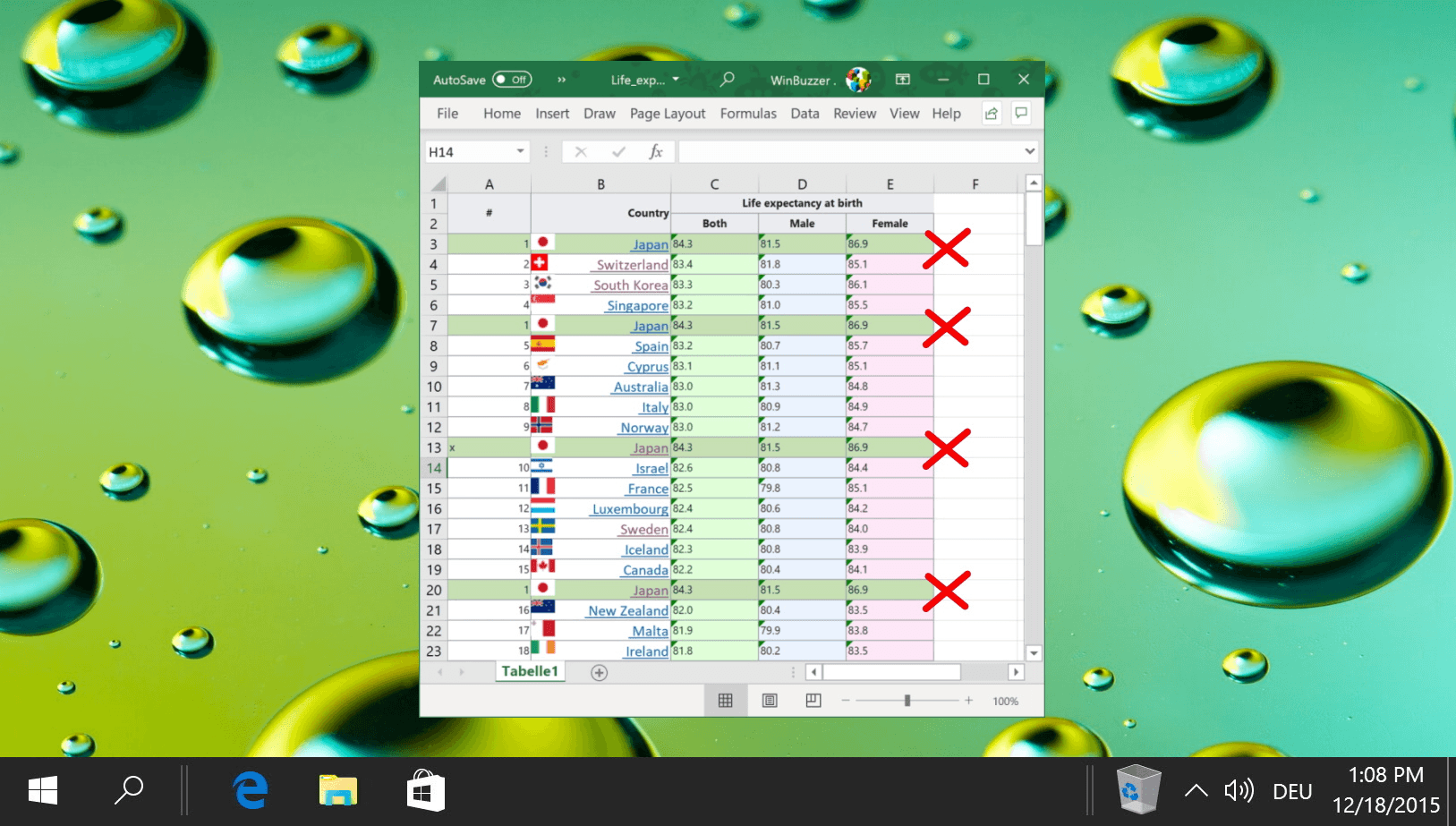
Many people overlook conditional formatting because it sounds technical. In reality, it’s quite simple. You select a column and apply a rule that says, ‘highlight any value that appears more than once, and Excel does the rest. From that moment on, every duplicate in that range is highlighted in a different color, eliminating the need for scanning or sorting and reducing the risk of missing something.

The rule remains active for future entries. When you paste new data next week, duplicates are highlighted automatically. If someone adds a row tomorrow, Excel checks it against every other entry and flags duplicates as needed. You're not running a process; you're letting Excel provide continuous surveillance on your behalf.

This method works especially well when duplicates need visibility but not immediate removal. For example, you may want to see which customer IDs appear twice before deciding to merge records, or to check the reasons behind the duplication. The color coding provides that information right away, without changing the underlying data.

How can you remove duplicates in seconds?

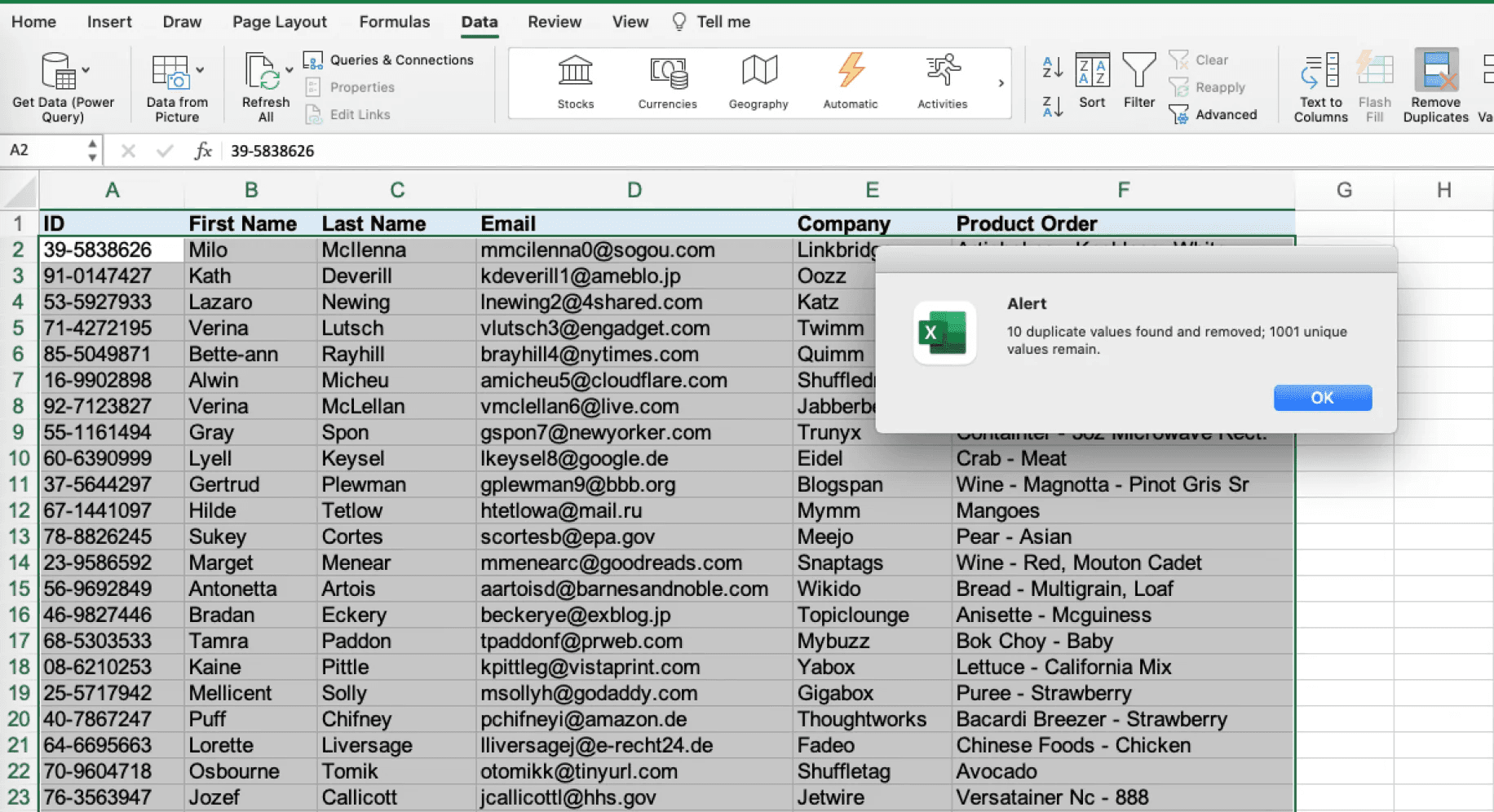
Sometimes the goal isn't just to flag duplicates for review; you want them gone. Excel's remove duplicates tool can do this in seconds. You select the columns that define what counts as a duplicate: this could be just the email address or a combination of email and purchase date. After clicking the button, Excel scans every row, keeps the first occurrence of each unique combination, and deletes the rest.

The tool tells you exactly how many duplicates it found and how many rows remain. That transparency matters. You're not guessing whether the cleanup worked. You can see the before-and-after counts immediately.

This method works best when you are sure about what should be removed. It is effective for cleaning imported contact lists, consolidating monthly reports with overlapping date ranges, or preparing a final dataset in which duplicate entries serve no purpose.

The action is decisive, fast, and leaves no confusion about what has changed. Additionally, our Spreadsheet AI Tool helps streamline this process and ensure accurate data management.

What if duplicate detection requires specific conditions?

When duplicates are determined by specific conditions, such as checking only within the same department or only when the transaction amount exceeds a certain limit, a formula provides precision that built-in tools can't. You write a rule once, drag it down the column, and each row is checked in turn.

A COUNTIF formula, for example, counts how many times a value shows up in a range. If the count is more than one, you know it’s a duplicate. You can put this formula inside an IF statement to display a label such as "Duplicate," or leave the cell empty. The logic is clear; you can see exactly which rows triggered the rule and why.

This method stands out when documentation is important or when many people need to understand how duplicates were found. The formula is visible. Anyone can click the cell and see the logic behind it. There's no hidden automation and no confusing process: just a clear rule applied consistently across every row.

How do these methods improve your workflow?

All three approaches remove human attention from the detection loop. This means you don’t have to depend on your ability to notice patterns or remember what you saw three screens ago. Instead, you set the rule once, and Excel ensures it is followed every time.

That consistency is what manual checking can never achieve. Your focus changes. You get distracted. You forget if you already looked at a section. Excel doesn’t. The rule applies the same way to row 10 and row 10,000.

No tiredness. No mistakes. No second-guessing. Also, the methods can work on a larger scale without extra effort. Whether your sheet has 50 rows or 50,000, it takes the same amount of time. Conditional formatting shows duplicates right away, regardless of the dataset's size. The Remove Duplicates feature can handle thousands of rows in seconds, and formulas calculate just as quickly across large ranges as they do across small ones.

What benefits do you gain from automated duplicate detection?

You regain time previously lost to repetitive checking. Hesitation about sharing reports fades as you become confident that the data is clean. Also, you no longer add extra validation steps out of paranoia. The mental stress of wondering if duplicates exist just disappears.

Excel changes from a tool that requires constant checking to an active system that automatically detects issues. Our Spreadsheet AI tool helps streamline this process, ensuring you no longer do work the software should handle; instead, you set rules and let the software work on its own.

Even after cleaning a spreadsheet once, new duplicates will show up the next time data is added, unless you create a system that stops them from building up from the start.

Clean Your Sheet Once, and Use Numerous to Stop Fixing Duplicates Repeatedly

The goal changes from finding problems to stopping them. You clean the sheet once using Excel's tools that come with it. After that, you set up a system to stop duplicates from coming back every time someone adds data, merges files, or imports a new report.

This change is important because most duplicate issues don't come from the current mess; they come from the mess that recurs next week. Our Spreadsheet AI Tool helps you maintain that clean state effortlessly.

Pick the sheet that keeps breaking

Start with the file you've already cleaned. This is the one where duplicates came back after you thought the problem was solved. It is either the customer list, which somehow gets duplicate entries every month, or the inventory sheet, which fails to stay accurate for more than two weeks.

You can use conditional formatting for visibility, or apply Remove Duplicates if you're sure about what should go. A COUNTIF formula works well for documentation, showing exactly which rows triggered the duplicate flag. None of these methods helps to clean the current state, but that's not the hard part.

The hardest part happens after. New data comes in unexpectedly. Someone might paste in a block of rows from another source, or a colleague could add entries without checking for existing duplicates.

As a result, the sheet reverts to the state you just fixed. You are then left wondering whether to run the cleanup process again or just accept that this file will never stay clean. However, you can minimize occurrences like these with the Spreadsheet AI Tool.

Why Excel methods reset with every new file

Excel's duplicate detection tools work on the data you see right now, not on all the data in the system. For example, conditional formatting affects a specific range, while Remove Duplicates only works on the current selection. Formulas use the existing rows to calculate results.

None of these tools carries over when you change your workflow, and they don’t follow the data from one file to another. They also don’t stop duplicates during import or prevent someone from pasting a block of rows with repeats.

Because of this, every time you start a new sheet, you have to rebuild the same safeguards. Each time you get an updated file, you have to reapply the same rules. This means your work doesn’t build on itself; instead, of making a better system, you are just repeating the same basic tasks over and over again, file by file, month by month. Our spreadsheet AI tool helps automate these repetitive tasks, ensuring consistency and saving you time.

This repetition is where the real cost lies. It's not just about spending five minutes to remove duplicates once; that time adds up to fifty times doing that same five-minute task over the year.

Standardizing cleanup across every sheet

Instead of seeing duplicate detection as something for individual files, it can be made a rule that works the same way every time. Tools like the Spreadsheet AI Tool let you set up duplicate logic once and use it automatically whenever new data comes in.

This removes the need to remember to check or redo conditional formatting. The system identifies duplicates as part of the workflow, flagging problems before they become bigger issues. The difference is clear when many people work with the same data. One person imports a CSV file, another combines it with last month's report, and a third adds manual entries.

Without a consistent detection layer, each handoff brings risk. With automated scanning, every addition is checked against the same rules, no matter who is doing the work or which file they are updating. You don’t have to worry about whether you remembered to clean the sheet. Instead, you can trust that duplicates are found automatically, the same way every time.

Consider using Numerous if your workflow involves repeated imports, regular file merges, or teams sharing the task of data entry. The platform handles duplicate detection across sheets without requiring you to set up formulas, apply formatting rules, or remember which columns to check. Cleanup becomes part of the system, not just a job you plan.

Related Reading

Hours of careful work can be undone when duplicate data creeps into spreadsheets, leading to calculation errors and wasted time. Whether managing customer records, inventory details, or financial data, duplicate entries complicate decision-making and create inefficiencies. Many professionals blend tools across Excel and Google Sheets, sometimes even exploring how to use Apps Script in Google Sheets for automation, yet the need for a quick solution remains constant.

Automated approaches that accurately detect and remove repetitive entries can restore clarity and boost productivity. A strategic tool simplifies duplicate search, freeing professionals to focus on analysis rather than data cleanup, while Numerous’s Spreadsheet AI Tool delivers an efficient solution by identifying and managing duplicate data seamlessly.

Summary

  • Duplicate entries in spreadsheets don't trigger warnings or visual alerts when they appear. Every time you paste data from another file, merge reports, or import new information, duplicates can slip in unnoticed until calculations produce incorrect totals or reports show inflated figures. This silent accumulation creates a trust gap, where every number becomes questionable, forcing you to audit rows rather than analyze results.

  • Manual duplicate checking consumes 30+ minutes per sheet through repetitive sorting, scanning, and re-checking, producing no new insights. Research from the Journal of the Medical Library Association found that manual de-duplication approaches consistently consumed the most time while still missing edge cases, with human attention faltering under repetition. When this process repeats across teams, three people each spending 30 minutes weekly, adds up to over 70 hours per year spent on baseline data hygiene rather than meaningful analysis.

  • Excel's conditional formatting converts duplicate detection from a manual task into automatic surveillance. You select a column, apply a rule to highlight values appearing more than once, and Excel continuously flags duplicates as new data arrives. This method works best when duplicates need visibility before deciding whether to merge records or investigate why duplication occurred, without altering the underlying data.

  • The Remove Duplicates tool eliminates duplicate entries in a single action by letting you define which columns determine uniqueness. Excel scans every row, keeps the first occurrence of each unique combination, deletes the rest, and reports exactly how many duplicates were found. This approach works when you're confident about what should be removed, such as cleaning imported contact lists or consolidating reports with overlapping date ranges.

  • Built-in Excel methods reset with every new file because they operate on the current data rather than on data the system feeds. Conditional formatting applies to specific ranges, Remove Duplicates processes current selections, and formulas calculate based on existing rows, but none of these tools prevent duplicates during import or stop colleagues from pasting blocks containing repeats. Every new sheet requires rebuilding the same safeguards, turning what should be a one-time fix into a recurring maintenance task.

  • The Spreadsheet AI Tool addresses this by automatically scanning for duplicates across columns whenever new data appears, eliminating the need to rebuild detection rules or remember which ranges to check across multiple files.

Why Finding Duplicates in Excel Feels Harder Than It Should

using excel - Find Duplicates in Excel

You're doing manual detective work for a problem that should be invisible. Excel does not warn you when duplicates appear, nor does it flag unusual entries or provide any visual signal that something has been copied twice.

The responsibility is all on you to notice, check, and confirm. This gap between what the software could do and what it makes you do is where the frustration lives.

Every time you paste a block of rows from another file, combine two reports into a single main sheet, or import new data from a CRM export, you create opportunities for duplication. The action feels normal; nothing goes wrong, and no error message appears. The sheet looks just fine.

That's the problem. Duplicates do not announce themselves. A customer ID that appears twice, a product SKU pasted from two different places, or an email address found in both your old list and your new one all sit quietly in their cells, looking just like the real entries. You have no reason to question anything until you start adding totals or making a report, at which point the numbers may seem off.

This is where a Spreadsheet AI tool can be a game-changer. Our Numerous tool helps you identify and eliminate duplicates effortlessly, ensuring your data remains accurate.

By that time, the damage is done. You're left wondering how many other duplicates are hiding in plain sight.

How does data size affect duplicate detection?

When a sheet holds 20 rows, it can be scanned from top to bottom in seconds. Patterns are easy to see, and repeated names or numbers stand out because the brain can handle that amount of information at once.

However, once the data exceeds 100 rows, that method doesn't work as well. According to a Microsoft Community Hub discussion, users regularly work with sheets containing over 316,000 rows, making manual checks nearly impossible. Attention wanders, eyes often skip over entries, and doubts come up about whether a value has been seen before. To tackle this issue, using our Spreadsheet AI Tool can effectively streamline duplicate detection.

Scrolling back and forth between sections doesn't help, as it can cause one to lose their place and forget what they were checking.

The sheet becomes a blur of similar-looking text, and confidence evaporates.

What happens when sorting is used?

Sorting alphabetically groups identical values together, making it easier to spot some duplicates. For example, if "John Smith" shows up three times in a row, you'll likely notice this repetition.

Sorting becomes less effective when duplicates are in different columns or when there are slight differences between them. An extra space before a name, a change in capitalization, or a trailing comma can break the grouping. These near-matches won't come together. As a result, sorting gives you false confidence

You might think you've checked everything carefully, but you've only found the obvious cases. To refine your process and eliminate duplicates more effectively, consider using our Spreadsheet AI Tool to streamline your data management.

Also, every time new data comes in, sorting needs to be done again.

This process starts over, and uncertainty returns.

How Does Doubt Affect Decision Making?

Once duplicates are suspected, every number in the sheet becomes questionable. Are your sales totals accurate? Did you count the same transaction twice? Is this pivot table showing real trends or inflated figures?

This doubt slows everything down. Instead of analyzing results or making decisions, you find yourself stuck auditing rows.

You hesitate before sharing the report with your manager, spending extra minutes cross-checking figures that should be reliable. Our Spreadsheet AI Tool helps streamline these processes, reducing audit time.

The mental overhead extends beyond finding duplicates; it involves constantly questioning whether your data is clean enough to trust.

Why is duplicate checking a recurring task?

Checking for duplicates isn't something you do just once. Every time you add new rows, import new data, or merge another file, the same risk comes back. If you only use manual checking, you will have to go through the same tedious process repeatedly.

What should take only a few seconds can become a recurring chore that takes up your time and focus. Instead of moving forward, you're just repeating the same basic level of data hygiene. To help streamline this process, our Spreadsheet AI Tool can automatically detect duplicates, saving you valuable time.

How can tools help with duplicates?

For teams working with large datasets or frequent imports, solutions like the Spreadsheet AI Tool can automatically identify and mark duplicate entries across columns. This removes the need for manual checking or repeated sorting. Instead of inspecting every row yourself, the system quickly highlights problem areas, allowing you to focus on analysis rather than data checking.

Excel can handle complex calculations, large datasets, and advanced formulas. But when it comes to duplicates, the software doesn't help you.

There are no automatic detections, built-in alerts, or simple options that say, "show me what's repeated."

You have to depend on manual effort for a task that should feel automatic. This gap between what the tool can do and what it asks you to do makes finding duplicates much harder than it needs to be.

The work isn't technically hard; it's just that you are doing tasks that shouldn't need your attention in the first place.

But the real cost isn't just the frustration: it's the time that quietly slips away every time you open a sheet.

Related Reading

Why Manually Checking for Duplicates Quietly Wastes 30+ Minutes Per Sheet

a workspace - Find Duplicates in Excel

The time doesn't announce itself. It adds up in two-minute increments, scrolling, comparing, re-sorting, and double-checking, until half an hour has gone by on a task that gives no new insight, just confirmation that your data might be clean.

The waste isn't dramatic; it's quiet, repetitive, and completely preventable.

You've learned to trust what you can see. Sorting a column, looking for matches, and marking duplicates with a highlighter: these actions feel intentional and controlled.

After finding that formulas give unexpected results or automation tools mark the wrong entries, manual checking seems like the safer choice.

That instinct comes from real experience. Formulas can break when a cell reference is changed. Conditional formatting disappears when a file is copied. Automated rules can give confusing results if you don't fully understand how they work.

Because of this, you stick to the method that feels clear: doing it yourself.

What happens during the manual checking process?

The logic holds until one considers what they are actually protecting against. Manual checking doesn't eliminate errors. It merely shifts the entire responsibility onto attention, memory, and patience—three resources that become unreliable as the dataset grows beyond a few dozen rows.

Think about someone managing monthly inventory reports. Every time new data comes in, the same routine happens: sort by product code, look for repeats, check totals, and then look again to ensure everything is correct. Twenty minutes go by. Sometimes thirty.

This process happens every month, using the same steps and facing the same uncertainty about whether every duplicate has been found.

Considering this, using an AI tool like our Spreadsheet AI tool can streamline checking, making it easier to manage large datasets and ensuring accuracy.

What do studies say about manual checking?

According to the Journal of the Medical Library Association, even systematic comparisons of five methods for removing duplicates showed significant differences in accuracy and efficiency. Manual methods took the longest time, but still missed some edge cases. The study confirmed what most people already think: that human attention slips when performing repetitive tasks, especially when there is no mental reward.

This process results in unfinished work. People keep doing low-value tasks because trusting an automated system, something they don’t fully understand, feels riskier than the time spent checking things by hand.

How does manual checking impact downstream tasks?

The thirty minutes spent checking for duplicates isn’t the only loss. Once you finish, doubt still hangs around. Did you find everything? Should you look one more time before sending the report? What if there's a duplicate in a column you didn’t check?

This doubt slows everything down. You hold off on sharing the file with your manager, question the pivot table results, and add extra validation steps that wouldn’t be needed if you had trusted the data from the beginning.

The mental struggle grows even more. Instead of looking at trends or making decisions, you are stuck reviewing rows. The work that should take seconds, confirming data integrity, expands to fill however much time you want to spend on it, since manual methods never give complete certainty. Our Spreadsheet AI Tool helps eliminate these uncertainties by automating data checks and ensuring your reports are error-free.

Why doesn’t Excel help with duplicate detection?

Excel wasn't designed to automatically show duplicates. No alert appears when users paste a block of data with repeated entries, and there is no visual indicator to flag suspicious rows. The software assumes users will notice the duplicates or know which tools to use to check them.

Sadly, most people don't know how to access these features. While Excel includes duplicate-detection tools, they are hidden in menus that aren't part of the usual workflow.

Conditional formatting needs to be set up, and the Remove Duplicates feature works only if users know which columns to compare. Also, advanced filters require syntax that most users have never learned.

This gap between Excel's capabilities and the visible prompts leaves manual checking as the default. This approach is used not because it is effective, but because it is familiar and doesn't require learning something new.

What are better alternatives to manual checking?

The alternative doesn't have to involve complex formulas or technical setup. Tools like the Spreadsheet AI Tool can instantly find duplicates across columns. It highlights problem areas without requiring rules or complex logic. You just open the sheet, and the system checks for repeated entries, showing you exactly where the issues are: no sorting, no manual comparison, and no guessing if you missed something.

This change isn't about getting rid of human judgment; instead, it's about letting you save your attention for decisions that really need it. By reducing the time spent on spotting patterns, which software can do faster and more reliably, you can spend more energy on important tasks.

How does the inefficiency of manual checking affect teams?

When manual checking becomes standard practice across a team, the time loss multiplies. Three people each spending 30 minutes per week on duplicate detection add up to over 70 hours per year—hours that could have been spent on analysis, strategy, or anything that moves work forward, rather than just keeping baseline data clean.

This inefficiency often goes unnoticed because it is spread across the team. No single instance feels like a big deal, but the cumulative effect on productivity, confidence, and momentum is very real, even when no one is actively watching.

Understanding the cost is important, but it doesn't solve the problem.

A reliable method, such as our Spreadsheet AI Tool, is needed to boost efficiency and productivity.

Related Reading

3 Easy Ways to Find Duplicates in Excel (Without Scanning Rows)

man finding duplicates - Find Duplicates in Excel

You stop checking and start letting Excel watch for you. Instead of relying on memory, focus, or repeated sorting, you set up systems that flag duplicates as they appear, remove them when needed, or mark them for review based on a single logic definition. This change isn't about learning complex formulas; it's about moving from reactive scanning to proactive detection through proactive detection.

Many people overlook conditional formatting because it sounds technical. In reality, it’s quite simple. You select a column and apply a rule that says, ‘highlight any value that appears more than once, and Excel does the rest. From that moment on, every duplicate in that range is highlighted in a different color, eliminating the need for scanning or sorting and reducing the risk of missing something.

The rule remains active for future entries. When you paste new data next week, duplicates are highlighted automatically. If someone adds a row tomorrow, Excel checks it against every other entry and flags duplicates as needed. You're not running a process; you're letting Excel provide continuous surveillance on your behalf.

This method works especially well when duplicates need visibility but not immediate removal. For example, you may want to see which customer IDs appear twice before deciding to merge records, or to check the reasons behind the duplication. The color coding provides that information right away, without changing the underlying data.

How can you remove duplicates in seconds?

Sometimes the goal isn't just to flag duplicates for review; you want them gone. Excel's remove duplicates tool can do this in seconds. You select the columns that define what counts as a duplicate: this could be just the email address or a combination of email and purchase date. After clicking the button, Excel scans every row, keeps the first occurrence of each unique combination, and deletes the rest.

The tool tells you exactly how many duplicates it found and how many rows remain. That transparency matters. You're not guessing whether the cleanup worked. You can see the before-and-after counts immediately.

This method works best when you are sure about what should be removed. It is effective for cleaning imported contact lists, consolidating monthly reports with overlapping date ranges, or preparing a final dataset in which duplicate entries serve no purpose.

The action is decisive, fast, and leaves no confusion about what has changed. Additionally, our Spreadsheet AI Tool helps streamline this process and ensure accurate data management.

What if duplicate detection requires specific conditions?

When duplicates are determined by specific conditions, such as checking only within the same department or only when the transaction amount exceeds a certain limit, a formula provides precision that built-in tools can't. You write a rule once, drag it down the column, and each row is checked in turn.

A COUNTIF formula, for example, counts how many times a value shows up in a range. If the count is more than one, you know it’s a duplicate. You can put this formula inside an IF statement to display a label such as "Duplicate," or leave the cell empty. The logic is clear; you can see exactly which rows triggered the rule and why.

This method stands out when documentation is important or when many people need to understand how duplicates were found. The formula is visible. Anyone can click the cell and see the logic behind it. There's no hidden automation and no confusing process: just a clear rule applied consistently across every row.

How do these methods improve your workflow?

All three approaches remove human attention from the detection loop. This means you don’t have to depend on your ability to notice patterns or remember what you saw three screens ago. Instead, you set the rule once, and Excel ensures it is followed every time.

That consistency is what manual checking can never achieve. Your focus changes. You get distracted. You forget if you already looked at a section. Excel doesn’t. The rule applies the same way to row 10 and row 10,000.

No tiredness. No mistakes. No second-guessing. Also, the methods can work on a larger scale without extra effort. Whether your sheet has 50 rows or 50,000, it takes the same amount of time. Conditional formatting shows duplicates right away, regardless of the dataset's size. The Remove Duplicates feature can handle thousands of rows in seconds, and formulas calculate just as quickly across large ranges as they do across small ones.

What benefits do you gain from automated duplicate detection?

You regain time previously lost to repetitive checking. Hesitation about sharing reports fades as you become confident that the data is clean. Also, you no longer add extra validation steps out of paranoia. The mental stress of wondering if duplicates exist just disappears.

Excel changes from a tool that requires constant checking to an active system that automatically detects issues. Our Spreadsheet AI tool helps streamline this process, ensuring you no longer do work the software should handle; instead, you set rules and let the software work on its own.

Even after cleaning a spreadsheet once, new duplicates will show up the next time data is added, unless you create a system that stops them from building up from the start.

Clean Your Sheet Once, and Use Numerous to Stop Fixing Duplicates Repeatedly

The goal changes from finding problems to stopping them. You clean the sheet once using Excel's tools that come with it. After that, you set up a system to stop duplicates from coming back every time someone adds data, merges files, or imports a new report.

This change is important because most duplicate issues don't come from the current mess; they come from the mess that recurs next week. Our Spreadsheet AI Tool helps you maintain that clean state effortlessly.

Pick the sheet that keeps breaking

Start with the file you've already cleaned. This is the one where duplicates came back after you thought the problem was solved. It is either the customer list, which somehow gets duplicate entries every month, or the inventory sheet, which fails to stay accurate for more than two weeks.

You can use conditional formatting for visibility, or apply Remove Duplicates if you're sure about what should go. A COUNTIF formula works well for documentation, showing exactly which rows triggered the duplicate flag. None of these methods helps to clean the current state, but that's not the hard part.

The hardest part happens after. New data comes in unexpectedly. Someone might paste in a block of rows from another source, or a colleague could add entries without checking for existing duplicates.

As a result, the sheet reverts to the state you just fixed. You are then left wondering whether to run the cleanup process again or just accept that this file will never stay clean. However, you can minimize occurrences like these with the Spreadsheet AI Tool.

Why Excel methods reset with every new file

Excel's duplicate detection tools work on the data you see right now, not on all the data in the system. For example, conditional formatting affects a specific range, while Remove Duplicates only works on the current selection. Formulas use the existing rows to calculate results.

None of these tools carries over when you change your workflow, and they don’t follow the data from one file to another. They also don’t stop duplicates during import or prevent someone from pasting a block of rows with repeats.

Because of this, every time you start a new sheet, you have to rebuild the same safeguards. Each time you get an updated file, you have to reapply the same rules. This means your work doesn’t build on itself; instead, of making a better system, you are just repeating the same basic tasks over and over again, file by file, month by month. Our spreadsheet AI tool helps automate these repetitive tasks, ensuring consistency and saving you time.

This repetition is where the real cost lies. It's not just about spending five minutes to remove duplicates once; that time adds up to fifty times doing that same five-minute task over the year.

Standardizing cleanup across every sheet

Instead of seeing duplicate detection as something for individual files, it can be made a rule that works the same way every time. Tools like the Spreadsheet AI Tool let you set up duplicate logic once and use it automatically whenever new data comes in.

This removes the need to remember to check or redo conditional formatting. The system identifies duplicates as part of the workflow, flagging problems before they become bigger issues. The difference is clear when many people work with the same data. One person imports a CSV file, another combines it with last month's report, and a third adds manual entries.

Without a consistent detection layer, each handoff brings risk. With automated scanning, every addition is checked against the same rules, no matter who is doing the work or which file they are updating. You don’t have to worry about whether you remembered to clean the sheet. Instead, you can trust that duplicates are found automatically, the same way every time.

Consider using Numerous if your workflow involves repeated imports, regular file merges, or teams sharing the task of data entry. The platform handles duplicate detection across sheets without requiring you to set up formulas, apply formatting rules, or remember which columns to check. Cleanup becomes part of the system, not just a job you plan.

Related Reading

Hours of careful work can be undone when duplicate data creeps into spreadsheets, leading to calculation errors and wasted time. Whether managing customer records, inventory details, or financial data, duplicate entries complicate decision-making and create inefficiencies. Many professionals blend tools across Excel and Google Sheets, sometimes even exploring how to use Apps Script in Google Sheets for automation, yet the need for a quick solution remains constant.

Automated approaches that accurately detect and remove repetitive entries can restore clarity and boost productivity. A strategic tool simplifies duplicate search, freeing professionals to focus on analysis rather than data cleanup, while Numerous’s Spreadsheet AI Tool delivers an efficient solution by identifying and managing duplicate data seamlessly.

Summary

  • Duplicate entries in spreadsheets don't trigger warnings or visual alerts when they appear. Every time you paste data from another file, merge reports, or import new information, duplicates can slip in unnoticed until calculations produce incorrect totals or reports show inflated figures. This silent accumulation creates a trust gap, where every number becomes questionable, forcing you to audit rows rather than analyze results.

  • Manual duplicate checking consumes 30+ minutes per sheet through repetitive sorting, scanning, and re-checking, producing no new insights. Research from the Journal of the Medical Library Association found that manual de-duplication approaches consistently consumed the most time while still missing edge cases, with human attention faltering under repetition. When this process repeats across teams, three people each spending 30 minutes weekly, adds up to over 70 hours per year spent on baseline data hygiene rather than meaningful analysis.

  • Excel's conditional formatting converts duplicate detection from a manual task into automatic surveillance. You select a column, apply a rule to highlight values appearing more than once, and Excel continuously flags duplicates as new data arrives. This method works best when duplicates need visibility before deciding whether to merge records or investigate why duplication occurred, without altering the underlying data.

  • The Remove Duplicates tool eliminates duplicate entries in a single action by letting you define which columns determine uniqueness. Excel scans every row, keeps the first occurrence of each unique combination, deletes the rest, and reports exactly how many duplicates were found. This approach works when you're confident about what should be removed, such as cleaning imported contact lists or consolidating reports with overlapping date ranges.

  • Built-in Excel methods reset with every new file because they operate on the current data rather than on data the system feeds. Conditional formatting applies to specific ranges, Remove Duplicates processes current selections, and formulas calculate based on existing rows, but none of these tools prevent duplicates during import or stop colleagues from pasting blocks containing repeats. Every new sheet requires rebuilding the same safeguards, turning what should be a one-time fix into a recurring maintenance task.

  • The Spreadsheet AI Tool addresses this by automatically scanning for duplicates across columns whenever new data appears, eliminating the need to rebuild detection rules or remember which ranges to check across multiple files.

Why Finding Duplicates in Excel Feels Harder Than It Should

using excel - Find Duplicates in Excel

You're doing manual detective work for a problem that should be invisible. Excel does not warn you when duplicates appear, nor does it flag unusual entries or provide any visual signal that something has been copied twice.

The responsibility is all on you to notice, check, and confirm. This gap between what the software could do and what it makes you do is where the frustration lives.

Every time you paste a block of rows from another file, combine two reports into a single main sheet, or import new data from a CRM export, you create opportunities for duplication. The action feels normal; nothing goes wrong, and no error message appears. The sheet looks just fine.

That's the problem. Duplicates do not announce themselves. A customer ID that appears twice, a product SKU pasted from two different places, or an email address found in both your old list and your new one all sit quietly in their cells, looking just like the real entries. You have no reason to question anything until you start adding totals or making a report, at which point the numbers may seem off.

This is where a Spreadsheet AI tool can be a game-changer. Our Numerous tool helps you identify and eliminate duplicates effortlessly, ensuring your data remains accurate.

By that time, the damage is done. You're left wondering how many other duplicates are hiding in plain sight.

How does data size affect duplicate detection?

When a sheet holds 20 rows, it can be scanned from top to bottom in seconds. Patterns are easy to see, and repeated names or numbers stand out because the brain can handle that amount of information at once.

However, once the data exceeds 100 rows, that method doesn't work as well. According to a Microsoft Community Hub discussion, users regularly work with sheets containing over 316,000 rows, making manual checks nearly impossible. Attention wanders, eyes often skip over entries, and doubts come up about whether a value has been seen before. To tackle this issue, using our Spreadsheet AI Tool can effectively streamline duplicate detection.

Scrolling back and forth between sections doesn't help, as it can cause one to lose their place and forget what they were checking.

The sheet becomes a blur of similar-looking text, and confidence evaporates.

What happens when sorting is used?

Sorting alphabetically groups identical values together, making it easier to spot some duplicates. For example, if "John Smith" shows up three times in a row, you'll likely notice this repetition.

Sorting becomes less effective when duplicates are in different columns or when there are slight differences between them. An extra space before a name, a change in capitalization, or a trailing comma can break the grouping. These near-matches won't come together. As a result, sorting gives you false confidence

You might think you've checked everything carefully, but you've only found the obvious cases. To refine your process and eliminate duplicates more effectively, consider using our Spreadsheet AI Tool to streamline your data management.

Also, every time new data comes in, sorting needs to be done again.

This process starts over, and uncertainty returns.

How Does Doubt Affect Decision Making?

Once duplicates are suspected, every number in the sheet becomes questionable. Are your sales totals accurate? Did you count the same transaction twice? Is this pivot table showing real trends or inflated figures?

This doubt slows everything down. Instead of analyzing results or making decisions, you find yourself stuck auditing rows.

You hesitate before sharing the report with your manager, spending extra minutes cross-checking figures that should be reliable. Our Spreadsheet AI Tool helps streamline these processes, reducing audit time.

The mental overhead extends beyond finding duplicates; it involves constantly questioning whether your data is clean enough to trust.

Why is duplicate checking a recurring task?

Checking for duplicates isn't something you do just once. Every time you add new rows, import new data, or merge another file, the same risk comes back. If you only use manual checking, you will have to go through the same tedious process repeatedly.

What should take only a few seconds can become a recurring chore that takes up your time and focus. Instead of moving forward, you're just repeating the same basic level of data hygiene. To help streamline this process, our Spreadsheet AI Tool can automatically detect duplicates, saving you valuable time.

How can tools help with duplicates?

For teams working with large datasets or frequent imports, solutions like the Spreadsheet AI Tool can automatically identify and mark duplicate entries across columns. This removes the need for manual checking or repeated sorting. Instead of inspecting every row yourself, the system quickly highlights problem areas, allowing you to focus on analysis rather than data checking.

Excel can handle complex calculations, large datasets, and advanced formulas. But when it comes to duplicates, the software doesn't help you.

There are no automatic detections, built-in alerts, or simple options that say, "show me what's repeated."

You have to depend on manual effort for a task that should feel automatic. This gap between what the tool can do and what it asks you to do makes finding duplicates much harder than it needs to be.

The work isn't technically hard; it's just that you are doing tasks that shouldn't need your attention in the first place.

But the real cost isn't just the frustration: it's the time that quietly slips away every time you open a sheet.

Related Reading

Why Manually Checking for Duplicates Quietly Wastes 30+ Minutes Per Sheet

a workspace - Find Duplicates in Excel

The time doesn't announce itself. It adds up in two-minute increments, scrolling, comparing, re-sorting, and double-checking, until half an hour has gone by on a task that gives no new insight, just confirmation that your data might be clean.

The waste isn't dramatic; it's quiet, repetitive, and completely preventable.

You've learned to trust what you can see. Sorting a column, looking for matches, and marking duplicates with a highlighter: these actions feel intentional and controlled.

After finding that formulas give unexpected results or automation tools mark the wrong entries, manual checking seems like the safer choice.

That instinct comes from real experience. Formulas can break when a cell reference is changed. Conditional formatting disappears when a file is copied. Automated rules can give confusing results if you don't fully understand how they work.

Because of this, you stick to the method that feels clear: doing it yourself.

What happens during the manual checking process?

The logic holds until one considers what they are actually protecting against. Manual checking doesn't eliminate errors. It merely shifts the entire responsibility onto attention, memory, and patience—three resources that become unreliable as the dataset grows beyond a few dozen rows.

Think about someone managing monthly inventory reports. Every time new data comes in, the same routine happens: sort by product code, look for repeats, check totals, and then look again to ensure everything is correct. Twenty minutes go by. Sometimes thirty.

This process happens every month, using the same steps and facing the same uncertainty about whether every duplicate has been found.

Considering this, using an AI tool like our Spreadsheet AI tool can streamline checking, making it easier to manage large datasets and ensuring accuracy.

What do studies say about manual checking?

According to the Journal of the Medical Library Association, even systematic comparisons of five methods for removing duplicates showed significant differences in accuracy and efficiency. Manual methods took the longest time, but still missed some edge cases. The study confirmed what most people already think: that human attention slips when performing repetitive tasks, especially when there is no mental reward.

This process results in unfinished work. People keep doing low-value tasks because trusting an automated system, something they don’t fully understand, feels riskier than the time spent checking things by hand.

How does manual checking impact downstream tasks?

The thirty minutes spent checking for duplicates isn’t the only loss. Once you finish, doubt still hangs around. Did you find everything? Should you look one more time before sending the report? What if there's a duplicate in a column you didn’t check?

This doubt slows everything down. You hold off on sharing the file with your manager, question the pivot table results, and add extra validation steps that wouldn’t be needed if you had trusted the data from the beginning.

The mental struggle grows even more. Instead of looking at trends or making decisions, you are stuck reviewing rows. The work that should take seconds, confirming data integrity, expands to fill however much time you want to spend on it, since manual methods never give complete certainty. Our Spreadsheet AI Tool helps eliminate these uncertainties by automating data checks and ensuring your reports are error-free.

Why doesn’t Excel help with duplicate detection?

Excel wasn't designed to automatically show duplicates. No alert appears when users paste a block of data with repeated entries, and there is no visual indicator to flag suspicious rows. The software assumes users will notice the duplicates or know which tools to use to check them.

Sadly, most people don't know how to access these features. While Excel includes duplicate-detection tools, they are hidden in menus that aren't part of the usual workflow.

Conditional formatting needs to be set up, and the Remove Duplicates feature works only if users know which columns to compare. Also, advanced filters require syntax that most users have never learned.

This gap between Excel's capabilities and the visible prompts leaves manual checking as the default. This approach is used not because it is effective, but because it is familiar and doesn't require learning something new.

What are better alternatives to manual checking?

The alternative doesn't have to involve complex formulas or technical setup. Tools like the Spreadsheet AI Tool can instantly find duplicates across columns. It highlights problem areas without requiring rules or complex logic. You just open the sheet, and the system checks for repeated entries, showing you exactly where the issues are: no sorting, no manual comparison, and no guessing if you missed something.

This change isn't about getting rid of human judgment; instead, it's about letting you save your attention for decisions that really need it. By reducing the time spent on spotting patterns, which software can do faster and more reliably, you can spend more energy on important tasks.

How does the inefficiency of manual checking affect teams?

When manual checking becomes standard practice across a team, the time loss multiplies. Three people each spending 30 minutes per week on duplicate detection add up to over 70 hours per year—hours that could have been spent on analysis, strategy, or anything that moves work forward, rather than just keeping baseline data clean.

This inefficiency often goes unnoticed because it is spread across the team. No single instance feels like a big deal, but the cumulative effect on productivity, confidence, and momentum is very real, even when no one is actively watching.

Understanding the cost is important, but it doesn't solve the problem.

A reliable method, such as our Spreadsheet AI Tool, is needed to boost efficiency and productivity.

Related Reading

3 Easy Ways to Find Duplicates in Excel (Without Scanning Rows)

man finding duplicates - Find Duplicates in Excel

You stop checking and start letting Excel watch for you. Instead of relying on memory, focus, or repeated sorting, you set up systems that flag duplicates as they appear, remove them when needed, or mark them for review based on a single logic definition. This change isn't about learning complex formulas; it's about moving from reactive scanning to proactive detection through proactive detection.

Many people overlook conditional formatting because it sounds technical. In reality, it’s quite simple. You select a column and apply a rule that says, ‘highlight any value that appears more than once, and Excel does the rest. From that moment on, every duplicate in that range is highlighted in a different color, eliminating the need for scanning or sorting and reducing the risk of missing something.

The rule remains active for future entries. When you paste new data next week, duplicates are highlighted automatically. If someone adds a row tomorrow, Excel checks it against every other entry and flags duplicates as needed. You're not running a process; you're letting Excel provide continuous surveillance on your behalf.

This method works especially well when duplicates need visibility but not immediate removal. For example, you may want to see which customer IDs appear twice before deciding to merge records, or to check the reasons behind the duplication. The color coding provides that information right away, without changing the underlying data.

How can you remove duplicates in seconds?

Sometimes the goal isn't just to flag duplicates for review; you want them gone. Excel's remove duplicates tool can do this in seconds. You select the columns that define what counts as a duplicate: this could be just the email address or a combination of email and purchase date. After clicking the button, Excel scans every row, keeps the first occurrence of each unique combination, and deletes the rest.

The tool tells you exactly how many duplicates it found and how many rows remain. That transparency matters. You're not guessing whether the cleanup worked. You can see the before-and-after counts immediately.

This method works best when you are sure about what should be removed. It is effective for cleaning imported contact lists, consolidating monthly reports with overlapping date ranges, or preparing a final dataset in which duplicate entries serve no purpose.

The action is decisive, fast, and leaves no confusion about what has changed. Additionally, our Spreadsheet AI Tool helps streamline this process and ensure accurate data management.

What if duplicate detection requires specific conditions?

When duplicates are determined by specific conditions, such as checking only within the same department or only when the transaction amount exceeds a certain limit, a formula provides precision that built-in tools can't. You write a rule once, drag it down the column, and each row is checked in turn.

A COUNTIF formula, for example, counts how many times a value shows up in a range. If the count is more than one, you know it’s a duplicate. You can put this formula inside an IF statement to display a label such as "Duplicate," or leave the cell empty. The logic is clear; you can see exactly which rows triggered the rule and why.

This method stands out when documentation is important or when many people need to understand how duplicates were found. The formula is visible. Anyone can click the cell and see the logic behind it. There's no hidden automation and no confusing process: just a clear rule applied consistently across every row.

How do these methods improve your workflow?

All three approaches remove human attention from the detection loop. This means you don’t have to depend on your ability to notice patterns or remember what you saw three screens ago. Instead, you set the rule once, and Excel ensures it is followed every time.

That consistency is what manual checking can never achieve. Your focus changes. You get distracted. You forget if you already looked at a section. Excel doesn’t. The rule applies the same way to row 10 and row 10,000.

No tiredness. No mistakes. No second-guessing. Also, the methods can work on a larger scale without extra effort. Whether your sheet has 50 rows or 50,000, it takes the same amount of time. Conditional formatting shows duplicates right away, regardless of the dataset's size. The Remove Duplicates feature can handle thousands of rows in seconds, and formulas calculate just as quickly across large ranges as they do across small ones.

What benefits do you gain from automated duplicate detection?

You regain time previously lost to repetitive checking. Hesitation about sharing reports fades as you become confident that the data is clean. Also, you no longer add extra validation steps out of paranoia. The mental stress of wondering if duplicates exist just disappears.

Excel changes from a tool that requires constant checking to an active system that automatically detects issues. Our Spreadsheet AI tool helps streamline this process, ensuring you no longer do work the software should handle; instead, you set rules and let the software work on its own.

Even after cleaning a spreadsheet once, new duplicates will show up the next time data is added, unless you create a system that stops them from building up from the start.

Clean Your Sheet Once, and Use Numerous to Stop Fixing Duplicates Repeatedly

The goal changes from finding problems to stopping them. You clean the sheet once using Excel's tools that come with it. After that, you set up a system to stop duplicates from coming back every time someone adds data, merges files, or imports a new report.

This change is important because most duplicate issues don't come from the current mess; they come from the mess that recurs next week. Our Spreadsheet AI Tool helps you maintain that clean state effortlessly.

Pick the sheet that keeps breaking

Start with the file you've already cleaned. This is the one where duplicates came back after you thought the problem was solved. It is either the customer list, which somehow gets duplicate entries every month, or the inventory sheet, which fails to stay accurate for more than two weeks.

You can use conditional formatting for visibility, or apply Remove Duplicates if you're sure about what should go. A COUNTIF formula works well for documentation, showing exactly which rows triggered the duplicate flag. None of these methods helps to clean the current state, but that's not the hard part.

The hardest part happens after. New data comes in unexpectedly. Someone might paste in a block of rows from another source, or a colleague could add entries without checking for existing duplicates.

As a result, the sheet reverts to the state you just fixed. You are then left wondering whether to run the cleanup process again or just accept that this file will never stay clean. However, you can minimize occurrences like these with the Spreadsheet AI Tool.

Why Excel methods reset with every new file

Excel's duplicate detection tools work on the data you see right now, not on all the data in the system. For example, conditional formatting affects a specific range, while Remove Duplicates only works on the current selection. Formulas use the existing rows to calculate results.

None of these tools carries over when you change your workflow, and they don’t follow the data from one file to another. They also don’t stop duplicates during import or prevent someone from pasting a block of rows with repeats.

Because of this, every time you start a new sheet, you have to rebuild the same safeguards. Each time you get an updated file, you have to reapply the same rules. This means your work doesn’t build on itself; instead, of making a better system, you are just repeating the same basic tasks over and over again, file by file, month by month. Our spreadsheet AI tool helps automate these repetitive tasks, ensuring consistency and saving you time.

This repetition is where the real cost lies. It's not just about spending five minutes to remove duplicates once; that time adds up to fifty times doing that same five-minute task over the year.

Standardizing cleanup across every sheet

Instead of seeing duplicate detection as something for individual files, it can be made a rule that works the same way every time. Tools like the Spreadsheet AI Tool let you set up duplicate logic once and use it automatically whenever new data comes in.

This removes the need to remember to check or redo conditional formatting. The system identifies duplicates as part of the workflow, flagging problems before they become bigger issues. The difference is clear when many people work with the same data. One person imports a CSV file, another combines it with last month's report, and a third adds manual entries.

Without a consistent detection layer, each handoff brings risk. With automated scanning, every addition is checked against the same rules, no matter who is doing the work or which file they are updating. You don’t have to worry about whether you remembered to clean the sheet. Instead, you can trust that duplicates are found automatically, the same way every time.

Consider using Numerous if your workflow involves repeated imports, regular file merges, or teams sharing the task of data entry. The platform handles duplicate detection across sheets without requiring you to set up formulas, apply formatting rules, or remember which columns to check. Cleanup becomes part of the system, not just a job you plan.

Related Reading