
5 Powerful Tips to Automate Emails From Google Sheets Today

5 Powerful Tips to Automate Emails From Google Sheets Today

Riley Walz

Riley Walz

Riley Walz

Jan 12, 2026

Jan 12, 2026

Jan 12, 2026

Man relaxing - Automate Emails From Google Sheets

Automating emails from spreadsheets can streamline processes and reduce repetitive work by linking data directly to messaging platforms. Understanding how to use Apps Script in Google Sheets transforms tedious manual tasks into efficient, conditional operations that ensure messages are sent only when needed. This method provides a practical alternative to cumbersome VBA macros or complex SMTP setups often encountered with Excel.

Practical automation involves configuring dynamic templates, scheduling batch sends, and managing attachments without heavy coding. Each step empowers users to maintain personalization while saving time on routine communications. Numerous Spreadsheet AI Tool, with their clear mapping and template-building features, seamlessly supports these efforts.

Summary

  • Manual email workflows remain the norm: 85% of users still send emails from Excel in 2025, and that status quo bias keeps teams preferring slow, manual checks over experimenting with automation.

  • The hidden time cost is high. Scalingwise reports that 70% of employees spend more than an hour per day on manual reporting tasks, equivalent to multiple full-time equivalents of low-value labor.

  • Small data and validation issues create disproportionate failures, so teams should alert when validation failures exceed 2 percent, because tiny error rates snowball into significant rework as volume grows.

  • When implemented with operational rigor, automation yields measurable savings; Scalingwise reports that companies can reduce operational costs by up to 30 percent by automating reporting processes.

  • Practical pilots show real capacity gains, for example, automating email sends can save up to 20 hours per week for small businesses, and 80 percent of businesses report increased efficiency after adopting email automation.

  • 'Spreadsheet AI Tool' addresses this by mapping spreadsheet fields to templates, providing staged preview and approval steps, and recording auditable logs so teams keep control while reducing manual sends.

Table of Contents

Why Sending Emails From Excel Is Still Manual for Most People
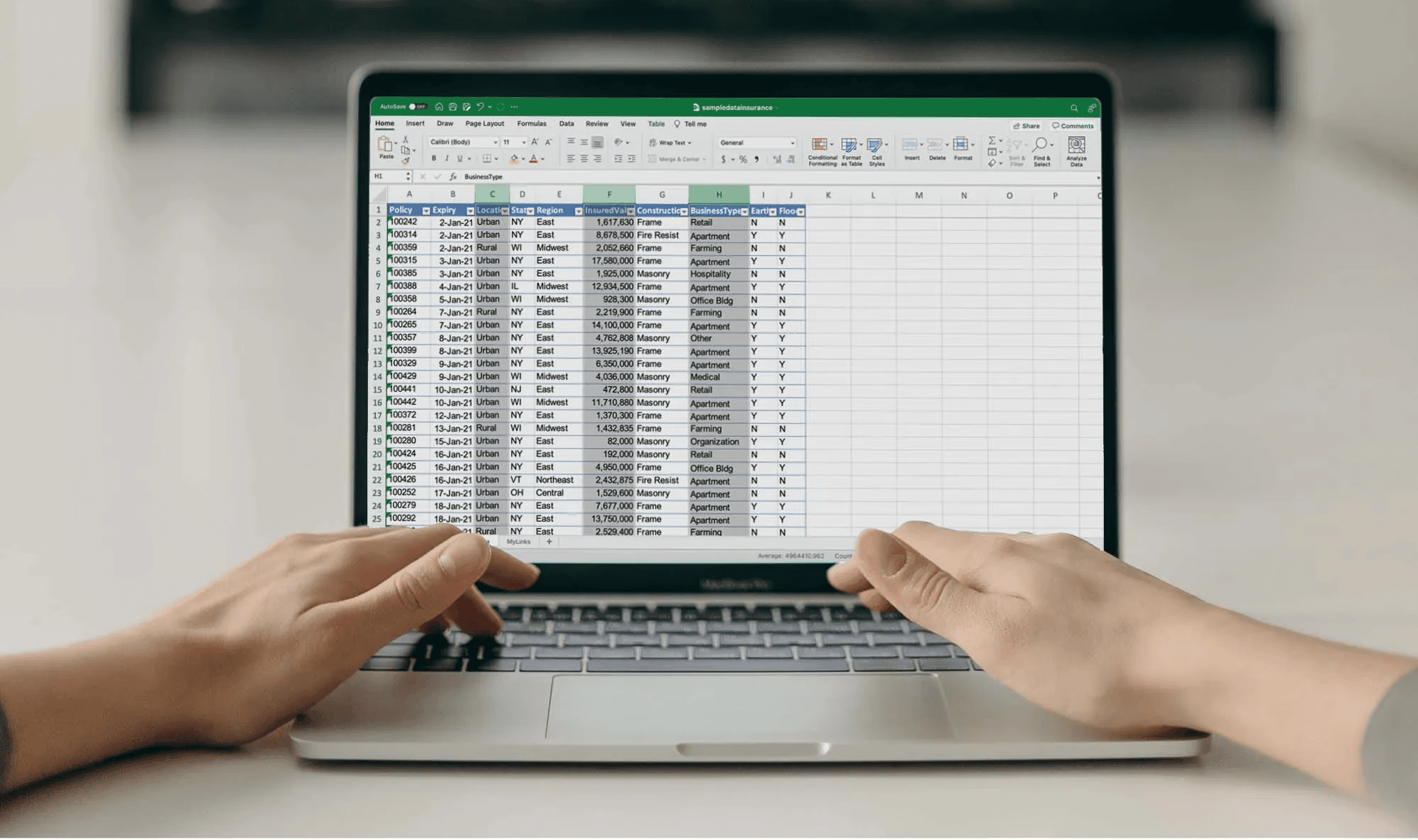
 Person working on Excel spreadsheet - How to Automate Sending Emails From Excel

Most people still send emails manually from Excel because the risk of “breaking” a known process feels higher than the promise of saved time. This fear keeps tools unused even as work increases. That hesitation makes sense, but it is also quietly expensive.

Why do people think that automation means heavy coding? 

When teams discuss automating spreadsheet emails, they often envision VBA windows, error messages, and Outlook security alerts. This idea is grounded in reality: for many years, most tutorials focused on macros and code. This led nontechnical users to avoid trying new things. The result is a strong status quo bias, in which people treat Excel with extreme caution. However, our Spreadsheet AI Tool simplifies this process, making automation more accessible and efficient for everyone.

What are teams actually afraid will go wrong?

The common fear is both human and precise: sending the wrong attachment, exposing private fields, or accidentally starting a batch. These worries come from past mistakes. In a three-week pilot with a benefits administration group, we found that date formatting mismatches and range references were the two most common causes of flow failures or repeats. This strengthened the belief that automation is brittle and risky.

Why do people still accept slow workarounds?

The familiar logic is tempting: “It’s only five minutes per message.” This trade-off may seem harmless at first, but when you consider repetition, interruptions, and task switching, it becomes problematic. The effect is clear in the data. According to DataReportal, 85% of users still manually send emails from Excel (2025); those five-minute choices add up over time for teams and weeks. This compounding effect is important, as DataReportal reports that 70% of businesses find manual email sending from Excel is time-consuming (2025). To avoid these inefficiencies, our Spreadsheet AI Tool optimizes workflows and helps streamline communication.

How does the spreadsheet mindset limit possibilities?

If you think of Excel as just a calculator or ledger, you won’t see it as an engine for actions. This approach leads teams to export CSVs, switch to other tools, or continue with frustrating copy-paste tasks. The result is clear: work moves away from the sheet, integration points are lost, and the context that once came with the data is gone. This situation is like using a typewriter because of a lack of trust in the word processor's autosave feature, indicating a preference for short-term certainty over long-term efficiency. With our Spreadsheet AI Tool, you can unlock new possibilities and streamline your processes.

What shifts belief from 'too risky' to 'clearly worth it'?

Most teams manage their processes manually because it feels more controllable. However, this approach has a significant hidden cost: lost time, avoidable mistakes, and a lack of audit trails that make compliance more difficult as teams grow. The switch to more efficient systems is important. Teams find that platforms like the Spreadsheet AI Tool let non-developers create personalized email workflows directly from a spreadsheet interface. This includes features such as template versioning, preview checks, and permission controls, which maintain control while eliminating manual repetition. Ultimately, this approach helps organizations move from fragile scripts to auditable templates without requiring anyone to write code.

Why do one-off automation attempts break trust?

Technical fragility creates emotional resistance. For example, when a macro broke payroll reconciliation for one quarter, the memory of that incident lasted much longer than the actual cause of the problem. This shows why stability is more important than just flashy features. Fixing these issues needs three main things: predictable triggers, clear preview and approval steps, and easy-to-read logs that show exactly what was sent and why. These simple controls can turn fear into confidence more effectively than any additional features.

What is the deeper reason for this ongoing issue?

Automation is not a mystery; it is a choice about how to build things. Think of it as swapping out a weak bridge for a stronger one that still looks and feels familiar to the people using it. The real reason this ongoing issue persists runs deeper than many people realize.

Related Reading

The Hidden Cost of Sending Emails Manually From Excel
Woman reviewing marketing budget spreadsheet - How to Automate Sending Emails From Excel

The hidden cost of manual email sending is both predictable and measurable. It diverts attention, increases staffing needs, and creates weak processes that slow decision-making. These losses show up as missed deadlines, longer project cycles, and a steady drain on the team's ability to do important work.

How much time is actually leaking? 

A 2025 analysis by Scalingwise found that 70% of employees spend over an hour each day on manual reporting tasks, meaning the time people spend preparing emails and spreadsheets is not just a minor issue; it is a significant problem. When you look at this across even a small department, what seemed like a few extra minutes per message turns into multiple full-time workers doing low-value tasks.

Where do the hidden costs go?

They disappear into context switching and micro-decisions. When one stops to check recipients, hunt for the right file version, or reformat a table for every send, focus breaks into many small interruptions. In practice, this creates a steady stream of minor delays and extra work that managers rarely plan for. These hidden costs lead to slower response times and more rework during busy times. To streamline this process, consider leveraging tools that enhance productivity, such as our Spreadsheet AI Tool, which helps manage data efficiently.

Why does this matter for control and compliance?

The pressure to keep control pushes teams to centralize manual checks, which ironically increases bottlenecks. Manual approvals create single points of failure; trails often remain in inboxes rather than being logged for audit. This pattern explains why compliance teams prefer repeatable workflows to messy email chains, thereby reducing audit and dispute risk.

What can a different approach actually deliver?

Most teams handle this by using a spreadsheet as the workflow hub and adding manual email steps to keep control. This method works well when the volume is low, but it becomes less effective as complexity increases. Platforms like 'Spreadsheet AI Tool' keep the familiar spreadsheet look while providing no-code templates, permissioned preview steps, scheduled sends, and full audit logs. According to Scalingwise (2025), companies can save up to 30% in operational costs by automating reporting processes. This is the kind of result that can be seen after a short trial.

How do teams move from anxious control to dependable reproducibility?

Run a limited pilot by choosing one regular email series. Make the template consistent across the workbook, add a preview-and-approve step, and track time and errors for six weeks. This limit helps the team feel more in control as they transition from manual bookkeeping to clear rules and logs. The change is like switching from a paper checklist to a cockpit flow. Even though the process remains procedural, it no longer relies on a single person to catch every mistake.

What should you track to confirm it’s working?

To effectively track progress, measure cycle time, the number of manual edits, and the need for corrective follow-ups. These metrics can help identify efficiency issues early. By reducing corrective follow-ups and giving each person an extra hour per day, organizations can shift capacity from maintenance work to high-impact tasks. Additionally, our Spreadsheet AI Tool can automate repetitive tasks, helping you optimize your workflow.

What is the curiosity loop?

There’s a practical, step-by-step way automation keeps the spreadsheet front and center while eliminating risky busywork. The way that process works is more surprising than you might think.

How Automating Emails From Excel Actually Works Today

How Automating Emails From Excel Actually Works Today

Modern automation connects your sheet to set rules and reliable delivery channels. This setup keeps the spreadsheet as the source of truth while an external service handles timing, retries, and delivery. You keep precise control over who gets what and when. This frees Excel from acting as a mail server, scheduler, and debugger simultaneously.

How do you map columns to a dependable template?

To map columns to a reliable template, start by defining the columns you care about as clear tokens, such as {{FirstName}}, {{InvoiceDate}}, and {{Balance}}. Think of this mapping as an interface contract; only change the column name after you update the token mapping in the automation tool. Use named ranges or an Excel table to prevent breaking the mapping when you rearrange columns. When you need conditional content, set it up as simple rule blocks instead of nested code. This way, a business user can easily review the rules page and ensure the logic aligns with the approval cadence. To enhance efficiency, consider how our Spreadsheet AI Tool can further streamline your processes.

How should you test without risking an accidental send?

Create a staging worksheet and a staging mailing list that mirrors production but points to internal addresses. Start with small dry runs against one row. Then, conduct a 10-row pilot that includes edge cases like missing emails, unusual date formats, or rows intentionally marked for review. Take screenshots of the outgoing message and compare the tokens against the sheet values before you flip the switch. These safe checks turn anxiety into confidence and make failures visible before customers see them.

How do you keep control, traceability, and compliance?

Make every send auditable, store a message-level log, and require an explicit approval step before production runs. Logs should record the row ID, template version, trigger condition, recipient, and a hash of the row contents. This way, you can prove what generated each message. This creates a single source of truth for audits and dispute resolution. It helps to prevent “he said, she said” situations where versions drift, and blame follows.

What happens when volume and complexity scale?

Design the flow with idempotency and backoff in mind. Mark each row as Pending, In Progress, Sent, or Failed. Ensure retries are safe by checking the states before resending. Group non-urgent sends and queue time-sensitive ones separately to stop rate limits and service quotas from blocking important notifications. When attachments are needed, do not embed large files in the sheet. Instead, keep them in a controlled cloud folder and include signed links in the message. This method balances deliverability with security.

Where does no-code automation fit in the real world?

Most teams handle approvals and personalized sends in-house because this approach feels controllable and familiar. While this approach works well at low volumes, issues arise as more people are involved and rules become more complex. Manual methods can break apart, leading to mistakes. Platforms like Spreadsheet AI Tool provide features such as rule builders, template versioning, staged previews, and audit logs. These tools shorten review cycles while maintaining explicit control and visibility.

What operational safeguards reduce breakage?

Enforcing strict data validation rules inside the workbook is essential. This includes required fields, regex checks for email formats, and normalized date columns. Implement health checks that alert you when more than a small percentage of rows encounter validation errors during a process. Additionally, instrument delivery metrics and surface bounce rates should be integrated into a simple dashboard. This way, a business owner can identify problems immediately, rather than waiting for customer complaints.

Why does this approach actually pay off?

The point of these practices is to move risk out of fragile scripts and into clear rules, testable steps, and verifiable outputs. This change is why platforms and teams using this model are seeing real improvements. For example, automating email from Excel can save small businesses up to 20 hours per week. SparkCo AI Blog (2025) describes this as recovered time that can be used for more important work. This efficiency is also shown in the fact that 80% of businesses report increased efficiency after implementing email automation from Excel. SparkCo AI Blog, 2025, highlights the larger productivity gains teams achieve once processes become reliable. Our Spreadsheet AI Tool can further enhance this efficiency by simplifying complex data tasks.

What practical trap drains automation gains?

Think of the spreadsheet as the control surface, and automation as a steady engine that only needs occasional maintenance. If you map things correctly, do staged tests, and run audits, the engine will run smoothly while you stay in control. One common mistake teams make can slowly erode their progress; we will look at this next.

Related Reading

5 Tips to Automate Email Sending From Excel and Save Hours Weekly

A team collaborating on data - How to Automate Sending Emails From Excel

Design for failure, visibility, and controlled scale from the start. Build automation that can handle missing files, temporary service limits, and partial runs. It should also provide clear alerts and quick steps to resolve issues when issues arise. Treat the spreadsheet as the control surface, not the delivery engine, and you will have predictable behavior as volume increases.

1. How do you prevent duplicates and race conditions?

To prevent duplicates and race conditions, use a short-lived lock token with a specific send key for each row. This key should be written back atomically before the external send starts. The send key must be a hash of the unchangeable row attributes plus the template version. This way, if the same key is seen again, retries will not cause any action. If your automation platform can do a conditional update, use that compare-and-swap write to change a row from Ready to In-Flight, and then to Sent or Failed. This prevents double-sending during parallel runs.

2. What should you monitor so problems surface before customers notice?

Track three practical metrics for each run: percent of rows that fail validation, average send latency per row, and outbound bounce rate. Alert when validation failures exceed a small threshold; for example, when more than 2 percent of rows fail in a batch. This is important because small error rates can quickly escalate into significant problems as volume increases. Put these metrics into a simple dashboard and attach the failing row IDs so fixing issues takes one click instead of a long search. That reclaimed time is important in practice because 5 Tips to Automate Email Sending From Excel and Save Hours Weekly, "Automating email sending from Excel can save up to 5 hours per week. This is the kind of time you can use for more valuable work instead of dealing with send problems.

3. How do you handle attachments and storage without creating new risks?

Never embed large files inside the sheet. Instead, store files in a safe cloud location and publish short-lived signed links. Include checks to verify link accessibility just before sending. If a link is missing or expired, mark the row as Failed, add a comment explaining the reason, and create a task in the workbook for someone to upload the correct file. This approach avoids blind retries and prevents the biggest mistake: sending the wrong attachment to someone's inbox.

Most teams handle sending from spreadsheets manually because it feels controllable and familiar. While this method keeps errors visible, it also requires them to repeat low-value work. As more stakeholders are involved, delays accumulate, leading to stalled decisions and compliance issues. Platforms like Numerous fix this problem by cleaning inputs, creating ready-to-send copy, and normalizing file links before the flow runs. This makes sure delivery systems focus only on consistent, auditable sends.

4. When should you move from single-row triggers to scheduled batches?

Use single-row triggers for important and urgent messages. For regular and high-volume sends, use scheduled batches. It's a good idea to group by domain and size. This helps avoid mail-rate throttling and lowers the chance of being marked as spam. Also, it's essential to use exponential backoff for temporary SMTP or API errors. As you batch, include a canary step: send the first 1-5% to a staging list. Check the deliverability and formatting before moving on. This small test helps catch formatting problems quicker than running the entire batch.

5. Which governance and rollback patterns reduce reviewer stress?

Version your templates and keep the template ID on every row you send. This helps with checking things and going back if needed by re-running a fix that uses the older template ID. Ensure a short approval timeframe for any template changes. Also, add a step that requires a forced preview showing real tokens replaced with row values for a sample that represents the situation. This method makes rollbacks surgical, not painful.

What operational tips can enhance email automation?

  • Add a short-lived lock token before sending and clear it after it’s acknowledged.

  • Hash immutable row fields along with the template ID to create a send key that won’t change.

  • Alert on validation when the error rate exceeds 2 percent or when there are spikes in the bounce rate, and show the failing row IDs for troubleshooting.

  • Use signed file links that expire, and create a backup task flow for any missing files.

  • Canary can detect the first 1–5 percent of any big template changes to find formatting errors early.

How does automation impact daily work and productivity?

Using automation well changes how teams work every day, not just how they save a few minutes. Using Excel automation tools can increase productivity by 30%. This shows why investing in better operations pays off quickly as processes grow. For those looking to enhance their efficiency, our Spreadsheet AI Tool can streamline your tasks and maximize results.

What are the tradeoffs of automation in decision-making?

The tricky part is not whether automation saves time; rather, it lies in how one responds when automation requires a choice. That is where the real leverage and the surprising tradeoffs come into play.

Make Decisions At Scale Through AI With Numerous AI’s Spreadsheet AI Tool

Most teams rely on mail merge because it feels manageable. However, if the goal is to automate sending emails from Excel without involving developers, consider running a short pilot. Use one real template and internal recipients to test the flow effectively. Numerous, a spreadsheet AI tool, transforms a single prompt into ready-to-send templates, row classifications, and no-code personalized email workflows in both Excel and Google Sheets. With a simple drag-and-drop feature, this tool helps reduce repetitive work, minimize errors, and maintain auditable templates under business control.

Related Reading

Automating emails from spreadsheets can streamline processes and reduce repetitive work by linking data directly to messaging platforms. Understanding how to use Apps Script in Google Sheets transforms tedious manual tasks into efficient, conditional operations that ensure messages are sent only when needed. This method provides a practical alternative to cumbersome VBA macros or complex SMTP setups often encountered with Excel.

Practical automation involves configuring dynamic templates, scheduling batch sends, and managing attachments without heavy coding. Each step empowers users to maintain personalization while saving time on routine communications. Numerous Spreadsheet AI Tool, with their clear mapping and template-building features, seamlessly supports these efforts.

Summary

  • Manual email workflows remain the norm: 85% of users still send emails from Excel in 2025, and that status quo bias keeps teams preferring slow, manual checks over experimenting with automation.

  • The hidden time cost is high. Scalingwise reports that 70% of employees spend more than an hour per day on manual reporting tasks, equivalent to multiple full-time equivalents of low-value labor.

  • Small data and validation issues create disproportionate failures, so teams should alert when validation failures exceed 2 percent, because tiny error rates snowball into significant rework as volume grows.

  • When implemented with operational rigor, automation yields measurable savings; Scalingwise reports that companies can reduce operational costs by up to 30 percent by automating reporting processes.

  • Practical pilots show real capacity gains, for example, automating email sends can save up to 20 hours per week for small businesses, and 80 percent of businesses report increased efficiency after adopting email automation.

  • 'Spreadsheet AI Tool' addresses this by mapping spreadsheet fields to templates, providing staged preview and approval steps, and recording auditable logs so teams keep control while reducing manual sends.

Table of Contents

Why Sending Emails From Excel Is Still Manual for Most People

 Person working on Excel spreadsheet - How to Automate Sending Emails From Excel

Most people still send emails manually from Excel because the risk of “breaking” a known process feels higher than the promise of saved time. This fear keeps tools unused even as work increases. That hesitation makes sense, but it is also quietly expensive.

Why do people think that automation means heavy coding? 

When teams discuss automating spreadsheet emails, they often envision VBA windows, error messages, and Outlook security alerts. This idea is grounded in reality: for many years, most tutorials focused on macros and code. This led nontechnical users to avoid trying new things. The result is a strong status quo bias, in which people treat Excel with extreme caution. However, our Spreadsheet AI Tool simplifies this process, making automation more accessible and efficient for everyone.

What are teams actually afraid will go wrong?

The common fear is both human and precise: sending the wrong attachment, exposing private fields, or accidentally starting a batch. These worries come from past mistakes. In a three-week pilot with a benefits administration group, we found that date formatting mismatches and range references were the two most common causes of flow failures or repeats. This strengthened the belief that automation is brittle and risky.

Why do people still accept slow workarounds?

The familiar logic is tempting: “It’s only five minutes per message.” This trade-off may seem harmless at first, but when you consider repetition, interruptions, and task switching, it becomes problematic. The effect is clear in the data. According to DataReportal, 85% of users still manually send emails from Excel (2025); those five-minute choices add up over time for teams and weeks. This compounding effect is important, as DataReportal reports that 70% of businesses find manual email sending from Excel is time-consuming (2025). To avoid these inefficiencies, our Spreadsheet AI Tool optimizes workflows and helps streamline communication.

How does the spreadsheet mindset limit possibilities?

If you think of Excel as just a calculator or ledger, you won’t see it as an engine for actions. This approach leads teams to export CSVs, switch to other tools, or continue with frustrating copy-paste tasks. The result is clear: work moves away from the sheet, integration points are lost, and the context that once came with the data is gone. This situation is like using a typewriter because of a lack of trust in the word processor's autosave feature, indicating a preference for short-term certainty over long-term efficiency. With our Spreadsheet AI Tool, you can unlock new possibilities and streamline your processes.

What shifts belief from 'too risky' to 'clearly worth it'?

Most teams manage their processes manually because it feels more controllable. However, this approach has a significant hidden cost: lost time, avoidable mistakes, and a lack of audit trails that make compliance more difficult as teams grow. The switch to more efficient systems is important. Teams find that platforms like the Spreadsheet AI Tool let non-developers create personalized email workflows directly from a spreadsheet interface. This includes features such as template versioning, preview checks, and permission controls, which maintain control while eliminating manual repetition. Ultimately, this approach helps organizations move from fragile scripts to auditable templates without requiring anyone to write code.

Why do one-off automation attempts break trust?

Technical fragility creates emotional resistance. For example, when a macro broke payroll reconciliation for one quarter, the memory of that incident lasted much longer than the actual cause of the problem. This shows why stability is more important than just flashy features. Fixing these issues needs three main things: predictable triggers, clear preview and approval steps, and easy-to-read logs that show exactly what was sent and why. These simple controls can turn fear into confidence more effectively than any additional features.

What is the deeper reason for this ongoing issue?

Automation is not a mystery; it is a choice about how to build things. Think of it as swapping out a weak bridge for a stronger one that still looks and feels familiar to the people using it. The real reason this ongoing issue persists runs deeper than many people realize.

Related Reading

The Hidden Cost of Sending Emails Manually From Excel

Woman reviewing marketing budget spreadsheet - How to Automate Sending Emails From Excel

The hidden cost of manual email sending is both predictable and measurable. It diverts attention, increases staffing needs, and creates weak processes that slow decision-making. These losses show up as missed deadlines, longer project cycles, and a steady drain on the team's ability to do important work.

How much time is actually leaking? 

A 2025 analysis by Scalingwise found that 70% of employees spend over an hour each day on manual reporting tasks, meaning the time people spend preparing emails and spreadsheets is not just a minor issue; it is a significant problem. When you look at this across even a small department, what seemed like a few extra minutes per message turns into multiple full-time workers doing low-value tasks.

Where do the hidden costs go?

They disappear into context switching and micro-decisions. When one stops to check recipients, hunt for the right file version, or reformat a table for every send, focus breaks into many small interruptions. In practice, this creates a steady stream of minor delays and extra work that managers rarely plan for. These hidden costs lead to slower response times and more rework during busy times. To streamline this process, consider leveraging tools that enhance productivity, such as our Spreadsheet AI Tool, which helps manage data efficiently.

Why does this matter for control and compliance?

The pressure to keep control pushes teams to centralize manual checks, which ironically increases bottlenecks. Manual approvals create single points of failure; trails often remain in inboxes rather than being logged for audit. This pattern explains why compliance teams prefer repeatable workflows to messy email chains, thereby reducing audit and dispute risk.

What can a different approach actually deliver?

Most teams handle this by using a spreadsheet as the workflow hub and adding manual email steps to keep control. This method works well when the volume is low, but it becomes less effective as complexity increases. Platforms like 'Spreadsheet AI Tool' keep the familiar spreadsheet look while providing no-code templates, permissioned preview steps, scheduled sends, and full audit logs. According to Scalingwise (2025), companies can save up to 30% in operational costs by automating reporting processes. This is the kind of result that can be seen after a short trial.

How do teams move from anxious control to dependable reproducibility?

Run a limited pilot by choosing one regular email series. Make the template consistent across the workbook, add a preview-and-approve step, and track time and errors for six weeks. This limit helps the team feel more in control as they transition from manual bookkeeping to clear rules and logs. The change is like switching from a paper checklist to a cockpit flow. Even though the process remains procedural, it no longer relies on a single person to catch every mistake.

What should you track to confirm it’s working?

To effectively track progress, measure cycle time, the number of manual edits, and the need for corrective follow-ups. These metrics can help identify efficiency issues early. By reducing corrective follow-ups and giving each person an extra hour per day, organizations can shift capacity from maintenance work to high-impact tasks. Additionally, our Spreadsheet AI Tool can automate repetitive tasks, helping you optimize your workflow.

What is the curiosity loop?

There’s a practical, step-by-step way automation keeps the spreadsheet front and center while eliminating risky busywork. The way that process works is more surprising than you might think.

How Automating Emails From Excel Actually Works Today

How Automating Emails From Excel Actually Works Today

Modern automation connects your sheet to set rules and reliable delivery channels. This setup keeps the spreadsheet as the source of truth while an external service handles timing, retries, and delivery. You keep precise control over who gets what and when. This frees Excel from acting as a mail server, scheduler, and debugger simultaneously.

How do you map columns to a dependable template?

To map columns to a reliable template, start by defining the columns you care about as clear tokens, such as {{FirstName}}, {{InvoiceDate}}, and {{Balance}}. Think of this mapping as an interface contract; only change the column name after you update the token mapping in the automation tool. Use named ranges or an Excel table to prevent breaking the mapping when you rearrange columns. When you need conditional content, set it up as simple rule blocks instead of nested code. This way, a business user can easily review the rules page and ensure the logic aligns with the approval cadence. To enhance efficiency, consider how our Spreadsheet AI Tool can further streamline your processes.

How should you test without risking an accidental send?

Create a staging worksheet and a staging mailing list that mirrors production but points to internal addresses. Start with small dry runs against one row. Then, conduct a 10-row pilot that includes edge cases like missing emails, unusual date formats, or rows intentionally marked for review. Take screenshots of the outgoing message and compare the tokens against the sheet values before you flip the switch. These safe checks turn anxiety into confidence and make failures visible before customers see them.

How do you keep control, traceability, and compliance?

Make every send auditable, store a message-level log, and require an explicit approval step before production runs. Logs should record the row ID, template version, trigger condition, recipient, and a hash of the row contents. This way, you can prove what generated each message. This creates a single source of truth for audits and dispute resolution. It helps to prevent “he said, she said” situations where versions drift, and blame follows.

What happens when volume and complexity scale?

Design the flow with idempotency and backoff in mind. Mark each row as Pending, In Progress, Sent, or Failed. Ensure retries are safe by checking the states before resending. Group non-urgent sends and queue time-sensitive ones separately to stop rate limits and service quotas from blocking important notifications. When attachments are needed, do not embed large files in the sheet. Instead, keep them in a controlled cloud folder and include signed links in the message. This method balances deliverability with security.

Where does no-code automation fit in the real world?

Most teams handle approvals and personalized sends in-house because this approach feels controllable and familiar. While this approach works well at low volumes, issues arise as more people are involved and rules become more complex. Manual methods can break apart, leading to mistakes. Platforms like Spreadsheet AI Tool provide features such as rule builders, template versioning, staged previews, and audit logs. These tools shorten review cycles while maintaining explicit control and visibility.

What operational safeguards reduce breakage?

Enforcing strict data validation rules inside the workbook is essential. This includes required fields, regex checks for email formats, and normalized date columns. Implement health checks that alert you when more than a small percentage of rows encounter validation errors during a process. Additionally, instrument delivery metrics and surface bounce rates should be integrated into a simple dashboard. This way, a business owner can identify problems immediately, rather than waiting for customer complaints.

Why does this approach actually pay off?

The point of these practices is to move risk out of fragile scripts and into clear rules, testable steps, and verifiable outputs. This change is why platforms and teams using this model are seeing real improvements. For example, automating email from Excel can save small businesses up to 20 hours per week. SparkCo AI Blog (2025) describes this as recovered time that can be used for more important work. This efficiency is also shown in the fact that 80% of businesses report increased efficiency after implementing email automation from Excel. SparkCo AI Blog, 2025, highlights the larger productivity gains teams achieve once processes become reliable. Our Spreadsheet AI Tool can further enhance this efficiency by simplifying complex data tasks.

What practical trap drains automation gains?

Think of the spreadsheet as the control surface, and automation as a steady engine that only needs occasional maintenance. If you map things correctly, do staged tests, and run audits, the engine will run smoothly while you stay in control. One common mistake teams make can slowly erode their progress; we will look at this next.

Related Reading

5 Tips to Automate Email Sending From Excel and Save Hours Weekly

A team collaborating on data - How to Automate Sending Emails From Excel

Design for failure, visibility, and controlled scale from the start. Build automation that can handle missing files, temporary service limits, and partial runs. It should also provide clear alerts and quick steps to resolve issues when issues arise. Treat the spreadsheet as the control surface, not the delivery engine, and you will have predictable behavior as volume increases.

1. How do you prevent duplicates and race conditions?

To prevent duplicates and race conditions, use a short-lived lock token with a specific send key for each row. This key should be written back atomically before the external send starts. The send key must be a hash of the unchangeable row attributes plus the template version. This way, if the same key is seen again, retries will not cause any action. If your automation platform can do a conditional update, use that compare-and-swap write to change a row from Ready to In-Flight, and then to Sent or Failed. This prevents double-sending during parallel runs.

2. What should you monitor so problems surface before customers notice?

Track three practical metrics for each run: percent of rows that fail validation, average send latency per row, and outbound bounce rate. Alert when validation failures exceed a small threshold; for example, when more than 2 percent of rows fail in a batch. This is important because small error rates can quickly escalate into significant problems as volume increases. Put these metrics into a simple dashboard and attach the failing row IDs so fixing issues takes one click instead of a long search. That reclaimed time is important in practice because 5 Tips to Automate Email Sending From Excel and Save Hours Weekly, "Automating email sending from Excel can save up to 5 hours per week. This is the kind of time you can use for more valuable work instead of dealing with send problems.

3. How do you handle attachments and storage without creating new risks?

Never embed large files inside the sheet. Instead, store files in a safe cloud location and publish short-lived signed links. Include checks to verify link accessibility just before sending. If a link is missing or expired, mark the row as Failed, add a comment explaining the reason, and create a task in the workbook for someone to upload the correct file. This approach avoids blind retries and prevents the biggest mistake: sending the wrong attachment to someone's inbox.

Most teams handle sending from spreadsheets manually because it feels controllable and familiar. While this method keeps errors visible, it also requires them to repeat low-value work. As more stakeholders are involved, delays accumulate, leading to stalled decisions and compliance issues. Platforms like Numerous fix this problem by cleaning inputs, creating ready-to-send copy, and normalizing file links before the flow runs. This makes sure delivery systems focus only on consistent, auditable sends.

4. When should you move from single-row triggers to scheduled batches?

Use single-row triggers for important and urgent messages. For regular and high-volume sends, use scheduled batches. It's a good idea to group by domain and size. This helps avoid mail-rate throttling and lowers the chance of being marked as spam. Also, it's essential to use exponential backoff for temporary SMTP or API errors. As you batch, include a canary step: send the first 1-5% to a staging list. Check the deliverability and formatting before moving on. This small test helps catch formatting problems quicker than running the entire batch.

5. Which governance and rollback patterns reduce reviewer stress?

Version your templates and keep the template ID on every row you send. This helps with checking things and going back if needed by re-running a fix that uses the older template ID. Ensure a short approval timeframe for any template changes. Also, add a step that requires a forced preview showing real tokens replaced with row values for a sample that represents the situation. This method makes rollbacks surgical, not painful.

What operational tips can enhance email automation?

  • Add a short-lived lock token before sending and clear it after it’s acknowledged.

  • Hash immutable row fields along with the template ID to create a send key that won’t change.

  • Alert on validation when the error rate exceeds 2 percent or when there are spikes in the bounce rate, and show the failing row IDs for troubleshooting.

  • Use signed file links that expire, and create a backup task flow for any missing files.

  • Canary can detect the first 1–5 percent of any big template changes to find formatting errors early.

How does automation impact daily work and productivity?

Using automation well changes how teams work every day, not just how they save a few minutes. Using Excel automation tools can increase productivity by 30%. This shows why investing in better operations pays off quickly as processes grow. For those looking to enhance their efficiency, our Spreadsheet AI Tool can streamline your tasks and maximize results.

What are the tradeoffs of automation in decision-making?

The tricky part is not whether automation saves time; rather, it lies in how one responds when automation requires a choice. That is where the real leverage and the surprising tradeoffs come into play.

Make Decisions At Scale Through AI With Numerous AI’s Spreadsheet AI Tool

Most teams rely on mail merge because it feels manageable. However, if the goal is to automate sending emails from Excel without involving developers, consider running a short pilot. Use one real template and internal recipients to test the flow effectively. Numerous, a spreadsheet AI tool, transforms a single prompt into ready-to-send templates, row classifications, and no-code personalized email workflows in both Excel and Google Sheets. With a simple drag-and-drop feature, this tool helps reduce repetitive work, minimize errors, and maintain auditable templates under business control.

Related Reading

Automating emails from spreadsheets can streamline processes and reduce repetitive work by linking data directly to messaging platforms. Understanding how to use Apps Script in Google Sheets transforms tedious manual tasks into efficient, conditional operations that ensure messages are sent only when needed. This method provides a practical alternative to cumbersome VBA macros or complex SMTP setups often encountered with Excel.

Practical automation involves configuring dynamic templates, scheduling batch sends, and managing attachments without heavy coding. Each step empowers users to maintain personalization while saving time on routine communications. Numerous Spreadsheet AI Tool, with their clear mapping and template-building features, seamlessly supports these efforts.

Summary

  • Manual email workflows remain the norm: 85% of users still send emails from Excel in 2025, and that status quo bias keeps teams preferring slow, manual checks over experimenting with automation.

  • The hidden time cost is high. Scalingwise reports that 70% of employees spend more than an hour per day on manual reporting tasks, equivalent to multiple full-time equivalents of low-value labor.

  • Small data and validation issues create disproportionate failures, so teams should alert when validation failures exceed 2 percent, because tiny error rates snowball into significant rework as volume grows.

  • When implemented with operational rigor, automation yields measurable savings; Scalingwise reports that companies can reduce operational costs by up to 30 percent by automating reporting processes.

  • Practical pilots show real capacity gains, for example, automating email sends can save up to 20 hours per week for small businesses, and 80 percent of businesses report increased efficiency after adopting email automation.

  • 'Spreadsheet AI Tool' addresses this by mapping spreadsheet fields to templates, providing staged preview and approval steps, and recording auditable logs so teams keep control while reducing manual sends.

Table of Contents

Why Sending Emails From Excel Is Still Manual for Most People

 Person working on Excel spreadsheet - How to Automate Sending Emails From Excel

Most people still send emails manually from Excel because the risk of “breaking” a known process feels higher than the promise of saved time. This fear keeps tools unused even as work increases. That hesitation makes sense, but it is also quietly expensive.

Why do people think that automation means heavy coding? 

When teams discuss automating spreadsheet emails, they often envision VBA windows, error messages, and Outlook security alerts. This idea is grounded in reality: for many years, most tutorials focused on macros and code. This led nontechnical users to avoid trying new things. The result is a strong status quo bias, in which people treat Excel with extreme caution. However, our Spreadsheet AI Tool simplifies this process, making automation more accessible and efficient for everyone.

What are teams actually afraid will go wrong?

The common fear is both human and precise: sending the wrong attachment, exposing private fields, or accidentally starting a batch. These worries come from past mistakes. In a three-week pilot with a benefits administration group, we found that date formatting mismatches and range references were the two most common causes of flow failures or repeats. This strengthened the belief that automation is brittle and risky.

Why do people still accept slow workarounds?

The familiar logic is tempting: “It’s only five minutes per message.” This trade-off may seem harmless at first, but when you consider repetition, interruptions, and task switching, it becomes problematic. The effect is clear in the data. According to DataReportal, 85% of users still manually send emails from Excel (2025); those five-minute choices add up over time for teams and weeks. This compounding effect is important, as DataReportal reports that 70% of businesses find manual email sending from Excel is time-consuming (2025). To avoid these inefficiencies, our Spreadsheet AI Tool optimizes workflows and helps streamline communication.

How does the spreadsheet mindset limit possibilities?

If you think of Excel as just a calculator or ledger, you won’t see it as an engine for actions. This approach leads teams to export CSVs, switch to other tools, or continue with frustrating copy-paste tasks. The result is clear: work moves away from the sheet, integration points are lost, and the context that once came with the data is gone. This situation is like using a typewriter because of a lack of trust in the word processor's autosave feature, indicating a preference for short-term certainty over long-term efficiency. With our Spreadsheet AI Tool, you can unlock new possibilities and streamline your processes.

What shifts belief from 'too risky' to 'clearly worth it'?

Most teams manage their processes manually because it feels more controllable. However, this approach has a significant hidden cost: lost time, avoidable mistakes, and a lack of audit trails that make compliance more difficult as teams grow. The switch to more efficient systems is important. Teams find that platforms like the Spreadsheet AI Tool let non-developers create personalized email workflows directly from a spreadsheet interface. This includes features such as template versioning, preview checks, and permission controls, which maintain control while eliminating manual repetition. Ultimately, this approach helps organizations move from fragile scripts to auditable templates without requiring anyone to write code.

Why do one-off automation attempts break trust?

Technical fragility creates emotional resistance. For example, when a macro broke payroll reconciliation for one quarter, the memory of that incident lasted much longer than the actual cause of the problem. This shows why stability is more important than just flashy features. Fixing these issues needs three main things: predictable triggers, clear preview and approval steps, and easy-to-read logs that show exactly what was sent and why. These simple controls can turn fear into confidence more effectively than any additional features.

What is the deeper reason for this ongoing issue?

Automation is not a mystery; it is a choice about how to build things. Think of it as swapping out a weak bridge for a stronger one that still looks and feels familiar to the people using it. The real reason this ongoing issue persists runs deeper than many people realize.

Related Reading

The Hidden Cost of Sending Emails Manually From Excel

Woman reviewing marketing budget spreadsheet - How to Automate Sending Emails From Excel

The hidden cost of manual email sending is both predictable and measurable. It diverts attention, increases staffing needs, and creates weak processes that slow decision-making. These losses show up as missed deadlines, longer project cycles, and a steady drain on the team's ability to do important work.

How much time is actually leaking? 

A 2025 analysis by Scalingwise found that 70% of employees spend over an hour each day on manual reporting tasks, meaning the time people spend preparing emails and spreadsheets is not just a minor issue; it is a significant problem. When you look at this across even a small department, what seemed like a few extra minutes per message turns into multiple full-time workers doing low-value tasks.

Where do the hidden costs go?

They disappear into context switching and micro-decisions. When one stops to check recipients, hunt for the right file version, or reformat a table for every send, focus breaks into many small interruptions. In practice, this creates a steady stream of minor delays and extra work that managers rarely plan for. These hidden costs lead to slower response times and more rework during busy times. To streamline this process, consider leveraging tools that enhance productivity, such as our Spreadsheet AI Tool, which helps manage data efficiently.

Why does this matter for control and compliance?

The pressure to keep control pushes teams to centralize manual checks, which ironically increases bottlenecks. Manual approvals create single points of failure; trails often remain in inboxes rather than being logged for audit. This pattern explains why compliance teams prefer repeatable workflows to messy email chains, thereby reducing audit and dispute risk.

What can a different approach actually deliver?

Most teams handle this by using a spreadsheet as the workflow hub and adding manual email steps to keep control. This method works well when the volume is low, but it becomes less effective as complexity increases. Platforms like 'Spreadsheet AI Tool' keep the familiar spreadsheet look while providing no-code templates, permissioned preview steps, scheduled sends, and full audit logs. According to Scalingwise (2025), companies can save up to 30% in operational costs by automating reporting processes. This is the kind of result that can be seen after a short trial.

How do teams move from anxious control to dependable reproducibility?

Run a limited pilot by choosing one regular email series. Make the template consistent across the workbook, add a preview-and-approve step, and track time and errors for six weeks. This limit helps the team feel more in control as they transition from manual bookkeeping to clear rules and logs. The change is like switching from a paper checklist to a cockpit flow. Even though the process remains procedural, it no longer relies on a single person to catch every mistake.

What should you track to confirm it’s working?

To effectively track progress, measure cycle time, the number of manual edits, and the need for corrective follow-ups. These metrics can help identify efficiency issues early. By reducing corrective follow-ups and giving each person an extra hour per day, organizations can shift capacity from maintenance work to high-impact tasks. Additionally, our Spreadsheet AI Tool can automate repetitive tasks, helping you optimize your workflow.

What is the curiosity loop?

There’s a practical, step-by-step way automation keeps the spreadsheet front and center while eliminating risky busywork. The way that process works is more surprising than you might think.

How Automating Emails From Excel Actually Works Today

How Automating Emails From Excel Actually Works Today

Modern automation connects your sheet to set rules and reliable delivery channels. This setup keeps the spreadsheet as the source of truth while an external service handles timing, retries, and delivery. You keep precise control over who gets what and when. This frees Excel from acting as a mail server, scheduler, and debugger simultaneously.

How do you map columns to a dependable template?

To map columns to a reliable template, start by defining the columns you care about as clear tokens, such as {{FirstName}}, {{InvoiceDate}}, and {{Balance}}. Think of this mapping as an interface contract; only change the column name after you update the token mapping in the automation tool. Use named ranges or an Excel table to prevent breaking the mapping when you rearrange columns. When you need conditional content, set it up as simple rule blocks instead of nested code. This way, a business user can easily review the rules page and ensure the logic aligns with the approval cadence. To enhance efficiency, consider how our Spreadsheet AI Tool can further streamline your processes.

How should you test without risking an accidental send?

Create a staging worksheet and a staging mailing list that mirrors production but points to internal addresses. Start with small dry runs against one row. Then, conduct a 10-row pilot that includes edge cases like missing emails, unusual date formats, or rows intentionally marked for review. Take screenshots of the outgoing message and compare the tokens against the sheet values before you flip the switch. These safe checks turn anxiety into confidence and make failures visible before customers see them.

How do you keep control, traceability, and compliance?

Make every send auditable, store a message-level log, and require an explicit approval step before production runs. Logs should record the row ID, template version, trigger condition, recipient, and a hash of the row contents. This way, you can prove what generated each message. This creates a single source of truth for audits and dispute resolution. It helps to prevent “he said, she said” situations where versions drift, and blame follows.

What happens when volume and complexity scale?

Design the flow with idempotency and backoff in mind. Mark each row as Pending, In Progress, Sent, or Failed. Ensure retries are safe by checking the states before resending. Group non-urgent sends and queue time-sensitive ones separately to stop rate limits and service quotas from blocking important notifications. When attachments are needed, do not embed large files in the sheet. Instead, keep them in a controlled cloud folder and include signed links in the message. This method balances deliverability with security.

Where does no-code automation fit in the real world?

Most teams handle approvals and personalized sends in-house because this approach feels controllable and familiar. While this approach works well at low volumes, issues arise as more people are involved and rules become more complex. Manual methods can break apart, leading to mistakes. Platforms like Spreadsheet AI Tool provide features such as rule builders, template versioning, staged previews, and audit logs. These tools shorten review cycles while maintaining explicit control and visibility.

What operational safeguards reduce breakage?

Enforcing strict data validation rules inside the workbook is essential. This includes required fields, regex checks for email formats, and normalized date columns. Implement health checks that alert you when more than a small percentage of rows encounter validation errors during a process. Additionally, instrument delivery metrics and surface bounce rates should be integrated into a simple dashboard. This way, a business owner can identify problems immediately, rather than waiting for customer complaints.

Why does this approach actually pay off?

The point of these practices is to move risk out of fragile scripts and into clear rules, testable steps, and verifiable outputs. This change is why platforms and teams using this model are seeing real improvements. For example, automating email from Excel can save small businesses up to 20 hours per week. SparkCo AI Blog (2025) describes this as recovered time that can be used for more important work. This efficiency is also shown in the fact that 80% of businesses report increased efficiency after implementing email automation from Excel. SparkCo AI Blog, 2025, highlights the larger productivity gains teams achieve once processes become reliable. Our Spreadsheet AI Tool can further enhance this efficiency by simplifying complex data tasks.

What practical trap drains automation gains?

Think of the spreadsheet as the control surface, and automation as a steady engine that only needs occasional maintenance. If you map things correctly, do staged tests, and run audits, the engine will run smoothly while you stay in control. One common mistake teams make can slowly erode their progress; we will look at this next.

Related Reading

5 Tips to Automate Email Sending From Excel and Save Hours Weekly

A team collaborating on data - How to Automate Sending Emails From Excel

Design for failure, visibility, and controlled scale from the start. Build automation that can handle missing files, temporary service limits, and partial runs. It should also provide clear alerts and quick steps to resolve issues when issues arise. Treat the spreadsheet as the control surface, not the delivery engine, and you will have predictable behavior as volume increases.

1. How do you prevent duplicates and race conditions?

To prevent duplicates and race conditions, use a short-lived lock token with a specific send key for each row. This key should be written back atomically before the external send starts. The send key must be a hash of the unchangeable row attributes plus the template version. This way, if the same key is seen again, retries will not cause any action. If your automation platform can do a conditional update, use that compare-and-swap write to change a row from Ready to In-Flight, and then to Sent or Failed. This prevents double-sending during parallel runs.

2. What should you monitor so problems surface before customers notice?

Track three practical metrics for each run: percent of rows that fail validation, average send latency per row, and outbound bounce rate. Alert when validation failures exceed a small threshold; for example, when more than 2 percent of rows fail in a batch. This is important because small error rates can quickly escalate into significant problems as volume increases. Put these metrics into a simple dashboard and attach the failing row IDs so fixing issues takes one click instead of a long search. That reclaimed time is important in practice because 5 Tips to Automate Email Sending From Excel and Save Hours Weekly, "Automating email sending from Excel can save up to 5 hours per week. This is the kind of time you can use for more valuable work instead of dealing with send problems.

3. How do you handle attachments and storage without creating new risks?

Never embed large files inside the sheet. Instead, store files in a safe cloud location and publish short-lived signed links. Include checks to verify link accessibility just before sending. If a link is missing or expired, mark the row as Failed, add a comment explaining the reason, and create a task in the workbook for someone to upload the correct file. This approach avoids blind retries and prevents the biggest mistake: sending the wrong attachment to someone's inbox.

Most teams handle sending from spreadsheets manually because it feels controllable and familiar. While this method keeps errors visible, it also requires them to repeat low-value work. As more stakeholders are involved, delays accumulate, leading to stalled decisions and compliance issues. Platforms like Numerous fix this problem by cleaning inputs, creating ready-to-send copy, and normalizing file links before the flow runs. This makes sure delivery systems focus only on consistent, auditable sends.

4. When should you move from single-row triggers to scheduled batches?

Use single-row triggers for important and urgent messages. For regular and high-volume sends, use scheduled batches. It's a good idea to group by domain and size. This helps avoid mail-rate throttling and lowers the chance of being marked as spam. Also, it's essential to use exponential backoff for temporary SMTP or API errors. As you batch, include a canary step: send the first 1-5% to a staging list. Check the deliverability and formatting before moving on. This small test helps catch formatting problems quicker than running the entire batch.

5. Which governance and rollback patterns reduce reviewer stress?

Version your templates and keep the template ID on every row you send. This helps with checking things and going back if needed by re-running a fix that uses the older template ID. Ensure a short approval timeframe for any template changes. Also, add a step that requires a forced preview showing real tokens replaced with row values for a sample that represents the situation. This method makes rollbacks surgical, not painful.

What operational tips can enhance email automation?

  • Add a short-lived lock token before sending and clear it after it’s acknowledged.

  • Hash immutable row fields along with the template ID to create a send key that won’t change.

  • Alert on validation when the error rate exceeds 2 percent or when there are spikes in the bounce rate, and show the failing row IDs for troubleshooting.

  • Use signed file links that expire, and create a backup task flow for any missing files.

  • Canary can detect the first 1–5 percent of any big template changes to find formatting errors early.

How does automation impact daily work and productivity?

Using automation well changes how teams work every day, not just how they save a few minutes. Using Excel automation tools can increase productivity by 30%. This shows why investing in better operations pays off quickly as processes grow. For those looking to enhance their efficiency, our Spreadsheet AI Tool can streamline your tasks and maximize results.

What are the tradeoffs of automation in decision-making?

The tricky part is not whether automation saves time; rather, it lies in how one responds when automation requires a choice. That is where the real leverage and the surprising tradeoffs come into play.

Make Decisions At Scale Through AI With Numerous AI’s Spreadsheet AI Tool

Most teams rely on mail merge because it feels manageable. However, if the goal is to automate sending emails from Excel without involving developers, consider running a short pilot. Use one real template and internal recipients to test the flow effectively. Numerous, a spreadsheet AI tool, transforms a single prompt into ready-to-send templates, row classifications, and no-code personalized email workflows in both Excel and Google Sheets. With a simple drag-and-drop feature, this tool helps reduce repetitive work, minimize errors, and maintain auditable templates under business control.

Related Reading