
7 Ways to Pull Data Based on Criteria in Google Sheets (Build Reports in Under 10 Minutes)

7 Ways to Pull Data Based on Criteria in Google Sheets (Build Reports in Under 10 Minutes)

Riley Walz

Riley Walz

Riley Walz

Jan 20, 2026

Jan 20, 2026

Jan 20, 2026

G-sheets in a spiral - Google Sheets Pull Data From Another Tab Based on Criteria

Copying and pasting data between tabs based on status, date, or client can lead to errors and inefficiencies. Advanced functions like FILTER, QUERY, and array formulas offer reliable alternatives that speed up reporting and improve accuracy. how to use Apps Script in Google Sheets is an effective way to automate data pulls, merge information across sheets, and schedule reports.

Techniques such as VLOOKUP and INDEX MATCH complement these approaches by addressing diverse data-extraction needs. Each method minimizes manual effort while maintaining consistency in results. The Spreadsheet AI Tool delivers a practical solution by generating formulas and Apps Script snippets that streamline data consolidation.

Summary

  • Treating reports as one-off artifacts forces manual rebuilds, and teams commonly spend 10 to 30 minutes per weekly report on setup and copy/paste, a habit that multiplies into significant wasted time as reports scale.

  • Large or complex sheets cause real slowdowns, with 50% of users reporting delays when loading large datasets in Google Sheets, which shows why many conditional formats and volatile formulas make the UI feel sluggish.

  • External feeds and chained imports drive most instability, with 90% of performance issues traced to external data sources, so fixing only local formulas often leaves the core problem unaddressed.

  • Platform limits are practical guardrails, since Google Sheets caps workbooks at 10 million cells, and performance can start degrading once you exceed about 100,000 rows, making these thresholds useful triggers to change approach.

  • Operationally, analysts spend roughly a third to a half of their time preparing data rather than analyzing it, and with more than 50 million monthly Google Sheets users and over 70% using functions to analyze data, small process choices scale into large organizational burdens.

  • This is where 'Spreadsheet AI Tool' fits in: suggesting formulas, building queries, and generating Apps Script snippets to automate criteria-driven pulls and scheduled refreshes, so reports behave like live views rather than requiring repeated manual rebuilds.

Table of Contents

Why Reports Still Take Forever in Google Sheets
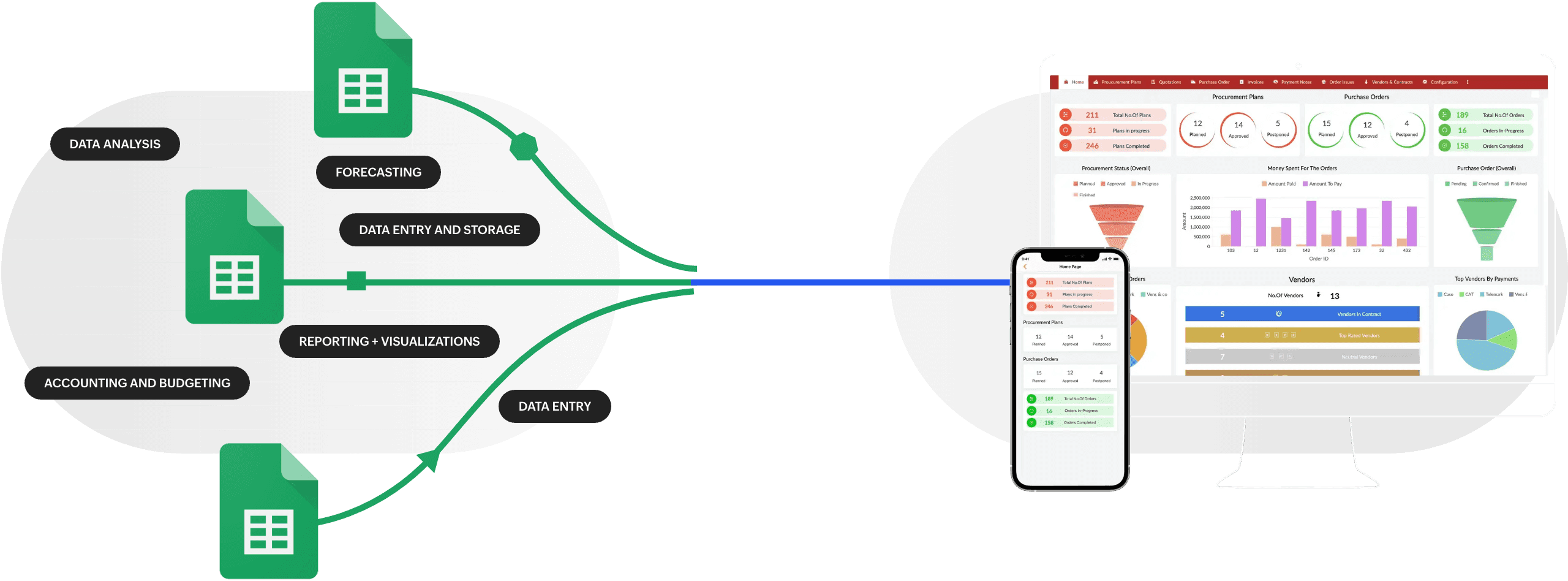
Turning spreadsheet data into visual dashboards - Google Sheets Pull Data From Another Tab Based on Criteria

Reports feel slow because the workflow treats outputs as products instead of views of the source, and every update forces you to rebuild rather than refresh. Shift to pulling matching rows by criteria, cache where possible, and automate refreshes with Apps Script so the work becomes changing parameters, not redoing the report.

Why does it still lag when the data is already here?

Large sheets and heavy recalculation are the usual culprits. Spreadsheets with many conditional formats, volatile functions, array formulas, or dozens of inter-sheet IMPORTRANGE calls force the UI and calculation engine to re-evaluate repeatedly, causing visible pauses and making simple clicks feel heavy. Google Docs Editors Community: 50% of users experience delays when loading large datasets in Google Sheets, confirming this is a common, measurable problem across users, not just a frustrating feeling.

What hidden costs are eating your time?

Daily time loss comes from doing routine, manual steps without thinking. This includes tasks such as filtering, copying, pasting, adjusting column widths, and rerunning formulas. These tasks, which take about 10 minutes each, add up across different reports. As explained in the article on advanced Excel functions, this results in significant time loss over several weeks. These manual edits can cause people to lose confidence, as they can create mismatches across tabs. It can be tiring to track down why a total has changed by a few dollars after rushing through a weekly update. This issue occurs across finance, ops, and growth teams. While this approach may work for small data sets, it doesn't hold up as the size of sheets and the number of stakeholders increase. Each manual copy brings a new chance for human error and drift.

How do external connections make things worse?

External feeds and chained imports create brittle dependencies and heavy loads. Because of this, performance problems often stem from integrations rather than just sheet formulas. According to the Google Docs Editors Community, 90% of performance issues are caused by the use of external data sources. This is why reports that pull data from other tools or shared workbooks can unexpectedly slow down, while local improvements only improve performance to a small extent. To help mitigate these issues, consider using Numerous for streamlined data integration.

When should you stop rebuilding and start pulling?

If you always rebuild the same report whenever the source changes, consider changing your approach: store raw rows once and show a single canonical dataset. Then, pull matching rows into report tabs by using criteria-driven queries or Apps Script. This is where Google sheets pull data from another tab based on criteria, stops being just a trick, and becomes the main way to do things. Use named ranges or a normalized helper tab as the single source of truth. After that, you can reference it with FILTER, QUERY, or a script that gives back only the rows that meet the current report criteria. If you’re looking for smarter analysis, our Spreadsheet AI Tool can help streamline your data processes.

Most teams use the familiar method because it is easy to use. They filter and paste data since this way works well right now. But this method hides a growing cost as sheet size, the number of users, and the number of connectors grow; manual rebuilding becomes a burden. Teams find that tools like the Spreadsheet AI Tool or similar platforms have many benefits. Our Spreadsheet AI Tool offers scripted pulls, prebuilt connectors, and scheduled refreshes, which remove the burden by centralizing data access, automating updates, and keeping reports live without needing repeated human effort.

What immediate changes reduce friction today?

  • Replace repeated copy/paste with query-based views or an Apps Script function that pulls matching rows and writes them all at once, avoiding operations one cell at a time.

  • Move volatile functions out of report tabs; run them in a preprocessing sheet or script, and then reference the cleaned table.

  • Cache external imports using a small script that refreshes them on a schedule, or store snapshots in a helper tab. This separates reporting from live API delays.

  • Use time-driven triggers in Apps Script to run heavy tasks off the UI thread, ensuring users see a responsive sheet while updates run in the background. To enhance your spreadsheet experience, consider how our Spreadsheet AI Tool can streamline these processes efficiently.

How does Apps Script actually speed things up in practice?

Apps Script lets users use Sheets like a simple database. It helps get lots of data at once, filter rows programmatically, and write results back with setValues to skip slow, one-by-one edits in the spreadsheet. By using batch operations and reducing the number of times it interacts with the sheet, scripts can significantly reduce recalculating and rendering time. For reports that occur regularly, a script that takes in criteria and updates a report tab in a single smooth operation eliminates the need for frequent manual updates and the errors that can occur with them. Our Spreadsheet AI tool can help streamline these operations even further. You can feel lighter about reporting quickly once you stop treating outputs as fixed items. Instead, think of them as filters on a canonical dataset. Surprisingly, the reason most teams still get stuck is more surprising than you might think.

Related Reading

Why Most Google Sheets Reports Take Too Long to Build
User editing spreadsheets on a tablet - Google Sheets Pull Data From Another Tab Based on Criteria

Reports seem slow because the team's approach is incorrect; they treat each report as something to rebuild rather than a live view of the correct data. This mistake leads to habits that make reporting feel slow and unavoidable, not the spreadsheet itself.

Why do teams accept slow reports as normal? 

Pattern recognition shows that this happens for two reasons: low friction and visible control. Copying and pasting is easy to get started and creates a physical sheet that can be shown to a manager, making it a low-risk option. That familiarity leads to giving up, with teams tolerating 10 to 30 minutes of weekly setup for each report rather than changing how they work. Our Spreadsheet AI Tool can help streamline the reporting process. The emotional burden is heavy; doing the same manual work over and over feels like small failures piling up, leading to burnout. This resignation limits choices to the “quick fix now” instead of the “better fix later.”

Do advanced formulas actually buy you automation, or just complexity?

Think about value instead of technique. Advanced formulas provide value when you need to reshape or join different kinds of data at scale; otherwise, they make maintenance more difficult. Use this rule: if a report requires many cross-sheet joins, complex date logic, or repeated manual fixes each cycle, it makes sense to invest in a stronger solution. Additionally, Numerous simplifies data management, providing an intuitive way to handle complex datasets. Also, keep in mind the platform's limits, as they set real boundaries for these decisions. For a hard limit on workbook size, see Row Zero Blog

Google Sheets allows a max of 10 million cells, and remember that Row Zero Blog, once you go over 100,000 rows, you may start to experience performance issues. This is a good indicator that when using a lightweight spreadsheet might start to show lag. Use these limits as guidelines: they show you when the spreadsheet might fail, not when your skills are the problem.

Where does the time actually leak out of your process?

Time leaks from your process mainly in repeatable, non-decision work. Tasks like finding the right slice of data, removing noise, and formatting reports to make them look good take up a lot of time. Studies and audits show that analysts spend about one-third to half of their time preparing data rather than analyzing it. This shows the real opportunity cost. This pattern explains why just ‘working faster’ usually doesn't lead to better results; speeding up copying and pasting only makes the same problems happen quicker. The answer is in changing behavior: replacing repetitive tasks with small, measurable experiments that run once and then become part of the routine.

What can teams do to improve reporting?

Most teams handle reporting by sticking to the same manual steps because it feels safe and easy to see. This familiar method works well when only a few people are involved; however, as more stakeholders join, it can take a long time, and audits may become weak. Teams find that tools like the Spreadsheet AI Tool, when used wisely, provide benefits such as scheduled background updates, centralized connections, and atomic write operations. These features help reduce the heavy work from daily tasks and cut review times from days to hours, all without needing everyone to learn complicated formulas.

How to start shifting the team’s mental model today?

To begin changing the team's way of thinking, start with a small experiment and a short measurement period. Pick one regular report and time how long the entire manual process takes over two cycles. After that, replace the copy step with a single, parameterized pull or a scheduled job. Measure the hands-on time for the next two cycles and compare the results. This approach, which focuses on constraints, lowers risk while showing clear benefits. This visibility provides the cultural push needed to overcome resignation and build momentum.

What I suggest teams test first, and why it works

What I suggest teams test first, and why it works, is to treat reports as configurable views against a canonical dataset. Make those views the unit of change. This change shifts roles: report owners become curators of criteria instead of having to rebuild rows, and reviewers focus on interpretation rather than reconciliation. The change sounds small, but it remaps daily effort into decision-making work, and that is where real value lives. For teams looking to enhance their data capabilities, our Spreadsheet AI Tool can help them create configurable views smoothly.

What common obstacle can teams trip over?

This simple mental switch clears the way for much bigger gains. Yet there is one common obstacle that teams often trip over that many guides do not address.

Related Reading

7 Practical Ways to Pull Data Based on Criteria in Google Sheets

Man managing spreadsheet data - Google Sheets Pull Data From Another Tab Based on Criteria

Build self-updating reports by choosing one of three ways to implement: a scheduled sync that applies only changes, an on-demand sync triggered by a criteria change, or a webhook/web app that accepts parameters and returns the filtered rows. When selecting a method, consider how often your data changes and how many users will query it. Also, make sure the script can handle schema drift, concurrent runs, and outdated outputs. For better reliability, check out the scheduled sync guidelines. Additionally, our Spreadsheet AI Tool helps streamline data extraction based on specific criteria.

Which implementation pattern fits your team?

Determining which implementation pattern fits your team depends on your specific needs. Our Spreadsheet AI Tool helps streamline these implementation patterns, offering intelligent options to enhance your team's data management.

Three common patterns include:

  • Scheduled incremental sync is ideal when new rows arrive predictably. The script can read a durable last-processed timestamp from PropertiesService and then scan Raw Data for rows newer than that timestamp. This method optimizes each run to O(new rows) rather than O(total rows), helping to keep runtime stable as the sheet grows.

  • On-demand parameter pull works well when users interactively flip filters. For this, you can expose a small web app endpoint or use an installable onEdit trigger that reads the Report tab criteria and returns matching rows to that sheet without affecting other pages.

  • A full refresh on request is best suited for scenarios where the logic is complex and correctness is prioritized over speed. 
    This approach involves running complete validation in a sandbox sheet, taking a snapshot, and then swapping it into the live Report to prevent partial writes.

How do you keep a script safe when columns move or names change?

To make sure a script stays reliable when columns move or names change, start by mapping headers to indexes at the beginning of the script. Read the header row into an object that looks like `{ Date: 0, Name: 1, Region: 2, Status: 3, Amount: 4 }`, and then use column names to reference them. This way, the same code will work correctly even if someone adds or rearranges columns. As a result, INDEX and MATCH style resilience becomes part of your script, making it stronger against weak spreadsheet references. If you want to improve your efficiency further, consider how our Spreadsheet AI Tool can help streamline your data management processes.

What prevents duplicate runs and corrupted reports?

To prevent duplicate runs and corrupted reports, use LockService to serialize updates and PropertiesService to store run metadata, like a run ID and last-processed marker. If a trigger fires while a job is running, the lock makes sure that the second attempt waits or exits cleanly. Incorporate an idempotent write phase that writes results to a temporary sheet first. Then replace the Report sheet in a single atomic step. This approach maintains the consistency and readability of user views.

How do you avoid sending stale, automated reports?

This is a common pattern across finance and ops: teams automate email reports on a schedule, yet the underlying data remains unchanged. Therefore, recipients get the same spreadsheet every week. The fix is simple and humane, not punitive: have the script compute a content fingerprint or change count, and include a visible last-updated timestamp on the Report tab. Then, suppress outbound notifications when nothing has changed that would affect decisions. That shifts focus from the ritual of reporting to the truth of the data. Consider how our Spreadsheet AI Tool can help ensure your reports are always relevant and timely.

What operational guards make maintenance painless?

  • Add runtime and error logging to a separate sheet or to Stackdriver, and send one-line alerts when the script fails more than N times in 24 hours.

  • Build a test mode that writes to a 'staging' sheet, allowing you to check the logic against a small sample before the script works with the real data.

  • Keep a weekly snapshot of the Report sheet in a hidden archive sheet, making rollbacks simple and enabling quick audits.

How should you structure the in-script data model?

Treat each raw row as an object with named fields. Then build an index keyed by the most selective filter you use, such as region plus status. This method reduces the need for repeated scans, especially when you apply multiple criteria, and makes merges and updates easier. Think of the script as a librarian tagging and shelving new books instead of someone who is always reshuffling a crowded shelf.

Where does tooling like the Spreadsheet AI Tool fit into this?

Tooling like the Spreadsheet AI Tool plays a crucial role in reporting automation. Most teams automate reports because the steps feel routine and safe. At first, this familiar approach may work well. However, as reports multiply and more stakeholders become involved, keeping everything up to date often becomes harder. This can lead to stale outputs slipping through. Platforms like Spreadsheet AI Tool help manage connectors, schedule refreshes, and create parameterized views in one place. This allows teams to keep the simple sheet interface while removing scheduling and connector issues from everyone's daily work. Our Spreadsheet AI Tool simplifies the entire process, keeping your data up to date and accessible.

Operational tip that saves hours?

An operational tip that saves hours is to instrument the script with micro-metrics when performance matters. Focus on metrics such as run duration, rows scanned, rows returned, and last-processed timestamp. By tracking these metrics for two weeks, one can identify where time leaks occur and decide whether a report should be switched from on-demand to scheduled or vice versa.

Why does this matter now?

More than 50 million people use Google Sheets for data analysis every month, according to the Numerous.ai Blog. Small process choices can lead to big operational problems. Additionally, over 70% of Google Sheets users utilize functions to analyze data. This means teams want spreadsheets to act like live systems, not just static deliveries.

A short analogy to keep in mind?

Think of your reporting script like a small factory line. It checks incoming parts, assigns a date, and only sends out batches that differ from last week's. This way, it stops inboxes from clogging with the same boxes.

What prevents operational friction?

This simple change helps reduce a surprising number of problems. It is also where automation usually fails as it grows. The next section shows how to create a complete 10-minute report using these patterns.

Build Your First 10-Minute Report (Step by Step)

Man analyzing data on laptop screen - Google Sheets Pull Data From Another Tab Based on Criteria

Pick the single report that will help you get a win quickly. Define what “correct” means in tests, then automate until those tests pass without issues. Treat the first automation like a controlled experiment. Set clear acceptance criteria, create a short rollback plan, and make a simple time-tracking baseline that you can show to stakeholders.

Which report should you pick first? 

Choose a report that has a stable structure, a single owner, and predictable filters; avoid exploratory or ad hoc views. If the sheet gets rebuilt weekly by the same person and the structure rarely changes, that is much more valuable to automate than a fancy but unreliable dashboard. This is a decision based on constraints: prioritize how often it repeats and schema stability over prestige or complexity. To streamline your process further, consider using our Spreadsheet AI Tool to enhance automation efficiency.

How do you define an acceptance test that proves the automation works?

Develop three checks to run automatically after each execution, like row count parity, checksum of numeric totals, and spot-verification of N random rows. Keep the manual version for two cycles as a golden snapshot. Next, run a script that compares totals and flags any differences. If any test fails, the script will create a human-readable diff in an Audit sheet while keeping the previous live report unchanged. This process ensures that a manual review happens before any changes are made.

What rollback and audit practices make automations safe for busy teams?

Keep a timestamped archive of the last five successful outputs. Each output row should include a runId and sourceRowId, along with a short status at the top of the Report tab that shows runId, changedRows, and lastChecked. Create the archive in a way that a non-technical person can easily restore the earlier sheet by simply copying and pasting or by a single menu click from an Apps Script function. This method ensures failures are visible and can be fixed without a developer needing to work on them. If you're looking to streamline your workflow, our Spreadsheet AI Tool can help simplify these processes.

How should you prove value to stakeholders without grand claims?

Run a two-cycle time study to measure the value of your process improvements. Start by timing the current manual process. Then, put in the parameterized pull and measure it again for two cycles. Use this simple formula: (manual minutes − automated minutes) × frequency per year = annual hours saved. Show a clear before-and-after example along with the audit differences, rather than just relying on promises. This mix of measured time saved and verifiable accuracy convinces skeptical stakeholders better than optimistic plans. Using tools like our Spreadsheet AI Tool can further streamline this process and provide additional insights.

What small technical habits prevent slow rot later?

Adopt clear naming rules for helper ranges and scripts, and include them in a README tab. Use a small test dataset that includes edge cases, such as missing values, duplicate IDs, and out-of-order timestamps. Run your tests with that dataset every time you change the logic. Lastly, track the run with three micro-metrics: rowsScanned, rowsReturned, and runDuration. This way, you can keep an eye on when growth or schema drift causes a previously fast job to slow down. For more efficiency in managing your spreadsheets, consider how our Spreadsheet AI Tool can assist in streamlining your workflow.

What is the emotional impact of automating the first report?

The person who used to dread the weekly rebuild gains confidence as they can see the system pass its own tests. As a result, reviewers stop searching for reconciliation mistakes. This relief is expected, as the pattern happens in finance and operations where repetitive manual work reduces focus and leads to makeshift fixes. Turning one recurring report into a reliable, tested process is the easiest leverage point. Our Spreadsheet AI Tool helps streamline this process, providing reliable automation. This simple test of automation either confirms everything or uncovers the one hidden issue most people overlook.

Build Your First 10-Minute Google Sheets Report

Convert one recurring report today into a criteria-driven view that pulls data from another tab based on specific criteria. Use FILTER for exact matches, or use QUERY for sorting and aggregation. Set it to update automatically as new rows come in. Many teams rebuild their weekly reports because copying and pasting seems faster; however, this practice can waste hours and can lead to problems if formulas break. Teams often find platforms like Spreadsheet AI Tool helpful. Our tool helps you translate criteria into simple checks, create or verify Google Apps Script or formulas, and keep the same report in under 10 minutes.

Related Reading

Copying and pasting data between tabs based on status, date, or client can lead to errors and inefficiencies. Advanced functions like FILTER, QUERY, and array formulas offer reliable alternatives that speed up reporting and improve accuracy. how to use Apps Script in Google Sheets is an effective way to automate data pulls, merge information across sheets, and schedule reports.

Techniques such as VLOOKUP and INDEX MATCH complement these approaches by addressing diverse data-extraction needs. Each method minimizes manual effort while maintaining consistency in results. The Spreadsheet AI Tool delivers a practical solution by generating formulas and Apps Script snippets that streamline data consolidation.

Summary

  • Treating reports as one-off artifacts forces manual rebuilds, and teams commonly spend 10 to 30 minutes per weekly report on setup and copy/paste, a habit that multiplies into significant wasted time as reports scale.

  • Large or complex sheets cause real slowdowns, with 50% of users reporting delays when loading large datasets in Google Sheets, which shows why many conditional formats and volatile formulas make the UI feel sluggish.

  • External feeds and chained imports drive most instability, with 90% of performance issues traced to external data sources, so fixing only local formulas often leaves the core problem unaddressed.

  • Platform limits are practical guardrails, since Google Sheets caps workbooks at 10 million cells, and performance can start degrading once you exceed about 100,000 rows, making these thresholds useful triggers to change approach.

  • Operationally, analysts spend roughly a third to a half of their time preparing data rather than analyzing it, and with more than 50 million monthly Google Sheets users and over 70% using functions to analyze data, small process choices scale into large organizational burdens.

  • This is where 'Spreadsheet AI Tool' fits in: suggesting formulas, building queries, and generating Apps Script snippets to automate criteria-driven pulls and scheduled refreshes, so reports behave like live views rather than requiring repeated manual rebuilds.

Table of Contents

Why Reports Still Take Forever in Google Sheets

Turning spreadsheet data into visual dashboards - Google Sheets Pull Data From Another Tab Based on Criteria

Reports feel slow because the workflow treats outputs as products instead of views of the source, and every update forces you to rebuild rather than refresh. Shift to pulling matching rows by criteria, cache where possible, and automate refreshes with Apps Script so the work becomes changing parameters, not redoing the report.

Why does it still lag when the data is already here?

Large sheets and heavy recalculation are the usual culprits. Spreadsheets with many conditional formats, volatile functions, array formulas, or dozens of inter-sheet IMPORTRANGE calls force the UI and calculation engine to re-evaluate repeatedly, causing visible pauses and making simple clicks feel heavy. Google Docs Editors Community: 50% of users experience delays when loading large datasets in Google Sheets, confirming this is a common, measurable problem across users, not just a frustrating feeling.

What hidden costs are eating your time?

Daily time loss comes from doing routine, manual steps without thinking. This includes tasks such as filtering, copying, pasting, adjusting column widths, and rerunning formulas. These tasks, which take about 10 minutes each, add up across different reports. As explained in the article on advanced Excel functions, this results in significant time loss over several weeks. These manual edits can cause people to lose confidence, as they can create mismatches across tabs. It can be tiring to track down why a total has changed by a few dollars after rushing through a weekly update. This issue occurs across finance, ops, and growth teams. While this approach may work for small data sets, it doesn't hold up as the size of sheets and the number of stakeholders increase. Each manual copy brings a new chance for human error and drift.

How do external connections make things worse?

External feeds and chained imports create brittle dependencies and heavy loads. Because of this, performance problems often stem from integrations rather than just sheet formulas. According to the Google Docs Editors Community, 90% of performance issues are caused by the use of external data sources. This is why reports that pull data from other tools or shared workbooks can unexpectedly slow down, while local improvements only improve performance to a small extent. To help mitigate these issues, consider using Numerous for streamlined data integration.

When should you stop rebuilding and start pulling?

If you always rebuild the same report whenever the source changes, consider changing your approach: store raw rows once and show a single canonical dataset. Then, pull matching rows into report tabs by using criteria-driven queries or Apps Script. This is where Google sheets pull data from another tab based on criteria, stops being just a trick, and becomes the main way to do things. Use named ranges or a normalized helper tab as the single source of truth. After that, you can reference it with FILTER, QUERY, or a script that gives back only the rows that meet the current report criteria. If you’re looking for smarter analysis, our Spreadsheet AI Tool can help streamline your data processes.

Most teams use the familiar method because it is easy to use. They filter and paste data since this way works well right now. But this method hides a growing cost as sheet size, the number of users, and the number of connectors grow; manual rebuilding becomes a burden. Teams find that tools like the Spreadsheet AI Tool or similar platforms have many benefits. Our Spreadsheet AI Tool offers scripted pulls, prebuilt connectors, and scheduled refreshes, which remove the burden by centralizing data access, automating updates, and keeping reports live without needing repeated human effort.

What immediate changes reduce friction today?

  • Replace repeated copy/paste with query-based views or an Apps Script function that pulls matching rows and writes them all at once, avoiding operations one cell at a time.

  • Move volatile functions out of report tabs; run them in a preprocessing sheet or script, and then reference the cleaned table.

  • Cache external imports using a small script that refreshes them on a schedule, or store snapshots in a helper tab. This separates reporting from live API delays.

  • Use time-driven triggers in Apps Script to run heavy tasks off the UI thread, ensuring users see a responsive sheet while updates run in the background. To enhance your spreadsheet experience, consider how our Spreadsheet AI Tool can streamline these processes efficiently.

How does Apps Script actually speed things up in practice?

Apps Script lets users use Sheets like a simple database. It helps get lots of data at once, filter rows programmatically, and write results back with setValues to skip slow, one-by-one edits in the spreadsheet. By using batch operations and reducing the number of times it interacts with the sheet, scripts can significantly reduce recalculating and rendering time. For reports that occur regularly, a script that takes in criteria and updates a report tab in a single smooth operation eliminates the need for frequent manual updates and the errors that can occur with them. Our Spreadsheet AI tool can help streamline these operations even further. You can feel lighter about reporting quickly once you stop treating outputs as fixed items. Instead, think of them as filters on a canonical dataset. Surprisingly, the reason most teams still get stuck is more surprising than you might think.

Related Reading

Why Most Google Sheets Reports Take Too Long to Build

User editing spreadsheets on a tablet - Google Sheets Pull Data From Another Tab Based on Criteria

Reports seem slow because the team's approach is incorrect; they treat each report as something to rebuild rather than a live view of the correct data. This mistake leads to habits that make reporting feel slow and unavoidable, not the spreadsheet itself.

Why do teams accept slow reports as normal? 

Pattern recognition shows that this happens for two reasons: low friction and visible control. Copying and pasting is easy to get started and creates a physical sheet that can be shown to a manager, making it a low-risk option. That familiarity leads to giving up, with teams tolerating 10 to 30 minutes of weekly setup for each report rather than changing how they work. Our Spreadsheet AI Tool can help streamline the reporting process. The emotional burden is heavy; doing the same manual work over and over feels like small failures piling up, leading to burnout. This resignation limits choices to the “quick fix now” instead of the “better fix later.”

Do advanced formulas actually buy you automation, or just complexity?

Think about value instead of technique. Advanced formulas provide value when you need to reshape or join different kinds of data at scale; otherwise, they make maintenance more difficult. Use this rule: if a report requires many cross-sheet joins, complex date logic, or repeated manual fixes each cycle, it makes sense to invest in a stronger solution. Additionally, Numerous simplifies data management, providing an intuitive way to handle complex datasets. Also, keep in mind the platform's limits, as they set real boundaries for these decisions. For a hard limit on workbook size, see Row Zero Blog

Google Sheets allows a max of 10 million cells, and remember that Row Zero Blog, once you go over 100,000 rows, you may start to experience performance issues. This is a good indicator that when using a lightweight spreadsheet might start to show lag. Use these limits as guidelines: they show you when the spreadsheet might fail, not when your skills are the problem.

Where does the time actually leak out of your process?

Time leaks from your process mainly in repeatable, non-decision work. Tasks like finding the right slice of data, removing noise, and formatting reports to make them look good take up a lot of time. Studies and audits show that analysts spend about one-third to half of their time preparing data rather than analyzing it. This shows the real opportunity cost. This pattern explains why just ‘working faster’ usually doesn't lead to better results; speeding up copying and pasting only makes the same problems happen quicker. The answer is in changing behavior: replacing repetitive tasks with small, measurable experiments that run once and then become part of the routine.

What can teams do to improve reporting?

Most teams handle reporting by sticking to the same manual steps because it feels safe and easy to see. This familiar method works well when only a few people are involved; however, as more stakeholders join, it can take a long time, and audits may become weak. Teams find that tools like the Spreadsheet AI Tool, when used wisely, provide benefits such as scheduled background updates, centralized connections, and atomic write operations. These features help reduce the heavy work from daily tasks and cut review times from days to hours, all without needing everyone to learn complicated formulas.

How to start shifting the team’s mental model today?

To begin changing the team's way of thinking, start with a small experiment and a short measurement period. Pick one regular report and time how long the entire manual process takes over two cycles. After that, replace the copy step with a single, parameterized pull or a scheduled job. Measure the hands-on time for the next two cycles and compare the results. This approach, which focuses on constraints, lowers risk while showing clear benefits. This visibility provides the cultural push needed to overcome resignation and build momentum.

What I suggest teams test first, and why it works

What I suggest teams test first, and why it works, is to treat reports as configurable views against a canonical dataset. Make those views the unit of change. This change shifts roles: report owners become curators of criteria instead of having to rebuild rows, and reviewers focus on interpretation rather than reconciliation. The change sounds small, but it remaps daily effort into decision-making work, and that is where real value lives. For teams looking to enhance their data capabilities, our Spreadsheet AI Tool can help them create configurable views smoothly.

What common obstacle can teams trip over?

This simple mental switch clears the way for much bigger gains. Yet there is one common obstacle that teams often trip over that many guides do not address.

Related Reading

7 Practical Ways to Pull Data Based on Criteria in Google Sheets

Man managing spreadsheet data - Google Sheets Pull Data From Another Tab Based on Criteria

Build self-updating reports by choosing one of three ways to implement: a scheduled sync that applies only changes, an on-demand sync triggered by a criteria change, or a webhook/web app that accepts parameters and returns the filtered rows. When selecting a method, consider how often your data changes and how many users will query it. Also, make sure the script can handle schema drift, concurrent runs, and outdated outputs. For better reliability, check out the scheduled sync guidelines. Additionally, our Spreadsheet AI Tool helps streamline data extraction based on specific criteria.

Which implementation pattern fits your team?

Determining which implementation pattern fits your team depends on your specific needs. Our Spreadsheet AI Tool helps streamline these implementation patterns, offering intelligent options to enhance your team's data management.

Three common patterns include:

  • Scheduled incremental sync is ideal when new rows arrive predictably. The script can read a durable last-processed timestamp from PropertiesService and then scan Raw Data for rows newer than that timestamp. This method optimizes each run to O(new rows) rather than O(total rows), helping to keep runtime stable as the sheet grows.

  • On-demand parameter pull works well when users interactively flip filters. For this, you can expose a small web app endpoint or use an installable onEdit trigger that reads the Report tab criteria and returns matching rows to that sheet without affecting other pages.

  • A full refresh on request is best suited for scenarios where the logic is complex and correctness is prioritized over speed. 
    This approach involves running complete validation in a sandbox sheet, taking a snapshot, and then swapping it into the live Report to prevent partial writes.

How do you keep a script safe when columns move or names change?

To make sure a script stays reliable when columns move or names change, start by mapping headers to indexes at the beginning of the script. Read the header row into an object that looks like `{ Date: 0, Name: 1, Region: 2, Status: 3, Amount: 4 }`, and then use column names to reference them. This way, the same code will work correctly even if someone adds or rearranges columns. As a result, INDEX and MATCH style resilience becomes part of your script, making it stronger against weak spreadsheet references. If you want to improve your efficiency further, consider how our Spreadsheet AI Tool can help streamline your data management processes.

What prevents duplicate runs and corrupted reports?

To prevent duplicate runs and corrupted reports, use LockService to serialize updates and PropertiesService to store run metadata, like a run ID and last-processed marker. If a trigger fires while a job is running, the lock makes sure that the second attempt waits or exits cleanly. Incorporate an idempotent write phase that writes results to a temporary sheet first. Then replace the Report sheet in a single atomic step. This approach maintains the consistency and readability of user views.

How do you avoid sending stale, automated reports?

This is a common pattern across finance and ops: teams automate email reports on a schedule, yet the underlying data remains unchanged. Therefore, recipients get the same spreadsheet every week. The fix is simple and humane, not punitive: have the script compute a content fingerprint or change count, and include a visible last-updated timestamp on the Report tab. Then, suppress outbound notifications when nothing has changed that would affect decisions. That shifts focus from the ritual of reporting to the truth of the data. Consider how our Spreadsheet AI Tool can help ensure your reports are always relevant and timely.

What operational guards make maintenance painless?

  • Add runtime and error logging to a separate sheet or to Stackdriver, and send one-line alerts when the script fails more than N times in 24 hours.

  • Build a test mode that writes to a 'staging' sheet, allowing you to check the logic against a small sample before the script works with the real data.

  • Keep a weekly snapshot of the Report sheet in a hidden archive sheet, making rollbacks simple and enabling quick audits.

How should you structure the in-script data model?

Treat each raw row as an object with named fields. Then build an index keyed by the most selective filter you use, such as region plus status. This method reduces the need for repeated scans, especially when you apply multiple criteria, and makes merges and updates easier. Think of the script as a librarian tagging and shelving new books instead of someone who is always reshuffling a crowded shelf.

Where does tooling like the Spreadsheet AI Tool fit into this?

Tooling like the Spreadsheet AI Tool plays a crucial role in reporting automation. Most teams automate reports because the steps feel routine and safe. At first, this familiar approach may work well. However, as reports multiply and more stakeholders become involved, keeping everything up to date often becomes harder. This can lead to stale outputs slipping through. Platforms like Spreadsheet AI Tool help manage connectors, schedule refreshes, and create parameterized views in one place. This allows teams to keep the simple sheet interface while removing scheduling and connector issues from everyone's daily work. Our Spreadsheet AI Tool simplifies the entire process, keeping your data up to date and accessible.

Operational tip that saves hours?

An operational tip that saves hours is to instrument the script with micro-metrics when performance matters. Focus on metrics such as run duration, rows scanned, rows returned, and last-processed timestamp. By tracking these metrics for two weeks, one can identify where time leaks occur and decide whether a report should be switched from on-demand to scheduled or vice versa.

Why does this matter now?

More than 50 million people use Google Sheets for data analysis every month, according to the Numerous.ai Blog. Small process choices can lead to big operational problems. Additionally, over 70% of Google Sheets users utilize functions to analyze data. This means teams want spreadsheets to act like live systems, not just static deliveries.

A short analogy to keep in mind?

Think of your reporting script like a small factory line. It checks incoming parts, assigns a date, and only sends out batches that differ from last week's. This way, it stops inboxes from clogging with the same boxes.

What prevents operational friction?

This simple change helps reduce a surprising number of problems. It is also where automation usually fails as it grows. The next section shows how to create a complete 10-minute report using these patterns.

Build Your First 10-Minute Report (Step by Step)

Man analyzing data on laptop screen - Google Sheets Pull Data From Another Tab Based on Criteria

Pick the single report that will help you get a win quickly. Define what “correct” means in tests, then automate until those tests pass without issues. Treat the first automation like a controlled experiment. Set clear acceptance criteria, create a short rollback plan, and make a simple time-tracking baseline that you can show to stakeholders.

Which report should you pick first? 

Choose a report that has a stable structure, a single owner, and predictable filters; avoid exploratory or ad hoc views. If the sheet gets rebuilt weekly by the same person and the structure rarely changes, that is much more valuable to automate than a fancy but unreliable dashboard. This is a decision based on constraints: prioritize how often it repeats and schema stability over prestige or complexity. To streamline your process further, consider using our Spreadsheet AI Tool to enhance automation efficiency.

How do you define an acceptance test that proves the automation works?

Develop three checks to run automatically after each execution, like row count parity, checksum of numeric totals, and spot-verification of N random rows. Keep the manual version for two cycles as a golden snapshot. Next, run a script that compares totals and flags any differences. If any test fails, the script will create a human-readable diff in an Audit sheet while keeping the previous live report unchanged. This process ensures that a manual review happens before any changes are made.

What rollback and audit practices make automations safe for busy teams?

Keep a timestamped archive of the last five successful outputs. Each output row should include a runId and sourceRowId, along with a short status at the top of the Report tab that shows runId, changedRows, and lastChecked. Create the archive in a way that a non-technical person can easily restore the earlier sheet by simply copying and pasting or by a single menu click from an Apps Script function. This method ensures failures are visible and can be fixed without a developer needing to work on them. If you're looking to streamline your workflow, our Spreadsheet AI Tool can help simplify these processes.

How should you prove value to stakeholders without grand claims?

Run a two-cycle time study to measure the value of your process improvements. Start by timing the current manual process. Then, put in the parameterized pull and measure it again for two cycles. Use this simple formula: (manual minutes − automated minutes) × frequency per year = annual hours saved. Show a clear before-and-after example along with the audit differences, rather than just relying on promises. This mix of measured time saved and verifiable accuracy convinces skeptical stakeholders better than optimistic plans. Using tools like our Spreadsheet AI Tool can further streamline this process and provide additional insights.

What small technical habits prevent slow rot later?

Adopt clear naming rules for helper ranges and scripts, and include them in a README tab. Use a small test dataset that includes edge cases, such as missing values, duplicate IDs, and out-of-order timestamps. Run your tests with that dataset every time you change the logic. Lastly, track the run with three micro-metrics: rowsScanned, rowsReturned, and runDuration. This way, you can keep an eye on when growth or schema drift causes a previously fast job to slow down. For more efficiency in managing your spreadsheets, consider how our Spreadsheet AI Tool can assist in streamlining your workflow.

What is the emotional impact of automating the first report?

The person who used to dread the weekly rebuild gains confidence as they can see the system pass its own tests. As a result, reviewers stop searching for reconciliation mistakes. This relief is expected, as the pattern happens in finance and operations where repetitive manual work reduces focus and leads to makeshift fixes. Turning one recurring report into a reliable, tested process is the easiest leverage point. Our Spreadsheet AI Tool helps streamline this process, providing reliable automation. This simple test of automation either confirms everything or uncovers the one hidden issue most people overlook.

Build Your First 10-Minute Google Sheets Report

Convert one recurring report today into a criteria-driven view that pulls data from another tab based on specific criteria. Use FILTER for exact matches, or use QUERY for sorting and aggregation. Set it to update automatically as new rows come in. Many teams rebuild their weekly reports because copying and pasting seems faster; however, this practice can waste hours and can lead to problems if formulas break. Teams often find platforms like Spreadsheet AI Tool helpful. Our tool helps you translate criteria into simple checks, create or verify Google Apps Script or formulas, and keep the same report in under 10 minutes.

Related Reading

Copying and pasting data between tabs based on status, date, or client can lead to errors and inefficiencies. Advanced functions like FILTER, QUERY, and array formulas offer reliable alternatives that speed up reporting and improve accuracy. how to use Apps Script in Google Sheets is an effective way to automate data pulls, merge information across sheets, and schedule reports.

Techniques such as VLOOKUP and INDEX MATCH complement these approaches by addressing diverse data-extraction needs. Each method minimizes manual effort while maintaining consistency in results. The Spreadsheet AI Tool delivers a practical solution by generating formulas and Apps Script snippets that streamline data consolidation.

Summary

  • Treating reports as one-off artifacts forces manual rebuilds, and teams commonly spend 10 to 30 minutes per weekly report on setup and copy/paste, a habit that multiplies into significant wasted time as reports scale.

  • Large or complex sheets cause real slowdowns, with 50% of users reporting delays when loading large datasets in Google Sheets, which shows why many conditional formats and volatile formulas make the UI feel sluggish.

  • External feeds and chained imports drive most instability, with 90% of performance issues traced to external data sources, so fixing only local formulas often leaves the core problem unaddressed.

  • Platform limits are practical guardrails, since Google Sheets caps workbooks at 10 million cells, and performance can start degrading once you exceed about 100,000 rows, making these thresholds useful triggers to change approach.

  • Operationally, analysts spend roughly a third to a half of their time preparing data rather than analyzing it, and with more than 50 million monthly Google Sheets users and over 70% using functions to analyze data, small process choices scale into large organizational burdens.

  • This is where 'Spreadsheet AI Tool' fits in: suggesting formulas, building queries, and generating Apps Script snippets to automate criteria-driven pulls and scheduled refreshes, so reports behave like live views rather than requiring repeated manual rebuilds.

Table of Contents

Why Reports Still Take Forever in Google Sheets

Turning spreadsheet data into visual dashboards - Google Sheets Pull Data From Another Tab Based on Criteria

Reports feel slow because the workflow treats outputs as products instead of views of the source, and every update forces you to rebuild rather than refresh. Shift to pulling matching rows by criteria, cache where possible, and automate refreshes with Apps Script so the work becomes changing parameters, not redoing the report.

Why does it still lag when the data is already here?

Large sheets and heavy recalculation are the usual culprits. Spreadsheets with many conditional formats, volatile functions, array formulas, or dozens of inter-sheet IMPORTRANGE calls force the UI and calculation engine to re-evaluate repeatedly, causing visible pauses and making simple clicks feel heavy. Google Docs Editors Community: 50% of users experience delays when loading large datasets in Google Sheets, confirming this is a common, measurable problem across users, not just a frustrating feeling.

What hidden costs are eating your time?

Daily time loss comes from doing routine, manual steps without thinking. This includes tasks such as filtering, copying, pasting, adjusting column widths, and rerunning formulas. These tasks, which take about 10 minutes each, add up across different reports. As explained in the article on advanced Excel functions, this results in significant time loss over several weeks. These manual edits can cause people to lose confidence, as they can create mismatches across tabs. It can be tiring to track down why a total has changed by a few dollars after rushing through a weekly update. This issue occurs across finance, ops, and growth teams. While this approach may work for small data sets, it doesn't hold up as the size of sheets and the number of stakeholders increase. Each manual copy brings a new chance for human error and drift.

How do external connections make things worse?

External feeds and chained imports create brittle dependencies and heavy loads. Because of this, performance problems often stem from integrations rather than just sheet formulas. According to the Google Docs Editors Community, 90% of performance issues are caused by the use of external data sources. This is why reports that pull data from other tools or shared workbooks can unexpectedly slow down, while local improvements only improve performance to a small extent. To help mitigate these issues, consider using Numerous for streamlined data integration.

When should you stop rebuilding and start pulling?

If you always rebuild the same report whenever the source changes, consider changing your approach: store raw rows once and show a single canonical dataset. Then, pull matching rows into report tabs by using criteria-driven queries or Apps Script. This is where Google sheets pull data from another tab based on criteria, stops being just a trick, and becomes the main way to do things. Use named ranges or a normalized helper tab as the single source of truth. After that, you can reference it with FILTER, QUERY, or a script that gives back only the rows that meet the current report criteria. If you’re looking for smarter analysis, our Spreadsheet AI Tool can help streamline your data processes.

Most teams use the familiar method because it is easy to use. They filter and paste data since this way works well right now. But this method hides a growing cost as sheet size, the number of users, and the number of connectors grow; manual rebuilding becomes a burden. Teams find that tools like the Spreadsheet AI Tool or similar platforms have many benefits. Our Spreadsheet AI Tool offers scripted pulls, prebuilt connectors, and scheduled refreshes, which remove the burden by centralizing data access, automating updates, and keeping reports live without needing repeated human effort.

What immediate changes reduce friction today?

  • Replace repeated copy/paste with query-based views or an Apps Script function that pulls matching rows and writes them all at once, avoiding operations one cell at a time.

  • Move volatile functions out of report tabs; run them in a preprocessing sheet or script, and then reference the cleaned table.

  • Cache external imports using a small script that refreshes them on a schedule, or store snapshots in a helper tab. This separates reporting from live API delays.

  • Use time-driven triggers in Apps Script to run heavy tasks off the UI thread, ensuring users see a responsive sheet while updates run in the background. To enhance your spreadsheet experience, consider how our Spreadsheet AI Tool can streamline these processes efficiently.

How does Apps Script actually speed things up in practice?

Apps Script lets users use Sheets like a simple database. It helps get lots of data at once, filter rows programmatically, and write results back with setValues to skip slow, one-by-one edits in the spreadsheet. By using batch operations and reducing the number of times it interacts with the sheet, scripts can significantly reduce recalculating and rendering time. For reports that occur regularly, a script that takes in criteria and updates a report tab in a single smooth operation eliminates the need for frequent manual updates and the errors that can occur with them. Our Spreadsheet AI tool can help streamline these operations even further. You can feel lighter about reporting quickly once you stop treating outputs as fixed items. Instead, think of them as filters on a canonical dataset. Surprisingly, the reason most teams still get stuck is more surprising than you might think.

Related Reading

Why Most Google Sheets Reports Take Too Long to Build

User editing spreadsheets on a tablet - Google Sheets Pull Data From Another Tab Based on Criteria

Reports seem slow because the team's approach is incorrect; they treat each report as something to rebuild rather than a live view of the correct data. This mistake leads to habits that make reporting feel slow and unavoidable, not the spreadsheet itself.

Why do teams accept slow reports as normal? 

Pattern recognition shows that this happens for two reasons: low friction and visible control. Copying and pasting is easy to get started and creates a physical sheet that can be shown to a manager, making it a low-risk option. That familiarity leads to giving up, with teams tolerating 10 to 30 minutes of weekly setup for each report rather than changing how they work. Our Spreadsheet AI Tool can help streamline the reporting process. The emotional burden is heavy; doing the same manual work over and over feels like small failures piling up, leading to burnout. This resignation limits choices to the “quick fix now” instead of the “better fix later.”

Do advanced formulas actually buy you automation, or just complexity?

Think about value instead of technique. Advanced formulas provide value when you need to reshape or join different kinds of data at scale; otherwise, they make maintenance more difficult. Use this rule: if a report requires many cross-sheet joins, complex date logic, or repeated manual fixes each cycle, it makes sense to invest in a stronger solution. Additionally, Numerous simplifies data management, providing an intuitive way to handle complex datasets. Also, keep in mind the platform's limits, as they set real boundaries for these decisions. For a hard limit on workbook size, see Row Zero Blog

Google Sheets allows a max of 10 million cells, and remember that Row Zero Blog, once you go over 100,000 rows, you may start to experience performance issues. This is a good indicator that when using a lightweight spreadsheet might start to show lag. Use these limits as guidelines: they show you when the spreadsheet might fail, not when your skills are the problem.

Where does the time actually leak out of your process?

Time leaks from your process mainly in repeatable, non-decision work. Tasks like finding the right slice of data, removing noise, and formatting reports to make them look good take up a lot of time. Studies and audits show that analysts spend about one-third to half of their time preparing data rather than analyzing it. This shows the real opportunity cost. This pattern explains why just ‘working faster’ usually doesn't lead to better results; speeding up copying and pasting only makes the same problems happen quicker. The answer is in changing behavior: replacing repetitive tasks with small, measurable experiments that run once and then become part of the routine.

What can teams do to improve reporting?

Most teams handle reporting by sticking to the same manual steps because it feels safe and easy to see. This familiar method works well when only a few people are involved; however, as more stakeholders join, it can take a long time, and audits may become weak. Teams find that tools like the Spreadsheet AI Tool, when used wisely, provide benefits such as scheduled background updates, centralized connections, and atomic write operations. These features help reduce the heavy work from daily tasks and cut review times from days to hours, all without needing everyone to learn complicated formulas.

How to start shifting the team’s mental model today?

To begin changing the team's way of thinking, start with a small experiment and a short measurement period. Pick one regular report and time how long the entire manual process takes over two cycles. After that, replace the copy step with a single, parameterized pull or a scheduled job. Measure the hands-on time for the next two cycles and compare the results. This approach, which focuses on constraints, lowers risk while showing clear benefits. This visibility provides the cultural push needed to overcome resignation and build momentum.

What I suggest teams test first, and why it works

What I suggest teams test first, and why it works, is to treat reports as configurable views against a canonical dataset. Make those views the unit of change. This change shifts roles: report owners become curators of criteria instead of having to rebuild rows, and reviewers focus on interpretation rather than reconciliation. The change sounds small, but it remaps daily effort into decision-making work, and that is where real value lives. For teams looking to enhance their data capabilities, our Spreadsheet AI Tool can help them create configurable views smoothly.

What common obstacle can teams trip over?

This simple mental switch clears the way for much bigger gains. Yet there is one common obstacle that teams often trip over that many guides do not address.

Related Reading

7 Practical Ways to Pull Data Based on Criteria in Google Sheets

Man managing spreadsheet data - Google Sheets Pull Data From Another Tab Based on Criteria

Build self-updating reports by choosing one of three ways to implement: a scheduled sync that applies only changes, an on-demand sync triggered by a criteria change, or a webhook/web app that accepts parameters and returns the filtered rows. When selecting a method, consider how often your data changes and how many users will query it. Also, make sure the script can handle schema drift, concurrent runs, and outdated outputs. For better reliability, check out the scheduled sync guidelines. Additionally, our Spreadsheet AI Tool helps streamline data extraction based on specific criteria.

Which implementation pattern fits your team?

Determining which implementation pattern fits your team depends on your specific needs. Our Spreadsheet AI Tool helps streamline these implementation patterns, offering intelligent options to enhance your team's data management.

Three common patterns include:

  • Scheduled incremental sync is ideal when new rows arrive predictably. The script can read a durable last-processed timestamp from PropertiesService and then scan Raw Data for rows newer than that timestamp. This method optimizes each run to O(new rows) rather than O(total rows), helping to keep runtime stable as the sheet grows.

  • On-demand parameter pull works well when users interactively flip filters. For this, you can expose a small web app endpoint or use an installable onEdit trigger that reads the Report tab criteria and returns matching rows to that sheet without affecting other pages.

  • A full refresh on request is best suited for scenarios where the logic is complex and correctness is prioritized over speed. 
    This approach involves running complete validation in a sandbox sheet, taking a snapshot, and then swapping it into the live Report to prevent partial writes.

How do you keep a script safe when columns move or names change?

To make sure a script stays reliable when columns move or names change, start by mapping headers to indexes at the beginning of the script. Read the header row into an object that looks like `{ Date: 0, Name: 1, Region: 2, Status: 3, Amount: 4 }`, and then use column names to reference them. This way, the same code will work correctly even if someone adds or rearranges columns. As a result, INDEX and MATCH style resilience becomes part of your script, making it stronger against weak spreadsheet references. If you want to improve your efficiency further, consider how our Spreadsheet AI Tool can help streamline your data management processes.

What prevents duplicate runs and corrupted reports?

To prevent duplicate runs and corrupted reports, use LockService to serialize updates and PropertiesService to store run metadata, like a run ID and last-processed marker. If a trigger fires while a job is running, the lock makes sure that the second attempt waits or exits cleanly. Incorporate an idempotent write phase that writes results to a temporary sheet first. Then replace the Report sheet in a single atomic step. This approach maintains the consistency and readability of user views.

How do you avoid sending stale, automated reports?

This is a common pattern across finance and ops: teams automate email reports on a schedule, yet the underlying data remains unchanged. Therefore, recipients get the same spreadsheet every week. The fix is simple and humane, not punitive: have the script compute a content fingerprint or change count, and include a visible last-updated timestamp on the Report tab. Then, suppress outbound notifications when nothing has changed that would affect decisions. That shifts focus from the ritual of reporting to the truth of the data. Consider how our Spreadsheet AI Tool can help ensure your reports are always relevant and timely.

What operational guards make maintenance painless?

  • Add runtime and error logging to a separate sheet or to Stackdriver, and send one-line alerts when the script fails more than N times in 24 hours.

  • Build a test mode that writes to a 'staging' sheet, allowing you to check the logic against a small sample before the script works with the real data.

  • Keep a weekly snapshot of the Report sheet in a hidden archive sheet, making rollbacks simple and enabling quick audits.

How should you structure the in-script data model?

Treat each raw row as an object with named fields. Then build an index keyed by the most selective filter you use, such as region plus status. This method reduces the need for repeated scans, especially when you apply multiple criteria, and makes merges and updates easier. Think of the script as a librarian tagging and shelving new books instead of someone who is always reshuffling a crowded shelf.

Where does tooling like the Spreadsheet AI Tool fit into this?

Tooling like the Spreadsheet AI Tool plays a crucial role in reporting automation. Most teams automate reports because the steps feel routine and safe. At first, this familiar approach may work well. However, as reports multiply and more stakeholders become involved, keeping everything up to date often becomes harder. This can lead to stale outputs slipping through. Platforms like Spreadsheet AI Tool help manage connectors, schedule refreshes, and create parameterized views in one place. This allows teams to keep the simple sheet interface while removing scheduling and connector issues from everyone's daily work. Our Spreadsheet AI Tool simplifies the entire process, keeping your data up to date and accessible.

Operational tip that saves hours?

An operational tip that saves hours is to instrument the script with micro-metrics when performance matters. Focus on metrics such as run duration, rows scanned, rows returned, and last-processed timestamp. By tracking these metrics for two weeks, one can identify where time leaks occur and decide whether a report should be switched from on-demand to scheduled or vice versa.

Why does this matter now?

More than 50 million people use Google Sheets for data analysis every month, according to the Numerous.ai Blog. Small process choices can lead to big operational problems. Additionally, over 70% of Google Sheets users utilize functions to analyze data. This means teams want spreadsheets to act like live systems, not just static deliveries.

A short analogy to keep in mind?

Think of your reporting script like a small factory line. It checks incoming parts, assigns a date, and only sends out batches that differ from last week's. This way, it stops inboxes from clogging with the same boxes.

What prevents operational friction?

This simple change helps reduce a surprising number of problems. It is also where automation usually fails as it grows. The next section shows how to create a complete 10-minute report using these patterns.

Build Your First 10-Minute Report (Step by Step)

Man analyzing data on laptop screen - Google Sheets Pull Data From Another Tab Based on Criteria

Pick the single report that will help you get a win quickly. Define what “correct” means in tests, then automate until those tests pass without issues. Treat the first automation like a controlled experiment. Set clear acceptance criteria, create a short rollback plan, and make a simple time-tracking baseline that you can show to stakeholders.

Which report should you pick first? 

Choose a report that has a stable structure, a single owner, and predictable filters; avoid exploratory or ad hoc views. If the sheet gets rebuilt weekly by the same person and the structure rarely changes, that is much more valuable to automate than a fancy but unreliable dashboard. This is a decision based on constraints: prioritize how often it repeats and schema stability over prestige or complexity. To streamline your process further, consider using our Spreadsheet AI Tool to enhance automation efficiency.

How do you define an acceptance test that proves the automation works?

Develop three checks to run automatically after each execution, like row count parity, checksum of numeric totals, and spot-verification of N random rows. Keep the manual version for two cycles as a golden snapshot. Next, run a script that compares totals and flags any differences. If any test fails, the script will create a human-readable diff in an Audit sheet while keeping the previous live report unchanged. This process ensures that a manual review happens before any changes are made.

What rollback and audit practices make automations safe for busy teams?

Keep a timestamped archive of the last five successful outputs. Each output row should include a runId and sourceRowId, along with a short status at the top of the Report tab that shows runId, changedRows, and lastChecked. Create the archive in a way that a non-technical person can easily restore the earlier sheet by simply copying and pasting or by a single menu click from an Apps Script function. This method ensures failures are visible and can be fixed without a developer needing to work on them. If you're looking to streamline your workflow, our Spreadsheet AI Tool can help simplify these processes.

How should you prove value to stakeholders without grand claims?

Run a two-cycle time study to measure the value of your process improvements. Start by timing the current manual process. Then, put in the parameterized pull and measure it again for two cycles. Use this simple formula: (manual minutes − automated minutes) × frequency per year = annual hours saved. Show a clear before-and-after example along with the audit differences, rather than just relying on promises. This mix of measured time saved and verifiable accuracy convinces skeptical stakeholders better than optimistic plans. Using tools like our Spreadsheet AI Tool can further streamline this process and provide additional insights.

What small technical habits prevent slow rot later?

Adopt clear naming rules for helper ranges and scripts, and include them in a README tab. Use a small test dataset that includes edge cases, such as missing values, duplicate IDs, and out-of-order timestamps. Run your tests with that dataset every time you change the logic. Lastly, track the run with three micro-metrics: rowsScanned, rowsReturned, and runDuration. This way, you can keep an eye on when growth or schema drift causes a previously fast job to slow down. For more efficiency in managing your spreadsheets, consider how our Spreadsheet AI Tool can assist in streamlining your workflow.

What is the emotional impact of automating the first report?

The person who used to dread the weekly rebuild gains confidence as they can see the system pass its own tests. As a result, reviewers stop searching for reconciliation mistakes. This relief is expected, as the pattern happens in finance and operations where repetitive manual work reduces focus and leads to makeshift fixes. Turning one recurring report into a reliable, tested process is the easiest leverage point. Our Spreadsheet AI Tool helps streamline this process, providing reliable automation. This simple test of automation either confirms everything or uncovers the one hidden issue most people overlook.

Build Your First 10-Minute Google Sheets Report

Convert one recurring report today into a criteria-driven view that pulls data from another tab based on specific criteria. Use FILTER for exact matches, or use QUERY for sorting and aggregation. Set it to update automatically as new rows come in. Many teams rebuild their weekly reports because copying and pasting seems faster; however, this practice can waste hours and can lead to problems if formulas break. Teams often find platforms like Spreadsheet AI Tool helpful. Our tool helps you translate criteria into simple checks, create or verify Google Apps Script or formulas, and keep the same report in under 10 minutes.

Related Reading