
How to Automate Email Conversion to Google Sheets
Riley Walz
Riley Walz
Riley Walz
Dec 12, 2025
Dec 12, 2025
Dec 12, 2025


Every morning, numerous emails arrive with orders, sign-ups, invoices, or receipts that require manual data entry into spreadsheets—a process that slows productivity and introduces errors. Automating email conversion streamlines operations by parsing content, extracting attachments, and populating rows in the relevant columns. Many professionals ask how to use Apps Script in Google Sheets to streamline this repetitive task. Additionally, How to Use Apps Script in Google Sheets?
Practical scripts and clear examples show how to reduce data entry and focus on results rather than routine work. Numerous’s solution, Spreadsheet AI Tool, offers a no-code approach that maps email fields to columns in real time, ensuring accuracy and saving valuable time.
Summary
Automating email-to-sheet workflows reduces hidden labor: 70% of marketers report saving over 20 hours per month by converting emails into structured rows.
Removing human handoffs dramatically improves reliability; automated pipelines can increase data accuracy by 95% compared with manual copy-and-paste.
Solutions that work well at a small scale create a maintenance tax, as workflows that scale to 100 messages often fail at 1,000 without observability and deduplication.
Unstructured formats are the leading technical blocker; 80% of companies face email data-extraction challenges, making layered, resilient parsing essential.
You get immediate operational wins in dispute reduction and reporting velocity, and automating email-to-sheets can save up to 10 hours per week while adding traceability through standardized fields and timestamps.
This is where the 'Spreadsheet AI Tool' fits in; it addresses this by providing in-sheet pattern-aware AI parsing, long-term result caching, and selectable AI providers to reduce duplicate queries and keep parsing logic close to the spreadsheet.
Table of Contents
Common Challenges When Automating Email Extraction (And How to Fix Them)
Make Decisions At Scale Through AI With Numerous AI’s Spreadsheet AI Tool
Why Automate Email-to-Google Sheets Conversion?
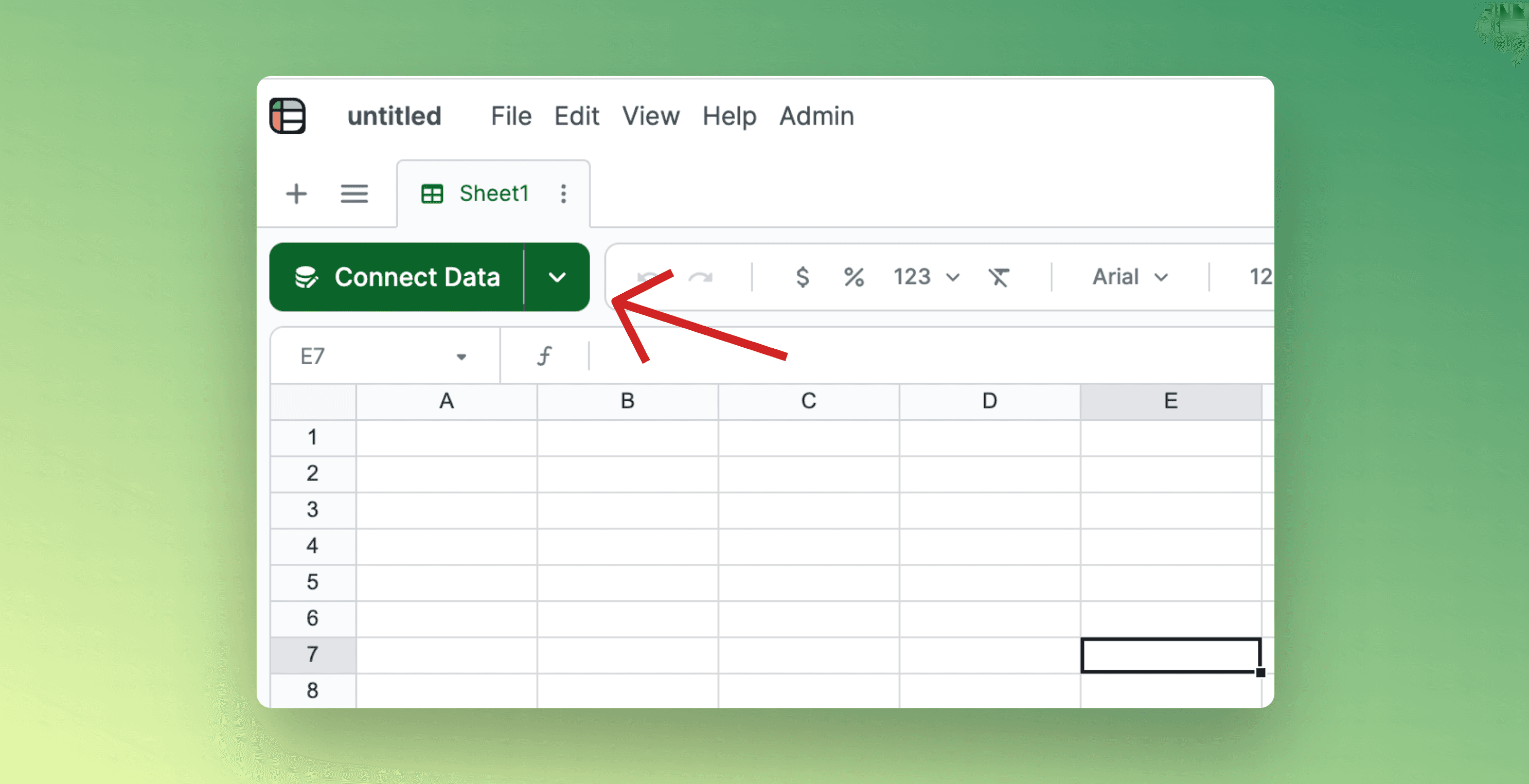
Automating email-to-Google Sheets conversion changes scattered, unstructured inbox messages into clean, predictable rows. This helps your team run reports, check accounts, and take action without the load of busywork. When done effectively, you can remove formatting errors and avoid searching for missing fields, ensuring decisions are based on facts rather than guesswork.
Organizing email data is very important for daily tasks. Every order confirmation, payment receipt, and lead notification is only valuable if you can search for it easily. An inbox is like a shoebox full of receipts: the information is there, but without sorting and labeling, it cannot help with dashboards, SLAs, or reconciliations.
According to the Marketing Automation Report, 70% of marketers say that automating email-to-Google Sheets conversion saves them more than 20 hours each month. This additional workload can distract employees and increase staffing needs as volume grows.
How does manual work fail as volume increases?
This pattern is common among e-commerce teams and small agencies: manual copy-and-paste creates typos, missing fields, and duplicate rows. This turns monthly reporting into a cleaning task. The outcome is not just slower reporting; it also leads to disputed figures and delayed decisions. Data reliability improves significantly when human handoffs are reduced.
A study from Data Management Insights shows that automated email-to-Google Sheets conversion can raise data accuracy by 95%. This makes a big difference between making confident decisions and relying on guesses. Our Spreadsheet AI Tool can greatly enhance accuracy and streamline this process.
What approach do most teams take?
Most teams handle this by building brittle scripts and manual rules, as this approach feels familiar and requires no new vendor approvals. However, as the volume of work, the variety of formatting, and team size increase, these scripts tend to break.
As a result, maintenance time increases, and repeating the same parsing tasks wastes API credits and analyst hours.
Teams discover that platforms like Numerous.ai offer an alternative approach. They bring GPT-style parsing directly into spreadsheets with a simple =AI function, allow users to choose different AI providers, and cache long-term results to avoid repeated queries.
This capability enables teams to collaborate on parsing rules and deduplication. Such a change turns email conversion from a one-time script into a repeatable, auditable workflow that can be scaled effectively.
What wins should you expect first?
Expect two immediate operational changes: fewer reconciliation disputes due to standardized fields and identifiers in each row, and a faster reporting cycle, as rows populate automatically when emails arrive.
Also, you will gain traceability: structured rows let you attach timestamps, source IDs, and parsing notes that auditors and customer service representatives can use without having to go through threads. These practical wins will appear within a few weeks, rather than being theoretical benefits that are far off.
Is automation a final fix?
That fix may seem final, but the choice of parsing rules, caching strategies, and deduplication methods decides whether automation becomes a durable asset or just another occasional expense.
Our Spreadsheet AI Tool makes it easier to implement these strategies effectively.
Related Reading
Excel Data Validation List From Table
Excel Conditional Formatting Highlight Row
Google Apps Script Best Practices
What Is Data Validation in Excel
Google Sheets Highlight Row Based on Cell
How to Find Standard Deviation in Google Sheets
5 Ways to Automate Email Conversion to Google Sheets

There are five practical paths to move email data into Google Sheets. Each option involves a trade-off between the time required to set it up and the level of control and resilience it provides. Choose the best method based on who will handle it, how complex your emails are, and whether you prioritize tracking or processing quickly. For instance, using an intelligent tool like our Spreadsheet AI Tool can enhance your process by automating data extraction and organization.
1. What do you get if you script it yourself?
Google Apps Script, complete control. Scripting it yourself provides precise field extraction, custom parsing logic, and cost-effective operation at scale. If you're not sure where to start, consider how our Spreadsheet AI Tool can streamline your data management and enhance your workflow.
To do this, use `GmailApp.search` with label or query tokens. Read messages by ID instead of by thread to avoid duplicates.
Then, you can batch append rows using Sheets API calls. This helps to minimize write operations.
Protect the pipeline by storing the timestamp of the most recently processed message or its message ID in `PropertiesService`. Add exponential backoff on network calls and pace runs to stay within Gmail and Sheets quotas.
If you plan to parse receipts or free-form text, keep the parsing in small units. Validate a sample of 50 messages before starting a larger run.
2. When should you combine filters with script triggers?
Gmail filters, labels, and trigger-based scripts. You should combine filters with script triggers when you want predictable inputs. Create filters that apply a label and remove the message from the inbox. Then use a time-driven Apps Script to check that label.
After processing, use a processed label or move the message to avoid reprocessing. Keep message IDs in a separate column on the sheet to prevent the retry logic from creating duplicates. This method works well for high-volume alerts because it keeps the selection logic in Gmail separate from the transformation logic in Apps Script.
3. How can you automate workflows without writing scripts?
Zapier, no-code workflows. Zapier is the fastest way to get started without writing code. Users can use a parser step or Parser by Zapier to organize fields before putting them into Google Sheets. If the subjects are different, using conditional Paths can help. Adding a Storage or Formatter step allows you to remove duplicates by message ID. It's essential to track task usage, as every email counts as a task.
Choose Zapier when you need to onboard quickly for non-technical teams, ensuring predictable scaling and a subscription-based model rather than engineering work. Additionally, our Spreadsheet AI Tool enhances your workflow by automating data handling and analysis.
4. What are the benefits of using AI inside spreadsheets?
Numerous offers pattern-aware extraction and AI capabilities directly inside spreadsheets. Most teams use brittle scripts for email parsing, a standard approach that doesn't require new vendor approvals. This system works well until formats change, which increases maintenance time and creates hidden costs due to interruptions and repeated work.
A platform like Numerous gives a better solution by integrating GPT-style parsing into spreadsheets using a simple =AI function. This feature allows teams to select AI providers, save long-term results to prevent duplicate queries, and share parsing logic without rewriting code. In practice, Numerous significantly reduces the need to rewrite regex for every template, and its saved results serve as a temporary buffer as email volume increases. Our Spreadsheet AI Tool helps streamline these processes even further.
5. How should you train dedicated email parsers?
Dedicated email parsers and add-ons (MailParser, Email Parser) provide strong tools that let users teach the system using examples.
This process ensures that structured webhooks are sent to Google Sheets or another service, and with our Spreadsheet AI Tool, you can further streamline data processing.
To effectively train parsers, use 20 to 30 sample emails and add fallback rules for exceptional cases. Set a service level agreement (SLA) for retraining if accuracy goes below your limit.
Also, set up webhook retries and keep a staging sheet for manual checks during the first 100 runs. Only move to production once all fields pass a quality check.
How should you choose between these options?
If complete control and low monthly spend are essential to you, choose Apps Script, but be prepared to manage maintenance quotas. If you can't afford to invest in engineering, use Zapier or a parser and accept the subscription costs. If emails are highly inconsistent, or you prefer to keep parsing rules close to spreadsheets, choose Numerous for in-sheet AI parsing, caching, and team collaboration.
Adoption is already common: "Over 70% of businesses use automation tools to manage their email workflows," according to the GMass Blog. This explains why you will rarely be the only team balancing cost versus control. For many teams, the benefits are immediate: "Automating email to Google Sheets can save up to 10 hours per week," according to the GMass Blog. That’s time you can use for analysis and growth instead of fixing broken parsers.
What practical guardrails should you always use?
Start with a small batch; validate 50 to 100 emails before scaling up.
Log every parse outcome in a staging sheet for quick audits.
How does Numerous improve processing efficiency?
Numerous is an AI-powered tool that helps content marketers, e-commerce businesses, and others make their tasks easier through automation. With AI, users can quickly write SEO-optimized blog posts, create hashtags, and categorize products at scale by simply dragging down a cell in a spreadsheet.
Get started today with Numerous.ai, so you can make business decisions at scale using AI in both Google Sheets and Microsoft Excel.
Discover how 10x improvements are achievable with Numerous’s ChatGPT for Spreadsheets tool.
What challenges arise when scaling email processing?
The real trouble arises after scaling beyond the first few hundred messages. At this stage, challenges become unexpectedly difficult, and it may be beneficial to use tools that streamline the process.
Our Spreadsheet AI Tool helps efficiently manage and process large volumes of data.
Common Challenges When Automating Email Extraction (And How to Fix Them)

You can address common failures by using clear parsing rules, robust methods to prevent duplicates, and lightweight triggers that respect limits.
Tackle the most complex parts one step at a time: normalize the text you give your parser, prevent multiple runs from reprocessing messages simultaneously, and send only small batches to Sheets so your script stays within limits and performs well.
Our Spreadsheet AI Tool is designed to streamline this process and help you manage your data more effectively.
Why do different email formats cause parsing errors?
Different email formats can cause parsing issues due to format drift. Deterministic parsers depend on fixed placements of tokens, so when these placements shift, the parsers do not work. To help with this, create a fallback parsing stack: first, look for strong anchors like “Order,” “Invoice,” or currency symbols. Then use several ordered regular expressions until one matches. It's essential to use forgiving patterns such as Amount: \$([0-9.]+) or Payment of \$([0-9.]+), and include a final catch-all that matches the nearest number around keywords.
Be ready to adjust these patterns regularly, as this is a regular part of development. According to eZintegrations Automation Hub, 80% of companies face challenges with email data extraction due to unstructured data formats. This shows the need for resilient, layered parsing methods. Our Spreadsheet AI Tool streamlines data extraction with robust parsing options.
How do duplicates keep appearing, and how do you stop them?
Duplicate entries often occur due to race conditions and missing states. To help with this, secure the pipeline by putting a lock at the start of each run. Load a small set of processed IDs from either PropertiesService or CacheService. Check incoming message IDs against this set and then create an in-memory array of new rows.
Write these rows in one setValues call, and add the newly processed IDs back to persistent storage. If duplicate writes continue to occur, consider adding a short-term cache that uses the message ID as the key and uses LockService to prevent two triggers from overlapping. These steps can significantly reduce reprocessing and help avoid costly write retries.
Why do automated extractions still produce errors?
Automation errors often stem from overly rigid rules and a lack of validation. You should add a staging sheet that tracks message-id, parse result, and a short error flag for the first 100 runs. Then, hold off on automatically moving to production until the error rate goes down. That operational feedback loop is essential because eZintegrations Automation Hub found that more than 50% of businesses report errors in automated email data extraction. Our Spreadsheet AI Tool can help improve data accuracy by automatically identifying and correcting potential mistakes in your extraction process. This indicates you need both monitoring and rollback capabilities, not just enhanced regex.
What’s the right approach for HTML-heavy emails?
Treat HTML as a messy DOM, not plain text. If getPlainBody returns bad results, remove the style and script blocks, then replace block tags with line breaks. Make whitespace smaller and run your field-extraction regex on the cleaned text.
For more complex templates, use `indexOf` and `substring` to locate key-value pairs near the visible label, then extract only the relevant parts rather than parsing the entire HTML. This method reduces extra details and keeps your parsing CPU-light; our spreadsheet AI tool helps streamline this process.
Why do triggers silently fail, and how can you make them reliable?
Triggers fail when they reach quotas, encounter authentication refresh issues, or handle too many tasks at once. To avoid this, use time-driven triggers at decent intervals. Keep each run under the execution limit by organizing work into batches and ending the process early if possible.
Also, add exponential backoff for errors in the Gmail or Sheets APIs. It's essential to log how long runs take, how many succeed, and the last-processed message IDs in a small audit sheet. This way, you can notice any trends before problems turn into missed rows.
How do Gmail filters still miss the right emails?
Filters fail when they depend on weak subject lines. Test filters using the same Gmail search operators your script uses. Combine sender domains with subject prefixes, and prefer labels that filters apply over full-text searches in code.
When templates change, treat filter matches as an initial check. Let your script reclassify or relabel messages that match secondary rules, so selection and transformation are two distinct tasks. Additionally, our Spreadsheet AI Tool can help streamline your email organization for better management.
How should you handle very long emails without timeouts?
When handling very long emails, it's important not to process a whole 20,000-character message if you only need a few fields. Instead, identify the first occurrence of essential keywords and capture a 1,000-character section around them, then run parsing on that section. This method keeps regex costs low and makes execution time predictable.
For high-volume email, pre-filter messages by size and route the largest ones to an offline worker or a human review queue.
To manage these processes more efficiently, consider using our Spreadsheet AI Tool to streamline data organization and retrieval.
Why Does Google Sheets Slow Down and How Do You Keep It Fast?
Google Sheets can slow down for several reasons. Sheets can get stuck when scripts write one row at a time or when volatile formulas recalculate frequently. To make it work better, prepare rows in an array and write them with a single `setValues` call. Moving old rows to an archive sheet or exporting them nightly to a CSV or BigQuery table can also help.
It's best to avoid volatile formulas on the sheet by replacing them with scheduled recalculation or script-driven aggregates. These steps can keep the operational sheet lean and fast for everyday queries. Additionally, tools like our Spreadsheet AI Tool can optimize your processes and enhance performance.
What are the long-term implications of quick scripts?
Most teams start with a quick script because it feels familiar and gives fast results. However, this familiarity masks a maintenance tax as templates change, leading to overlap and higher error rates. The cost isn't due to incompetence; it stems from scale.
What worked for 100 messages often fails at 1,000 because the original design lacks observability and deduplication. Platforms like Numerous offer an alternative by embedding pattern-aware AI directly into spreadsheets with a single `=AI` function. This method uses long-term result caching to avoid duplicate queries. It enables teams to select AI providers, allowing them to keep parsing logic in the sheet while reducing maintenance workload.
How do parsing rules relate to practical application?
A simple analogy is to think of parsing rules as a set of sieves. You should start with a coarse sieve to catch the obvious fields. Then, use smaller sieves to get more detailed information. Always keep a catch-all basin for unusual items that require manual review.
What is Numerous, and how can it improve your workflow?
Numerous is an AI-powered tool that helps marketers and analysts extract, summarize, and organize email content directly in spreadsheets with a single function. By using Numerous’s ChatGPT for Spreadsheets, teams can get dependable, cached AI parsing. This allows them to focus on strategic decisions rather than cleanup.
What’s next after implementing fixes?
While that simple fix may seem final, the next phase shows how decisions change when AI is integrated into your spreadsheet.
Our Spreadsheet AI Tool enhances your decision-making capabilities by enabling you to analyze data more effectively.
Related Reading
How to Automate Reconciliations in Excel
How to Automate an Excel Spreadsheet
How to Automate Emails From Google Sheets
How to Use Power Automate in Excel
How to Insert a Calendar in Google Sheets
Google Apps Script Examples
How to Indent Text in Google Sheets
How to Do Conditional Formatting in Google Sheets
How to Automate Excel Reports
How to Add Color to Data Validation in Excel
How To Add Apps Script To Google Sheets
How to Use VBA in Excel
Is Google Apps Script Free
Make Decisions At Scale Through AI With Numerous AI’s Spreadsheet AI Tool
Many teams start with quick scripts and manual parsing because they think it's the fastest way. However, this method typically incurs a maintenance tax as the number of messages and the types of templates grow.
Take a look at Numerous, the Spreadsheet AI tool that adds AI directly to your sheets. This tool helps you automate email-to-Google Sheets and Excel conversions with easy prompts and drag-and-drop features.
You can improve parsing and deduplication for the whole team, moving from firefighting inboxes to making faster, data-driven decisions.
Related Reading
How to Find Duplicates in Google Sheets
How to Remove Duplicates in Google Sheets
How to Automate Google Sheets
How to Use Excel for Business
Best Spreadsheets Software
How to Create a Content Calendar in Google Sheets
How to Link a Google Form to a Google Sheet
How to Automate Sending Emails From Excel
Google Sheets Pull Data From Another Tab Based on Criteria
How to Split Text Into Two Columns in Excel
How to Use the Fill Handle in Excel
VBA Activate Sheet
Every morning, numerous emails arrive with orders, sign-ups, invoices, or receipts that require manual data entry into spreadsheets—a process that slows productivity and introduces errors. Automating email conversion streamlines operations by parsing content, extracting attachments, and populating rows in the relevant columns. Many professionals ask how to use Apps Script in Google Sheets to streamline this repetitive task. Additionally, How to Use Apps Script in Google Sheets?
Practical scripts and clear examples show how to reduce data entry and focus on results rather than routine work. Numerous’s solution, Spreadsheet AI Tool, offers a no-code approach that maps email fields to columns in real time, ensuring accuracy and saving valuable time.
Summary
Automating email-to-sheet workflows reduces hidden labor: 70% of marketers report saving over 20 hours per month by converting emails into structured rows.
Removing human handoffs dramatically improves reliability; automated pipelines can increase data accuracy by 95% compared with manual copy-and-paste.
Solutions that work well at a small scale create a maintenance tax, as workflows that scale to 100 messages often fail at 1,000 without observability and deduplication.
Unstructured formats are the leading technical blocker; 80% of companies face email data-extraction challenges, making layered, resilient parsing essential.
You get immediate operational wins in dispute reduction and reporting velocity, and automating email-to-sheets can save up to 10 hours per week while adding traceability through standardized fields and timestamps.
This is where the 'Spreadsheet AI Tool' fits in; it addresses this by providing in-sheet pattern-aware AI parsing, long-term result caching, and selectable AI providers to reduce duplicate queries and keep parsing logic close to the spreadsheet.
Table of Contents
Common Challenges When Automating Email Extraction (And How to Fix Them)
Make Decisions At Scale Through AI With Numerous AI’s Spreadsheet AI Tool
Why Automate Email-to-Google Sheets Conversion?

Automating email-to-Google Sheets conversion changes scattered, unstructured inbox messages into clean, predictable rows. This helps your team run reports, check accounts, and take action without the load of busywork. When done effectively, you can remove formatting errors and avoid searching for missing fields, ensuring decisions are based on facts rather than guesswork.
Organizing email data is very important for daily tasks. Every order confirmation, payment receipt, and lead notification is only valuable if you can search for it easily. An inbox is like a shoebox full of receipts: the information is there, but without sorting and labeling, it cannot help with dashboards, SLAs, or reconciliations.
According to the Marketing Automation Report, 70% of marketers say that automating email-to-Google Sheets conversion saves them more than 20 hours each month. This additional workload can distract employees and increase staffing needs as volume grows.
How does manual work fail as volume increases?
This pattern is common among e-commerce teams and small agencies: manual copy-and-paste creates typos, missing fields, and duplicate rows. This turns monthly reporting into a cleaning task. The outcome is not just slower reporting; it also leads to disputed figures and delayed decisions. Data reliability improves significantly when human handoffs are reduced.
A study from Data Management Insights shows that automated email-to-Google Sheets conversion can raise data accuracy by 95%. This makes a big difference between making confident decisions and relying on guesses. Our Spreadsheet AI Tool can greatly enhance accuracy and streamline this process.
What approach do most teams take?
Most teams handle this by building brittle scripts and manual rules, as this approach feels familiar and requires no new vendor approvals. However, as the volume of work, the variety of formatting, and team size increase, these scripts tend to break.
As a result, maintenance time increases, and repeating the same parsing tasks wastes API credits and analyst hours.
Teams discover that platforms like Numerous.ai offer an alternative approach. They bring GPT-style parsing directly into spreadsheets with a simple =AI function, allow users to choose different AI providers, and cache long-term results to avoid repeated queries.
This capability enables teams to collaborate on parsing rules and deduplication. Such a change turns email conversion from a one-time script into a repeatable, auditable workflow that can be scaled effectively.
What wins should you expect first?
Expect two immediate operational changes: fewer reconciliation disputes due to standardized fields and identifiers in each row, and a faster reporting cycle, as rows populate automatically when emails arrive.
Also, you will gain traceability: structured rows let you attach timestamps, source IDs, and parsing notes that auditors and customer service representatives can use without having to go through threads. These practical wins will appear within a few weeks, rather than being theoretical benefits that are far off.
Is automation a final fix?
That fix may seem final, but the choice of parsing rules, caching strategies, and deduplication methods decides whether automation becomes a durable asset or just another occasional expense.
Our Spreadsheet AI Tool makes it easier to implement these strategies effectively.
Related Reading
Excel Data Validation List From Table
Excel Conditional Formatting Highlight Row
Google Apps Script Best Practices
What Is Data Validation in Excel
Google Sheets Highlight Row Based on Cell
How to Find Standard Deviation in Google Sheets
5 Ways to Automate Email Conversion to Google Sheets

There are five practical paths to move email data into Google Sheets. Each option involves a trade-off between the time required to set it up and the level of control and resilience it provides. Choose the best method based on who will handle it, how complex your emails are, and whether you prioritize tracking or processing quickly. For instance, using an intelligent tool like our Spreadsheet AI Tool can enhance your process by automating data extraction and organization.
1. What do you get if you script it yourself?
Google Apps Script, complete control. Scripting it yourself provides precise field extraction, custom parsing logic, and cost-effective operation at scale. If you're not sure where to start, consider how our Spreadsheet AI Tool can streamline your data management and enhance your workflow.
To do this, use `GmailApp.search` with label or query tokens. Read messages by ID instead of by thread to avoid duplicates.
Then, you can batch append rows using Sheets API calls. This helps to minimize write operations.
Protect the pipeline by storing the timestamp of the most recently processed message or its message ID in `PropertiesService`. Add exponential backoff on network calls and pace runs to stay within Gmail and Sheets quotas.
If you plan to parse receipts or free-form text, keep the parsing in small units. Validate a sample of 50 messages before starting a larger run.
2. When should you combine filters with script triggers?
Gmail filters, labels, and trigger-based scripts. You should combine filters with script triggers when you want predictable inputs. Create filters that apply a label and remove the message from the inbox. Then use a time-driven Apps Script to check that label.
After processing, use a processed label or move the message to avoid reprocessing. Keep message IDs in a separate column on the sheet to prevent the retry logic from creating duplicates. This method works well for high-volume alerts because it keeps the selection logic in Gmail separate from the transformation logic in Apps Script.
3. How can you automate workflows without writing scripts?
Zapier, no-code workflows. Zapier is the fastest way to get started without writing code. Users can use a parser step or Parser by Zapier to organize fields before putting them into Google Sheets. If the subjects are different, using conditional Paths can help. Adding a Storage or Formatter step allows you to remove duplicates by message ID. It's essential to track task usage, as every email counts as a task.
Choose Zapier when you need to onboard quickly for non-technical teams, ensuring predictable scaling and a subscription-based model rather than engineering work. Additionally, our Spreadsheet AI Tool enhances your workflow by automating data handling and analysis.
4. What are the benefits of using AI inside spreadsheets?
Numerous offers pattern-aware extraction and AI capabilities directly inside spreadsheets. Most teams use brittle scripts for email parsing, a standard approach that doesn't require new vendor approvals. This system works well until formats change, which increases maintenance time and creates hidden costs due to interruptions and repeated work.
A platform like Numerous gives a better solution by integrating GPT-style parsing into spreadsheets using a simple =AI function. This feature allows teams to select AI providers, save long-term results to prevent duplicate queries, and share parsing logic without rewriting code. In practice, Numerous significantly reduces the need to rewrite regex for every template, and its saved results serve as a temporary buffer as email volume increases. Our Spreadsheet AI Tool helps streamline these processes even further.
5. How should you train dedicated email parsers?
Dedicated email parsers and add-ons (MailParser, Email Parser) provide strong tools that let users teach the system using examples.
This process ensures that structured webhooks are sent to Google Sheets or another service, and with our Spreadsheet AI Tool, you can further streamline data processing.
To effectively train parsers, use 20 to 30 sample emails and add fallback rules for exceptional cases. Set a service level agreement (SLA) for retraining if accuracy goes below your limit.
Also, set up webhook retries and keep a staging sheet for manual checks during the first 100 runs. Only move to production once all fields pass a quality check.
How should you choose between these options?
If complete control and low monthly spend are essential to you, choose Apps Script, but be prepared to manage maintenance quotas. If you can't afford to invest in engineering, use Zapier or a parser and accept the subscription costs. If emails are highly inconsistent, or you prefer to keep parsing rules close to spreadsheets, choose Numerous for in-sheet AI parsing, caching, and team collaboration.
Adoption is already common: "Over 70% of businesses use automation tools to manage their email workflows," according to the GMass Blog. This explains why you will rarely be the only team balancing cost versus control. For many teams, the benefits are immediate: "Automating email to Google Sheets can save up to 10 hours per week," according to the GMass Blog. That’s time you can use for analysis and growth instead of fixing broken parsers.
What practical guardrails should you always use?
Start with a small batch; validate 50 to 100 emails before scaling up.
Log every parse outcome in a staging sheet for quick audits.
How does Numerous improve processing efficiency?
Numerous is an AI-powered tool that helps content marketers, e-commerce businesses, and others make their tasks easier through automation. With AI, users can quickly write SEO-optimized blog posts, create hashtags, and categorize products at scale by simply dragging down a cell in a spreadsheet.
Get started today with Numerous.ai, so you can make business decisions at scale using AI in both Google Sheets and Microsoft Excel.
Discover how 10x improvements are achievable with Numerous’s ChatGPT for Spreadsheets tool.
What challenges arise when scaling email processing?
The real trouble arises after scaling beyond the first few hundred messages. At this stage, challenges become unexpectedly difficult, and it may be beneficial to use tools that streamline the process.
Our Spreadsheet AI Tool helps efficiently manage and process large volumes of data.
Common Challenges When Automating Email Extraction (And How to Fix Them)

You can address common failures by using clear parsing rules, robust methods to prevent duplicates, and lightweight triggers that respect limits.
Tackle the most complex parts one step at a time: normalize the text you give your parser, prevent multiple runs from reprocessing messages simultaneously, and send only small batches to Sheets so your script stays within limits and performs well.
Our Spreadsheet AI Tool is designed to streamline this process and help you manage your data more effectively.
Why do different email formats cause parsing errors?
Different email formats can cause parsing issues due to format drift. Deterministic parsers depend on fixed placements of tokens, so when these placements shift, the parsers do not work. To help with this, create a fallback parsing stack: first, look for strong anchors like “Order,” “Invoice,” or currency symbols. Then use several ordered regular expressions until one matches. It's essential to use forgiving patterns such as Amount: \$([0-9.]+) or Payment of \$([0-9.]+), and include a final catch-all that matches the nearest number around keywords.
Be ready to adjust these patterns regularly, as this is a regular part of development. According to eZintegrations Automation Hub, 80% of companies face challenges with email data extraction due to unstructured data formats. This shows the need for resilient, layered parsing methods. Our Spreadsheet AI Tool streamlines data extraction with robust parsing options.
How do duplicates keep appearing, and how do you stop them?
Duplicate entries often occur due to race conditions and missing states. To help with this, secure the pipeline by putting a lock at the start of each run. Load a small set of processed IDs from either PropertiesService or CacheService. Check incoming message IDs against this set and then create an in-memory array of new rows.
Write these rows in one setValues call, and add the newly processed IDs back to persistent storage. If duplicate writes continue to occur, consider adding a short-term cache that uses the message ID as the key and uses LockService to prevent two triggers from overlapping. These steps can significantly reduce reprocessing and help avoid costly write retries.
Why do automated extractions still produce errors?
Automation errors often stem from overly rigid rules and a lack of validation. You should add a staging sheet that tracks message-id, parse result, and a short error flag for the first 100 runs. Then, hold off on automatically moving to production until the error rate goes down. That operational feedback loop is essential because eZintegrations Automation Hub found that more than 50% of businesses report errors in automated email data extraction. Our Spreadsheet AI Tool can help improve data accuracy by automatically identifying and correcting potential mistakes in your extraction process. This indicates you need both monitoring and rollback capabilities, not just enhanced regex.
What’s the right approach for HTML-heavy emails?
Treat HTML as a messy DOM, not plain text. If getPlainBody returns bad results, remove the style and script blocks, then replace block tags with line breaks. Make whitespace smaller and run your field-extraction regex on the cleaned text.
For more complex templates, use `indexOf` and `substring` to locate key-value pairs near the visible label, then extract only the relevant parts rather than parsing the entire HTML. This method reduces extra details and keeps your parsing CPU-light; our spreadsheet AI tool helps streamline this process.
Why do triggers silently fail, and how can you make them reliable?
Triggers fail when they reach quotas, encounter authentication refresh issues, or handle too many tasks at once. To avoid this, use time-driven triggers at decent intervals. Keep each run under the execution limit by organizing work into batches and ending the process early if possible.
Also, add exponential backoff for errors in the Gmail or Sheets APIs. It's essential to log how long runs take, how many succeed, and the last-processed message IDs in a small audit sheet. This way, you can notice any trends before problems turn into missed rows.
How do Gmail filters still miss the right emails?
Filters fail when they depend on weak subject lines. Test filters using the same Gmail search operators your script uses. Combine sender domains with subject prefixes, and prefer labels that filters apply over full-text searches in code.
When templates change, treat filter matches as an initial check. Let your script reclassify or relabel messages that match secondary rules, so selection and transformation are two distinct tasks. Additionally, our Spreadsheet AI Tool can help streamline your email organization for better management.
How should you handle very long emails without timeouts?
When handling very long emails, it's important not to process a whole 20,000-character message if you only need a few fields. Instead, identify the first occurrence of essential keywords and capture a 1,000-character section around them, then run parsing on that section. This method keeps regex costs low and makes execution time predictable.
For high-volume email, pre-filter messages by size and route the largest ones to an offline worker or a human review queue.
To manage these processes more efficiently, consider using our Spreadsheet AI Tool to streamline data organization and retrieval.
Why Does Google Sheets Slow Down and How Do You Keep It Fast?
Google Sheets can slow down for several reasons. Sheets can get stuck when scripts write one row at a time or when volatile formulas recalculate frequently. To make it work better, prepare rows in an array and write them with a single `setValues` call. Moving old rows to an archive sheet or exporting them nightly to a CSV or BigQuery table can also help.
It's best to avoid volatile formulas on the sheet by replacing them with scheduled recalculation or script-driven aggregates. These steps can keep the operational sheet lean and fast for everyday queries. Additionally, tools like our Spreadsheet AI Tool can optimize your processes and enhance performance.
What are the long-term implications of quick scripts?
Most teams start with a quick script because it feels familiar and gives fast results. However, this familiarity masks a maintenance tax as templates change, leading to overlap and higher error rates. The cost isn't due to incompetence; it stems from scale.
What worked for 100 messages often fails at 1,000 because the original design lacks observability and deduplication. Platforms like Numerous offer an alternative by embedding pattern-aware AI directly into spreadsheets with a single `=AI` function. This method uses long-term result caching to avoid duplicate queries. It enables teams to select AI providers, allowing them to keep parsing logic in the sheet while reducing maintenance workload.
How do parsing rules relate to practical application?
A simple analogy is to think of parsing rules as a set of sieves. You should start with a coarse sieve to catch the obvious fields. Then, use smaller sieves to get more detailed information. Always keep a catch-all basin for unusual items that require manual review.
What is Numerous, and how can it improve your workflow?
Numerous is an AI-powered tool that helps marketers and analysts extract, summarize, and organize email content directly in spreadsheets with a single function. By using Numerous’s ChatGPT for Spreadsheets, teams can get dependable, cached AI parsing. This allows them to focus on strategic decisions rather than cleanup.
What’s next after implementing fixes?
While that simple fix may seem final, the next phase shows how decisions change when AI is integrated into your spreadsheet.
Our Spreadsheet AI Tool enhances your decision-making capabilities by enabling you to analyze data more effectively.
Related Reading
How to Automate Reconciliations in Excel
How to Automate an Excel Spreadsheet
How to Automate Emails From Google Sheets
How to Use Power Automate in Excel
How to Insert a Calendar in Google Sheets
Google Apps Script Examples
How to Indent Text in Google Sheets
How to Do Conditional Formatting in Google Sheets
How to Automate Excel Reports
How to Add Color to Data Validation in Excel
How To Add Apps Script To Google Sheets
How to Use VBA in Excel
Is Google Apps Script Free
Make Decisions At Scale Through AI With Numerous AI’s Spreadsheet AI Tool
Many teams start with quick scripts and manual parsing because they think it's the fastest way. However, this method typically incurs a maintenance tax as the number of messages and the types of templates grow.
Take a look at Numerous, the Spreadsheet AI tool that adds AI directly to your sheets. This tool helps you automate email-to-Google Sheets and Excel conversions with easy prompts and drag-and-drop features.
You can improve parsing and deduplication for the whole team, moving from firefighting inboxes to making faster, data-driven decisions.
Related Reading
How to Find Duplicates in Google Sheets
How to Remove Duplicates in Google Sheets
How to Automate Google Sheets
How to Use Excel for Business
Best Spreadsheets Software
How to Create a Content Calendar in Google Sheets
How to Link a Google Form to a Google Sheet
How to Automate Sending Emails From Excel
Google Sheets Pull Data From Another Tab Based on Criteria
How to Split Text Into Two Columns in Excel
How to Use the Fill Handle in Excel
VBA Activate Sheet
Every morning, numerous emails arrive with orders, sign-ups, invoices, or receipts that require manual data entry into spreadsheets—a process that slows productivity and introduces errors. Automating email conversion streamlines operations by parsing content, extracting attachments, and populating rows in the relevant columns. Many professionals ask how to use Apps Script in Google Sheets to streamline this repetitive task. Additionally, How to Use Apps Script in Google Sheets?
Practical scripts and clear examples show how to reduce data entry and focus on results rather than routine work. Numerous’s solution, Spreadsheet AI Tool, offers a no-code approach that maps email fields to columns in real time, ensuring accuracy and saving valuable time.
Summary
Automating email-to-sheet workflows reduces hidden labor: 70% of marketers report saving over 20 hours per month by converting emails into structured rows.
Removing human handoffs dramatically improves reliability; automated pipelines can increase data accuracy by 95% compared with manual copy-and-paste.
Solutions that work well at a small scale create a maintenance tax, as workflows that scale to 100 messages often fail at 1,000 without observability and deduplication.
Unstructured formats are the leading technical blocker; 80% of companies face email data-extraction challenges, making layered, resilient parsing essential.
You get immediate operational wins in dispute reduction and reporting velocity, and automating email-to-sheets can save up to 10 hours per week while adding traceability through standardized fields and timestamps.
This is where the 'Spreadsheet AI Tool' fits in; it addresses this by providing in-sheet pattern-aware AI parsing, long-term result caching, and selectable AI providers to reduce duplicate queries and keep parsing logic close to the spreadsheet.
Table of Contents
Common Challenges When Automating Email Extraction (And How to Fix Them)
Make Decisions At Scale Through AI With Numerous AI’s Spreadsheet AI Tool
Why Automate Email-to-Google Sheets Conversion?

Automating email-to-Google Sheets conversion changes scattered, unstructured inbox messages into clean, predictable rows. This helps your team run reports, check accounts, and take action without the load of busywork. When done effectively, you can remove formatting errors and avoid searching for missing fields, ensuring decisions are based on facts rather than guesswork.
Organizing email data is very important for daily tasks. Every order confirmation, payment receipt, and lead notification is only valuable if you can search for it easily. An inbox is like a shoebox full of receipts: the information is there, but without sorting and labeling, it cannot help with dashboards, SLAs, or reconciliations.
According to the Marketing Automation Report, 70% of marketers say that automating email-to-Google Sheets conversion saves them more than 20 hours each month. This additional workload can distract employees and increase staffing needs as volume grows.
How does manual work fail as volume increases?
This pattern is common among e-commerce teams and small agencies: manual copy-and-paste creates typos, missing fields, and duplicate rows. This turns monthly reporting into a cleaning task. The outcome is not just slower reporting; it also leads to disputed figures and delayed decisions. Data reliability improves significantly when human handoffs are reduced.
A study from Data Management Insights shows that automated email-to-Google Sheets conversion can raise data accuracy by 95%. This makes a big difference between making confident decisions and relying on guesses. Our Spreadsheet AI Tool can greatly enhance accuracy and streamline this process.
What approach do most teams take?
Most teams handle this by building brittle scripts and manual rules, as this approach feels familiar and requires no new vendor approvals. However, as the volume of work, the variety of formatting, and team size increase, these scripts tend to break.
As a result, maintenance time increases, and repeating the same parsing tasks wastes API credits and analyst hours.
Teams discover that platforms like Numerous.ai offer an alternative approach. They bring GPT-style parsing directly into spreadsheets with a simple =AI function, allow users to choose different AI providers, and cache long-term results to avoid repeated queries.
This capability enables teams to collaborate on parsing rules and deduplication. Such a change turns email conversion from a one-time script into a repeatable, auditable workflow that can be scaled effectively.
What wins should you expect first?
Expect two immediate operational changes: fewer reconciliation disputes due to standardized fields and identifiers in each row, and a faster reporting cycle, as rows populate automatically when emails arrive.
Also, you will gain traceability: structured rows let you attach timestamps, source IDs, and parsing notes that auditors and customer service representatives can use without having to go through threads. These practical wins will appear within a few weeks, rather than being theoretical benefits that are far off.
Is automation a final fix?
That fix may seem final, but the choice of parsing rules, caching strategies, and deduplication methods decides whether automation becomes a durable asset or just another occasional expense.
Our Spreadsheet AI Tool makes it easier to implement these strategies effectively.
Related Reading
Excel Data Validation List From Table
Excel Conditional Formatting Highlight Row
Google Apps Script Best Practices
What Is Data Validation in Excel
Google Sheets Highlight Row Based on Cell
How to Find Standard Deviation in Google Sheets
5 Ways to Automate Email Conversion to Google Sheets

There are five practical paths to move email data into Google Sheets. Each option involves a trade-off between the time required to set it up and the level of control and resilience it provides. Choose the best method based on who will handle it, how complex your emails are, and whether you prioritize tracking or processing quickly. For instance, using an intelligent tool like our Spreadsheet AI Tool can enhance your process by automating data extraction and organization.
1. What do you get if you script it yourself?
Google Apps Script, complete control. Scripting it yourself provides precise field extraction, custom parsing logic, and cost-effective operation at scale. If you're not sure where to start, consider how our Spreadsheet AI Tool can streamline your data management and enhance your workflow.
To do this, use `GmailApp.search` with label or query tokens. Read messages by ID instead of by thread to avoid duplicates.
Then, you can batch append rows using Sheets API calls. This helps to minimize write operations.
Protect the pipeline by storing the timestamp of the most recently processed message or its message ID in `PropertiesService`. Add exponential backoff on network calls and pace runs to stay within Gmail and Sheets quotas.
If you plan to parse receipts or free-form text, keep the parsing in small units. Validate a sample of 50 messages before starting a larger run.
2. When should you combine filters with script triggers?
Gmail filters, labels, and trigger-based scripts. You should combine filters with script triggers when you want predictable inputs. Create filters that apply a label and remove the message from the inbox. Then use a time-driven Apps Script to check that label.
After processing, use a processed label or move the message to avoid reprocessing. Keep message IDs in a separate column on the sheet to prevent the retry logic from creating duplicates. This method works well for high-volume alerts because it keeps the selection logic in Gmail separate from the transformation logic in Apps Script.
3. How can you automate workflows without writing scripts?
Zapier, no-code workflows. Zapier is the fastest way to get started without writing code. Users can use a parser step or Parser by Zapier to organize fields before putting them into Google Sheets. If the subjects are different, using conditional Paths can help. Adding a Storage or Formatter step allows you to remove duplicates by message ID. It's essential to track task usage, as every email counts as a task.
Choose Zapier when you need to onboard quickly for non-technical teams, ensuring predictable scaling and a subscription-based model rather than engineering work. Additionally, our Spreadsheet AI Tool enhances your workflow by automating data handling and analysis.
4. What are the benefits of using AI inside spreadsheets?
Numerous offers pattern-aware extraction and AI capabilities directly inside spreadsheets. Most teams use brittle scripts for email parsing, a standard approach that doesn't require new vendor approvals. This system works well until formats change, which increases maintenance time and creates hidden costs due to interruptions and repeated work.
A platform like Numerous gives a better solution by integrating GPT-style parsing into spreadsheets using a simple =AI function. This feature allows teams to select AI providers, save long-term results to prevent duplicate queries, and share parsing logic without rewriting code. In practice, Numerous significantly reduces the need to rewrite regex for every template, and its saved results serve as a temporary buffer as email volume increases. Our Spreadsheet AI Tool helps streamline these processes even further.
5. How should you train dedicated email parsers?
Dedicated email parsers and add-ons (MailParser, Email Parser) provide strong tools that let users teach the system using examples.
This process ensures that structured webhooks are sent to Google Sheets or another service, and with our Spreadsheet AI Tool, you can further streamline data processing.
To effectively train parsers, use 20 to 30 sample emails and add fallback rules for exceptional cases. Set a service level agreement (SLA) for retraining if accuracy goes below your limit.
Also, set up webhook retries and keep a staging sheet for manual checks during the first 100 runs. Only move to production once all fields pass a quality check.
How should you choose between these options?
If complete control and low monthly spend are essential to you, choose Apps Script, but be prepared to manage maintenance quotas. If you can't afford to invest in engineering, use Zapier or a parser and accept the subscription costs. If emails are highly inconsistent, or you prefer to keep parsing rules close to spreadsheets, choose Numerous for in-sheet AI parsing, caching, and team collaboration.
Adoption is already common: "Over 70% of businesses use automation tools to manage their email workflows," according to the GMass Blog. This explains why you will rarely be the only team balancing cost versus control. For many teams, the benefits are immediate: "Automating email to Google Sheets can save up to 10 hours per week," according to the GMass Blog. That’s time you can use for analysis and growth instead of fixing broken parsers.
What practical guardrails should you always use?
Start with a small batch; validate 50 to 100 emails before scaling up.
Log every parse outcome in a staging sheet for quick audits.
How does Numerous improve processing efficiency?
Numerous is an AI-powered tool that helps content marketers, e-commerce businesses, and others make their tasks easier through automation. With AI, users can quickly write SEO-optimized blog posts, create hashtags, and categorize products at scale by simply dragging down a cell in a spreadsheet.
Get started today with Numerous.ai, so you can make business decisions at scale using AI in both Google Sheets and Microsoft Excel.
Discover how 10x improvements are achievable with Numerous’s ChatGPT for Spreadsheets tool.
What challenges arise when scaling email processing?
The real trouble arises after scaling beyond the first few hundred messages. At this stage, challenges become unexpectedly difficult, and it may be beneficial to use tools that streamline the process.
Our Spreadsheet AI Tool helps efficiently manage and process large volumes of data.
Common Challenges When Automating Email Extraction (And How to Fix Them)

You can address common failures by using clear parsing rules, robust methods to prevent duplicates, and lightweight triggers that respect limits.
Tackle the most complex parts one step at a time: normalize the text you give your parser, prevent multiple runs from reprocessing messages simultaneously, and send only small batches to Sheets so your script stays within limits and performs well.
Our Spreadsheet AI Tool is designed to streamline this process and help you manage your data more effectively.
Why do different email formats cause parsing errors?
Different email formats can cause parsing issues due to format drift. Deterministic parsers depend on fixed placements of tokens, so when these placements shift, the parsers do not work. To help with this, create a fallback parsing stack: first, look for strong anchors like “Order,” “Invoice,” or currency symbols. Then use several ordered regular expressions until one matches. It's essential to use forgiving patterns such as Amount: \$([0-9.]+) or Payment of \$([0-9.]+), and include a final catch-all that matches the nearest number around keywords.
Be ready to adjust these patterns regularly, as this is a regular part of development. According to eZintegrations Automation Hub, 80% of companies face challenges with email data extraction due to unstructured data formats. This shows the need for resilient, layered parsing methods. Our Spreadsheet AI Tool streamlines data extraction with robust parsing options.
How do duplicates keep appearing, and how do you stop them?
Duplicate entries often occur due to race conditions and missing states. To help with this, secure the pipeline by putting a lock at the start of each run. Load a small set of processed IDs from either PropertiesService or CacheService. Check incoming message IDs against this set and then create an in-memory array of new rows.
Write these rows in one setValues call, and add the newly processed IDs back to persistent storage. If duplicate writes continue to occur, consider adding a short-term cache that uses the message ID as the key and uses LockService to prevent two triggers from overlapping. These steps can significantly reduce reprocessing and help avoid costly write retries.
Why do automated extractions still produce errors?
Automation errors often stem from overly rigid rules and a lack of validation. You should add a staging sheet that tracks message-id, parse result, and a short error flag for the first 100 runs. Then, hold off on automatically moving to production until the error rate goes down. That operational feedback loop is essential because eZintegrations Automation Hub found that more than 50% of businesses report errors in automated email data extraction. Our Spreadsheet AI Tool can help improve data accuracy by automatically identifying and correcting potential mistakes in your extraction process. This indicates you need both monitoring and rollback capabilities, not just enhanced regex.
What’s the right approach for HTML-heavy emails?
Treat HTML as a messy DOM, not plain text. If getPlainBody returns bad results, remove the style and script blocks, then replace block tags with line breaks. Make whitespace smaller and run your field-extraction regex on the cleaned text.
For more complex templates, use `indexOf` and `substring` to locate key-value pairs near the visible label, then extract only the relevant parts rather than parsing the entire HTML. This method reduces extra details and keeps your parsing CPU-light; our spreadsheet AI tool helps streamline this process.
Why do triggers silently fail, and how can you make them reliable?
Triggers fail when they reach quotas, encounter authentication refresh issues, or handle too many tasks at once. To avoid this, use time-driven triggers at decent intervals. Keep each run under the execution limit by organizing work into batches and ending the process early if possible.
Also, add exponential backoff for errors in the Gmail or Sheets APIs. It's essential to log how long runs take, how many succeed, and the last-processed message IDs in a small audit sheet. This way, you can notice any trends before problems turn into missed rows.
How do Gmail filters still miss the right emails?
Filters fail when they depend on weak subject lines. Test filters using the same Gmail search operators your script uses. Combine sender domains with subject prefixes, and prefer labels that filters apply over full-text searches in code.
When templates change, treat filter matches as an initial check. Let your script reclassify or relabel messages that match secondary rules, so selection and transformation are two distinct tasks. Additionally, our Spreadsheet AI Tool can help streamline your email organization for better management.
How should you handle very long emails without timeouts?
When handling very long emails, it's important not to process a whole 20,000-character message if you only need a few fields. Instead, identify the first occurrence of essential keywords and capture a 1,000-character section around them, then run parsing on that section. This method keeps regex costs low and makes execution time predictable.
For high-volume email, pre-filter messages by size and route the largest ones to an offline worker or a human review queue.
To manage these processes more efficiently, consider using our Spreadsheet AI Tool to streamline data organization and retrieval.
Why Does Google Sheets Slow Down and How Do You Keep It Fast?
Google Sheets can slow down for several reasons. Sheets can get stuck when scripts write one row at a time or when volatile formulas recalculate frequently. To make it work better, prepare rows in an array and write them with a single `setValues` call. Moving old rows to an archive sheet or exporting them nightly to a CSV or BigQuery table can also help.
It's best to avoid volatile formulas on the sheet by replacing them with scheduled recalculation or script-driven aggregates. These steps can keep the operational sheet lean and fast for everyday queries. Additionally, tools like our Spreadsheet AI Tool can optimize your processes and enhance performance.
What are the long-term implications of quick scripts?
Most teams start with a quick script because it feels familiar and gives fast results. However, this familiarity masks a maintenance tax as templates change, leading to overlap and higher error rates. The cost isn't due to incompetence; it stems from scale.
What worked for 100 messages often fails at 1,000 because the original design lacks observability and deduplication. Platforms like Numerous offer an alternative by embedding pattern-aware AI directly into spreadsheets with a single `=AI` function. This method uses long-term result caching to avoid duplicate queries. It enables teams to select AI providers, allowing them to keep parsing logic in the sheet while reducing maintenance workload.
How do parsing rules relate to practical application?
A simple analogy is to think of parsing rules as a set of sieves. You should start with a coarse sieve to catch the obvious fields. Then, use smaller sieves to get more detailed information. Always keep a catch-all basin for unusual items that require manual review.
What is Numerous, and how can it improve your workflow?
Numerous is an AI-powered tool that helps marketers and analysts extract, summarize, and organize email content directly in spreadsheets with a single function. By using Numerous’s ChatGPT for Spreadsheets, teams can get dependable, cached AI parsing. This allows them to focus on strategic decisions rather than cleanup.
What’s next after implementing fixes?
While that simple fix may seem final, the next phase shows how decisions change when AI is integrated into your spreadsheet.
Our Spreadsheet AI Tool enhances your decision-making capabilities by enabling you to analyze data more effectively.
Related Reading
How to Automate Reconciliations in Excel
How to Automate an Excel Spreadsheet
How to Automate Emails From Google Sheets
How to Use Power Automate in Excel
How to Insert a Calendar in Google Sheets
Google Apps Script Examples
How to Indent Text in Google Sheets
How to Do Conditional Formatting in Google Sheets
How to Automate Excel Reports
How to Add Color to Data Validation in Excel
How To Add Apps Script To Google Sheets
How to Use VBA in Excel
Is Google Apps Script Free
Make Decisions At Scale Through AI With Numerous AI’s Spreadsheet AI Tool
Many teams start with quick scripts and manual parsing because they think it's the fastest way. However, this method typically incurs a maintenance tax as the number of messages and the types of templates grow.
Take a look at Numerous, the Spreadsheet AI tool that adds AI directly to your sheets. This tool helps you automate email-to-Google Sheets and Excel conversions with easy prompts and drag-and-drop features.
You can improve parsing and deduplication for the whole team, moving from firefighting inboxes to making faster, data-driven decisions.
Related Reading
How to Find Duplicates in Google Sheets
How to Remove Duplicates in Google Sheets
How to Automate Google Sheets
How to Use Excel for Business
Best Spreadsheets Software
How to Create a Content Calendar in Google Sheets
How to Link a Google Form to a Google Sheet
How to Automate Sending Emails From Excel
Google Sheets Pull Data From Another Tab Based on Criteria
How to Split Text Into Two Columns in Excel
How to Use the Fill Handle in Excel
VBA Activate Sheet
© 2025 Numerous. All rights reserved.