5 Ways to Highlight Duplicates in Google Sheets Instantly

5 Ways to Highlight Duplicates in Google Sheets Instantly

Riley Walz

Riley Walz

Riley Walz

Jan 26, 2026

Jan 26, 2026

Jan 26, 2026

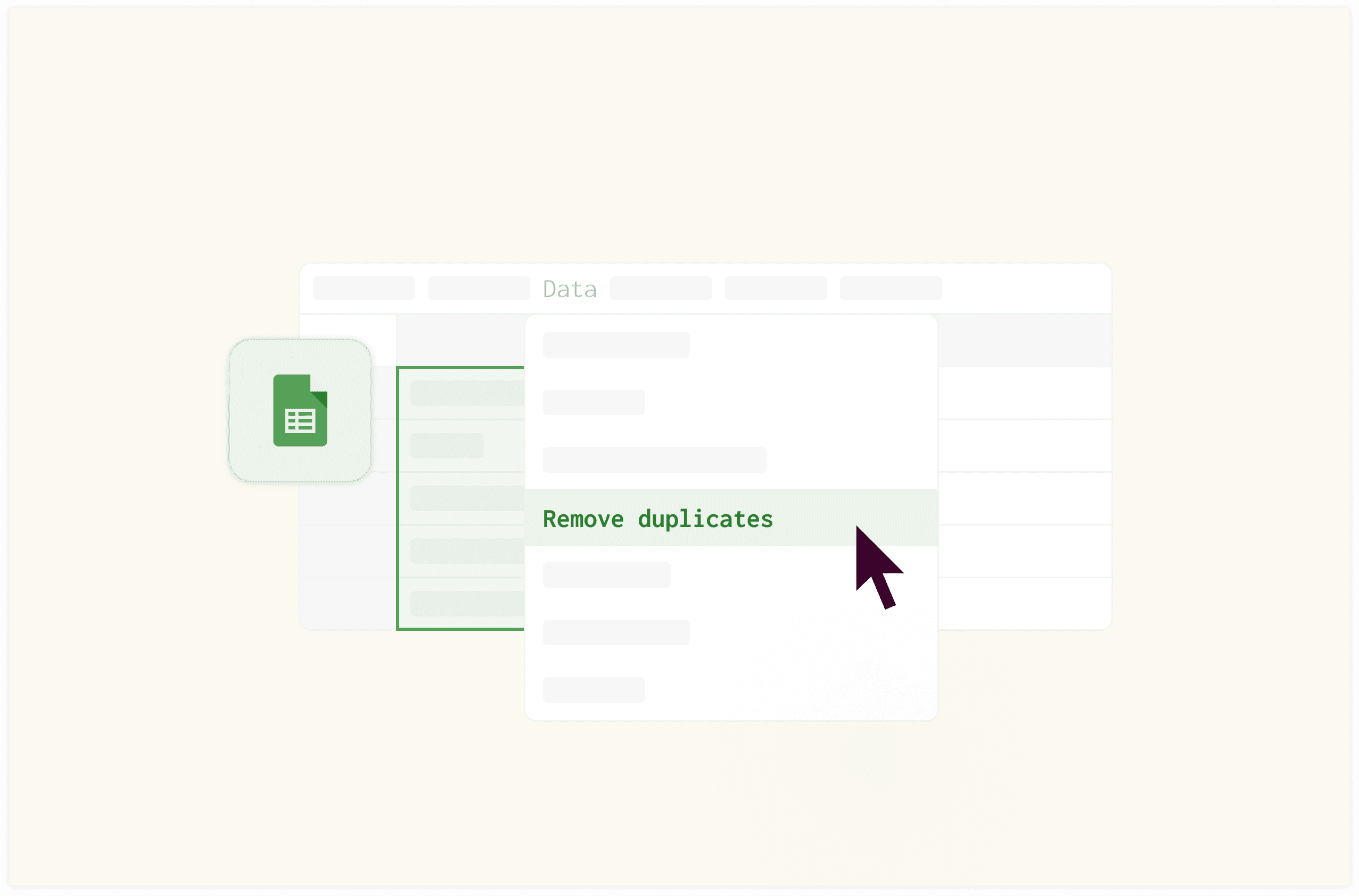
remove duplicates button - Highlight Duplicates in Google Sheets

Large datasets can contain duplicate entries, compromising data integrity and skewing results. For records like customer lists or project details, reliable duplicate identification is essential to maintain accuracy. Various techniques simplify the task, and learning how to use Apps Script in Google Sheets can further streamline advanced automation.

Leveraging these methods reduces manual effort and improves analytical precision. A systematic approach to detecting and addressing redundant information ensures clean data for informed decisions. Numerous offers a Spreadsheet AI Tool that automates duplicate detection and data cleaning, seamlessly integrating into efficient workflows.

Summary

  • Manual duplicate detection in Google Sheets fails because human attention can't reliably scan hundreds of similar-looking cells. Research from the University of Michigan (2023) found that people miss approximately 23% of duplicate entries when manually reviewing datasets larger than 100 rows, even when actively searching for them. The problem compounds because duplicates often don't sit next to each other, and subtle variations, such as extra spaces or inconsistent capitalization, make them nearly invisible during casual review.

  • Sorting data alphabetically creates false confidence in duplicate detection. While sorting does cluster identical entries, it completely misses duplicates that match on one field but differ on another, or near-duplicates with formatting inconsistencies. A Microsoft-backed analysis on spreadsheet auditing showed that manual inspection methods miss up to 25% of duplicate-related errors when datasets exceed a few hundred rows, because sorting only works when duplicate values are identical and appear in the primary sort column.

  • Manual duplicate checking consumes 20 to 30 minutes per session and requires constant repetition. According to a 2022 study in the Journal of Accountancy, over 40% of spreadsheet errors come from duplicated or repeated data, often introduced during manual copy-paste workflows. The same cautious approach people choose to prevent errors actually perpetuates them, because human attention degrades rapidly when scanning repetitive information across hundreds of rows.

  • Conditional formatting in Google Sheets converts duplicate detection from a manual task into a continuous background process. You define a rule once using built-in features like COUNTIF formulas, and the system automatically evaluates every cell in your selected range against every other cell. When a value appears more than once, it gets highlighted immediately, eliminating the entire cycle of sorting, scrolling, and comparing that previously consumed hours of recurring manual work.

  • Multi-column duplicate detection catches problems that single-field checks miss entirely. Some duplicates only reveal themselves through combinations; a customer record might repeat with the same first and last name, but different email addresses, or a transaction might duplicate across date, amount, and vendor fields. Google Sheets handles this through helper columns or array formulas that concatenate multiple fields into a single comparison string, surfacing duplicates where one field differs slightly but the overall record is identical.

  • Continuous monitoring via conditional formatting prevents duplicates from silently accumulating when multiple people contribute to the same sheet. The rule evaluates every new row instantly, whether added manually, imported from a CSV, or pasted from another source. This eliminates the repetitive cleanup cycle where duplicates enter unnoticed across separate contributions and only surface weeks later when someone notices inflated counts or conflicting entries in downstream reports.

  • Spreadsheet AI Tool addresses this by automating duplicate detection across multiple columns simultaneously, identifying matching records in seconds while maintaining the full context of which fields triggered the match.

Table of Contents

Why Finding Duplicates in Google Sheets Is So Frustrating

Person using laptop for data analysis -  Highlight Duplicates in Google Sheets

Duplicates frustrate people because they hide in plain sight. You can stare at a column of emails or transaction IDs for several minutes and still miss the same entry appearing three rows apart. The issue isn't carelessness; rather, human eyes aren't designed to scan hundreds of similar-looking cells and catch subtle repetitions, especially when those duplicates aren't located side by side.

This invisibility creates a compounding problem: the longer duplicates go undetected, the more they mess up your calculations, reports, and decisions. Over time, these mistakes can seriously affect the integrity of your data. Our AI Spreadsheet Tool can help you uncover and resolve these hidden duplicates effortlessly. At first glance, your sheet looks clean. Names appear unique, email addresses seem distinct, and product codes follow a logical sequence. Yet, the hidden duplicates can lead to unexpected errors and misinterpretations.

What indicators suggest duplicates exist?

Notice something off? Your total count may feel too high; a customer might receive the same invoice twice, or your dashboard could show inflated metrics that don't match reality. For example, the same email address is in both row 47 and row 203. A transaction ID might repeat with slightly different timestamps, and a customer name can appear twice because one entry has an extra space after the last name.

These differences make it nearly impossible to spot duplicates with a quick review. The brain looks at the overall pattern rather than character-by-character differences. According to research from the University of Michigan (2023), people miss approximately 23% of duplicate entries when manually reviewing datasets with more than 100 rows, even when actively looking for them. To streamline this process, consider leveraging our AI Spreadsheet Tool to efficiently identify and manage duplicates. The problem isn't that duplicates are rare; it's that they hide themselves among real data.

How do you typically handle duplicates?

When duplicates are suspected, the first instinct is to handle them personally. Sorting the column alphabetically helps. This allows for a careful approach: scrolling slowly and comparing adjacent rows. Copying suspicious entries into a scratch column for checking can help ensure accuracy. This method feels safe because it is straightforward. You're taking action and being thorough in your process. However, manual scanning has hidden costs. Each interruption resets your mental focus. Every row needs active thought: Is this the same as the one I saw earlier? Your attention splits between remembering what you’ve checked and processing what comes next.

What you think will take five minutes often ends up taking twenty or even thirty. This is especially true when working with datasets that span multiple columns. Here, duplicates might match on email but differ on name, or match on product ID yet show different order dates. To streamline your efforts, consider how our AI Spreadsheet Tool can automate these checks, reducing both time and effort.

What are the dangers of manual sorting?

The cognitive load isn't just about time; it also involves the nagging uncertainty that follows: Did I actually catch everything? Sorting feels like progress. When you arrange a column from A to Z, duplicates should cluster together. You scan those grouped entries, remove the extras, and mark the task as complete. However, even after sorting, the data still hides duplicates across several areas. For example, two entries might share the same email address but appear in different spots because their names differ in the main sort column.

Also, if you've sorted by date, duplicate customer records may be separated by weeks.This false sense of control can be risky when you share that data with your team or use it to create reports. You've followed the right steps, so you might think the output is reliable. Yet duplicates you missed keep affecting your metrics, skewing your analysis, and hurting decisions made later. Utilizing an AI Spreadsheet Tool can help mitigate these issues by automatically identifying and merging duplicate entries.

How do duplicates affect your reports?

When new data arrives next week, the entire process needs to be repeated. This means sorting and scanning again, hoping to catch what was missed the first time. Duplicates create more than just extra rows; they weaken the basic idea that your data shows reality. When your quarterly report shows 847 customers while your CRM lists only 782, the question arises: which number is correct? If you send a promotional email and three customers reply asking why they received it twice, what does this tell you about your data hygiene?

In this context, our AI Spreadsheet Tool helps to ensure cleaner data and better accuracy. The frustration builds with each error, leading to doubts about everything. This uncertainty makes you second-guess calculations you previously shared. Extra review steps are necessary before presenting numbers to stakeholders, which erodes the confidence needed to make quick decisions based on the data, since one can't be sure the underlying data is clean.

How does data fragmentation impact your work?

This erosion of trust affects more than just you; teams stop relying on shared sheets. Colleagues begin maintaining their own versions just to be on the safe side. Data fragmentation speeds up, creating new opportunities for duplicates to multiply across disconnected files. Duplicates aren't just a one-time cleanup task; they're an ongoing problem that gets worse as your sheet evolves. Our AI Spreadsheet Tool can help you streamline this process.

As more people add data, increased imports from outside sources happen, and many copy-paste actions introduce formatting problems that create near-duplicates that are hard for your eye to spot. Each update raises the chance that new duplicates go unnoticed. Obvious ones may be found during your monthly review, but subtle differences accumulate in the background: an email address with an extra space, a product code in a different case, or a name spelled in two different ways.

What challenges do silent duplicates present?

Silent duplicates often go unnoticed until a critical moment, like when you're preparing a board presentation or reconciling accounts. At that time, they appear as differences that require immediate investigation. Among teams handling large datasets, the most common issue is reactive cleanup instead of proactive prevention. Duplicates are usually found only when something goes wrong, not through systematic detection, as described in this guide. Our AI spreadsheet tool helps in detecting these duplicates before they become a problem. The main frustration comes from a mismatch between the task and the tool. Human attention is being used to fix a pattern-matching problem that computers can solve instantly and perfectly.

Is manual scanning an effective technique?

You shouldn't need to scan line by line, re-sort data after every update, or second-guess whether you caught every duplicate across multiple columns. Most teams handle duplicate detection by manually sorting and visually checking data because it’s easy and doesn’t require new tools. As datasets grow and more people become involved, this method can break down across different review cycles. Important duplicates can get lost in the volume, detection times can stretch from minutes to hours, and overall data quality can worsen.

Solutions like Numerous' Spreadsheet AI Tool automate duplicate detection across multiple columns simultaneously. This tool finds matching records in seconds while keeping the complete context of which fields caused the match. The shift from manual scanning to automated detection isn't about being lazy; it's about using the right tool for the actual problem. With our Spreadsheet AI Tool, you can streamline your workflow and enhance data accuracy.

What is the hidden cost of duplicate management?

Understanding why duplicates frustrate you is only half the picture. The hidden cost isn't just emotional; it's also the measurable time that quietly disappears from your day.

Related Reading

Why Finding Duplicates Quietly Adds 30+ Minutes of Extra Work

 Person analyzing marketing budget spreadsheet data -  Highlight Duplicates in Google Sheets

Manual duplicate checking feels safer, even though it's slower. You sort columns, scroll through rows, and visually compare values because it feels controlled and familiar. But that extra caution turns into 20 to 30 minutes of scanning, especially on sheets with hundreds of rows, and still doesn't guarantee accuracy. When opening a sheet with customer emails or transaction IDs, the first instinct is often to handle verification manually. This usually involves clicking the column header, sorting A to Z, and scrolling slowly while looking for matches next to each other. Users might even copy suspicious entries into a scratch column for side-by-side comparison.

This method continues because many users have never learned a dependable automated way to find duplicates. A mistake in data can feel costly, so people stick to what they can see with their own eyes. This belief makes sense; it comes from a real fear that automation might miss something important or mark the wrong items as duplicates, which could create even more work. Our AI Spreadsheet Tool simplifies the process, allowing for accurate duplicate detection without exhaustive manual effort.

What does the caution cost?

Caution comes at a cost. According to a 2022 study on spreadsheet usage published in the Journal of Accountancy, over 40% of spreadsheet errors come from duplicated or repeated data, which often happens during manual copy-paste workflows. Ironically, the very method used to prevent errors helps to keep them going. Human attention tends to drop off quickly when looking at the same information repeatedly.

The estimated 20 to 30 minutes spent on these tasks isn't just wasted time; it adds to the mental load that breaks focus and slows down other activities. This mental load creates ongoing uncertainty about whether all errors have been found, making it beneficial to consider tools that minimize these issues. Our AI Spreadsheet Tool helps streamline data handling, reducing the potential for errors and saving valuable time.

Does sorting truly help find duplicates?

Another common belief is that sorting makes duplicates obvious. By arranging the column alphabetically, one can scan grouped rows and feel productive. The logic seems sound: if duplicates exist, they should cluster together. However, this creates a false sense of completion. Sorting can group duplicates, which is why many tutorials recommend it as a first step. This method only works if the duplicate values are identical and appear in the primary sort column.

What can sorting miss?

Sorting often misses entries that match on email but have different names, records that share a product code but have different timestamps, or near-duplicates with small formatting differences, like trailing spaces or inconsistent capitalization. A Microsoft-backed analysis of spreadsheet auditing found that manual inspection methods miss up to 25% of duplicate-related errors when datasets exceed a few hundred rows. Sorting helps with visual inspection, but it relies heavily on human attention, which quickly decreases as data size increases. To minimize these risks, consider utilizing an AI Spreadsheet Tool like our Numerous tool, which automates error detection and streamlines the audit process.

Why is sorting not a sustainable solution?

In practice, sorting needs to be checked regularly when new rows are added. It stops working when data updates, requiring a manual review each time. This method does not fix the main problem; it only manages it repeatedly. A big barrier is the idea that automatically highlighting duplicates is too technical. This belief comes from the fact that spreadsheet tools like conditional formatting aren't always clear. Anything automated can seem to require complicated formulas or scripts, leading users to worry they might break the sheet. Our AI Spreadsheet Tool simplifies this process, helping users automate tasks with ease.

How familiar are users with spreadsheet features?

Surveys cited by Google Workspace training partners show that over 50% of Sheets users use only basic features, such as sorting, filtering, and manual formatting. Anything beyond that is seen as advanced. This belief continues not because it's true, but because users were never shown an easier way. Our AI Spreadsheet Tool makes it easy to automate advanced functionality. Google Sheets can instantly highlight duplicates with built-in tools; in most cases, no scripts or formulas are needed. This perception of complexity keeps people stuck in manual workflows that take much longer than learning a single feature would.

What happens as datasets grow?

Most teams find duplicates by manually sorting and reviewing them. This method is familiar and doesn't need extra tools. But as datasets grow and more people are involved, this method starts to break down across different review cycles. Important duplicates can get lost in the growing volume of data, leading to detection times ranging from minutes to hours and harming data quality.

Tools like Numerous' Spreadsheet AI Tool can automate duplicate detection across multiple columns at once. They can find matching records in seconds and keep track of which fields caused the matches. The issue isn't with skills; it's about exposure. When teams see how fast automation can work, manual checking stops feeling like the better choice; it starts to feel much slower.

What is the ongoing issue with the current method?

The biggest issue with the status quo isn't just the time it takes; it's the repetition involved. Each time new data is imported, new rows are added, or the sheet is shared with someone else, the same problem recurs. Checking for duplicates isn't something you do just once; it's something that drains productivity over and over. A Harvard Business Review study found that knowledge workers lose an average of 23 minutes per task switch. Repeating the cleanup on spreadsheets adds to this time loss. Our AI Spreadsheet Tool helps streamline these processes and reduce duplication.

What are the consequences of manual checking?

What feels like just being careful quietly turns into rework, delayed reporting, and reduced trust in the data. You clean duplicates today, but tomorrow's import introduces new ones. You verify entries before sending a report, yet next week's update demands another full scan. This cycle never ends because the method fails to scale.

The real cost isn't merely the 30 minutes spent today; it's the cumulative hours lost over weeks and months. Adding to this burden is the mental tax of knowing this task will have to be repeated soon. To alleviate this, consider how our AI Spreadsheet Tool can streamline your processes and reduce these repetitive tasks.

Is there a solution to break this cycle?

There is a way to completely break the cycle without adding complexity or risk. Our AI Spreadsheet Tool simplifies your data management, making it easier to find solutions that work for you.

5 Ways to Highlight Duplicates in Google Sheets Instantly

Person reviewing google sheet -  Highlight Duplicates in Google Sheets

Google Sheets has built-in tools that spot duplicates as soon as they appear, without requiring formulas or scripts. Conditional formatting uses visual rules to monitor the data, highlighting matches instantly across single columns, multiple fields, or entire rows. Once you set it up, these rules apply automatically whenever new entries are added, pasted, or imported.

1. Use Conditional Formatting to Flag Exact Matches Automatically

Conditional formatting changes the task of finding duplicates from a manual chore into a smooth background process. You set a rule once, and Google Sheets uses it continuously. Every cell in the selected area is checked against every other cell. When a value shows up more than once, the system highlights it right away. This method replaces the entire sorting, scrolling, and comparing process. No more worrying if something was missed three pages down. No need to check again after each import. The rule runs quietly, spotting duplicates as soon as they appear.

According to Numerous.ai, this process takes less than five minutes to set up but saves hours of repeated manual work. The saved time builds up weekly because the system never forgets to check; it never gets tired and never misses small differences that might be overlooked during a quick review. Our AI Spreadsheet Tool can streamline this process even further, making it easier to analyze your data accurately. What changes is not just the speed, but also the certainty. You stop guessing whether your sheet is clean. Instead, you know it is, because duplicates can’t hide.

2. Highlight Duplicates Within a Single Column

Most duplicate problems focus on one area: email addresses, customer IDs, invoice numbers, and phone numbers. A single-column layout requires each value to appear exactly once, but that is often not the case. Google Sheets can target that column and apply a rule that checks only those cells. After selecting the range, open the Conditional Formatting dialog. Choose "Custom formula is" and write a simple COUNTIF statement to mark any value that appears more than once. Every duplicate gets highlighted in real time. This issue is important because duplicates in a single column cause the most obvious problems. Sending an email campaign to a list with duplicate addresses will cause customers to notice. Importing transaction records with duplicate IDs causes financial totals to increase.

Merging contact lists without checking for duplicates makes your CRM less reliable. Additionally, our AI Spreadsheet Tool can help streamline your data management by quickly identifying and handling duplicates. The manual method requires sorting the column and visually checking hundreds of rows for matching entries. This method fails once your data updates. Conditional formatting updates right away; if you paste 10 new rows tomorrow, any duplicates will be flagged without extra effort.

3. Detect Duplicates Across Multiple Columns or Full Rows

Some duplicates only show up when you look at combinations. For example, a customer record might appear multiple times with the same first and last name but with different email addresses. In the same way, a product entry could have the same SKU and description, but have different prices. A transaction might duplicate across the date, amount, and vendor fields. Manual checking becomes too hard to manage. It's impossible to sort by three columns simultaneously and visually track matches. The brain cannot keep enough information to compare row 34 against row 187 across five different fields.

Google Sheets offers helper columns or array formulas that combine multiple fields into a single comparison string. You can put together first name, last name, and email into one virtual field, and then use conditional formatting for that combined value. When the combined string appears again, the entire row is highlighted. Our AI Spreadsheet Tool makes this process even easier by automating duplicate identification and saving you time. This method effectively finds duplicates that are missed when checking one column. It flags entries where one field differs slightly, while the overall record remains the same. This stops the problem where email duplicates are cleaned, but the same person shows up twice with different contact information. The shift from single-field to multi-field detection is not just more thorough; it represents the difference between surface-level cleanup and structural data integrity.

4. Flag New Duplicates the Moment Data Gets Added

Conditional formatting does not run once and stop. Instead, it keeps monitoring continuously. If a new row is added manually, the rule checks it right away. Importing a CSV with 500 entries means that every duplicate is flagged before the import completes. Also, if data is pasted from another sheet, matches show up immediately. This eliminates the repetitive cleanup cycle; users no longer need to manually check for duplicates. Duplicates can't enter the sheet without being noticed. The system watches every change, every paste operation, and every formula result that fills a cell.

The practical impact becomes clear when many people work on the same sheet. One teammate imports vendor records while another pastes customer emails, and a third adds transaction data. Without constant monitoring, duplicates can build up silently from these different actions. By the time someone sees inflated counts or conflicting entries, the cause of duplication may be hidden under weeks of updates. Conditional formatting prevents data accumulation. Each contribution is checked right away, so duplicates show up before they can spread into downstream reports or calculations. This means the problem is fixed at the point of entry rather than spreading through your entire workflow.

5. Use Visual Cues to Accelerate Cleanup and Prevent Errors

Highlighting duplicates not only detects them but also speeds up the cleanup process and boosts confidence. When duplicates are highlighted in a different color, users can quickly scan the sheet and spot problem areas. There’s no need to check separate lists or rely on memory. The visual signal clearly shows where you need to focus your attention. This method speeds up decision-making. For instance, seeing two highlighted emails instantly shows that one needs to be deleted or merged. Spotting three highlighted transaction IDs might point to a data import error that needs checking. Likewise, highlighted product codes can show that a supplier has sent duplicate line items.

Our AI Spreadsheet Tool automates these processes, ensuring efficiency and accuracy. The other option is to export data to another tool, perform a duplicate check there, and then manually compare the results back to the original sheet. This method creates new chances for mistakes and takes much longer than responding to visual cues directly in the working document.

How does visual highlighting prevent accidental data loss?

Visual highlighting helps prevent accidental deletion of legitimate data. When duplicates are clearly marked, it allows quick verification before removing entries. For example, you can confirm that both highlighted emails belong to the same person rather than two different customers with similar names. Also, you can check that repeated transaction IDs indicate actual duplicate charges, not just sequential invoices with matching numbers.

Confidence during cleanup is as important as detection speed. You need to trust that what you're removing is indeed redundant, not just visually similar. Our AI Spreadsheet Tool enhances your confidence in handling data by providing clear visual indicators. Even with perfect detection, a key question remains: how can you stop duplicates from returning after every cleanup?

Related Reading

Clean Your Sheet Once and Stop Fixing Duplicates Repeatedly

Woman processing invoice and data -  Highlight Duplicates in Google Sheets

Duplicate cleanup shouldn't happen all the time. When you set up conditional formatting rules correctly, Google Sheets checks your data automatically, so you don't have to do it manually. New entries are automatically checked, and duplicates appear right away. The system takes care of finding them from that point on, turning what used to be repetitive work into a background task that runs quietly every time your sheet updates.

Find the sheet that causes you the most trouble. This might be the contact list where duplicate emails keep popping up, the transaction log that makes your monthly totals seem higher, the form responses where the same person submits their answers multiple times, or the imported vendor data that comes in messy every week. Don't try to fix every spreadsheet you have. Instead, focus on just one sheet where duplicates cause obvious problems. Think about the effects of incorrect counts, confused coworkers, increased metrics, or time wasted during reporting. Our AI Spreadsheet Tool makes it easier to manage your data and reduce duplicates effectively.

Why does specificity matter for duplicates?

Specificity matters a lot. When quick results solve a real problem, the value is clear. Seeing automation effectively fix an issue that used to require manual work helps us better understand. This learning is more powerful because it relates to real relief, not just abstract capability. Our AI Spreadsheet Tool makes it easier to handle complex data tasks with precision.

How do I choose the right method?

Choose the easiest method that fits your duplicate pattern. If your issue is in a single column, like emails, IDs, or phone numbers, use conditional formatting with a COUNTIF formula to highlight any value that appears more than once. If duplicates occur across multiple fields, such as first name and last name or product code and description, set up a rule that checks forcombined values in those specific columns. Additionally, our AI Spreadsheet Tool can simplify this process, making it easier to manage and analyze your data.

How can I overcome installation hesitation?

The goal isn't perfection, but rather automation. The rule doesn't need to catch every possible edge case on day one; it just needs to work reliably for the duplicates that currently exist. Many users hesitate because they fear choosing the wrong method or misconfiguring something. This fear keeps them stuck in manual workflows. The truth is, conditional formatting rules are reversible. Users can edit, delete, or replace them without harming their data. In fact, testing a rule takes only two minutes, while leaving duplicates undetected can waste hours over weeks. Our AI Spreadsheet Tool simplifies this process and helps users navigate these concerns effectively.

What changes after applying the rule?

After applying the rule, something important changes. You stop being responsible for duplicate detection; Google Sheets takes over. When you add a new row by hand, the rule checks it right away. If you import 200 entries from a CSV, duplicates are marked before you even scroll to review them. If a teammate pastes data from another source, the matches appear right away, so no one needs to run a check. For a more streamlined process, consider how our AI Spreadsheet Tool can help automate these checks.

How does this affect my workflow?

This shift removes the cleanup cycle completely. You no longer have to set aside time to look for duplicates. There is no need to rearrange columns before sharing reports, and you don't have to worry about whether your last import caused problems. The system keeps track of every change, making sure that duplicates can't enter silently.

What is the practical difference with larger datasets?

The practical difference becomes clear as datasets get larger. A sheet with 50 rows might seem easy to handle when viewed manually. But a sheet with 500 rows quickly becomes a time drain, and a sheet with 5,000 rows makes manual checking impossible. Luckily, conditional formatting works well in all three situations because the rule runs at the same speed regardless of the amount of data. For more advanced handling of larger datasets, consider how our AI Spreadsheet Tool can help streamline your data management.

What are the three shifts when the rule goes live?

First, duplicates become visible right away. You won’t spend time searching for problems anymore, as they show themselves through color, highlighting, or text formatting as soon as they appear. This increased visibility changes how you interact with your data. Instead of relying on periodic deep-cleaning sessions, you can fix duplicates immediately while the context is fresh, and corrections take just seconds. Our AI Spreadsheet Tool helps streamline this process for maximum efficiency. Second, mistakes stop spreading downstream. When duplicates remain hidden, they can skew totals, distort averages, inflate counts, and distort reports.

These errors can get into presentations, dashboards, and decisions made by people who trust your numbers. Automated highlighting effectively stops corruption at its source; you catch duplicates before they affect calculations, are shared, or confuse others. Third, manual checking disappears from your workflow. You no longer spend time reviewing data before each report. There’s no need to re-check entries after imports or scan columns during meetings when someone questions a number. The rule continues to handle verification, allowing you to focus on analysis and decision-making instead of data cleanliness.

How does this change the maintenance mindset?

The traditional approach treats duplicate removal as maintenance. This requires checking every week, month, or whenever the data seems off. This way of thinking creates a perpetual cycle: you clean the sheet today, and new duplicates pop up tomorrow. You clean it again next week; the job never ends because this method doesn't scale.

Setting up conditional formatting once breaks that cycle completely. The rule stays active across sessions and continues to work with new data imports. It even works when you're offline and applies to entries added by other collaborators. You set up the detection logic once, and it protects your sheet forever. With our AI Spreadsheet Tool, you can automate maintenance tasks more efficiently.

What are the long-term benefits of automation?

This isn't just about saving 30 minutes today; it's about saving hundreds of hours over the life of your spreadsheet. Each time you import data, add a new row, or paste something, it is automatically checked. The total time you save accumulates each week because you're not doing the same verification work over and over. Our spreadsheet automation tool helps eliminate these repetitive tasks. The emotional shift matters as much as the time savings. You will stop worrying about data updates, doubting your numbers before presentations, and feeling like you have to catch every duplicate just by paying attention. With automation, the system handles detection, so you can focus on making smart decisions.

Will automation catch all duplicates?

Automation works well only when it finds the duplicates that really count, not just the easy ones. Our AI Spreadsheet Tool helps streamline the identification of these important duplicates.

Use Numerous to Highlight and Fix Duplicates Automatically (Without Rechecking Sheets)

Understanding how to highlight duplicates in Google Sheets helps with finding them, but it does not stop repetition. Every new file still needs the same setup. Each import requires manual application of rules, and every time someone hands off a task, there is a chance they might forget to check. Numerous changes this by making duplicate detection automatic by default, rather than requiring it to be set up for each sheet.

When only using Google Sheets' conditional formatting, the same steps are repeated over and over. This means opening the sheet, choosing the range, setting the custom formula, and applying the rule. Next week, this process must be done for a different dataset, and next month it must be repeated when the template changes. While duplicate detection does work, the effort to set it up never goes away.

Numerous eliminate that recurring setup entirely. Upload your sheet once and choose duplicate detection as a cleanup rule. The system uses the same logic for all your data, freeing you from needing to remember rules, choose ranges, or check formulas. Duplicates are automatically marked, and cleanup occurs in context. You can export a clean sheet without having to create detection rules from the beginning. This shift from manual setup to automated consistency distinguishes occasional cleanup from systematic data hygiene. Our AI Spreadsheet Tool could make these repetitive tasks effortless.

Related Reading

Large datasets can contain duplicate entries, compromising data integrity and skewing results. For records like customer lists or project details, reliable duplicate identification is essential to maintain accuracy. Various techniques simplify the task, and learning how to use Apps Script in Google Sheets can further streamline advanced automation.

Leveraging these methods reduces manual effort and improves analytical precision. A systematic approach to detecting and addressing redundant information ensures clean data for informed decisions. Numerous offers a Spreadsheet AI Tool that automates duplicate detection and data cleaning, seamlessly integrating into efficient workflows.

Summary

  • Manual duplicate detection in Google Sheets fails because human attention can't reliably scan hundreds of similar-looking cells. Research from the University of Michigan (2023) found that people miss approximately 23% of duplicate entries when manually reviewing datasets larger than 100 rows, even when actively searching for them. The problem compounds because duplicates often don't sit next to each other, and subtle variations, such as extra spaces or inconsistent capitalization, make them nearly invisible during casual review.

  • Sorting data alphabetically creates false confidence in duplicate detection. While sorting does cluster identical entries, it completely misses duplicates that match on one field but differ on another, or near-duplicates with formatting inconsistencies. A Microsoft-backed analysis on spreadsheet auditing showed that manual inspection methods miss up to 25% of duplicate-related errors when datasets exceed a few hundred rows, because sorting only works when duplicate values are identical and appear in the primary sort column.

  • Manual duplicate checking consumes 20 to 30 minutes per session and requires constant repetition. According to a 2022 study in the Journal of Accountancy, over 40% of spreadsheet errors come from duplicated or repeated data, often introduced during manual copy-paste workflows. The same cautious approach people choose to prevent errors actually perpetuates them, because human attention degrades rapidly when scanning repetitive information across hundreds of rows.

  • Conditional formatting in Google Sheets converts duplicate detection from a manual task into a continuous background process. You define a rule once using built-in features like COUNTIF formulas, and the system automatically evaluates every cell in your selected range against every other cell. When a value appears more than once, it gets highlighted immediately, eliminating the entire cycle of sorting, scrolling, and comparing that previously consumed hours of recurring manual work.

  • Multi-column duplicate detection catches problems that single-field checks miss entirely. Some duplicates only reveal themselves through combinations; a customer record might repeat with the same first and last name, but different email addresses, or a transaction might duplicate across date, amount, and vendor fields. Google Sheets handles this through helper columns or array formulas that concatenate multiple fields into a single comparison string, surfacing duplicates where one field differs slightly but the overall record is identical.

  • Continuous monitoring via conditional formatting prevents duplicates from silently accumulating when multiple people contribute to the same sheet. The rule evaluates every new row instantly, whether added manually, imported from a CSV, or pasted from another source. This eliminates the repetitive cleanup cycle where duplicates enter unnoticed across separate contributions and only surface weeks later when someone notices inflated counts or conflicting entries in downstream reports.

  • Spreadsheet AI Tool addresses this by automating duplicate detection across multiple columns simultaneously, identifying matching records in seconds while maintaining the full context of which fields triggered the match.

Table of Contents

Why Finding Duplicates in Google Sheets Is So Frustrating

Person using laptop for data analysis -  Highlight Duplicates in Google Sheets

Duplicates frustrate people because they hide in plain sight. You can stare at a column of emails or transaction IDs for several minutes and still miss the same entry appearing three rows apart. The issue isn't carelessness; rather, human eyes aren't designed to scan hundreds of similar-looking cells and catch subtle repetitions, especially when those duplicates aren't located side by side.

This invisibility creates a compounding problem: the longer duplicates go undetected, the more they mess up your calculations, reports, and decisions. Over time, these mistakes can seriously affect the integrity of your data. Our AI Spreadsheet Tool can help you uncover and resolve these hidden duplicates effortlessly. At first glance, your sheet looks clean. Names appear unique, email addresses seem distinct, and product codes follow a logical sequence. Yet, the hidden duplicates can lead to unexpected errors and misinterpretations.

What indicators suggest duplicates exist?

Notice something off? Your total count may feel too high; a customer might receive the same invoice twice, or your dashboard could show inflated metrics that don't match reality. For example, the same email address is in both row 47 and row 203. A transaction ID might repeat with slightly different timestamps, and a customer name can appear twice because one entry has an extra space after the last name.

These differences make it nearly impossible to spot duplicates with a quick review. The brain looks at the overall pattern rather than character-by-character differences. According to research from the University of Michigan (2023), people miss approximately 23% of duplicate entries when manually reviewing datasets with more than 100 rows, even when actively looking for them. To streamline this process, consider leveraging our AI Spreadsheet Tool to efficiently identify and manage duplicates. The problem isn't that duplicates are rare; it's that they hide themselves among real data.

How do you typically handle duplicates?

When duplicates are suspected, the first instinct is to handle them personally. Sorting the column alphabetically helps. This allows for a careful approach: scrolling slowly and comparing adjacent rows. Copying suspicious entries into a scratch column for checking can help ensure accuracy. This method feels safe because it is straightforward. You're taking action and being thorough in your process. However, manual scanning has hidden costs. Each interruption resets your mental focus. Every row needs active thought: Is this the same as the one I saw earlier? Your attention splits between remembering what you’ve checked and processing what comes next.

What you think will take five minutes often ends up taking twenty or even thirty. This is especially true when working with datasets that span multiple columns. Here, duplicates might match on email but differ on name, or match on product ID yet show different order dates. To streamline your efforts, consider how our AI Spreadsheet Tool can automate these checks, reducing both time and effort.

What are the dangers of manual sorting?

The cognitive load isn't just about time; it also involves the nagging uncertainty that follows: Did I actually catch everything? Sorting feels like progress. When you arrange a column from A to Z, duplicates should cluster together. You scan those grouped entries, remove the extras, and mark the task as complete. However, even after sorting, the data still hides duplicates across several areas. For example, two entries might share the same email address but appear in different spots because their names differ in the main sort column.

Also, if you've sorted by date, duplicate customer records may be separated by weeks.This false sense of control can be risky when you share that data with your team or use it to create reports. You've followed the right steps, so you might think the output is reliable. Yet duplicates you missed keep affecting your metrics, skewing your analysis, and hurting decisions made later. Utilizing an AI Spreadsheet Tool can help mitigate these issues by automatically identifying and merging duplicate entries.

How do duplicates affect your reports?

When new data arrives next week, the entire process needs to be repeated. This means sorting and scanning again, hoping to catch what was missed the first time. Duplicates create more than just extra rows; they weaken the basic idea that your data shows reality. When your quarterly report shows 847 customers while your CRM lists only 782, the question arises: which number is correct? If you send a promotional email and three customers reply asking why they received it twice, what does this tell you about your data hygiene?

In this context, our AI Spreadsheet Tool helps to ensure cleaner data and better accuracy. The frustration builds with each error, leading to doubts about everything. This uncertainty makes you second-guess calculations you previously shared. Extra review steps are necessary before presenting numbers to stakeholders, which erodes the confidence needed to make quick decisions based on the data, since one can't be sure the underlying data is clean.

How does data fragmentation impact your work?

This erosion of trust affects more than just you; teams stop relying on shared sheets. Colleagues begin maintaining their own versions just to be on the safe side. Data fragmentation speeds up, creating new opportunities for duplicates to multiply across disconnected files. Duplicates aren't just a one-time cleanup task; they're an ongoing problem that gets worse as your sheet evolves. Our AI Spreadsheet Tool can help you streamline this process.

As more people add data, increased imports from outside sources happen, and many copy-paste actions introduce formatting problems that create near-duplicates that are hard for your eye to spot. Each update raises the chance that new duplicates go unnoticed. Obvious ones may be found during your monthly review, but subtle differences accumulate in the background: an email address with an extra space, a product code in a different case, or a name spelled in two different ways.

What challenges do silent duplicates present?

Silent duplicates often go unnoticed until a critical moment, like when you're preparing a board presentation or reconciling accounts. At that time, they appear as differences that require immediate investigation. Among teams handling large datasets, the most common issue is reactive cleanup instead of proactive prevention. Duplicates are usually found only when something goes wrong, not through systematic detection, as described in this guide. Our AI spreadsheet tool helps in detecting these duplicates before they become a problem. The main frustration comes from a mismatch between the task and the tool. Human attention is being used to fix a pattern-matching problem that computers can solve instantly and perfectly.

Is manual scanning an effective technique?

You shouldn't need to scan line by line, re-sort data after every update, or second-guess whether you caught every duplicate across multiple columns. Most teams handle duplicate detection by manually sorting and visually checking data because it’s easy and doesn’t require new tools. As datasets grow and more people become involved, this method can break down across different review cycles. Important duplicates can get lost in the volume, detection times can stretch from minutes to hours, and overall data quality can worsen.

Solutions like Numerous' Spreadsheet AI Tool automate duplicate detection across multiple columns simultaneously. This tool finds matching records in seconds while keeping the complete context of which fields caused the match. The shift from manual scanning to automated detection isn't about being lazy; it's about using the right tool for the actual problem. With our Spreadsheet AI Tool, you can streamline your workflow and enhance data accuracy.

What is the hidden cost of duplicate management?

Understanding why duplicates frustrate you is only half the picture. The hidden cost isn't just emotional; it's also the measurable time that quietly disappears from your day.

Related Reading

Why Finding Duplicates Quietly Adds 30+ Minutes of Extra Work

 Person analyzing marketing budget spreadsheet data -  Highlight Duplicates in Google Sheets

Manual duplicate checking feels safer, even though it's slower. You sort columns, scroll through rows, and visually compare values because it feels controlled and familiar. But that extra caution turns into 20 to 30 minutes of scanning, especially on sheets with hundreds of rows, and still doesn't guarantee accuracy. When opening a sheet with customer emails or transaction IDs, the first instinct is often to handle verification manually. This usually involves clicking the column header, sorting A to Z, and scrolling slowly while looking for matches next to each other. Users might even copy suspicious entries into a scratch column for side-by-side comparison.

This method continues because many users have never learned a dependable automated way to find duplicates. A mistake in data can feel costly, so people stick to what they can see with their own eyes. This belief makes sense; it comes from a real fear that automation might miss something important or mark the wrong items as duplicates, which could create even more work. Our AI Spreadsheet Tool simplifies the process, allowing for accurate duplicate detection without exhaustive manual effort.

What does the caution cost?

Caution comes at a cost. According to a 2022 study on spreadsheet usage published in the Journal of Accountancy, over 40% of spreadsheet errors come from duplicated or repeated data, which often happens during manual copy-paste workflows. Ironically, the very method used to prevent errors helps to keep them going. Human attention tends to drop off quickly when looking at the same information repeatedly.

The estimated 20 to 30 minutes spent on these tasks isn't just wasted time; it adds to the mental load that breaks focus and slows down other activities. This mental load creates ongoing uncertainty about whether all errors have been found, making it beneficial to consider tools that minimize these issues. Our AI Spreadsheet Tool helps streamline data handling, reducing the potential for errors and saving valuable time.

Does sorting truly help find duplicates?

Another common belief is that sorting makes duplicates obvious. By arranging the column alphabetically, one can scan grouped rows and feel productive. The logic seems sound: if duplicates exist, they should cluster together. However, this creates a false sense of completion. Sorting can group duplicates, which is why many tutorials recommend it as a first step. This method only works if the duplicate values are identical and appear in the primary sort column.

What can sorting miss?

Sorting often misses entries that match on email but have different names, records that share a product code but have different timestamps, or near-duplicates with small formatting differences, like trailing spaces or inconsistent capitalization. A Microsoft-backed analysis of spreadsheet auditing found that manual inspection methods miss up to 25% of duplicate-related errors when datasets exceed a few hundred rows. Sorting helps with visual inspection, but it relies heavily on human attention, which quickly decreases as data size increases. To minimize these risks, consider utilizing an AI Spreadsheet Tool like our Numerous tool, which automates error detection and streamlines the audit process.

Why is sorting not a sustainable solution?

In practice, sorting needs to be checked regularly when new rows are added. It stops working when data updates, requiring a manual review each time. This method does not fix the main problem; it only manages it repeatedly. A big barrier is the idea that automatically highlighting duplicates is too technical. This belief comes from the fact that spreadsheet tools like conditional formatting aren't always clear. Anything automated can seem to require complicated formulas or scripts, leading users to worry they might break the sheet. Our AI Spreadsheet Tool simplifies this process, helping users automate tasks with ease.

How familiar are users with spreadsheet features?

Surveys cited by Google Workspace training partners show that over 50% of Sheets users use only basic features, such as sorting, filtering, and manual formatting. Anything beyond that is seen as advanced. This belief continues not because it's true, but because users were never shown an easier way. Our AI Spreadsheet Tool makes it easy to automate advanced functionality. Google Sheets can instantly highlight duplicates with built-in tools; in most cases, no scripts or formulas are needed. This perception of complexity keeps people stuck in manual workflows that take much longer than learning a single feature would.

What happens as datasets grow?

Most teams find duplicates by manually sorting and reviewing them. This method is familiar and doesn't need extra tools. But as datasets grow and more people are involved, this method starts to break down across different review cycles. Important duplicates can get lost in the growing volume of data, leading to detection times ranging from minutes to hours and harming data quality.

Tools like Numerous' Spreadsheet AI Tool can automate duplicate detection across multiple columns at once. They can find matching records in seconds and keep track of which fields caused the matches. The issue isn't with skills; it's about exposure. When teams see how fast automation can work, manual checking stops feeling like the better choice; it starts to feel much slower.

What is the ongoing issue with the current method?

The biggest issue with the status quo isn't just the time it takes; it's the repetition involved. Each time new data is imported, new rows are added, or the sheet is shared with someone else, the same problem recurs. Checking for duplicates isn't something you do just once; it's something that drains productivity over and over. A Harvard Business Review study found that knowledge workers lose an average of 23 minutes per task switch. Repeating the cleanup on spreadsheets adds to this time loss. Our AI Spreadsheet Tool helps streamline these processes and reduce duplication.

What are the consequences of manual checking?

What feels like just being careful quietly turns into rework, delayed reporting, and reduced trust in the data. You clean duplicates today, but tomorrow's import introduces new ones. You verify entries before sending a report, yet next week's update demands another full scan. This cycle never ends because the method fails to scale.

The real cost isn't merely the 30 minutes spent today; it's the cumulative hours lost over weeks and months. Adding to this burden is the mental tax of knowing this task will have to be repeated soon. To alleviate this, consider how our AI Spreadsheet Tool can streamline your processes and reduce these repetitive tasks.

Is there a solution to break this cycle?

There is a way to completely break the cycle without adding complexity or risk. Our AI Spreadsheet Tool simplifies your data management, making it easier to find solutions that work for you.

5 Ways to Highlight Duplicates in Google Sheets Instantly

Person reviewing google sheet -  Highlight Duplicates in Google Sheets

Google Sheets has built-in tools that spot duplicates as soon as they appear, without requiring formulas or scripts. Conditional formatting uses visual rules to monitor the data, highlighting matches instantly across single columns, multiple fields, or entire rows. Once you set it up, these rules apply automatically whenever new entries are added, pasted, or imported.

1. Use Conditional Formatting to Flag Exact Matches Automatically

Conditional formatting changes the task of finding duplicates from a manual chore into a smooth background process. You set a rule once, and Google Sheets uses it continuously. Every cell in the selected area is checked against every other cell. When a value shows up more than once, the system highlights it right away. This method replaces the entire sorting, scrolling, and comparing process. No more worrying if something was missed three pages down. No need to check again after each import. The rule runs quietly, spotting duplicates as soon as they appear.

According to Numerous.ai, this process takes less than five minutes to set up but saves hours of repeated manual work. The saved time builds up weekly because the system never forgets to check; it never gets tired and never misses small differences that might be overlooked during a quick review. Our AI Spreadsheet Tool can streamline this process even further, making it easier to analyze your data accurately. What changes is not just the speed, but also the certainty. You stop guessing whether your sheet is clean. Instead, you know it is, because duplicates can’t hide.

2. Highlight Duplicates Within a Single Column

Most duplicate problems focus on one area: email addresses, customer IDs, invoice numbers, and phone numbers. A single-column layout requires each value to appear exactly once, but that is often not the case. Google Sheets can target that column and apply a rule that checks only those cells. After selecting the range, open the Conditional Formatting dialog. Choose "Custom formula is" and write a simple COUNTIF statement to mark any value that appears more than once. Every duplicate gets highlighted in real time. This issue is important because duplicates in a single column cause the most obvious problems. Sending an email campaign to a list with duplicate addresses will cause customers to notice. Importing transaction records with duplicate IDs causes financial totals to increase.

Merging contact lists without checking for duplicates makes your CRM less reliable. Additionally, our AI Spreadsheet Tool can help streamline your data management by quickly identifying and handling duplicates. The manual method requires sorting the column and visually checking hundreds of rows for matching entries. This method fails once your data updates. Conditional formatting updates right away; if you paste 10 new rows tomorrow, any duplicates will be flagged without extra effort.

3. Detect Duplicates Across Multiple Columns or Full Rows

Some duplicates only show up when you look at combinations. For example, a customer record might appear multiple times with the same first and last name but with different email addresses. In the same way, a product entry could have the same SKU and description, but have different prices. A transaction might duplicate across the date, amount, and vendor fields. Manual checking becomes too hard to manage. It's impossible to sort by three columns simultaneously and visually track matches. The brain cannot keep enough information to compare row 34 against row 187 across five different fields.

Google Sheets offers helper columns or array formulas that combine multiple fields into a single comparison string. You can put together first name, last name, and email into one virtual field, and then use conditional formatting for that combined value. When the combined string appears again, the entire row is highlighted. Our AI Spreadsheet Tool makes this process even easier by automating duplicate identification and saving you time. This method effectively finds duplicates that are missed when checking one column. It flags entries where one field differs slightly, while the overall record remains the same. This stops the problem where email duplicates are cleaned, but the same person shows up twice with different contact information. The shift from single-field to multi-field detection is not just more thorough; it represents the difference between surface-level cleanup and structural data integrity.

4. Flag New Duplicates the Moment Data Gets Added

Conditional formatting does not run once and stop. Instead, it keeps monitoring continuously. If a new row is added manually, the rule checks it right away. Importing a CSV with 500 entries means that every duplicate is flagged before the import completes. Also, if data is pasted from another sheet, matches show up immediately. This eliminates the repetitive cleanup cycle; users no longer need to manually check for duplicates. Duplicates can't enter the sheet without being noticed. The system watches every change, every paste operation, and every formula result that fills a cell.

The practical impact becomes clear when many people work on the same sheet. One teammate imports vendor records while another pastes customer emails, and a third adds transaction data. Without constant monitoring, duplicates can build up silently from these different actions. By the time someone sees inflated counts or conflicting entries, the cause of duplication may be hidden under weeks of updates. Conditional formatting prevents data accumulation. Each contribution is checked right away, so duplicates show up before they can spread into downstream reports or calculations. This means the problem is fixed at the point of entry rather than spreading through your entire workflow.

5. Use Visual Cues to Accelerate Cleanup and Prevent Errors

Highlighting duplicates not only detects them but also speeds up the cleanup process and boosts confidence. When duplicates are highlighted in a different color, users can quickly scan the sheet and spot problem areas. There’s no need to check separate lists or rely on memory. The visual signal clearly shows where you need to focus your attention. This method speeds up decision-making. For instance, seeing two highlighted emails instantly shows that one needs to be deleted or merged. Spotting three highlighted transaction IDs might point to a data import error that needs checking. Likewise, highlighted product codes can show that a supplier has sent duplicate line items.

Our AI Spreadsheet Tool automates these processes, ensuring efficiency and accuracy. The other option is to export data to another tool, perform a duplicate check there, and then manually compare the results back to the original sheet. This method creates new chances for mistakes and takes much longer than responding to visual cues directly in the working document.

How does visual highlighting prevent accidental data loss?

Visual highlighting helps prevent accidental deletion of legitimate data. When duplicates are clearly marked, it allows quick verification before removing entries. For example, you can confirm that both highlighted emails belong to the same person rather than two different customers with similar names. Also, you can check that repeated transaction IDs indicate actual duplicate charges, not just sequential invoices with matching numbers.

Confidence during cleanup is as important as detection speed. You need to trust that what you're removing is indeed redundant, not just visually similar. Our AI Spreadsheet Tool enhances your confidence in handling data by providing clear visual indicators. Even with perfect detection, a key question remains: how can you stop duplicates from returning after every cleanup?

Related Reading

Clean Your Sheet Once and Stop Fixing Duplicates Repeatedly

Woman processing invoice and data -  Highlight Duplicates in Google Sheets

Duplicate cleanup shouldn't happen all the time. When you set up conditional formatting rules correctly, Google Sheets checks your data automatically, so you don't have to do it manually. New entries are automatically checked, and duplicates appear right away. The system takes care of finding them from that point on, turning what used to be repetitive work into a background task that runs quietly every time your sheet updates.

Find the sheet that causes you the most trouble. This might be the contact list where duplicate emails keep popping up, the transaction log that makes your monthly totals seem higher, the form responses where the same person submits their answers multiple times, or the imported vendor data that comes in messy every week. Don't try to fix every spreadsheet you have. Instead, focus on just one sheet where duplicates cause obvious problems. Think about the effects of incorrect counts, confused coworkers, increased metrics, or time wasted during reporting. Our AI Spreadsheet Tool makes it easier to manage your data and reduce duplicates effectively.

Why does specificity matter for duplicates?

Specificity matters a lot. When quick results solve a real problem, the value is clear. Seeing automation effectively fix an issue that used to require manual work helps us better understand. This learning is more powerful because it relates to real relief, not just abstract capability. Our AI Spreadsheet Tool makes it easier to handle complex data tasks with precision.

How do I choose the right method?

Choose the easiest method that fits your duplicate pattern. If your issue is in a single column, like emails, IDs, or phone numbers, use conditional formatting with a COUNTIF formula to highlight any value that appears more than once. If duplicates occur across multiple fields, such as first name and last name or product code and description, set up a rule that checks forcombined values in those specific columns. Additionally, our AI Spreadsheet Tool can simplify this process, making it easier to manage and analyze your data.

How can I overcome installation hesitation?

The goal isn't perfection, but rather automation. The rule doesn't need to catch every possible edge case on day one; it just needs to work reliably for the duplicates that currently exist. Many users hesitate because they fear choosing the wrong method or misconfiguring something. This fear keeps them stuck in manual workflows. The truth is, conditional formatting rules are reversible. Users can edit, delete, or replace them without harming their data. In fact, testing a rule takes only two minutes, while leaving duplicates undetected can waste hours over weeks. Our AI Spreadsheet Tool simplifies this process and helps users navigate these concerns effectively.

What changes after applying the rule?

After applying the rule, something important changes. You stop being responsible for duplicate detection; Google Sheets takes over. When you add a new row by hand, the rule checks it right away. If you import 200 entries from a CSV, duplicates are marked before you even scroll to review them. If a teammate pastes data from another source, the matches appear right away, so no one needs to run a check. For a more streamlined process, consider how our AI Spreadsheet Tool can help automate these checks.

How does this affect my workflow?

This shift removes the cleanup cycle completely. You no longer have to set aside time to look for duplicates. There is no need to rearrange columns before sharing reports, and you don't have to worry about whether your last import caused problems. The system keeps track of every change, making sure that duplicates can't enter silently.

What is the practical difference with larger datasets?

The practical difference becomes clear as datasets get larger. A sheet with 50 rows might seem easy to handle when viewed manually. But a sheet with 500 rows quickly becomes a time drain, and a sheet with 5,000 rows makes manual checking impossible. Luckily, conditional formatting works well in all three situations because the rule runs at the same speed regardless of the amount of data. For more advanced handling of larger datasets, consider how our AI Spreadsheet Tool can help streamline your data management.

What are the three shifts when the rule goes live?

First, duplicates become visible right away. You won’t spend time searching for problems anymore, as they show themselves through color, highlighting, or text formatting as soon as they appear. This increased visibility changes how you interact with your data. Instead of relying on periodic deep-cleaning sessions, you can fix duplicates immediately while the context is fresh, and corrections take just seconds. Our AI Spreadsheet Tool helps streamline this process for maximum efficiency. Second, mistakes stop spreading downstream. When duplicates remain hidden, they can skew totals, distort averages, inflate counts, and distort reports.

These errors can get into presentations, dashboards, and decisions made by people who trust your numbers. Automated highlighting effectively stops corruption at its source; you catch duplicates before they affect calculations, are shared, or confuse others. Third, manual checking disappears from your workflow. You no longer spend time reviewing data before each report. There’s no need to re-check entries after imports or scan columns during meetings when someone questions a number. The rule continues to handle verification, allowing you to focus on analysis and decision-making instead of data cleanliness.

How does this change the maintenance mindset?

The traditional approach treats duplicate removal as maintenance. This requires checking every week, month, or whenever the data seems off. This way of thinking creates a perpetual cycle: you clean the sheet today, and new duplicates pop up tomorrow. You clean it again next week; the job never ends because this method doesn't scale.

Setting up conditional formatting once breaks that cycle completely. The rule stays active across sessions and continues to work with new data imports. It even works when you're offline and applies to entries added by other collaborators. You set up the detection logic once, and it protects your sheet forever. With our AI Spreadsheet Tool, you can automate maintenance tasks more efficiently.

What are the long-term benefits of automation?

This isn't just about saving 30 minutes today; it's about saving hundreds of hours over the life of your spreadsheet. Each time you import data, add a new row, or paste something, it is automatically checked. The total time you save accumulates each week because you're not doing the same verification work over and over. Our spreadsheet automation tool helps eliminate these repetitive tasks. The emotional shift matters as much as the time savings. You will stop worrying about data updates, doubting your numbers before presentations, and feeling like you have to catch every duplicate just by paying attention. With automation, the system handles detection, so you can focus on making smart decisions.

Will automation catch all duplicates?

Automation works well only when it finds the duplicates that really count, not just the easy ones. Our AI Spreadsheet Tool helps streamline the identification of these important duplicates.

Use Numerous to Highlight and Fix Duplicates Automatically (Without Rechecking Sheets)

Understanding how to highlight duplicates in Google Sheets helps with finding them, but it does not stop repetition. Every new file still needs the same setup. Each import requires manual application of rules, and every time someone hands off a task, there is a chance they might forget to check. Numerous changes this by making duplicate detection automatic by default, rather than requiring it to be set up for each sheet.

When only using Google Sheets' conditional formatting, the same steps are repeated over and over. This means opening the sheet, choosing the range, setting the custom formula, and applying the rule. Next week, this process must be done for a different dataset, and next month it must be repeated when the template changes. While duplicate detection does work, the effort to set it up never goes away.

Numerous eliminate that recurring setup entirely. Upload your sheet once and choose duplicate detection as a cleanup rule. The system uses the same logic for all your data, freeing you from needing to remember rules, choose ranges, or check formulas. Duplicates are automatically marked, and cleanup occurs in context. You can export a clean sheet without having to create detection rules from the beginning. This shift from manual setup to automated consistency distinguishes occasional cleanup from systematic data hygiene. Our AI Spreadsheet Tool could make these repetitive tasks effortless.

Related Reading

Large datasets can contain duplicate entries, compromising data integrity and skewing results. For records like customer lists or project details, reliable duplicate identification is essential to maintain accuracy. Various techniques simplify the task, and learning how to use Apps Script in Google Sheets can further streamline advanced automation.

Leveraging these methods reduces manual effort and improves analytical precision. A systematic approach to detecting and addressing redundant information ensures clean data for informed decisions. Numerous offers a Spreadsheet AI Tool that automates duplicate detection and data cleaning, seamlessly integrating into efficient workflows.

Summary

  • Manual duplicate detection in Google Sheets fails because human attention can't reliably scan hundreds of similar-looking cells. Research from the University of Michigan (2023) found that people miss approximately 23% of duplicate entries when manually reviewing datasets larger than 100 rows, even when actively searching for them. The problem compounds because duplicates often don't sit next to each other, and subtle variations, such as extra spaces or inconsistent capitalization, make them nearly invisible during casual review.

  • Sorting data alphabetically creates false confidence in duplicate detection. While sorting does cluster identical entries, it completely misses duplicates that match on one field but differ on another, or near-duplicates with formatting inconsistencies. A Microsoft-backed analysis on spreadsheet auditing showed that manual inspection methods miss up to 25% of duplicate-related errors when datasets exceed a few hundred rows, because sorting only works when duplicate values are identical and appear in the primary sort column.

  • Manual duplicate checking consumes 20 to 30 minutes per session and requires constant repetition. According to a 2022 study in the Journal of Accountancy, over 40% of spreadsheet errors come from duplicated or repeated data, often introduced during manual copy-paste workflows. The same cautious approach people choose to prevent errors actually perpetuates them, because human attention degrades rapidly when scanning repetitive information across hundreds of rows.

  • Conditional formatting in Google Sheets converts duplicate detection from a manual task into a continuous background process. You define a rule once using built-in features like COUNTIF formulas, and the system automatically evaluates every cell in your selected range against every other cell. When a value appears more than once, it gets highlighted immediately, eliminating the entire cycle of sorting, scrolling, and comparing that previously consumed hours of recurring manual work.

  • Multi-column duplicate detection catches problems that single-field checks miss entirely. Some duplicates only reveal themselves through combinations; a customer record might repeat with the same first and last name, but different email addresses, or a transaction might duplicate across date, amount, and vendor fields. Google Sheets handles this through helper columns or array formulas that concatenate multiple fields into a single comparison string, surfacing duplicates where one field differs slightly but the overall record is identical.

  • Continuous monitoring via conditional formatting prevents duplicates from silently accumulating when multiple people contribute to the same sheet. The rule evaluates every new row instantly, whether added manually, imported from a CSV, or pasted from another source. This eliminates the repetitive cleanup cycle where duplicates enter unnoticed across separate contributions and only surface weeks later when someone notices inflated counts or conflicting entries in downstream reports.

  • Spreadsheet AI Tool addresses this by automating duplicate detection across multiple columns simultaneously, identifying matching records in seconds while maintaining the full context of which fields triggered the match.

Table of Contents

Why Finding Duplicates in Google Sheets Is So Frustrating

Person using laptop for data analysis -  Highlight Duplicates in Google Sheets

Duplicates frustrate people because they hide in plain sight. You can stare at a column of emails or transaction IDs for several minutes and still miss the same entry appearing three rows apart. The issue isn't carelessness; rather, human eyes aren't designed to scan hundreds of similar-looking cells and catch subtle repetitions, especially when those duplicates aren't located side by side.

This invisibility creates a compounding problem: the longer duplicates go undetected, the more they mess up your calculations, reports, and decisions. Over time, these mistakes can seriously affect the integrity of your data. Our AI Spreadsheet Tool can help you uncover and resolve these hidden duplicates effortlessly. At first glance, your sheet looks clean. Names appear unique, email addresses seem distinct, and product codes follow a logical sequence. Yet, the hidden duplicates can lead to unexpected errors and misinterpretations.

What indicators suggest duplicates exist?

Notice something off? Your total count may feel too high; a customer might receive the same invoice twice, or your dashboard could show inflated metrics that don't match reality. For example, the same email address is in both row 47 and row 203. A transaction ID might repeat with slightly different timestamps, and a customer name can appear twice because one entry has an extra space after the last name.

These differences make it nearly impossible to spot duplicates with a quick review. The brain looks at the overall pattern rather than character-by-character differences. According to research from the University of Michigan (2023), people miss approximately 23% of duplicate entries when manually reviewing datasets with more than 100 rows, even when actively looking for them. To streamline this process, consider leveraging our AI Spreadsheet Tool to efficiently identify and manage duplicates. The problem isn't that duplicates are rare; it's that they hide themselves among real data.

How do you typically handle duplicates?

When duplicates are suspected, the first instinct is to handle them personally. Sorting the column alphabetically helps. This allows for a careful approach: scrolling slowly and comparing adjacent rows. Copying suspicious entries into a scratch column for checking can help ensure accuracy. This method feels safe because it is straightforward. You're taking action and being thorough in your process. However, manual scanning has hidden costs. Each interruption resets your mental focus. Every row needs active thought: Is this the same as the one I saw earlier? Your attention splits between remembering what you’ve checked and processing what comes next.

What you think will take five minutes often ends up taking twenty or even thirty. This is especially true when working with datasets that span multiple columns. Here, duplicates might match on email but differ on name, or match on product ID yet show different order dates. To streamline your efforts, consider how our AI Spreadsheet Tool can automate these checks, reducing both time and effort.

What are the dangers of manual sorting?

The cognitive load isn't just about time; it also involves the nagging uncertainty that follows: Did I actually catch everything? Sorting feels like progress. When you arrange a column from A to Z, duplicates should cluster together. You scan those grouped entries, remove the extras, and mark the task as complete. However, even after sorting, the data still hides duplicates across several areas. For example, two entries might share the same email address but appear in different spots because their names differ in the main sort column.

Also, if you've sorted by date, duplicate customer records may be separated by weeks.This false sense of control can be risky when you share that data with your team or use it to create reports. You've followed the right steps, so you might think the output is reliable. Yet duplicates you missed keep affecting your metrics, skewing your analysis, and hurting decisions made later. Utilizing an AI Spreadsheet Tool can help mitigate these issues by automatically identifying and merging duplicate entries.

How do duplicates affect your reports?

When new data arrives next week, the entire process needs to be repeated. This means sorting and scanning again, hoping to catch what was missed the first time. Duplicates create more than just extra rows; they weaken the basic idea that your data shows reality. When your quarterly report shows 847 customers while your CRM lists only 782, the question arises: which number is correct? If you send a promotional email and three customers reply asking why they received it twice, what does this tell you about your data hygiene?

In this context, our AI Spreadsheet Tool helps to ensure cleaner data and better accuracy. The frustration builds with each error, leading to doubts about everything. This uncertainty makes you second-guess calculations you previously shared. Extra review steps are necessary before presenting numbers to stakeholders, which erodes the confidence needed to make quick decisions based on the data, since one can't be sure the underlying data is clean.

How does data fragmentation impact your work?

This erosion of trust affects more than just you; teams stop relying on shared sheets. Colleagues begin maintaining their own versions just to be on the safe side. Data fragmentation speeds up, creating new opportunities for duplicates to multiply across disconnected files. Duplicates aren't just a one-time cleanup task; they're an ongoing problem that gets worse as your sheet evolves. Our AI Spreadsheet Tool can help you streamline this process.

As more people add data, increased imports from outside sources happen, and many copy-paste actions introduce formatting problems that create near-duplicates that are hard for your eye to spot. Each update raises the chance that new duplicates go unnoticed. Obvious ones may be found during your monthly review, but subtle differences accumulate in the background: an email address with an extra space, a product code in a different case, or a name spelled in two different ways.

What challenges do silent duplicates present?

Silent duplicates often go unnoticed until a critical moment, like when you're preparing a board presentation or reconciling accounts. At that time, they appear as differences that require immediate investigation. Among teams handling large datasets, the most common issue is reactive cleanup instead of proactive prevention. Duplicates are usually found only when something goes wrong, not through systematic detection, as described in this guide. Our AI spreadsheet tool helps in detecting these duplicates before they become a problem. The main frustration comes from a mismatch between the task and the tool. Human attention is being used to fix a pattern-matching problem that computers can solve instantly and perfectly.

Is manual scanning an effective technique?

You shouldn't need to scan line by line, re-sort data after every update, or second-guess whether you caught every duplicate across multiple columns. Most teams handle duplicate detection by manually sorting and visually checking data because it’s easy and doesn’t require new tools. As datasets grow and more people become involved, this method can break down across different review cycles. Important duplicates can get lost in the volume, detection times can stretch from minutes to hours, and overall data quality can worsen.

Solutions like Numerous' Spreadsheet AI Tool automate duplicate detection across multiple columns simultaneously. This tool finds matching records in seconds while keeping the complete context of which fields caused the match. The shift from manual scanning to automated detection isn't about being lazy; it's about using the right tool for the actual problem. With our Spreadsheet AI Tool, you can streamline your workflow and enhance data accuracy.

What is the hidden cost of duplicate management?

Understanding why duplicates frustrate you is only half the picture. The hidden cost isn't just emotional; it's also the measurable time that quietly disappears from your day.

Related Reading

Why Finding Duplicates Quietly Adds 30+ Minutes of Extra Work

 Person analyzing marketing budget spreadsheet data -  Highlight Duplicates in Google Sheets

Manual duplicate checking feels safer, even though it's slower. You sort columns, scroll through rows, and visually compare values because it feels controlled and familiar. But that extra caution turns into 20 to 30 minutes of scanning, especially on sheets with hundreds of rows, and still doesn't guarantee accuracy. When opening a sheet with customer emails or transaction IDs, the first instinct is often to handle verification manually. This usually involves clicking the column header, sorting A to Z, and scrolling slowly while looking for matches next to each other. Users might even copy suspicious entries into a scratch column for side-by-side comparison.

This method continues because many users have never learned a dependable automated way to find duplicates. A mistake in data can feel costly, so people stick to what they can see with their own eyes. This belief makes sense; it comes from a real fear that automation might miss something important or mark the wrong items as duplicates, which could create even more work. Our AI Spreadsheet Tool simplifies the process, allowing for accurate duplicate detection without exhaustive manual effort.

What does the caution cost?

Caution comes at a cost. According to a 2022 study on spreadsheet usage published in the Journal of Accountancy, over 40% of spreadsheet errors come from duplicated or repeated data, which often happens during manual copy-paste workflows. Ironically, the very method used to prevent errors helps to keep them going. Human attention tends to drop off quickly when looking at the same information repeatedly.

The estimated 20 to 30 minutes spent on these tasks isn't just wasted time; it adds to the mental load that breaks focus and slows down other activities. This mental load creates ongoing uncertainty about whether all errors have been found, making it beneficial to consider tools that minimize these issues. Our AI Spreadsheet Tool helps streamline data handling, reducing the potential for errors and saving valuable time.

Does sorting truly help find duplicates?

Another common belief is that sorting makes duplicates obvious. By arranging the column alphabetically, one can scan grouped rows and feel productive. The logic seems sound: if duplicates exist, they should cluster together. However, this creates a false sense of completion. Sorting can group duplicates, which is why many tutorials recommend it as a first step. This method only works if the duplicate values are identical and appear in the primary sort column.

What can sorting miss?

Sorting often misses entries that match on email but have different names, records that share a product code but have different timestamps, or near-duplicates with small formatting differences, like trailing spaces or inconsistent capitalization. A Microsoft-backed analysis of spreadsheet auditing found that manual inspection methods miss up to 25% of duplicate-related errors when datasets exceed a few hundred rows. Sorting helps with visual inspection, but it relies heavily on human attention, which quickly decreases as data size increases. To minimize these risks, consider utilizing an AI Spreadsheet Tool like our Numerous tool, which automates error detection and streamlines the audit process.

Why is sorting not a sustainable solution?

In practice, sorting needs to be checked regularly when new rows are added. It stops working when data updates, requiring a manual review each time. This method does not fix the main problem; it only manages it repeatedly. A big barrier is the idea that automatically highlighting duplicates is too technical. This belief comes from the fact that spreadsheet tools like conditional formatting aren't always clear. Anything automated can seem to require complicated formulas or scripts, leading users to worry they might break the sheet. Our AI Spreadsheet Tool simplifies this process, helping users automate tasks with ease.

How familiar are users with spreadsheet features?

Surveys cited by Google Workspace training partners show that over 50% of Sheets users use only basic features, such as sorting, filtering, and manual formatting. Anything beyond that is seen as advanced. This belief continues not because it's true, but because users were never shown an easier way. Our AI Spreadsheet Tool makes it easy to automate advanced functionality. Google Sheets can instantly highlight duplicates with built-in tools; in most cases, no scripts or formulas are needed. This perception of complexity keeps people stuck in manual workflows that take much longer than learning a single feature would.

What happens as datasets grow?

Most teams find duplicates by manually sorting and reviewing them. This method is familiar and doesn't need extra tools. But as datasets grow and more people are involved, this method starts to break down across different review cycles. Important duplicates can get lost in the growing volume of data, leading to detection times ranging from minutes to hours and harming data quality.

Tools like Numerous' Spreadsheet AI Tool can automate duplicate detection across multiple columns at once. They can find matching records in seconds and keep track of which fields caused the matches. The issue isn't with skills; it's about exposure. When teams see how fast automation can work, manual checking stops feeling like the better choice; it starts to feel much slower.

What is the ongoing issue with the current method?

The biggest issue with the status quo isn't just the time it takes; it's the repetition involved. Each time new data is imported, new rows are added, or the sheet is shared with someone else, the same problem recurs. Checking for duplicates isn't something you do just once; it's something that drains productivity over and over. A Harvard Business Review study found that knowledge workers lose an average of 23 minutes per task switch. Repeating the cleanup on spreadsheets adds to this time loss. Our AI Spreadsheet Tool helps streamline these processes and reduce duplication.

What are the consequences of manual checking?

What feels like just being careful quietly turns into rework, delayed reporting, and reduced trust in the data. You clean duplicates today, but tomorrow's import introduces new ones. You verify entries before sending a report, yet next week's update demands another full scan. This cycle never ends because the method fails to scale.

The real cost isn't merely the 30 minutes spent today; it's the cumulative hours lost over weeks and months. Adding to this burden is the mental tax of knowing this task will have to be repeated soon. To alleviate this, consider how our AI Spreadsheet Tool can streamline your processes and reduce these repetitive tasks.

Is there a solution to break this cycle?

There is a way to completely break the cycle without adding complexity or risk. Our AI Spreadsheet Tool simplifies your data management, making it easier to find solutions that work for you.

5 Ways to Highlight Duplicates in Google Sheets Instantly

Person reviewing google sheet -  Highlight Duplicates in Google Sheets

Google Sheets has built-in tools that spot duplicates as soon as they appear, without requiring formulas or scripts. Conditional formatting uses visual rules to monitor the data, highlighting matches instantly across single columns, multiple fields, or entire rows. Once you set it up, these rules apply automatically whenever new entries are added, pasted, or imported.

1. Use Conditional Formatting to Flag Exact Matches Automatically

Conditional formatting changes the task of finding duplicates from a manual chore into a smooth background process. You set a rule once, and Google Sheets uses it continuously. Every cell in the selected area is checked against every other cell. When a value shows up more than once, the system highlights it right away. This method replaces the entire sorting, scrolling, and comparing process. No more worrying if something was missed three pages down. No need to check again after each import. The rule runs quietly, spotting duplicates as soon as they appear.

According to Numerous.ai, this process takes less than five minutes to set up but saves hours of repeated manual work. The saved time builds up weekly because the system never forgets to check; it never gets tired and never misses small differences that might be overlooked during a quick review. Our AI Spreadsheet Tool can streamline this process even further, making it easier to analyze your data accurately. What changes is not just the speed, but also the certainty. You stop guessing whether your sheet is clean. Instead, you know it is, because duplicates can’t hide.

2. Highlight Duplicates Within a Single Column

Most duplicate problems focus on one area: email addresses, customer IDs, invoice numbers, and phone numbers. A single-column layout requires each value to appear exactly once, but that is often not the case. Google Sheets can target that column and apply a rule that checks only those cells. After selecting the range, open the Conditional Formatting dialog. Choose "Custom formula is" and write a simple COUNTIF statement to mark any value that appears more than once. Every duplicate gets highlighted in real time. This issue is important because duplicates in a single column cause the most obvious problems. Sending an email campaign to a list with duplicate addresses will cause customers to notice. Importing transaction records with duplicate IDs causes financial totals to increase.

Merging contact lists without checking for duplicates makes your CRM less reliable. Additionally, our AI Spreadsheet Tool can help streamline your data management by quickly identifying and handling duplicates. The manual method requires sorting the column and visually checking hundreds of rows for matching entries. This method fails once your data updates. Conditional formatting updates right away; if you paste 10 new rows tomorrow, any duplicates will be flagged without extra effort.

3. Detect Duplicates Across Multiple Columns or Full Rows

Some duplicates only show up when you look at combinations. For example, a customer record might appear multiple times with the same first and last name but with different email addresses. In the same way, a product entry could have the same SKU and description, but have different prices. A transaction might duplicate across the date, amount, and vendor fields. Manual checking becomes too hard to manage. It's impossible to sort by three columns simultaneously and visually track matches. The brain cannot keep enough information to compare row 34 against row 187 across five different fields.

Google Sheets offers helper columns or array formulas that combine multiple fields into a single comparison string. You can put together first name, last name, and email into one virtual field, and then use conditional formatting for that combined value. When the combined string appears again, the entire row is highlighted. Our AI Spreadsheet Tool makes this process even easier by automating duplicate identification and saving you time. This method effectively finds duplicates that are missed when checking one column. It flags entries where one field differs slightly, while the overall record remains the same. This stops the problem where email duplicates are cleaned, but the same person shows up twice with different contact information. The shift from single-field to multi-field detection is not just more thorough; it represents the difference between surface-level cleanup and structural data integrity.

4. Flag New Duplicates the Moment Data Gets Added

Conditional formatting does not run once and stop. Instead, it keeps monitoring continuously. If a new row is added manually, the rule checks it right away. Importing a CSV with 500 entries means that every duplicate is flagged before the import completes. Also, if data is pasted from another sheet, matches show up immediately. This eliminates the repetitive cleanup cycle; users no longer need to manually check for duplicates. Duplicates can't enter the sheet without being noticed. The system watches every change, every paste operation, and every formula result that fills a cell.

The practical impact becomes clear when many people work on the same sheet. One teammate imports vendor records while another pastes customer emails, and a third adds transaction data. Without constant monitoring, duplicates can build up silently from these different actions. By the time someone sees inflated counts or conflicting entries, the cause of duplication may be hidden under weeks of updates. Conditional formatting prevents data accumulation. Each contribution is checked right away, so duplicates show up before they can spread into downstream reports or calculations. This means the problem is fixed at the point of entry rather than spreading through your entire workflow.

5. Use Visual Cues to Accelerate Cleanup and Prevent Errors

Highlighting duplicates not only detects them but also speeds up the cleanup process and boosts confidence. When duplicates are highlighted in a different color, users can quickly scan the sheet and spot problem areas. There’s no need to check separate lists or rely on memory. The visual signal clearly shows where you need to focus your attention. This method speeds up decision-making. For instance, seeing two highlighted emails instantly shows that one needs to be deleted or merged. Spotting three highlighted transaction IDs might point to a data import error that needs checking. Likewise, highlighted product codes can show that a supplier has sent duplicate line items.

Our AI Spreadsheet Tool automates these processes, ensuring efficiency and accuracy. The other option is to export data to another tool, perform a duplicate check there, and then manually compare the results back to the original sheet. This method creates new chances for mistakes and takes much longer than responding to visual cues directly in the working document.

How does visual highlighting prevent accidental data loss?

Visual highlighting helps prevent accidental deletion of legitimate data. When duplicates are clearly marked, it allows quick verification before removing entries. For example, you can confirm that both highlighted emails belong to the same person rather than two different customers with similar names. Also, you can check that repeated transaction IDs indicate actual duplicate charges, not just sequential invoices with matching numbers.

Confidence during cleanup is as important as detection speed. You need to trust that what you're removing is indeed redundant, not just visually similar. Our AI Spreadsheet Tool enhances your confidence in handling data by providing clear visual indicators. Even with perfect detection, a key question remains: how can you stop duplicates from returning after every cleanup?

Related Reading

Clean Your Sheet Once and Stop Fixing Duplicates Repeatedly

Woman processing invoice and data -  Highlight Duplicates in Google Sheets

Duplicate cleanup shouldn't happen all the time. When you set up conditional formatting rules correctly, Google Sheets checks your data automatically, so you don't have to do it manually. New entries are automatically checked, and duplicates appear right away. The system takes care of finding them from that point on, turning what used to be repetitive work into a background task that runs quietly every time your sheet updates.

Find the sheet that causes you the most trouble. This might be the contact list where duplicate emails keep popping up, the transaction log that makes your monthly totals seem higher, the form responses where the same person submits their answers multiple times, or the imported vendor data that comes in messy every week. Don't try to fix every spreadsheet you have. Instead, focus on just one sheet where duplicates cause obvious problems. Think about the effects of incorrect counts, confused coworkers, increased metrics, or time wasted during reporting. Our AI Spreadsheet Tool makes it easier to manage your data and reduce duplicates effectively.

Why does specificity matter for duplicates?

Specificity matters a lot. When quick results solve a real problem, the value is clear. Seeing automation effectively fix an issue that used to require manual work helps us better understand. This learning is more powerful because it relates to real relief, not just abstract capability. Our AI Spreadsheet Tool makes it easier to handle complex data tasks with precision.

How do I choose the right method?

Choose the easiest method that fits your duplicate pattern. If your issue is in a single column, like emails, IDs, or phone numbers, use conditional formatting with a COUNTIF formula to highlight any value that appears more than once. If duplicates occur across multiple fields, such as first name and last name or product code and description, set up a rule that checks forcombined values in those specific columns. Additionally, our AI Spreadsheet Tool can simplify this process, making it easier to manage and analyze your data.

How can I overcome installation hesitation?

The goal isn't perfection, but rather automation. The rule doesn't need to catch every possible edge case on day one; it just needs to work reliably for the duplicates that currently exist. Many users hesitate because they fear choosing the wrong method or misconfiguring something. This fear keeps them stuck in manual workflows. The truth is, conditional formatting rules are reversible. Users can edit, delete, or replace them without harming their data. In fact, testing a rule takes only two minutes, while leaving duplicates undetected can waste hours over weeks. Our AI Spreadsheet Tool simplifies this process and helps users navigate these concerns effectively.

What changes after applying the rule?

After applying the rule, something important changes. You stop being responsible for duplicate detection; Google Sheets takes over. When you add a new row by hand, the rule checks it right away. If you import 200 entries from a CSV, duplicates are marked before you even scroll to review them. If a teammate pastes data from another source, the matches appear right away, so no one needs to run a check. For a more streamlined process, consider how our AI Spreadsheet Tool can help automate these checks.

How does this affect my workflow?

This shift removes the cleanup cycle completely. You no longer have to set aside time to look for duplicates. There is no need to rearrange columns before sharing reports, and you don't have to worry about whether your last import caused problems. The system keeps track of every change, making sure that duplicates can't enter silently.

What is the practical difference with larger datasets?

The practical difference becomes clear as datasets get larger. A sheet with 50 rows might seem easy to handle when viewed manually. But a sheet with 500 rows quickly becomes a time drain, and a sheet with 5,000 rows makes manual checking impossible. Luckily, conditional formatting works well in all three situations because the rule runs at the same speed regardless of the amount of data. For more advanced handling of larger datasets, consider how our AI Spreadsheet Tool can help streamline your data management.

What are the three shifts when the rule goes live?

First, duplicates become visible right away. You won’t spend time searching for problems anymore, as they show themselves through color, highlighting, or text formatting as soon as they appear. This increased visibility changes how you interact with your data. Instead of relying on periodic deep-cleaning sessions, you can fix duplicates immediately while the context is fresh, and corrections take just seconds. Our AI Spreadsheet Tool helps streamline this process for maximum efficiency. Second, mistakes stop spreading downstream. When duplicates remain hidden, they can skew totals, distort averages, inflate counts, and distort reports.

These errors can get into presentations, dashboards, and decisions made by people who trust your numbers. Automated highlighting effectively stops corruption at its source; you catch duplicates before they affect calculations, are shared, or confuse others. Third, manual checking disappears from your workflow. You no longer spend time reviewing data before each report. There’s no need to re-check entries after imports or scan columns during meetings when someone questions a number. The rule continues to handle verification, allowing you to focus on analysis and decision-making instead of data cleanliness.

How does this change the maintenance mindset?

The traditional approach treats duplicate removal as maintenance. This requires checking every week, month, or whenever the data seems off. This way of thinking creates a perpetual cycle: you clean the sheet today, and new duplicates pop up tomorrow. You clean it again next week; the job never ends because this method doesn't scale.

Setting up conditional formatting once breaks that cycle completely. The rule stays active across sessions and continues to work with new data imports. It even works when you're offline and applies to entries added by other collaborators. You set up the detection logic once, and it protects your sheet forever. With our AI Spreadsheet Tool, you can automate maintenance tasks more efficiently.

What are the long-term benefits of automation?

This isn't just about saving 30 minutes today; it's about saving hundreds of hours over the life of your spreadsheet. Each time you import data, add a new row, or paste something, it is automatically checked. The total time you save accumulates each week because you're not doing the same verification work over and over. Our spreadsheet automation tool helps eliminate these repetitive tasks. The emotional shift matters as much as the time savings. You will stop worrying about data updates, doubting your numbers before presentations, and feeling like you have to catch every duplicate just by paying attention. With automation, the system handles detection, so you can focus on making smart decisions.

Will automation catch all duplicates?

Automation works well only when it finds the duplicates that really count, not just the easy ones. Our AI Spreadsheet Tool helps streamline the identification of these important duplicates.

Use Numerous to Highlight and Fix Duplicates Automatically (Without Rechecking Sheets)

Understanding how to highlight duplicates in Google Sheets helps with finding them, but it does not stop repetition. Every new file still needs the same setup. Each import requires manual application of rules, and every time someone hands off a task, there is a chance they might forget to check. Numerous changes this by making duplicate detection automatic by default, rather than requiring it to be set up for each sheet.

When only using Google Sheets' conditional formatting, the same steps are repeated over and over. This means opening the sheet, choosing the range, setting the custom formula, and applying the rule. Next week, this process must be done for a different dataset, and next month it must be repeated when the template changes. While duplicate detection does work, the effort to set it up never goes away.

Numerous eliminate that recurring setup entirely. Upload your sheet once and choose duplicate detection as a cleanup rule. The system uses the same logic for all your data, freeing you from needing to remember rules, choose ranges, or check formulas. Duplicates are automatically marked, and cleanup occurs in context. You can export a clean sheet without having to create detection rules from the beginning. This shift from manual setup to automated consistency distinguishes occasional cleanup from systematic data hygiene. Our AI Spreadsheet Tool could make these repetitive tasks effortless.

Related Reading